How to Use the F4 Absolute Reference Shortcut in Excel on Mac
Discover how to enable and use the F4 absolute reference shortcut in Excel on Mac to quickly toggle cell references and improve your workflow.
You're working in Excel on your Mac, trying to quickly toggle absolute and relative references in your formulas. Pressing F4 doesn’t seem to work as expected, leaving you unsure how to speed up your workflow.
This article explains how to use the F4 absolute reference shortcut in Excel on Mac, focusing on the unique keyboard shortcut differences and system settings that affect its functionality. You'll learn step-by-step how to enable and customize this shortcut, troubleshoot common issues, and discover alternative methods for inserting absolute references without interrupting your formula editing.
Key takeaways
- On Mac, the F4 key requires specific settings or key combinations to toggle absolute references in Excel.
- Understanding absolute, relative, and mixed references helps you use shortcuts effectively.
- System preferences like Function Key behavior impact the F4 shortcut’s responsiveness.
- If the F4 shortcut doesn’t work, alternative Mac-friendly shortcuts and manual methods are available.
Before You Start: What You Need to Use the F4 Shortcut on Mac
Before using the F4 absolute reference shortcut on your Mac, make sure you have Microsoft Excel installed. The shortcut works best in Excel versions from 2016 onward, including Microsoft 365 subscriptions. Older versions may not support this feature fully or at all.
Mac keyboards differ from Windows keyboards, especially regarding function keys. On many Macs, the top row keys (F1 to F12) have special hardware functions like adjusting brightness or volume. To use F4 as a standard function key, you might need to press the Fn key along with F4, or change your system settings.
- Check your Mac’s System Preferences under Keyboard > Keyboard tab.
- If the box labeled “Use F1, F2, etc. keys as standard function keys” is unchecked, enable it. This allows pressing F4 alone to work as expected in Excel.
- Open Excel and try pressing F4 while editing a formula. If it toggles the reference type, the shortcut is active.
Lastly, you should have a basic understanding of Excel formulas and how cell references work (relative, absolute, and mixed). This foundation helps you recognize the changes the F4 shortcut makes as you toggle through reference types.
Understand Absolute, Relative, and Mixed Cell References in Excel
When you write formulas in Excel, cell references can behave differently depending on their type. A relative reference changes when you copy the formula to another cell. For example, if you have =A1 in cell B1 and copy it to B2, it will change to =A2. This behavior helps when you want formulas to adjust automatically based on their new position.
In contrast, an absolute reference keeps the cell reference fixed no matter where you copy the formula. This is done by adding dollar signs, like =$A$1. If you copy a formula with an absolute reference, it will always point to the exact cell, which is useful when you want to refer to a constant value or a fixed location.
Mixed references combine absolute and relative parts. For example, =$A1 fixes the column but allows the row to change, while =A$1 fixes the row but allows the column to change. This is helpful when copying formulas across rows or columns but needing to lock part of the reference.
- Type =A1 in cell B1, then copy B1 to B2 and observe that the formula changes to =A2.
- Type =$A$1 in cell B1, then copy B1 to B2 and see that the formula remains =$A$1.
- Type =$A1 in cell B1, copy it to B2, and notice the reference changes to =$A2.
- Type =A$1 in cell B1, copy it to C1, and observe the reference changes to =B$1.
Use the F4 Shortcut on Mac to Toggle Absolute References
To quickly toggle between relative, absolute, and mixed cell references in Excel on a Mac, you first need to select the cell reference part within your formula. Click inside the formula bar or directly in the cell editing mode, then highlight the specific reference you want to change, such as A1.
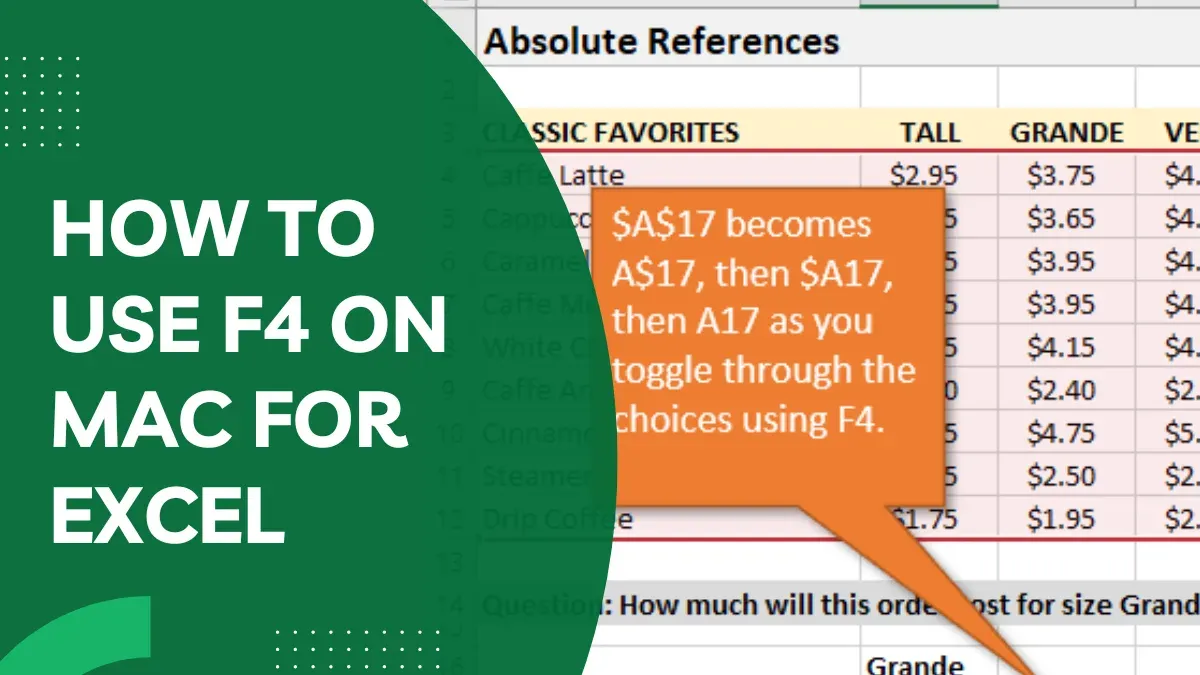
By default, pressing the F4 key on a Mac may trigger system functions like screen brightness or volume. To use the F4 shortcut in Excel, you typically need to press Fn + F4. This combination cycles through the four reference types: relative (A1), absolute ($A$1), mixed with absolute row (A$1), and mixed with absolute column ($A1).
If your function keys are set to perform special features without pressing Fn, pressing just F4 might not work. In this case, use Fn + F4 or adjust your Mac’s System Preferences under Keyboard to change the function key behavior.
- Select the cell containing the formula, then click in the formula bar and highlight the reference A1.
- Press Fn + F4. The reference changes to $A$1, making both row and column absolute.
- Press Fn + F4 again. The reference now appears as A$1, locking only the row.
- Press Fn + F4 once more. The reference changes to $A1, locking only the column.
- Press Fn + F4 a final time to return to the original relative reference A1.
This stepwise toggling saves you from manually inserting dollar signs and helps speed up formula editing on Mac.
Customize Your Mac to Make the F4 Shortcut Work Smoothly
To ensure the F4 absolute reference shortcut functions correctly on your Mac, you need to adjust both macOS and Excel settings. First, check if the function keys are set as standard function keys. Go to System Preferences > Keyboard. Look for the checkbox labeled Use F1, F2, etc. keys as standard function keys. If this is unchecked, your Mac uses these keys for hardware controls like brightness or volume, requiring you to hold the Fn key to access the F4 function. Checking this box allows you to use F4 directly without Fn, but you lose direct hardware key functionality.

- Open System Preferences from the Apple menu.
- Select Keyboard.
- Find and check Use F1, F2, etc. keys as standard function keys if not already checked.
- Close System Preferences; now pressing F4 should act as a standard function key.
Next, within Excel, you can remap shortcuts if the default ones conflict with other commands. Go to Excel > Preferences > Keyboard Shortcuts. Look for any entries using F4 and adjust them or assign an alternative shortcut to toggle absolute references.
Also, check macOS keyboard shortcuts in System Preferences > Keyboard > Shortcuts. Disable or change any shortcuts that use F4 or Fn+F4 combinations to avoid interference.
After adjusting these settings, test the shortcut in Excel by selecting a cell reference in a formula and pressing Fn + F4 (if the standard function keys option is unchecked) or just F4 (if checked). You should see the reference cycle through absolute, mixed, and relative states. If it doesn’t, revisit the settings for conflicts or remapping.
Troubleshoot Common Issues with the F4 Shortcut on Mac
If pressing the F4 key opens Mission Control or another macOS feature instead of toggling absolute references, your Mac’s system shortcuts are likely overriding Excel’s command. To fix this, go to System Settings > Keyboard > Keyboard Shortcuts, then disable or change the shortcut assigned to F4 or Mission Control. This frees the key for Excel’s use.
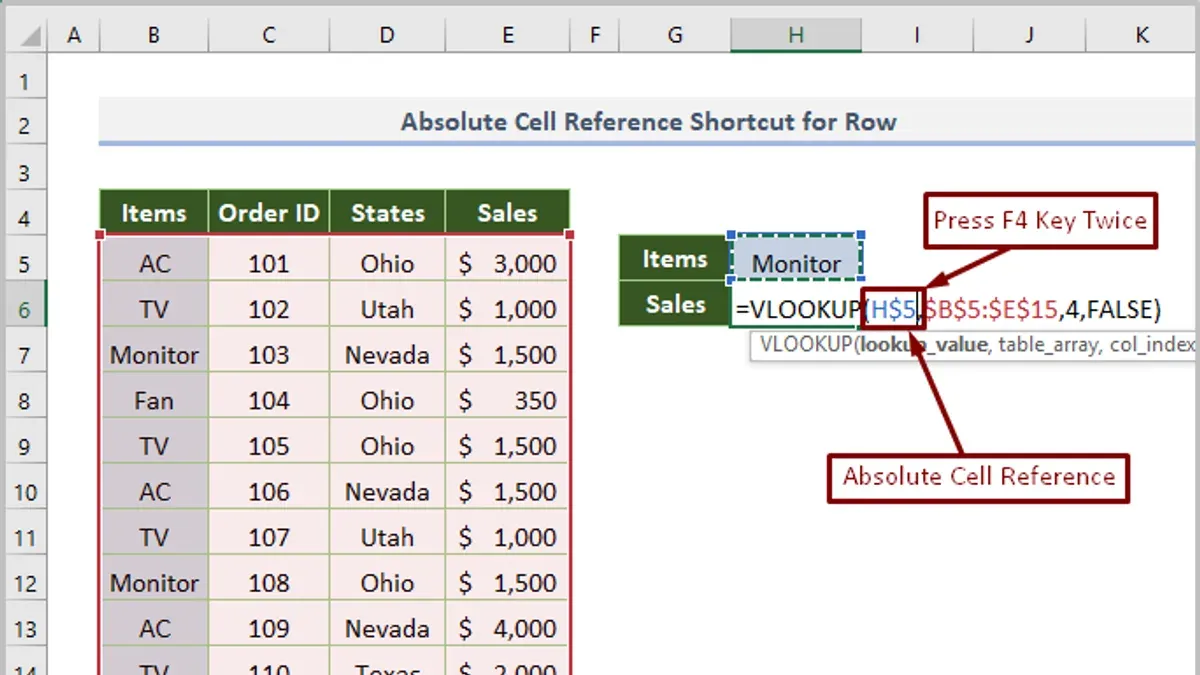
If the F4 shortcut has no effect while editing a formula in Excel’s formula bar, ensure you are pressing Fn + F4 unless you have enabled “Use F1, F2, etc. keys as standard function keys” in System Settings > Keyboard. Without this setting, function keys trigger hardware controls by default, requiring the Fn key to access Excel shortcuts.
Be aware that some Excel versions, especially older or non-Microsoft Store editions on Mac, may not fully support the F4 absolute reference shortcut. Also, certain international keyboard layouts can interfere with how function keys are recognized. If issues persist, check your Excel version and keyboard layout compatibility.
- Press F4 while editing a formula. If Mission Control appears, open System Settings > Keyboard > Keyboard Shortcuts and disable or remap F4 for Mission Control. Now, pressing F4 should toggle references.
- If pressing F4 does nothing, go to System Settings > Keyboard and enable “Use F1, F2, etc. keys as standard function keys.” Then try F4 again without the Fn key.
- If the shortcut still fails, verify your Excel version supports this feature by checking Microsoft’s official documentation or updating Excel to the latest release.
- Test the shortcut with a standard US English keyboard layout if possible, as some layouts may require additional remapping.
Use Alternative Methods to Insert Absolute References on Mac
If the F4 shortcut is unavailable or inconvenient, you can still insert absolute references in Excel on Mac using other methods. One straightforward approach is to manually type the dollar signs ($) in your formulas to fix row, column, or both. While this takes slightly longer than using a shortcut, it ensures accuracy and works universally.
Another way is to use Excel's built-in Formula Builder or the Insert Function dialog. These tools allow you to input cell references and define whether they are absolute or relative without manually editing the formula text. This can be especially helpful if you prefer a guided interface.
You can also create custom macros or Quick Actions that toggle absolute references. For example, recording a macro that adds or removes dollar signs on selected references speeds up repetitive tasks without relying on standard shortcuts. Assigning a keyboard shortcut to your macro further improves efficiency.
Additionally, some third-party add-ins for Excel offer enhanced formula editing features, including quick toggling of reference types. These tools vary in complexity and cost, so consider them if you frequently work with complex formulas.
- Manually edit a formula by typing $ before the column letter and/or row number; your reference should lock accordingly when done.
- Open the Formula Builder (Formulas > Insert Function) and select the cell reference; set its type using available options, then confirm to insert the formula with absolute references.
- Create a macro that toggles dollar signs on selected references; run the macro when you need to switch reference types—Excel will update the formula automatically.
- Explore third-party Excel add-ins that provide reference toggling; install and configure them to streamline formula editing beyond default capabilities.
Frequently asked questions
Why doesn’t the F4 key toggle absolute references on my Mac?
The F4 key may not toggle absolute references because macOS often assigns system functions to the function keys by default. To use F4 in Excel, you might need to hold the Fn key together with F4, or change the setting in System Preferences > Keyboard to use F1, F2, etc. as standard function keys. Additionally, some Mac keyboards or Excel versions may require enabling full keyboard access or customizing shortcuts.
Can I customize the F4 shortcut in Excel for Mac?
Yes, you can customize keyboard shortcuts in Excel for Mac by going to Tools > Customize Keyboard. From there, you can assign a different key combination to the Toggle Absolute and Relative References command. This helps if the default F4 shortcut conflicts with macOS or other app shortcuts.
What is the difference between absolute and mixed references?
Absolute references lock both the column and row in a cell reference (for example, $A$1), so they don’t change when copied. Mixed references lock either the column ($A1) or the row (A$1), allowing partial flexibility when copying formulas. Understanding these helps you control how formulas adjust when moved or copied.
Is there a way to toggle references without using the keyboard shortcut?
Yes, you can toggle reference types manually by editing the formula in the formula bar and inserting or removing dollar signs. Alternatively, you can use the mouse to select the reference and press the Fn + F4 keys or customize a different shortcut. Some users also use Excel’s Formula tab options to manage references.
What This Guide Does Not Cover
This guide focuses exclusively on the F4 absolute reference shortcut in the desktop version of Excel for Mac. It does not cover Excel on iPad or Excel for the web, where keyboard shortcuts and functionality can differ significantly. Additionally, this advice assumes you are using a Mac with macOS system settings that allow customization of keyboard behavior; if you are using a highly restricted or managed device, some steps may not apply. For users who require advanced formula auditing or VBA scripting related to references, specialized resources should be consulted.
To keep improving your efficiency with absolute references, the most useful next step is to practice toggling reference types directly in your own spreadsheets while paying close attention to how your Mac’s function keys and system preferences affect the F4 shortcut. This hands-on approach will help you internalize the shortcut behavior and avoid common pitfalls specific to your Mac setup.
See also: How to Insert Citations in Microsoft Word on Mac: A Step-by-Step Guide · How to Change the Default Font in Microsoft Word on Mac: Step-by-Step · How to Recover Unsaved Microsoft Word Documents on Mac