
How to Fix Your Connection Is Not Private on Mac
Discover quick and effective ways to fix your connection is not private on Mac and regain secure access to websites without interruptions.
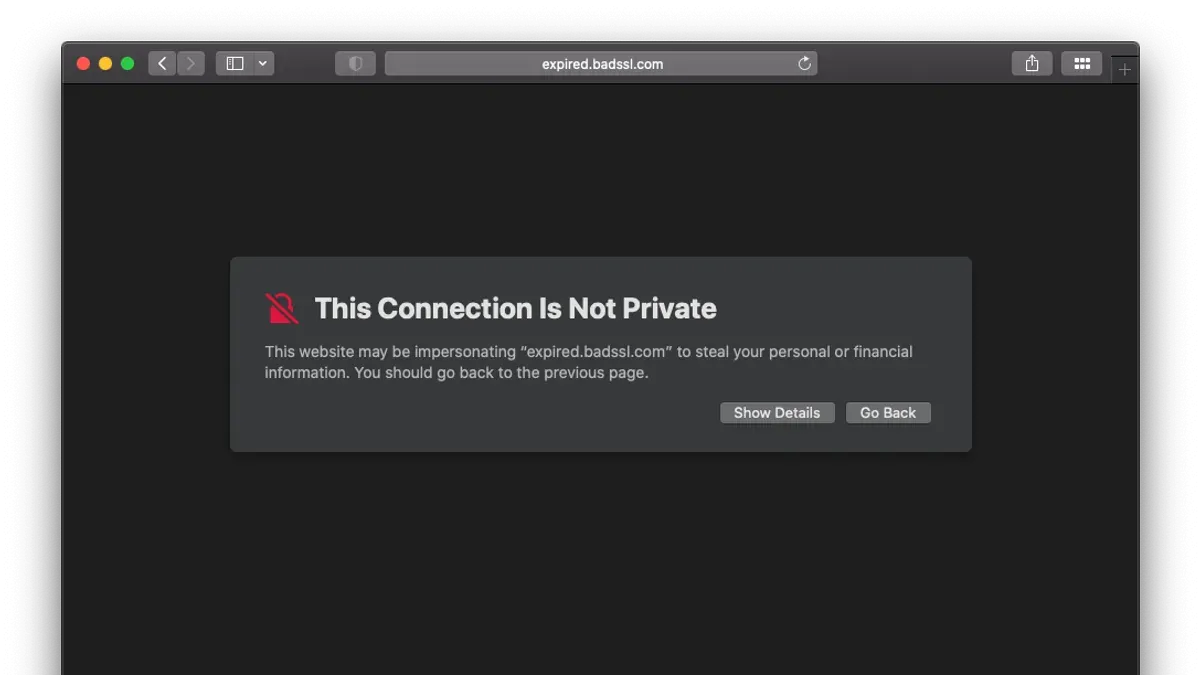
This message can appear in browsers like Chrome and interrupts your ability to access websites securely.
Quick overview of fixing Mac connection privacy issues
- Check and correct your system date and time settings first, as SSL errors often stem from inaccuracies here.
- Identify the exact error message shown to pinpoint the cause before trying fixes.
- Follow a specific order: system settings, browser cache, network checks, then advanced steps.
- Confirm the fix by monitoring your connection over the next days and maintaining proper settings.
How to fix this connection is not private Mac
Caution: A command that starts with sudo runs as administrator: the system asks for your login password and shows nothing while you type it. Read the path twice first — at this level a typo is applied without a second warning.
- Open System Settings and go to General > Date & Time. Ensure Set date and time automatically is enabled and the time zone is correct. If not, adjust these settings and check if the error persists.
- Clear your browser’s cache and cookies to remove any corrupted data that might trigger SSL errors. In Chrome, click the three-dot menu, select Settings > Privacy and security > Clear browsing data, choose Cookies and other site data and Cached images and files, then click Clear data.
- Inspect any VPN or proxy settings that might interfere with your connection. Disable VPN software temporarily or remove proxy configurations via System Settings > Network > Advanced > Proxies. These can cause certificate mismatches leading to the error.
- Update macOS and your browsers to their latest versions. Go to System Settings > General > Software Update to check for macOS updates. In Chrome, open the menu, choose Help > About Google Chrome to trigger update checks. Outdated software can fail to recognize valid certificates.
- Reset network settings by deleting DNS cache. Open the Terminal app and enter
sudo dscacheutil -flushcache; sudo killall -HUP mDNSResponder. This clears cached domain information that might cause connection errors. Use this step only if other methods fail, as it removes cached network data.
| Error message | Cause | Fix |
|---|---|---|
| “NET::ERR_CERT_DATE_INVALID” | Incorrect system date/time | Set date and time automatically |
| “ERR_SSL_PROTOCOL_ERROR” | Corrupted browser cache or cookies | Clear browser cache and cookies |
| “ERR_CERT_AUTHORITY_INVALID” | Interfering VPN or proxy | Disable VPN or remove proxies |
| “ERR_CERT_COMMON_NAME_INVALID” | Outdated system or browser software | Update macOS and browsers |
| “DNS_PROBE_FINISHED_BAD_CONFIG” | Stale or corrupted DNS cache | Flush DNS cache via Terminal |
Why does my Mac keep saying this connection is not private
This validation ensures that your data is encrypted and the site is legitimate.
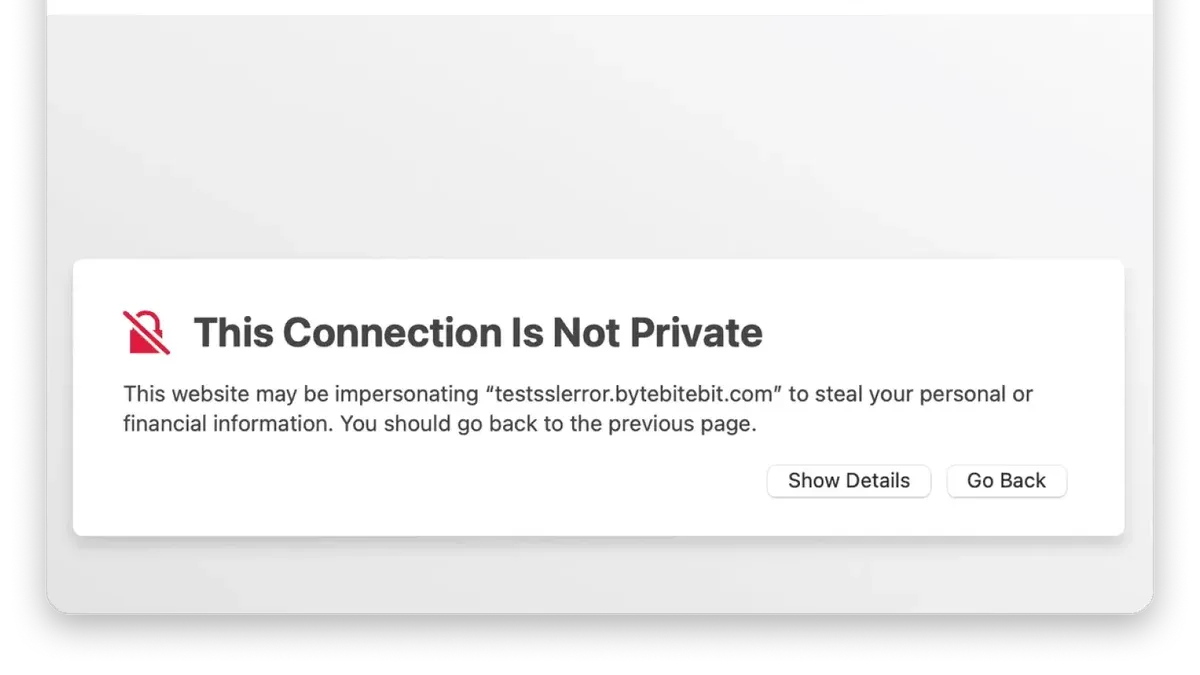
macOS uses your Mac’s clock to verify SSL certificates within their valid periods. If your system clock is off by even a few minutes or days, SSL validation can fail, triggering this error.
Security software running at the browser or system level can also interfere. Some antivirus or firewall applications inspect SSL traffic and may cause false positives by interrupting the secure connection. Similarly, network issues such as captive portals—common in public Wi-Fi—or firewalls can disrupt SSL handshakes, leading to privacy warnings.
This outdated cache might falsely indicate a certificate problem even after the actual issue is resolved.
To address these causes, follow these steps:
- Check the website’s certificate by clicking the lock icon in the browser address bar. If the certificate is expired or untrusted, you should avoid entering sensitive information.
- Ensure your Mac’s date and time are set correctly by going to System Preferences > Date & Time and enabling 'Set date and time automatically'.
- Temporarily disable any antivirus or firewall software to see if they are causing interference.
- Try connecting to a different network to rule out captive portals or restrictive firewalls.
- Clear your browser’s cache and SSL state to remove outdated security data.
How to fix your connection is not private error in Chrome on Mac
The "Your connection is not private" error in Chrome on Mac can stem from browser-specific issues. Start by clearing browsing data and SSL state to remove corrupted cache or cookies that may trigger SSL errors. Navigate to Chrome’s menu via Chrome > Clear Browsing Data, select "All time" for the time range, and clear cached images, cookies, and site data. Then go to chrome://settings/privacy, open "Security," and click on "Manage certificates" to clear SSL state.
Next, disable Chrome extensions that might interfere with security protocols. Extensions like ad blockers or privacy tools sometimes block certificates or modify traffic. Access chrome://extensions/, toggle off all extensions, and reload the page. If the error disappears, enable extensions one by one to find the culprit.
Check Chrome’s security flags to ensure none have been altered to weaken SSL validation. Visit chrome://flags/ and reset all flags to default if you find any related to security or certificates changed. Modified flags can cause Chrome to misinterpret SSL certificates.
Use Chrome’s built-in security diagnostic tools to identify network or certificate issues. Enter chrome://net-internals/#hsts to check for stored HSTS policies that might block sites. You can delete domain security policies here if necessary.
If these steps fail, reinstall Chrome to restore default settings and remove any corrupted files. Download the latest version from Google’s official website and install it after removing the existing app.
- Clear Chrome browsing data and SSL state to remove cached errors.
- Disable all Chrome extensions and reload the page to identify conflicts.
- Reset Chrome security flags to default via
chrome://flags/. - Use Chrome’s security diagnostics at
chrome://net-internals/#hststo clear problematic domain policies. - Reinstall Chrome if errors persist after all other steps.
How to fix your connection is not private on MacBook Air
MacBook Air models have specific hardware and system settings that can influence SSL errors causing the 'Your connection is not private' message. Begin by verifying that your macOS is fully updated, as some MacBook Air updates include critical fixes for networking and security components.
Next, examine your Wi-Fi hardware and connection stability. Unstable Wi-Fi signals or hardware issues can trigger network errors. This will check your Wi-Fi hardware and recommend improvements if problems are detected.
Inspect any third-party security software installed on your MacBook Air. Such applications may interfere with SSL certificate validation and block secure connections. Temporarily disable or uninstall these tools to see if the error resolves.
Finally, test your connection on a different network, such as a mobile hotspot or another Wi-Fi source. This helps isolate whether the issue is tied to your MacBook Air or the network environment.
- Check for and install any macOS updates via System Preferences > Software Update. Confirmation: system shows no pending updates.
- Run Wireless Diagnostics and follow any suggested steps for Wi-Fi stability.
- Reset the SMC following the model-appropriate key sequence; your Mac powers on normally afterward.
- Reset NVRAM by restarting and holding Option + Command + P + R keys; Mac restarts again automatically.
- Disable or remove any third-party security software; verify if error persists.
- Connect to a different Wi-Fi network to confirm if the problem is network-specific.
Order of operations that actually matters when fixing this connection is not private on Mac
Addressing the 'Your connection is not private' error on your Mac requires a precise sequence of troubleshooting steps to avoid confusion and ineffective fixes. Begin by verifying and correcting your Mac's system date and time settings. This step is critical because SSL certificate validation depends on accurate system clocks; incorrect settings lead to persistent errors that no other step will resolve.
Next, clear your browser data, including cache and cookies. Doing this before network resets ensures that outdated or corrupted site data does not mask underlying connection issues or cause repeated error messages after network changes.
After confirming system time accuracy and clearing browser data, proceed to disable any active VPNs or proxies, and temporarily turn off security software. These can interfere with secure connections, but only address them once the foundational settings are correct to avoid misdiagnosing their role.
Only then update your macOS and browsers. Installing updates last ensures that new software versions apply cleanly without being complicated by unresolved system time or cache problems.
Finally, flush the DNS cache to clear stale or incorrect domain information. This step must come after network settings are confirmed to prevent flushing the cache prematurely and potentially losing recent corrections.
Failure to follow this order results in common issues: skipping the date/time step can cause repeated SSL errors despite other fixes; clearing browser data after network resets may hide the real problem; disabling VPNs or security software prematurely can lead to unnecessary troubleshooting of those components; updating software too early might not resolve errors caused by system clock inaccuracies; and flushing DNS before verifying network settings can complicate recovery from network misconfigurations.
- Set the correct date and time on your Mac in System Preferences > Date & Time. Confirm the error is still present or resolved.
- Clear browsing data in your browser’s settings, focusing on cache and cookies. Reload the page to test.
- Disable VPNs, proxies, and any security software temporarily. Check if the error persists.
- Update macOS via System Preferences > Software Update and update your browsers through their respective update tools.
- Flush the DNS cache using the Terminal command
sudo killall -HUP mDNSResponder. This refreshes DNS resolution and should be done last.
- Set correct system date and time
- Clear browser cache and cookies
- Disable VPN/proxy and security software
- Update macOS and browsers
- Flush DNS cache
What to do after fixing your connection is not private on Mac
Once you have resolved the 'Your connection is not private' error, verifying that the fix worked is essential. Start by visiting multiple HTTPS websites such as https://www.apple.com, https://www.google.com, and https://www.mozilla.org to confirm the error no longer appears. If these sites load securely without warnings, your connection is likely restored.
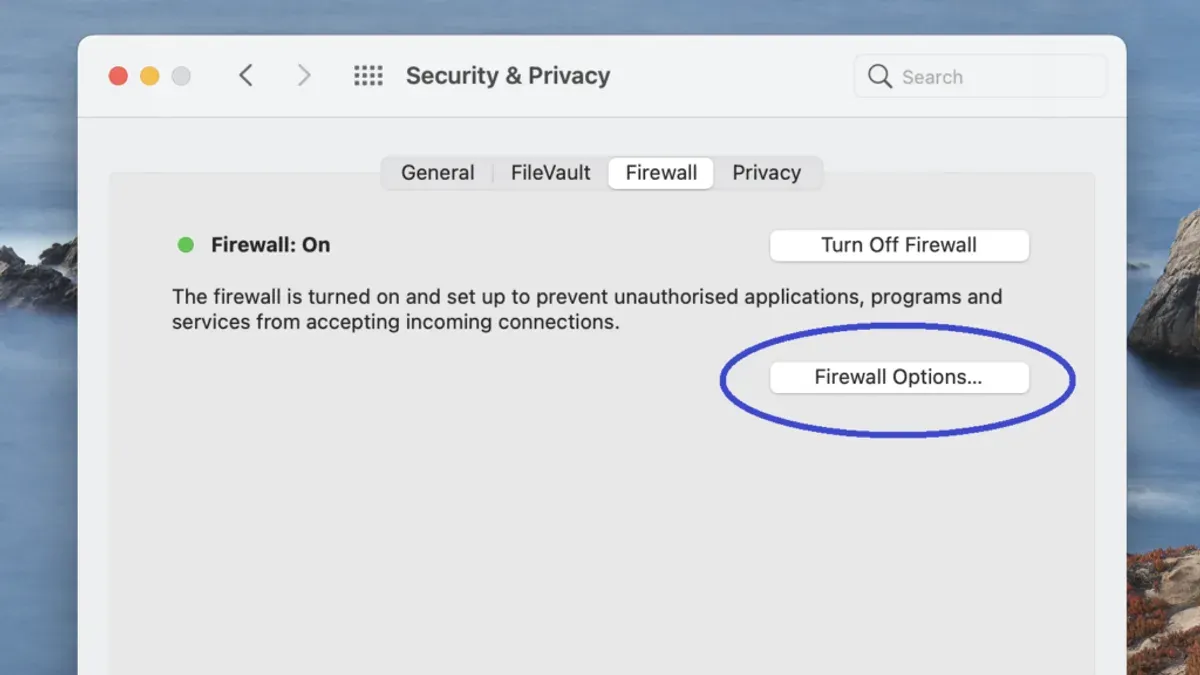
Continue to monitor your Mac over the next several days for any recurrence of similar errors. Intermittent issues may indicate remaining network or certificate problems that need further attention.
Maintaining a secure browsing environment requires regular updates. Check for macOS updates via System Settings > General > Software Update and install available updates promptly. Similarly, keep your browsers updated through their respective update mechanisms or app stores to ensure compatibility with the latest security protocols.
Avoid installing certificates from untrusted sources or adding browser extensions that require extensive permissions unless you fully trust their origin. These can compromise your security and cause certificate validation errors.
Regularly verify your system’s date and time settings under System Settings > General > Date & Time. Incorrect clock settings remain a frequent cause of SSL errors. Also, review your network configurations to ensure you are connected to trusted Wi-Fi or Ethernet networks without unauthorized proxies or VPN software interfering.
- Open your Mac’s browser and visit several HTTPS sites; you should see no privacy warnings if the fix worked.
- Check for macOS updates in System Settings and apply any found; proper updates keep your system secure and compatible.
- Review your browser’s extension list and remove any suspicious additions; this prevents security conflicts.
- Confirm the date and time on your Mac are set to update automatically; this supports valid SSL certificate verification.
- Observe your browsing experience over the next week to ensure no new 'connection is not private' messages appear.
- Test multiple HTTPS websites for error absence
- Install macOS and browser updates regularly
- Remove untrusted certificates and risky extensions
- Verify system date and time settings
- Monitor for recurring errors in the following days
Common network causes behind your connection is not private on Mac
Network configurations often interfere with SSL certificate validation, triggering the 'Your connection is not private' error on Mac. One frequent cause is captive portals found in public Wi-Fi networks. These portals require you to log in or accept terms before granting full internet access. Until you complete this step, attempts to visit HTTPS sites can produce SSL warnings because the portal intercepts and redirects requests, preventing proper certificate verification.
Corporate and public firewalls also contribute to this issue by blocking or inspecting encrypted traffic. Firewalls may block access to certificate authorities or interrupt the SSL handshake, causing certificate validation to fail. This is common in organizations that enforce strict security policies, which can result in error messages indicating unsafe connections.
VPNs can introduce complications as well. Some VPN providers route your traffic through servers with weak or outdated SSL configurations. If the VPN server does not correctly handle SSL certificates, your Mac may flag the connection as insecure. Additionally, VPNs that use split tunneling or proxy settings might expose your traffic to networks with improper SSL setups.
Wi-Fi hotspots with poor SSL configuration are another source of error. These networks might have routers that do not properly support HTTPS traffic or have outdated SSL certificates themselves, leading to validation failures on your Mac.
Testing your connection on a different network helps isolate whether the issue stems from your current network environment. Switching to a mobile hotspot or a trusted home network can confirm if network-specific configurations are responsible.
- Disconnect from your current Wi-Fi network and connect to a known, secure network. If the error disappears, your original network likely involves captive portals or firewall restrictions.
- If connected to a VPN, disable it temporarily and reload the page. The absence of the error indicates the VPN’s SSL handling is the problem.
- Attempt to access a non-HTTPS site or a site known for simple HTTP access to check if captive portal login is pending.
- Connect to a different, trusted network to test SSL error persistence
- Disable VPN services temporarily and check the connection
- Complete any captive portal login pages before accessing HTTPS sites



