
How to Force Kill a Process in Activity Monitor: Step-by-Step Guide
This guide shows you how to force kill a process in Activity Monitor to stop unresponsive apps and regain control of your Mac quickly and safely.
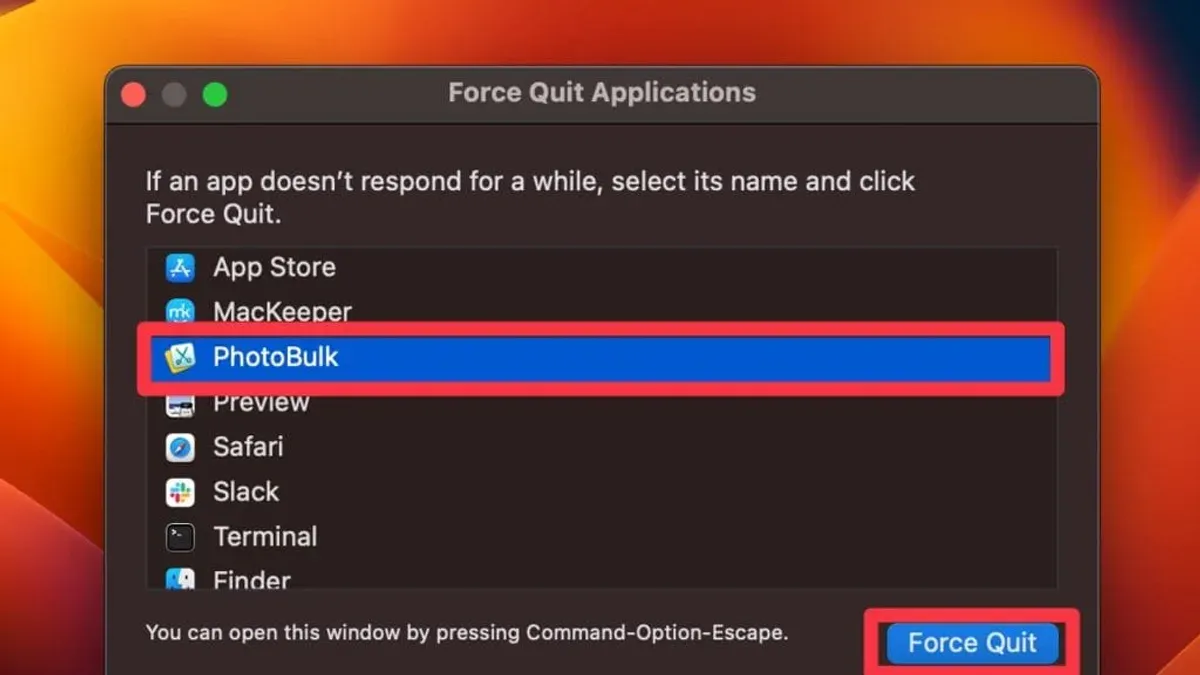
Sometimes, an app on your Mac stops responding and refuses to close, leaving you stuck with no obvious way to regain control. You might have tried clicking the close button or using the Force Quit menu, but the problem persists. In situations like these, knowing how to force kill a process in Activity Monitor can help you safely stop the unresponsive app and get your system back to normal.
This article guides you step-by-step through the process of identifying and force quitting a problematic process using Activity Monitor. Along the way, you’ll learn when it’s appropriate to force kill a process, how to check if the termination was successful, and what to do if you encounter complications. By the end, you’ll feel confident managing your Mac’s processes effectively and preventing future issues.
Key takeaways
- Use Activity Monitor to locate the exact process causing issues before attempting to quit it.
- Always try quitting the process normally before using the force kill option to avoid unintended data loss.
- Verify the process has stopped and check system stability after force killing.
- If force killing fails, troubleshoot common issues like permission restrictions or system processes.
- Proactively manage running processes to reduce the chances of unresponsive apps.
Before You Start: What You Need to Know
Activity Monitor is a built-in Mac utility that shows all the processes running on your computer. It helps you monitor system performance by displaying details like CPU and memory usage. When an app becomes unresponsive or behaves erratically, Activity Monitor lets you see which processes might be causing trouble.
Force killing a process means abruptly stopping it without allowing the app to close normally. This differs from quitting an app the usual way, which gives it time to save data and close files properly. Because force quitting skips this, it can lead to data loss or system instability if used carelessly.
You should consider force killing only when an app stops responding to normal quit commands or is consuming excessive system resources, such as very high CPU usage that slows down your Mac. For example, if a video editing app freezes and refuses to close after trying to quit, force killing the process via Activity Monitor is a reasonable next step.
Before proceeding, make sure you have access to Activity Monitor (found in Applications > Utilities) and a basic understanding of navigating your Mac. This will ensure you can follow the steps confidently and safely.
Open Activity Monitor and Identify the Problematic Process
- Open Activity Monitor: Press Command (⌘) + Spacebar to open Spotlight Search, type Activity Monitor, and press Return. Alternatively, open Launchpad from the Dock, type Activity Monitor in the search field, and click the app icon. You can also navigate via Finder: open Applications > Utilities > Activity Monitor. Once opened, you should see the Activity Monitor window displaying various tabs.
- Familiarize Yourself with the Interface: At the top of Activity Monitor, notice the tabs labeled CPU, Memory, Energy, Disk, and Network. Each tab shows processes sorted by different resource usage. By default, the CPU tab is active and lists all running processes with their CPU usage, Process ID (PID), and other details.
- Locate the Problematic Process: Use the search box in the top-right corner to type the name of the app or process you suspect is causing issues. This filters the list to show matching entries. Alternatively, in the CPU or Memory tabs, sort processes by clicking on the column headers such as % CPU or Memory to see which ones are consuming the most resources.
- Verify the Correct Process: Before proceeding, ensure you are selecting the right process. Some system processes have similar names to apps but are essential for macOS stability. Check the process name carefully, and if uncertain, look it up online or avoid force quitting it. For example, user apps usually have your username listed under the User column, while system processes are often listed as root or _windowserver.
By following these steps, you will have Activity Monitor open and the problematic process clearly identified, setting the stage for deciding whether to quit or force kill it safely.
Try Quitting the Process Normally First
Before you move to force kill a process, it’s best to try quitting it normally. This approach allows the app to close gracefully, saving any open files and releasing resources properly. To do this, select the process in Activity Monitor by clicking on its name. Then, click the Quit button—the octagonal stop sign icon in the top-left corner of the window.
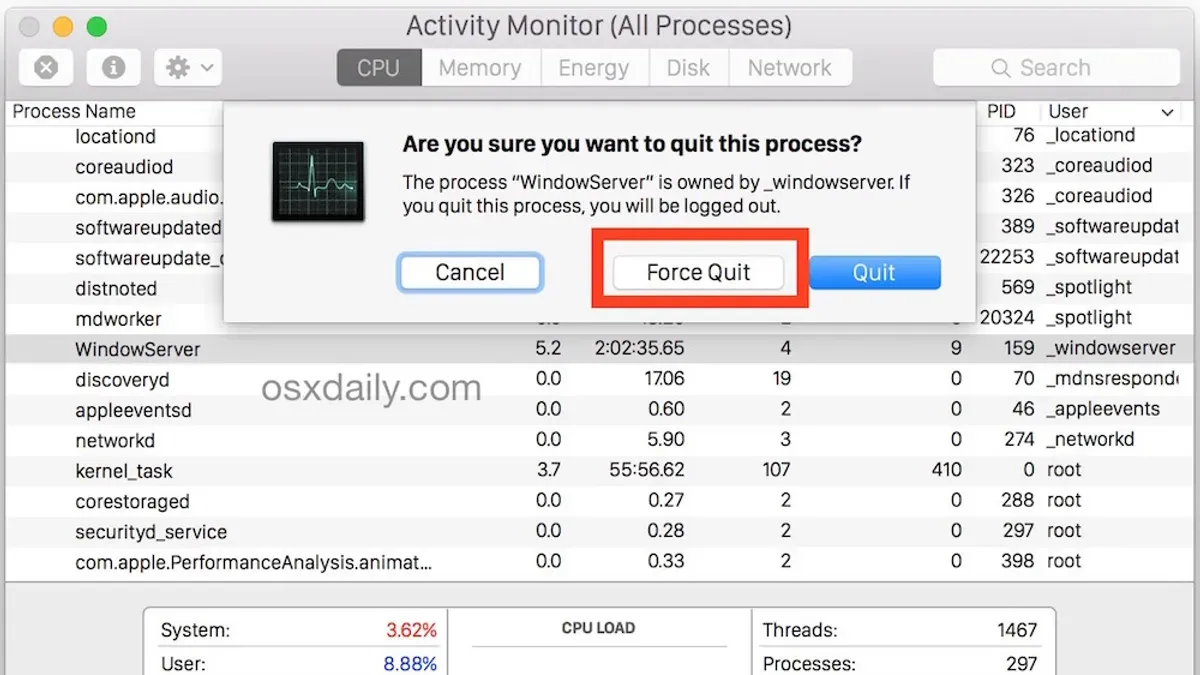
Once you click Quit, a dialog will appear asking if you want to quit the process. Choose Quit to attempt a regular shutdown. If the process responds, it will close cleanly, and you’ll see it disappear from the list in Activity Monitor. This means the system successfully handled the request without risking data loss.
Try normal quitting first because it reduces the chance of corrupting files or causing instability. Force quitting abruptly stops the process without cleanup, which should only be done if the normal quit fails. Signs that normal quitting is not working include the process remaining visible after several seconds, no change in your app’s behavior, or a warning that the app is unresponsive.
- Select the problematic process by clicking its name in Activity Monitor; the process details will appear at the bottom.
- Click the Quit button (octagonal stop sign icon) in the top-left corner.
- In the dialog that appears, click Quit to request a normal shutdown.
- Wait a few seconds to see if the process disappears from the list; if it does, the quit was successful.
Force Kill the Process Using Activity Monitor
Once you have identified the unresponsive or problematic process, you can proceed to force kill it within Activity Monitor. This action should be done carefully to avoid affecting other processes.
- Select the process: Click once on the process name in the list to highlight it. You should see its details populate in the lower pane or side panel, confirming your selection.
- Click the Stop (X) button: Locate the small octagonal stop sign icon with an “X” in the Activity Monitor toolbar, usually at the top left of the window. Click this button to initiate the quit options.
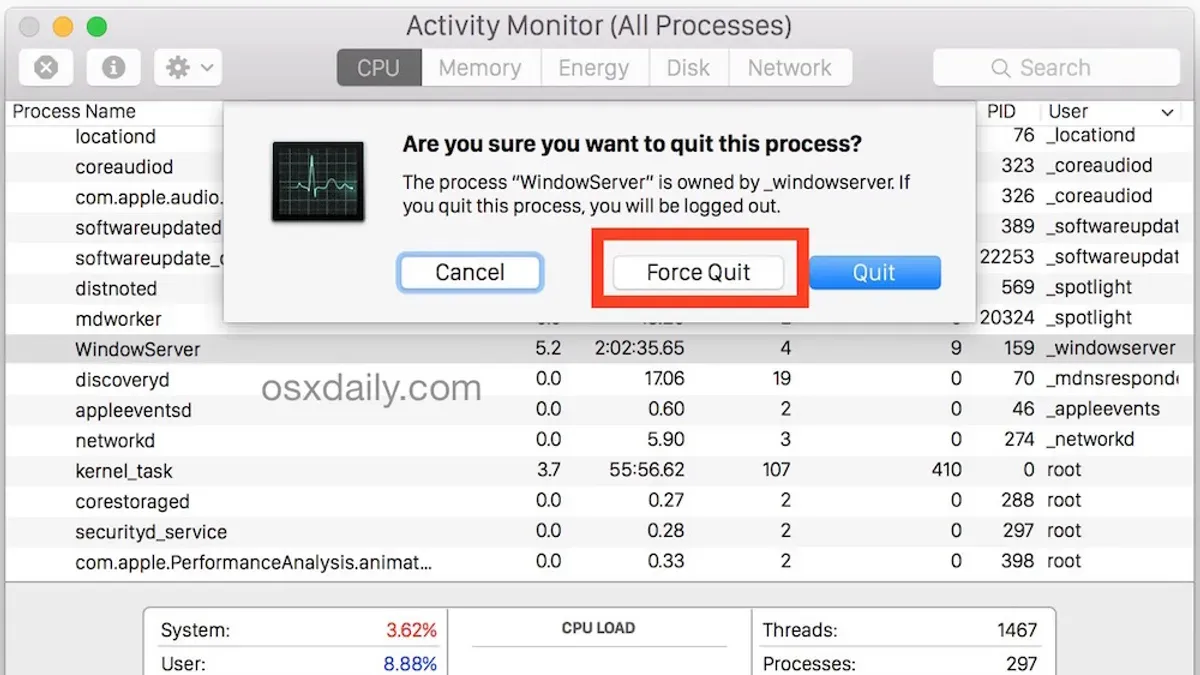
- Choose Force Quit in the confirmation dialog: A pop-up window will appear asking if you want to quit the process. You will see two options: Quit and Force Quit. Select Force Quit to immediately terminate the process.
- Observe confirmation of termination: After selecting Force Quit, the process should disappear from the list within a few seconds. If it remains, the force kill may not have succeeded.
- Verify system feedback: You may notice the application window close or become unresponsive if the force kill is incomplete. Activity Monitor may briefly flash a message confirming the process has exited.
For example, if you are force quitting “Safari,” after selecting it and clicking the Stop button, the confirmation dialog will clearly state: “Are you sure you want to quit ‘Safari’?” with the Force Quit option highlighted. Upon clicking Force Quit, Safari’s process will vanish from the list, confirming the termination.
Verify Process Termination and System Stability
After you have force quit the problematic process, it is crucial to confirm that the process has indeed ended and that your system is stable. Activity Monitor does not automatically refresh, so you need to manually update the list to check if the process is gone.
- Click the View menu in the top menu bar of Activity Monitor and select Refresh Processes. You should no longer see the name of the process you force quit in the list.
- Observe your Mac for any new error messages, unexpected system alerts, or slowdowns. If your system is running smoothly without warnings, it usually means the termination was successful and did not cause side effects.
- If the process reappears quickly or never disappears, it might be a background service or a process with automatic restart enabled. In this case, consider restarting your Mac or researching the process name to understand its role before attempting to force quit again.
For example, if you force quit “Safari Web Content” due to unresponsiveness, refreshing Activity Monitor should remove it from the list. If you still see it after refresh, the process likely restarted, indicating Safari is trying to recover the crashed tab or extension. Monitoring system responsiveness and error messages after force quitting helps you ensure that your Mac remains stable and ready for normal use.
Troubleshoot Common Issues When Force Killing Fails
Sometimes, even after using Activity Monitor’s Force Quit option, a process refuses to terminate. This often happens with system or root processes that macOS protects to maintain stability. If a process remains unresponsive, you can try more advanced steps before considering a full restart or seeking professional help.
One effective method is using Terminal commands. The kill command sends a polite request for the process to quit, while kill -9 forces immediate termination, bypassing the usual shutdown procedures. Be cautious: using kill -9 can cause data loss or system instability if used improperly.
If these commands don’t work, restarting your Mac safely is the next best option. A restart clears stuck processes without risking damage from forced termination. Avoid force quitting critical system processes yourself; this can lead to unexpected behavior or crashes.
If problems persist or you’re unsure which processes are safe to terminate, consider contacting Apple Support or a professional technician. They can help avoid unintended consequences and ensure your Mac remains stable.
- Open Terminal from Applications > Utilities.
- Type
ps aux | grep [process_name]replacing [process_name] with the exact name of the stubborn process; press Enter. You should see the process ID (PID) listed. - Type
kill [PID]and press Enter. This sends a standard quit signal; if successful, the process will disappear from Activity Monitor shortly. - If the process remains, type
kill -9 [PID]and press Enter. This forces immediate termination, which you can confirm by checking Activity Monitor again. - If the process still persists or is a system process, restart your Mac via the Apple menu to clear it safely.
Prevent Future Issues by Managing Processes Proactively
To reduce the need to force kill processes, regularly monitor your system’s resource use with Activity Monitor. Open the CPU and Memory tabs to spot apps consistently consuming high resources, which might cause system slowdowns or freezes. Closing apps properly by choosing Quit from the app menu helps ensure they shut down gracefully, minimizing potential issues.
Keeping your macOS and all installed apps up to date is another key step. System updates often include bug fixes and performance improvements that reduce crashes and unresponsiveness. Similarly, app updates can resolve compatibility problems that lead to freezing.
Before force quitting any critical app, back up your work or data. Unexpected closures can cause data loss, so saving your progress regularly is a practical precaution.
By monitoring apps and managing their behavior proactively, you can greatly lower the frequency of crashes and freezes, leading to a smoother Mac experience over time.
Frequently asked questions
What is the difference between quitting and force quitting a process?
Quitting a process sends a standard termination request, allowing the app to close gracefully and save any necessary data. Force quitting immediately stops the process without giving it a chance to save or clean up, which is useful when the app is unresponsive. Use force quit only when a normal quit doesn’t work or the process is causing system issues.
Can force quitting a process cause data loss?
Yes, force quitting can lead to data loss because it does not allow the app to save your work or settings before closing. If you have unsaved changes in the application, you may lose them when you force quit. Always try quitting normally first to avoid this risk.
What should I do if I cannot force quit a process in Activity Monitor?
If force quitting fails in Activity Monitor, try restarting your Mac to clear stuck processes. You can also use the Terminal command kill -9 [PID] if you are comfortable with command-line tools. If the issue persists, look for software updates or contact app support as the problem may be deeper.
Is it safe to force quit system processes?
Force quitting system processes is generally not safe because it can cause instability or crashes in macOS. These processes manage essential functions, so only force quit them if you know exactly what you are doing or have specific troubleshooting instructions. When unsure, seek expert advice.
What This Guide Does Not Cover
This guide focuses specifically on force killing processes using the built-in Activity Monitor on macOS. It does not cover force quitting processes on other operating systems like Windows or Linux, nor does it address the use of third-party applications or command-line tools such as Terminal. Additionally, force quitting should always be approached with caution because abruptly terminating processes can lead to unsaved data loss or, in rare cases, system instability.
If you frequently encounter unresponsive processes or system issues beyond occasional app freezes, it may be wise to consult Apple Support or a professional technician. They can help diagnose underlying problems that force quitting alone cannot resolve, such as hardware faults or corrupted system files.
As the next best step, take some time to familiarize yourself with the Activity Monitor’s interface beyond just force quitting. Regularly monitoring CPU, memory, and disk usage can help you spot potential issues early and maintain your Mac’s performance more proactively.
See also: How to Run First Aid in Disk Utility: A Step-by-Step Guide · How to Force Eject a Disk in Disk Utility: Step-by-Step Guide



