
Google Drive Rollout Plan for School Administrators: A Practical Guide
Learn how to create a strategic Google Drive rollout plan for school administrators that ensures smooth adoption and effective collaboration.
Short answer: A successful Google Drive rollout plan for school administrators requires strategic alignment with your school's existing technology ecosystem and user needs. It involves assessing infrastructure readiness, designing phased adoption steps, configuring administrative settings carefully, and providing targeted training and ongoing support.
This article guides you through the unique challenges you face when implementing Google Drive across diverse user groups and infrastructure constraints. You will learn how to evaluate your school's current capabilities, plan a rollout that minimizes disruption, configure settings in the Google Admin console for optimal control, and establish effective training and monitoring processes. Each stage emphasizes decision-making that balances technical possibilities with educational goals, ensuring a smooth and sustainable adoption of Google Drive in your school environment.
Understand Google Drive’s Role in Your School’s Ecosystem
Google Drive is more than a cloud storage service; it is the backbone of a collaborative environment within Google Workspace for Education. It integrates seamlessly with tools like Google Docs, Sheets, Slides, Classroom, and Forms, enabling real-time collaboration among teachers, students, and staff. This integration supports not only teaching and learning but also administrative workflows such as scheduling, data management, and communications.
Unlike traditional file storage, Drive allows multiple users to simultaneously edit documents, providing instant feedback and reducing version control issues. Accessibility is a core benefit: users can access files securely from any device, anywhere, with offline support for low-connectivity environments. Schools gain control through granular sharing permissions and compliance with education privacy standards.
For example, a middle school implementing Google Drive reported smoother lesson planning because teachers could collaboratively update shared curriculum documents, reducing duplication and enabling quicker adaptations. Administrative staff used Drive to securely share student records across departments, improving communication without relying on email attachments. This practical collaboration and secure access highlight why Google Drive is central to modern educational ecosystems.
Assess Your School’s Readiness and Needs
Begin by evaluating your current infrastructure to ensure it supports a smooth Google Drive rollout. Check your internet bandwidth using your network dashboard or speed testing tools; consistent speeds above 50 Mbps per 100 users usually suffice for cloud operations. Review device availability among students, teachers, and staff—are Chromebooks, tablets, or laptops accessible? Also, examine existing storage solutions to identify overlap or gaps that Google Drive will fill.
Next, identify distinct user groups: teachers may require streamlined sharing and collaboration tools, students need intuitive access and assignment submission features, and admin staff often handle document management and compliance. Recognize that each group’s digital literacy varies widely, so plan differentiated training and support accordingly.
Consider barriers such as outdated devices incompatible with Drive’s latest features or policies limiting cloud storage use. For example, a small rural school might have limited bandwidth and older devices, requiring a phased rollout prioritizing faculty training and device upgrades before full student adoption.
- Test and document network speeds and stability
- Inventory devices by user group and assess compatibility
- Map user needs and digital skill levels
- Identify policy or infrastructure constraints
- Prioritize rollout elements based on readiness findings
Design a Phased Rollout Strategy
Begin your Google Drive rollout by selecting a pilot group—such as a single department or grade level—with diverse tech skills and needs. This controlled start helps identify challenges without overwhelming your entire staff. Set a timeline that breaks the rollout into clear phases, each with defined milestones like completing user training, enabling key Drive settings, and achieving baseline adoption rates.
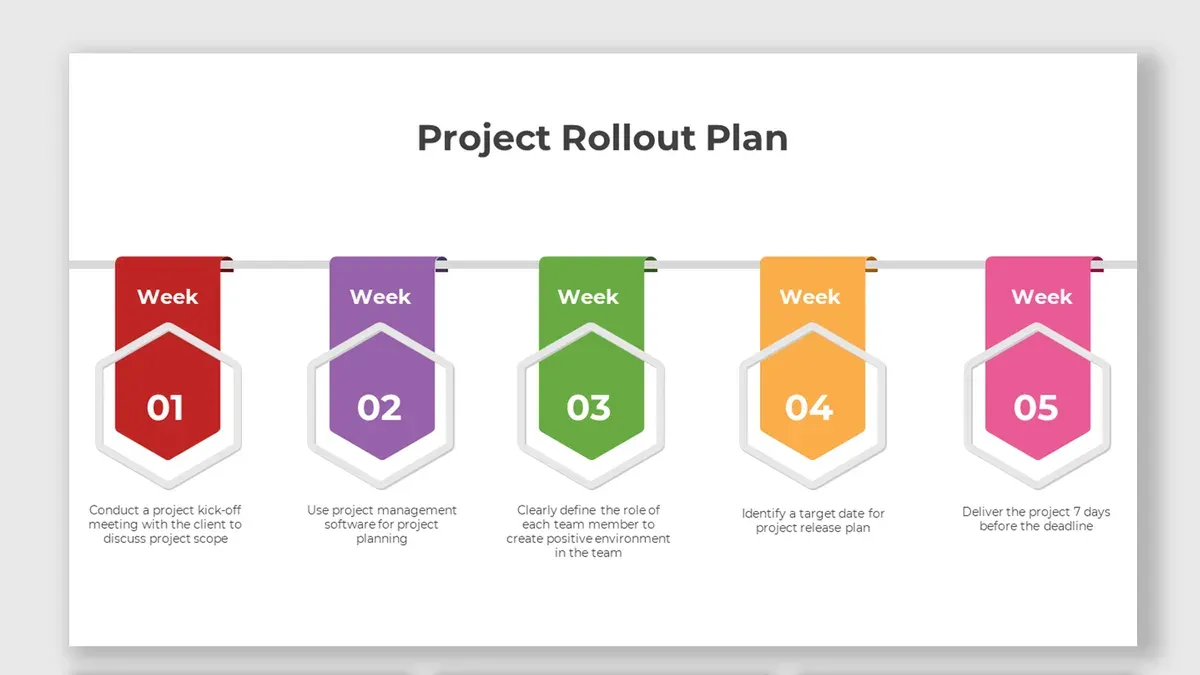
Establish success metrics upfront, such as percentage of active users or number of shared Drive files, to measure progress objectively. Communicate regularly with all stakeholders through emails, staff meetings, and your school’s intranet to build awareness and gather feedback. Engage department heads and tech coordinators as champions to reinforce adoption and troubleshoot issues promptly.
For example, a phased timeline might span three months: Month 1 involves pilot training and initial use; Month 2 expands to two additional departments with adjusted training based on pilot feedback; Month 3 rolls out to the entire school while monitoring adoption metrics and addressing emerging obstacles. This staged approach minimizes disruption and allows you to refine support and communication as you scale.
- Identify pilot group with varied user profiles
- Define clear phases with timelines and milestones
- Set measurable success criteria before rollout
- Develop ongoing communication and feedback loops
- Leverage stakeholder champions for support
Configure Google Drive Settings for School Administration
Begin by accessing the Google Admin console at admin.google.com. Navigate to Apps > Google Workspace > Drive and Docs to manage core Drive settings. Here, you can control sharing permissions, storage limits, and security policies tailored to your school's needs.
Set sharing restrictions under the Sharing settings tab. For example, disable external sharing or limit it to trusted domains to protect sensitive student data and comply with privacy regulations. Enable link sharing only within your domain to prevent unauthorized access.
Organize content by creating Shared Drives aligned with departments, grade levels, or administrative functions. Assign precise user permissions—Manager, Content manager, Contributor, Commenter, or Viewer—to control access and editing rights, avoiding accidental data loss or leaks.
Under Security > Data Protection, activate features like Data Loss Prevention (DLP) rules to automatically flag or block sensitive content. Set up alerts for unusual activity to proactively address potential breaches.
For example, a middle school might create separate Shared Drives for faculty, administration, and students. Faculty drives allow Managers to add and remove members, while student drives restrict editing to prevent accidental file deletion. Storage quotas can be adjusted per organizational unit to manage costs and capacity.
- Access Admin console: Apps > Google Workspace > Drive and Docs
- Set sharing restrictions: disable external sharing or limit to specific domains
- Create Shared Drives for distinct user groups and assign roles carefully
- Enable DLP and security alerts under Security > Data Protection
- Adjust storage quotas per organizational unit as needed
Train and Support Your Users Effectively
To ensure confident and sustainable adoption of Google Drive, tailor training programs to the varying tech skill levels among teachers, students, and staff. For example, novice users benefit from hands-on workshops focusing on basic tasks like creating folders and sharing documents, while more advanced users need sessions on managing Shared Drives and leveraging advanced search features.
Incorporate diverse learning formats: video tutorials allow users to revisit instructions at their own pace, and peer support groups encourage knowledge sharing and troubleshooting. A middle school district using this approach reported positive feedback from teachers who felt more empowered after peer-led sessions, highlighting the value of relatable guidance.
Establish ongoing help channels such as a dedicated Google Drive support email or a chat group monitored by tech staff. Regularly collect user feedback through surveys or quick polls to identify persistent issues and adapt training materials accordingly. For instance, a high school noticed recurring confusion around file versioning, prompting targeted refresher workshops that improved user confidence.
- Segment users by tech proficiency for targeted training
- Combine workshops, videos, and peer support
- Create clear, accessible help channels
- Use feedback loops to refine support efforts
Monitor Adoption and Troubleshoot Common Pitfalls
Monitoring Google Drive adoption starts with using the Admin console's Reports section, where you can access usage metrics like active users, storage consumption, and file sharing activity. These analytics help you spot trends and identify groups lagging behind.
A frequent pitfall is over-permissioning, where users receive broad access rights leading to confusion or accidental data exposure. Another is inconsistent folder structures, which impede collaboration and increase support requests.
For example, a middle school noticed only 40% of teachers actively used Google Drive after rollout. By analyzing Reports, the admin identified that many teachers lacked access to shared curriculum folders due to permission errors. After correcting permissions and standardizing folder templates, adoption rose to over 75% within a few months.
Iterative improvements matter: regularly review usage data, solicit user feedback, and re-engage groups with targeted training or communications to sustain momentum.
- Use Admin console Reports to track active users and storage
- Audit and adjust sharing permissions to prevent over-access
- Standardize folder structures for ease of use
- Analyze adoption data to identify and target low-engagement groups
- Implement periodic check-ins and refresher training sessions
Read next
Frequently asked questions
How do I ensure student data privacy when using Google Drive?
Use Google Workspace for Education’s built-in security features such as data loss prevention and access controls. Limit file sharing to within your school domain and regularly audit sharing permissions via the Admin console under Apps > Google Workspace > Drive and Docs > Sharing settings. Educate users about avoiding external sharing and enable 2-step verification for all accounts to add a layer of protection.
What are the best practices for organizing shared drives in a school setting?
Structure shared drives by department, grade level, or function to maintain clarity and ease of access. Assign clear roles with Manager, Content Manager, and Contributor permissions to control who can add or modify content. Avoid creating too many shared drives to reduce confusion, and regularly archive outdated files to keep the shared drives manageable and relevant.
How can I support teachers who are resistant to adopting new technology?
Provide tailored training sessions that connect Google Drive’s features directly to teachers’ daily tasks and classroom goals. Pair reluctant users with tech-savvy peers for mentorship and emphasize small, achievable steps rather than full adoption at once. Highlight time-saving tools like templates and commenting to demonstrate practical benefits rather than focusing on technical complexity.
What technical requirements should my school meet before rolling out Google Drive?
Your network should have reliable broadband with sufficient bandwidth to handle concurrent cloud storage access, typically at least 10 Mbps per 100 users. Devices need updated browsers that support Google Drive (Chrome, Firefox, Edge), and enabling Google’s recommended APIs and Single Sign-On (SSO) via your identity provider improves user experience. Confirm your Google Workspace for Education license includes Drive and check firewall settings to avoid blocking Google services.
What this guide does not cover
This guide does not cover detailed troubleshooting of individual user technical issues or integration with non-Google tools outside the Google Workspace ecosystem. For complex technical support, consult your IT department or a Google Workspace certified partner. If your school is planning to integrate Google Drive with third-party educational software or custom applications, specialized expertise beyond this guide will be necessary.
Quick checklist
- Verify that Google Drive aligns with your school’s digital ecosystem and educational goals.
- Conduct a thorough readiness assessment including infrastructure, user skills, and administrative policies.
- Develop a phased rollout strategy that accounts for user diversity and resource constraints.
- Configure Drive settings via the Google Admin console, focusing on sharing permissions, data retention, and security policies.
- Provide role-specific training and establish ongoing support channels.
- Monitor adoption metrics regularly and prepare to address common issues like access problems and user resistance.
The most effective next step is to schedule a pilot phase involving a representative group of teachers and staff. This allows you to identify unforeseen challenges, gather user feedback, and refine your rollout plan before wider deployment. Ensuring early engagement and iterative improvement builds momentum and sets a foundation for successful Google Drive adoption across your school.



