How to Block Someone on YouTube: Step-by-Step Guide
This guide shows how to block someone on YouTube with simple steps for desktop and mobile to prevent unwanted interactions.
This guide explains how to block someone on YouTube, providing step-by-step instructions tailored to different devices and scenarios.
Blocking a user or channel on YouTube can prevent unwanted interactions, such as seeing comments or receiving messages from that user. The process varies depending on whether access is through a desktop browser, mobile app, or specific comment moderation tools. Understanding the distinction between blocking a user entirely and restricting comments is crucial for effective management.
The article covers device-specific methods to block users or channels, tips on managing blocked lists, and the limitations of YouTube’s blocking system. This information helps users decide the best approach to control their YouTube experience and maintain a safe, comfortable environment for viewing and interacting.
Before you start: What is needed to block someone on YouTube
Blocking someone on YouTube requires being signed into a Google account linked to YouTube. Without signing in, blocking options are unavailable. Users must distinguish between blocking a channel—which restricts interactions such as commenting—and hiding comments from a user, which only affects comment visibility without limiting the user’s access to the channel.
YouTube blocking features are accessible across multiple devices. Supported platforms include desktop or PC browsers and mobile apps for both iOS and Android. However, the user interface and exact steps differ between these platforms, so knowing the device-specific method helps avoid confusion.
Blocking a user prevents them from commenting on the blocker’s videos or sending messages, but it does not remove the blocked user’s existing videos or content from YouTube. Also, blocking does not hide all comments automatically; some comment filtering may still be necessary.
| Feature | Desktop/PC Browser | YouTube Mobile App (iOS & Android) |
|---|---|---|
| Block user/channel | Available via channel About page or comment menu | Available via channel page or comment menu |
| Hide user comments | Available via comment menu | Limited availability; may require desktop |
| Manage blocked users list | Accessible in YouTube settings | Limited or no direct access; desktop recommended |
- Sign in to YouTube with the Google account. The profile icon appears in the top right corner when signed in.
- Identify the user or channel to block. Typically, this is done by visiting their channel or locating their comment.
- Confirm the device type used (desktop or mobile) to follow the appropriate blocking method.
- Understand that blocking stops new interactions but does not delete existing videos or comments automatically.
Tip: Using a desktop browser offers the most comprehensive blocking and management options compared to mobile devices.
How to block someone on YouTube using a desktop or PC browser
- Open a desktop web browser and go to youtube.com. Use the search bar to find the channel or user to block. This brings up their channel page.
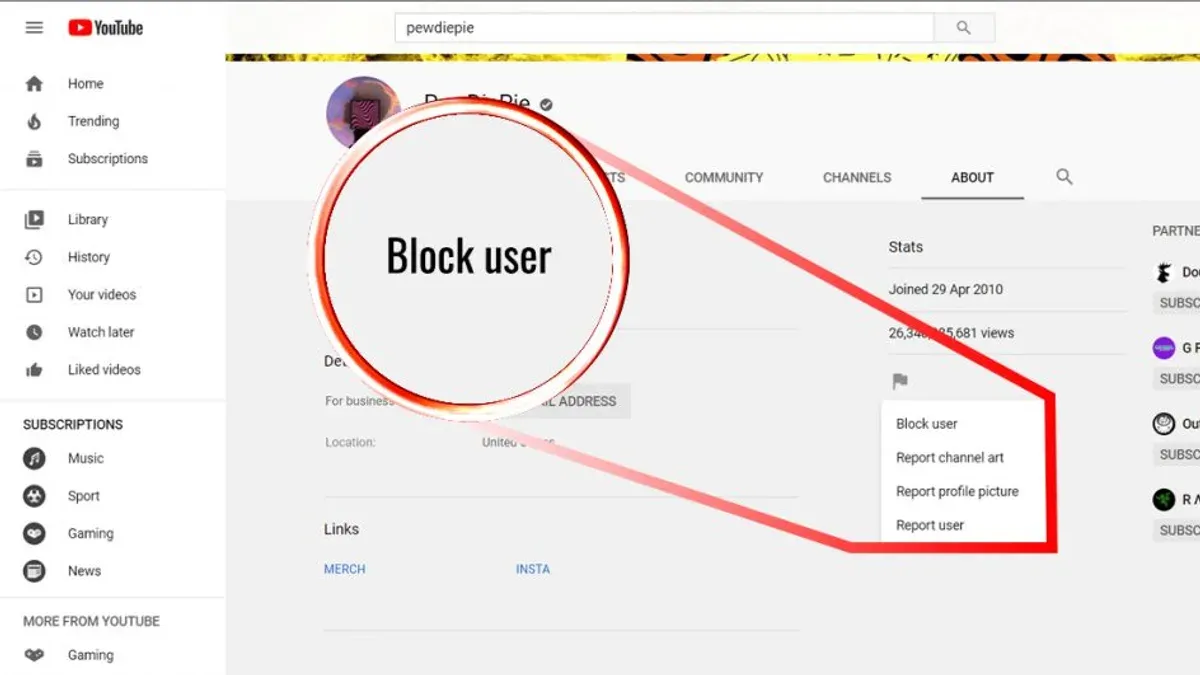
- Click on the user’s About tab, located near the right side of the row of tabs under the channel banner. This opens details about the channel.
- On the About page, find the flag icon (a small flag) near the right side, below the channel stats. Click this icon to open a menu.
- From the flag menu, select Block user. A confirmation dialog will appear explaining that blocking this user will prevent them from commenting on your videos and messaging you.
- Confirm the block by clicking Submit. The user is now blocked immediately, and their comments on your videos will no longer be visible to you or others.
- To unblock, return to the same About tab of the blocked channel, click the flag icon again, and select Unblock user. Confirm the action to restore interactions.
Tip: Blocking a user on desktop stops them from commenting on your videos and messaging you, but it does not automatically remove their existing comments; manual removal may be needed.
How to block someone on YouTube mobile app
Blocking a user on YouTube's mobile app is straightforward but slightly varies between iOS and Android interfaces. Users can initiate blocking either from recent comments or by searching for the channel directly.
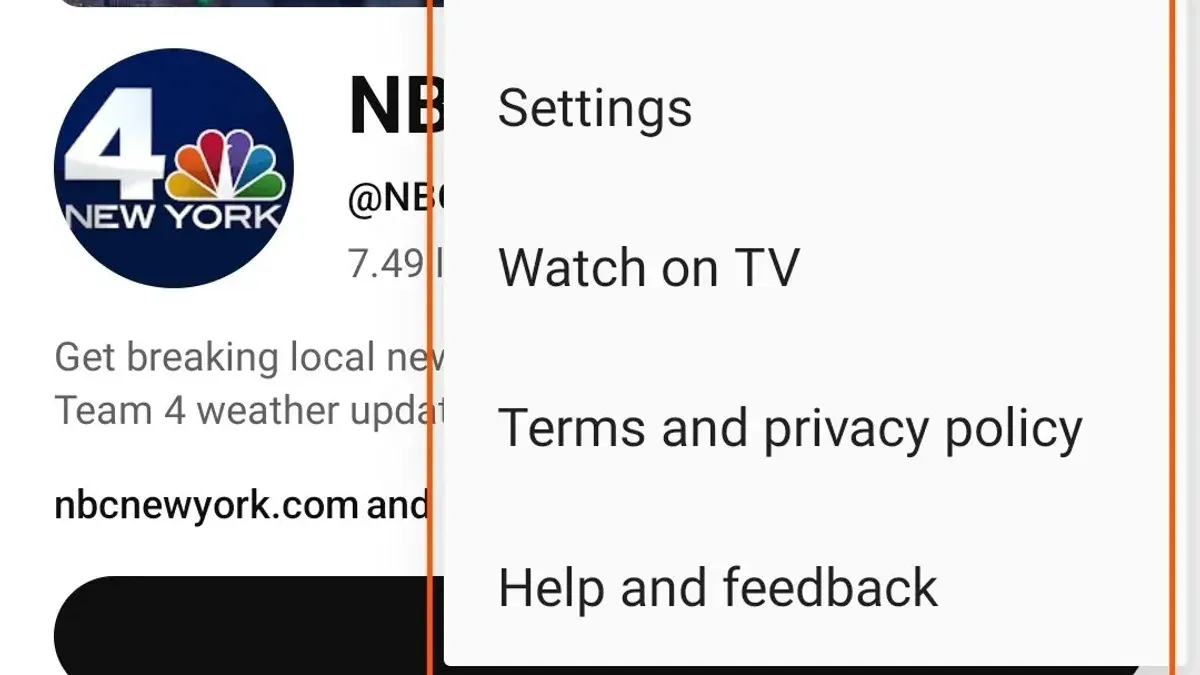
- Open the YouTube app and locate the user by tapping on their username in recent comments or by using the search bar to find their channel. Once on the channel page, tap the three-dot menu icon near the top right.
- In the menu, select "Block user" (Android) or "Block user" (iOS). A confirmation prompt will appear; tap "Block" to confirm. Success is indicated by the menu closing and the user being unable to interact with the account.
- On iOS, the three-dot icon appears as a vertical ellipsis, whereas on Android it may be a vertical or horizontal ellipsis depending on the device. Despite this difference, the blocking steps are essentially the same.
- Blocking a user on the mobile app prevents them from commenting on the blocker’s videos and stops notifications from their activity. However, the blocked user can still view public videos and playlists.
- To unblock on mobile, revisit the blocked user's channel, open the three-dot menu, and select "Unblock user." Confirmation removes the block and restores interaction abilities.
Tip: Access the block option quickly from a comment by tapping the commenter's profile picture or name to go directly to their channel.
| iOS UI | Android UI |
|---|---|
| Three-dot menu icon is vertical ellipsis near top right of channel page | Three-dot menu icon varies but usually vertical ellipsis near top right |
| Confirm block via prompt after selecting "Block user" | Confirm block via prompt after selecting "Block user" |
How to block someone on YouTube comments specifically
Blocking comments from a user is a targeted way to limit unwanted interactions without fully blocking their entire channel. This option hides comments from that user on your videos, while they can still view your content and post elsewhere.
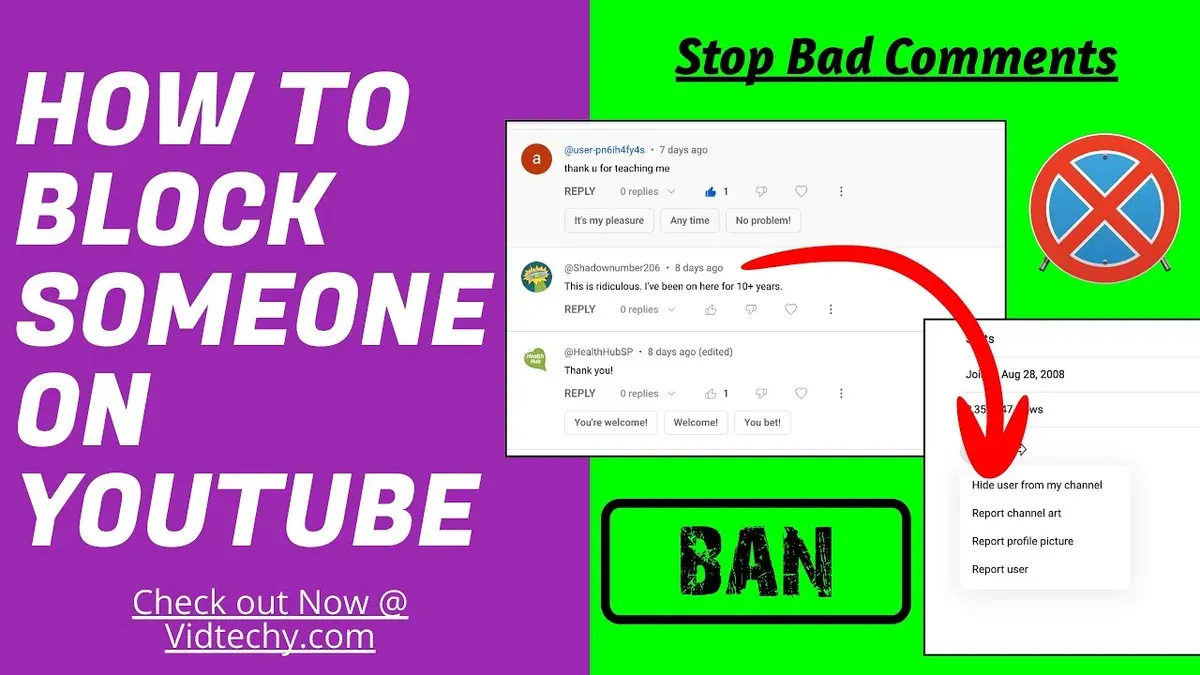
On desktop, hiding comments is done through the channel’s About page. On mobile, this feature is accessed via the user’s profile options. Hiding comments removes the user's comments from public view on your videos but does not notify them, and they can still see their comments as normal.
Difference between hiding comments and blocking a channel: Blocking a channel prevents the user from interacting with your content entirely, including commenting, messaging, and subscribing. Hiding comments only removes their comments from your view without restricting their overall access.
Steps to hide comments from a user on desktop:
- Navigate to the user’s channel and click the About tab. Confirm you see the user’s profile information.
- Click the flag icon in the upper right corner of the About tab and select Hide user from channel. A confirmation message should appear.
- Once confirmed, the user’s comments will no longer be visible on your videos.
Steps to hide comments from a user on mobile:
- Open the YouTube app and go to the user’s channel page.
- Tap the three-dot menu in the top-right corner and select Hide user from channel.
- Confirm the action; the user’s comments will be hidden from your videos.
When to use comment hiding: This method is effective if the goal is to reduce disruptive comments without cutting off all interactions or if the user’s behavior is limited to commenting issues.
Limitations: The user will not see their comments hidden and can still post comments on other videos. Comment hiding does not prevent the user from viewing or subscribing to your channel.
How to block a YouTube channel effectively
Blocking a YouTube channel prevents all interactions from that channel, including comments, messages, and live chat participation. This action stops the blocked channel from commenting on videos, messaging, or otherwise engaging, but it does not remove their videos from public visibility or affect subscriptions unless the channel was subscribed to the user.
To block a YouTube channel:
- Go to the channel’s main page by clicking their name or searching for it. The channel’s homepage should load.
- Click the “About” tab located near the right end of the channel's navigation menu below the banner.
- Click the flag icon found under the statistics section on the right side.
- Select “Block user” from the dropdown menu. A confirmation prompt will appear.
- Confirm the block by clicking “Submit.” A message will confirm that the user is blocked, and they will no longer be able to comment or message.
Tip: Blocking a channel is different from unsubscribing, which only stops video updates without affecting interactions, and from reporting, which notifies YouTube of violations but does not block interaction.
Common misconceptions include thinking blocking removes the channel’s videos from YouTube or hides them entirely. It does not affect video visibility or search results. Subscribers of the blocked channel remain unless they unsubscribe manually. Blocking focuses on halting direct communication and comments from that channel.
Troubleshooting common issues when blocking someone on YouTube
Sometimes the block option on YouTube may be missing or disabled. This often happens if the user has deleted their channel, or if the block function is temporarily restricted due to platform updates or policy changes. Additionally, certain accounts such as brand accounts may have limited blocking capabilities.
If a blocked user still manages to comment or message, it may indicate that the block was not applied correctly or was only done on one device. YouTube's blocking system works per Google account and device, so cross-platform consistency is key.
To verify if a user or channel is truly blocked:
- Go to your YouTube channel's Settings > Community tab > Blocked users. The blocked user or channel should appear in this list.
- Check from another device or incognito mode if the blocked user’s comments or messages are visible. If they appear, the block may not have synced across devices.
Tip: Log out and back into your Google account or refresh your app/browser to ensure changes take effect.
Handling multiple accounts can complicate blocking; ensure the block is applied to all relevant Google accounts used on YouTube. Blocking a user on one account does not block them on another.
When blocking does not resolve harassment or unwanted interaction, escalate by reporting the user/channel through YouTube’s reporting tools or contacting YouTube support. Reporting addresses violations of YouTube’s community guidelines that blocking alone cannot.
Managing your blocked users list and unblocking on YouTube
Reviewing and editing the list of blocked users and channels helps maintain control over interactions on YouTube. The blocked users list is accessible through account settings on both desktop and mobile devices.
Accessing the blocked users list
- Open YouTube and sign in to the Google account.
- On desktop, click the profile icon at the top right and select Settings.
- Navigate to Privacy in the left sidebar.
- Scroll to the Blocked users section to view the list of blocked accounts.
- On mobile apps, tap the profile icon, select Settings, then Privacy, and find Blocked users.
Unblocking a user or channel
- From the blocked users list, locate the user or channel to unblock.
- Click or tap the Unblock button next to the name.
- Confirm the action if prompted; the user or channel will be removed from the blocked list.
- Once unblocked, previous restrictions like blocked comments or messages will be lifted, restoring normal interaction capabilities.
Tip: Regularly reviewing the blocked users list helps avoid unnecessary blocks and keeps control balanced.
Best practices for managing blocked users
Combine blocking with other privacy tools such as comment moderation and restricted mode for a more comprehensive approach. Consider periodically unblocking and reassessing users to ensure the block list remains relevant. Blocking is effective for immediate control but may not address all unwanted interactions, so use it alongside reporting tools when necessary.
Limits of blocking on YouTube and when it may not be enough
Blocking on YouTube restricts direct interactions from a user or channel but does not prevent access to their videos or channel pages. Blocked users can still view content, like videos, and create new accounts to bypass blocks, limiting the long-term effectiveness of blocking as a sole solution.
Hiding comments from a user only removes their comments from appearing on one’s videos; these comments remain visible to the blocked user and others. This partial visibility can reduce the impact of comment hiding when dealing with persistent harassers.
When harassment or abuse occurs, reporting the user to YouTube is essential alongside blocking. Reporting flags violations of YouTube’s policies and can lead to account suspension or removal, addressing behavior beyond what blocking alone controls.
Users facing repeated harassment, stalking, or threats should consider additional safety measures beyond YouTube’s blocking tools. This may include adjusting privacy settings on social media, seeking legal advice, or using third-party tools to manage online presence.
Tip: Blocking is a useful first step but should be combined with reporting and other safety strategies for comprehensive protection.
Further reading
- How to Block Someone on Telegram: Step-by-Step Guide
- How to Block and Unblock Contacts on WeChat: Step-by-Step Guide
- How to Block Someone on Reddit: Step-by-Step Guide
Frequently asked questions
Can you block someone on youtube?
Yes, YouTube allows users to block others to prevent them from commenting on their videos and interacting via messages. Blocking a user restricts their ability to communicate but does not remove their existing comments automatically. This feature helps control unwanted interactions on the platform.
Can i block someone on youtube?
Blocking someone on YouTube is straightforward and can be done through the desktop browser or the mobile app. The process involves locating the user’s channel, accessing the “About” tab, and selecting the block option from the menu. This action stops the blocked person from commenting on the blocker’s content.
How to block someone's youtube channel?
To block a YouTube channel, go to the channel page, click on the “About” tab, and then select the flag icon. From there, choose “Block user” and confirm the action. This prevents the channel owner from commenting on the blocker’s videos but does not stop the channel’s videos from appearing in searches or recommendations.
Can you block someone on YouTube?
Yes, blocking is available on YouTube and is designed to restrict unwanted interactions such as comments from specific users. Blocking is user-specific and must be done individually for each person or channel. It is a useful moderation tool but does not completely hide all content from the blocked user.
How to block someone on YouTube PC?
On a PC, open YouTube in a browser and navigate to the user’s channel. Click the “About” tab, then the flag icon below the channel description, and select “Block user.” Confirming this will prevent the user from commenting on the blocker’s videos when accessed from the desktop or other devices.
Limits of blocking on YouTube and when it may not be enough
Blocking a user on YouTube restricts their ability to comment on videos and send messages from the blocked account, but it does not stop them from viewing public content. Additionally, users can create new accounts to bypass blocks, which means blocking is not a foolproof solution for preventing all unwanted interactions.
For more comprehensive control, consider adjusting channel privacy settings or using YouTube's Restricted Mode to limit exposure to certain content. In cases of harassment or threats, reporting the user to YouTube and, if necessary, to law enforcement is advisable.
The most effective next step is to regularly review and manage the blocked users list through the YouTube settings under Community > Hidden users. This ensures the block list is up to date and allows unblocking if circumstances change.