How to Open.OBJ Files on Mac: A Clear Step-by-Step Guide
Discover practical methods to open and work with.OBJ files on Mac using native tools, free apps, and professional 3D software.
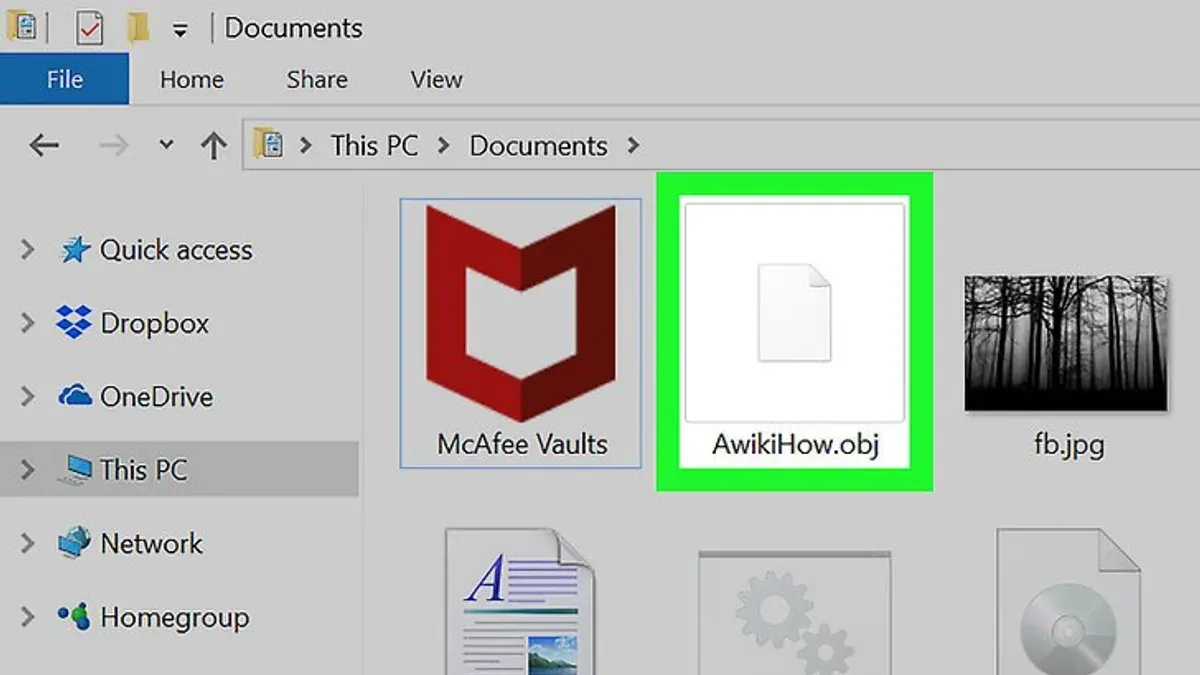
You have a.OBJ file on your Mac and want to view or edit the 3D model it contains. Whether you received the file from a colleague, downloaded it for a project, or are exploring 3D design, understanding how to open.obj file on Mac is essential.
This article walks you through practical methods to open and work with.OBJ files using native macOS tools, free third-party viewers, professional 3D software, and online options. It also covers safe downloading practices, creating.OBJ files, reading their contents, and troubleshooting common issues. By comparing native and third-party applications, you can choose the best approach for your technical comfort and intended use.
Key takeaways
- Use Quick Look or Preview to quickly view.OBJ files without extra software.
- Free third-party apps like MeshLab and Blender offer more detailed viewing and basic editing.
- Professional 3D software such as Blender or Autodesk Fusion 360 enables advanced editing and modeling.
- Online viewers provide a no-installation option but may have file size or privacy limitations.
- Always download.OBJ files from trusted sources to avoid corrupted or malicious files.
Before you start: What you need to open a.OBJ file on Mac
A.OBJ file is a widely used 3D model format that stores geometry and texture data, commonly applied in 3D printing, game development, and design projects. To open and interact with these files on a Mac, you need compatible software and appropriate hardware that meets minimum system requirements.
Most modern Macs running macOS Catalina or later can handle 3D file viewing and editing, but performance depends on your processor speed, RAM, and graphics capabilities. Lightweight viewing tools may require fewer resources than professional 3D editors.
Software options fall into three categories: viewers for quick inspection, editors for modifying models, and converters to change file formats. Popular Mac-compatible viewers include Preview (native but limited), MeshLab, and 3D Viewer. For editing, consider Blender or Autodesk Fusion 360, both of which need a more powerful system and recent macOS versions.
Obtaining.OBJ files safely involves downloading from reputable sources such as Thingiverse, Turbosquid, or Sketchfab. Avoid unverified sites to reduce the risk of corrupted files or malware.
- Check your Mac’s system specifications under Apple menu > About This Mac to ensure compatibility with chosen software.
- Decide your intended use: simple viewing or detailed editing, to select appropriate software.
- Download.OBJ files from trusted platforms, verifying file integrity before opening.
How to open.OBJ file on Mac using native Preview and Quick Look
You can quickly view.OBJ files on your Mac without installing extra software by using Quick Look, a built-in feature that offers basic 3D model previews. Simply select the.OBJ file in Finder and press the spacebar to see a quick rendering.
However, native Preview and Quick Look have limitations: they do not support editing or advanced rendering details like textures or animations. The visualization is basic and primarily for quick inspection.
If Quick Look does not display your.OBJ file properly, it may be because the appropriate plugin is missing or disabled. To enable or install a Quick Look plugin for better 3D previews, you can use third-party plugins such as QL3D, which enhance compatibility.
- Select the.OBJ file in Finder.
- Press the spacebar to activate Quick Look; you should see a simple 3D model preview if supported.
- If the preview does not appear, download and install a Quick Look plugin like QL3D from a trusted source.
- After installation, restart Finder by typing killall Finder in Terminal to apply changes.
- Repeat step 2; the.OBJ file should now preview with improved rendering.
Note that Quick Look previews do not allow you to manipulate or edit the model; they serve only for basic viewing. For comprehensive visualization or editing, consider other software options.
How to open.OBJ file on Mac with free third-party viewers
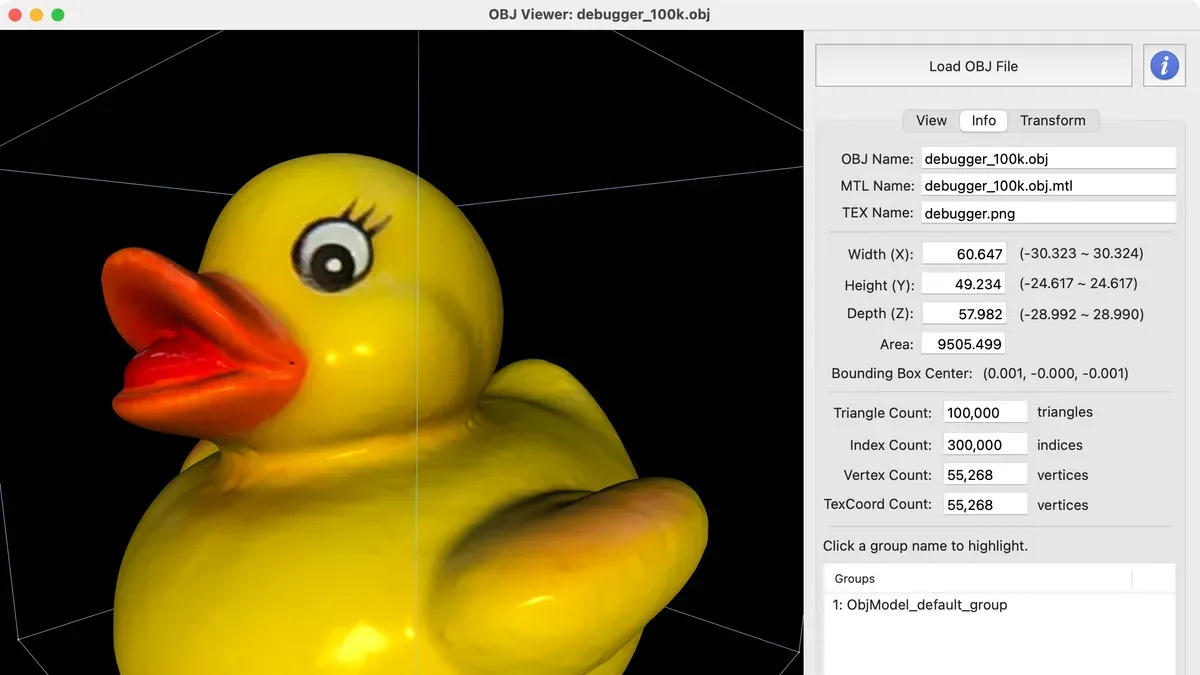
If you want more advanced viewing than macOS’s native tools offer, free third-party apps like MeshLab and Autodesk Viewer provide expanded functionality for handling.OBJ files. Both options support detailed 3D navigation and basic analysis without cost.
MeshLab
- Visit meshlab.net and download the Mac version.
- Install MeshLab by opening the downloaded DMG file and dragging the app to your Applications folder.
- Launch MeshLab, then choose File > Import Mesh from the menu.
- Select your.OBJ file. The model will appear in the main window with interactive rotation, zoom, and pan controls.
MeshLab supports large files and offers mesh cleaning and inspection tools, though its interface can be complex for beginners.
Autodesk Viewer
- Navigate to viewer.autodesk.com in your web browser.
- Create a free Autodesk account or sign in.
- Upload your.OBJ file directly in the browser without installation.
- Use the web viewer’s controls to rotate, zoom, and examine the 3D model interactively.
This browser-based viewer requires no installation, offers quick access, and supports several file formats, but uploading large files depends on your internet speed.
| Feature | MeshLab | Autodesk Viewer |
|---|---|---|
| Installation required | Yes | No |
| File size support | Supports large files well | Depends on internet speed and browser limits |
| Editing tools | Basic mesh editing options | View only |
| Ease of use | Moderate learning curve | Very user-friendly |
| Offline access | Yes | No |
Choosing between these depends on whether you want offline access and editing features or prefer quick, installation-free viewing.
How to open and edit.OBJ files on Mac using professional 3D software
For Mac users who want to go beyond viewing and actually edit or create.OBJ files, professional 3D software like Blender, Autodesk Maya, and Maxon Cinema 4D offer comprehensive tools. These applications support detailed modeling, texture mapping, and exporting capabilities, suitable for advanced workflows.
| Software | Pricing | Key Features | System Requirements (Mac) |
|---|---|---|---|
| Blender | Free (open source) | Modeling, animation, sculpting, UV mapping, export/import.OBJ | macOS 10.13 or later, 8GB RAM recommended |
| Autodesk Maya | Subscription-based (monthly/yearly) | Advanced modeling, rigging, animation, texture editing,.OBJ support | macOS 10.14 or later, 8GB RAM minimum |
| Cinema 4D | Subscription or perpetual license | Professional modeling, rendering, animation,.OBJ import/export | macOS 10.14 or later, 8GB RAM recommended |
- Download and install your chosen software from its official website. After launching, open the program interface, which typically includes a viewport, toolbars, and menus.
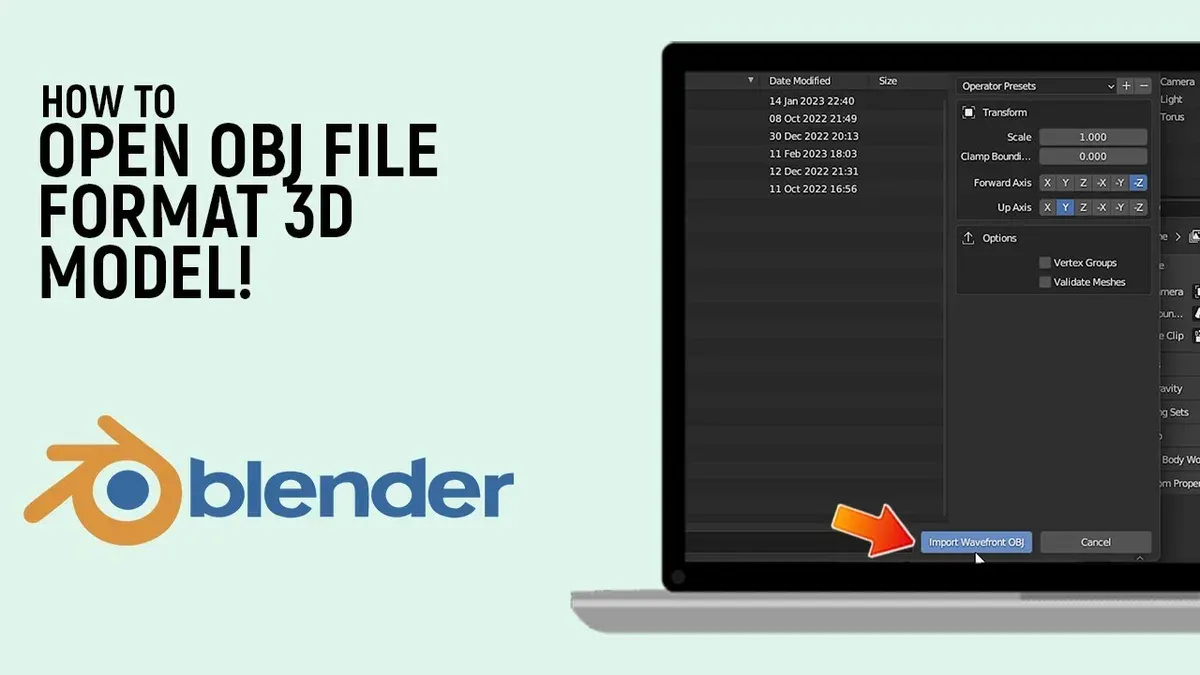
- Import the.OBJ file via File > Import > Wavefront (.obj). Once imported, the 3D model should appear in the viewport, ready for editing.
- Use the software’s editing tools to modify the model. For example, in Blender, enter Edit Mode by pressing Tab, select vertices, edges, or faces, and transform them using move (G), rotate (R), or scale (S) commands. You should see the model update interactively.
- After editing, export your file by choosing File > Export > Wavefront (.obj). Confirm export settings like including textures or normals, then save the updated.OBJ file.
Choose professional 3D software if you require precise control over geometry, textures, and animations. While more complex than simple viewers, these tools provide the flexibility needed for design, game development, or 3D printing projects.
How to open.OBJ file online without installing software
Using online.OBJ viewers is a fast way to open your 3D files without downloading software. Reliable options include Sketchfab, Autodesk Viewer, and 3D Viewer Online. These platforms provide browser-based rendering with intuitive navigation for inspecting your models.
Here’s a step-by-step guide using Sketchfab:
- Visit Sketchfab Upload Page. You should see an upload button labeled “Drag and drop or browse files.”
- Drag your.OBJ file (and associated.MTL file if available) into the upload area. A progress bar will appear, indicating upload status.
- Once uploaded, Sketchfab processes the file and displays your 3D model in an interactive viewer. You can rotate, zoom, and pan the model directly in your browser.
- Use the viewer’s toolbar to adjust lighting or switch rendering modes for better visualization.
Keep in mind that these services often have file size limits, typically ranging from 50 MB to 200 MB, depending on the platform and account type. Also, uploading files to online viewers means your data is stored on external servers, which may raise privacy concerns if your models contain sensitive information.
Compared to desktop apps, online viewers usually offer fewer editing functions and depend on internet connection speed. However, they are convenient for quick previews or sharing models without software installation.
How to get and download.OBJ files safely on Mac
Acquiring.OBJ files from reliable sources is crucial to avoid malware and ensure the quality of 3D models. Trusted websites such as TurboSquid, Sketchfab, and CGTrader offer a wide range of free and paid.OBJ files with clear licensing information. These platforms are widely used by designers and hobbyists for their extensive libraries and user reviews.
Follow these steps to download.OBJ files safely:
- Visit a reputable site like TurboSquid (turbosquid.com) or Sketchfab (sketchfab.com). You should see a professional layout with user ratings and license details.
- Create an account if required; this ensures you can track your downloads and access licensing terms.
- Choose a file and check the description for file integrity and compatibility notes.
- Download the.OBJ file and accompanying texture files if available.
- Open the.OBJ file in a plain text editor (like TextEdit) to verify it contains readable vertex and face data, ensuring it’s not corrupted or malicious.
Alternatives to downloading include creating your own.OBJ files using 3D modeling software like Blender, which guarantees original and secure content tailored to your needs.
How to make or create a.OBJ file on Mac
You can create.OBJ files either by modeling from scratch using 3D software or by converting existing 3D models from other formats like.STL or.FBX. Blender is a popular free option for both beginners and professionals to design and export 3D models as.OBJ files.
Follow these steps to export a model as an.OBJ file in Blender:
- Open your 3D model in Blender and finalize any edits. You should see your model in the viewport.
- Go to the top menu and click File > Export > Wavefront (.obj).
- In the export dialog, select the destination folder on your Mac and adjust export settings if needed (e.g., include normals, UVs).
- Click Export OBJ. The.OBJ file will be saved to your chosen location.
For converting other formats, tools like Autodesk FBX Converter or online converters can transform.STL or.FBX files into.OBJ. Desktop converters typically offer more control over settings than online options.
Beginner tips: Understand basic 3D modeling concepts such as vertices, edges, and faces before starting. Start with simple shapes and gradually build complexity. Software like SketchUp is beginner-friendly, while Blender offers a wider range of features but has a steeper learning curve.
How to read and understand the contents of a.OBJ file
.OBJ files are plain text files that describe 3D geometry through a structured syntax. Key elements include vertices (points in 3D space), faces (polygons connecting vertices), and normals (directional vectors for surface shading). Each line starts with a prefix: v for vertices, f for faces, and vn for normals.
You can open.OBJ files with any text editor on Mac, such as TextEdit or Visual Studio Code, to view or troubleshoot their contents.
Here is a simple.OBJ snippet with annotations:
| Line | Content | Meaning |
|---|---|---|
| 1 | v 0.000000 2.000000 0.000000 | Vertex at coordinates (0, 2, 0) |
| 2 | v 1.000000 0.000000 0.000000 | Vertex at (1, 0, 0) |
| 3 | v -1.000000 0.000000 0.000000 | Vertex at (-1, 0, 0) |
| 4 | vn 0.0000 1.0000 0.0000 | Normal vector pointing upwards |
| 5 | f 1//1 2//1 3//1 | Face connecting vertices 1, 2, and 3 using normal 1 |
Common errors include missing vertex definitions referenced by faces or truncated files ending abruptly. For example, if a face references a vertex number not present, your 3D viewer might fail to render the model or display errors.
To spot corrupt or incomplete files, check for:
- Sudden file endings without closing faces
- Face lines with vertex indices exceeding the number of vertex lines
- Malformed lines missing expected prefixes
Reading.OBJ files manually is useful for debugging, verifying custom exports, or modifying simple models without complex software.
- Open the.OBJ file using TextEdit or another text editor on your Mac.
- Examine the first few lines for v (vertex) entries; these should list coordinates.
- Locate vn lines if present, indicating normal vectors.
- Find f lines that define faces; verify their vertex indices do not exceed the total vertex count.
- If you see references to non-existent vertices or missing lines, the file may be corrupt or incomplete.
- Save any edits carefully, and reopen the file in your 3D viewer to check if the issue persists.
Troubleshooting common issues when opening.OBJ files on Mac
If your.OBJ file won’t open or shows errors like “File format not supported” or crashes the app, the file may be corrupted or incomplete. Try opening it in a different viewer such as MeshLab or Blender to confirm the problem. If errors persist, re-download the file or get a fresh copy.
Missing textures or materials often occur when the.MTL file linked to your.OBJ is absent or incorrectly referenced. Ensure the.MTL file is in the same folder and paths inside the.OBJ file point correctly to it. If textures still don’t appear, manually re-link them within your 3D software’s material editor.
Large.OBJ files with millions of polygons can cause sluggishness or freezing. Simplify models by reducing polygon count in software like Blender or use viewers optimized for large files. For example, MeshLab handles files up to several hundred MB smoothly, but files above 500 MB may require more RAM or processing power.
Compatibility issues arise because different software interpret.OBJ files variably, especially with complex materials or custom attributes. Exporting.OBJ files with standard settings and avoiding proprietary extensions improves compatibility. When switching apps, test with a simple model first to verify import success.
- Open your.OBJ file in MeshLab. If it fails, try Blender next. If both fail, get a new copy of the file. Successful opening confirms file integrity.
- Check that the.MTL file is in the same directory as the.OBJ. Open the.OBJ in a text editor and confirm the line starting with mtllib points to the correct.MTL filename.
- If textures are missing, open the 3D software’s material editor and manually add or reassign texture files from your project folder.
- For performance issues, open the model in Blender, use the Decimate modifier to reduce polygons by 50%, then save and reopen the file to see improved responsiveness.
- When changing software, export your.OBJ using the default export settings without special options. Import the file into the new app and test for errors before proceeding with complex models.
- How to Open SVG Files on Mac: Step-by-Step Practical Guide
- How to Open MKV Files on Mac: Practical Step-by-Step Methods
- How to Open and Run.jar Files on Mac: A Clear Step-by-Step Guide
Frequently asked questions
How to make a.obj file?
To make a.obj file, you typically create or export a 3D model from software like Blender, Autodesk Maya, or SketchUp. After modeling, use the Export function and select Wavefront (.obj) as the file format, ensuring to include associated files like the.mtl material file if needed.
How to get obj files?
You can get.obj files by downloading them from reputable 3D model repositories such as TurboSquid, Sketchfab, or CGTrader. Additionally, you can obtain.obj files by exporting your own models from 3D design software or receiving them from collaborators.
What programs can open obj files?
Several programs open.obj files on Mac, including native options like Preview for quick viewing and Quick Look. For more advanced viewing or editing, third-party free viewers like MeshLab or professional 3D software such as Blender, Autodesk Maya, and Cinema 4D support.obj files.
How to download obj files?
When downloading.obj files, use trusted sites that clearly list file details and user reviews. Click the download button, and save the file to a known folder on your Mac. Always scan downloads with antivirus software to avoid corrupted or malicious files.
How to create an obj file?
Creating an.obj file involves designing a 3D model in software like Blender or Maya, then exporting it using the Export feature with Wavefront (.obj) selected. Make sure to check export options for including textures and normals to ensure full model details are preserved.
Limits of this guide and who should look elsewhere
This article does not cover advanced 3D modeling techniques or professional-grade animation workflows. If your work involves complex texture mapping, rigging, or rendering at a production level, you should consult specialized resources or training tailored for software like Autodesk Maya, Blender’s advanced features, or Cinema 4D. Additionally, this guide focuses on Mac users and may not fully address Windows or Linux-specific methods.
The single most useful next step is to decide your primary goal with the.OBJ file—whether you simply want to view it quickly, perform basic edits, or engage in detailed modeling. From there, choose the appropriate tool: use Quick Look or Preview for straightforward viewing, free third-party apps like MeshLab or SketchUp Free for basic manipulation, or professional 3D software such as Blender or Autodesk Fusion 360 for editing. Ensuring your Mac meets the software’s system requirements and following the installation instructions carefully will save time and prevent common issues.