
How to Open.epub Files on Mac: Step-by-Step Guide
Discover simple methods to open.epub files on your Mac using Apple Books, third-party apps, or browsers for hassle-free reading.
You have just downloaded an.epub eBook file on your Mac, but double-clicking it doesn’t open the book as expected. Or you received an.epub file from a friend and want to start reading without hassle. Knowing how to open.epub file on Mac can save you time and help you choose the best reading experience.
This article walks you through step-by-step methods to open.epub files using Apple Books, third-party apps like Calibre, and browser-based options such as Chrome or Microsoft Edge. It compares the pros and cons of each to help you decide which approach fits your needs, whether you want simplicity, customization, or cross-device syncing.
Key takeaways
- Apple Books is preinstalled on macOS and offers seamless.epub reading with syncing across Apple devices.
- Third-party apps like Calibre provide advanced library management and format conversion but require installation.
- Web browsers like Chrome or Microsoft Edge can open.epub files with extensions but may lack advanced reading features.
- Check your macOS version to ensure compatibility with Apple Books and other apps.
- Troubleshoot common issues like corrupted files or unsupported formats by verifying the file and updating software.
Before you start: What you need to open an.epub file on Mac
An.epub file is a widely used eBook format designed for reflowable content, making it ideal for reading on various screen sizes. On a Mac, these files can be opened with native tools or third-party software depending on your needs.
Your Mac’s built-in Apple Books app supports.epub files directly, allowing you to open, read, and organize eBooks without additional downloads. However, some.epub files might include advanced formatting or DRM protection that native apps cannot handle.
Alternatively, third-party apps such as Calibre offer extensive management and conversion features for.epub files. Web browsers like Chrome or Microsoft Edge can also open.epub files through extensions or built-in features, though with limited functionality compared to dedicated apps.
Before opening an.epub file, ensure the file is intact and sourced from a reputable location to avoid corrupted content or security risks. Verifying the file extension and size can help confirm file integrity.
| File Format | Common Use | Mac Compatibility |
|---|---|---|
| .epub | Standard eBook format for reflowable text | Native support in Apple Books; supported by many apps |
| .mobi | Amazon Kindle eBooks | Requires third-party apps like Calibre; no native support |
| Fixed-layout documents and eBooks | Native preview and viewing via Preview app |
How to open.epub file on Mac using Apple Books
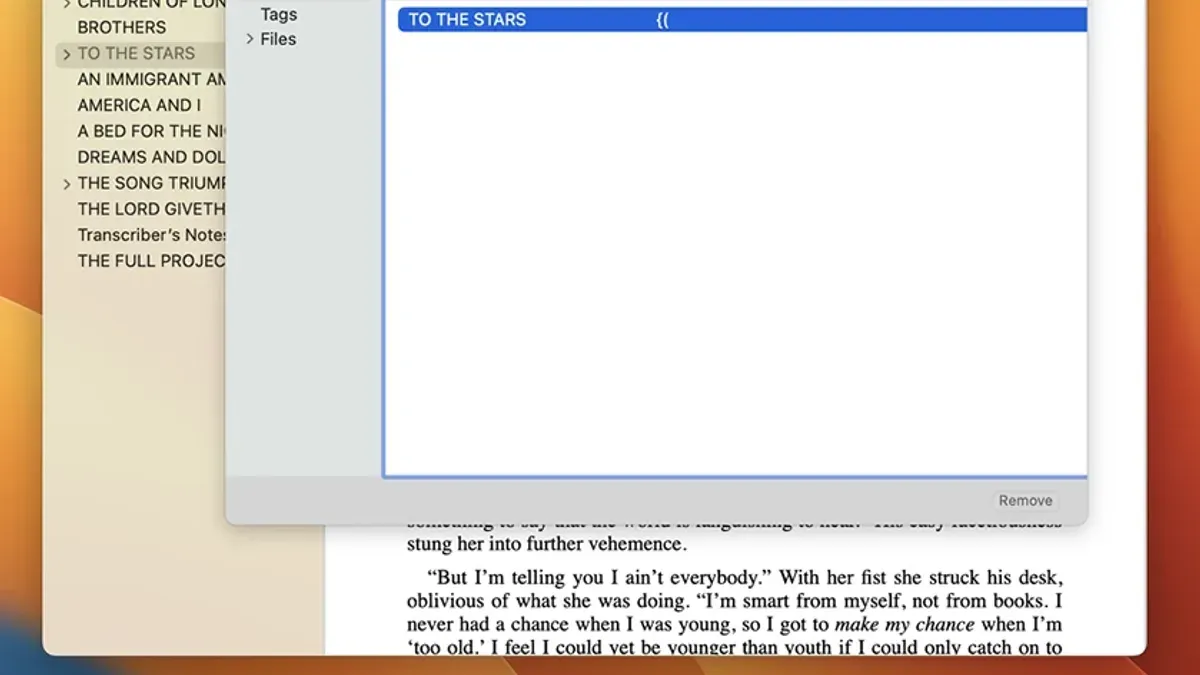
Apple Books is the native app on Mac designed to open and read.epub files with ease. Often, you can simply double-click the.epub file, and it will launch in Apple Books automatically. If that doesn’t happen, you can import the file manually.
- Open the Apple Books app from your Applications folder or Launchpad; you should see your library screen.
- In the menu bar, click File and then select Add to Library….
- Navigate to the folder containing your.epub file, select it, and click Add. The book will appear in your library.
- Double-click the book’s cover in the library to open it.
Apple Books integrates smoothly with macOS features, allowing you to sync reading progress and annotations across Apple devices if you use the same Apple ID. You can highlight text, add notes, and bookmark pages within the app for easy reference.
While Apple Books offers a clean and user-friendly reading experience, it lacks advanced customization options like font embedding, detailed layout controls, or support for some enhanced.epub formats. Some.epub files with complex formatting or DRM protection may not open properly.
Users generally report high success rates opening standard.epub files created for eBooks. The app’s interface clearly shows navigation controls and chapter lists when available, helping you move through the content smoothly.
How to open.epub file on Mac with third-party apps like Calibre
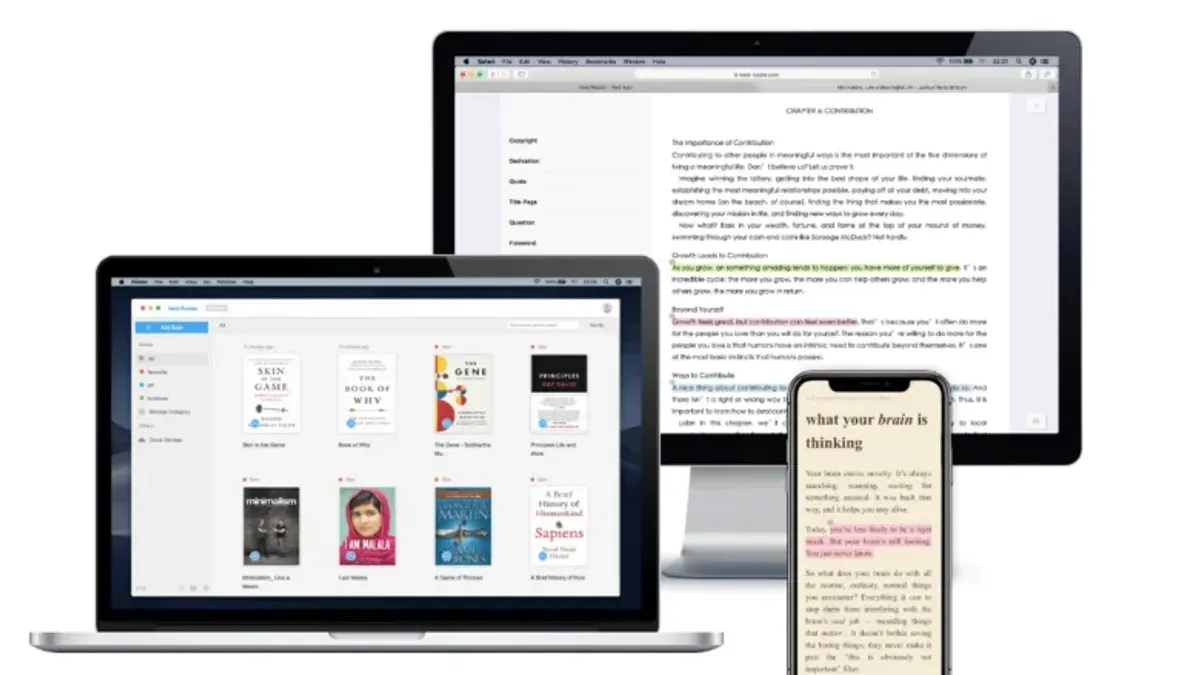
Calibre is a robust third-party application designed for managing eBooks, offering much more than simply opening.epub files. It supports organizing your library, editing metadata, converting formats, and syncing with eReaders, making it a versatile tool if you handle numerous eBooks.
To install Calibre, visit the official website and download the macOS version. Run the installer and follow the on-screen prompts until the app is ready to use. Upon first launch, you will be guided through setting your library location and preferred language.
- Open Calibre, then click the “Add books” button in the top toolbar. You should see a file dialog pop up.
- Navigate to the folder containing your.epub file, select it, and click “Open.” The book will be imported into Calibre’s library view.
- To read the book, select it from the library list and click the “View” button, which opens Calibre’s built-in eBook reader. You will see a clean interface with adjustable font size, background color, and navigation controls.
- If you want to convert the.epub to another format (e.g., PDF, MOBI), select the book and click “Convert books.” Choose your desired output format from the dropdown menu and click “OK.” The conversion progress appears in the bottom-right corner.
Compared to Apple Books, Calibre’s reader focuses on customization and format flexibility but has a less polished user interface and fewer annotation features. However, its powerful library management and conversion tools make it ideal for users needing comprehensive eBook handling beyond basic reading.
Example: Calibre’s conversion options include output formats like AZW3, HTMLZ, and TXT, allowing compatibility with various devices beyond Mac.
How to open.epub files on Mac using web browsers like Chrome or Microsoft Edge
Web browsers can provide a quick way to view.epub files without installing dedicated eBook apps. While native support for.epub is limited, both Chrome and Microsoft Edge allow you to open these files using extensions designed for eBook reading.
Using Chrome:
- Open the Chrome Web Store and search for an "EPUB Reader" extension, such as "Readium" or "EPUBReader." You should see the extension listed with user ratings.
- Click "Add to Chrome" to install the extension. A confirmation dialog will appear; click "Add Extension."
- Once installed, open a new tab and drag your.epub file into the tab or use the extension’s interface to open the file. The eBook content should display within the browser window.
Using Microsoft Edge:
- Go to the Edge Add-ons store and find an.epub reader extension comparable to those for Chrome, like "Readium for Edge."
- Click "Get" and confirm to add the extension to Edge.
- Open a new tab, then drag and drop the.epub file onto the tab or use the extension menu to load the file. The eBook will appear in the browser for reading.
Pros and cons: Browser extensions provide fast access without cluttering your Mac with additional software. They are ideal for quick reading sessions or checking files on the fly. However, browser readers often lack advanced features such as note-taking, library management, or customization of fonts and layouts.
Security tips: Only install extensions from reputable sources and verify user reviews. Avoid opening.epub files from untrusted or unknown origins to reduce risks of malicious content. Keep your browser updated to benefit from the latest security patches.
Performance among extensions can vary; some handle large.epub files more smoothly, while others may lag or fail to render complex formatting correctly. Trying a couple of popular extensions may help you find the best fit for your needs.
How to open.epub file on MacBook and macOS versions
Apple Books is included by default on macOS Sierra (10.12) and later. If your Mac runs an earlier macOS, Apple Books won’t be available, so you need third-party apps for.epub files. On macOS versions from Mojave (10.14) onward, Apple Books supports a wide range of.epub standards with stable performance.
Third-party apps like Calibre or Adobe Digital Editions have system requirements that generally start at macOS 10.10 or later. Check each app’s website for exact compatibility, as some features may be limited on older macOS versions. Updates may be required to maintain compatibility with the latest macOS releases.
Performance differences between MacBook models and desktop Macs are usually minimal for opening.epub files. However, older MacBooks with limited RAM or slower processors might experience longer load times or sluggish navigation in large or image-heavy eBooks.
If you encounter issues opening.epub files due to OS compatibility, ensure your macOS is updated via System Preferences > Software Update. For unsupported versions, consider upgrading the macOS if hardware allows. Alternatively, use browser-based readers as a fallback, which are less dependent on macOS version but have fewer features.
| App | Minimum macOS Version | Notes |
|---|---|---|
| Apple Books | macOS Sierra 10.12+ | Built-in, best for native experience |
| Calibre | macOS Yosemite 10.10+ | Library management, conversion features |
| Adobe Digital Editions | macOS 10.10+ | Supports DRM-protected eBooks |
How to open.epub files on Windows and PC for comparison
Windows users have several effective methods to open.epub files, which can help Mac users understand differences and plan cross-platform reading. Popular apps like Calibre are fully supported on Windows, offering extensive library management, format conversion, and reading features similar to the Mac version. Additionally, Microsoft Edge natively supports.epub files without requiring extensions, providing a built-in browser-based reading option.
Unlike macOS, where Apple Books is the native.epub reader, Windows lacks a dedicated default app for.epub files, so users often rely on third-party applications or browsers. This difference means Windows users may have more app options but less integration with the operating system compared to Mac users.
To transfer.epub files between Mac and Windows, you can use cloud storage services like iCloud Drive, OneDrive, or Dropbox, which keep files accessible across devices. Alternatively, USB drives or email attachments work for one-time transfers. When moving files, ensure they remain intact and uncorrupted to avoid opening issues on either platform.
Cross-platform reading can be streamlined by using apps like Calibre or popular eReader apps available on both macOS and Windows. This allows you to maintain a synchronized library and consistent reading experience regardless of device.
| App/Feature | Mac Availability | Windows Availability | Key Features |
|---|---|---|---|
| Apple Books | Yes (built-in) | No | Native reading, annotation, limited customization |
| Calibre | Yes | Yes | Library management, format conversion, eBook reader |
| Microsoft Edge | Yes (browser-based, extension needed) | Yes (native support) | Quick reading, minimal features, no install needed on Windows |
| Chrome with extensions | Yes | Yes | Browser reading, limited eBook features |
Troubleshooting common issues opening.epub files on Mac
If your.epub file won’t open or shows errors, the first step is to verify the file’s integrity. A corrupted or incomplete.epub often triggers messages like “The file could not be opened” or “Unsupported format.” Redownload the file from a reliable source and try opening it again.
Some.epub files are DRM-protected, meaning they have digital rights management restrictions. If you see prompts about authorization or licenses, the file may require specific software or an account linked to the seller, such as Adobe Digital Editions. Attempting to open DRM-protected books with unsupported apps will fail legally and technically.
When you encounter persistent issues, converting the.epub file to another format like PDF or MOBI can help, especially if your preferred app has trouble reading the original. Tools like Calibre offer conversion options but may not bypass DRM restrictions.
Steps to troubleshoot common errors:
- Confirm the.epub file is fully downloaded and not zero bytes; check file size in Finder (right-click, Get Info). A very small size suggests corruption.
- Try opening the file with Apple Books by double-clicking; if an error appears, note the exact message.
- If the error relates to DRM, verify if you have the required authorization software or credentials.
- Use Calibre to import the.epub; if it fails, try converting the file to PDF or MOBI to test usability.
- Consult official Apple support pages or the app developer’s troubleshooting guides for specific error codes or messages.
Following these steps should resolve most issues or clarify when a file cannot be opened due to protection or corruption.
- How to Open and Play.m4b Files on Mac and Other Devices
- How to Open and Play.flac Files on Mac: Step-by-Step Guide
- How to Open and Play WMV Files on Mac: Practical Step-by-Step Guide
Frequently asked questions
How to open epub file on pc?
To open an EPUB file on a PC, you can use dedicated eBook readers like Calibre or Adobe Digital Editions. Alternatively, web browsers such as Microsoft Edge support EPUB files with extensions or built-in features. After installing an app or extension, open the EPUB file by double-clicking it or using the app’s File > Open menu.
How to open epub file on mac?
On a Mac, the easiest way to open an EPUB file is with the Apple Books app, which comes pre-installed. You can open the file by double-clicking it or dragging it into Books. Third-party apps like Calibre provide more features, and some web browsers can open EPUB files with the right extensions.
How to open epub file on computer?
Whether you use a Mac or PC, opening an EPUB file usually requires an eBook reader app such as Apple Books, Calibre, or Adobe Digital Editions. Some web browsers can open EPUB files if you add an appropriate extension. Choose the method that fits your reading preferences and device capabilities.
How to open file epub?
To open an EPUB file, use compatible software like Apple Books on Mac, Calibre on multiple platforms, or Adobe Digital Editions. You can often open the file by double-clicking it after installation. If you prefer a browser, install an EPUB reader extension for Chrome or Edge and open the file through the browser interface.
How to use.epub file?
An EPUB file contains eBook content readable on compatible apps or devices. After opening it in a reader app, you can navigate chapters, adjust font size, and bookmark pages. Some apps allow highlighting and note-taking, enhancing your reading experience with this flexible file format.
What this advice does not cover and who should consider other options
This article does not cover how to create or edit.epub files, nor does it address DRM removal or piracy-related methods. If you need to modify the content of an.epub file, consider dedicated eBook editing software like Sigil. For readers dealing with DRM-protected files purchased from certain eBook stores, you will need authorized apps or devices that support the specific DRM scheme.
For those who require advanced library management or format conversion beyond basic reading, third-party apps such as Calibre offer extensive features but come with a learning curve. If your primary goal is simple and quick access to.epub files without installing additional software, built-in Apple Books or popular web browsers provide convenient options.
To get started smoothly, open your.epub file directly with Apple Books by right-clicking the file, choosing "Open With," and selecting "Books." This step typically avoids compatibility issues and offers a straightforward reading experience optimized for macOS.



