How to Unsend an Email in Mail App: Clear Steps for Apple Users
Discover simple steps to unsend an email in Mail app on your iPhone or Mac and prevent sending errors with ease.
You just hit send on an email in the Mail app, and suddenly realize you made a mistake. Maybe it was the wrong recipient or a missing attachment—you want to undo sending it immediately. If you've wondered how to unsend an email in Mail app, this guide will walk you through the practical steps to take on your iPhone and Mac.
This article covers how to use the Undo Send feature in the Mail app on iPhone, what options exist for Outlook app users on iPhone, and the limitations of recalling emails after they’ve been sent. You’ll also learn how to delay sending emails to avoid future errors and what to do if you can’t unsend a message when you need to.
Key takeaways
- The Mail app on iPhone offers an Undo Send option that lets you cancel sending within a few seconds.
- Outlook app on iPhone has its own recall features, but they depend on the recipient’s email system.
- Once an email leaves the server, fully recalling it is generally not possible in Apple Mail.
- Setting a delay or scheduled send in Mail app can help prevent accidental sends.
- If you can’t unsend, quickly follow up with a correction or apology to the recipient.
Before you start: What you need to know about unsending emails
When you want to unsend an email, it's important to understand that your ability to do so depends largely on the email service and app you are using, not just your iPhone or device. Terms like "unsend," "recall," and "undo send" describe related but different features. "Undo send" usually refers to a brief grace period after hitting send during which you can cancel the email. "Recall" attempts to retrieve an email after it has been delivered but typically only works under specific conditions.
For example, Apple Mail on iPhone offers an "Undo Send" feature that lets you cancel sending within about 10 seconds after you press send. Similarly, Outlook’s iPhone app provides an undo send window, which you can often set up to 10 seconds or more. Acting quickly is crucial because once the undo window closes, the email is sent and cannot be taken back through these features.
Recall features, such as those available in some versions of Outlook on desktop, try to pull back an email after sending but rely heavily on the recipient also using a compatible email client within the same organization or system. If the recipient uses a different email service or app, recall is unlikely to succeed.
Keep in mind that some of these features require that you have specific app versions or settings enabled beforehand. If the undo send option is not visible, check your app’s settings or update the app. Understanding these limits helps you decide your next steps after sending an email by mistake.
How to unsend an email in Mail app on iPhone using Undo Send
The Mail app on iPhone includes a native Undo Send feature that lets you retract an email immediately after sending it. This option appears as a brief pop-up allowing you to cancel the send action within a short timeframe, typically around 10 seconds. To use this feature effectively, you may need to ensure it’s enabled in your Mail settings.
- Open the Settings app on your iPhone.
- Scroll down and tap Mail.
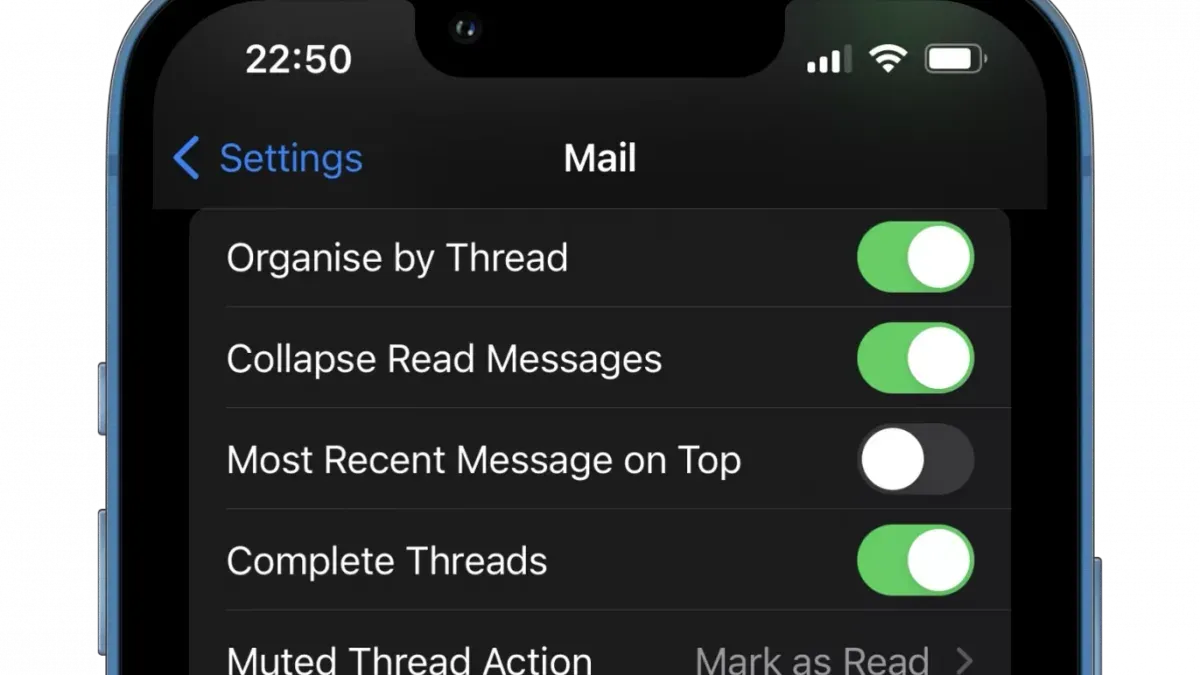
- Find and tap Undo Send Delay (if visible). Here you can select how long the Undo Send option remains available, with choices typically ranging from 10 to 30 seconds. If you don’t see this option, your device uses the default delay time.
- Exit Settings and open the Mail app.
- Compose and send an email as usual.
- Immediately after sending, look for the Undo Send button, which appears at the bottom of the screen in a small banner.
- Tap Undo Send within the available time. The Mail app will retract the email, and the message window will reopen, allowing you to edit or delete the draft.
If you miss the Undo Send window, the email is sent and cannot be retracted using Mail’s native feature. This is why quick action is essential.
To check the Undo Send feature, try sending a test email to yourself and watch for the Undo Send banner. Familiarizing yourself with its location and timing helps you act confidently when needed.
How to unsend an email in Outlook app on iPhone
The Outlook app on iPhone offers an Undo Send feature similar to Apple Mail but with some differences in settings and timing. First, you need to make sure that Undo Send is enabled in the app’s settings. This feature gives you a short window to retract a sent email immediately after sending it, helping you avoid common mistakes.
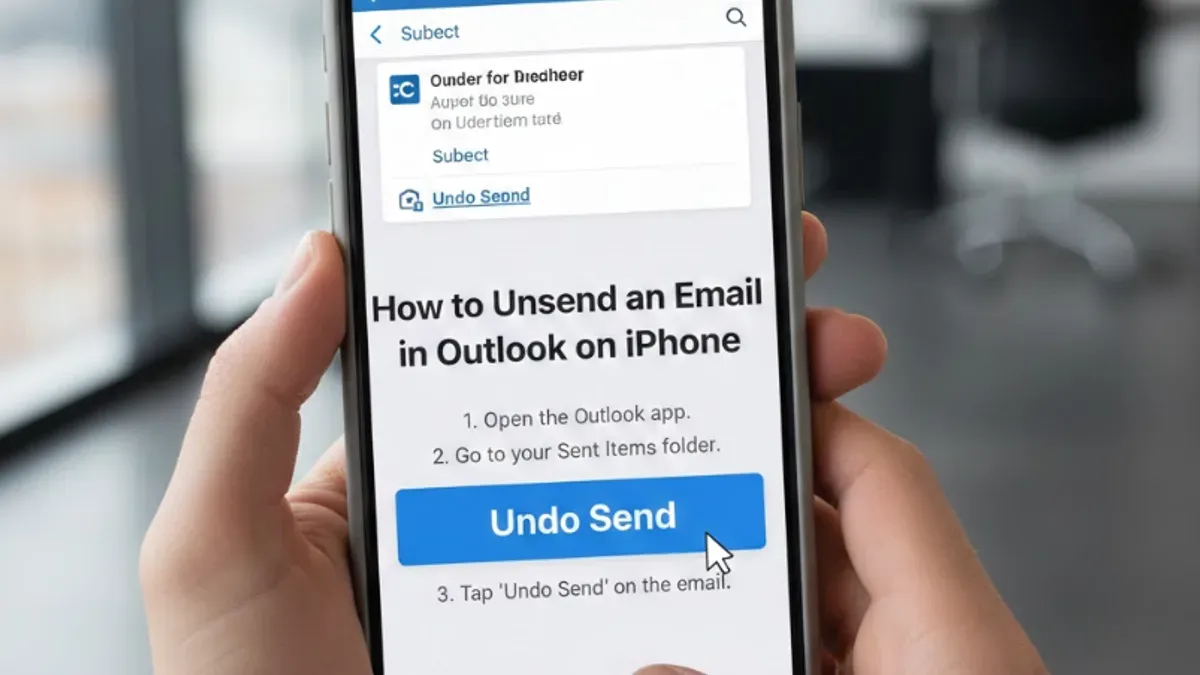
- Open the Outlook app on your iPhone and tap your profile icon in the top left corner.
- Tap the gear icon at the bottom left to open Settings.
- Scroll down to the "Mail" section and select "Undo Send Delay." Here, you can choose the duration of the delay, usually from 3 to 10 seconds. Select the maximum delay for the longest undo window.
- Compose and send an email as usual. After tapping Send, look for the "Undo" option that appears as a small bar at the bottom of the screen.
- Tap "Undo" within the chosen delay period. The email will be pulled back, and you’ll return to the draft to edit or discard it.
Compared to Apple Mail’s fixed 10-second Undo Send window, Outlook lets you customize this time but generally stays within a similar short range. Outlook’s interface shows the Undo option subtly, so it’s easy to miss if you’re not watching.
Besides Undo Send, Outlook also supports a "Delay Delivery" option under settings that lets you schedule emails to send later. This is a proactive way to prevent sending mistakes by giving yourself a longer buffer to review or cancel outgoing mail.
How to recall an email in Mail app on iPhone: What you need to know
The Mail app on iPhone does not support traditional email recall like the Outlook desktop client does. While Outlook on desktop can attempt to recall a sent message under certain conditions, this feature relies heavily on the recipient also using an Exchange server within the same organization, and it only works in limited scenarios. Apple’s Mail app lacks any built-in recall option, so you cannot retract an email once it has left your outbox through the app itself.
Recall is technically possible only if you are sending from an Exchange account and your organization’s mail server supports it. However, even then, the Mail app on iPhone does not offer a user interface to trigger a recall request. This means that while your desktop Outlook client might allow recall, your iPhone Mail app won’t, making recall attempts rare and difficult to execute on mobile.
The limitations arise because recall requests require server-side support and the recipient’s mail client to cooperate. Most email services like Gmail, Yahoo, or standard IMAP accounts do not support recall at all, and even Exchange recall success rates vary widely depending on timing and recipient actions.
If recall is not available in your Mail app, your best alternatives are to use the Undo Send feature immediately after sending or to send a follow-up email clarifying or correcting mistakes. You can also consider delaying email sending using rules on your Mac or Outlook to prevent accidental sends.
How to unsend or recall an email in Apple Mail on Mac
The Apple Mail app on Mac includes an Undo Send feature that lets you retract a sent email quickly, similar to the iPhone Mail app. This feature provides a brief window after sending during which you can undo the action and prevent the email from reaching the recipient. However, unlike some desktop email clients that support message recall through Exchange servers, Apple Mail on Mac does not support recalling an email once it has been sent.
To use Undo Send on Mac, you first need to enable and configure it in the Mail preferences. You can set the delay time for the Undo Send window, allowing you a few seconds to change your mind after hitting send. This is a practical way to avoid mistakes but requires immediate action.
- Open the Mail app on your Mac and go to the Mail menu in the top-left corner of your screen.
- Select Preferences from the dropdown menu.
- In the Preferences window, click the Composing tab.
- Look for the Undo Send Delay option, which lets you choose how long Mail waits before sending the message. You can select a delay from 10 seconds up to 30 seconds.
- Close the Preferences window to save your settings.
- When you send an email, a small Undo Send button appears at the bottom of the Mail window. Click it within the chosen delay time to retract the email.
- After clicking Undo Send, the email will reopen as a draft, allowing you to edit or discard it.
This Undo Send feature on Mac differs slightly from the iPhone Mail app mainly in the settings location and the maximum delay allowed, which can be longer on Mac. Remember, once the Undo Send window closes, the email is sent and cannot be recalled through Apple Mail.
Unlike some specialized Exchange setups on desktops, Apple Mail on Mac does not support traditional recall functionality. If you need to correct a sent email after the Undo Send period, consider sending a follow-up message to clarify or amend the original.
How to delay sending emails in Mail app to prevent mistakes
Scheduling or delaying email sending gives you a safety net to catch errors before your message leaves your outbox. On Apple devices, the Mail app supports scheduling emails both on iPhone and Mac, but the exact options depend on your email provider, such as iCloud or Gmail.
Here’s how you can schedule or delay sending emails in the Mail app on iPhone:
- Compose a new email or reply as usual. When ready, tap and hold the Send button. You should see a menu pop up with options like “Send Now” and “Send Later.”
- Tap Send Later. A scheduling interface will appear allowing you to select a specific date and time for the email to be sent.
- Choose your preferred time—Mail app typically offers options like later today, tomorrow morning, or a custom time and date.
- Confirm your selection. The email will move to the Scheduled mailbox until it’s sent at the chosen time.
On Mac, the process is similar:
- Compose your email. Instead of clicking Send, click the dropdown arrow next to it.
- Select Send Later. A calendar and clock selector will appear.
- Pick your preferred date and time, then confirm.
- The email will be stored in the Send Later folder until dispatched.
Using delayed sending helps prevent mistakes by giving you time to review or cancel sending if you catch an error. However, note that not all email providers support scheduled sending in the Mail app. iCloud and Gmail typically do, but some corporate or custom email accounts may not.
Compared to other apps, Outlook offers more customizable delay options, including setting a default delay time for all emails. The Mail app’s scheduling focuses mainly on manual selection per email.
Troubleshooting: What to do if you can’t unsend an email
If you don’t see the Undo Send option after sending an email, first check that your Mail or Outlook app is updated to the latest version. Sometimes the feature is missing because older app versions lack it or have bugs. Also, verify your email account type; some providers don’t support Undo Send or recall features. For example, Gmail and Exchange accounts generally support Undo Send in Apple Mail, but IMAP or POP accounts may not.
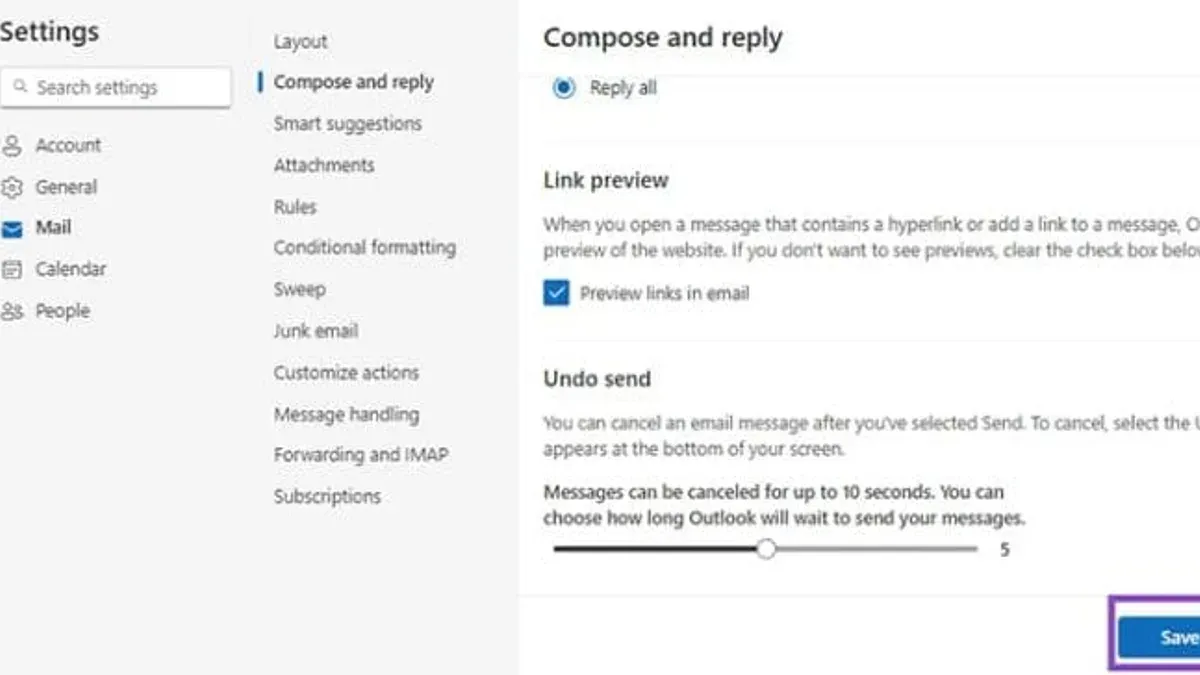
In Apple Mail, go to Settings > Mail > Undo Send Delay and ensure it is set to a value like 10 seconds. In the Outlook app, open Settings > Mail > Undo Send to confirm the feature is enabled and check the delay duration. If these settings are off or set to zero, Undo Send won’t appear after sending.
If the email has already left your Outbox and been delivered, the Undo Send window won’t appear, and you cannot retract the message. In this case, send a follow-up email to clarify or correct the mistake. Remember, some emails—especially those sent to external recipients using standard SMTP—cannot be recalled once delivered. This limitation is not due to app issues but the way email protocols work.
- Update your Mail or Outlook app to the latest version.
You should see Undo Send available after sending an email. - Check your account type supports Undo Send or recall.
Unsupported accounts won't show Undo Send options. - Verify Undo Send settings: In Apple Mail, look under Settings > Mail > Undo Send Delay; in Outlook, check Settings > Mail > Undo Send.
Settings must be enabled with a delay greater than zero. - Confirm the email is still in the Outbox and not delivered.
If delivered, Undo Send option disappears. - If Undo Send is unavailable and email delivered, send a follow-up correction email.
This is the only option to address sent errors.
Common error messages or missing Undo Send buttons usually point to these settings or timing issues. Undo Send is a brief window feature and cannot be extended after it closes or the message is delivered. Understanding these limits helps you avoid confusion and respond appropriately when you can’t unsend an email.
Frequently asked questions
How to unsend email in outlook app?
In the Outlook app on iPhone, you can quickly undo sending an email by tapping the "Undo" button that appears immediately after you send a message. This option is available for a few seconds, so you need to act fast. If you miss this window, Outlook does not offer a traditional recall feature on mobile devices.
How to unsend an email in apple mail?
Apple Mail on iPhone offers an "Undo Send" feature that lets you cancel sending an email within a few seconds after tapping Send. To use it, simply tap "Undo" when it appears at the bottom of the screen. On Mac, there is no built-in unsend option, but you can set a delay to prevent immediate sending.
Can you unsend an email in apple mail?
You can unsend an email in Apple Mail on iPhone only by using the brief "Undo Send" option right after sending. On Mac or other devices, Apple Mail does not support unsending already sent emails, but you can delay sending to avoid mistakes.
How to unsend email in mail app on iphone?
After sending an email in the iPhone Mail app, look for the "Undo" button at the bottom of the screen. Tap it within the few seconds it appears to cancel sending and open the draft again. If you miss this, the email is already sent and cannot be recalled.
How to unsend a mail?
To unsend a mail, your best option is to use the app’s immediate "Undo Send" feature if available, like in Apple Mail or Outlook on iPhone. Otherwise, once an email is sent, traditional recall options are limited or unavailable, especially on mobile devices. Delaying sending or double-checking before sending helps prevent mistakes.
What This Advice Does Not Cover and When to Seek Other Help
This guide focuses specifically on unsending or recalling emails sent through the Apple Mail app and the Outlook app on iPhone and Mac. It does not cover emails sent via other email clients or webmail services like Gmail or Yahoo Mail. Additionally, recall features depend heavily on the recipient’s email system; if they use a non-compatible mail server or client, recall attempts may fail or not be supported. For business or enterprise email systems, especially those running Microsoft Exchange, consult your IT department for recall options that may be configured at the server level.
If you need to manage emails sent through other platforms or require more advanced recall capabilities, explore the specific features of those services or apps. Sometimes the best immediate action after sending a mistaken email is to quickly send a follow-up correction or apology.
The single most useful next step you can take is to enable the Undo Send feature in your Mail app settings or Outlook app. This feature gives you a brief window—usually a few seconds—to cancel sending right after you hit Send, helping you avoid many common mistakes without complicated recall attempts.
See also: How to Block a Sender in the Mail App: Clear Steps for Apple Users · How to Create an Email Signature in the Mail App: Step-by-Step Guide · How to Add a Gmail Account in the Mail App: Step-by-Step Guide