How to Insert PDFs into Freeform: A Clear Step-by-Step Guide
This guide shows you how to insert PDFs into Freeform for annotation, organization, and exporting your boards easily.
You have a collection of PDFs you want to organize and interact with on your iPad or Mac using Freeform. You might wonder how to insert PDFs into Freeform in Freeform, so you can annotate, rearrange, or integrate them seamlessly into your boards without switching apps.
This article guides you step-by-step through inserting PDFs into Freeform and arranging them for easy access. You'll also learn how to convert your Freeform boards back into PDFs for sharing or printing, create fillable PDF forms using Freeform combined with free online tools, and design user-friendly forms without needing additional software.
Whether you're streamlining your workflow or building interactive forms, these practical instructions will help you make the most of Freeform's PDF capabilities.
Key takeaways
- Drag and drop PDFs directly onto your Freeform board for quick insertion and arrangement.
- Export your Freeform boards as PDFs using the Share menu to preserve your layout.
- Use Freeform drawings and text combined with free online converters to create fillable PDF forms.
- Design clear, well-structured form layouts within Freeform for better user interaction.
- Check PDF compatibility and Freeform app updates if you encounter issues inserting or exporting.
Before you start: What you need to insert PDFs into Freeform
Before you insert PDFs into Freeform, you should understand what Freeform can and cannot do with PDF files. Freeform supports importing standard PDF documents for viewing and annotation but does not offer advanced PDF editing features like those found in dedicated PDF editors such as Adobe Acrobat or PDF Expert. You can insert PDFs saved locally on your device or accessed through cloud services like iCloud Drive or Dropbox.
Make sure you have basic familiarity with Freeform’s navigation and toolbar, including how to add objects, move elements, and zoom in or out. This knowledge will help you manage PDFs efficiently once inserted. If you plan to create fillable PDF forms, Freeform alone cannot generate interactive form fields; you will need optional free online tools or software for that step after exporting your board as a PDF.
Examples of supported PDF types include single or multi-page documents saved in the standard.pdf format, scanned documents, or PDF exports from other applications. Unlike dedicated PDF editors, Freeform treats these PDFs mostly as visual elements, so complex form elements or embedded multimedia may not work as intended.
- Locate the PDF file on your device or cloud storage. Once found, you will see the file icon and name.
- Open Freeform and navigate to the board where you want to insert the PDF. You will see the blank or existing workspace.
- Use the Insert menu or drag-and-drop the PDF file onto your Freeform board. The PDF preview or first page will appear as a new object.
Insert PDFs into Freeform and arrange them for easy access
To add PDFs to your Freeform board, you have two main options: drag and drop or use the import menu. Simply locate your PDF file in Finder or File Explorer, then drag it directly onto your Freeform canvas. You will see the PDF appear as a thumbnail. Alternatively, click the + button in the toolbar, select Import, then choose Files to browse and select your PDF. Once inserted, the PDF thumbnail displays the first page of the document.
After adding your PDF, you can resize it by dragging the corners of the thumbnail. Moving it is as easy as clicking and dragging to reposition anywhere on the board. You’ll notice handles appear when you select the PDF, allowing precise adjustments. To annotate, tap or right-click the PDF and choose Add Note or use the drawing tools to sketch directly over or alongside the PDF content.
For organizing multiple PDFs and other elements, layer your content wisely. Use the Arrange menu to Bring Forward or Send Backward so that notes, sketches, or images don’t obscure critical PDF details. Group related items by selecting them together and choosing Group from the context menu for easier management. This layering and grouping help keep your board clear and interactive.
How to convert your Freeform board to PDF for sharing or printing
Exporting your Freeform board as a PDF is a straightforward way to share your work or create a printable archive. Follow these steps to convert your entire board or selected areas into a PDF file efficiently.
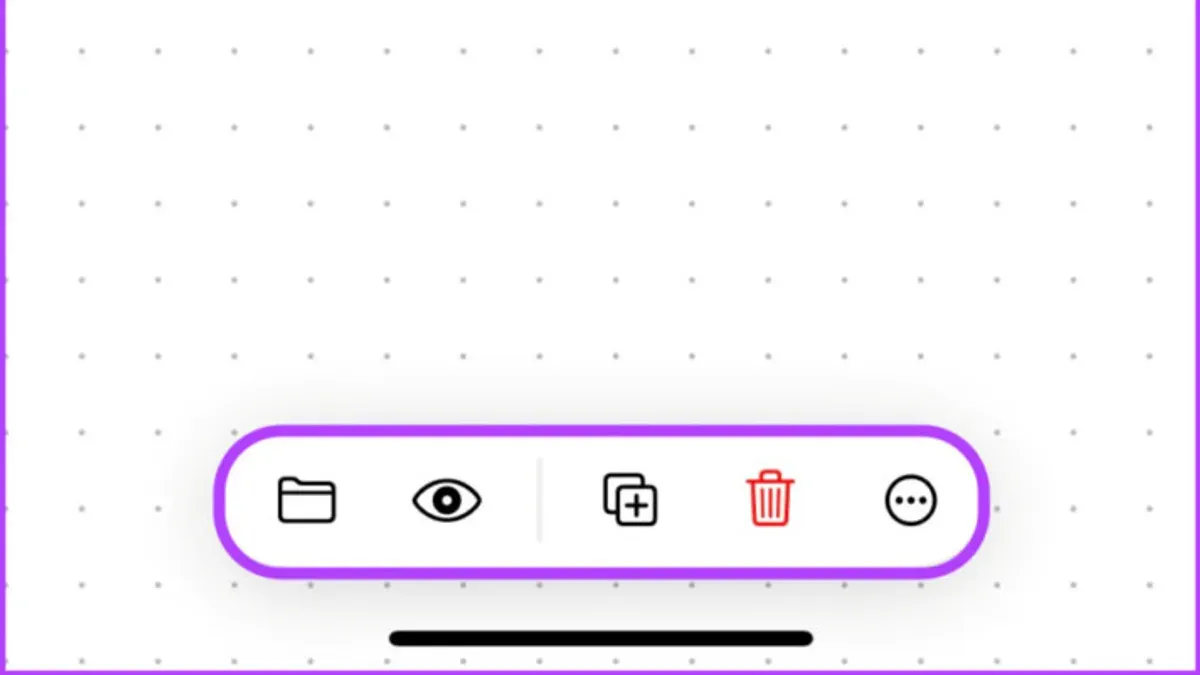
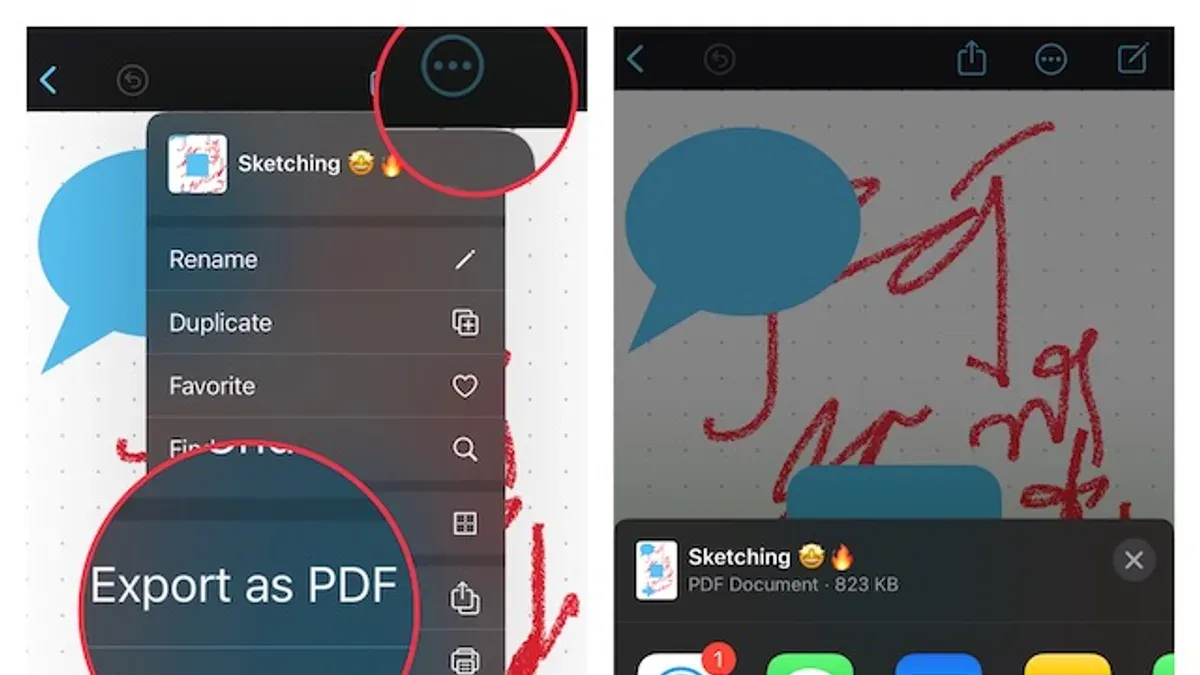
- Open your Freeform board and tap the Share button, typically represented by a square with an upward arrow. You should see several sharing options.
- Select Export as PDF from the share menu. This initiates the PDF creation process and opens a preview of your board as it will appear in the PDF format.
- Use the page selection interface to choose whether to export the entire board or just specific pages or sections. This helps manage file size and focus on relevant content.
- After confirming your selection, tap Export or Save. The app will generate the PDF, which you can then save locally, send via email, or upload to cloud storage.
Keep in mind, Freeform’s PDF export maintains a good balance of quality and file size, but highly complex boards with many images or annotations may result in larger files. If the PDF turns out too large, consider exporting smaller sections or simplifying your board before export.
For example, exporting a moderately sized Freeform board with mixed content typically produces a PDF under 10 MB with clear visuals and readable text, suitable for sharing without further compression.
How to create forms in PDF format using Freeform and free online tools
Start by designing your form layout directly in Freeform using shapes, text boxes, and labels to mark where users will input information. Arrange these elements clearly to define fields such as name, date, or checkboxes for user interaction. Once your layout is complete, export your Freeform board as a PDF through the Share menu to create a static version of your form.
Next, use free online PDF form creators to add interactive fields to your exported PDF. Popular options include PDFescape, JotForm, and Sejda, which offer user-friendly interfaces for adding text fields, dropdowns, and checkboxes without needing to install software. PDFescape stands out for its simplicity and basic editing tools, JotForm offers advanced form logic but may require account creation, and Sejda balances ease of use with moderate feature depth.
To add form fields, upload your PDF to the chosen platform, select the type of form element to insert, and position them over your Freeform layout. Save or download the updated PDF once complete. These tools provide a practical alternative for creating fillable PDF forms without purchasing or installing dedicated desktop software.
How to make forms in PDF: Tips for designing effective and user-friendly forms
Designing PDF forms that users can complete easily improves response rates and reduces errors. Start by placing fields logically in a top-to-bottom, left-to-right order to follow natural reading flow. Label each field clearly and position labels close to the input area to avoid confusion. For example, a well-designed form places the "Name" label immediately above or to the left of the name field, while a poorly designed form may scatter labels far from their inputs, causing users to guess.
Use checkboxes when selections are independent and users can choose multiple options. Radio buttons are best for mutually exclusive choices, ensuring only one option is selected. Dropdown menus save space for long lists but can slow down form completion if overused. For instance, a form asking for preferred contact method might use radio buttons, whereas a state selection would suit a dropdown.
Before sharing your form, test it thoroughly. Check that all fields accept input as expected, tab order moves logically, and required fields are marked clearly. Testing reveals usability issues that can frustrate users and lower completion rates. A form with intuitive navigation and clear instructions encourages full and accurate responses.
Troubleshoot common issues when inserting PDFs into Freeform or creating PDF forms
When PDFs won’t import or display correctly in Freeform, check if the file is corrupted or too large. Freeform may show an error like "Unable to import file" or fail to render some pages. Try opening the PDF in a dedicated viewer first. If it works there, reduce the file size by compressing images or splitting the PDF using online tools, then re-import.
If form fields aren’t interactive or don’t behave as expected after export, confirm you added fillable fields through a PDF editor like PDFescape. Static fields created only in Freeform won’t function. Use the free online tools to add or fix form fields, then re-upload the PDF to test interactivity.
For very complex PDFs with many layers, annotations, or large graphics, Freeform can slow down or crash. Simplify the PDF before importing by flattening layers or converting complicated elements to images. If performance issues persist, consider using dedicated PDF software for editing and form creation to ensure stability.
- Open Freeform and try to import your PDF. If an error appears, note the exact message such as "File too large" or "Unsupported format". This confirms the import problem.
- Open the PDF in a viewer like Preview or Adobe Reader. If the file doesn’t open, replace or fix the PDF source.
- If file size is the issue, use an online compressor (like Smallpdf) to reduce PDF size below 50 MB. Then re-import to Freeform.
- For non-working form fields, upload your Freeform-exported PDF to a free editor like PDFescape, add or fix fillable fields, then save and test again in Freeform or a PDF reader.
- If Freeform crashes or lags, flatten complex PDFs by converting layers to images in a PDF editor, then import the simplified file.
- When repeated problems occur, switch to dedicated PDF form software such as Adobe Acrobat or specialized online platforms for advanced editing and form creation.
Frequently asked questions
How to convert freeform to pdf?
To convert a Freeform board to PDF, open your board, tap the share icon, and select "Export as PDF." You can then choose the pages to include and export the file directly to your preferred location or app. This creates a PDF version of your board that you can easily share or print.
How to use freeform?
Freeform is designed for flexible brainstorming and organizing ideas. You start by creating a new board, then add elements like text, images, drawings, or PDFs by tapping the plus (+) button. You can move, resize, and connect these elements freely, making it easy to visualize concepts and collaborate with others.
How to convert Freeform to PDF?
Converting Freeform to PDF involves selecting the export option within your board's menu. Tap the share icon, choose "Export as PDF," and decide if you want to export the entire board or specific parts. This lets you preserve your layout in a portable document format for sharing or archiving.
How to create forms in PDF?
You can create fillable PDF forms by designing your layout in Freeform and then exporting it as a PDF. To add interactive form fields, use free online form editors like Adobe Acrobat online or PDFescape. These tools allow you to insert text fields, checkboxes, and buttons without needing extra software installations.
How to make forms in PDF?
Start by planning your form’s structure in Freeform or any design app, focusing on user-friendly layouts. Export your design as a PDF and upload it to a free online PDF form creator to add fillable fields. Test the form to ensure all fields work correctly before sharing it with users.
What This Guide Does Not Cover
While Freeform is a convenient tool for inserting PDFs and exporting boards as PDFs, it does not support creating fully interactive PDF forms natively. If you need advanced form features like digital signatures, conditional logic, or automatic field validation, you will need dedicated PDF form software such as Adobe Acrobat Pro or specialized online platforms. This guide focuses on practical steps within Freeform and free online tools for basic form creation but does not cover complex form functionalities or extensive PDF editing.
To continue enhancing your workflow, try exporting your Freeform board as a PDF and then experiment with free online PDF editors to add interactive fields. This step bridges the gap between Freeform's organizational strengths and the need for fillable forms, helping you create more functional documents without extra software installations.
See also: How to Collaborate Effectively in Freeform: A Step-by-Step Guide · How to Create a Whiteboard in Freeform: A Step-by-Step Guide