
How to Install Anki on Mac: A Clear Step-by-Step Guide
This guide walks you through installing Anki on Mac, from download to syncing and starting your first decks with step-by-step clarity.
You want to start using Anki on your Mac to boost your memorization and learning efficiency but aren’t sure where to begin. Perhaps you’ve downloaded an app before but found the setup confusing or incomplete.
This article guides you clearly through how to install Anki on Mac, covering everything from the initial download to connecting remote devices and starting your first decks. You’ll get step-by-step instructions tailored for Mac users, ensuring you can install the app securely, sync your cards across devices, and begin using Anki’s spaced repetition effectively.
Key takeaways
- Download Anki from the official website to avoid security risks.
- Use the Mac’s Finder and System Preferences to allow app installation smoothly.
- Set up AnkiWeb syncing to connect your Mac with mobile or other remote devices.
- Start with basic deck creation and card review to understand Anki’s workflow.
- Check for common installation issues like permission settings or outdated macOS versions.
Before you start: What you need to install Anki on Mac
To install Anki on your Mac smoothly, ensure your system meets the necessary requirements and that you have the proper setup ready. Anki requires macOS 10.13 (High Sierra) or later. You can check your macOS version by clicking the Apple menu and selecting "About This Mac." If your system is older, updating macOS or considering a compatible device is necessary.
A stable internet connection is essential for downloading the approximately 140 MB Anki installation file. Interruptions can cause incomplete downloads leading to installation errors.
You must have administrative rights on your Mac to install new software. This means you should be able to enter an administrator password when prompted during installation.
Prepare at least 200 MB of free storage space to accommodate the app itself and initial decks. This space will increase as you add more flashcards and media files.
Finally, keep in mind Anki is an open-source program offered free of charge, so no payment or subscription is required to download or use it.
- Check macOS version: Click Apple menu > About This Mac; confirm version is 10.13 or newer. You should see your current macOS version displayed.
- Verify internet: Open a browser and load a webpage to ensure connectivity.
- Confirm admin rights: Try installing any small app or check Users & Groups in System Preferences to see your account type.
- Check storage: Open Finder, select your drive, and view available space; ensure at least 200 MB is free.
- Know the download size: The Anki Mac installer is about 140 MB; expect a file around this size in your downloads folder after downloading.
How to download Anki on MacBook Pro
To download Anki safely on your MacBook Pro, you should always use the official Anki website to avoid risks associated with third-party sources. The official site provides the most current and compatible version for macOS.
- Open your preferred web browser and go to https://apps.ankiweb.net. You should see the main Anki download page displaying options for different operating systems.
- Locate the section for Mac users. It typically includes a download button labeled with the latest Anki version number compatible with macOS.
- Click the Mac download button. Your browser may prompt you to confirm the download or select a save location. Choose a familiar folder like Downloads or Desktop for easy access.
- Wait for the download to complete. The file will usually be a.dmg disk image. If your browser shows a progress bar or download status, ensure it reaches 100%.
- Verify the downloaded file size matches the size listed on the website to confirm completeness. If the size differs significantly, consider deleting the file and repeating the download.
- If your browser or macOS warns about the file being from an unidentified developer, this is common for open-source apps. You can allow installation later by adjusting security settings after download.
Following these steps helps ensure you get the correct and safe Anki installer for your MacBook Pro.
How to install Anki on MacBook
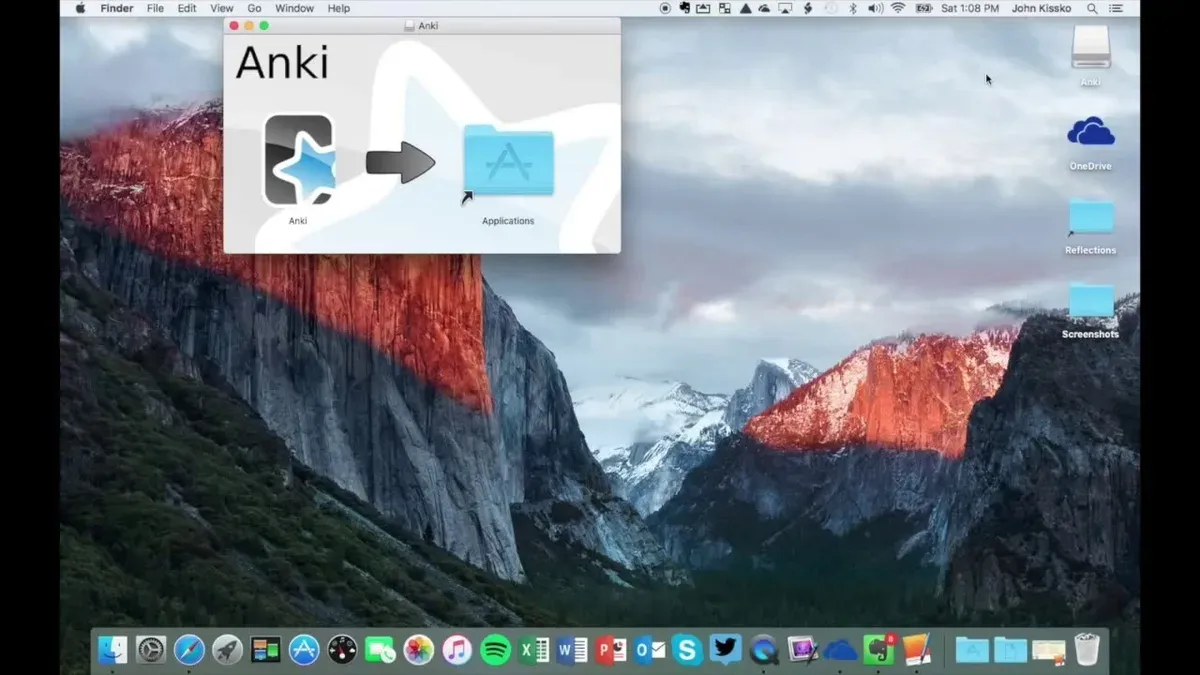
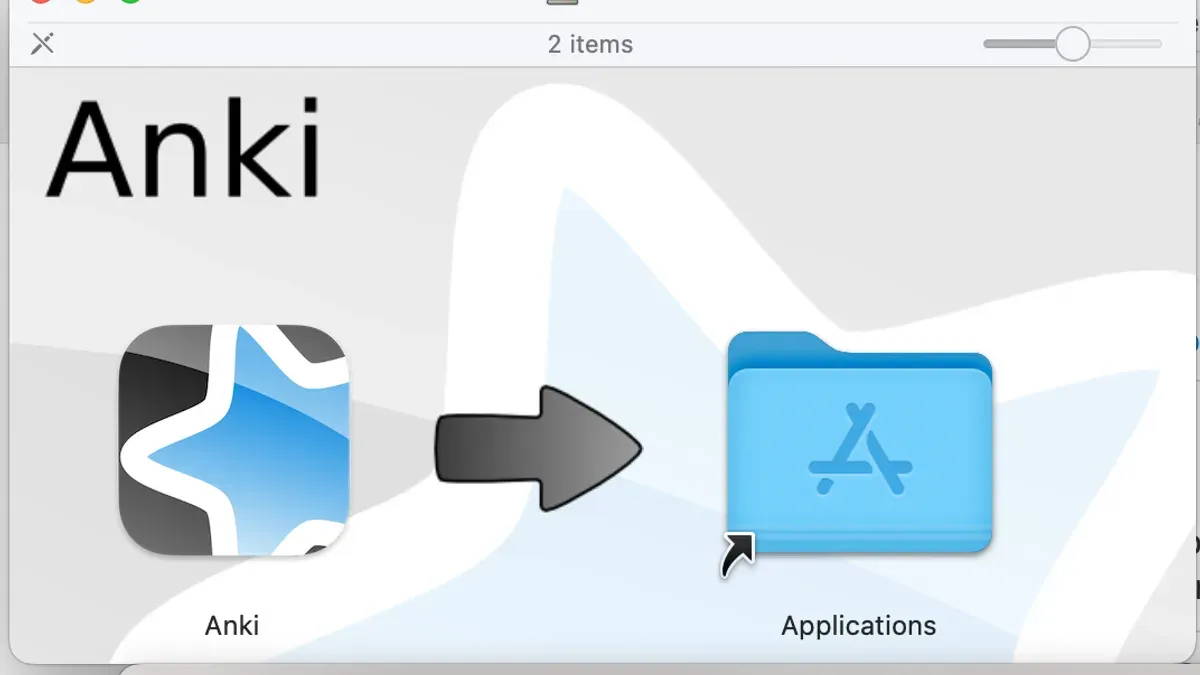
- Locate the downloaded .dmg file, usually found in your Downloads folder. Double-click the file to open it. You should see a window displaying the Anki app icon and a shortcut to the Applications folder.
- Drag the Anki app icon into the Applications folder shortcut within the window. This copies the app to your Mac’s main applications directory.
- Close the .dmg window and eject the mounted volume by right-clicking its icon on the desktop or in the Finder sidebar and selecting Eject. This prevents running Anki from the installation disk image.
- Open the Applications folder and double-click the Anki app to launch it. If macOS Gatekeeper blocks the app with a security warning, go to System Preferences > Security & Privacy > General. You will see a message about Anki being blocked; click Open Anyway to allow the app to run.
- Confirm the prompt that appears, choosing Open. This exception permits Anki to launch while maintaining overall system security.
- Once Anki opens, you will see the initial setup screen with options to create or import a deck. Follow the onscreen prompts to begin using Anki for your flashcard learning.
These steps ensure a smooth installation of Anki on your MacBook, addressing common macOS security measures and guiding you through first-time app launch.
How to use the Anki app: A beginner’s tutorial
Getting started with Anki involves creating decks, adding cards, and understanding the spaced repetition system that drives efficient learning. Follow these steps to begin your first deck and card.
- Open Anki and click Create Deck at the bottom of the main window. Name your deck, for example, "Spanish Vocabulary." You should see the deck appear in your deck list.
- Select your new deck, then click Add to create your first flashcard. In the Front field, enter a prompt such as "How do you say 'apple' in Spanish?" and in the Back field, enter the answer "Manzana."
- Click Add again to save the card. Your card will be stored in the deck, ready for review.
- Start reviewing cards by selecting your deck and clicking Study Now. Anki uses spaced repetition, showing cards just before you’re likely to forget them, which improves retention over time.
- Customize cards by clicking Browse, selecting a card, and then choosing Cards... to edit the card template's layout or add styling with HTML and CSS.
- You can import pre-made decks by going to File > Import and selecting deck files downloaded from trusted sources.
- Explore add-ons by clicking Tools > Add-ons > Get Add-ons. Add-ons extend Anki’s functionality, but start with the basics before adding complexity.
How to connect Anki remote to Mac
Syncing Anki between your Mac and other devices ensures your flashcard progress stays updated everywhere. To do this, you need an AnkiWeb account, which acts as a cloud hub for your decks.
- Go to ankiweb.net and create a free account if you don't have one. After registration, verify your email to activate syncing.
- Open Anki on your Mac and click on Sync (the circular arrows icon) in the top right corner. When prompted, enter your AnkiWeb username and password. Successful login will show a sync confirmation popup.
- Click Sync again to upload your Mac decks to AnkiWeb or download decks stored there. A status message will indicate the number of cards uploaded or downloaded along with the last sync time.
- On your mobile or Windows devices, install the Anki app and sign into the same AnkiWeb account under Settings > Account. Initiate sync by tapping or clicking the sync icon.
- When syncing, Anki compares local and cloud data, merging changes. If conflicts occur (e.g., edits made simultaneously on different devices), Anki will prompt you to choose which version to keep or merge.
Manual syncing via USB or AirDrop is possible but less practical. Cloud syncing via AnkiWeb is reliable, automatic, and keeps all devices consistent. However, syncing requires a stable internet connection, and large collections may take longer to update. Regularly syncing after study sessions prevents data loss and reduces conflicts.
How to install Anki on Windows: Brief overview
Installing Anki on Windows is straightforward and allows seamless cross-platform use alongside your Mac. Start by downloading the official Windows installer from the Anki website. Ensure you select the Windows version to avoid compatibility issues.
- Download the installer (.exe file) from the official website. Once downloaded, locate the file in your Downloads folder.
- Double-click the installer to launch the setup wizard. You should see a welcome screen prompting you to begin installation.
- Follow the on-screen instructions, agreeing to the license terms and choosing the installation location if prompted. The default path usually works well.
- After installation completes, launch Anki. The app should open and display the main deck screen, indicating a successful setup.
- Sign in or create an AnkiWeb account to enable syncing with your Mac and other devices.
Compared to the Mac installation, Windows does not require handling macOS-specific security prompts but follows a similar user-friendly setup process. Syncing through AnkiWeb ensures your decks and progress stay consistent across platforms.
| Step | Mac Installation | Windows Installation |
|---|---|---|
| Download source | Official Anki website, Mac version | Official Anki website, Windows version |
| File type | .dmg | .exe |
| Installation prompts | macOS security permissions | Standard Windows setup wizard |
| Post-install launch | Open from Applications folder | Open from Start menu or desktop shortcut |
| Sync setup | Sign in to AnkiWeb within app | Sign in to AnkiWeb within app |
Common troubleshooting when installing Anki on Mac
macOS security settings often block Anki from opening initially. If you see a message like “Anki can’t be opened because Apple cannot check it for malicious software,” open System Preferences > Security & Privacy > General tab. Click Open Anyway next to the blocked app notification, then confirm to run Anki.

If Anki won’t open or crashes on launch, first try restarting your Mac. If the problem persists, reset Anki’s preferences by deleting the folder ~/Library/Application Support/Anki2 (back up your decks first). Reinstalling Anki can also help if files are corrupted.
Sync errors with AnkiWeb may show messages like “Login failed” or “Could not sync.” Check your internet connection and password correctness. If errors continue, go to Tools > Preferences > Network tab and clear your sync settings, then log in again. Avoid syncing large media files at once to reduce failures.
For persistent issues, official resources include the Anki Manual troubleshooting page and the Anki Community Forums. These offer detailed fixes and user discussions about similar problems.
How to download Anki on my computer and install safely
Downloading software from unofficial sources can expose your computer to malware and security risks. Always obtain Anki from its official website to ensure you get a legitimate and untampered version. The official site also provides checksums, which you can use to verify the authenticity of the downloaded file.
Follow these steps to safely download and install Anki:
- Visit the official Anki website at https://apps.ankiweb.net/. You should see a clean, professional page offering the latest version of Anki for various platforms.
- Download the installer for your operating system. Once complete, verify the file’s checksum (usually provided as an SHA256 hash on the site) using a checksum tool. When the calculated hash matches the official one, the file is authentic.
- Run the installer. On successful installation, you will see Anki launch or a confirmation screen indicating the app is ready to use.
- Keep Anki updated by allowing the app to check for updates or by regularly revisiting the official website. Updates patch security vulnerabilities and improve features.
- Regularly back up your Anki decks by exporting them via File > Export. This ensures your data remains safe even if the app or device encounters issues.
Following these precautions aligns with best practices recommended by software security experts and helps maintain the integrity and safety of your learning resources.
- How to Install IINA on Mac: A Clear Step-by-Step Guide
- How to Install VLC on Mac: A Clear Step-by-Step Guide
- How to Install Firefox on Mac: A Clear Step-by-Step Guide
- How to Install Google Chrome on Mac: A Clear Step-by-Step Guide
Frequently asked questions
How to use anki on windows?
To use Anki on Windows, first download the installer from the official Anki website. Run the installer and follow the prompts to complete installation. Once installed, open the app to create or import decks, and start reviewing cards. You can sync your decks with AnkiWeb to access them on other devices.
How to use anki tutorial?
The Anki tutorial guides you through creating your first deck, adding cards, and reviewing them efficiently. It appears automatically when you open Anki for the first time. The tutorial covers basic card types, scheduling reviews, and syncing. Completing it helps you understand Anki’s spaced repetition system and setup options.
How to download Anki on MacBook Pro?
Visit the official Anki website and navigate to the Mac download section. Click the download link to get the latest macOS installer. After the download finishes, open the.dmg file and drag the Anki app to your Applications folder. This process works the same for MacBook Pro and other Mac models.
How to install Anki on Windows?
Go to the Anki website and download the Windows installer file. Open the downloaded.exe file and follow the installation wizard steps. The installer places Anki in your Program Files and creates shortcuts. After installation, launch Anki to start using it immediately.
How to use the Anki app?
After installing Anki, create a new deck or import existing ones. Add cards with questions and answers, choosing suitable card types like Basic or Cloze. Use the study button to review cards as Anki schedules them based on your recall. Enable syncing via AnkiWeb to keep your progress updated across devices.
What this guide does not cover and who should look elsewhere
This guide does not cover advanced Anki features such as complex add-ons, detailed card customization, or scripting, which require additional learning resources and experience. If you need to create highly specialized or automated flashcard decks, consider consulting dedicated forums or official Anki documentation for those topics.
Users running very old versions of Mac OS, such as anything before macOS 10.12 Sierra, may not be able to install the latest Anki versions due to compatibility restrictions. In such cases, looking into alternative study tools or upgrading your operating system may be necessary.
As your next step, open the Anki app on your Mac and create your first deck. Begin by adding a few cards using the built-in Basic note type and experiment with syncing your deck via AnkiWeb to ensure your setup works smoothly across devices. This hands-on approach will help you move beyond installation into effective daily use.



