
How to Install IINA on Mac: A Clear Step-by-Step Guide
This guide walks you through how to install IINA on Mac, from downloading to troubleshooting common issues.
You want a media player on your Mac that combines simplicity with powerful features, but you’re unsure how to get started. If you’re wondering how to install IINA on Mac, this guide will walk you through the entire process, from downloading to installation.
Beyond just installing IINA, you’ll learn about related tools like wimlib and how to use Play on Mac alongside IINA for enhanced compatibility. This step-by-step guide addresses common questions and helps you decide if IINA fits your media playback needs effectively.
Key takeaways
- Download IINA directly from its official website to ensure a safe installation.
- Installation involves simple drag-and-drop steps within the Mac Finder.
- Wimlib can be installed via Homebrew for managing disk images alongside IINA.
- Play on Mac allows running Windows applications and can complement IINA for certain media tasks.
- Common issues include security settings blocking installation, which can be resolved in System Preferences.
Before you start: what you need to install IINA on Mac
To install IINA smoothly on your Mac, ensure your system meets the minimum requirements and you have the right settings in place. IINA requires macOS 10.12 Sierra or later. Confirm your Mac runs this version or newer before proceeding.
You will need a stable internet connection to download the installer, which is approximately 40 MB in size. This size means the download should be quick on most broadband connections.
Familiarity with macOS security settings like Gatekeeper is helpful because macOS may prevent apps from unidentified developers from opening. You might need to adjust these settings in System Preferences under Security & Privacy to allow IINA to run.
Optionally, if you prefer installing via the command line, having Homebrew installed simplifies the process but is not mandatory.
- Check your macOS version by clicking the Apple menu and selecting About This Mac. You should see macOS 10.12 or later displayed.
- Verify your internet connection by opening a webpage or performing a speed test. A working connection confirms you can download the app installer.
- Review your Gatekeeper settings by going to System Preferences > Security & Privacy > General tab. Ensure “App Store and identified developers” is selected or be prepared to allow IINA explicitly after download.
- Optional: Open Terminal and type brew --version to check if Homebrew is installed. If not, you can still proceed with a manual download.
Downloading IINA from the official source
To ensure you get the latest and safest version of IINA, download it directly from the official website at iina.io. Avoid third-party sites, as these may offer outdated or modified installers that could compromise your Mac’s security.
- Open your web browser and go to https://iina.io. You should see the main page featuring the IINA logo and a prominent download button.
- Click the download button labeled for macOS. This will start downloading the latest official installer package (.dmg file). The file size is approximately 50 MB, which indicates a complete installer.
- Once downloaded, verify the file’s integrity if a checksum is provided on the site. Use Terminal to run a shasum -a 256 command on the downloaded file and compare it to the official checksum value listed on the page. Matching checksums confirm the file is unaltered.
- If you do not see a checksum or prefer skipping verification, ensure you only ever download from iina.io to minimize risk.
Downloading from the official source protects you from malware and ensures compatibility with macOS. Third-party downloads may contain outdated versions or unwanted modifications, which could lead to instability or security issues.
Installing IINA on Mac step-by-step
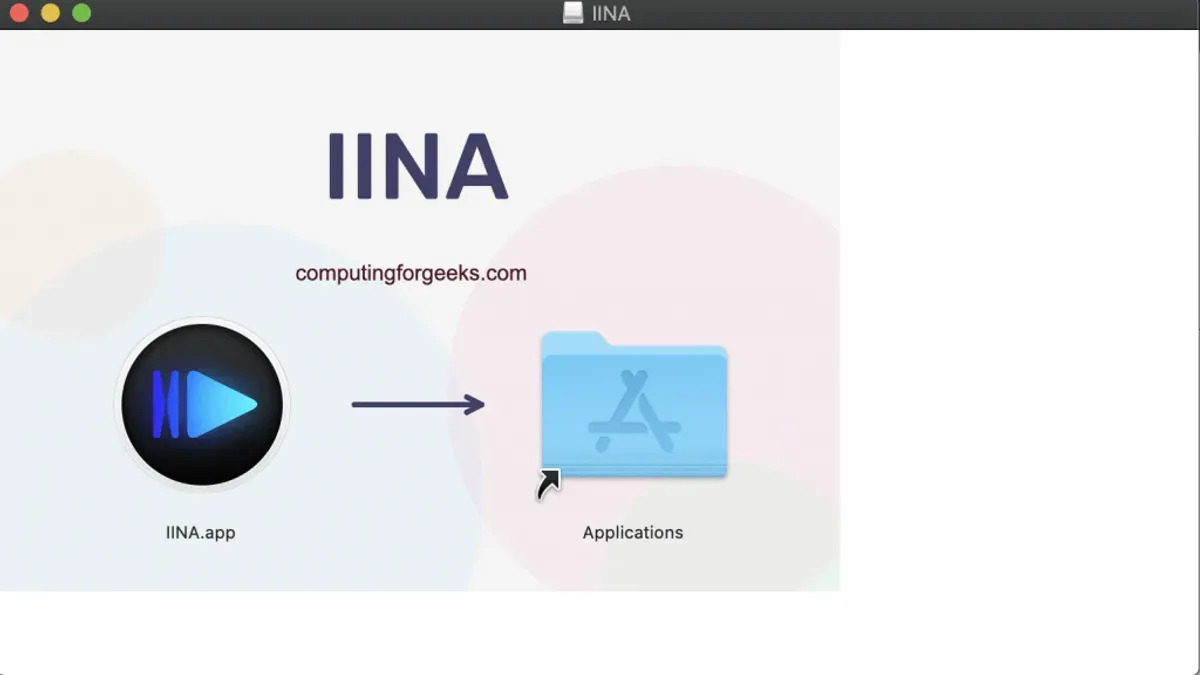
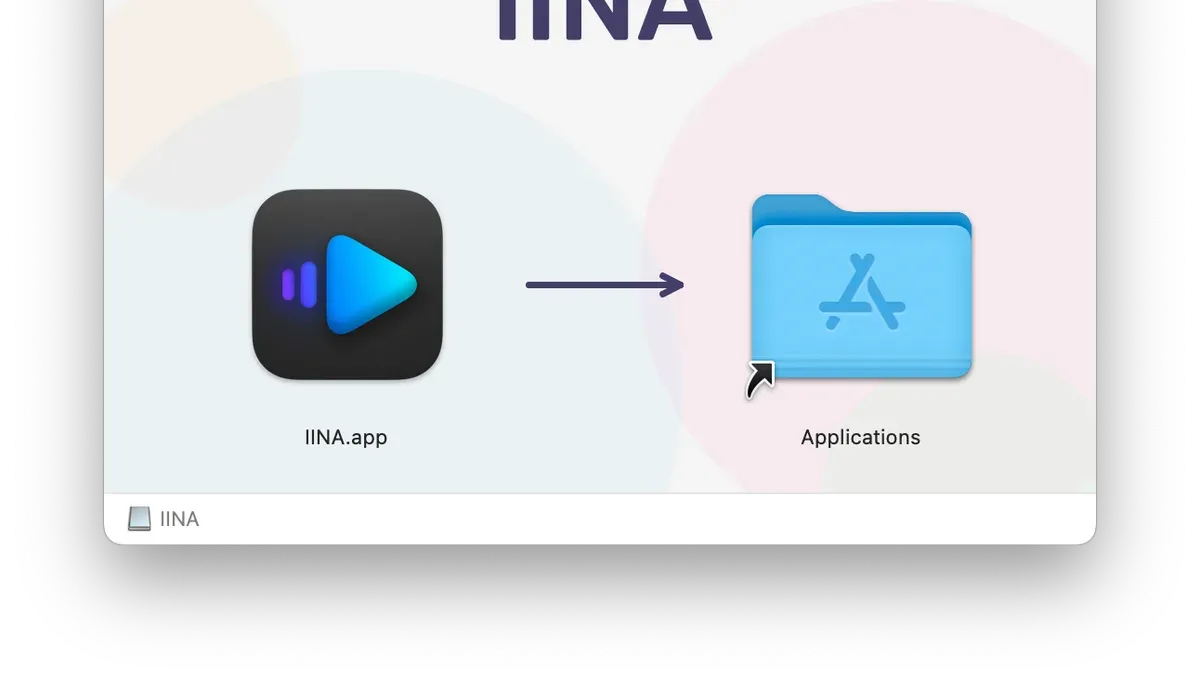
- Locate the downloaded .dmg file in your Downloads folder and double-click it to open. You should see a window displaying the IINA app icon alongside a shortcut to the Applications folder.
- Drag the IINA icon into the Applications folder within this window. This copies the app to your system, making it available like other installed applications.
- If macOS blocks the installation with a Gatekeeper message, open System Preferences > Security & Privacy > General. You will see an option to Allow Anyway for IINA. Click this to permit the app installation.
- Once copied, navigate to the Applications folder and double-click IINA to launch it for the first time. You may see a prompt stating the app was downloaded from the internet; click Open to confirm.
- Grant any requested permissions, such as access to files or folders, to enable full functionality of IINA. These prompts appear as standard macOS dialogs.
- To set IINA as your default media player, right-click any supported media file, select Get Info, expand the Open with: section, choose IINA, then click Change All... to apply this setting system-wide.
Each of these steps typically displays visual confirmation: the app icon appearing in Applications, Gatekeeper dialogs with options to allow or open, and media file info dialogs showing IINA as the chosen player.
How to install wimlib on Mac
wimlib is a command-line tool used for creating, modifying, and extracting Windows Imaging Format (WIM) files. While not directly related to IINA's core media playback, some users working with disk images or Windows system backups may find wimlib useful alongside IINA.
- Open the Terminal application on your Mac.
- Check if Homebrew is installed by typing brew --version. You should see a version number if it is installed; if not, visit brew.sh to install Homebrew first.
- Install wimlib by entering brew install wimlib. The output will show downloading and installing steps, ending with a success message like "wimlib 1.13.6 installed".
- Verify the installation by running wimlib-imagex --version. The terminal should display the installed wimlib version.
- If you encounter a "command not found" error, ensure Homebrew’s binary path is included in your shell environment. Add
export PATH="/usr/local/bin:$PATH"to your shell profile and restart Terminal.
How to use Play on Mac with IINA
Play on Mac is a compatibility layer designed to run Windows applications on macOS without needing a full Windows installation. Since IINA is a native macOS media player, it does not require Play on Mac for installation or operation.
However, if you use Windows-only media tools or codecs that are not available on macOS, Play on Mac can help you run those alongside IINA. For example, certain Windows-exclusive video editing software or subtitle tools can be launched through Play on Mac.
To manage media playback when using Play on Mac apps with IINA, you can follow these steps:
- Install and set up Play on Mac from its official website. You should see its main interface with a list of installed Windows applications.
- Install your required Windows media tool via Play on Mac. Once installed, launch the tool and verify it runs smoothly within the Play on Mac environment.
- Use IINA for native macOS media playback by opening your media files directly with IINA from Finder or via the "Open With" context menu.
- If your Play on Mac Windows app generates media files or subtitles, save them to a location accessible by macOS. Then open these files with IINA for playback.
- Switch between IINA and Play on Mac apps as needed, using macOS's app switching features (e.g., Command + Tab) for seamless workflow.
This approach lets you benefit from IINA's native performance and features while still leveraging Windows-only software through Play on Mac when necessary.
Troubleshooting common IINA installation issues on Mac
If macOS blocks IINA from opening, you may see a message like “"IINA" can’t be opened because Apple cannot check it for malicious software.” To bypass this, go to System Preferences > Security & Privacy > General, then click Open Anyway next to the blocked app notification. After this, you should be able to launch IINA.
If IINA crashes or fails to launch, check the system logs via Console.app for errors mentioning IINA or related media frameworks. Common error lines include "EXC_BAD_ACCESS" or "dyld: Library not loaded." Rebooting your Mac or reinstalling the app often resolves transient issues.
Playback problems or missing codecs may cause errors like "Unsupported format" or "No suitable decoder found." IINA relies on FFmpeg internally, so ensure you have the latest app version. If issues persist, verify no conflicting codec packs or system extensions interfere.
To uninstall IINA cleanly, drag the IINA app from /Applications to the Trash, then remove its preferences by deleting ~/Library/Preferences/com.colliderli.iina.plist and cached data in ~/Library/Application Support/iina. Afterward, reinstall from the official source.
- How to Install VLC on Mac: A Clear Step-by-Step Guide
- How to Install Firefox on Mac: A Clear Step-by-Step Guide
- How to Install Google Chrome on Mac: A Clear Step-by-Step Guide
- How to Install Zoom on Mac: A Clear Step-by-Step Guide
Frequently asked questions
Is IINA player available for Windows?
No, IINA is designed exclusively for macOS and is not available for Windows. If you are looking for a media player on Windows, alternatives like VLC or PotPlayer may be more suitable.
Where can I download IINA for Mac safely?
You should download IINA from its official website at iina.io to ensure you get the latest and safest version. Avoid third-party sites as they may offer outdated or modified software that could compromise your Mac’s security.
Can I use IINA on Windows 10?
IINA does not support Windows 10 or any Windows version. It is built specifically for macOS, so using it on Windows would require complex workarounds that are not recommended for typical users.
What is iina.io and is it the official site?
iina.io is the official website for the IINA media player. It hosts the latest releases, documentation, and support resources, making it the safest and most reliable place to download the software.
What this guide does not cover and who should look elsewhere
This guide does not cover advanced customization or plugin installation for IINA, which may require separate technical knowledge and specific resources. IINA is a macOS-native application and does not have a Windows version; users seeking a Windows media player should consider alternatives like VLC or PotPlayer. Installing wimlib is only necessary for specialized tasks such as handling certain archive formats and is not required for basic IINA functionality.
The single most useful next step is to open IINA and explore its preferences under IINA > Preferences to tailor playback settings, subtitle options, and file associations. Adjusting these early ensures a smooth media experience aligned with your needs.



