
How to Install Firefox on Mac: A Clear Step-by-Step Guide
Follow this clear step-by-step guide to install Firefox on your Mac safely and efficiently, tailored for all Mac models and macOS versions.
You’ve decided to switch to Firefox or need it as a reliable alternative browser on your Mac. Whether you’re on a MacBook Air, Mac mini, or a desktop Mac, installing Firefox requires a few careful steps to avoid common pitfalls like incomplete downloads or security warnings.
This guide covers how to install Firefox on Mac through various methods, including downloading from the official website and using the Terminal. You’ll also find clear instructions tailored to different Mac models and post-installation tips to configure Firefox securely and efficiently.
Key takeaways
- Download Firefox only from the official Mozilla website to ensure security.
- Use the standard drag-to-Applications-folder method for most Mac models.
- Terminal installation offers an alternative for advanced users comfortable with command-line tools.
- Adjust macOS security settings if Firefox installation is blocked due to unidentified developer warnings.
- Post-installation configuration helps optimize Firefox performance and privacy on your Mac.
Before you start: What you need to install Firefox on Mac
To install Firefox on your Mac, ensure your system meets the official requirements. Firefox supports macOS versions 10.12 (Sierra) and later. The installation file is approximately 50 MB, so having enough disk space—at least 200 MB free—is recommended to accommodate the app and temporary files.
Check your internet connection before downloading to avoid interruptions that could corrupt the installer. A stable broadband connection is ideal. Always download Firefox from Mozilla's official website (mozilla.org/firefox) to avoid security risks such as malware infections or tampered software, which are common when downloading from unofficial sources.
Although Firefox installation steps are consistent across MacBook Air, MacBook Pro, Mac mini, and Mac desktop models, user interface elements might look different depending on your device's screen size and macOS version. This does not affect the installation process but may influence navigation during setup and initial use.
- Verify your macOS version by clicking the Apple menu and selecting "About This Mac." You should see macOS 10.12 or newer.
- Confirm you have an active internet connection by opening Safari or another browser and loading a webpage.
- Check available disk space by clicking the Apple menu, selecting "About This Mac," then "Storage." Ensure you have at least 200 MB free.
- Visit the official Mozilla Firefox website to download the installer safely.
- Recognize that your Mac model does not impact the installation but may affect interface familiarity.
How to download Firefox on Mac from the official website
- Open Safari or your preferred web browser on your Mac. You should see the browser's main window ready for input.
- In the address bar, type https://www.mozilla.org/en-US/firefox/new/ and press Enter. The official Firefox download page will load, showing a prominently placed download button.
- Confirm the website URL carefully to ensure you are on Mozilla's official site. Look for the lock icon in the address bar indicating a secure connection.
- Click the large Download Firefox button. The download should start automatically, and you will see the progress indicator in your browser.
- Once the download completes, open the Finder application and navigate to the Downloads folder. You should find a file named Firefox.dmg or similar.
- To verify the file, check its size by right-clicking the.dmg file and selecting Get Info. The file size typically ranges around 50 to 60 MB. While Mozilla does not provide a checksum on the download page, this size check helps ensure the download is complete.
- If the file size appears unusually small or large, consider deleting it and retrying the download to avoid corrupted or partial files.
Following these steps ensures you download the correct and complete Firefox installer safely from the official source.
How to install Firefox on MacBook, MacBook Air, MacBook Pro, Mac mini, and Mac desktop
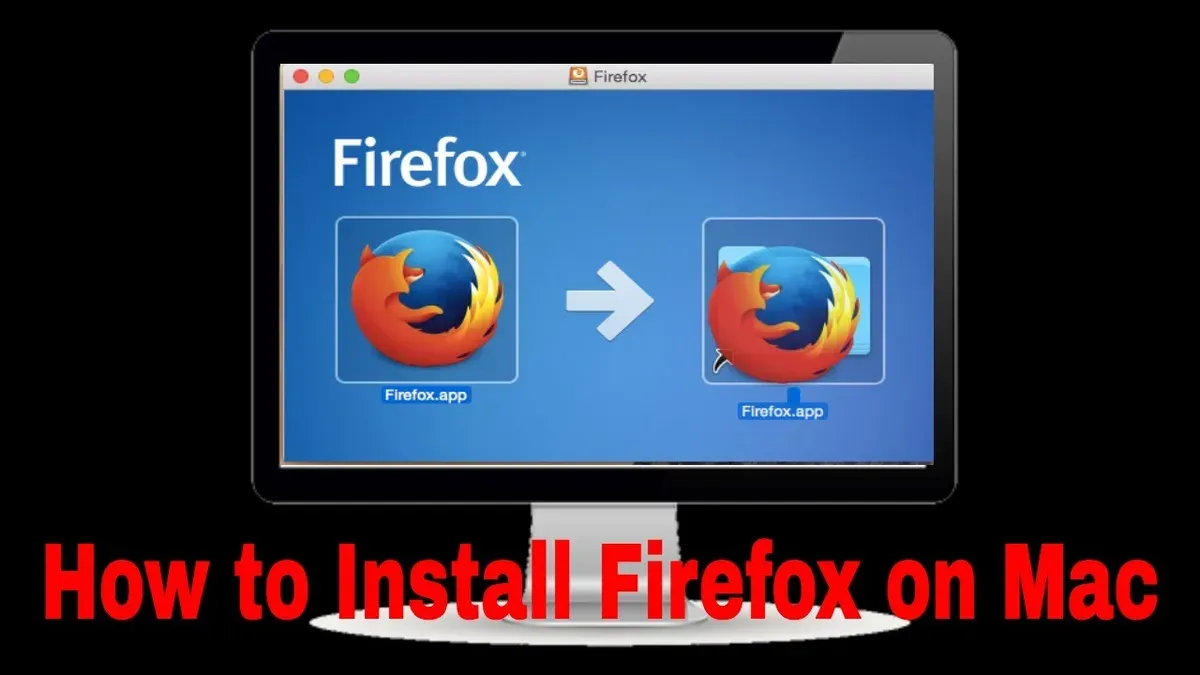
- Locate the downloaded Firefox.dmg file in your Downloads folder and double-click it. A new window will open, displaying the Firefox icon and a shortcut to your Applications folder.
- Drag the Firefox icon and drop it into the Applications folder shown in the same window. This action copies Firefox to your Mac’s Applications directory, preparing it for launch.
- Once the copying completes, eject the mounted Firefox installer by clicking the eject icon next to "Firefox" in the Finder sidebar or right-clicking the mounted volume on your desktop and selecting "Eject Firefox." This unmounts the installer safely.
- Open the Applications folder via Finder or Launchpad and double-click the Firefox app to launch it. The first time you open Firefox, macOS Gatekeeper may display a security prompt warning that Firefox is an app downloaded from the internet.
- In the Gatekeeper dialog, click "Open" to allow Firefox to run. This step confirms you trust the application and bypasses macOS’s default restriction on unidentified developers.
- After launching, Firefox will start normally and can be added to your Dock by right-clicking its icon and selecting "Options" → "Keep in Dock" for easy future access.
The drag-and-drop method is universal across all Mac models, ensuring a consistent installation experience. Gatekeeper’s prompt is a standard security feature designed to protect your Mac; allowing Firefox here is safe when you have downloaded it from Mozilla’s official site.
How to install Firefox on Mac using the Terminal
If you prefer a command-line approach, you can install Firefox on your Mac using the Terminal with Homebrew, a popular package manager. This method is efficient for advanced users who want to automate installation or manage apps via command line.
Prerequisites: Ensure Homebrew is installed on your Mac. You can check by typing brew --version in Terminal; it should display the version number if installed.
- Open Terminal from your Applications > Utilities folder.
- Update Homebrew’s package list by entering brew update. You should see messages indicating the update process and completion.
- Install Firefox using Homebrew Cask with the command brew install --cask firefox. Terminal will download and install Firefox, showing progress and completion messages.
- Verify the installation by typing brew list --cask. Firefox should appear in the list of installed cask applications.
- Launch Firefox from Terminal by typing open -a Firefox or open it from the Applications folder in Finder.
Benefits: Terminal installation streamlines bulk setups and script automation and bypasses manual downloads. However, it requires Homebrew and familiarity with command-line operations, which can be a barrier for some users.
Limitations: Homebrew installs the latest stable Firefox version but does not offer GUI prompts during installation, so you must trust the process without interactive feedback. If you encounter permission errors, you may need to adjust macOS security settings or run Terminal with elevated privileges.
Configuring Firefox after installation on Mac
Once Firefox is installed, configuring it properly enhances your browsing experience on Mac. Begin by setting Firefox as your default browser to ensure all web links open in it automatically.
- Open Firefox, click the Firefox menu in the top left corner, then select Preferences. You should see the Preferences window open.
- Under the General tab, locate the Default Browser section and click Make Default…. A confirmation prompt will appear if Firefox is not already the default.
Importing bookmarks and settings from other browsers saves time and preserves your workflows.
- In Preferences, click on the Library icon (looks like books) on the toolbar or open the menu via Bookmarks > Manage Bookmarks.
- Click Import and Backup > Import Data from Another Browser…. Select the browser you want to import from and choose items such as bookmarks, history, and passwords. A progress bar will confirm successful import.
Adjusting privacy and security settings helps balance protection with usability. Firefox’s default settings block trackers and third-party cookies but you can increase this.
- Go to Preferences > Privacy & Security and examine the Enhanced Tracking Protection section.
- Select Strict to block most trackers and cookies. Note that some websites may not function properly with strict settings.
- Scroll to Permissions and adjust settings for location, camera, and notifications as needed.
Installing essential extensions can optimize Firefox on Mac for productivity and security.
- Click the menu button (three horizontal lines) and select Add-ons and Themes.
- Search for popular extensions such as uBlock Origin for ad blocking, LastPass or Bitwarden for password management, and Dark Reader for comfortable night browsing.
- Click Add to Firefox for each extension and confirm installation. You will see their icons appear near the address bar.
Following these steps ensures Firefox is tailored to your needs while maintaining security on your Mac.
Troubleshooting common Firefox installation issues on Mac
If Firefox won’t open or install, start by checking for permission issues or corrupted downloads. A common error is “Firefox can’t be opened because it is from an unidentified developer,” which relates to macOS Gatekeeper settings.
Handling Gatekeeper warnings and permission issues
- Open System Preferences and go to Security & Privacy.
- In the General tab, if you see a message about Firefox being blocked, click Allow Anyway.
- Try opening Firefox again. If it still won’t open, control-click the Firefox app in the Applications folder and select Open, then confirm you want to open it.
This process bypasses Gatekeeper without disabling it entirely, maintaining security.
Resolving download corruption or incomplete downloads
Corrupted installers can cause the installation to fail silently or freeze. To fix this:
- Delete the existing Firefox installer from your Downloads folder.
- Re-download the installer from Mozilla’s official website.
- Verify the file size matches the one listed on the site (approximately 85 MB).
- Open the installer; if it hangs, force quit and try again.
Dealing with slow installation or launch times
Slow installation or launch may indicate background processes interfering or disk issues.
- Restart your Mac to clear temporary system locks.
- Check Activity Monitor for high CPU or memory usage by other apps.
- Ensure your disk has sufficient free space (at least 1 GB recommended for smooth operation).
- Try launching Firefox in Safe Mode by holding Shift during startup to disable extensions that may slow it down.
Uninstalling and reinstalling Firefox on Mac
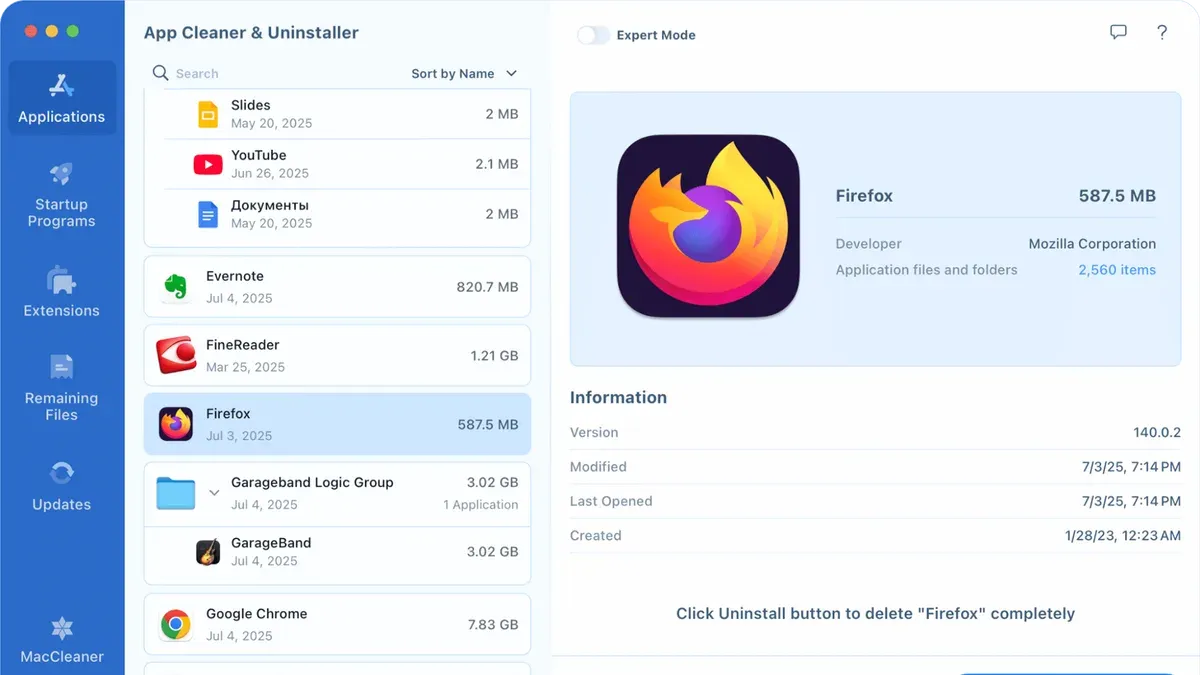
Uninstalling Firefox completely can resolve persistent issues and improve performance when a fresh start is needed. Before uninstalling, back up important data like bookmarks, passwords, and settings by exporting them through Firefox's Library menu or syncing with a Firefox account.
- Quit Firefox if it is open. You should see no Firefox windows or icons in the Dock.
- Open the Applications folder, locate Firefox, and drag the Firefox.app to the Trash. This removes the main application.
- To remove residual files, open Finder and press Command+Shift+G to open "Go to Folder." Enter
~/Library/Application Support/Firefoxand move the entire Firefox folder to the Trash. This deletes user profiles and cached data. - Repeat the previous step with the folder
~/Library/Caches/Firefoxto clear additional cache files. - Also check
~/Library/Preferences/for any files starting withorg.mozilla.firefoxand move them to the Trash to remove saved preferences. - Empty the Trash to finalize the removal. Your system should no longer retain Firefox data.
Reinstalling Firefox after this complete removal often fixes errors caused by corrupted files or settings. A fresh install can improve performance and stability by eliminating conflicting data. After reinstalling, restore your backed-up data or sign back into your Firefox account to sync your information.
- How to Install Google Chrome on Mac: A Clear Step-by-Step Guide
- How to Install Zoom on Mac: A Clear Step-by-Step Guide
- How to Install Microsoft Office on Mac: A Clear Step-by-Step Guide
- How to Install WhatsApp on Your Mac: A Clear Step-by-Step Guide
Frequently asked questions
How to get firefox on mac?
You can get Firefox on your Mac by downloading it from the official Mozilla website. Navigate to mozilla.org/firefox using your current browser, then click the download button to get the installation file. Avoid third-party sites to prevent downloading unsafe versions.
How to install firefox on macos?
After downloading the Firefox.dmg file, open it from your Downloads folder. Drag the Firefox icon into the Applications folder in the window that appears. Then, eject the Firefox disk image and launch Firefox from Applications to complete setup.
How to install Firefox on MacBook Air?
The installation process on MacBook Air is the same as other Macs: download the Firefox.dmg file, open it, and drag Firefox into the Applications folder. Ensure your MacBook Air meets the minimum macOS version required by Firefox, typically macOS 10.12 or later.
How to install Firefox on MacBook Pro?
To install Firefox on a MacBook Pro, download the installer from the official site, open the.dmg file, and move Firefox to Applications. If you encounter security prompts, go to System Preferences > Security & Privacy > General and allow Firefox to open.
How to install Firefox on macOS using Terminal?
You can install Firefox on macOS using Terminal by employing Homebrew, a package manager. First, install Homebrew if you don't have it by running /bin/bash -c "$(curl -fsSL https://raw.githubusercontent.com/Homebrew/install/HEAD/install.sh)". Then, execute brew install --cask firefox. This method automates download and installation but requires Homebrew setup.
Limits of this guide
This guide does not cover installing Firefox on macOS versions that are no longer supported by Mozilla, nor does it address installing Firefox on Mac systems with custom enterprise configurations or managed devices. If your Mac is managed by an organization or uses specialized security policies, consult your IT department before proceeding. Additionally, this guide does not cover troubleshooting network-level restrictions that might block Firefox downloads or updates.
For most users, the next crucial step after installation is to open Firefox and review the privacy and security settings under Preferences > Privacy & Security. Adjust tracking protection levels and set your preferred default search engine to tailor your browsing experience. Regularly updating Firefox through its built-in update feature helps maintain security and performance. Ensuring these settings aligns your browser with your needs and keeps your Mac safe during web browsing.



