
How to Install Zoom on Mac: A Clear Step-by-Step Guide
Follow this clear step-by-step guide to install Zoom on your Mac, covering compatibility, permissions, and installation options.
You’ve just received a Zoom meeting invitation and need to join quickly, but your Mac doesn’t have Zoom installed yet. Whether you’re on a MacBook Air, MacBook Pro, Mac Mini, or a desktop Mac, installing Zoom can vary slightly depending on your hardware and macOS version.
This article guides you step-by-step on how to install Zoom on Mac, covering the installation process tailored to different Mac models and system settings. It also explains how to perform a machine-wide installation, manage necessary permissions, and avoid common pitfalls that may cause errors or confusion.
Key takeaways
- Prepare your Mac by checking macOS compatibility and available disk space before installation.
- Download Zoom directly from the official website to avoid outdated or unsafe versions.
- Installation steps differ slightly between MacBook Air, MacBook Pro, and desktop Macs due to hardware and system differences.
- Granting camera, microphone, and screen recording permissions is essential for Zoom to function correctly.
- Machine-wide installs require administrator privileges and ensure all users on the Mac can access Zoom.
Before you start: What you need to install Zoom on your Mac
Ensuring your Mac meets Zoom's requirements before installation helps avoid errors. First, check your macOS version. Zoom supports macOS 10.9 or later, but the latest Zoom versions often require macOS 10.11 or newer for full functionality. To verify your macOS version, click the Apple menu and select "About This Mac." The displayed version must meet Zoom's minimum requirement.
A stable internet connection is essential for downloading Zoom and for smooth video meetings. Confirm your network is reliable and fast enough to handle downloads and streaming.
Check available disk space by opening Finder, selecting your startup disk, and pressing Command+I. Zoom requires only about 100 MB, but ensure at least 500 MB free to accommodate installation and updates safely.
If you plan to install Zoom via the App Store, have your Apple ID credentials ready. This enables smooth installation and future updates. Alternatively, Zoom can be downloaded directly from the official Zoom website.
Decide if you want to install Zoom for a single user or machine-wide. A single-user install places Zoom in your user folder, while machine-wide installation makes Zoom accessible to all Mac users. Machine-wide installs require administrator privileges and differ in installation steps.
- Check your macOS version by clicking the Apple menu, then "About This Mac." Ensure it is macOS 10.11 or later. If so, proceed.
- Confirm your internet connection is stable by browsing a website or running a speed test. A steady connection means Zoom will download without interruptions.
- Open Finder, select your startup disk, press Command+I, and verify you have at least 500 MB of free space.
- Have your Apple ID ready if installing from the App Store. Alternatively, prepare to download Zoom from the official website.
- Decide on installation scope: single user or machine-wide. Machine-wide requires admin rights and is suited for shared Macs.
How to install Zoom on MacBook Air
- Go to the official Zoom website at https://zoom.us/download. You should see a "Download" button specifically for Zoom Client for Meetings. Click it to download the installer package. The downloaded file is typically named "Zoom.pkg".
- Locate the downloaded "Zoom.pkg" file in your Downloads folder and double-click it to open the installer. A window titled "Install Zoom" will appear with a welcome screen. Click "Continue" to proceed.
- Read the software license agreement, then click "Continue" and select "Agree" to accept the terms. This allows the installation process to move forward.
- When prompted, choose the destination disk (usually your main Macintosh HD) and click "Install." You may be asked to enter your MacBook Air’s administrator username and password; enter these credentials to authorize the installation.
- Once the installation completes, a confirmation message will appear. Click "Close" to exit the installer.
- Open System Preferences, then go to "Security & Privacy" and select the "Privacy" tab. Under "Camera" and "Microphone," ensure Zoom is checked to grant necessary permissions for meetings. If Zoom is not listed, launch the app once, then revisit these settings.
- Launch Zoom from the Applications folder or Launchpad. On first launch, you may see prompts to grant additional permissions; accept these to enable full functionality. If Zoom opens without error and you can sign in, the installation was successful.
How to install Zoom on MacBook Pro
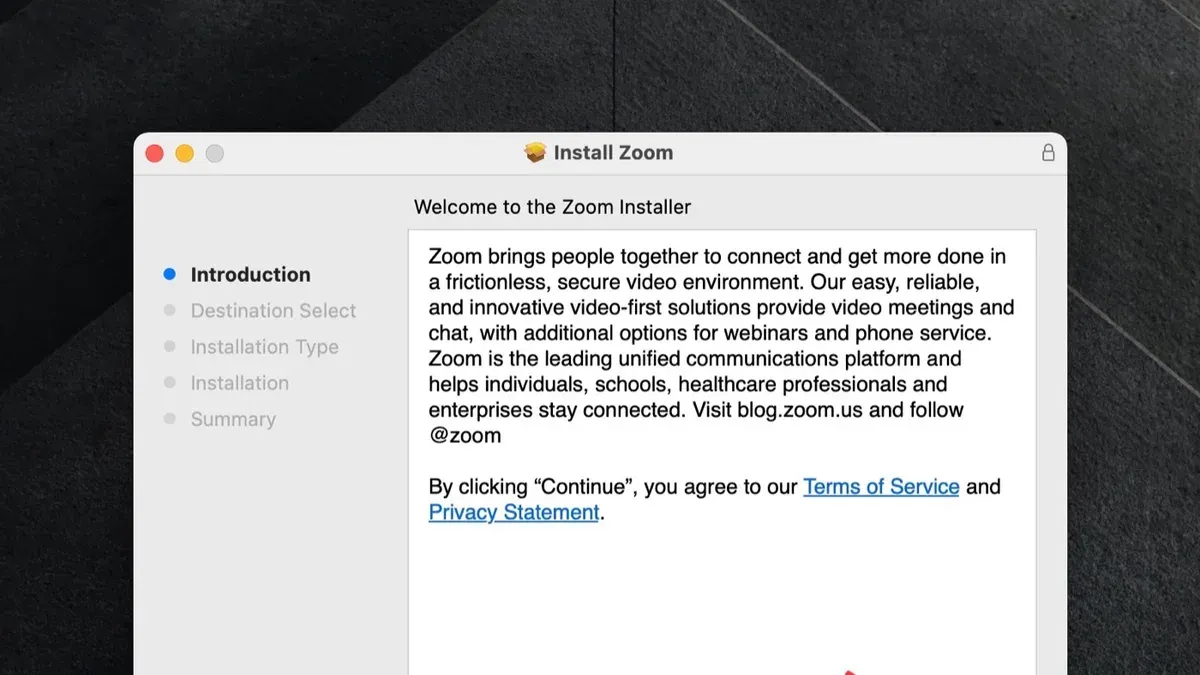
- Download the Zoom installer from the official Zoom website. After downloading, locate the Zoom.pkg file in your Downloads folder.
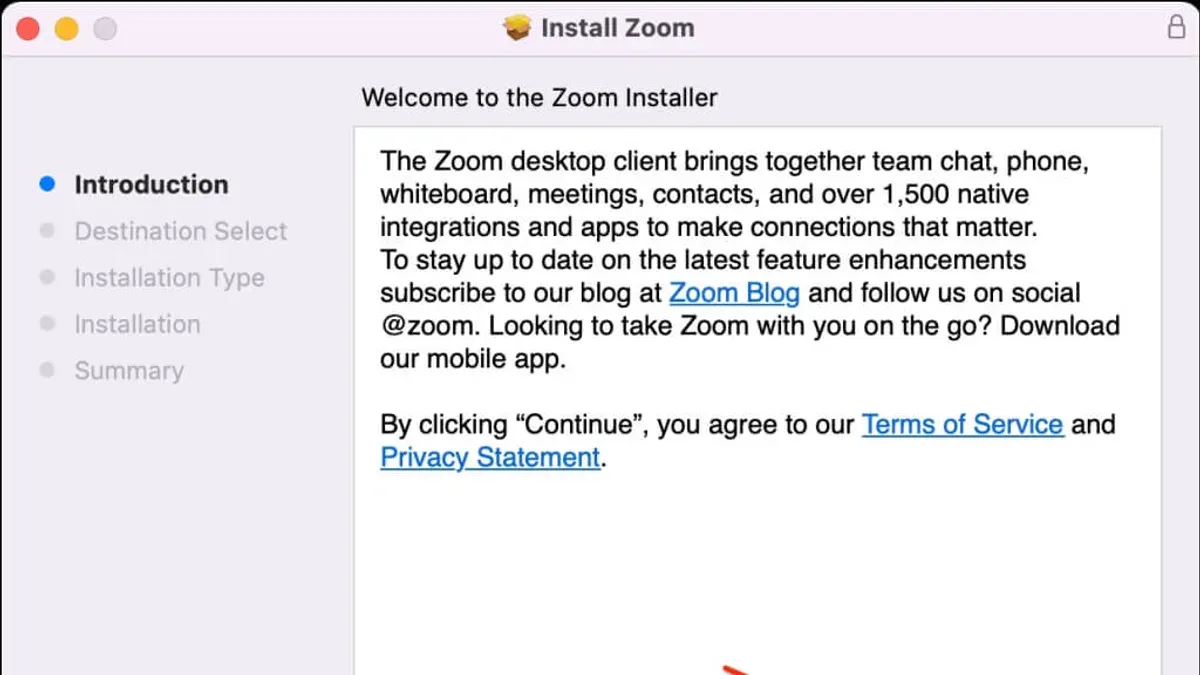
- Double-click the Zoom.pkg file to launch the installer. You should see the Zoom installation window prompting you to continue.
- If your MacBook Pro has a T2 security chip or newer Apple silicon, macOS may present a security prompt stating "System Extension Blocked" or "Zoom wants to install a system extension." Click Open Security Preferences to allow this.
- In the Security & Privacy panel under the General tab, click Allow next to the message about Zoom’s system software. This setting permits Zoom’s kernel extension to run properly.
- Complete the installation by following the on-screen instructions until you see a message that Zoom has been installed successfully.
- After installation, open System Preferences > Security & Privacy > Privacy tab. Select Camera and check the box next to Zoom to grant camera access.
- Similarly, select Microphone and enable Zoom to allow audio input during meetings.
- Launch the Zoom app from your Applications folder. You should see the Zoom sign-in or meeting join screen, confirming the app runs correctly.
How to install Zoom on macOS for Mac Mini, Mac desktop, and other Mac models
Installing Zoom on Mac Mini, Mac desktop, and other less common Mac models follows a similar process but has some nuances depending on macOS versions and hardware.
- Download the Zoom installer from the official Zoom website. The downloaded file should be a Zoom.pkg or ZoomInstaller.pkg. Once downloaded, locate the file in your Downloads folder.
- Double-click the installer file to run it. The installation wizard will open. Follow the prompts to install Zoom; when successful, you will see a confirmation message indicating that Zoom was installed.
- After installation, open Zoom from the Applications folder or Launchpad.
- Depending on your macOS version, you might need to grant Zoom additional permissions. Go to System Preferences > Security & Privacy > Privacy tab.
- In the Privacy tab, check and enable Zoom’s access under Accessibility and Screen Recording. This is often necessary for screen sharing and remote control features.
- If prompted, click the padlock icon at the bottom left to unlock settings and enter your administrator password to make changes.
- Restart Zoom after granting permissions to ensure all features work correctly.
The following table summarizes installation and permission requirements by Mac model category and macOS version:
| Mac Model | Typical Installer File | Permissions to Enable | Notes on macOS Version |
|---|---|---|---|
| Mac Mini | Zoom.pkg | Accessibility, Screen Recording | macOS Catalina and later require explicit permissions |
| Mac Desktop (iMac, Mac Pro) | Zoom.pkg | Accessibility, Screen Recording | Permissions mandatory from macOS Mojave onward |
| Other Mac models | Zoom.pkg or ZoomInstaller.pkg | Accessibility, Screen Recording | Check System Preferences for any additional security prompts |
Installing Zoom machine-wide on macOS
Installing Zoom machine-wide means setting it up so that all user accounts on your Mac can access the application without needing to install it individually. This approach is useful for shared Macs or enterprise environments where multiple users require Zoom access.
User-specific installations place Zoom in the individual user's ~/Applications folder, limiting access to that account. In contrast, machine-wide installations deploy Zoom to the system-level /Applications directory, making it available to every user on the Mac.
To install Zoom for all users, you need administrative privileges. The process involves downloading the Zoom installer and running it with elevated permissions via Terminal.
- Download the latest Zoom.pkg installer from the official Zoom website.
- Open Terminal and navigate to the folder containing the downloaded installer.
- Run
sudo installer -pkg Zoom.pkg -target /and enter your administrator password when prompted. This command installs Zoom to/Applications. - After installation, check the
/Applicationsfolder to confirm the Zoom app is present. - Log in to different user accounts to verify Zoom is accessible without additional installation.
Machine-wide installation simplifies maintenance and updates but requires careful management of permissions and security settings. Because Zoom has access to camera and microphone resources, ensure that all users understand privacy considerations and that macOS permissions are properly configured for each account.
Granting necessary permissions for Zoom on Mac
Zoom requires specific macOS permissions to work correctly, including camera, microphone, screen recording, and accessibility access. Without these, features like video calls, audio input, screen sharing, and in-meeting controls may be limited or blocked.
- Open System Preferences from the Apple menu, then select Security & Privacy.
- Click the Privacy tab to see the list of permission categories on the left side.
- Select Camera, then check the box next to zoom.us. You should see a camera icon enabled for Zoom. This allows Zoom to use your Mac’s camera for video calls.
- Choose Microphone and similarly enable Zoom to access your microphone, allowing audio transmission during meetings.
- Go to Screen Recording and enable Zoom to capture your screen when sharing content. If this is not enabled, screen sharing will fail.
- Under Accessibility, add Zoom if not listed by clicking the + button and navigating to the Zoom app. This grants Zoom enhanced control for features like remote control during meetings.
- After adjusting permissions, you may need to quit and restart Zoom for changes to take effect.
- If permission requests are repeatedly denied, verify that your Mac user account has administrative rights and that parental controls or device management profiles are not restricting permissions.
Reference screenshots of System Preferences panels typically show checkboxes next to "zoom.us" under each permission category. These visual cues confirm permissions are granted.
Troubleshooting common Zoom installation issues on Mac
If the Zoom installer does not open or is blocked, macOS may be preventing the app due to security settings. You might see a message like “Zoom.pkg cannot be opened because the developer cannot be verified.” To fix this, go to System Preferences > Security & Privacy > General and click Open Anyway next to the blocked installer message.
If the Zoom app crashes or won’t launch, corrupted files or incompatible versions could be the cause. Quit Zoom completely, then uninstall it by dragging the app from the Applications folder to the Trash. Empty the Trash and download the latest version from the official Zoom website before reinstalling.
When audio or video devices are not recognized, check that Zoom has the necessary permissions under System Preferences > Security & Privacy > Privacy. Also, verify that your Mac’s audio input/output devices work in System Preferences > Sound.
Update conflicts can occur if the macOS version is incompatible with the Zoom update. Review Zoom’s system requirements and macOS version. If conflicts arise, consider installing a Zoom version compatible with your macOS or updating macOS if possible.
To properly reinstall Zoom:
- Quit Zoom if it is running by right-clicking its Dock icon and selecting Quit. You should no longer see Zoom in the Dock.
- Open Finder and go to the Applications folder. Drag the Zoom app to the Trash. The app icon disappears from Applications.
- Empty the Trash by right-clicking the Trash icon and selecting Empty Trash. This permanently removes Zoom files.
- Restart your Mac to clear temporary files and caches.
- Download the latest Zoom installer from https://zoom.us/download and run it. You should see the installer open and guide you through installation.
Following these steps resolves most common installation issues and ensures Zoom runs smoothly on your Mac.
Keeping Zoom updated and maintaining security on Mac
Zoom releases updates frequently to address security vulnerabilities, improve features, and fix bugs. You can choose between automatic and manual update options based on your preference and control needs.
- Open the Zoom desktop client and click your profile picture in the top-right corner. Select Check for Updates. You will see a message confirming whether you have the latest version or if an update is available.
- If an update is available, follow the prompts to install it. After installation, Zoom will restart automatically, confirming the new version is active.
- To enable automatic updates, go to Zoom.us > Preferences > General and check Automatically keep Zoom up to date. This setting ensures you receive updates as soon as Zoom releases them, reducing security risks.
- Review the Release Notes on Zoom’s official website periodically to understand security patches and feature changes included in recent versions.
- If Zoom behaves unexpectedly or updates fail repeatedly, consider uninstalling and reinstalling the latest version. This can resolve corrupted files or incomplete installations affecting security and performance.
Maintaining current Zoom versions and enabling automatic updates are key to protecting your Mac from security threats. Always verify permissions and settings after major updates to ensure Zoom functions correctly within macOS security frameworks.
- How to Install Microsoft Teams on Mac: A Complete Step-by-Step Guide
- How to Install Microsoft Office on Mac: A Clear Step-by-Step Guide
- How to Install WhatsApp on Your Mac: A Clear Step-by-Step Guide
- How to Install Telegram on Mac: A Clear Step-by-Step Guide
Frequently asked questions
How to install zoom on mac computer?
Download the Zoom installer from the official Zoom website. Open the downloaded.pkg file and follow the on-screen instructions to complete installation. After installation, grant necessary permissions in System Preferences under Security & Privacy to ensure full functionality.
How to install zoom on mac laptop?
For Mac laptops like MacBook Air or MacBook Pro, start by downloading the Zoom installer from Zoom's official site. Run the installer and follow prompts. Ensure you allow Zoom access to your camera and microphone in the Privacy tab of System Preferences to participate in meetings smoothly.
How to install zoom on mac desktop?
Download the Zoom client for macOS and run the installer on your Mac desktop. Follow the standard installation process. Since desktops might have different input devices, verify Zoom’s audio and video settings after installation to confirm everything works correctly.
How to install zoom on mac mini?
The installation process on Mac Mini is the same as on other Macs: download the official Zoom package, open it, and follow instructions. Because Mac Mini typically connects to external peripherals, check Zoom’s permission settings for microphone and camera in System Preferences to avoid issues during calls.
How to install zoom on mac neo?
Mac Neo is not an official Apple product name. If you mean a newer or less common Mac model, use the standard Zoom installation procedure: download from the official site, run the installer, and grant permissions as needed. Confirm compatibility with your macOS version if you encounter issues.
What this guide does not cover
This guide does not cover using Zoom on iOS devices such as iPhones or iPads, nor does it address installation on non-Mac operating systems like Windows or Linux. It also does not cover enterprise deployment methods using Mobile Device Management (MDM) solutions, which are typically handled by IT administrators in organizational settings.
The single most useful next step after installing Zoom is to verify that Zoom has the necessary permissions to access your microphone and camera. You can do this by going to System Settings > Privacy & Security > Microphone and Camera, then ensuring Zoom is checked. Granting these permissions prevents common connection issues in meetings and ensures a smooth experience when you join or host Zoom calls.



