
How to Install Arc Browser on Mac: A Step-by-Step Guide
Follow this step-by-step guide to install Arc browser on your Mac easily and avoid common installation issues.
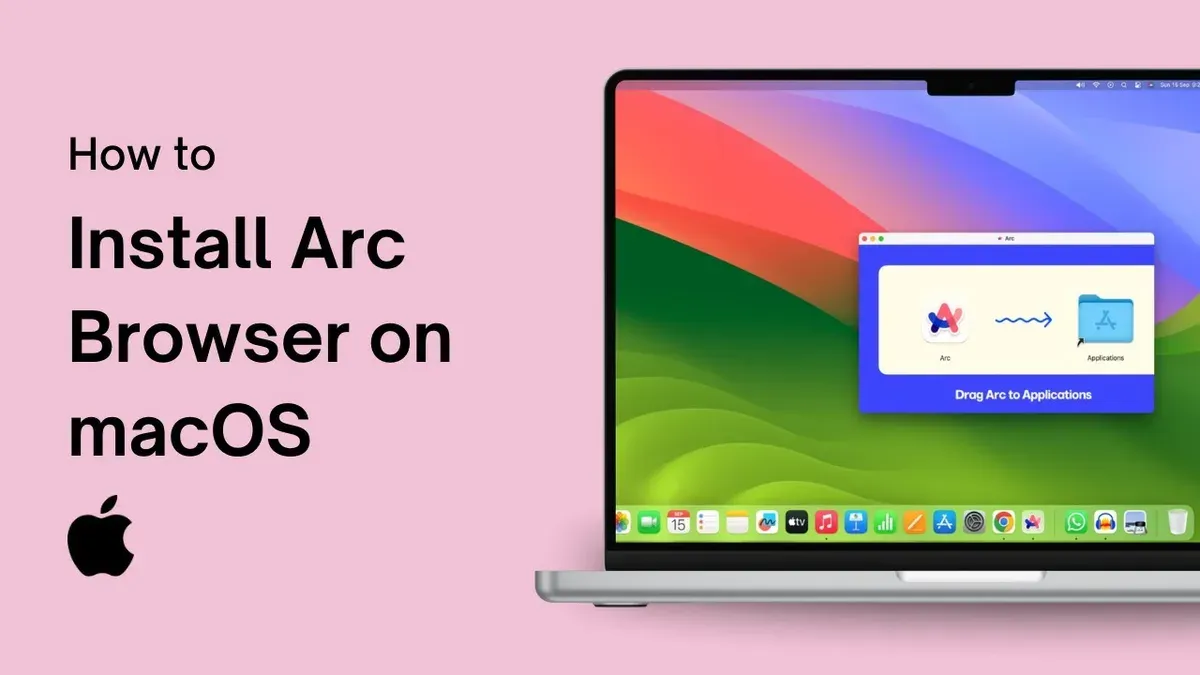
You’ve heard about the Arc browser and want to give it a try on your Mac. Maybe you’re curious about its design and features or wondering how it stacks up against Safari and Chrome. Before diving in, you need clear instructions on how to install Arc browser on Mac without running into common pitfalls.
This guide walks you through everything from the initial download to setup, with tips on ensuring compatibility and troubleshooting. Plus, it offers a balanced look at Arc’s unique features and cross-platform use alongside Windows, helping you decide if it fits your browsing needs.
Key takeaways
- Download Arc directly from the official website to avoid security risks.
- Ensure your Mac runs macOS 12.0 Monterey or later for compatibility.
- Follow the step-by-step installation prompts including granting necessary permissions.
- Arc offers built-in productivity tools like split view and sidebar apps unique from other browsers.
- Cross-platform syncing is possible but currently more streamlined on Mac than Windows.
Before you start: What you need to install Arc browser on Mac
To install Arc browser on your Mac, ensure your system meets the minimum requirements to avoid compatibility issues. Arc requires macOS 12 Monterey or later, so check your Mac’s operating system version by clicking the Apple menu and selecting "About This Mac."
You will also need a stable internet connection to download the installation package, which is approximately 150 MB in size. Make sure you have at least 500 MB of free storage to accommodate the app and future updates.
Arc supports a wide range of Mac models including MacBook Air, MacBook Pro, iMac, and Mac mini, provided they run the required macOS version. Most Macs released in the last 5 years are compatible, but older devices may not support the latest system updates needed.
Arc browser is free to download and use, so you do not need to purchase a license or subscription before installation.
- Check your macOS version by clicking the Apple icon > About This Mac; ensure it is macOS 12 Monterey or newer. If successful, you will see your macOS version displayed clearly.
- Verify available storage by opening Finder > Go > Utilities > Disk Utility or by selecting your startup disk in About This Mac > Storage; confirm you have at least 500 MB free.
- Confirm your Mac model under About This Mac to ensure it is among the supported devices like MacBook Air or Pro models from recent years. If your model name appears as expected, compatibility is likely.
Downloading the Arc browser Mac app safely
To ensure you download the authentic Arc browser installer, always start at the official source. Visit https://arc.net, the verified website for the browser. Avoid third-party download sites, as these can host outdated files or malware, increasing risk to your Mac’s security.
- Open your preferred browser and enter https://arc.net in the address bar. You should see the official Arc browser homepage with clear branding and download options.
- Locate the download button labeled for Mac, typically marked as “Download for Mac” or similar. This ensures you get the correct macOS installer file, usually a.dmg or.pkg.
- Click the download button. Your browser will start downloading the file; check that the file size matches what is listed on the site to confirm completeness.
- Once downloaded, if available, verify the file’s integrity by checking its checksum against values provided on the site or trusted sources. This step helps confirm the file hasn’t been tampered with.
- Avoid opening the file if you notice discrepancies in file size, checksum, or if your macOS security warns about the source. In such cases, re-download directly from the official site.
Using the official website minimizes common download errors and reduces exposure to malicious software, a risk more prevalent when using third-party sources.
Installing Arc browser on your Mac step-by-step
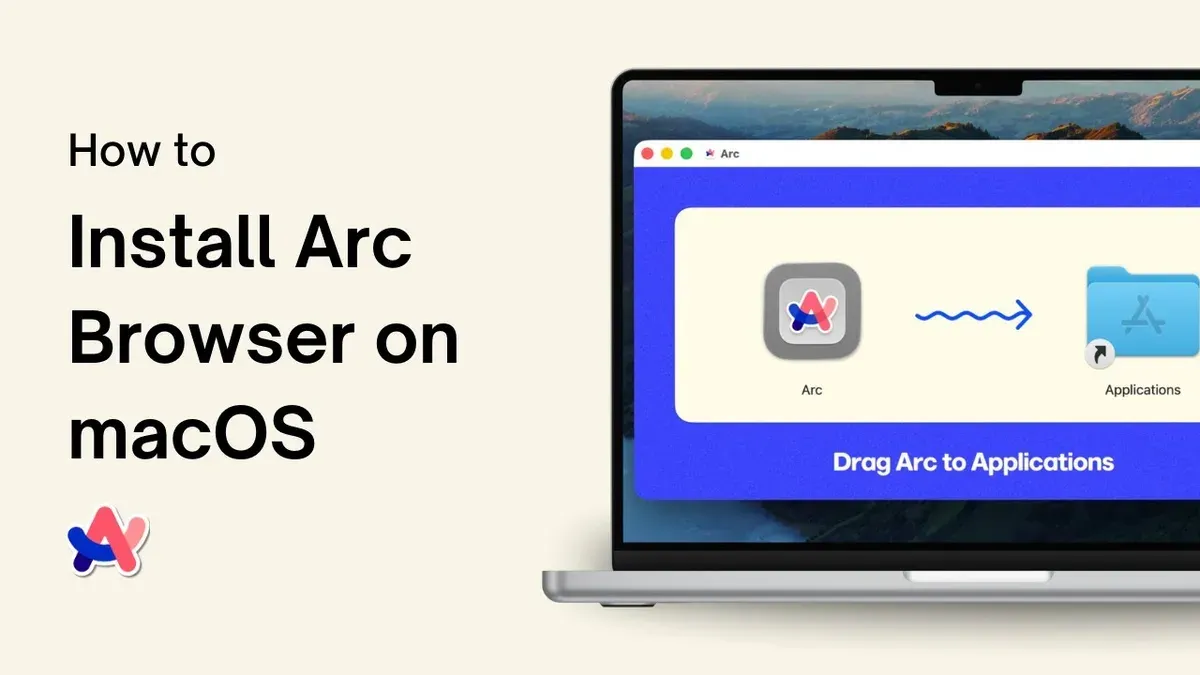
- Locate the downloaded Arc browser.dmg file in your Downloads folder and double-click it to open. A new window should appear showing the Arc app icon and a shortcut to the Applications folder.
- Drag the Arc icon to the Applications folder shortcut in the same window. This copies Arc to your Mac’s Applications, making it accessible like other installed apps.
- Close the.dmg window and eject the Arc installer by right-clicking its icon on your desktop or Finder sidebar and selecting “Eject”. This prevents clutter and confusion with the installer file.
- Open your Applications folder and double-click the Arc app to launch it for the first time. You may see a security prompt saying the app is from an unidentified developer or asking to confirm opening it. Click “Open” to proceed.
- If macOS requests permissions (such as access to files or notifications), review and grant these to ensure full functionality of Arc. You can adjust these later in System Preferences > Security & Privacy if needed.
- Once launched, Arc will guide you through initial setup steps like signing in or customizing preferences. Follow the on-screen instructions to complete this.
Common pitfalls: Users often forget to eject the.dmg installer or hesitate at the security prompt, which can halt installation. If Arc doesn’t open immediately, check System Preferences > Security & Privacy > General tab for an option to allow the app.
Using Arc browser on Mac: Initial setup and key features
After launching Arc, you will be prompted to create or log into an Arc account, which enables syncing your bookmarks, tabs, and settings across devices. This sign-in process is straightforward and essential for a seamless experience.
Arc’s interface differs significantly from traditional browsers by replacing the usual tab bar with a sidebar. This sidebar organizes your browsing into "Spaces," which act like customizable workspaces for different projects or contexts. Users find this structure helps reduce clutter compared to the standard horizontal tabs found in browsers like Safari or Chrome.
To customize your experience, access settings via the sidebar’s gear icon. Here, you can adjust preferences such as default search engine, privacy controls, and appearance themes optimized for macOS. Mac users particularly appreciate the smooth integration with system-wide shortcuts and trackpad gestures.
Basic navigation involves using the sidebar to switch between Spaces, creating new ones with the "+" button, and managing pinned sites for quick access. Unlike traditional browsers, Arc encourages organizing tabs vertically, which some users find intuitive but may require a short adjustment period.
Troubleshooting common installation and usage issues on Mac
If Arc browser won’t install or open, first check macOS Security & Privacy settings under System Preferences. You might see an alert like “Arc can’t be opened because Apple cannot check it for malicious software.” To fix this, go to the General tab in Security & Privacy and click “Open Anyway” next to the Arc warning.
Permission issues often block installation or launching. Ensure Arc has necessary permissions by going to System Preferences > Security & Privacy > Privacy tab, then check Accessibility and Full Disk Access to add Arc if needed.
Slow performance or crashes may be caused by conflicting extensions or outdated macOS versions. Disable all browser extensions from the sidebar, then restart Arc. If problems persist, check for macOS updates and apply them.
How to uninstall Arc browser completely
- Quit Arc if it’s running; check with Command + Q.
- Open Finder and go to the Applications folder.
- Drag the Arc app to the Trash or right-click and select Move to Trash.
- In Finder, press Command + Shift + G and enter ~/Library/Application Support/, then delete the "Arc" folder.
- Repeat in ~/Library/Caches/ by deleting the "com.arc.browser" folder if present.
- Empty the Trash to complete removal.
Common user reports show these steps resolve most installation and usage problems, ensuring a smooth experience with Arc on Mac.
How to use Arc browser on Windows and cross-platform considerations
Arc browser is officially available for Windows, offering many of the same core features found on Mac. However, some users note that the Mac version tends to have smoother performance and more polished interface elements due to its longer development focus on macOS.
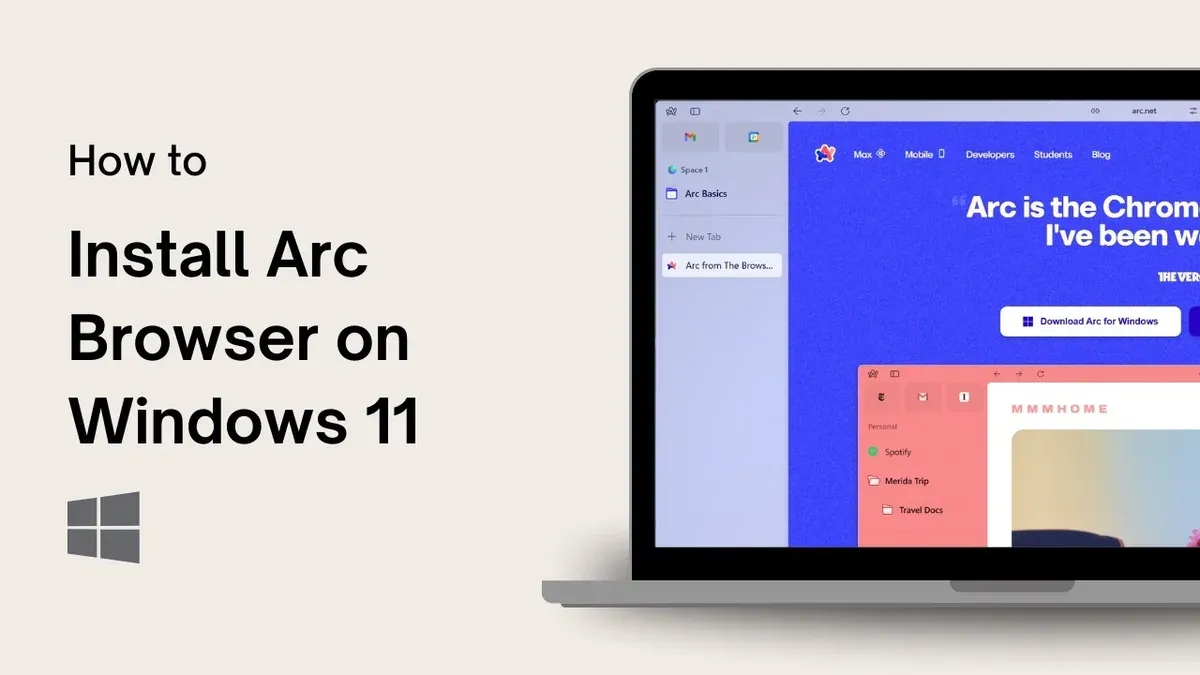
To sync your browsing data between Mac and Windows installations, you need to sign in with the same Arc account on both devices. This enables synchronization of bookmarks, tabs, history, and Spaces, providing a seamless experience across platforms.
Keep in mind that certain Mac-exclusive features, such as specific keyboard shortcuts or integration with macOS services, may not be fully present on Windows. Performance differences can also arise depending on hardware and operating system optimizations.
- Download and install Arc browser from the official Arc website on your Windows PC. After installation, launch the browser to see the welcome screen.
- Sign in to your Arc account by clicking the profile icon in the top-right corner. Successful sign-in will sync your data from Mac to Windows.
- Verify synced content by checking your bookmarks and Spaces; they should match what you have on your Mac.
- Adjust settings under Settings > Preferences to tailor the experience for Windows, noting any feature differences or unavailable options.
Is Arc browser good? A balanced review for Mac users
Arc browser offers competitive performance on Mac, with load times and responsiveness generally comparable to Microsoft Edge and faster than Mozilla Firefox in several user benchmarks. Its Chromium base ensures robust speed and compatibility with most web standards.
Unique features include a sidebar with Spaces for organizing tabs, built-in note-taking, and easy access to web apps, which differentiate it from more traditional browsers. These innovations aim to enhance productivity but may require an adjustment period if you prefer conventional tab management.
Limitations on Mac include occasional missing extensions compared to Chrome or Firefox, and some users report less mature support for accessibility features. Arc’s privacy policy emphasizes minimal data collection and encryption of synced data, aligning with strong privacy standards, though it does collect basic usage analytics to improve the product.
User satisfaction surveys show a favorable reception for Arc’s design and workflow improvements, though some users prioritize extension availability or specific advanced settings found in established browsers.
Overall, if you value a fresh approach to browsing with solid performance and privacy, Arc is worth trying, but those dependent on a wide extension ecosystem or extensive customization may find it less fitting.
- How to Install Google Chrome on Mac: A Clear Step-by-Step Guide
- How to Install Brave Browser on Mac: A Clear Step-by-Step Guide
- How to Install Opera GX on Mac: A Clear Step-by-Step Guide
Frequently asked questions
Is edge browser available for mac?
Yes, Microsoft Edge is available for Mac. You can download it directly from the official Microsoft website. It offers features similar to its Windows counterpart, including sync across devices and support for extensions.
How to install firefox browser on mac?
To install Firefox on your Mac, visit the official Mozilla website and download the macOS version. Open the downloaded.dmg file, drag the Firefox icon into your Applications folder, and launch it from there. You may need to allow Firefox to run in your Security & Privacy settings if prompted.
How to uninstall arc browser?
To uninstall Arc browser on Mac, quit the app completely, then open the Applications folder. Drag the Arc app icon to the Trash or right-click and choose Move to Trash. To remove residual files, check ~/Library/Application Support/ and ~/Library/Preferences/ for any folders or files named after Arc and delete them.
How to use Arc browser on windows
Arc browser is primarily designed for Mac, but there is a Windows version available. After downloading it from the official site, install it by running the setup file and following the prompts. The Windows version supports syncing with your Arc account, allowing you to maintain bookmarks and tabs across platforms.
Is Edge browser available for Mac
This question is a duplicate of the first one. To reiterate, Microsoft Edge is available for Mac and can be installed from Microsoft's official website, offering a consistent experience across devices.
What this guide does not cover
This guide does not cover advanced customizations or developer tools within Arc browser, nor does it address enterprise deployment scenarios. If you require configuration for organizational use or need to manage multiple installations centrally, consulting official enterprise resources or IT professionals is recommended.
For users interested in deep browser customization beyond the standard settings or exploring developer-specific features like DevTools extensions or experimental APIs, additional documentation and specialized guides should be consulted.
The single most useful next step is to explore Arc’s built-in settings menu accessed via the top-right menu under Preferences. Here, you can tailor privacy options, appearance themes, and tab management to fit your workflow, ensuring a smoother browsing experience aligned with your needs.



