
How to Install Brave Browser on Mac: A Clear Step-by-Step Guide
A clear, step-by-step guide on how to install Brave browser on Mac, tailored to your device and macOS version for a smooth setup.
You’ve heard about Brave’s strong privacy features and fast browsing speeds, and you’re curious if it’s the right choice for your Mac. You want a clear, reliable guide on how to install Brave browser on Mac without running into common pitfalls or confusing steps.
This article walks you through downloading and installing Brave tailored to your Mac model and macOS version. It also highlights Brave’s main benefits and potential trade-offs so you can decide if it fits your everyday browsing needs.
Key takeaways
- Download Brave only from the official Brave website to avoid malware risks.
- Installation steps differ slightly depending on whether you have an Intel-based or Apple Silicon Mac.
- Adjust security settings in System Preferences to allow Brave’s installation if needed.
- Brave offers built-in ad and tracker blocking, improving privacy and speed.
- Consider browser extension compatibility and occasional site compatibility issues before switching.
Before you start: What you need to install Brave on Mac
To install Brave browser on your Mac smoothly, ensure your system meets the necessary requirements. Brave supports macOS versions 10.12 (Sierra) and later, so verify your Mac is running at least this version by clicking the Apple menu > About This Mac. Brave is compatible with all Mac models, including MacBook Air, MacBook Pro, and desktop Macs such as the iMac and Mac mini.
You will need a stable internet connection to download the installer, which is approximately 80 to 100 MB in size. Ensure you have at least 150 MB of free storage space to accommodate the download and installation process comfortably.
While Brave is available on multiple platforms, its macOS version is designed specifically to leverage Mac hardware and system features. This differs from platforms like Chrome OS, where Brave operates within a different environment and may have varied installation steps and system integration.
- Check your macOS version: Click the Apple icon in the top-left corner, select About This Mac, and note the version number. You should see 10.12 or newer. If your system is older, consider updating your macOS before proceeding.
- Verify available storage: Open Finder, select your startup disk, and press Command + I to Get Info. Confirm you have at least 150 MB of free space to allow for installation.
- Confirm internet connection: Open Safari or another browser and visit a website to ensure you are connected to the internet for downloading Brave.
How to download Brave browser on Mac safely
To ensure you download the authentic Brave browser and avoid malware or counterfeit versions, always get it from Brave’s official website.
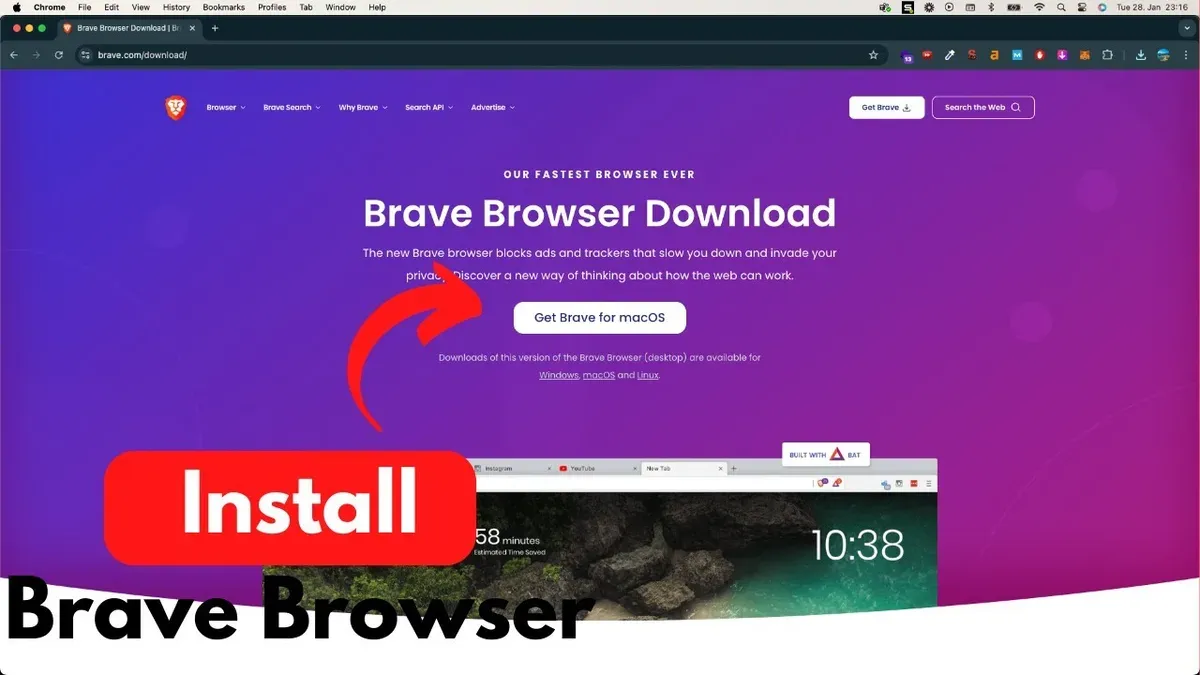
- Open your preferred Mac browser and go to https://brave.com.You should see a clean homepage highlighting Brave’s privacy features and a prominent download button.
- Look for the download button labeled for Mac. It usually says something like “Download Brave for macOS”.Clicking it will start downloading the correct installer for your Mac.
- Understand the three versions available: Stable, Beta, and Developer.For everyday use, choose the Stable version unless you want to test upcoming features.
- Stable is the fully tested version recommended for most users.
- Beta offers newer features but might have minor bugs.
- Developer is intended for developers and early testers and can be unstable.
- Avoid downloading Brave from third-party websites or unverified links.Fake Brave downloads can contain malware or unwanted software. Common signs include websites with misspelled URLs, excessive ads, or requests for unusual permissions before download.
How to install Brave browser on Mac: step-by-step process
- Locate the downloaded Brave.dmg file, usually in your Downloads folder. Double-click it to open; a new window with the Brave icon and an Applications folder shortcut should appear.
- Drag the Brave icon into the Applications folder shortcut. You will see a progress bar indicating the copying process; this typically completes within a few seconds depending on your Mac's speed.
- Once copied, eject the Brave installer by clicking the eject button next to the mounted image in Finder's sidebar or right-clicking the mounted drive and selecting Eject. The mounted image will disappear, confirming the ejection.
- Open your Applications folder and double-click Brave to launch it. On first launch, macOS may display a security warning; click "Open" to proceed. Brave may prompt for permissions such as notifications or access to files—grant these based on your preferences.
- Optionally, to make Brave your default browser, open Brave’s menu, select "Settings," then "Get Started," and click "Make Default." A system dialog will confirm this change.
The entire installation process is generally faster than many other browsers due to Brave's lightweight installer, often completing within a minute on most Mac models.
How to install Brave browser on specific Mac models
Brave browser supports both Apple Silicon (M1, M2 chips) and Intel-based Macs, ensuring broad compatibility across MacBook Air, MacBook Pro, and other Mac models. Before installation, confirm your Mac’s chip type by clicking the Apple menu > About This Mac, then check the Processor or Chip entry.
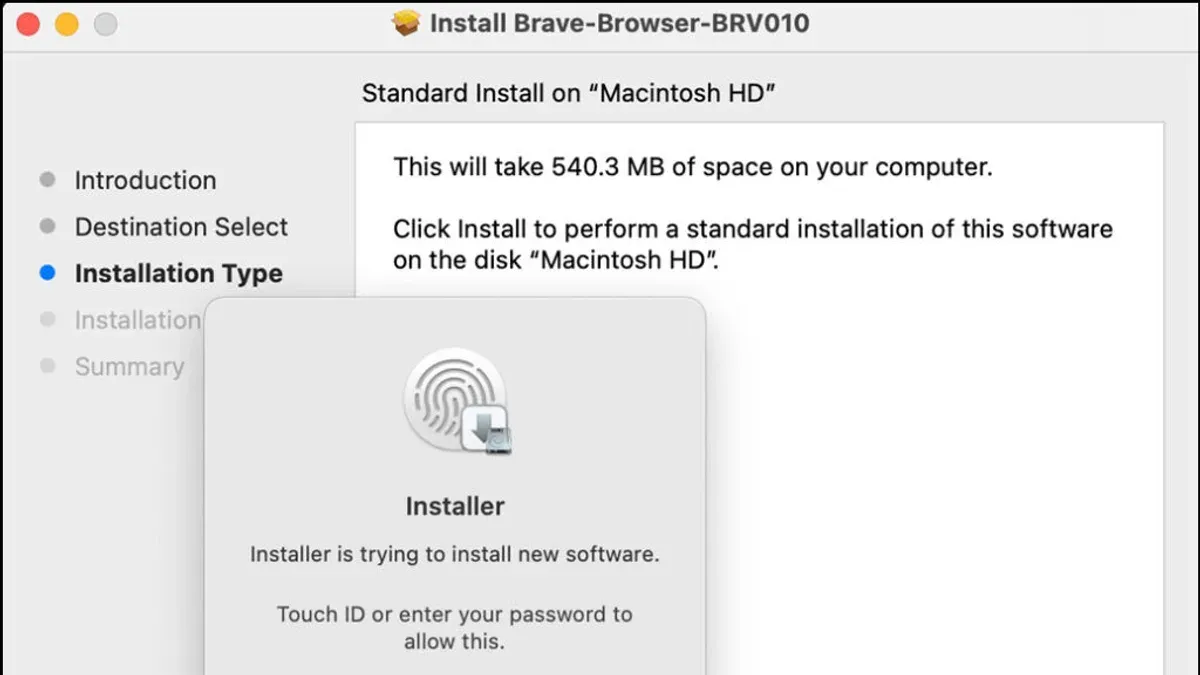
For Apple Silicon Macs, the Brave installer is optimized to run natively, delivering better performance and battery efficiency. Intel Macs use a compatible Intel version of Brave, so installation steps remain the same but performance may slightly vary.
Older MacBook models running macOS 10.12 to macOS 10.14 may trigger additional Gatekeeper warnings when opening Brave for the first time. If you see a message saying "Brave can't be opened because it is from an unidentified developer," proceed as follows:
- Open System Preferences > Security & Privacy > General tab.
- Click the lock icon and enter your password to allow changes.
- Click "Open Anyway" next to the message about Brave browser.
- Confirm the prompt to launch Brave.
This bypasses Gatekeeper for this app while keeping your Mac secure. MacBook Air and Pro users should also check the "Full Disk Access" permissions if Brave needs to access files outside its sandbox, configurable under System Preferences > Privacy & Security.
| Mac Model | Chip | macOS Minimum Version | Notes |
|---|---|---|---|
| MacBook Air (M1, M2) | Apple Silicon | 10.12+ | Optimized installer; native performance |
| MacBook Pro (Intel) | Intel | 10.12+ | Standard Intel version; may see Gatekeeper prompts on older macOS |
| Older MacBook (Pre-2015) | Intel | 10.12–10.14 | May require explicit Gatekeeper override to install |
How to set up Brave browser on Mac after installation
After installing Brave, configuring it properly ensures you benefit from its privacy and performance features. Start by importing your bookmarks and settings from your previous browser to maintain continuity.
- Open Brave, click the menu icon (three horizontal lines) in the upper-right corner, then select Bookmarks > Import bookmarks and settings. You will see a list of browsers installed on your Mac.
- Choose your previous browser (e.g., Safari or Chrome), select the data types to import such as bookmarks, browsing history, and saved passwords, then click Import. A confirmation message appears when done.
- Next, configure Brave’s privacy shields by clicking the lion icon next to the address bar. In the dropdown, adjust settings for blocking trackers, ads, and third-party cookies. The default shields block most trackers and intrusive ads, providing stronger privacy than Safari or Chrome.
- To sync Brave across your devices, open the menu, go to Settings > Sync, and follow the prompts to create or join a sync chain using a QR code or sync code. This keeps bookmarks, passwords, and history consistent.
- Explore Brave Rewards by clicking the triangular icon near the address bar. You can enable optional ads that respect privacy and earn Basic Attention Tokens (BAT). These tokens can be used to support websites and content creators directly within Brave.
These steps help you personalize Brave for daily use while maintaining enhanced privacy and optionally benefiting from the Brave Rewards program.
How to install Brave browser on Chrome OS: A brief comparison
Installing Brave on Chrome OS differs significantly from the Mac process due to the distinct operating environments. On Chrome OS, Brave is available either through the Google Play Store as an Android app or via Linux (Beta), whereas on Mac, it is installed as a native macOS application.
Using the Google Play Store is the simplest method on Chrome OS. You just open the Play Store, search for Brave, and install it like any Android app. This approach requires Chrome OS devices with Android app support enabled. The installed app runs in a containerized environment, which may have some performance differences compared to native Mac installations.
Alternatively, for users who prefer the Linux experience, Brave can be installed using Linux commands in the terminal. This requires enabling Linux (Beta) on Chrome OS, adding Brave’s repository, and installing via package managers. This method offers a more desktop-like experience but involves more technical steps.
If you are primarily a Mac user, the installation steps are more straightforward with a native app and direct system integration. Chrome OS users should consider their device capabilities and preferred environment before choosing an installation method.
| Aspect | Mac | Chrome OS |
|---|---|---|
| Installation source | Official Brave website (.dmg file) | Google Play Store (Android app) or Linux (Beta) terminal |
| System requirement | macOS 10.12 or later | Chrome OS with Android apps enabled or Linux (Beta) enabled |
| Installation complexity | Simple drag-and-drop install | Easy via Play Store; moderate via Linux terminal |
| Performance | Native app optimized for macOS and hardware | Android app containerized or Linux app; may have slight performance differences |
For detailed Chrome OS installation instructions and troubleshooting, refer to dedicated Chrome OS guides that cover enabling Android apps and Linux environments.
Troubleshooting common issues when installing Brave on Mac
Installing Brave on Mac may sometimes trigger security warnings or fail due to system settings or software conflicts. Here are solutions for frequent problems you might encounter.
Handling Gatekeeper and security warnings
If you see an alert like “Brave.app cannot be opened because the developer cannot be verified,” this is macOS Gatekeeper preventing an unsigned app from running.
- Open System Preferences and go to Security & Privacy.
- In the General tab, look for a message about Brave being blocked and click Open Anyway.
- Try launching Brave again; you should see a confirmation prompt. Click Open to proceed.
This process allows Brave to run while maintaining macOS security protocols.
Fixing Brave not opening or crashing on launch
If Brave fails to open or crashes immediately, it may be caused by corrupted cache or incompatible extensions.
- Force quit Brave if it appears in the Dock but is unresponsive.
- Open Finder, press Shift + Command + G, and enter
~/Library/Application Support/BraveSoftware/Brave-Browser/. - Rename the
Defaultfolder toDefault_backupto reset user data. - Try launching Brave again; it should open without previous data, indicating cache-related issues.
Resolving slow downloads or installation failures
Slow downloads can be caused by unstable internet or server issues. If the download stalls or the installer fails:
- Check your internet connection and try switching to a wired network if possible.
- Clear your browser cache or try downloading Brave with a different browser.
- Restart your Mac to resolve any temporary system glitches affecting downloads.
- Download Brave during off-peak hours to avoid potential server congestion.
Dealing with outdated macOS compatibility
Brave requires macOS 10.12 or later. If you encounter an error stating your macOS version is incompatible, consider updating your system via System Preferences > Software Update.
If your Mac cannot upgrade beyond an older macOS, Brave may not install or function properly. In that case, you may need to use an alternative browser compatible with your macOS version.
Comparing Brave browser to other browsers on Mac
Brave stands out for its strong privacy and ad-blocking features built directly into the browser. Unlike Safari or Chrome, Brave blocks trackers and intrusive ads by default, enhancing your privacy without requiring additional extensions. This focus can reduce page load times and limit data usage.
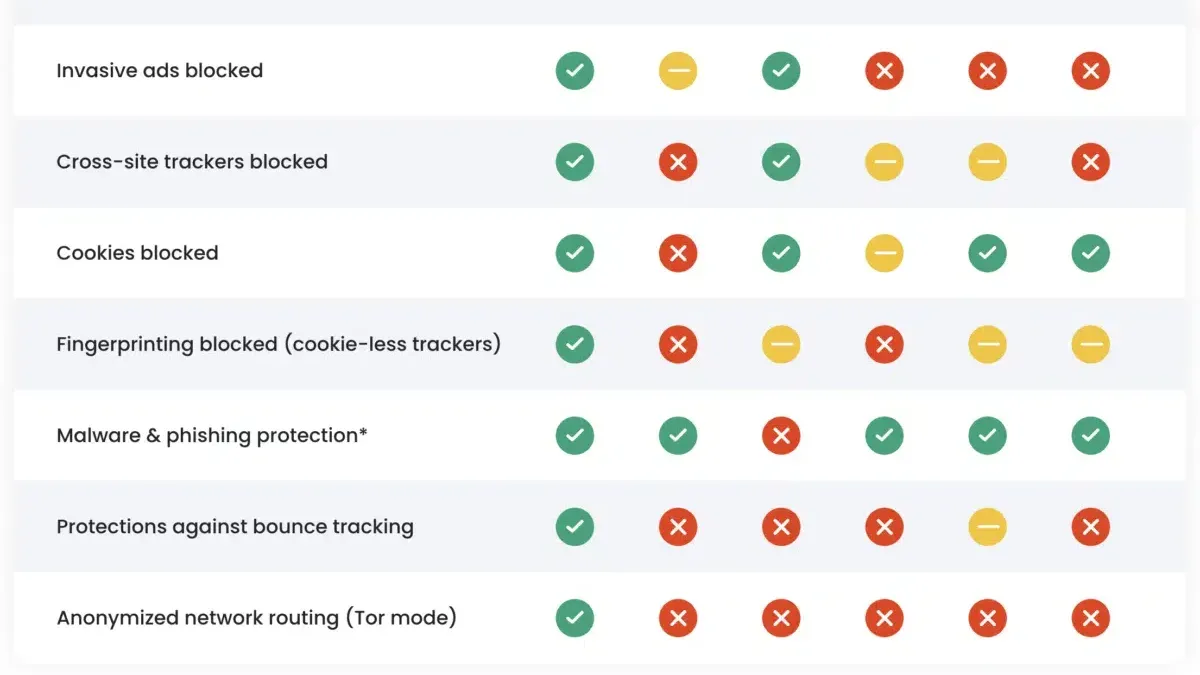
In terms of performance, Brave is generally faster than Chrome on Mac, using less RAM and CPU, thanks to its streamlined code and blocker integration. Safari often performs well on Apple hardware with optimized energy use, but Brave offers a competitive edge when handling multiple tabs or resource-heavy sites.
One potential limitation is Brave’s extensions ecosystem, which is compatible with most Chrome extensions but may not support some specialized Safari extensions. Users relying on niche Safari add-ons might find this restrictive. Additionally, Brave’s unique features like Brave Rewards and Tor integration provide extra privacy options not found in the others.
User satisfaction tends to reflect appreciation for Brave’s privacy and speed, though some users note occasional glitches or interface differences. Evaluating Brave involves balancing its privacy-first approach and efficient performance against possible extension compatibility and interface preferences.
- How to Install Firefox on Mac: A Clear Step-by-Step Guide
- How to Install WhatsApp on Your Mac: A Clear Step-by-Step Guide
- How to Install Telegram on Mac: A Clear Step-by-Step Guide
Frequently asked questions
Is brave browser available for mac?
Yes, Brave browser is available for Mac and supports a wide range of Mac models running macOS. It is compatible with both Intel-based and Apple Silicon Macs, providing optimized performance for each architecture.
How do i install brave browser on mac?
To install Brave on your Mac, visit the official Brave website and download the macOS installer. Open the downloaded.dmg file, drag the Brave app into your Applications folder, then launch Brave from there. You may need to allow the app in your Security & Privacy settings if macOS blocks it initially.
Is Brave browser available for Mac?
Brave browser is fully supported on Mac computers. It offers regular updates tailored to macOS features and security requirements, ensuring a smooth browsing experience for Mac users.
How do I install Brave browser on MacBook Air?
Installing Brave on a MacBook Air follows the same process as other Macs: download the installer from Brave’s website, open the.dmg file, and drag the app to the Applications folder. If your MacBook Air uses Apple Silicon, the installer will include the optimized version automatically.
Can I download Brave browser on MacBook Pro?
Yes, you can download Brave on a MacBook Pro regardless of whether it has an Intel or Apple Silicon processor. Simply download the installer from Brave’s official site, mount the disk image, and move the app to Applications to complete installation.
Limits of this guide and who should look elsewhere
This guide focuses on the standard Brave browser installation and setup; it does not cover advanced customizations, developer versions, or command-line installations which may require technical expertise. Users running macOS versions earlier than macOS 10.13 High Sierra might face compatibility issues and should consider upgrading their operating system before attempting to install Brave.
For those interested in integrating Brave with specialized development environments, managing enterprise deployments, or customizing Brave’s privacy shields beyond the default settings, consulting official Brave documentation or developer forums is recommended.
To continue, the single most useful next step is to launch Brave after installation and configure its privacy settings under Preferences > Shields. Adjust blocking levels for trackers, ads, and cookies to suit your browsing habits, ensuring you balance privacy with website functionality.



