
How to Install JetBrains Toolbox on Mac: A Step-by-Step Guide
This guide walks you through installing JetBrains Toolbox on Mac, covering download, setup, multi-user configuration, and troubleshooting.
Installing JetBrains Toolbox on a Mac can be straightforward, but users often run into questions about where the app installs by default and how to manage multiple users. Whether you're setting it up for personal projects or a team environment, understanding the installation nuances helps avoid common pitfalls.
This guide explains how to install JetBrains Toolbox on Mac, covering everything from downloading the app from the official source to handling multi-user configurations. You’ll also learn about default installation locations, licensing basics, and how to troubleshoot frequent installation issues.
Key takeaways
- Download the JetBrains Toolbox app directly from the official JetBrains website to ensure authenticity.
- The app installs by default in your user’s Applications folder but can be configured for all users.
- Managing multiple users requires adjusting permissions and installation paths accordingly.
- Uninstalling involves removing the app and its configuration files to avoid leftover data.
- Common issues include permission errors and network restrictions during download or update phases.
Before you start: What you need to install JetBrains Toolbox on Mac
To install JetBrains Toolbox on your Mac successfully, ensure your system meets the necessary requirements. JetBrains Toolbox requires macOS 10.13 (High Sierra) or later; most Macs running recent macOS versions will be compatible. Your Mac should have sufficient disk space for the app and any JetBrains products you plan to install.
A stable internet connection is essential since the Toolbox app downloads updates and JetBrains IDEs directly from JetBrains servers. Interruptions may cause incomplete downloads or installation errors.
If you intend to install JetBrains Toolbox for multiple users on the same Mac, you must have administrator privileges. This allows you to place the app in system-wide locations and adjust permissions accordingly.
Familiarity with Mac security settings is also helpful. For example, macOS Gatekeeper may block the app on first launch if it’s not downloaded from the App Store; you may need to allow the app manually in System Preferences > Security & Privacy > General.
Preparing these basics upfront will streamline the installation process and minimize common issues.
Download JetBrains Toolbox app for Mac from the official source
To install JetBrains Toolbox safely, you must download the app directly from JetBrains' official website. This ensures you get the genuine software without risking malware or corrupted files.
- Open your preferred web browser and go to https://www.jetbrains.com/toolbox-app. You should see the JetBrains Toolbox landing page featuring a prominent download button.
- Locate the download button labeled "Download for macOS" near the top of the page. It usually shows the latest version number and a file size around 20-25 MB. Clicking it will start downloading a jetbrains-toolbox-version.dmg file.
- After the download completes, verify the file integrity if you want added security. JetBrains does not always publish checksums on this page, but you can check the file size matches what the site states or use macOS's built-in checksum tools if you have a known checksum from a trusted source.
The official download page is clean and unambiguous, with no confusing ads or misleading buttons, minimizing the risk of downloading unofficial copies. Always avoid third-party sites to prevent potential security issues.
How to install JetBrains Toolbox on your Mac step-by-step
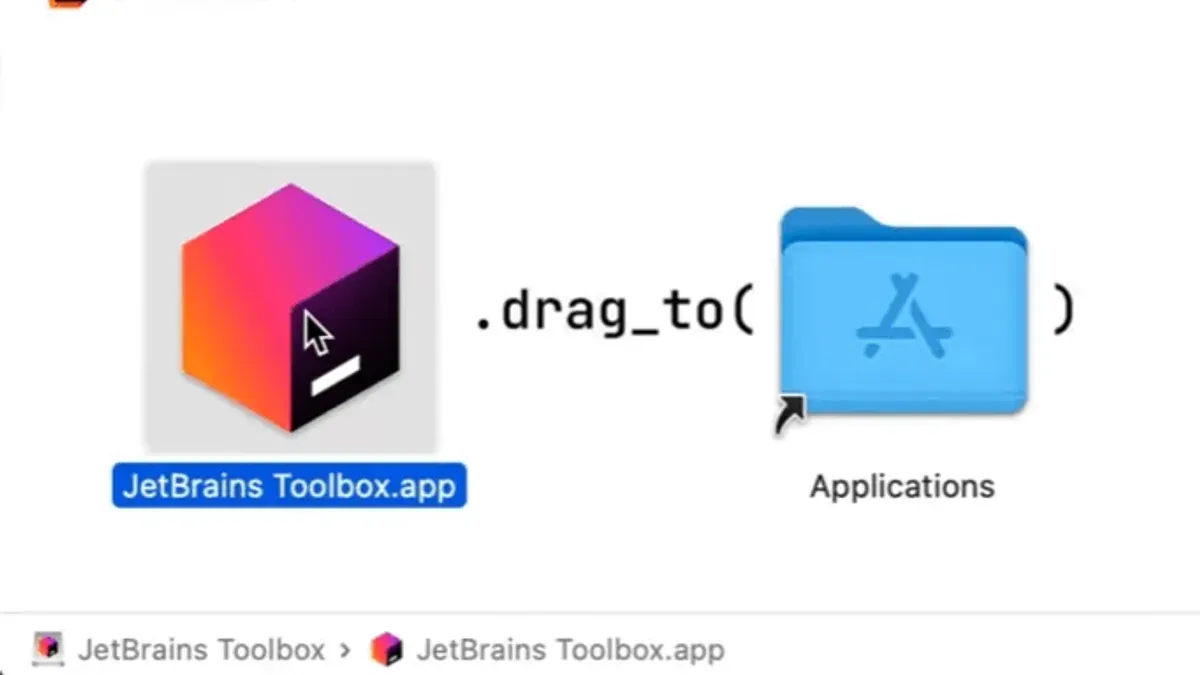
- Open the downloaded JetBrains Toolbox .dmg file by double-clicking it in your Downloads folder. A new window should appear showing the Toolbox app icon and an Applications folder shortcut.
- Drag the Toolbox app icon into the Applications folder shortcut within the window. This action copies the app to your main Applications directory, which is typically
/Applications/. - Close the installer window and eject the mounted .dmg by right-clicking its icon on your desktop and selecting Eject. This prevents accidental reinstallation attempts.
- Open your Applications folder and double-click JetBrains Toolbox to launch the app. The first time you open it, macOS may display a security prompt warning that the app is from an unidentified developer.
- If you see a security prompt, go to System Preferences > Security & Privacy > General, and click Open Anyway next to the message about JetBrains Toolbox. Then relaunch the app.
- Once launched, JetBrains Toolbox will prompt you to sign in with your JetBrains account or create one. Follow the on-screen instructions to complete initial configuration.
- After signing in, you can select which JetBrains IDEs to install and configure update preferences. The app stores its settings in
~/Library/Application Support/JetBrains/Toolbox.
JetBrains Toolbox default install location and options for all users
By default, the JetBrains Toolbox app installs in the /Applications folder of your Mac. The IDEs managed by Toolbox, such as IntelliJ IDEA or PyCharm, are installed within the ~/.local/share/JetBrains/Toolbox/apps directory inside your user’s home folder. This setup applies to single-user installations, where each user maintains their own IDE versions and settings.
For multi-user environments, installing JetBrains Toolbox for all users requires placing the Toolbox app in the system-wide /Applications folder and configuring IDE installations to a shared location accessible by all intended users. This typically involves selecting a common directory with appropriate read/write permissions.
| Installation Type | Toolbox App Location | IDE Install Location | Permissions Required |
|---|---|---|---|
| Single-user | /Applications (user’s own access) | ~/.local/share/JetBrains/Toolbox/apps (user-specific) | Standard user permissions |
| All-users | /Applications (system-wide) | Shared directory (e.g., /Users/Shared/JetBrains) | Admin rights to configure and manage permissions |
To install Toolbox for all users, you must have administrator privileges. After copying the Toolbox app to /Applications, create or designate a shared folder for IDE installations, then adjust folder permissions so all users can read and write. Be aware that managing updates and licenses centrally may require additional configuration, and users might face permission prompts when accessing shared IDE files.
Multi-user installations can be more complex and may lead to conflicts if users modify shared IDE settings simultaneously. Consider these trade-offs when deciding your installation method.
How to uninstall JetBrains Toolbox from Mac
To fully remove JetBrains Toolbox, you need to quit the app, delete it, and clear associated configuration and cache files. This ensures no leftover files take up space or cause conflicts.
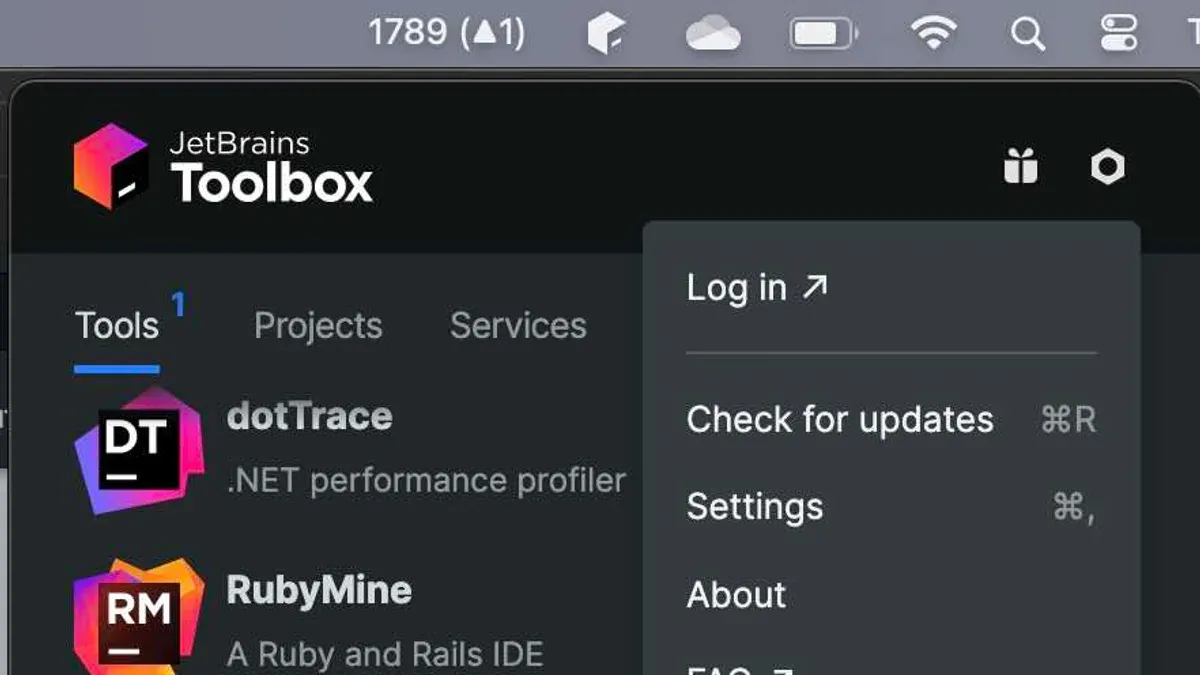
- Quit JetBrains Toolbox by clicking its icon in the menu bar, then select Quit. Verify it no longer appears in the Dock or menu bar.
- Open Finder and navigate to the /Applications folder. Locate the JetBrains Toolbox.app and drag it to the Trash. This removes the main application.
- Remove related configuration and cache files by opening Finder, selecting Go > Go to Folder... from the menu, and entering
~/Library/Application Support/JetBrains/Toolbox. Drag this folder to the Trash. - Repeat the previous step for cache files by going to
~/Library/Caches/JetBrains/Toolboxand deleting that folder. - Empty the Trash to permanently delete all files.
- To verify complete removal, restart your Mac and confirm no JetBrains Toolbox processes run in Activity Monitor.
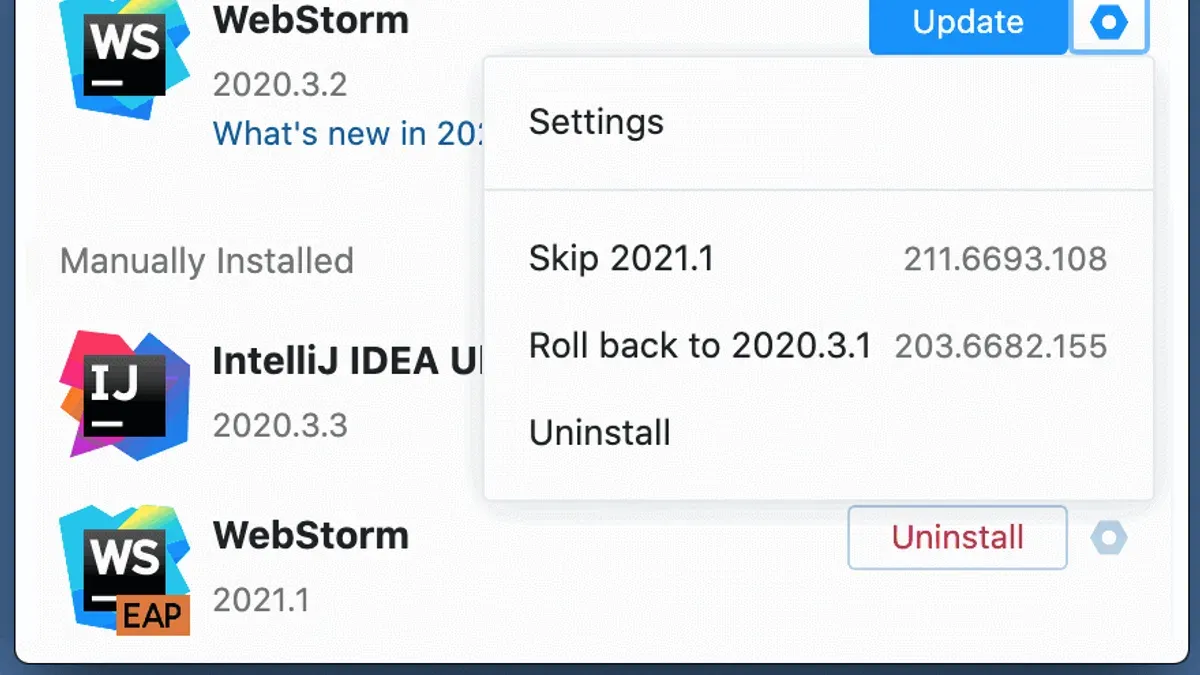
Note: Uninstalling JetBrains Toolbox does not remove the IDEs it manages. To uninstall IDEs like IntelliJ IDEA or PyCharm, remove them individually from your user folders or via their own uninstall options.
Troubleshooting common JetBrains Toolbox installation issues on Mac
If you encounter security or permissions errors, check System Preferences > Security & Privacy > General tab. You might see a message like "App was blocked from opening because it is not from an identified developer." Click "Open Anyway" and then confirm in the subsequent prompt.
If JetBrains Toolbox fails to launch or update, try quitting the app completely and restarting your Mac. Persistent launch failures may require deleting the ~/Library/Application Support/JetBrains/Toolbox folder to reset the app’s state.
Network or proxy issues can prevent downloads or updates. Confirm your Mac’s network settings do not use restrictive proxies or firewalls. If behind a proxy, configure the Toolbox app by choosing File > Settings > HTTP Proxy and inputting correct credentials.
Unexpected app behavior after installation, such as UI glitches or missing features, often resolves by reinstalling Toolbox. Uninstall via Applications folder, remove related support files (~/Library/Application Support/JetBrains/Toolbox), then reinstall from the official source.
- Open System Preferences > Security & Privacy > General. If there is a message about blocked software, click "Open Anyway". You should then see the Toolbox app launch prompt.
- If Toolbox won’t start, open Activity Monitor, quit any running Toolbox processes, then restart your Mac. On relaunch, Toolbox should open normally.
- If Toolbox cannot download updates, check your network connection and proxy settings under File > Settings > HTTP Proxy. After configuring, retry the update.
- For persistent issues, uninstall Toolbox by dragging it to Trash, then delete
~/Library/Application Support/JetBrains/Toolbox. Reboot your Mac and reinstall Toolbox from JetBrains’ website.
- How to Install Sublime Text on Mac: A Step-by-Step Guide
- How to Install Emacs on Mac: A Step-by-Step Guide
- How to Install Neovim on Mac: A Clear Step-by-Step Guide
- How to Install OpenJDK on Mac: A Complete Step-by-Step Guide
Frequently asked questions
Is jetbrains toolbox free?
JetBrains Toolbox itself is a free application that manages your JetBrains IDEs and tools. However, the individual IDEs or tools it installs may require a paid license or subscription depending on the product and usage type.
What is jetbrains toolbox?
JetBrains Toolbox is a management app that helps you install, update, and maintain JetBrains development tools. It provides a centralized interface to handle multiple IDEs, manage versions, and configure settings across different projects.
How to install JetBrains Toolbox Ubuntu?
To install JetBrains Toolbox on Ubuntu, download the Linux version from the official JetBrains website. Extract the downloaded archive, then run the toolbox executable from the extracted folder. Optionally, create a desktop entry for easier access.
Is JetBrains Toolbox free?
Yes, the JetBrains Toolbox app is free to download and use. Keep in mind that while the Toolbox app itself is free, the JetBrains products it manages may have separate licensing requirements.
What is JetBrains Toolbox?
JetBrains Toolbox is a desktop application designed to streamline the installation, updating, and organization of JetBrains development tools. It supports handling multiple versions and offers easy access to your IDEs from one place.
What this guide does not cover and who should look elsewhere
This guide focuses solely on installing the JetBrains Toolbox app on your Mac, its default installation locations, multi-user considerations, and common installation issues. It does not cover installing individual JetBrains IDEs through the Toolbox or configuring JetBrains account licensing. If you need help with setting up or activating specific IDEs like IntelliJ IDEA, PyCharm, or WebStorm, refer to the dedicated documentation for those products or JetBrains' official support resources.
The most useful next step after installing Toolbox is to familiarize yourself with its update management and project integration features. Launch the Toolbox app and explore its settings to configure automatic updates and manage your installed IDE versions efficiently. This ensures your development environment stays current and tailored to your workflow, reducing interruptions and compatibility issues.



