
How to Install Ollama on Mac: A Complete Step-by-Step Guide
Discover how to install Ollama on your Mac using Terminal or Homebrew, with tips for different hardware and troubleshooting advice.
You’ve decided to try out Ollama on your Mac but aren’t sure where to begin. Whether you own a Mac Mini, MacBook, or MacBook Pro, the installation process can vary depending on your device and preferred setup method.
This article covers how to install Ollama on Mac using both the Terminal and Homebrew, explains hardware-specific considerations, and provides a brief comparison for Windows users thinking about Ollama. You’ll also find troubleshooting tips and guidance on verifying and updating your installation.
Key takeaways
- Choose Terminal installation for direct control or Homebrew for ease of updates.
- Mac hardware differences, like M1/M2 chips versus Intel, affect installation steps.
- Windows installation varies significantly, so Mac users benefit from tailored instructions.
- Common issues often relate to permissions or missing dependencies, which can be resolved quickly.
- Regularly verify and update Ollama to ensure optimal performance.
Before you start: What you need to install Ollama on Mac
Ollama is a tool designed to run language models locally on your Mac, enabling efficient and private AI processing. To install it successfully, you need to confirm your Mac meets certain hardware and software requirements.
Ollama supports macOS versions starting from macOS 12 Monterey and later. It runs on both Intel-based Macs and Apple Silicon chips, including M1 and the newer M4 models. The performance and compatibility might vary slightly depending on your processor type, so knowing your Mac model is important before installation.
You will need access to the macOS Terminal application for the installation process. Terminal allows you to enter commands directly, which is essential whether you use the direct install method or Homebrew, the popular macOS package manager. Installing Homebrew is optional but recommended if you prefer managing packages more easily.
Ensure your Mac has a stable internet connection during installation, as the process downloads the necessary software components. You also need appropriate permissions—administrator or sudo access—to install software and modify system settings.
Check your system compatibility
- Click the Apple menu and select About This Mac. You should see your macOS version and processor type displayed. Confirm that your macOS version is 12 or higher and note whether your Mac uses Intel, M1, or M4 chip.
- Open the Terminal app from /Applications/Utilities/. Enter the command
uname -mand press Enter. The output will show your architecture:x86_64for Intel orarm64for Apple Silicon. - Verify you have administrator rights by typing
sudo -vin Terminal. If prompted, enter your password. No error means you have sufficient permissions.
Confirming these points ensures your Mac is ready for Ollama installation without unexpected issues.
How to install Ollama on Mac using the terminal
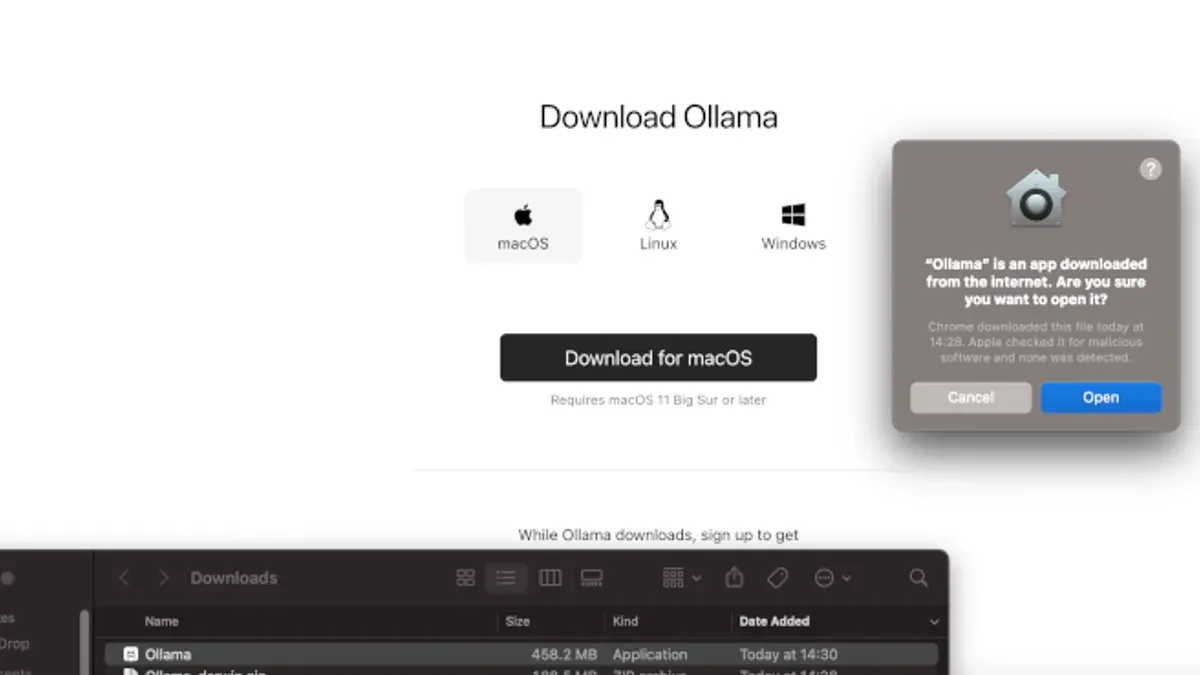
You can install Ollama directly through the terminal without using Homebrew by downloading the official installer package and running the installation commands manually. This method gives you control over the installation process and avoids dependency on package managers.
- Open the Terminal app on your Mac from the Applications > Utilities folder.
- Download the latest Ollama installer package using curl. Run:
curl -O https://ollama.com/downloads/ollama-mac.pkg
This command downloads the Ollama package to your current directory. - Install the downloaded package with sudo installer. Run:
sudo installer -pkg ollama-mac.pkg -target /
You will be prompted for your administrator password. After entering it, the installation proceeds silently. A successful install shows:
installer: The install was successful. - Verify Ollama is installed by running:
ollama --version
If installed correctly, the terminal outputs the Ollama version number, for example:
ollama version 1.2.3 - Launch Ollama by typing
ollamain the terminal. You should see the Ollama prompt or welcome message, indicating the application is ready to use. - Test basic functionality by running a command like:
ollama run hello
This should return a simple greeting from Ollama, confirming the installation works as expected.
Following these steps ensures you have Ollama installed directly on your Mac via terminal commands without additional tools.
How to install Ollama on Mac using Homebrew
If you do not have Homebrew installed, it is a popular package manager for macOS that simplifies software installation. Installing Ollama through Homebrew can streamline updates and dependency management.
- Check if Homebrew is installed by opening the Terminal and typing brew --version. If Homebrew is installed, you will see a version number; if not, proceed to the next step.
- To install Homebrew, enter the command /bin/bash -c "$(curl -fsSL https://raw.githubusercontent.com/Homebrew/install/HEAD/install.sh)". The script will guide you through the installation. Successful installation ends with a message confirming Homebrew is ready to use.
- Once Homebrew is installed, update it by typing brew update. You should see messages indicating the update process and completion.
- Install Ollama by running brew install ollama. The terminal will download and install Ollama along with any necessary dependencies. This process usually takes a minute or two depending on your internet speed.
- Verify the installation by typing ollama --version. A version number confirms Ollama is correctly installed.
Using Homebrew offers advantages such as easy management of Ollama updates with brew upgrade ollama and automatic handling of dependencies. However, the Homebrew repository version may lag slightly behind the official release, which can be a limitation if you need the latest features immediately.
Compared to direct terminal installation, Homebrew can be faster overall if you already have it installed, but setting up Homebrew initially adds extra time. The Homebrew command outputs during installation provide clear progress feedback, making troubleshooting easier.
How to install Ollama on specific Mac models: Mac Mini, Mac Mini M4, MacBook, and MacBook Pro
Installing Ollama varies depending on your Mac’s processor and model due to architecture differences between Intel, M1, and M4 chips. The core installation steps remain consistent, but performance and compatibility nuances differ.
Mac Mini and Mac Mini M4
- Confirm your Mac Mini model and processor via Apple menu > About This Mac. For Intel-based Mac Minis, installation proceeds similarly to other Intel Macs, with no additional steps required.
- For Mac Mini M4 users, ensure you are running the latest macOS version to optimize compatibility with Ollama’s ARM-native builds. This improves performance and reduces resource usage.
- Run the Ollama installation using your preferred method (terminal or Homebrew). On M4 models, expect notably faster launch times and smoother operation compared to Intel versions.
- After installation, launch Ollama to verify it runs without emulation warnings, which confirms native ARM support.
MacBook and MacBook Pro
- Identify your MacBook or MacBook Pro’s processor type as Intel, M1, or M4 in Apple menu > About This Mac.
- Intel MacBook users should be aware that Ollama runs under Rosetta 2 translation, which may cause slightly longer startup times and increased CPU usage.
- M1 and M4 MacBooks benefit from native support, resulting in better energy efficiency and performance, especially during complex model computations within Ollama.
- Install Ollama via your chosen method, then open the app and check the Activity Monitor for CPU and memory usage to confirm expected performance levels.
User feedback and benchmark reports generally show that M4 Macs handle Ollama operations more efficiently than M1 and Intel counterparts, with improved responsiveness on Mac Mini M4 and MacBook Pro M4 models. Intel models remain fully functional but may experience longer processing times during heavy tasks.
How to troubleshoot common installation issues
Installing Ollama on Mac can sometimes encounter errors related to permissions, dependencies, or configuration. This guide helps you resolve typical problems efficiently.
Resolving permission errors
If you see messages like "Permission denied" or "Operation not permitted", it usually means your terminal lacks the necessary rights.
- Run the installation command with sudo prefix, for example: sudo./install_ollama.sh. You should be prompted for your Mac password.
- After entering the password, confirm that the installation proceeds without permission errors.
- If permission issues persist, check System Preferences > Security & Privacy > Privacy > Full Disk Access and add your terminal app to the list.
Fixing Homebrew installation failures
Homebrew errors often display as "Failed to download resource" or "brew: command not found".
- Verify Homebrew is installed by running brew --version. If you get a command not found error, install Homebrew from https://brew.sh/.
- Update Homebrew with brew update to fix outdated repositories.
- Try reinstalling Ollama using brew install ollama and watch for any error messages.
- If installation fails due to missing dependencies, run brew doctor to identify issues and follow its suggested fixes.
Handling missing dependencies or incompatible macOS versions
Ollama requires macOS 12 or later. If you see errors about unsupported macOS, check your version by clicking the Apple menu > About This Mac.
- If your macOS version is earlier, update it via System Preferences > Software Update.
- For missing dependencies, the installer usually reports the specific package. Install missing libraries using Homebrew, e.g., brew install libxyz.
What to do if Ollama commands don’t work after installation
If typing ollama in the terminal returns command not found, the executable may not be in your PATH.
- Find where Ollama installed using which ollama or check common locations like /usr/local/bin/ or /opt/homebrew/bin/.
- If the command is found outside your PATH, add its directory to your shell configuration file (.zshrc or .bash_profile) with:
export PATH=$PATH:/path/to/ollama - Reload the configuration by running source ~/.zshrc or source ~/.bash_profile.
- Try the ollama command again; it should now execute.
How to install Ollama on Windows: A brief comparison
Installing Ollama on Windows differs notably from the Mac process, primarily due to platform architecture and package management variations. Windows users typically rely on an executable installer or Windows Subsystem for Linux (WSL) for setup, rather than native terminal commands or Homebrew.
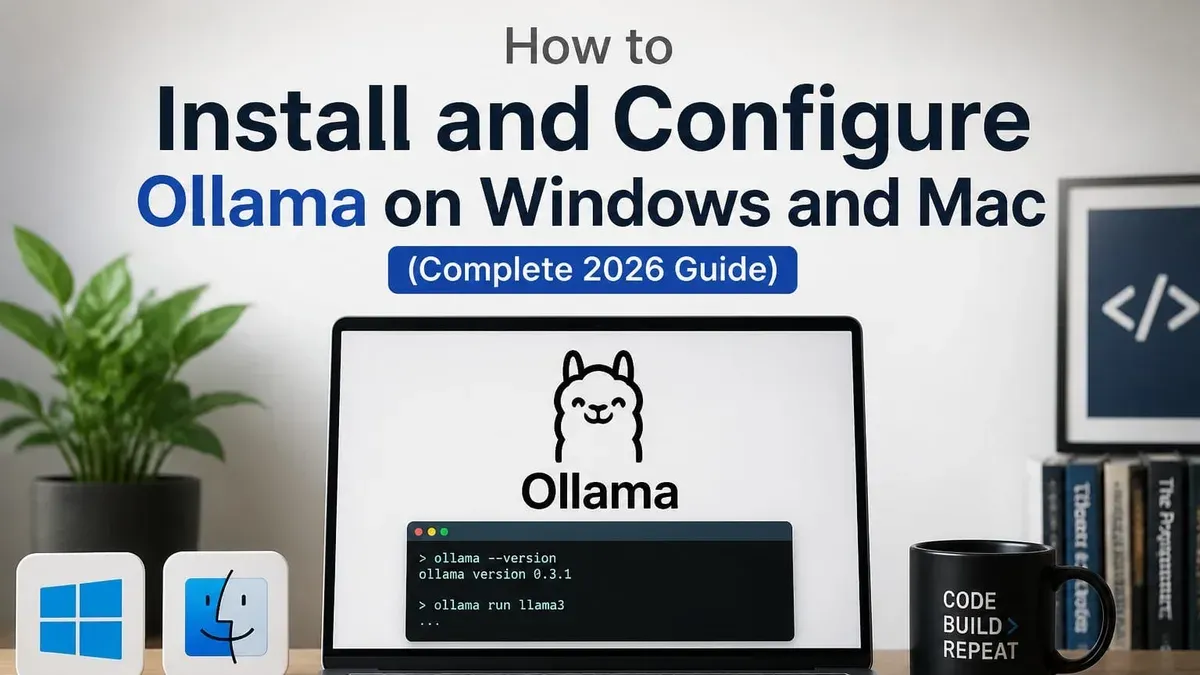
The Windows installation steps are generally fewer but involve additional environment configuration for optimal performance. A typical Windows installation involves:
- Downloading the official Ollama Windows installer from the vendor's website. Once downloaded, the installer launches automatically.
- Running the installer with administrator privileges. Upon successful installation, a confirmation screen appears.
- Configuring environment variables or, if using WSL, installing Ollama through the Linux terminal environment.
- Verifying installation by opening Command Prompt or PowerShell and typing ollama --version. The expected output confirms correct setup.
Compared to Mac's terminal or Homebrew methods, Windows installation is more GUI-driven but may require extra steps for environment tuning. Mac installations benefit from streamlined package management and closer integration with Unix-based tools, often resulting in a smoother user experience for developers.
Platform-specific benefits also influence choice: Macs with Apple Silicon chipsets deliver better energy efficiency and performance for Ollama, while Windows machines may offer broader hardware compatibility and flexibility with WSL.
Choose Mac installation if you prefer seamless command-line integration and optimized performance on Apple hardware. Opt for Windows if you need compatibility with Windows-specific workflows or prefer a graphical installer, keeping in mind the need for occasional manual environment settings.
How to verify and update your Ollama installation on Mac
Keeping Ollama updated ensures you benefit from the latest security patches and feature improvements. Verifying your current version and updating Ollama is straightforward whether you installed it via terminal or Homebrew.
- Open the Terminal app on your Mac.
- Check the installed Ollama version by typing ollama --version and pressing Enter. You should see output similar to ollama version 1.4.2. This confirms Ollama is installed and shows the current version number.
- If you installed Ollama directly via terminal download, update it by re-running the official installation command from the source. Typically, this involves downloading the latest package and running the installer script again. After completion, running ollama --version should reflect the new version.
- If you installed Ollama via Homebrew, run brew update to refresh Homebrew’s package lists, then brew upgrade ollama to update Ollama. Successful completion will show messages like Upgrading ollama 1.4.2 -> 1.5.0.
- After updating, verify the new version again with ollama --version. The output should display the latest installed version.
Regular updates help maintain compatibility with macOS updates and improve Ollama’s functionality. If you encounter errors during updating, ensure your terminal has admin rights and your internet connection is stable.
- How to Install Docker on Mac: A Clear Step-by-Step Guide
- How to Install Miniconda on Mac: A Clear Step-by-Step Guide
- How to Install TensorFlow with Metal on Mac: A Step-by-Step Guide
- How to Install Jupyter Notebook on Mac: A Clear Step-by-Step Guide
Frequently asked questions
How to install ollama on macos?
To install Ollama on macOS, you can either download the installer directly from the official Ollama website or use Homebrew if you prefer a package manager. Ensure your macOS version supports the software requirements, then follow the installation prompts or run the appropriate Homebrew command. After installation, verify the setup via the terminal to confirm Ollama is ready to use.
How to install ollama on mac terminal?
Installing Ollama via the Mac terminal typically involves using Homebrew by running brew install ollama. If you don't have Homebrew, visit their official page to install it first. Alternatively, you can download the Ollama package and use terminal commands like chmod +x and ./install to run the installer manually.
How to install ollama on mac mini?
For Mac Mini models, installation is similar to other Macs but be mindful of the chip type—Intel or Apple Silicon. Use the appropriate Ollama installer version, ensuring compatibility, especially if you have an M1 or M2 chip. You can install via Homebrew or download the installer directly, then follow the typical installation steps through the terminal or GUI.
How to install ollama on macbook?
Installing Ollama on a MacBook requires checking your macOS version and hardware chip. Use Homebrew for a streamlined process or the official installer for a direct approach. After installation, open Terminal and run ollama --version to confirm successful setup.
How to install ollama on macbook pro?
On MacBook Pro, the installation steps align with those for other MacBooks but consider your specific model's chip architecture. For Apple Silicon models, download the ARM-compatible version or use Homebrew. Follow on-screen instructions carefully, and verify the installation by launching Ollama from Terminal or Finder.
What this guide does not cover
This guide does not cover advanced Ollama configuration or usage beyond installation. If you need detailed tutorials on how to use Ollama’s features, integrate it with other software, or customize its performance settings, you should consult the official Ollama documentation or dedicated user forums. Additionally, this article focuses on individual installations and does not address enterprise deployment or networked configurations.
The single most useful next step is to verify your installation by running ollama --version in the Terminal. This confirms that Ollama is properly installed and accessible. From there, explore Ollama’s command-line help with ollama --help to familiarize yourself with basic commands and options, ensuring you can start using it effectively on your Mac.



