
How to Install Warp Terminal on Mac: A Step-by-Step Guide
Discover how to install Warp terminal on Mac with clear steps and tips to enhance your terminal experience and productivity.
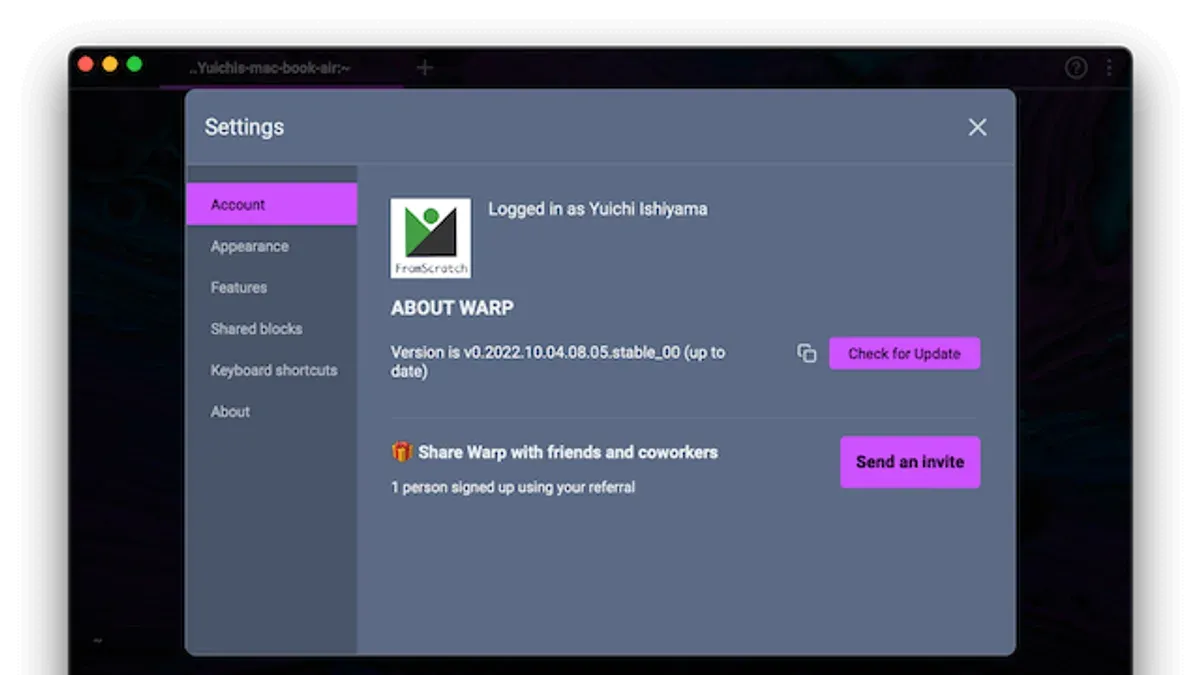
You open your Mac terminal, ready to run commands, but wonder if there’s a faster, more user-friendly alternative. You’ve heard about Warp terminal and want to explore what it offers and how it fits into your workflow.
This article covers how to install Warp terminal on Mac, guiding you through each step with clear instructions. Alongside installation, you’ll find tips on using Warp’s interface, installing software through it, and how it compares with other popular terminals like Windows Terminal. Whether you’re a developer or a terminal enthusiast, this guide will help you decide if Warp meets your daily needs.
Key takeaways
- Warp terminal requires macOS Catalina or later for installation.
- Download Warp from the official website and follow simple installer prompts.
- Warp’s user interface combines graphical elements with traditional command line input.
- You can install software and packages via Warp just as you would in standard terminals.
- Warp offers features like command palette and collaboration that differ from alternatives.
Before you start: what you need to install Warp terminal on Mac
To ensure a smooth installation of Warp terminal on your Mac, begin by verifying your system meets the necessary requirements. Warp supports macOS versions 11.0 (Big Sur) and later. If your Mac runs an earlier version, the installation will not proceed.
A stable internet connection is essential since the Warp installer downloads significant files during setup. Interruptions may corrupt the installation or cause slow downloads.
Warp offers both free and paid subscription tiers. The free tier includes core terminal features, while paid plans unlock advanced collaboration tools, cloud syncing, and additional customization options. Knowing which features you need can help you decide whether to use Warp as a free tool or invest in a subscription.
Finally, having basic familiarity with the Mac terminal and command line will help you navigate Warp’s interface and commands more confidently. Warp’s modern design differs from traditional terminals, but core command line principles remain the same.
| Requirement | Details |
|---|---|
| macOS Version | 11.0 (Big Sur) or later |
| Internet Connection | Stable broadband recommended |
| Warp Features | Free core features; paid plans for advanced collaboration and cloud sync |
| User Knowledge | Basic command line familiarity advised |
How to install Warp terminal on Mac step-by-step
- Visit the official Warp website at https://www.warp.dev or a trusted source to download the Mac installer. You should see a clear download button for macOS on the homepage. This ensures you are getting the latest secure version.
- Click the download button to save the Warp installer (.dmg file) to your Mac. The download progress appears in your browser's downloads bar or folder.
- Open the downloaded.dmg file by double-clicking it in your Downloads folder. A window will appear showing the Warp app icon and Applications folder shortcut.
- Drag the Warp app icon into the Applications folder shortcut within the same window. This installs Warp in your Applications directory.
- Navigate to the Applications folder and double-click Warp to launch it for the first time. You may see a security prompt; click "Open" to confirm you want to run the app.
- To verify the installation, open your current Terminal app and type warp --version. You should see the installed Warp version number displayed, confirming Warp is correctly installed and accessible via command line.
- If you want Warp to be your default terminal, open Warp, then go to the menu bar and select Warp > Preferences > General. Check the box labeled "Set Warp as default terminal". This setting makes Warp launch when you open terminal sessions from other apps or shortcuts.
Following these steps will install Warp smoothly and allow you to start using it immediately on your Mac.
How to use Warp terminal on Mac: getting started with commands and interface
Warp offers a modern terminal interface designed for efficiency and ease of use. When you open Warp, the window displays a clean command input area at the bottom and a scrollable output pane above, allowing easy review of past commands and results.
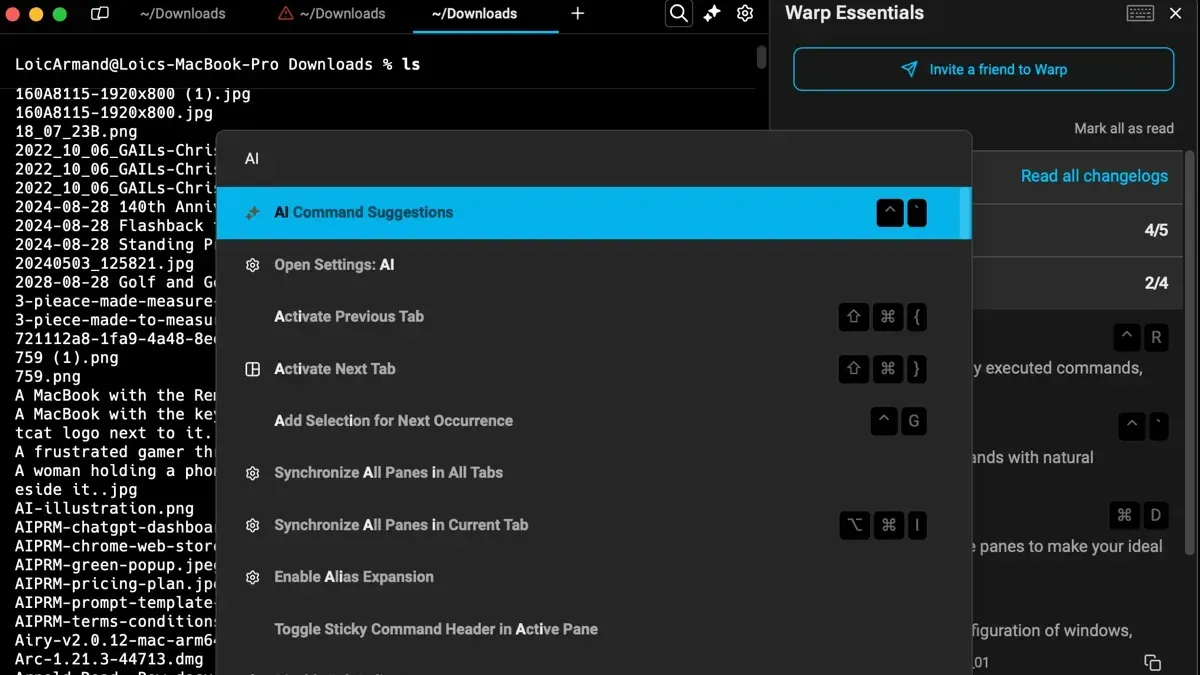
Warp integrates smoothly with your existing shell, whether you use zsh, bash, or another common shell, so your environment and configurations remain intact.
- Open Warp Terminal: Launch Warp from your Applications folder or via Spotlight search. You should see a new terminal window with a prompt that reflects your current shell.
- Run a simple command: Type ls -la to list all files with details in the current directory. The output will appear above the command line, showing hidden files and permissions.
- Use Warp’s Command Palette: Press Cmd+Shift+P to open the Command Palette. Here, you can search for built-in commands and shortcuts, such as opening new tabs or sessions, without memorizing keybindings.
- Navigate with keyboard shortcuts: Use Cmd+T to open a new tab and Cmd+W to close the current tab. Warp supports multiple panes; press Cmd+D to split the window vertically.
- Access command history: Press the up arrow key to cycle through previous commands. Warp also supports fuzzy search of past commands via the Command Palette, speeding up repetitive tasks.
- Customize your prompt and shell: Because Warp uses your existing shell, you can apply your usual shell configurations by editing files like ~/.zshrc or ~/.bash_profile. Changes will reflect when you restart Warp.
Warp’s interface includes inline autocomplete suggestions and command blocks that make command outputs easier to read and interact with, such as clickable links and collapsible sections.
Overall, Warp enhances traditional terminal workflows by combining familiar shell behavior with intuitive UI features, letting you stay productive without a steep learning curve.
How to install software and packages on Mac using Warp terminal
Warp terminal acts as a powerful interface to execute command-line instructions for software installation, leveraging macOS's native capabilities and popular package managers like Homebrew. You use Warp just as you would the default Terminal app, running commands that handle software management efficiently.
- Open Warp terminal and check if Homebrew is installed by typing brew --version. A successful output shows Homebrew's version number, confirming it is ready to use.
- To install a package, such as Python's package installer pip, enter brew install python. This command installs Python and pip together. When successful, Warp displays messages like "==> Installing python" followed by "🍺 /usr/local/Cellar/python/" with the installed version number.
- To verify pip installation, run pip3 --version. A typical output is pip 21.0.1 from /usr/local/lib/python3.9/site-packages/pip (python 3.9), confirming pip is available.
- Installing other common software such as Git or Node.js follows the same pattern: brew install git or brew install node. Warp displays progress lines including downloading, compiling, and a confirmation message upon completion.
- Warp's performance optimizes installation speed by rendering output quickly and supporting modern shell features, which improves reliability and visibility into the process compared to traditional terminals.
Here is an example of installing Git in Warp terminal:
brew install git
==> Downloading https://homebrew.bintray.com/bottles/git-2.30.1.big_sur.bottle.tar.gz
==> Pouring git-2.30.1.big_sur.bottle.tar.gz
🍺 /usr/local/Cellar/git/2.30.1: 1,500 files, 45MB
This output indicates the command ran successfully and Git is installed and ready to use.
How to install macOS through terminal: clarifying common confusion
Installing macOS cannot be done solely through Warp terminal or any other terminal emulator. The process requires specific recovery environments and tools provided by Apple, which operate outside the scope of typical terminal applications. Warp terminal is designed for command-line tasks within a running macOS system, not for performing full operating system installations.
Terminal commands do have a role during macOS reinstallation or recovery, but only within the macOS Recovery environment. For example, the startosinstall command-line tool can initiate macOS installation from a bootable installer, but this must be run in recovery mode or from an external drive, not from within Warp terminal on a live system.
Apple officially recommends using macOS Recovery to reinstall the operating system. To access this, you restart your Mac and hold down specific key combinations (such as Command-R or Option-Command-R) until the recovery window appears. From there, you can use the graphical interface to reinstall macOS or open the built-in Terminal for advanced commands if necessary.
For creating bootable macOS installers, Apple provides a detailed guide involving the createinstallmedia command, which you run from Terminal in an existing macOS session. This is a preparatory step before performing a full install and still requires rebooting into the installer environment.
- Restart your Mac and immediately press and hold Command-R to enter macOS Recovery. You should see the macOS Utilities window.
- Select “Reinstall macOS” and follow the on-screen prompts. This method uses Apple's official recovery system to install the OS.
- For advanced users, open Terminal from the Utilities menu in Recovery mode. Here, you can run commands like startosinstall if you booted from a USB installer.
- If creating a bootable installer, use Terminal on a running macOS system with the createinstallmedia command as described in Apple’s support documentation.
In summary, Warp terminal cannot replace Apple’s recovery tools and interfaces for macOS installation. Terminal commands assist in specific scenarios but require the proper environment and official procedures.
Comparing Warp terminal with Windows Terminal and alternatives
Warp terminal offers a unique set of features distinct from Windows Terminal and other popular terminals. Its modern GPU-accelerated rendering and command palette provide a streamlined experience focused on productivity and collaboration, including built-in workflows and shareable command history. Windows Terminal excels in customization and multi-tab management on Windows, supporting a wide range of shells like PowerShell, WSL, and Azure Cloud Shell.
Warp is currently available only on macOS. Windows Terminal is native to Windows, while popular Linux terminals include GNOME Terminal, Alacritty, and Terminator. Warp does not officially support Windows or Linux, limiting its use to Mac users. Windows users seeking similar advanced features might consider alternatives like Windows Terminal or third-party tools such as ConEmu or Cmder.
| Feature | Warp Terminal | Windows Terminal | Other Alternatives |
|---|---|---|---|
| Platform | macOS only | Windows only | Linux, Windows, macOS (varies) |
| GPU-accelerated rendering | Yes | Yes | Varies |
| Command palette | Yes, integrated | No | Rare |
| Multi-tab and pane support | Basic multi-tab | Advanced multi-tab and panes | Varies |
| Shell support | Primarily bash, zsh, fish | PowerShell, WSL, cmd, Azure Cloud Shell | Varies |
| Collaboration tools | Command sharing, workflows | No | No |
User feedback highlights Warp's intuitive interface and collaborative features as strong points, though some note the lack of support outside macOS as a limitation. Windows Terminal is praised for its flexibility and deep integration with Windows environments.
You should choose Warp if you prioritize a modern, collaborative terminal on Mac with enhanced command management. For Windows users or those needing extensive customization and multi-platform support, Windows Terminal or other alternatives may be more suitable.
Troubleshooting common issues when installing or using Warp terminal on Mac
Installation errors often arise from incomplete downloads or outdated macOS versions. If you see messages like "Warp cannot be opened because the developer cannot be verified," adjust your security settings by going to System Preferences > Security & Privacy > General, then click "Open Anyway" next to the blocked app notification.
If Warp fails to launch or crashes unexpectedly, try the following steps:
- Restart your Mac and relaunch Warp. The app should open without errors.
- If the problem persists, delete Warp from Applications and reinstall from the official website. After reinstalling, launch Warp and ensure it opens smoothly.
- Check for conflicting software such as antivirus or firewall apps blocking Warp’s network access. Temporarily disable these and test Warp again.
Permission issues can prevent Warp from functioning correctly. To resolve this, navigate to System Preferences > Security & Privacy > Privacy tab, then review and enable permissions under "Full Disk Access" and "Accessibility" for Warp. After updating permissions, restart Warp to apply changes.
Performance tips include disabling unnecessary plugins or extensions within Warp’s settings and closing unused tabs to reduce memory load. Note that Warp is optimized for Macs running macOS 11 or later and may not perform well on older hardware.
Known limitations include the lack of native support for certain shell customization features available in other terminals. If you encounter error messages like "Failed to load shell configuration," verify your shell setup files (.zshrc,.bash_profile) are properly configured and free from syntax errors.
- How to Install iTerm2 on Mac: A Complete Step-by-Step Guide
- How to Install Sublime Text on Mac: A Step-by-Step Guide
- How to Install Neovim on Mac: A Clear Step-by-Step Guide
- How to Install GitHub CLI on Mac: A Complete Step-by-Step Guide
Frequently asked questions
How to install warp on ubuntu?
Warp is primarily designed for macOS and does not have official support for Ubuntu or other Linux distributions. If you want a similar terminal experience on Ubuntu, consider alternatives like Tilix, Alacritty, or Windows Terminal via WSL on Windows. For Warp-specific features, keep an eye on official announcements for any future Linux support.
Is warp terminal free?
Warp offers a free tier that provides core terminal functionality sufficient for many users, including developers and enthusiasts. There may be premium features or plans with additional capabilities, but the basic usage does not require payment. Check Warp’s official website for the latest details on pricing and feature availability.
How to use warp command?
The warp command in Warp terminal lets you quickly open new terminal windows or tabs and interact with Warp’s features. For example, typing warp followed by a command can launch a new session or perform actions like opening a specific directory. Refer to Warp’s documentation for the full list of command options and shortcuts that enhance productivity.
How to install software on mac using terminal?
To install software on Mac using the terminal, you typically use package managers like Homebrew. First, install Homebrew by running the official install script, then use commands such as brew install [package-name] to add software. This method streamlines installing, updating, and managing packages without needing manual downloads.
How to install pip on mac terminal?
Pip, the Python package installer, usually comes with Python 3 installations on Mac. To ensure you have pip, run python3 -m ensurepip --upgrade or python3 -m pip --version. If pip is missing, you can install it by downloading the get-pip.py script from the official site and running it with Python 3 in the terminal.
What this guide does not cover and who should look elsewhere
This guide focuses on Warp installation and usage on Mac and does not cover advanced configuration, scripting beyond basic commands, or integrating Warp deeply into complex development workflows.
Warp terminal is relatively new and may not support all legacy terminal workflows, specialized shells, or custom plugins that some users rely on.
Installing macOS itself cannot be done fully through Warp or any terminal; official Apple tools like the macOS installer app or recovery mode are required for that process.
To get the most out of Warp, the single most useful next step is to explore its built-in command palette and learn how to customize your workflow with its modern interface features. This will help you decide if Warp aligns well with your daily terminal needs on Mac.



