
How to Install iTerm2 on Mac: A Complete Step-by-Step Guide
This guide offers clear, step-by-step instructions to install iTerm2 on Mac and set it up for improved terminal customization and workflow.
You open your Mac’s Terminal to run a command, but find its interface limiting or lacking features you need. You’ve heard iTerm2 offers more customization, split panes, and better integration—but you’re not sure how to get started.
This article explains how to install iTerm2 on Mac, offering clear, step-by-step instructions using both the official website and Homebrew. Beyond installation, you’ll learn how to set up iTerm2 for your workflow, explore key features, and understand how it compares to the native Terminal app. If you’re considering whether iTerm2 is the right choice or need troubleshooting tips, this guide covers all that.
Key takeaways
- Download iTerm2 directly from the official website or install via Homebrew for convenience.
- Initial setup involves configuring profiles, appearance, and key bindings to enhance usability.
- iTerm2 supports split panes, autocomplete, and session restoration, which the Mac Terminal lacks.
- While only available on Mac, Windows users can explore alternatives like Windows Terminal or ConEmu.
- Common installation issues include permission errors and outdated macOS versions; solutions are straightforward.
Before you start: what you need to install iTerm2 on Mac
iTerm2 is a popular terminal emulator alternative to the default Mac Terminal app, designed to offer enhanced features and customization options. Before installing, ensure your Mac meets the necessary system requirements and understand some key differences to set expectations.
iTerm2 supports macOS versions starting from macOS Sierra (10.12) and later. If your Mac runs an earlier version, iTerm2 may not function properly or at all. Checking your macOS version is essential; you can find it by clicking the Apple menu and selecting "About This Mac." Most modern Macs run a compatible version.
Having Homebrew installed is not mandatory but recommended. Homebrew is a widely used package manager on macOS, simplifying software installation and management. It is installed on a large proportion of developer and power-user Macs, which can make installing and updating iTerm2 more straightforward.
Note that iTerm2 is a distinct update from the original iTerm project, offering more advanced features, active development, and better macOS integration. Knowing this helps avoid confusion when searching for installation sources.
- Check your macOS version via Apple menu > About This Mac. You should see version 10.12 or later for compatibility.
- Decide if you want to use Homebrew for installation. If unsure, you can install Homebrew from https://brew.sh/ which will display a successful installation message in the Terminal.
- Understand that iTerm2 replaces your default terminal experience with enhanced capabilities like split panes, profiles, and better customization.
How to install iTerm2 on Mac using the official website
Installing iTerm2 manually from the official website is straightforward and gives you control over the version you use.
- Open your web browser and navigate to https://iterm2.com. You will see the homepage with information about iTerm2 and download options.
- Click the "Download" button in the top menu or scroll down to the "Stable Releases" section. Choose the latest stable release to ensure reliability and security. The download file is typically a zipped archive around 30-40 MB in size.
- Once downloaded, locate the.zip file in your Downloads folder and double-click it. This action will decompress the archive and create the iTerm2 application file.
- Drag the extracted iTerm2 app to your Applications folder. Moving it here makes the app accessible system-wide and easier to launch.
- Open the Applications folder and double-click iTerm2 to launch it for the first time. You may see a security prompt because the app is downloaded from the internet; click "Open" to confirm.
- If macOS asks for permissions to access folders or control the terminal, grant them as needed. This ensures iTerm2 can function fully without restrictions.
The download size usually takes a few seconds on a typical broadband connection, and the entire installation process can be completed in under five minutes. Screenshots at each step—such as the download page, the.zip file in Finder, dragging the app to Applications, and the first launch prompt—can help visualize the process.
How to install iTerm2 on Mac using Homebrew
If you prefer using the command line and package managers, Homebrew offers a streamlined way to install iTerm2. This method is especially convenient for users who already have Homebrew installed or want an easy way to keep iTerm2 updated.
- Check if Homebrew is installed: Open your current Terminal and type
brew --version. If you see a version number, Homebrew is installed. If not, install it by running/bin/bash -c "$(curl -fsSL https://raw.githubusercontent.com/Homebrew/install/HEAD/install.sh)". You should see installation progress messages and a completion confirmation. - Install iTerm2 with Homebrew: Once Homebrew is ready, execute
brew install --cask iterm2in Terminal. This command downloads and installs iTerm2 automatically. Expect output showing download progress and a success message when finished. - Verify the installation: After installation, launch iTerm2 by typing
open -a iTerm. The iTerm2 window should open promptly. Alternatively, find iTerm2 in your Applications folder. - Manage updates easily: Using Homebrew, you can update iTerm2 with
brew upgrade --cask iterm2. This makes maintenance simpler compared to manual downloads since Homebrew handles dependency checks and versioning.
Compared to manual installation, the Homebrew method typically takes less time due to automated downloading and installation steps. It also helps keep iTerm2 current without navigating websites or manually replacing files.
How to set up iTerm2 on Mac for the first time
After installing iTerm2, configuring it to suit your workflow will enhance your terminal experience significantly.
- Open iTerm2 and go to iTerm2 > Preferences from the menu bar. You should see the Preferences window with several tabs.
- Under the Profiles tab, select the default profile and navigate to the Text sub-tab. Choose your preferred font and font size, such as Menlo Regular at 12pt, which balances readability and space. When done, your terminal text will update accordingly.
- Switch to the Colors sub-tab within Profiles. Here, select a built-in color preset like "Solarized Dark" or create a custom scheme. Confirm the new colors apply to the terminal interface immediately.
- In the Window sub-tab, adjust window behavior settings such as transparency or blur. Setting transparency to around 20% can improve focus without sacrificing visibility.
- Still in Preferences, click the Keys tab to customize keyboard shortcuts. For example, set shortcuts for split panes or new tabs to keys you can easily reach, like Cmd + D for vertical splits. Test the shortcuts to verify they work.
- Enable split panes by pressing Cmd + D for vertical splits or Cmd + Shift + D for horizontal splits. You should see the terminal window divide accordingly, allowing multitasking in one window.
- Use Cmd + F to open the search bar within iTerm2. Type a keyword to see it highlight matches in the terminal output, enabling quick navigation through logs or text.
These initial settings provide a balance of aesthetics, multitasking, and efficiency, making your first sessions with iTerm2 more productive.
How to use iTerm2 on Mac: key features and tips
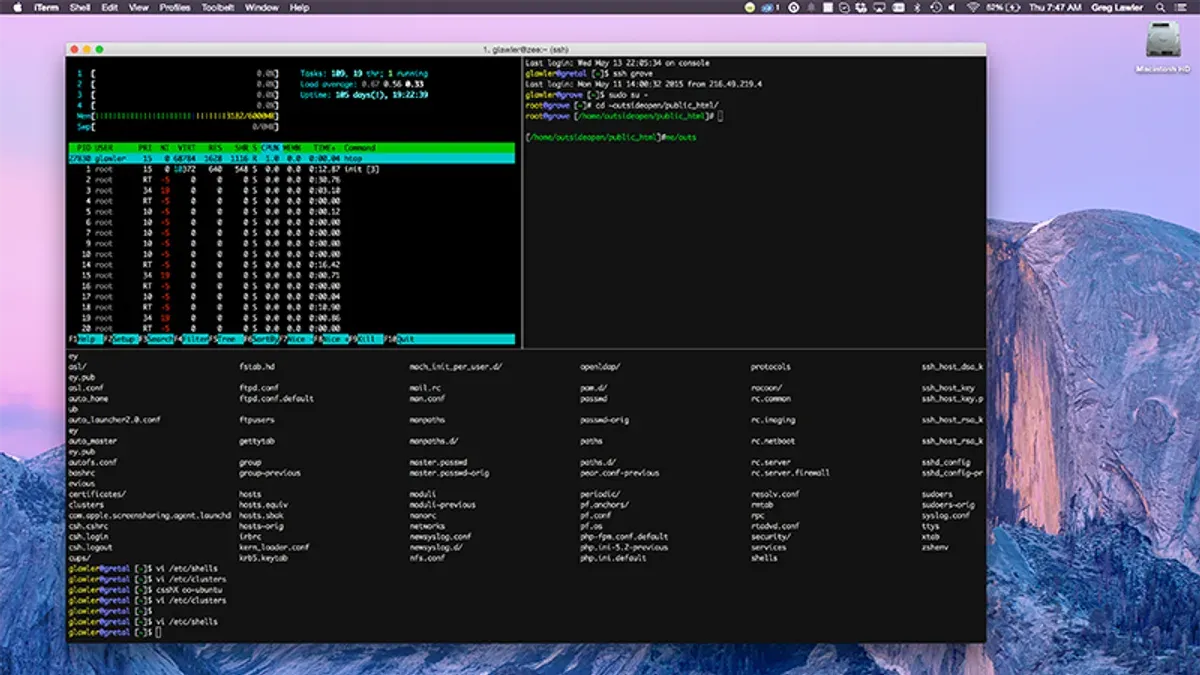
iTerm2 enhances your terminal experience with features that streamline multitasking and command management. One major advantage is the ability to use split panes and tabs to organize multiple sessions in one window. You can split panes horizontally or vertically via Shell > Split Pane Horizontally or Vertically, letting you monitor different tasks simultaneously without clutter.
Its search functionality allows quick navigation through terminal output. Press Cmd + F to open the search bar and find specific text in your session history, which is especially useful for lengthy logs. Coupled with command history navigation using the up and down arrow keys, you can efficiently recall and reuse previous commands.
iTerm2 integrates tightly with shell features like autocomplete and inline suggestions, improving input speed. Additionally, you can customize triggers under Preferences > Profiles > Advanced > Triggers to automate responses to specific output patterns, such as highlighting errors or playing sounds.
Notifications can be set to alert you when processes complete or when specific events occur, keeping you informed without constant monitoring. Users often report that these combined features significantly reduce context switching and enhance focus compared to the standard Terminal app.
Comparing iTerm2 and the Mac Terminal app
When choosing between iTerm2 and the Mac Terminal app, consider your needs for advanced features versus simplicity. Both offer stable performance for general command-line tasks, but iTerm2 provides enhanced responsiveness during heavy multitasking, such as running multiple split panes or extensive logging.
| Feature | iTerm2 | Mac Terminal |
|---|---|---|
| Split Panes | Yes, supports multiple panes horizontally and vertically | No native support |
| Search | Incremental search within scrollback buffer | Basic search with limited scope |
| Profiles and Customization | Highly customizable profiles, fonts, colors, and keyboard shortcuts | Limited profile management and customization |
| Notifications and Triggers | Alerts based on output patterns | None |
| Shell Integration | Advanced triggers and command-awareness | Minimal |
| Performance | Efficient with multiple concurrent tasks | Stable but can slow with heavy multitasking |
The Mac Terminal app offers a straightforward interface with minimal setup, ideal for users who prefer simplicity or have light terminal needs. It integrates seamlessly with macOS without additional configuration.
However, iTerm2 excels if you require advanced window management, fine-tuned customization, or features like search, notifications, and shell integration. This comes with a slightly steeper learning curve and occasional complexity in configuration.
Choose Mac Terminal when stability and simplicity are paramount, especially for casual or infrequent terminal use. Opt for iTerm2 if your workflow demands multitasking efficiency, enhanced control, and tailored user experience.
Does iTerm2 work on Windows? Alternatives for Windows users
iTerm2 is specifically designed for macOS and is not available for Windows. The developers officially support only Mac, so Windows users seeking a similar enhanced terminal experience need to look for alternatives native to their platform.
Popular Windows terminal emulators that offer features comparable to iTerm2 include Windows Terminal and Cmder. Windows Terminal, developed by Microsoft, supports multiple tabs, split panes, customization of fonts and colors, and integration with PowerShell, Command Prompt, and Windows Subsystem for Linux (WSL). Cmder is a portable console emulator with Unix shell capabilities, offering a more customizable and user-friendly interface than the default Command Prompt.
Windows Subsystem for Linux (WSL) further expands terminal capabilities by allowing users to run a Linux environment directly on Windows. Many Windows Terminal users leverage WSL to access Linux tools and shells within a single terminal interface.
Both Windows Terminal and Cmder have active user communities and receive regular updates, making them reliable choices for Windows users who want a powerful terminal emulator experience similar to iTerm2.
Troubleshooting common iTerm2 installation issues on Mac
If iTerm2 fails to launch after installation, check your security settings. macOS may block apps from unidentified developers. Open System Preferences > Security & Privacy > General and look for an option to allow iTerm2. Click Open Anyway, then try launching again.
When facing permission errors, ensure iTerm2 has full disk access. Go to System Preferences > Security & Privacy > Privacy > Full Disk Access, unlock the pane, and add iTerm2 by clicking the + button. Restart iTerm2 after this change.
Fixing Homebrew installation errors
If Homebrew installation of iTerm2 fails, first update Homebrew with the command brew update. Next, run brew doctor to identify issues. Common errors include missing Xcode command line tools; install them by running xcode-select --install in Terminal.
Resolving display and font rendering problems
Display glitches or poor font rendering can often be fixed by adjusting iTerm2’s font settings. Navigate to Preferences > Profiles > Text and select a different font or disable font smoothing. If colors appear incorrect, toggle Use built-in Powerline glyphs under the same menu.
These fixes typically resolve frequent installation and startup issues, ensuring a smoother experience with iTerm2.
- How to Install JetBrains Toolbox on Mac: A Step-by-Step Guide
- How to Install Sublime Text on Mac: A Step-by-Step Guide
- How to Install Neovim on Mac: A Clear Step-by-Step Guide
- How to Install Emacs on Mac: A Step-by-Step Guide
Frequently asked questions
How to setup iterm2 on mac?
After installing iTerm2, launch the app and open Preferences from the iTerm2 menu. Configure profiles by selecting Profiles > Default, where you can customize fonts, colors, and window behavior. Enable features like hotkeys or split panes under the Keys and Window tabs for enhanced usability.
How to install iterm2 on macos?
Download iTerm2 directly from the official website or install it via Homebrew using brew install --cask iterm2. Once downloaded, drag the iTerm2 app into your Applications folder to complete installation.
How to install iterm2 on macbook?
On your MacBook, open a web browser and go to the iTerm2 official site to download the latest version. Alternatively, use Homebrew if you have it installed by running brew install --cask iterm2 in the Terminal. Move the app to Applications if downloaded manually.
How to install iterm on mac?
iTerm2 is the current version; older iTerm is outdated and not recommended. To install iTerm2, use the official download page or Homebrew cask. Avoid searching for "iTerm" alone, as it may lead to legacy versions or unrelated apps.
How to download iterm2 on mac?
Visit the official iTerm2 website and click the download link for the stable release. The file will be a.zip or.dmg archive; open it and drag iTerm2 to the Applications folder to install. No installation wizard is needed.
What this guide does not cover and who should look elsewhere
This guide focuses on the basic installation and initial setup of iTerm2 on Mac. It does not cover advanced customization such as scripting, automation, or integration with specific development environments like Visual Studio Code or Docker. Users seeking deep customization or enterprise-level terminal management may need to consult specialized documentation or forums. Additionally, this article is intended for Mac users; Windows users interested in terminal alternatives should explore dedicated Windows applications.
To get started confidently, the single most useful next step is to launch iTerm2 and explore the Preferences menu under iTerm2 > Preferences > Profiles. Here, you can adjust colors, fonts, and window settings to tailor the terminal’s appearance and behavior to your workflow. Experimenting with these settings early helps you decide if iTerm2 fits your needs better than the native Terminal app.



