
Troubleshoot Mac Studio M4 Max Touch ID Not Working: Step-by-Step Fixes
Learn step-by-step fixes to troubleshoot and resolve Mac Studio M4 Max Touch ID not working issues effectively and safely.
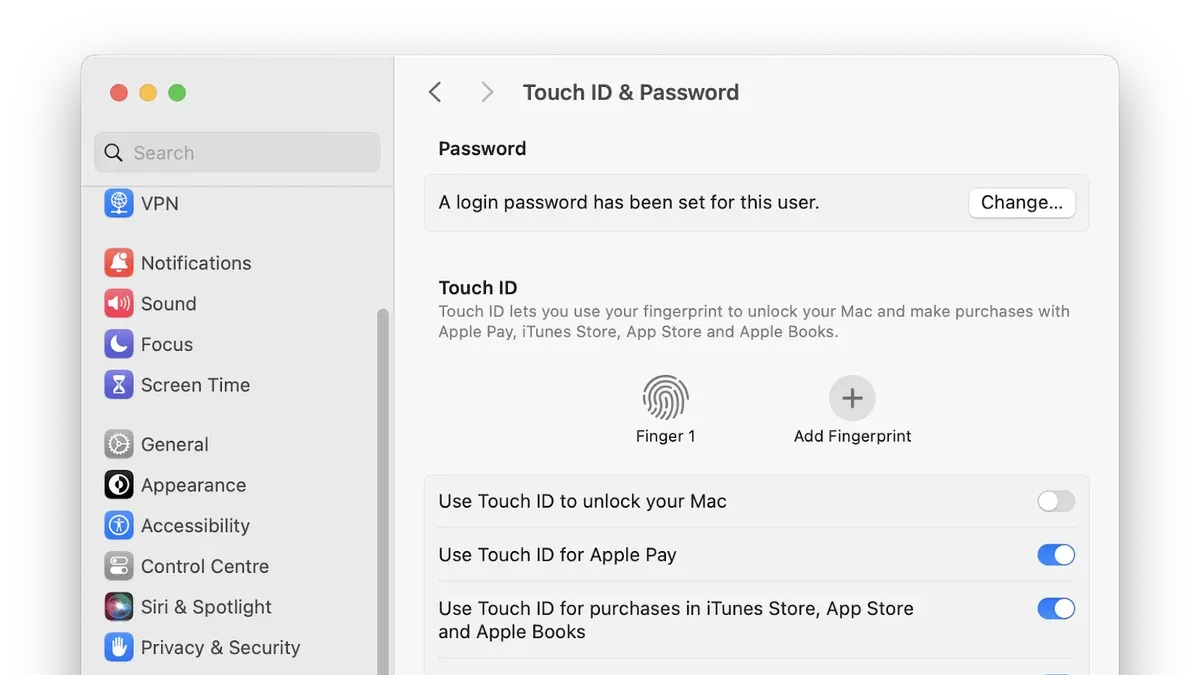
You try to unlock your Mac Studio M4 Max with Touch ID, but the sensor doesn’t respond or prompts you to enter your password repeatedly. This frustrating issue interrupts your workflow and raises concerns about device security and convenience. If you find yourself searching for solutions to the Mac Studio M4 Max touch ID not working, this guide will walk you through clear, step-by-step troubleshooting methods.
Throughout this article, you will learn how to identify whether the problem is caused by software glitches, hardware faults, or simple user errors. You’ll also discover safe ways to verify sensor functionality and practical fixes ranging from resetting fingerprint data to updating macOS. Finally, we’ll help you decide when it’s time to reach out for professional support.
Key takeaways
- Confirm Touch ID failure by testing with multiple enrolled fingers and restarting your Mac.
- Reset fingerprints via System Settings > Touch ID & Password to clear corrupted data.
- Keep macOS updated through System Settings > General > Software Update to resolve software conflicts.
- Clean the Touch ID sensor gently with a lint-free cloth to remove oils or debris.
- If issues persist, reset the SMC and NVRAM, then consider professional diagnostics.
Recognize When Touch ID Is Not Working Correctly
Touch ID issues typically appear as the sensor not responding when you place your finger, repeated fingerprint failures, or error messages like "Unable to complete Touch ID authentication." You might see prompts to try again or to enter your password instead. These symptoms indicate a problem with Touch ID specifically, rather than a general login or keyboard issue.
To distinguish a Touch ID failure from other login problems, check if you can still log in using your password or Apple ID without difficulty. If password entry works but Touch ID repeatedly fails, the sensor or its software recognition is likely at fault. Conversely, if both Touch ID and password fail, the issue might be broader, such as a system or keyboard problem.
To confirm the Touch ID sensor is the problem, try these steps:
- Go to System Settings > Touch ID & Password, then attempt to unlock your Mac or authenticate an app using Touch ID.
- If authentication fails repeatedly, remove and re-add your fingerprints in the same settings panel.
- Test Touch ID on different functions like unlocking your Mac, authorizing purchases, or autofilling passwords.
You’ll know the problem is isolated to Touch ID if password login and other system functions work normally, but fingerprint recognition does not improve after re-adding prints. This careful check helps you avoid unnecessary fixes and focuses on the right cause.
Understand Common Causes Behind Touch ID Failure
Touch ID on the Mac Studio M4 Max can stop working for several reasons, generally falling into software, hardware, or user-related categories. Software glitches or corrupted fingerprint data are common culprits, often triggered by incomplete or problematic macOS updates. Some users have reported update-related bugs that temporarily disable Touch ID recognition, requiring a system restart or reinstall to fix.
Firmware or macOS compatibility issues may also interfere with Touch ID, especially after major system upgrades. Apple support data suggests software-related causes account for a significant portion of reported Touch ID problems, while hardware faults—like sensor malfunctions or connection issues—are less frequent but more challenging to resolve.
User-related factors are often overlooked but important: a dirty Touch ID sensor, moisture, or improper finger placement can cause repeated failures. Regularly cleaning the sensor with a soft, lint-free cloth and ensuring your finger covers the sensor fully can prevent these issues.
If you suspect software or fingerprint data corruption, try resetting your fingerprint settings by deleting existing fingerprints and re-adding them in System Settings under Touch ID & Password. To confirm success, check if Touch ID recognizes your fingerprint on the first attempt without errors.
Reset Fingerprint Data and macOS Settings Safely
If Touch ID is still not working after initial checks, resetting your fingerprint data and relevant macOS settings can often resolve lingering software issues. This process involves deleting your existing fingerprints, restarting key system services, and clearing Touch ID caches without affecting other system data.
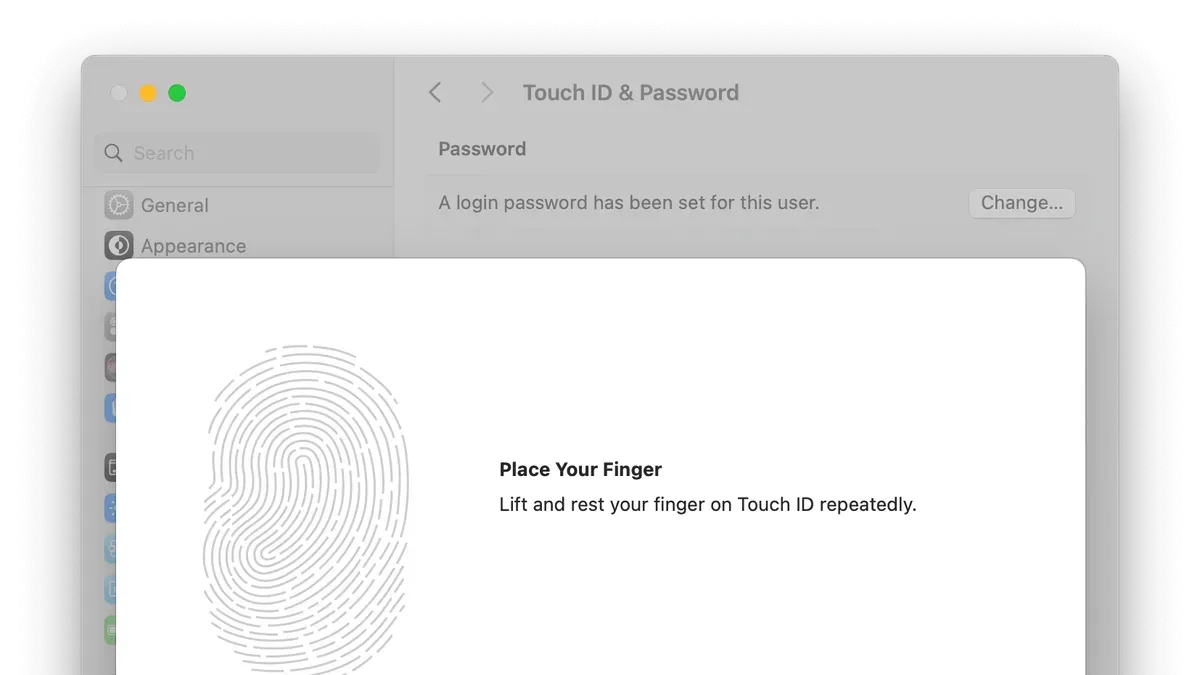
Delete and Re-register Fingerprints
- Open System Settings and navigate to Touch ID & Password.
- Select each registered fingerprint and click Delete or Remove to clear them all.
- Restart your Mac Studio by clicking the Apple menu and choosing Restart.
- Return to Touch ID & Password and add new fingerprints by following the on-screen prompts. You should see a confirmation message like “Fingerprint added successfully.”
Deleting and re-adding fingerprints ensures that corrupted data is cleared and fresh biometric data is saved.
Force Quit Touch ID System Services and Clear Caches
If problems persist, you can force quit Touch ID-related system processes and reset caches via Terminal. This applies when fingerprint removal and re-registration did not help.
- Open Terminal from Applications > Utilities.
- Type
sudo pkill -f "biometrickitd"and press Enter. This force quits the Touch ID service, which will automatically restart within a few seconds. - Next, reset the Touch ID cache by typing
sudo rm -rf /Library/TouchIDand pressing Enter. This deletes cached files safely. - Restart your Mac Studio again to apply changes fully.
You will know this worked when your Mac accepts newly registered fingerprints without repeated failure messages and Touch ID responds promptly. If errors continue, the issue might be deeper than software settings.
Update or Reinstall macOS to Fix Software Conflicts
If Touch ID issues persist after resetting fingerprint data, updating or reinstalling macOS can resolve deeper software conflicts or corrupted system files. Start by checking for the latest macOS updates compatible with your Mac Studio M4 Max. Apple frequently releases patches that address fingerprint sensor bugs and improve system stability.
To install updates, open System Settings, go to General > Software Update, and install any available updates. After updating, test Touch ID again to see if the issue is resolved.
If updating does not help, boot your Mac Studio into Safe Mode to determine if third-party software is interfering with Touch ID. To enter Safe Mode, shut down your Mac, then press and hold the power button until the startup options appear, select your startup disk, press and hold the Shift key, and click Continue in Safe Mode. If Touch ID works in Safe Mode, a software conflict is likely causing the problem.
When neither updates nor Safe Mode fixes the issue, use macOS Recovery to reinstall macOS without erasing your data. Restart your Mac and immediately press and hold the power button until you see startup options, then select Options > Continue. From the recovery window, choose Reinstall macOS and follow the prompts. This process replaces system files that might be corrupted, which can restore Touch ID functionality.
You will know the fix worked if Touch ID consistently recognizes fingerprints without failure after these steps. If problems continue, hardware issues may be involved.
Inspect and Clean the Touch ID Sensor Hardware
Physical dirt, oils, or debris on the Touch ID sensor can cause fingerprint recognition to fail even if the software is functioning properly. Before proceeding with more complex fixes, inspect the sensor carefully under good lighting to check for smudges, dust, or sticky residue. A clean sensor surface is essential for accurate fingerprint reading.
To clean the sensor safely, avoid using excessive moisture or harsh chemicals which can damage the hardware. Instead, use a soft, lint-free cloth slightly dampened with water or 70% isopropyl alcohol. Gently wipe the sensor and surrounding keyboard area without applying pressure. Never spray liquid directly onto the sensor.
If you notice visible dirt or residue, follow these steps to clean the sensor:
- Turn off your Mac Studio to prevent any accidental input or damage.
- Use a soft microfiber cloth slightly moistened with isopropyl alcohol or water.
- Wipe the Touch ID sensor surface gently and evenly to remove oils or dirt.
- Allow the sensor to air dry completely before turning your Mac Studio back on.
- Test Touch ID by attempting fingerprint recognition.
You will know this fix worked if Touch ID begins recognizing your fingerprint consistently after cleaning. If problems persist despite a visibly clean sensor, hardware issues or further software troubleshooting may be necessary.
Reset the Mac Studio SMC and NVRAM for Hardware-Software Sync
The System Management Controller (SMC) and Non-Volatile Random-Access Memory (NVRAM) manage essential low-level functions related to hardware performance, including power management, sensor responsiveness, and system settings that can affect Touch ID functionality. Resetting these can resolve unresponsive or inconsistent Touch ID behavior caused by temporary hardware-software communication issues without opening your Mac Studio M4 Max.
Resetting the SMC on the Mac Studio M4 Max is straightforward since it uses Apple silicon. To reset it, simply shut down your Mac, wait 30 seconds, then press the power button to turn it back on. This action automatically resets the SMC, as Apple silicon Macs handle SMC functions differently than Intel models.
To reset the NVRAM, follow these steps:
- Shut down your Mac Studio completely.
- Press the power button and immediately press and hold the Option (⌥), Command (⌘), P, and R keys together.
- Keep holding these keys for about 20 seconds, during which your Mac may appear to restart.
- Release the keys and allow your Mac to boot normally.
This reset clears certain system settings that might interfere with Touch ID sensor calibration or responsiveness. Users often report improved Touch ID responsiveness after these resets when software updates or restarts alone did not help.
You’ll know the reset worked if Touch ID begins recognizing your fingerprints reliably without error messages or delays. If problems persist, the issue may be deeper hardware-related, requiring professional diagnostics.
Know When and How to Get Professional Support
If you have completed all the recommended troubleshooting steps and your Mac Studio M4 Max Touch ID still fails to recognize fingerprints or respond, it is likely a hardware issue requiring professional repair. Persistent failure despite software resets, cleaning, and system resets usually indicates a sensor or logic board problem that only Apple or authorized technicians can safely address.
Apple’s Touch ID hardware is typically covered under the standard warranty or AppleCare+ if you have it. Repairs generally involve sensor replacement, which Apple service centers can complete within a few business days. Costs vary depending on warranty status, but unauthorized repairs may void your warranty or cause further damage.
Before sending your Mac Studio M4 Max for service, securely back up your data using Time Machine or another reliable method. Disable Find My Mac and sign out of iCloud to prepare the device for repair. After service, test Touch ID by adding a new fingerprint under System Settings > Touch ID & Password and confirming successful authentication.
- Verify all DIY steps are exhausted and Touch ID still fails.
- Check your warranty or AppleCare+ coverage status via Apple ID account or receipt.
- Back up your data fully and sign out of iCloud.
- Contact Apple Support or visit an authorized service provider to schedule repair.
- After repair, set up Touch ID again to confirm the issue is resolved.
If Touch ID works after repair, the hardware replacement was successful. If problems persist, inform the technician as further diagnostics may be necessary.
Frequently asked questions
How do I enable Touch ID on Mac Studio M4 Max?
To enable Touch ID, open System Settings and go to Touch ID & Password. From there, select Add Fingerprint, then follow the on-screen instructions to scan your finger multiple times. Make sure your finger is clean and dry during registration. Touch ID will activate automatically once a fingerprint is successfully enrolled.
Why does Touch ID say 'Unable to complete Touch ID'?
This error often indicates a sensor communication issue or a software glitch. It can happen if your finger is wet, dirty, or positioned incorrectly on the sensor. Restarting your Mac Studio and re-registering your fingerprint usually resolves the problem. If the error persists, it may point to deeper hardware or software conflicts requiring further troubleshooting.
Can a software update fix Touch ID problems on Mac Studio?
Yes, software updates often include fixes for Touch ID-related bugs or security enhancements that improve sensor performance. Ensuring macOS is up to date via System Settings > General > Software Update can resolve many issues. However, if problems continue after updating, hardware faults or user setup errors might be the cause.
Is it safe to clean the Touch ID sensor myself?
Yes, cleaning the Touch ID sensor is safe if done correctly. Use a soft, lint-free cloth slightly dampened with water or 70% isopropyl alcohol. Avoid excessive moisture, abrasive materials, or spraying liquids directly onto the sensor. Cleaning regularly helps maintain proper sensor function and reduces fingerprint reading errors.
Know the Limits of This Troubleshooting Guide
This guide does not cover issues caused by physical damage such as drops or liquid exposure. If your Mac Studio M4 Max has suffered any such damage, it is important to seek immediate professional diagnosis rather than attempting DIY fixes. Additionally, some of the steps here involve changing system settings like resetting the SMC or NVRAM; if done incorrectly, these can affect system stability. Always ensure you back up your important data before proceeding with these fixes to avoid potential data loss.
The most useful next step after reviewing these troubleshooting methods is to carefully reset your fingerprint data via System Settings > Touch ID & Password, then re-add your fingerprints. This action often resolves common software-related issues without deeper intervention, helping you quickly restore Touch ID functionality. If problems persist after this, consider the other outlined steps or professional support to avoid unnecessary risks.
See also: How to Fix Mac Studio M4 Max USB-C Port Not Working: A Clear Troubleshooting Guide · How to Fix Mac Studio M4 Max Sleep Wake Issues Quickly and Reliably · How to Fix Mac Studio M4 Max Lagging and Freezing Effectively · Fix Mac Studio M4 Max Audio Lag with Bluetooth: A Clear Guide



