
How to Fix Mac Studio M4 Max Sleep Wake Issues Quickly and Reliably
Learn practical steps to fix Mac Studio M4 Max sleep wake issues and improve your device’s reliability without technical jargon.
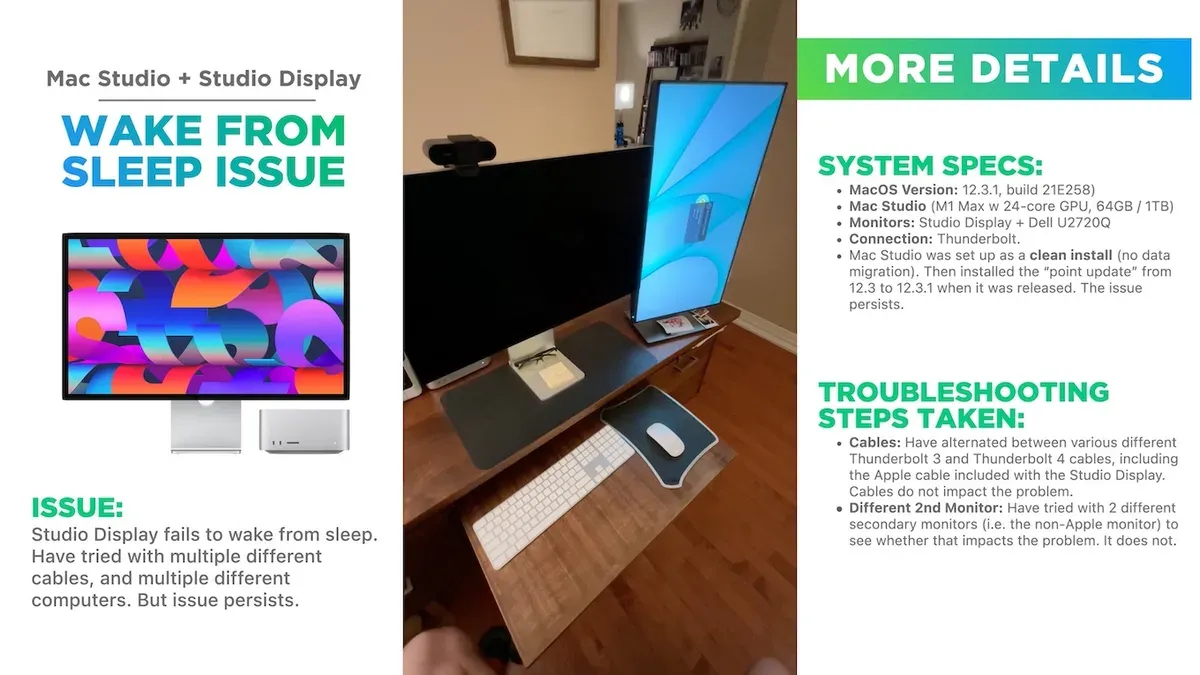
You might notice your Mac Studio M4 Max doesn’t always wake smoothly from sleep or behaves unpredictably when you close and reopen it. This can disrupt your workflow and cause frustration, especially if you rely on your Mac Studio for demanding tasks.
This guide addresses common Mac Studio M4 Max sleep wake issues by explaining their typical causes and offering straightforward, practical solutions. You’ll learn how to check your Mac’s specific settings, manage connected devices, and use built-in macOS tools to improve wake reliability without wading through unnecessary technical jargon.
Key takeaways
- Check and adjust Energy Saver or Battery settings to optimize sleep behavior.
- Disconnect or update peripherals that might interfere with sleep wake cycles.
- Use Activity Monitor to identify apps preventing sleep and close them.
- Reset the System Management Controller (SMC) if sleep wake issues persist.
- Avoid disabling Power Nap unless necessary, as it supports smooth wake functions.
Understand What Causes Sleep Wake Issues on Mac Studio M4 Max
The sleep and wake process on Macs involves shifting the system into low-power states while preserving your work and maintaining connectivity when needed. With the Mac Studio M4 Max, Apple Silicon introduces advanced power management that dynamically controls performance cores and efficiency cores to optimize energy use. This architecture differs from earlier M2-based Mac Studios by enabling more granular control over power states, but it also means the system depends heavily on firmware and macOS coordination.
Common triggers for sleep wake failures include software conflicts, such as incompatible background apps or kernel extensions that prevent proper sleep initiation. Power management bugs within macOS or the firmware can cause the Mac to fail to enter or resume from sleep correctly. Additionally, peripheral devices connected via USB, Thunderbolt, or Bluetooth may interfere by sending signals that keep the system awake or confuse its sleep state transitions.
For example, if you have an external USB hub connected with multiple devices drawing power, the Mac Studio might fail to enter sleep because it detects activity on those ports. Unlike the M2 chip models, the M4 Max aggressively manages power states but can be more sensitive to these peripheral-induced wake signals, causing unexpected wake-ups or failure to sleep. Understanding these hardware-software interactions helps you identify and address the root causes more effectively.
Check Your Mac Studio M4 Max Specs and Power Settings
Start by verifying your Mac Studio M4 Max specifications to understand how power management might interact with sleep wake behavior. Click the Apple menu and select About This Mac. Here, you can see your processor details, RAM size, and macOS version. Knowing the exact number of cores and RAM helps you recognize if resource-heavy peripherals or apps could be influencing power consumption and sleep transitions.
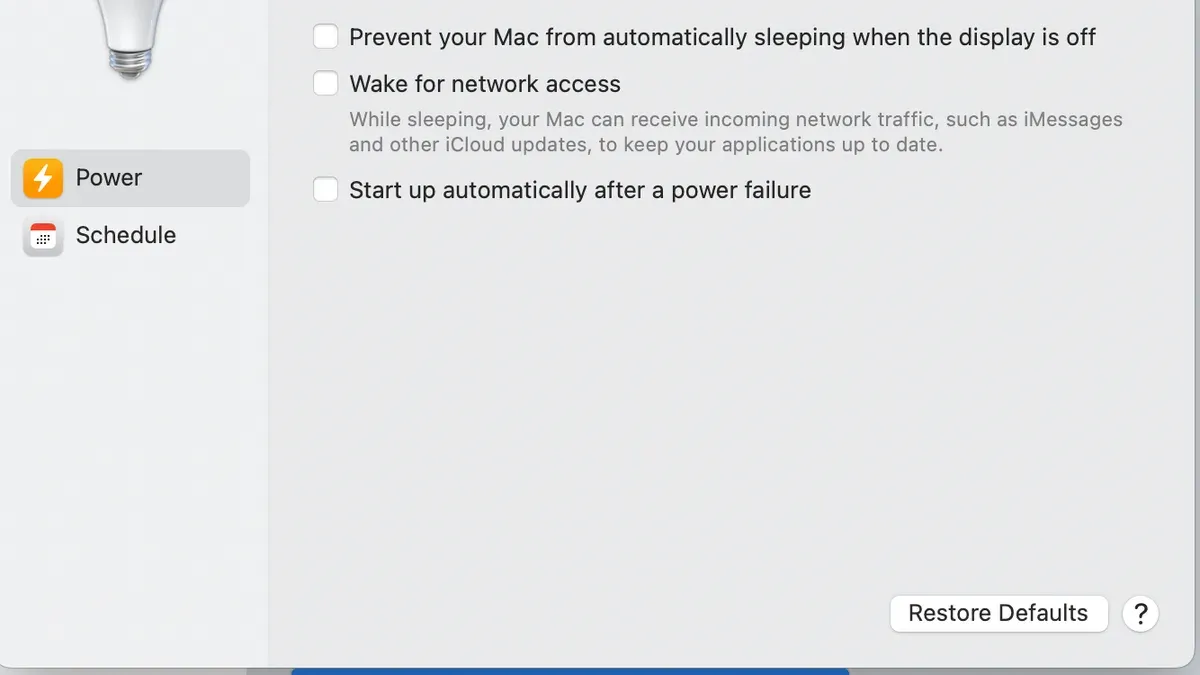
Next, open System Settings and navigate to Battery & Power. Look for the option labeled Prevent computer from sleeping automatically when the display is off. Enabling this keeps your Mac awake longer but can cause unreliable wake behavior by interfering with sleep states. Disabling it allows the Mac to enter proper low-power modes but may delay wake times if peripherals are active.
Keeping macOS and firmware updated is critical. Updates often include fixes for power management bugs affecting sleep wake reliability. You can check for updates under System Settings > General > Software Update. For example, a Mac Studio with 32GB RAM and multiple external drives may need a firmware patch to handle sleep transitions smoothly.
Fix Sleep Wake Problems by Managing Peripheral Devices and Connections
External devices such as USB-C hubs, external displays, and other peripherals can interrupt your Mac Studio M4 Max’s sleep and wake processes. A common culprit is a USB-C hub that sends errant signals or draws power inconsistently, preventing proper sleep or causing wake failures. To identify if a peripheral is causing issues, disconnect all external devices and check if sleep behavior improves.
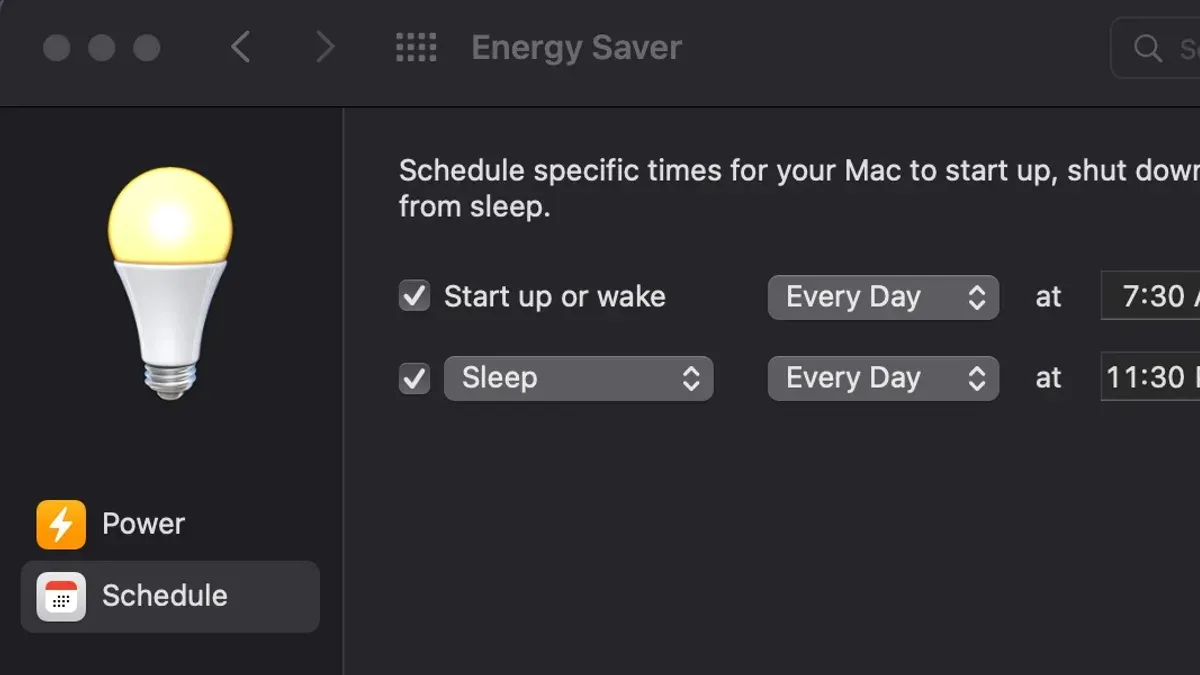
Begin by unplugging USB-C hubs and external monitors, then put your Mac to sleep manually via the Apple menu. If the Mac sleeps and wakes correctly without peripherals, reconnect devices one at a time to find the problematic accessory. For example, if after reconnecting a USB-C hub the Mac fails to wake properly, this hub is likely the source of conflict.
To improve compatibility, check the manufacturer’s website for firmware updates for your USB-C hub or external display. Updating firmware can resolve handshake issues between your Mac’s Apple Silicon power management and the device. If updates are unavailable, resetting the peripheral by disconnecting power for several seconds can also help. Managing your peripherals carefully ensures smoother sleep and wake cycles on your Mac Studio M4 Max.
Use macOS Tools and Settings to Resolve Sleep Wake Failures
On Apple Silicon Macs like your Mac Studio M4 Max, resetting the SMC equivalent involves resetting NVRAM/PRAM, which can clear power management glitches. To do this, shut down your Mac, then press and hold the power button for about 10 seconds before releasing it and turning the Mac back on. This simple step can resolve many sleep wake inconsistencies by refreshing system settings related to power.
Next, you can use Terminal commands to inspect and adjust power management parameters. Open Terminal and type pmset -g to see current power settings such as standby delay and sleep timers. For example, setting sudo pmset -a standbydelay 120 shortens the time before deep sleep, which can improve wake speed. Be cautious when changing these values; reverting to defaults is always possible with sudo pmset -a restoredefaults.
Another key setting is Power Nap, found in System Preferences under Battery > Battery. This feature allows your Mac to perform tasks while asleep but can sometimes interfere with smooth wake. Testing by toggling Power Nap off and observing if sleep wake issues improve is a practical approach. Users have noted better wake reliability with Power Nap disabled, though it means background updates pause during sleep.
Similarly, enabling Low Power Mode can reduce system demands and extend battery life, accessible in System Preferences > Battery > Low Power Mode. This setting can also stabilize sleep behavior by limiting background activity. Try switching it on and monitor if your Mac Studio wakes more consistently.
Avoid Common Sleep Wake Mistakes on Mac Studio M4 Max
Force shutting down your Mac Studio M4 Max by holding the power button during sleep issues might seem like a quick fix, but it can destabilize system processes and risk data corruption. For example, if you interrupt a system update or background task during forced shutdown, you might cause software inconsistencies that worsen sleep wake behavior. Apple’s official guidance advises against this unless absolutely necessary.
Installing unverified third-party sleep management apps often promises quick resolutions but can introduce conflicts with Apple Silicon’s power management. These apps may override critical system functions, leading to unpredictable sleep failures or even hardware stress. It’s safer to rely on built-in macOS settings and updates, as Apple designs these to work seamlessly with your Mac Studio M4 Max.
If repeated troubleshooting steps fail, it’s wise to seek professional Apple support rather than continuing DIY fixes. Persistent sleep wake problems could indicate hardware issues or deeper software conflicts that require specialized diagnostics. Attempting complex system modifications without expertise can inadvertently cause more harm than good.
Compare Mac Studio M4 Max Sleep Wake Behavior with Other Models
The Mac Studio M4 Max's sleep wake behavior differs notably from other Mac Studio variants due to its advanced power management and hardware specs. For example, the M4 Max features a 16-core CPU architecture that generally consumes more power during active use but includes refined power gating techniques to optimize sleep reliability. In contrast, the M3 Ultra and M2 chips have different core counts and power profiles, affecting how quickly and smoothly they enter and exit sleep states.
User reports from forums suggest that while all Mac Studio models occasionally experience sleep wake issues, the M4 Max sometimes requires more deliberate power setting adjustments due to its higher performance capabilities. Fixes like toggling Low Power Mode or adjusting Energy Saver preferences may have varying effectiveness depending on the chip. The M3 Ultra, with a larger core count but slightly different architecture, may show longer wake times but fewer peripheral-related conflicts.
| Model | CPU Cores | Typical Sleep Power Consumption | Common Sleep Wake Issues | Recommended Fixes |
|---|---|---|---|---|
| Mac Studio M4 Max | 16-core CPU | Moderate (optimized with power gating) | Peripheral conflicts, occasional slow wake | Low Power Mode, Energy Saver tweaks, peripheral management |
| Mac Studio M3 Ultra | 20-core CPU | Higher (due to more cores) | Longer wake times, fewer peripheral issues | Software updates, firmware patches |
| Mac Studio M2 | 8-core CPU | Lower (less power-hungry) | Less frequent issues, usually software-related | System updates, NVRAM reset |
Picture this: if you use your Mac Studio M4 Max for intensive tasks and notice it takes longer to wake than your colleague’s M2 model, it may be due to the M4 Max’s higher core count and power management complexity. Adjusting Energy Saver settings or disconnecting certain USB-C hubs can often smooth out these transitions.
Frequently asked questions
Why does my Mac Studio M4 Max fail to wake from sleep sometimes?
Your Mac Studio M4 Max may fail to wake from sleep due to issues like incompatible or malfunctioning peripherals, outdated macOS versions, or power management settings that conflict with sleep mode. USB devices, especially hubs or external drives, can interfere with the wake process. Ensuring all connected devices are compatible and updating macOS to the latest version often resolves this.
How can I reduce power consumption to improve sleep behavior on Mac Studio M4 Max?
To reduce power consumption and improve sleep reliability, enable Low Power Mode via System Settings > Battery > Low Power Mode. Also, disable 'Wake for network access' in System Settings > Battery > Options to prevent unnecessary wake events. Closing unused apps and disconnecting unnecessary peripherals can further help minimize power use during sleep.
Is there a difference in sleep wake issues between Mac Studio M4 Max and M2 versions?
While both Mac Studio M4 Max and M2 models generally handle sleep well, the M4 Max’s advanced architecture can sometimes show unique sleep wake behavior, especially with specific peripherals or software configurations. Sleep issues are often related to drivers or settings rather than hardware generation, so troubleshooting steps remain similar across models.
What steps can I take if my Mac Studio M4 Max keeps going to sleep unexpectedly?
If your Mac Studio M4 Max sleeps unexpectedly, check for energy saver settings under System Settings > Battery that might trigger sleep too soon, such as short timer values. Also, look for apps or processes that request sleep or cause system inactivity, and disconnect peripherals that may send sleep signals. Resetting the SMC (System Management Controller) can also help resolve erratic sleep behavior.
What This Guide Does Not Cover
This guide focuses on software settings, power management, and peripheral device handling to resolve sleep wake issues on your Mac Studio M4 Max. It does not cover hardware repair for physical defects causing sleep wake failures. If you experience persistent problems that continue despite following these steps, or if your Mac shows signs of hardware malfunction such as unresponsive power buttons or unusual noises, you should contact Apple Support or visit an authorized technician for a professional diagnosis and repair.
To move forward effectively, begin by opening System Settings and navigating to Battery > Battery Health & Charging. Here, ensure that Manage battery longevity is enabled and that your power adapter is functioning correctly. This step often resolves subtle issues related to power management that can lead to sleep wake failures.
See also: Stop Mac Studio M4 Max Random Restarts: A Clear Fix Guide · How to Fix Mac Studio M4 Max Stuck on Apple Logo: A Step-by-Step Guide · How to Diagnose and Fix Mac Studio M4 Max Kernel Panic Issues · Fix Mac Studio M4 Max Slowdowns After Updates: A Step-by-Step Guide



