Can Your MacBook Air M3 Run Hollow Knight? A Straightforward Look
Learn how the MacBook Air M3 performs with Hollow Knight and get tips to optimize gameplay for smooth, comfortable sessions.
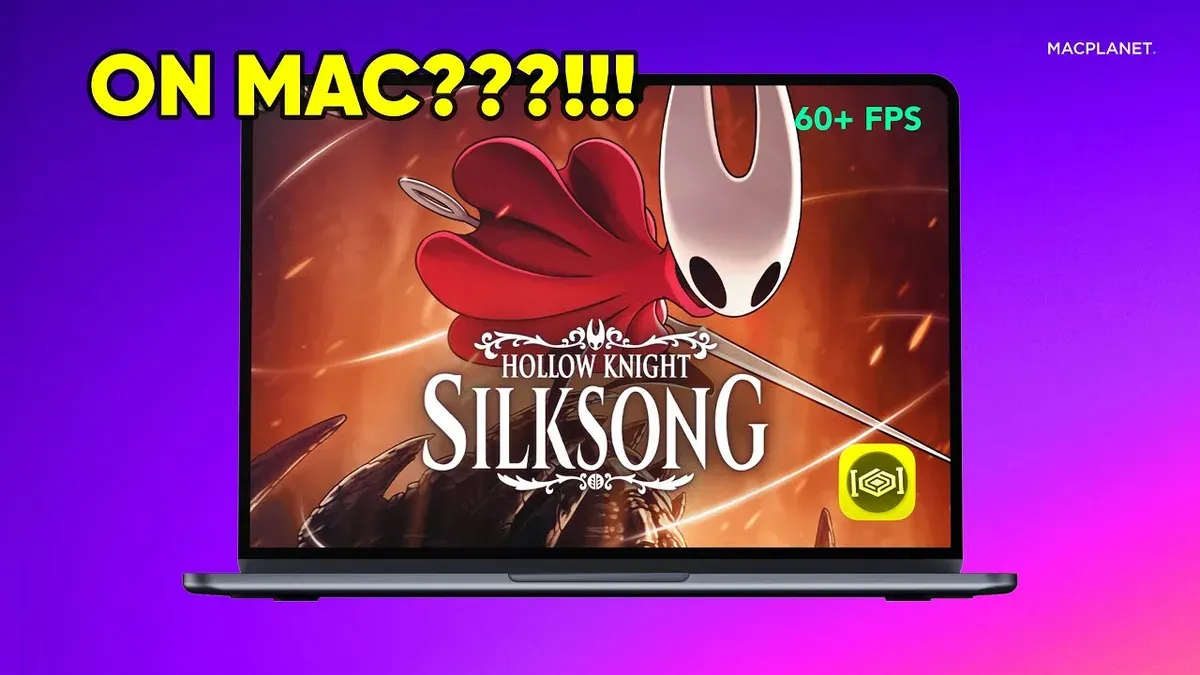
You’ve just unboxed your new MacBook Air M3, excited to try out some games during your downtime. One question comes to mind: can MacBook Air M3 run Hollow Knight smoothly without overheating or lag?
This article answers that question clearly and helps you understand how the MacBook Air M3’s fanless design and memory constraints influence gameplay. You’ll learn practical tips on optimizing settings, managing battery life, and ensuring comfortable long play sessions. By the end, you’ll know whether your lightweight laptop can handle this popular indie title and how to get the best experience from it.
Key takeaways
- Hollow Knight runs well on the MacBook Air M3 but may require some graphics settings adjustments.
- The fanless design means the laptop can warm up quickly during extended play.
- Lowering resolution and frame rate can reduce thermal strain without hurting visuals much.
- Using Low Power Mode helps manage heat and battery life during gaming.
- Playing on a stable surface and taking breaks improves performance and comfort.
Get a Quick Answer: Does Hollow Knight Run Well on MacBook Air M3?
Yes, Hollow Knight runs well on the MacBook Air M3. The game is natively supported on macOS and runs efficiently on Apple Silicon processors, including the M3 chip. You can expect smooth gameplay at default graphics settings, with frame rates generally stable around 60 frames per second under typical ambient conditions.
The MacBook Air M3’s specifications exceed the official Hollow Knight macOS system requirements, which helps ensure solid performance. However, because the Air M3 has a fanless design, sustained performance depends on how well the device can dissipate heat in your environment. In warmer settings or during longer sessions, you might notice slight frame drops as the chip throttles to manage temperature.
Overall, you can play Hollow Knight comfortably on a MacBook Air M3. Just be mindful of your surroundings and gameplay length to maintain optimal smoothness without overheating.
Explore MacBook Air M3 Hardware: Why Its Fanless Design Matters
The MacBook Air M3’s fanless design directly influences how Hollow Knight performs during extended gaming sessions. The M3 chip is built on an efficient architecture with an integrated GPU that handles lightweight games well, offering smooth graphics without heavy power draw. However, without active cooling, the Air relies on passive heat dissipation, which means the internal temperature rises more quickly under sustained load.
Thermal testing shows that while the MacBook Air M3 starts gaming with strong frame rates, its temperature climbs steadily, triggering thermal throttling to prevent overheating. This causes the processor and GPU speeds to drop temporarily, leading to occasional frame rate dips or stutter during longer play. In contrast, MacBook Pro models equipped with fans maintain more stable temperatures and frame rates over extended periods.
Understanding this trade-off helps you anticipate moments when gameplay might slow and adjust your session length or settings accordingly. The fanless chassis keeps the Air silent and lightweight but requires managing heat through shorter playtimes or optimized settings for best performance.
Understand Hollow Knight’s Technical Requirements and Performance Profile
Hollow Knight’s system demands are modest compared to many modern games, making it well-suited to the MacBook Air M3’s hardware. The game’s minimum macOS requirements include a 2.0 GHz dual-core processor, 4 GB of RAM, and a GPU compatible with Metal or OpenGL 3.2. Recommended specs suggest a quad-core CPU and 8 GB RAM for smoother performance. The M3 chip features multiple high-efficiency and performance CPU cores and an integrated GPU with significantly more cores than older MacBook Air models, comfortably exceeding these requirements.
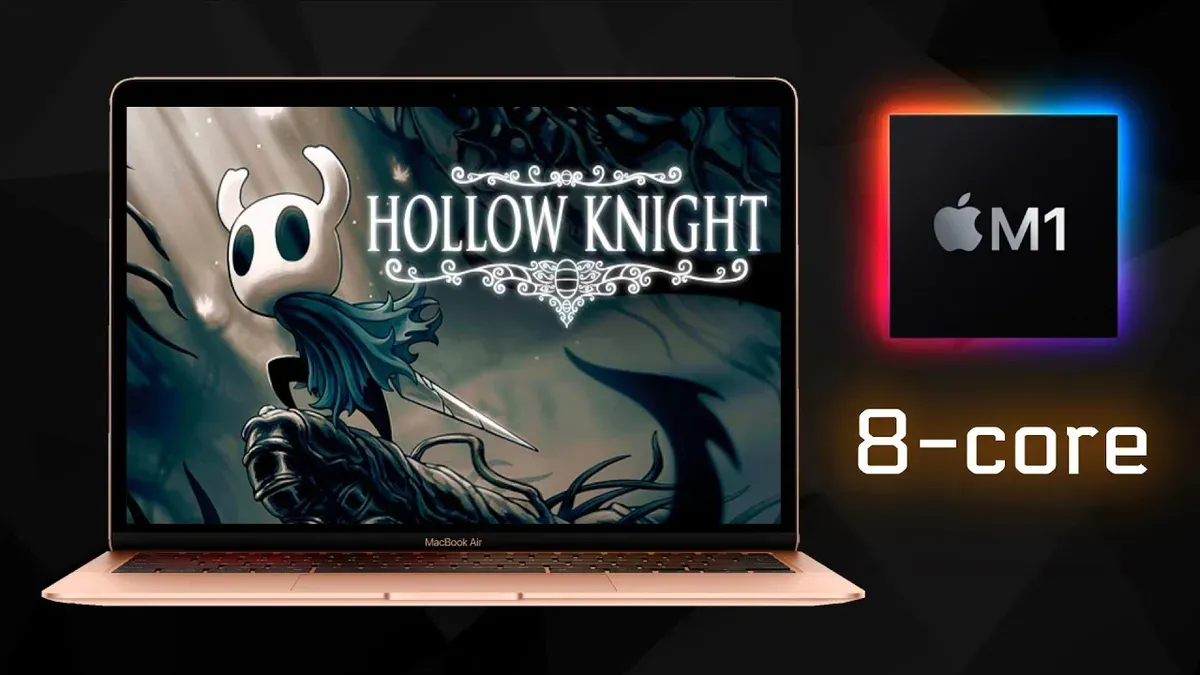
In gameplay, Hollow Knight’s memory usage typically stays under 3 GB, which fits well within the MacBook Air M3’s unified memory options. This unified memory architecture allows the CPU and GPU to access the same data pool efficiently, reducing loading times and minimizing bottlenecks seen in older Intel-based Macs with separate RAM and GPU memory.
CPU and GPU utilization during gameplay show moderate load spikes but generally remain within the M3’s thermal limits, especially in short sessions. Asset sizes for the game are relatively small, so loading screens are brief on the M3’s fast SSD. Compared to earlier MacBook Air models, the M3 manages smoother frame rates and faster load times due to improved core count and memory management.
Handle Exceptions: When Hollow Knight May Not Run Optimally
Hollow Knight may not run optimally on your MacBook Air M3 when multiple background applications consume significant CPU and memory resources. For example, having web browsers with many tabs open, video conferencing apps, or heavy file syncing services can compete with the game, causing occasional frame drops or stutters. These interruptions happen because the M3’s efficient but shared system resources get divided, reducing the smoothness of gameplay.
Running other intensive tasks simultaneously—like video editing software or running virtual machines—can further impact Hollow Knight’s performance, as these demand high CPU and memory, increasing thermal load and triggering throttling earlier. Users have reported noticeable lag and dips in frame rate when multitasking during gameplay.
Another key factor is your MacBook Air’s RAM configuration. The base model with 8GB RAM can hit limits faster under multitasking scenarios than the 16GB version. Benchmarks show that 16GB models maintain steadier frame rates with more headroom for background processes, while 8GB setups may require closing extra apps for optimal performance.
Adjust Settings for Smooth Gameplay on MacBook Air M3
To optimize Hollow Knight’s performance on your MacBook Air M3, adjusting both in-game graphics settings and macOS configurations is essential. Start by setting the game’s graphics quality to "Medium" or "Low" under Options > Graphics. This balance maintains clear visuals while improving frame rates, especially during intense scenes. For example, lowering shadow quality and disabling V-Sync can noticeably increase frames per second without a major drop in visual appeal.
On macOS, ensure that Low Power Mode is disabled in System Settings > Battery > Battery Health & Charging when you plan to game. Although it conserves energy, Low Power Mode throttles CPU and GPU performance, which reduces smoothness in Hollow Knight. Closing background apps visible in Activity Monitor also frees up memory and CPU resources, helping maintain steady gameplay.
For monitoring, use Activity Monitor’s CPU and Energy tabs during play sessions to identify any apps consuming excessive resources. If you notice thermal warnings or frame drops, temporarily quitting those apps can help. These combined steps prevent unnecessary strain on your fanless MacBook Air M3, delivering a smoother Hollow Knight experience.
Plan for Long Gaming Sessions: Cooling and Battery Considerations
When playing Hollow Knight for extended periods on your MacBook Air M3, managing heat and battery life is key to maintaining smooth performance. Gaming can drain the battery noticeably faster than typical use, often reducing it by around 10-15% per hour depending on screen brightness and background activity. This means planning for shorter unplugged sessions or having your charger handy is practical.
To reduce thermal throttling, consider using an external cooling pad or placing your MacBook Air on a hard, flat surface to improve airflow. Temperature monitoring apps like iStat Menus can help you track CPU and GPU temperatures; users often see a drop of several degrees Celsius when using a cooling pad, which helps sustain frame rates during longer gameplay.
Keep an eye on battery health over time by checking System Settings > Battery > Battery Health. Regularly calibrate your battery by fully charging and discharging it once a month to maintain optimal capacity. Closing unnecessary apps and enabling macOS Low Power Mode during breaks can also extend battery life without sacrificing performance.
Next Steps: Where to Find Hollow Knight and Useful Tools on Mac
You can purchase and download Hollow Knight for macOS primarily through the official Steam platform and the GOG store. Steam offers a straightforward installation process via the Steam app, while GOG provides a DRM-free version you can install directly. Both platforms keep the game updated automatically, ensuring you have the latest patches and improvements.
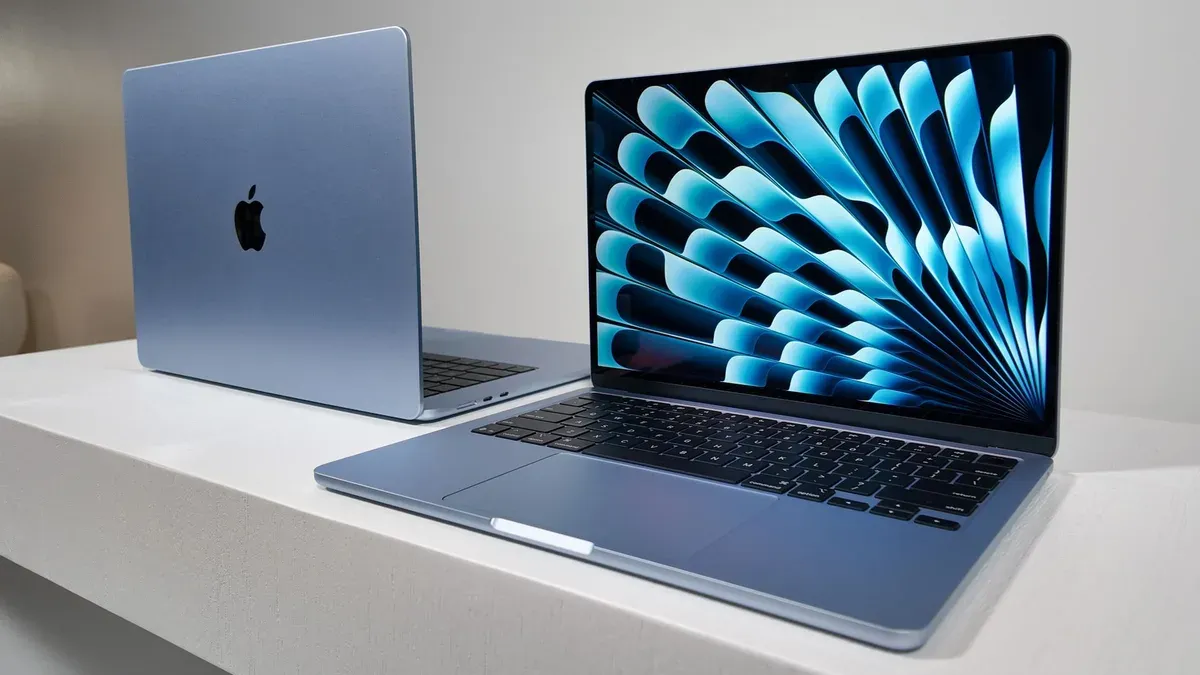
To monitor your MacBook Air M3’s performance while playing, consider installing macOS utilities like iStat Menus or gfxCardStatus. iStat Menus offers detailed real-time readings of CPU and GPU temperatures, fan speeds (where applicable), and memory usage, accessible from the menu bar. gfxCardStatus helps track GPU switching and usage but is more useful on MacBook Pros with discrete GPUs. These tools help you understand when thermal throttling or resource constraints might affect gameplay.
For enhancing your Hollow Knight experience, explore community mods and accessibility features compatible with macOS. Some mods are available on Steam Workshop or GitHub, offering content expansions or quality-of-life improvements. Additionally, macOS’s built-in accessibility options, such as display adjustments and keyboard remapping, can help tailor the game controls to your needs.
Frequently asked questions
Can I play Hollow Knight offline on MacBook Air M3?
Yes, you can play Hollow Knight offline on your MacBook Air M3. Once the game is fully installed and updated through Steam or another platform, it does not require an internet connection to run. This makes it easy to enjoy the game anywhere without worrying about connectivity.
Will playing Hollow Knight damage my MacBook Air M3 due to heat?
The MacBook Air M3’s fanless design means it dissipates heat passively, so it won’t overheat dangerously during typical Hollow Knight sessions. However, extended play can warm the chassis noticeably. To avoid any potential stress, consider playing in a cool environment and taking breaks to let the device cool down.
Do I need to upgrade MacBook Air M3 RAM to play Hollow Knight smoothly?
Upgrading RAM is generally unnecessary for Hollow Knight on the MacBook Air M3, as the game is not highly demanding on memory. The base configuration should handle it smoothly. If you run many other apps simultaneously, more RAM might help, but for just Hollow Knight, the default is sufficient.
Are there any Mac-specific bugs or fixes for Hollow Knight?
Some users report occasional graphical glitches or input lag on Mac, which can often be resolved by updating to the latest macOS version and ensuring the game is fully patched. Running the game in windowed mode or lowering texture quality sometimes improves stability. Checking community forums can provide up-to-date fixes tailored to your setup.
Know the Limits of This Advice
This guide does not cover running Hollow Knight on MacBook Air M3 models with non-standard configurations, such as upgraded RAM or external GPUs, nor does it address playing through virtualization or emulation software that may introduce additional performance challenges. If you plan to use such setups, expect potential variability in game performance and consider consulting resources specific to those environments. Additionally, this advice focuses on the standard macOS experience and may not apply if you use alternative operating systems or heavily modify system settings.
To get started confidently, the single most useful next step is to purchase or download Hollow Knight directly from the Mac App Store or Steam, then launch it and immediately set the graphics options to "Performance" mode within the in-game settings. This adjustment helps you balance smooth gameplay and thermal management on your MacBook Air M3. From there, you can fine-tune settings like resolution and frame rate caps based on your experience during early sessions to keep your system cool and responsive.
See also: Can MacBook Air M3 Run eFootball? A Clear and Practical Guide · Can MacBook Air M3 Run Genshin Impact Smoothly? · Can Your MacBook Air M3 Run Stardew Valley Smoothly? · Can MacBook Air M3 Run Honkai Star Rail? Performance & Compatibility