
Moving from Canvas to Google Classroom: Your Essential Checklist
This checklist guides you through a smooth transition from Canvas to Google Classroom, covering content mapping, data migration, and user training.
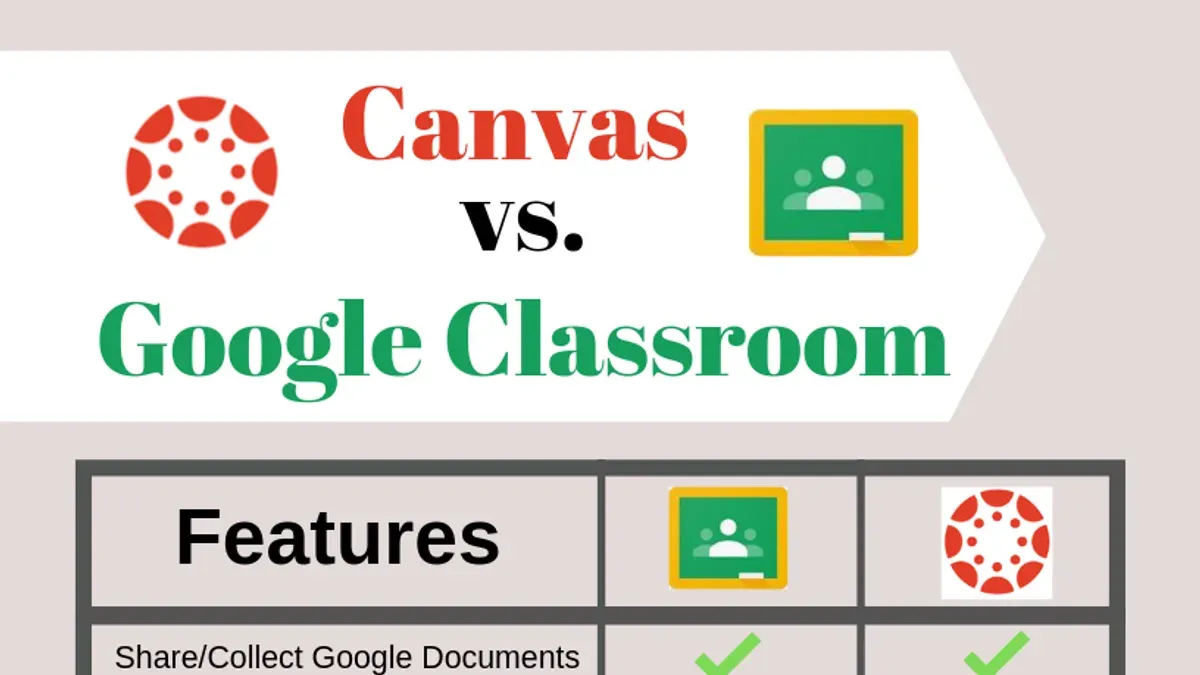
Short answer: Successfully moving from Canvas to Google Classroom requires careful planning and attention to the unique differences in platform workflows and data structures. This moving from Canvas to Google Classroom checklist will guide you through mapping out your existing content, preparing the new environment, handling data migration complexities, and training your users to minimize disruption.
This article covers the essential steps to ensure a smooth transition while preserving your pedagogical goals. You will learn how to identify which Canvas content translates well, address common migration challenges like assignment and grade transfer, and prepare educators and students for the switch. By following this expert-driven checklist, you can avoid typical pitfalls and optimize your Google Classroom setup for ongoing success.
Understand Why Moving from Canvas to Google Classroom Matters
Canvas and Google Classroom differ fundamentally in their platform philosophies and user experiences. Canvas offers a robust, feature-rich learning management system designed for complex course structures and detailed analytics, while Google Classroom emphasizes simplicity and seamless integration with Google Workspace tools like Docs, Drive, and Meet to foster real-time collaboration.
For example, Google Classroom’s tight integration with Google Drive allows educators to create, distribute, and collect assignments with automatic file organization, reducing administrative overhead. This integration supports collaborative projects directly within familiar apps, which can enhance student engagement if your institution prioritizes teamwork and cloud-based workflows.
However, Canvas’s advanced grading rubrics, customizable modules, and comprehensive reporting might better suit institutions requiring detailed pedagogical tracking and diverse assessment strategies.
| Feature | Canvas | Google Classroom |
|---|---|---|
| Assignment Creation | Flexible, with custom rubrics and varied submission types | Simple, integrated with Google Docs, Sheets, Slides |
| Collaboration | External tools needed for real-time collaboration | Native Google Workspace collaboration tools |
| Analytics and Reporting | Detailed course and student analytics | Limited reporting, focuses on assignment status |
| Integration Ecosystem | Wide third-party LTI integrations | Deep Google Workspace integration, fewer third-party tools |
User satisfaction surveys highlight that educators appreciate Google Classroom’s ease of use and streamlined workflows but sometimes find it less flexible for complex course needs compared to Canvas. Understanding these trade-offs helps you align the platform choice with your institution’s teaching model and technical capacity.
Map Your Existing Canvas Content and Data
Begin by performing a thorough audit of your Canvas courses. Use the Canvas Admin interface to list all active and archived courses, then export a course content report via Settings > Export Course Content. This report will detail assignments, quizzes, gradebook entries, and files, including export file sizes and formats. For example, a typical high school biology course audit might show 15 assignments (PDF and Word), 5 quizzes (QTI format), and a gradebook with 200 student entries.
Identify which content types require special attention. Google Classroom, unlike Canvas, does not support question banks or advanced quiz settings, so plan to recreate these using Google Forms or other tools. Similarly, gradebook data cannot be fully imported; you will need to export grades as CSV files from Canvas and import them manually or maintain them separately.
Export all course content in Canvas’s preferred IMSCC or Common Cartridge formats for compatibility, and back up media files separately. Archiving older courses that won’t migrate saves time and reduces clutter.
- List all active and archived courses in Canvas Admin > Courses
- Export course content via Settings > Export Course Content, noting file types and sizes
- Flag unsupported content types like question banks and advanced quizzes
- Plan manual recreation of unsupported content in Google Classroom
- Export gradebook data as CSV for manual handling
- Archive courses not needed in Google Classroom
Prepare Your Google Classroom Environment for Migration
Begin by configuring your Google Workspace admin console to define organizational units (OUs) for educators and students. Navigate to Admin Console > Directory > Organizational units to create clear groupings that match your school's structure. This ensures you apply tailored settings and permissions effectively.
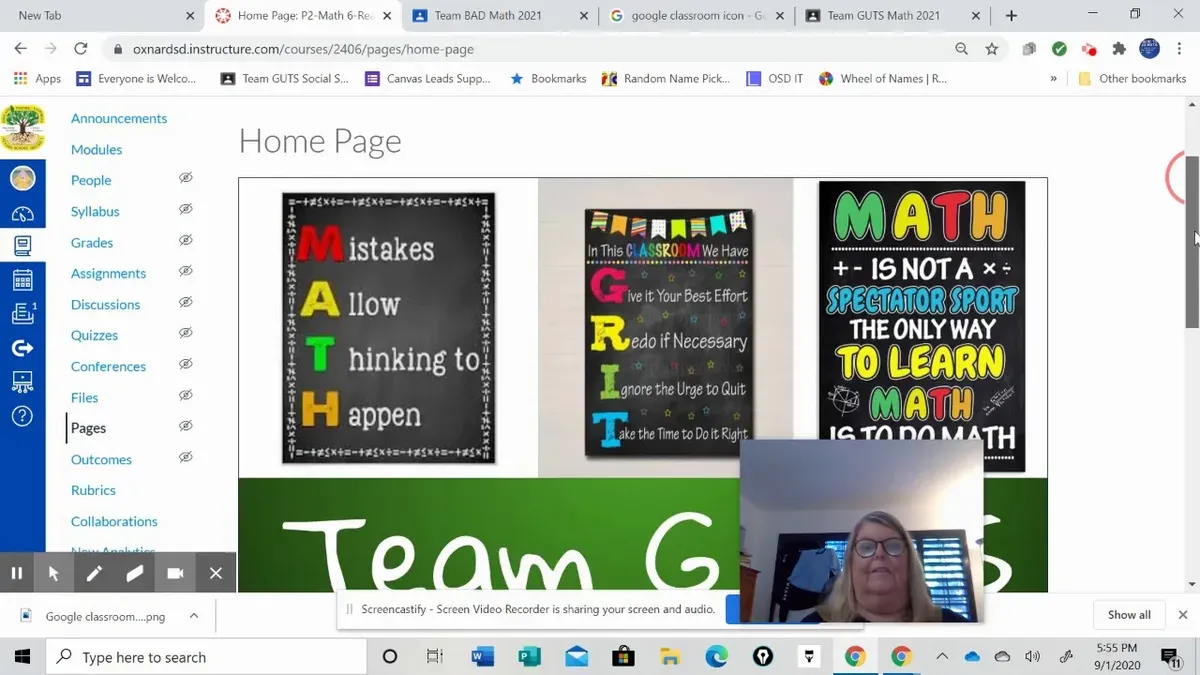
Next, set permissions carefully. Under Admin Console > Apps > Google Workspace > Classroom, verify that educators have rights to create and manage classes, while students have appropriate access without administrative privileges. A common oversight is granting students excessive permissions, risking unintended content changes.
Create course categories and rosters within Google Classroom that reflect your Canvas structure. For example, if you have Science and Humanities departments, set up corresponding Classrooms and assign teachers accordingly. This mirrors existing workflows and minimizes confusion.
Decide whether to utilize Google Classroom’s native assignment and grading features or continue with external tools. If you rely on third-party grading software, ensure integration compatibility before migration to avoid disrupting assessment processes.
Include step-by-step screenshots of the Admin Console paths and a sample permission matrix that maps roles to capabilities (e.g., Educators: create/manage classes, grade assignments; Students: view/submit assignments only).
- Set up organizational units aligned with your school's structure
- Configure Classroom permissions via Google Workspace Admin Console
- Create course categories and rosters mimicking Canvas organization
- Decide on using Classroom’s grading tools or external systems
- Document settings with screenshots and a permission matrix
Migrate Content and Manage Data Transfer Challenges
When moving course materials from Canvas to Google Classroom, you face a choice between manual and automated migration approaches. Automated tools like the Google Classroom API combined with third-party services can transfer assignments, announcements, and grades with moderate success—typically well over half of course content migrates intact. However, unsupported content types such as Canvas quizzes or multimedia files often require manual export and re-upload, which is labor-intensive but ensures accuracy.
A common pitfall is neglecting to verify the fidelity of migrated content. For example, a Canvas assignment with embedded rubrics may lose grading criteria when imported directly. In such cases, recreate rubrics within Google Classroom’s grading tool after migration to preserve pedagogical integrity.
Transferring grades demands special attention. Google Classroom does not natively accept Canvas grade exports, so export grades as CSV files from Canvas, then import and match them manually in Google Classroom’s Gradebook. Also, consider exporting student submissions from Canvas if you need to retain them for records, as Google Classroom will not automatically pull prior work.
One practical workflow is to use a tool like the Canvas to Google Classroom Migration Helper for bulk transfer, then manually review and adjust unsupported content within a week. This balances efficiency with accuracy.
- Choose a migration tool that aligns with your course complexity
- Manually export and recreate unsupported content types
- Export grades from Canvas as CSV and import into Google Classroom
- Download student submissions from Canvas before migration
- Validate content fidelity post-migration and adjust as needed
Train Educators and Students for the New Platform
Transitioning to Google Classroom requires focused training to help educators and students grasp its unique workflows. For example, unlike Canvas, Google Classroom handles assignment creation through the “Classwork” tab where educators can organize tasks by topics and attach Google Drive files seamlessly. Submission happens directly in Classroom with automatic file versioning, which can be unfamiliar at first.
Encourage users to explore collaboration tools like Google Docs comments and real-time editing, which enhance feedback beyond traditional grading. A practical training session might start with setting up an assignment, demonstrating student submission, and showing how to provide inline feedback using the “Private Comments” feature.
Survey data from similar migrations indicate that structured, hands-on workshops paired with follow-up Q&A sessions improve confidence significantly. A sample agenda includes a 30-minute platform overview, 45 minutes of guided practice, and 15 minutes for troubleshooting common issues like syncing grades or managing notifications.
Providing ongoing resources such as Google’s Help Center, community forums, and district-specific FAQs ensures users have support beyond initial training, minimizing frustration and boosting adoption rates.
- Demonstrate assignment creation via the Classwork tab
- Practice submitting and grading assignments using Google Docs comments
- Highlight collaboration features like real-time editing
- Offer follow-up Q&A and troubleshooting sessions
- Share curated support materials and FAQs for ongoing help
Avoid Common Mistakes and Set Realistic Expectations
One common pitfall is underestimating the time required to reformat Canvas content for Google Classroom’s simpler structure. For example, a district migration project found that converting multimedia quizzes and intricate grading rubrics took twice as long as planned, delaying course availability.
Data privacy and compliance can also be overlooked. Canvas allows detailed user permissions; Google Classroom’s settings require careful review under Google Admin Console > Apps > Google Workspace > Classroom to ensure FERPA and GDPR compliance during and after migration.
Neglecting stakeholder communication causes confusion and resistance. In one case, a lack of clear updates led teachers to duplicate work or delay adoption, increasing frustration. Change management should include regular briefings and accessible FAQs.
- Allocate extra time for content reformatting beyond automated migration.
- Audit Google Workspace security and sharing settings for compliance.
- Establish a communication plan with frequent updates and training resources.
Maintain and Optimize Your Google Classroom Post-Migration
After migration, sustaining Google Classroom’s effectiveness requires ongoing monitoring and iterative improvements. Begin by regularly reviewing the Google Classroom usage dashboard found under Settings > Reports. This dashboard highlights active classes, assignment completion rates, and student engagement trends, helping you identify where support or adjustments are needed.
Complement metrics with structured user feedback, collected via Google Forms or Workspace’s built-in surveys. For example, a feedback report might reveal that teachers find the grading interface less intuitive, prompting an action plan to deliver targeted training or introduce add-ons like Flubaroo for streamlined grading.
Optimize workflows by integrating additional Google Workspace tools such as Calendar for scheduling or Meet for synchronous sessions, accessed via the Google Classroom settings panel under Integrations. This reduces platform-switching and keeps activities cohesive.
Plan quarterly reviews to update course materials, permissions, and integration settings. This rhythm helps adapt to new Google Classroom features and evolving pedagogical needs, minimizing disruption and preserving teaching quality.
- Regularly check the usage dashboard and key metrics
- Collect and analyze user feedback with Google Forms
- Iterate workflows by adding Google Workspace integrations
- Schedule periodic reviews and update course settings
Read next
- Moving from Blackboard to Google Classroom: Your Complete Checklist
- Switching from Canvas to Brightspace: Your Complete Expert Guide
- Switching from Canvas to Blackboard: Your Expert Guide
- Moving from Brightspace to Canvas: Your Complete Checklist
Frequently asked questions
What are the biggest differences between Canvas and Google Classroom?
Canvas offers a comprehensive LMS with advanced grading schemes, detailed analytics, and customizable course structures, while Google Classroom emphasizes simplicity and seamless integration with Google Workspace apps. Workflow differences include Canvas’s module-based content organization versus Google Classroom’s stream and classwork tabs. Understanding these distinctions helps tailor your migration approach to preserve pedagogical goals.
Can I migrate grades and student submissions automatically?
Automatic migration of grades and student submissions is limited due to different data structures and privacy constraints. Some third-party tools can assist with partial transfers, but manual export-import processes are often necessary for full accuracy. Preparing spreadsheets from Canvas gradebooks and downloading student work before import ensures data integrity during transfer.
What content types do not transfer well between Canvas and Google Classroom?
Complex content such as quizzes with intricate question types, mastery paths, and detailed rubrics typically do not transfer cleanly. Additionally, multimedia embedded directly within Canvas pages may require manual relocation or re-linking. Plan to review and reconstruct such content in Google Classroom to maintain instructional quality.
How can I train my teachers quickly to use Google Classroom effectively?
Focus on hands-on, role-specific training that covers core Google Classroom features like creating assignments, using Google Drive integration, and managing the grading interface. Providing short video tutorials and quick reference guides, along with live Q&A sessions, helps accelerate adoption. Emphasize workflows that replace familiar Canvas functions to ease the transition.
What this advice does not cover
This guide does not cover integration with third-party tools unique to Canvas that may not have equivalents in Google Classroom. If your institution relies heavily on specialized Canvas apps or custom LTI integrations, you will need to consult with your vendors or IT specialists to develop bespoke migration or replacement strategies. Additionally, this checklist does not address district-wide SIS synchronization complexities that might require advanced API work beyond Google Classroom’s native capabilities.
Quick checklist
- Review and export all Canvas course content, including quizzes and assignments, through the Canvas Settings > Export Course function.
- Inventory all user data and download grade reports to preserve records outside the platform.
- Set up your Google Workspace for Education domain and enable Google Classroom through the Admin Console under Apps > Google Workspace > Classroom.
- Create classes in Google Classroom matching your Canvas courses, paying attention to class codes and enrollment options.
- Manually upload or recreate complex assignments and quizzes that do not export cleanly.
- Conduct training sessions focusing on Google Classroom workflows, emphasizing differences like Stream vs. Modules.
- Communicate clearly with educators and students about timelines and what changes to expect.
- Monitor Google Classroom usage after migration, adjusting settings such as grading categories and notification preferences to optimize workflow.
The most useful next step is to begin a pilot migration with a small group of courses. This allows you to identify specific challenges in your environment, test data integrity, and refine your training before scaling to the entire institution. Starting small gives you the control and flexibility to minimize disruption and ensure a smoother transition for all stakeholders.



