
Moving from Dropbox to Microsoft 365 Checklist for Seamless Migration
This checklist guides you through a seamless migration from Dropbox to Microsoft 365, covering file transfer, permissions, and collaboration setup.
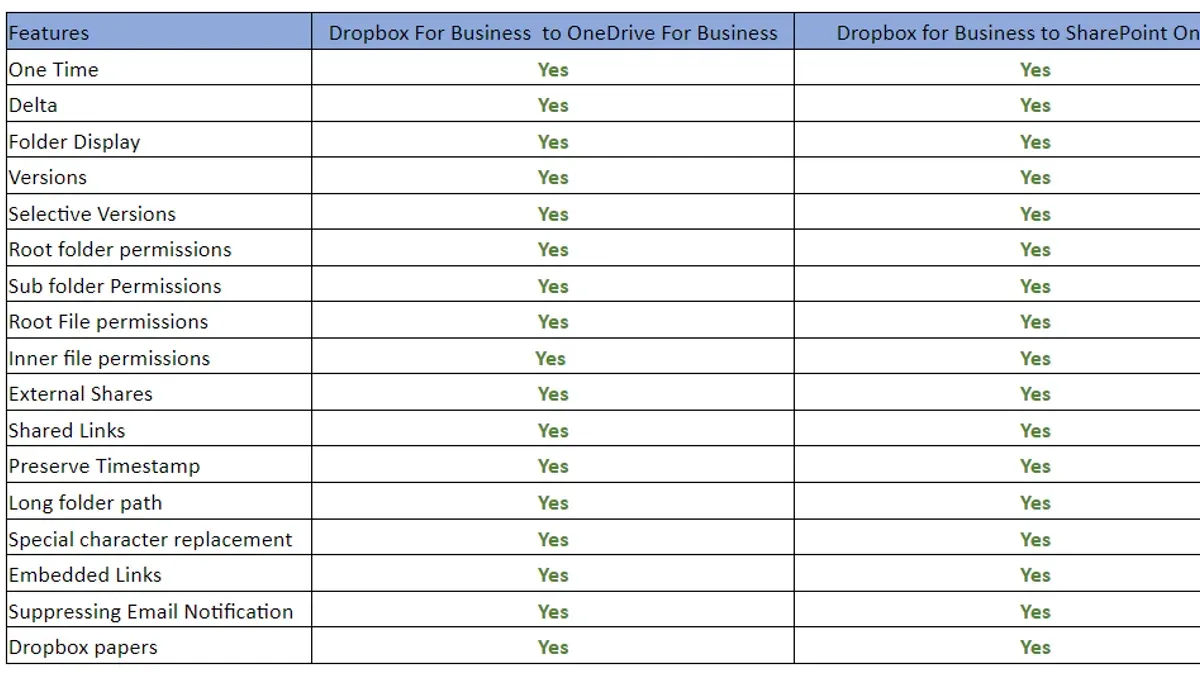
Short answer: Successfully moving from Dropbox to Microsoft 365 requires careful planning and a clear checklist to navigate platform differences and ensure data integrity. A moving from Dropbox to Microsoft 365 checklist helps you manage file migration, user permissions, and collaboration workflows to minimize disruption.
This article guides you through the end-to-end process of migrating your organization’s file storage and collaboration environment. You’ll learn to assess your current Dropbox setup, prepare Microsoft 365 for incoming data, execute the migration with precision, and foster user adoption. We highlight the challenges specific to shifting from Dropbox’s file-centric model to Microsoft 365’s integrated apps, so you can leverage the full benefits of the new ecosystem while avoiding common pitfalls.
Understand the Differences Between Dropbox and Microsoft 365
Moving from Dropbox to Microsoft 365 is more than a simple file transfer; it means transitioning from a primarily file storage service to a comprehensive collaboration platform. Dropbox centers on cloud file storage and sharing with basic collaboration features, while Microsoft 365 integrates OneDrive for personal file storage, SharePoint for team sites and document libraries, and Teams for real-time communication and collaboration.
For example, Dropbox users typically share files by sending links or inviting collaborators to folders. In contrast, Microsoft 365 enables co-authoring within Word, Excel, or PowerPoint directly in Teams or SharePoint, reducing version conflicts and streamlining workflows. This integrated ecosystem changes how users interact with content, shifting from isolated file management to dynamic, collaborative workspaces.
| Feature | Dropbox | Microsoft 365 |
|---|---|---|
| File Storage | Cloud storage with folder sharing | OneDrive and SharePoint document libraries |
| Collaboration | File comments, shared folders | Co-authoring, Teams chat and meetings, SharePoint sites |
| Workflow Integration | Limited, mostly file-centric | Integrated apps (Outlook, Planner, Power Automate) |
User feedback after migration often highlights improved productivity due to seamless real-time collaboration and reduced email attachments. Understanding these differences prepares you to manage expectations and leverage Microsoft 365’s tools to enhance your organization's workflows.
Assess Your Current Dropbox Environment
Begin by auditing your Dropbox data comprehensively. Use the Dropbox Admin Console to generate a file inventory that details the number of files and folders, their sizes, and types—such as PDFs, images, or videos. Pay attention to large files that might slow down migration or exceed Microsoft 365 storage limits.
Next, review user activity and permissions. Identify active users via the "Users" tab, noting their roles and permission levels, including who owns files and who has edit or view rights. Export a permission matrix to visualize shared access across folders and files, which helps spot over-permissioned users or complex sharing networks that can complicate migration.
For example, you might discover a folder with nested subfolders shared externally to multiple collaborators with varying permissions. This complexity requires careful planning to replicate or restructure sharing settings in Microsoft 365.
Finally, compile these findings into a sample audit report outlining total data volume, file type distribution, and a detailed permission matrix. This report forms the basis for your migration strategy, ensuring you address potential bottlenecks upfront.
- Generate a file inventory report from the Dropbox Admin Console
- Export user activity and permission reports
- Identify large files and complex folder structures
- Create a permission matrix highlighting shared access levels
- Prepare an audit report summarizing findings to guide migration planning
Prepare Your Microsoft 365 Environment for Migration
Begin by configuring OneDrive and SharePoint sites that mirror your organization’s structure. For example, create SharePoint sites for each business unit and set up OneDrive for Business for individual users to ensure clear data alignment and easy access post-migration. Navigate to the Microsoft 365 admin center, use the SharePoint admin center to create sites under “Active sites,” and assign site owners aligned with department heads.
Next, set up user accounts and assign licenses. In the Microsoft 365 admin center, add users or synchronize from your on-premises Active Directory using Azure AD Connect. Assign appropriate licenses such as Microsoft 365 Business Standard or E3, based on user roles and collaboration needs. Consider license costs carefully; over-assigning licenses can inflate expenses unnecessarily.
Establish governance policies to safeguard data and maintain compliance. Use the Microsoft 365 Compliance Center to configure data loss prevention (DLP) policies, retention labels, and sharing restrictions tailored to your organization’s risk profile. For instance, restrict external sharing on sensitive SharePoint sites and require multi-factor authentication for all users.
- Create SharePoint sites reflecting business units and assign owners
- Set up OneDrive for Business for all users
- Add users and assign Microsoft 365 licenses appropriately
- Configure DLP policies and sharing restrictions in Compliance Center
- Implement multi-factor authentication and retention policies
Execute the Data Migration Step-by-Step
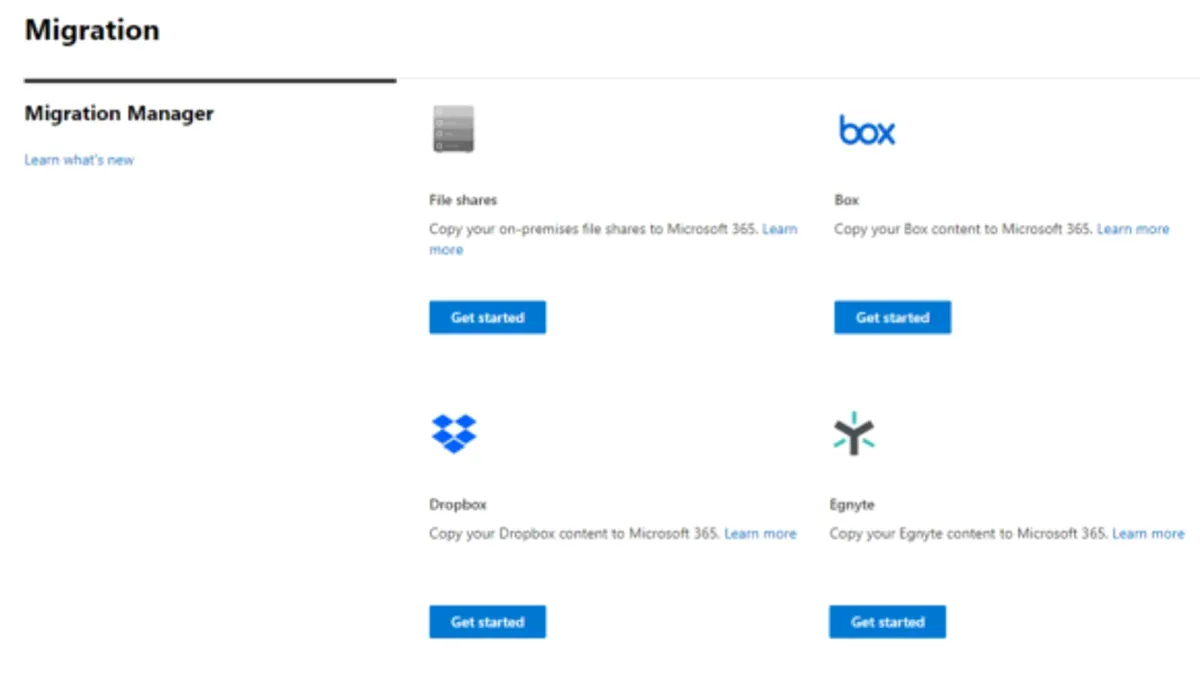
Begin by selecting the right migration tool. Microsoft Migration Manager provides a native solution for transferring files and permissions from Dropbox to SharePoint and OneDrive, while third-party options like Mover or ShareGate offer additional flexibility and granular control.
Start with a pilot migration using a small user group and a subset of files to identify potential issues. For example, migrate a department’s shared folder over a weekend, then perform a detailed permission audit comparing Dropbox and Microsoft 365 settings.
After successful testing, proceed with a staged migration. Move data in batches—by team or project—to reduce disruption. Schedule migrations during low-usage periods and communicate timelines clearly to users.
Post-migration, validate data integrity by checking file counts, sizes, and folder structures. Confirm that permissions match the original Dropbox settings using SharePoint’s permission reports. Address discrepancies immediately to prevent access issues.
- Choose migration tool (e.g., Microsoft Migration Manager, Mover)
- Conduct pilot migration with a small team
- Migrate data in defined batches during off-hours
- Perform post-migration audits on files and permissions
Train Users and Support Adoption
Successful migration depends on your users embracing Microsoft 365’s capabilities. Begin by communicating the upcoming changes early through clear emails or team meetings, outlining how tools like OneDrive, SharePoint, and Teams will enhance collaboration.
Offer tailored training sessions focused on each tool’s role: OneDrive for personal file storage and syncing, SharePoint for team sites and document management, and Teams for real-time communication and meetings. For example, a training session might include navigating the SharePoint site hierarchy, uploading and versioning documents, and setting sharing permissions—common pain points that can hinder adoption.
Set up dedicated help resources such as an internal knowledge base with FAQs, video tutorials, and a support channel where users can ask questions in real time. Organizations that invest in comprehensive training and support often see higher adoption rates and faster productivity gains.
- Communicate migration benefits and timelines early and clearly
- Deliver role-based training on OneDrive, SharePoint, and Teams
- Provide ongoing support via helpdesk, FAQs, and peer champions
Avoid Common Migration Mistakes
Overlooking file version history and metadata can lead to irreversible data loss. For example, a finance firm migrating sensitive audit files neglected to preserve version history, resulting in missing critical revisions and compliance issues. Always enable migration settings that retain these details.
Underestimating user resistance to new workflows often causes frustration and delays. If users are accustomed to Dropbox’s simple interface, shifting abruptly to Microsoft 365’s layered collaboration tools without clear guidance can reduce productivity and increase support tickets.
Skipping pilot migrations or thorough testing risks unexpected failures. One retail company moved all files at once without a pilot phase, discovering afterward that permissions were misconfigured, exposing confidential data to unauthorized users.
Overlooking compliance and security settings can expose your organization to breaches or regulatory fines. Microsoft 365 offers granular controls under Security & Compliance Center—review and configure these before migration.
- Preserve file version history and metadata during migration
- Conduct pilot migrations to identify issues early
- Prepare users with training tailored to Microsoft 365 workflows
- Review and apply compliance/security settings in Microsoft 365 before migration
- Test permissions and sharing settings post-migration
Maintain and Optimize Your Microsoft 365 Environment Post-Migration
After migration, sustaining productivity and security requires active management of your Microsoft 365 environment. Begin by monitoring storage and usage through the Microsoft 365 admin center’s Reports > Usage dashboard. This view highlights storage consumption across SharePoint, OneDrive, and Teams, helping you identify inactive sites or unexpectedly large data repositories. For example, spotting a SharePoint site using excessive storage may prompt archiving or cleanup before it affects performance.
Regularly review permissions and sharing policies via the SharePoint admin center > Policies > Sharing settings. Over-permissive sharing can expose sensitive data. Implement a quarterly audit where you check site-level permissions and external sharing invitations. Microsoft 365’s access reviews in Azure AD can automate part of this process, ensuring only authorized users retain access.
Leverage Microsoft 365 updates by subscribing to the Microsoft 365 Roadmap and Message Center. Timely adoption of new features, such as enhanced collaboration tools or security improvements, prevents stagnation. For instance, enabling co-authoring improvements or sensitivity labels as they roll out can enhance user experience and compliance without disrupting workflows.
Sample dashboards combine graphs of active users, storage metrics, and sharing activity, providing a comprehensive snapshot. Microsoft 365 admins recommend setting automated alerts for unusual activity and scheduling routine environment checks to maintain control and foster continuous improvement.
- Use Microsoft 365 admin center > Reports > Usage to track storage and user activity
- Conduct quarterly permission audits in SharePoint admin center > Policies > Sharing
- Automate access reviews with Azure AD to ensure secure sharing
- Subscribe to Microsoft 365 Roadmap and Message Center for new feature updates
- Set alerts for unusual activity and schedule regular environment reviews
Read next
- Moving from Dropbox to Google Workspace: Your Complete Checklist
- Moving from Dropbox to Google Drive Checklist for Seamless Migration
- Dropbox Rollout Plan for Teachers with Low Tech Confidence
Frequently asked questions
Can I migrate Dropbox shared links directly to Microsoft 365?
Dropbox shared links cannot be migrated directly into Microsoft 365. You'll need to recreate sharing permissions within OneDrive or SharePoint after the files are migrated. This ensures that links follow Microsoft 365’s security protocols and collaboration features.
What happens to Dropbox file version history after migration?
File version history in Dropbox is not automatically transferred during migration. If maintaining version history is critical, consider using third-party migration tools that support version retention or export versions manually before migration. Otherwise, version history will start fresh in Microsoft 365.
How long does a typical migration take for a mid-sized company?
Migration timing depends on data volume, network speed, and complexity of folder structures. For a mid-sized company, expect the process to take from several days to a few weeks, including preparation, data transfer, and validation. Planning buffer time for troubleshooting and user onboarding is advisable.
Do I need to buy additional Microsoft 365 licenses for all Dropbox users?
Yes, each user accessing Microsoft 365 services needs an appropriate license. If you migrate all Dropbox users to Microsoft 365, ensure you have enough licenses covering OneDrive, SharePoint, and other relevant apps. Licensing should be aligned with user roles and collaboration needs to optimize costs.
What this checklist does not cover
This checklist does not cover migrating Dropbox Paper documents or third-party Dropbox app integrations, which may require separate strategies and specialized tools. If your organization relies heavily on these features, consider engaging migration consultants or using dedicated migration services tailored to these specific assets.
Quick checklist
- Evaluate Dropbox file structures and user permissions
- Configure Microsoft 365 SharePoint sites and OneDrive settings
- Plan phased migration to minimize downtime
- Use Microsoft SharePoint Migration Tool or third-party tools for data transfer
- Set up Microsoft Teams channels aligned with migrated content
- Provide targeted user training on Microsoft 365 collaboration features
- Monitor adoption and adjust governance policies accordingly
- Establish ongoing maintenance routines for Microsoft 365 environment
Start by thoroughly assessing your current Dropbox environment to understand file organization, sharing permissions, and active user workflows. This foundational knowledge informs how you configure Microsoft 365 sites and plan migration waves, ultimately reducing risk and ensuring your users transition smoothly to a more integrated collaboration platform.



