
Moving from Seesaw to ParentSquare: A Practical Checklist for Educators
This checklist guides educators through a smooth transition from Seesaw to ParentSquare, ensuring accurate data transfer and effective communication.

Short answer: Successfully moving from Seesaw to ParentSquare requires a detailed, step-by-step approach to ensure all student and parent data transfer accurately and communication channels remain seamless. This moving from Seesaw to ParentSquare checklist focuses on practical actions such as verifying user roles, syncing contacts, and setting permissions to avoid common pitfalls during migration.
This article guides you through the educator’s decision-making process, emphasizing often overlooked integration nuances between Seesaw and ParentSquare. You will learn how to manage user additions, configure communication settings, and avoid typical mistakes that disrupt workflow. Each step is designed to help you maintain continuity in family engagement while transitioning platforms efficiently and confidently.
Understand the Key Differences Between Seesaw and ParentSquare
Seesaw centers on student portfolios and classroom activities, providing each student with a personal digital space to showcase work and receive teacher feedback. In contrast, ParentSquare is designed for school-wide communication, prioritizing parent and staff engagement through announcements, event coordination, and direct messaging.
| Feature | Seesaw | ParentSquare |
|---|---|---|
| Primary Focus | Student portfolios and classroom tasks | School-wide communication and family engagement |
| User Roles | Students, teachers, parents (view portfolios) | Parents, teachers, administrators (two-way communication) |
| Communication Flow | Teacher-to-student and parent via portfolio updates | Teacher/administrator-to-parent and parent-to-teacher messaging |
| Key Features | Activity creation, digital journals, student annotations | Mass notifications, event sign-ups, permission slips, direct messaging |
For example, in Seesaw you upload a student’s art project for the portfolio, which parents view passively. In ParentSquare, you might send a school-wide alert about an upcoming art show, invite parents to RSVP, and allow them to message staff directly with questions. This shift means your workflow changes from managing individual student content to coordinating broader engagement and communication.
Understanding these differences helps you anticipate adjustments in daily tasks, such as setting permissions through ParentSquare’s user roles like "Parent," "Teacher," and "Administrator," which control who sees and sends messages. It also explains why ParentSquare requires more initial setup but offers richer tools for family involvement.
How to Add Students to Seesaw
Adding students to Seesaw can be done either one by one or through a bulk CSV upload, depending on your class size and available data. To add students individually, navigate to your class page, click Manage Students, then Add Student. Enter each student’s name and optionally their login method, then save. For example, adding 30 students manually requires repeating this process 30 times, which might be time-consuming.
For bulk uploading, prepare a CSV file with columns for student first name, last name, and login credentials. In Manage Students, select Upload CSV, then follow prompts to map your columns correctly. This method lets you add all 30 students in one step, saving time and reducing manual errors.
After adding, verify student accounts by checking that each appears in your roster with the correct login details. You can also send welcome messages via Seesaw to confirm access. Unlike ParentSquare, where students are often added via district integration or parent invitations, Seesaw requires direct educator input for student setup.
- Go to Class > Manage Students > Add Student for individual entry
- Or prepare a CSV with required fields and upload via Manage Students > Upload CSV
- Verify all entries in your class roster and confirm login methods
- Send welcome notes to students to ensure account activation
How to Add Parents to Seesaw
In Seesaw, parent accounts are linked primarily through two invitation methods: email invites and family codes. As an educator, you can send invitations by navigating to Manage Families under the class settings and entering parent email addresses, which triggers an automated invite for account creation. Alternatively, you can distribute unique family codes—found in the same section—that parents enter themselves to connect to their child's portfolio.
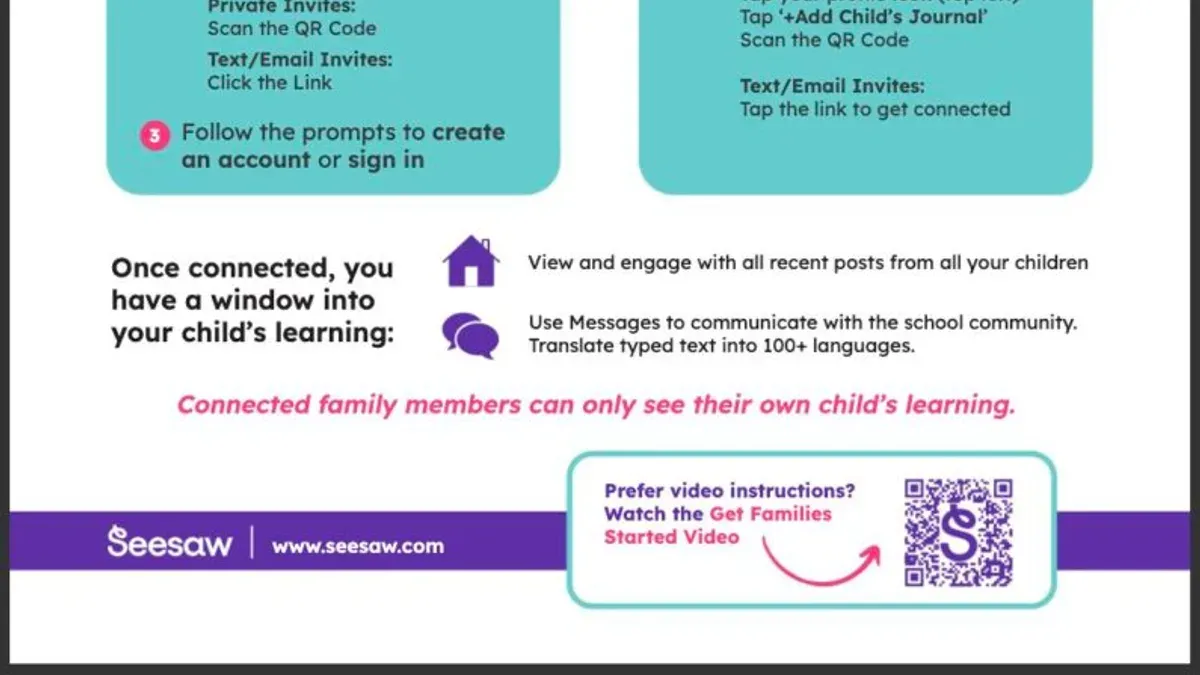
Parent access in Seesaw is permissioned to view and comment on their child's work, but they cannot post updates themselves. This controlled interaction helps maintain student privacy while encouraging family engagement. For example, if you send 30 email invitations, typically a majority of parents accept and join within the first week, though response rates vary by school community.
By contrast, ParentSquare uses a more centralized system where parent accounts are often managed by the school with direct integration to student information systems, simplifying permissions and reducing manual invites. Understanding these differences prepares you for the shift in engagement workflows during migration.
- Go to Manage Families in Seesaw class settings
- Invite parents via email or generate family codes
- Ensure parents understand how to accept invitations
- Check and adjust parent permissions if needed
- Note that ParentSquare handles parent accounts more centrally
How to Post on Seesaw and Communicate with Families
In Seesaw, you create posts by clicking the green plus button and selecting options to add text, images, videos, or files from your device or cloud storage. A typical post might be an assignment with photos of student work and a brief description. Once posted, you notify families by selecting "Notify Family" before publishing, which sends an email and app notification to linked parents and students. Engagement often depends on timing and clarity; many educators note prompt notifications yield quicker responses.
In contrast, ParentSquare's communication centers on announcements and direct messaging. Announcements reach the entire school community or specific groups instantly via email, text, and app notifications, offering multi-channel delivery with read receipts. Direct messaging enables private conversations with parents or staff. Unlike Seesaw’s post-based notifications, ParentSquare emphasizes broad or targeted communication that can be scheduled or repeated for reinforcement.
For example, a Seesaw post about a homework project will notify families tied to that student, while a ParentSquare announcement can alert all parents about a homework deadline schoolwide, ensuring wider reach and consistency.
Set Up ParentSquare for Your School: User Roles and Permissions
Begin by creating user accounts in ParentSquare through the Admin Dashboard under Users > Manage Users. Staff accounts require designation by role—teacher, administrator, or support staff—to control access levels. Parents and students are typically imported via integrations with your Student Information System (SIS), such as PowerSchool or Infinite Campus, streamlining account creation and ensuring data accuracy.
Assign communication permissions carefully: staff roles often include rights to send announcements, create groups, and view student information, while parents primarily receive messages and can respond within allowed channels. Privacy settings are managed under Settings > Privacy Controls, where you can restrict access to sensitive information or limit group memberships.
For example, integrating ParentSquare with PowerSchool enables automatic syncing of user data and enrollment changes, reducing manual updates. During setup, verify the syncing schedule to prevent outdated permissions. Missing this step can cause parents to lose access or receive incorrect notifications, a common pitfall.
- Create staff accounts via Admin Dashboard with correct role assignments
- Import parents and students using SIS integration for accuracy
- Configure communication permissions under user roles
- Set privacy controls to protect sensitive data
- Verify SIS sync schedules to avoid access issues
Common Mistakes to Avoid When Moving from Seesaw to ParentSquare
One frequent misstep is failing to adequately inform parents about the platform change. For example, a middle school delayed sending a clear notification, leaving parents confused why Seesaw posts stopped while ParentSquare remained inactive. This caused a communication gap lasting weeks and frustrated families.
Another pitfall is overlapping communication channels. Schools sometimes keep Seesaw messaging active while launching ParentSquare, leading to duplicate notifications and missed messages. This split attention reduces engagement and complicates staff workflows.
Many educators overlook migrating or archiving vital Seesaw content before switching. An elementary school lost access to important student portfolios and announcements because the export step was skipped, creating extra work and losing historical context.
Finally, ignoring training needs for staff and families on ParentSquare hinders adoption. Without guided tutorials or Q&A sessions, users struggle with new features and settings, delaying effective communication.
- Notify parents early and clearly about the platform transition
- Disable Seesaw messaging promptly to prevent overlap
- Export or archive essential Seesaw content before migration
- Provide structured training and support for all users on ParentSquare
Checklist: Your Step-by-Step Migration from Seesaw to ParentSquare
Begin by auditing your current Seesaw environment. Use the Manage Students and Families sections to generate lists of active users and identify essential content to archive. This ensures no critical data is lost during the transition.
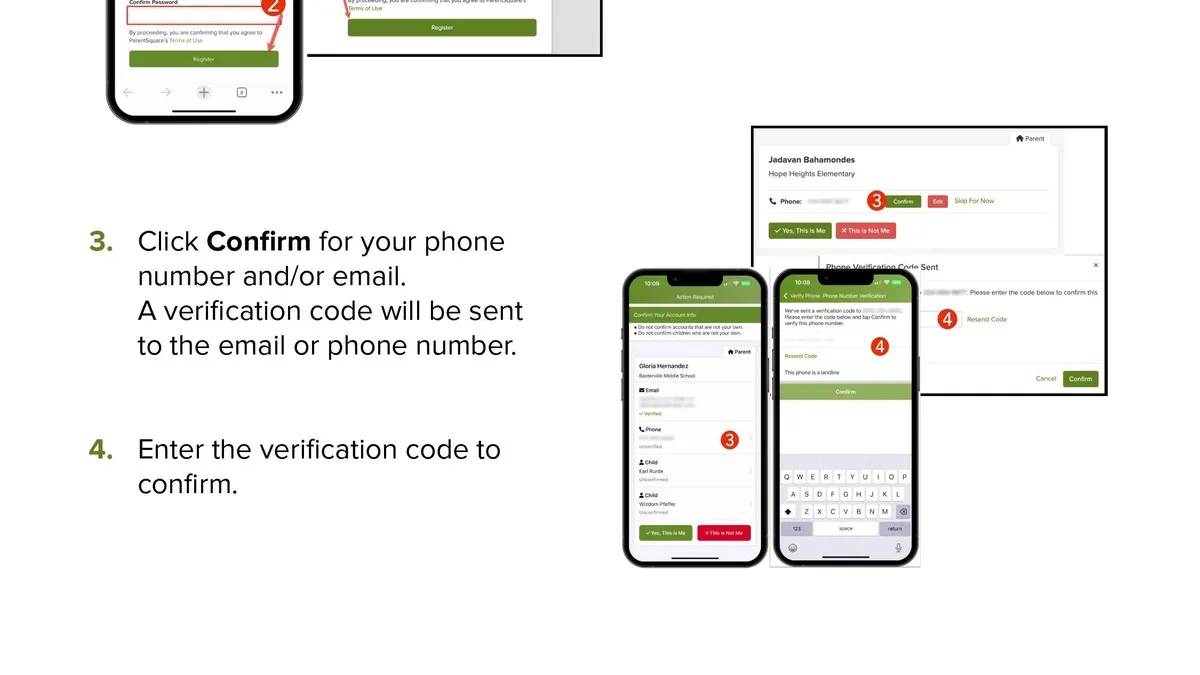
Next, communicate your migration plan early and clearly to families and staff. Send an email outlining timelines, expected changes, and support resources to minimize confusion and prepare everyone for the switch.
Then, add and verify users in ParentSquare through your school’s SIS integration or manual entry. Confirm user roles and permissions match your school’s communication needs.
Provide targeted training sessions for staff and parents on ParentSquare’s key features such as announcements, messaging, and event management. Use step-by-step guides and live demos to build confidence.
Archive Seesaw content that must be retained, such as student portfolios or important communications, before discontinuing use. Export files or create backups stored securely outside the platform.
After launch, monitor engagement closely. Track message delivery, parent logins, and staff activity to identify and resolve any technical or adoption issues promptly.
For example, set a 6-week timeline: Week 1–2 audit and communication, Week 3 user setup and initial training, Week 4 content archiving, Week 5 launch and monitoring, Week 6 follow-up support.
- Audit Seesaw users and content for migration readiness
- Communicate migration plan to families and staff with timelines
- Add and verify all users in ParentSquare with correct roles
- Conduct targeted training sessions for staff and parents
- Archive and secure important Seesaw data externally
- Monitor engagement and resolve issues after launch
Read next
- Moving from Seesaw to ClassDojo Checklist for Teachers
- Switching from Remind to ParentSquare: A Clear Guide for Schools
- ParentSquare Rollout Plan for Substitute Teachers: A Practical Guide
- ParentSquare Implementation Timeline: A Step-by-Step Explainer Guide
Frequently asked questions
How to add a child to seesaw?
To add a child to Seesaw, start by navigating to the Class Settings menu and select "Add Student." You can enter the child’s name manually or upload a CSV file for multiple students. After adding, assign each child a unique code for login or provide them with a QR code to access their account securely.
How do I sign in to Seesaw family accounts?
Family members sign in to Seesaw by visiting app.seesaw.me and selecting "I am a Family Member." They enter the join code provided by the teacher, which links their account to the student’s portfolio. This code is usually shared through direct communication or printed materials from the school.
What Seesaw courses are available for parents?
Seesaw offers parent-focused courses that cover basic navigation, communication features, and how to support children’s learning via the platform. These courses are accessible through the Seesaw Help Center and often include video tutorials and step-by-step guides tailored for parents to engage effectively with classroom activities.
How do parents log in to Seesaw?
Parents log in by going to the Seesaw Family app or the Seesaw website and entering the unique family join code linked to their child’s account. After entering the code once, they create a personal account with their email and password for future access without needing the code again.
How can children log in to Seesaw?
Children can log in using either a teacher-generated QR code scanned via the Seesaw app or by entering a unique login code on the app or website. This secure method ensures each child accesses their own portfolio and learning activities without confusion or overlap.
What this advice does not cover
This guide does not cover the technical data export from Seesaw to ParentSquare, as direct data migration tools may not be available and often require manual intervention or third-party services. If your school relies on automated bulk data transfer or complex integrations with district systems, consult your IT department or ParentSquare support for specialized assistance.
Quick checklist
- Review user roles and permissions in ParentSquare before adding users
- Manually export essential student and parent contact data from Seesaw if no automated option exists
- Communicate clearly with families about the transition timeline and new communication methods
- Set up ParentSquare groups to match your classroom and school structure
- Test posting and notification settings to ensure families receive timely messages
- Train educators and staff on ParentSquare features and workflows
- Monitor feedback and address common user questions promptly
The single most effective next step is to schedule a pilot phase with a small group of educators and families. This lets you identify unexpected challenges and adjust settings before rolling out ParentSquare school-wide, ensuring a smoother transition that keeps communication seamless and effective.



