
Moving from Seesaw to Remind: A Complete Transition Checklist
This checklist guides you through key steps to transition from Seesaw to Remind without disrupting student engagement or communication.
Short answer: Moving from Seesaw to Remind requires careful planning to preserve student engagement and communication workflows. This moving from Seesaw to Remind checklist breaks down key steps like exporting class rosters, notifying parents, and setting up Remind’s messaging features to ensure no disruption in your classroom management.
This article guides you through the essential differences between Seesaw’s activity-driven platform and Remind’s communication focus, helping you understand why each step matters. You’ll get clear instructions on managing classes, transferring contacts, and avoiding common pitfalls so your switch supports both teaching and parent involvement seamlessly.
Understand the core differences between Seesaw and Remind
Seesaw and Remind serve distinct but complementary roles in K-12 education. Seesaw centers on student-driven activities and digital portfolios, allowing teachers to assign interactive tasks, track student progress, and showcase work in a centralized space. This platform supports hands-on learning and reflection, making it ideal for classrooms focused on activity management and student engagement.
Conversely, Remind specializes in streamlined communication between educators, students, and families. Its core strength lies in sending targeted messages, scheduling announcements, and managing group conversations, which facilitates timely updates and parent engagement without overwhelming users with classroom content.
These differences affect your workflow significantly. For example, while Seesaw requires you to build and monitor individual student portfolios, Remind supports quick broadcast messaging and easy parent-teacher communication. If you rely heavily on interactive assignments and student submissions, Seesaw’s tools will feel essential. However, if your priority is efficient, scalable communication, Remind’s interface is optimized for that.
| Feature | Seesaw | Remind |
|---|---|---|
| Primary Function | Student activities and portfolios | Communication and notifications |
| Key User Roles | Teacher, Student, Parent (view portfolios) | Teacher, Parent, Student (message recipients) |
| Common Tasks | Create assignments, review work, build portfolios | Send messages, schedule reminders, manage groups |
| Parent Engagement | View student work and progress | Receive direct messages and announcements |
Consider a third-grade teacher who uses Seesaw to assign and collect a digital science project, allowing students to upload photos and narrate their work. When switching to Remind, this teacher will lose the portfolio and submission features but gain a faster way to notify parents about deadlines or events. Understanding this trade-off is key to planning your transition.
How does Seesaw work for teachers?
Seesaw centers its teacher experience around creating, assigning, and managing student activities in a streamlined workflow. You start by selecting Activities from the left menu, then choose Create New Activity. Here, you can add instructions, attach multimedia resources, and select the exact classes or students to assign. This setup helps tailor tasks precisely to your classroom needs.
Once students submit their work, Seesaw aggregates submissions under the Student Tab where you can review, comment, and provide feedback. The feedback feature supports text, audio, and drawing annotations, allowing for rich, personalized communication directly linked to each submission.
Communication in Seesaw is built into the platform via the Class Feed. You can post announcements visible to students and parents, send private messages, or respond to student posts. This dual-layer communication keeps families informed while maintaining classroom confidentiality.
For example, when assigning a science project, you create a step-by-step activity with attached images and voice instructions. After students upload their work, you provide audio feedback on each submission and send a class-wide reminder through the feed about the upcoming due date.
Understanding these teacher tools is crucial because when transitioning to Remind, you will need to find ways to replicate activity assignments, submission reviews, and both group and private communications within a platform primarily designed for messaging.
How to create an activity on Seesaw
To create an activity on Seesaw, start by selecting Activities from the main menu and then choose Create New Activity. You can either pick from a library of pre-made templates organized by grade and subject or build your own custom task from scratch.
When creating a custom activity, add clear instructions in the Title and Instructions fields to guide students. Enhance engagement by including multimedia elements such as photos, videos, drawings, text boxes, or links using the Add Item button. For example, if you assign a science observation, attach an image of a plant and ask students to record their findings using the Record Video tool.
Once your activity is ready, assign it to specific students, groups, or entire classes through the Assign To dropdown. This flexibility allows targeted differentiation or whole-class rollout.
From the teacher’s view, you will see submissions organized by student with options to comment or provide feedback. Students see the activity as a clear task with embedded supports and submission tools. For instance, a student might see the instruction "Draw and label the parts of a plant" and submit their drawing directly within Seesaw.
- Open Activities > Create New Activity
- Select a template or build custom task
- Add instructions and multimedia elements
- Assign to students or classes
- Review submissions and give feedback
How to add students and parents to Seesaw
Adding students to Seesaw can be done primarily via class codes or email invitations. To add a new student, navigate to your class dashboard, select Manage Students, then choose Add Student. You can generate a unique class code that students enter on their devices to join instantly, ideal for quick onboarding. Alternatively, invite students by entering their email addresses to send a direct invitation, which is useful for remote enrollments or students who need individual access. For example, adding "Liam" via email involves typing his address under Invite by Email, then clicking Send Invite.
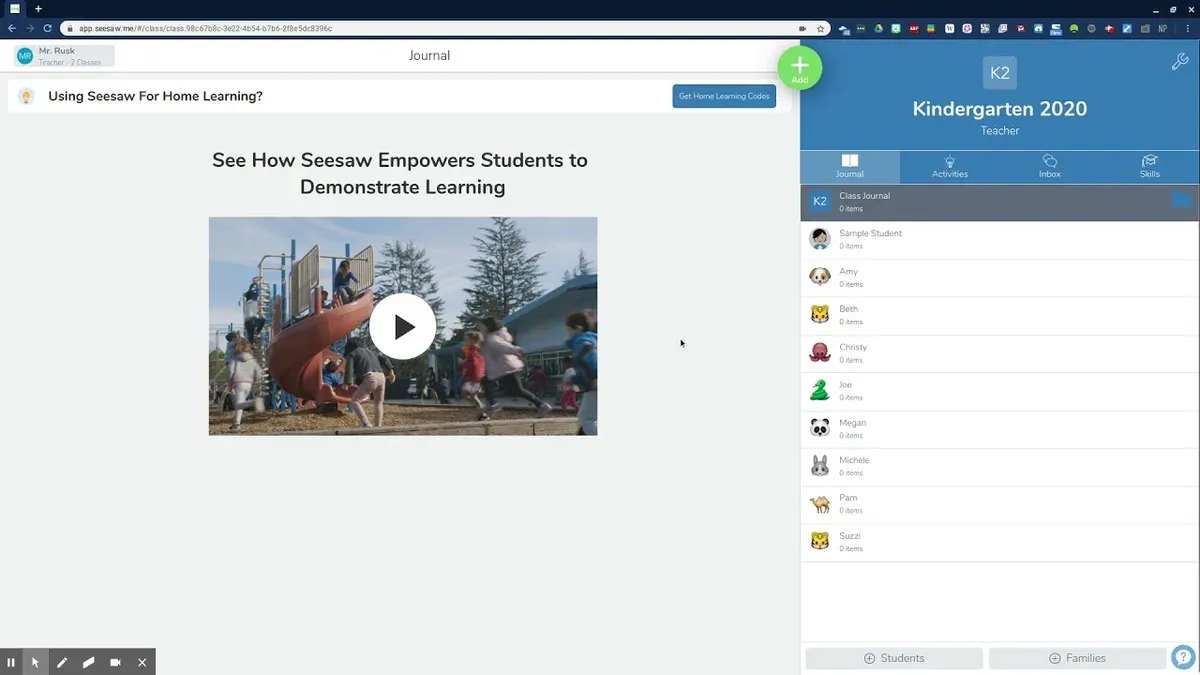
Inviting parents requires managing family access carefully. In the Manage Students section, select a student and click Invite Family. You can enter multiple parent emails to grant them access to their child's portfolio and communications. Seesaw allows parents to view only their child’s work, maintaining strict privacy. For instance, inviting Liam’s parents by entering their emails ensures they receive updates without seeing other students' information.
Best practices include regularly reviewing your Permissions Settings under Account Settings to confirm who can post, comment, and view content. Avoid sharing class codes publicly to prevent unauthorized access. Maintain clear communication with families about their access level to foster trust and security.
- Go to Class Dashboard > Manage Students
- Add students via class code or email invite
- Invite parents individually through Manage Students > Invite Family
- Check and adjust permissions under Account Settings
- Keep class codes private to protect student data
How to archive and unarchive a class on Seesaw
Archiving a class in Seesaw is useful when you want to retain student work and records but no longer need active interaction or new submissions. For example, after a semester ends, you archive the class to preserve all student portfolios while preventing further changes. An archived class is visually marked with a gray label in your dashboard, distinguishing it from active classes that have vibrant colors and an "Active" status.
To archive a class, open the Seesaw app or website, navigate to your Classes tab, select the class you want to archive, then click the three-dot menu in the upper right corner. Choose "Archive Class" and confirm. This moves the class to an archived section and disables student posting and teacher editing. Students and families can still view submitted work but cannot add new content or comments.
If you need to resume interaction, unarchive the class by scrolling to the Archived Classes section, selecting the class, clicking the three-dot menu, and choosing "Unarchive Class." This restores full access and reactivates student and parent participation.
- Go to Classes and select the class
- Open the three-dot menu and choose "Archive Class"
- Confirm to disable posting but retain data visibility
- To unarchive, find the class under Archived Classes
- Use the menu to "Unarchive Class" to restore functionality
How to post and record on Seesaw
Posting on Seesaw starts by selecting the green “+” button in your class stream, where you can choose to add an update, announcement, or assignment. Updates and announcements serve to inform students and parents about class happenings, while assignments prompt student interaction. For example, a teacher might post an announcement about an upcoming field trip, then later assign a related drawing activity.
Seesaw’s recording tools let you enhance posts with audio, video, or drawing to engage learners visually and auditorily. By clicking the “Record” icon when creating a post, you can record your voice to explain instructions or provide feedback, or use the video option to demonstrate a concept. The drawing tool allows you to annotate images or write directly on the screen, which helps clarify complex ideas.
Engagement improves when students receive clear, multimedia-rich content. For instance, a teacher posted a video explaining a science experiment, followed by a drawing prompt for students to illustrate their predictions. Students responded enthusiastically, submitting drawings and comments that showed deeper understanding.
- Tap the green “+” in class stream and select post type
- Use the “Record” icon to add audio, video, or drawings
- Combine media to clarify instructions and boost engagement
- Post updates, announcements, and assignments distinctly
- Monitor student responses to adjust your multimedia approach
How to sign in and manage roles on Seesaw
When you access Seesaw, you'll start at the login screen where you choose your role: Educator, Student, or Family. Selecting the correct role is essential because it determines your access level and available features.
To sign in as an educator, use the "I'm a Teacher / Educator" option and enter your email or Google account credentials. If you handle multiple classes or administrative duties, your educator dashboard will allow you to manage roles, add co-teachers, and oversee student accounts.
Students sign in by choosing "I'm a Student" and entering a class code or scanning a QR code shared by the teacher. Families select "I'm a Family Member" and enter an invite code to view student portfolios and announcements.
Switching roles requires logging out and selecting a different role at the login screen; the platform does not support role switching within the same session. For example, if you are a teacher who also wants to check a student’s view, you must log out and sign back in as a student.
Common troubleshooting tips: If you can’t find your class code, ask your educator for a new one. If login fails, verify you are selecting the correct role and using the associated email or code. Administrators needing broader management access should use the admin portal via the educator login.
Flowchart of login options and role selection:
| Step | Action | Outcome |
|---|---|---|
| 1 | Open Seesaw app or website | Login screen appears with role options |
| 2 | Select role: Educator, Student, or Family | Role-specific login fields display |
| 3 | Enter credentials or codes | Access respective dashboard or portfolio |
| 4 | For admins, navigate to settings to manage users | Access to role assignments and class management |
- Choose your role carefully at login to ensure correct access
- Use educator login for teaching and administrative tasks
- Students and families must use codes provided by educators
- Log out to switch roles—no multi-role sign-in in one session
- Contact your administrator if login issues persist
Step-by-step checklist for moving from Seesaw to Remind
Begin by exporting student data and any essential class information from Seesaw. Navigate to the class settings, select “Export Data,” and download the roster and activity summaries. This ensures you retain records and can quickly recreate groups in Remind. Allocate about 30-45 minutes depending on class size.
Next, set up your classes and groups within Remind. Use the “Create a Class” feature and import student emails or phone numbers from your exported file. Organize them by subject or grade level for clarity. Allow 20-30 minutes for this step.
Invite students and parents via Remind’s invitation tools. Send messages with clear instructions and a template like: “Welcome to our new communication platform, Remind. Please download the app and join our class using this link [insert link].” Plan to send reminders after one week if some have not joined.
Train staff and communicate changes to parents and students. Host a short live or recorded session demonstrating Remind’s key features. Share quick reference guides and FAQs to ease adoption.
Finally, test your workflows by sending announcements and confirming receipt. Troubleshoot common issues like incorrect contact info or notification settings. Adjust as necessary before fully retiring Seesaw communications.
- Export class data from Seesaw (30-45 min)
- Create classes and import contacts in Remind (20-30 min)
- Send clear join invitations to students and parents
- Provide training and resources for all stakeholders
- Test communication flows and resolve issues before full switch
Common mistakes to avoid when switching from Seesaw to Remind
One frequent mistake is failing to export or back up important Seesaw data before the switch. For example, a teacher once lost weeks of student reflections because they did not download portfolios or activity reports. Always use Seesaw’s export tools under Settings > Data > Export to secure your records.
Another pitfall is not informing parents and students adequately about the new platform. One school experienced confusion when families expected to receive updates on Seesaw but found no notifications, causing missed messages. Communicate clearly via email, newsletters, or even a Remind announcement before deactivating Seesaw.
Underestimating the differences in activity and communication styles can disrupt classroom flow. Unlike Seesaw’s student-centered tasks, Remind focuses on one-way or group messaging. A teacher who tried replicating interactive assignments in Remind found engagement dropped sharply. Adjust your approach to leverage Remind’s strengths in concise, timely communication.
Finally, neglecting to verify user permissions in Remind can block essential communication. For instance, some parents were unable to receive messages because they were not properly added or assigned correct roles in the Remind dashboard under Manage People. Double-check each participant’s status and test message delivery before fully transitioning.
- Export all critical Seesaw data before switching
- Notify all families and students about the platform change
- Adapt your communication style to suit Remind’s messaging focus
- Confirm user roles and permissions in Remind to ensure message delivery
Read next
- Moving from Seesaw to ParentSquare: A Practical Checklist for Educators
- Moving from Seesaw to ClassDojo Checklist for Teachers
- How to Create a Remind Rollout Plan for Substitute Teachers
- Create an Effective Remind Implementation Timeline That Meets Your Deadlines
Frequently asked questions
How to record on seesaw?
To record on Seesaw, tap the green plus button (+) within your class feed, then select the "Record Video" option. You can record up to 5 minutes per video. After recording, preview your clip, add annotations if needed, and tap "Next" to post it directly to your class or individual student folder.
How to use seesaw?
Seesaw is designed for classroom activity management and student engagement. You create activities, assign them to students, and students respond by uploading work or recording responses. Use the teacher dashboard to monitor submissions, provide feedback, and communicate with parents. The intuitive interface supports multimedia posts, making it versatile for different learning styles.
How to unarchive a class on seesaw?
To unarchive a class, go to the Classes page on Seesaw and scroll down to find archived classes. Click the three-dot menu next to the archived class you want to restore and select "Unarchive Class." The class will reappear in your active class list, with all student data intact.
How to post on seesaw?
Posting on Seesaw involves pressing the green plus button (+) in the class stream and choosing the type of post—photo, video, drawing, or text. After creating your content, add a caption or instructions, then select the audience (whole class or individual students) before tapping "Post." Posts appear immediately and can be commented on by students or parents if enabled.
How to add students to seesaw?
Add students by selecting "Manage Students" in your class settings, then choose "Add Student." You can input student names manually or import a roster via CSV. Alternatively, generate a class code for students and parents to join directly, which streamlines the enrollment process without needing email addresses.
Quick checklist
- Review your current Seesaw classes and export any essential student work before closing accounts.
- Set up your Remind account, verifying your school email and adjusting notification preferences.
- Import or manually add students and parents to Remind, ensuring accurate contact info.
- Create groups or classes in Remind that mirror your Seesaw setup for smooth communication.
- Inform students and parents clearly about the switch and how to access Remind.
- Test sending announcements and direct messages in Remind to confirm settings.
- Archive or deactivate Seesaw classes once Remind is fully operational to avoid confusion.
What this advice does not cover
This guide does not cover the technical integration of Seesaw and Remind with third-party LMS platforms, so schools using complex systems should consult their IT specialists. It also does not address district-wide policy decisions or compliance issues related to student data privacy, which require administrative input.
The most useful next step is to prioritize communication with your school community about the transition. Clear instructions and timelines for students and parents will minimize disruptions and build confidence in using Remind as your new communication hub.



