How to Open.djvu Files on Mac: Step-by-Step Guide
Discover simple methods to open.djvu files on Mac using dedicated apps, file conversion, and online viewers.
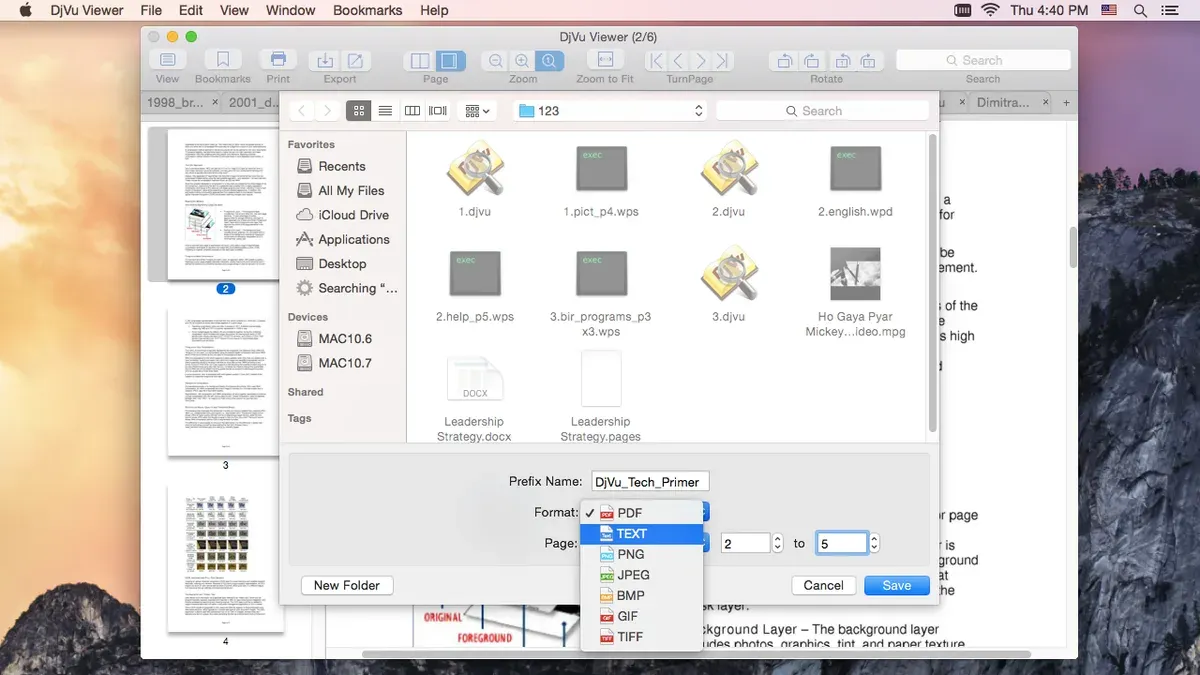
You have just received a.djvu file via email or downloaded it from a website, but when you try to open it on your Mac, nothing happens or the file appears unreadable. This situation is common because macOS does not support.djvu files natively like PDFs or images.
This article explains how to open.djvu file on Mac using several methods, including dedicated Mac apps, file conversion to PDF, and online tools. It also compares these options with Windows software and covers troubleshooting tips to help you read.djvu files effectively.
Key takeaways
- macOS requires third-party software or conversion to open.djvu files successfully.
- Dedicated apps like DjView or MacDjView offer seamless viewing with annotation features.
- Converting.djvu files to PDF provides compatibility but may reduce quality or interactivity.
- Online viewers allow quick access without installation but depend on internet speed and privacy considerations.
- Windows has more native options, but Mac users have practical alternatives for reading.djvu files.
Before you start: What you need to open.djvu files on Mac
A.djvu file is a digital document format designed to store high-quality scanned images with efficient compression. It is often used as an alternative to PDFs for scanned books, magazines, and technical documents because it typically offers smaller file sizes while maintaining clear image quality.
Mac computers do not support.djvu files natively, so you cannot open them directly with default apps like Preview. To access.djvu files, you must use compatible software or an online service capable of reading this format.
Before opening a.djvu file on your Mac, ensure you have:
- A dedicated app installed that supports.djvu, or access to a reliable online viewer. When using an app, you should be able to open and navigate the document smoothly. When using an online service, a stable internet connection is necessary for uploading and viewing files.
- Consideration of file size and complexity. Large or image-heavy.djvu files can require more processing power and memory, which might affect performance on older Macs or slower internet connections when using online tools.
Compared to PDFs,.djvu files often provide better compression for scanned images, resulting in smaller files without a noticeable loss in quality. This advantage makes.djvu popular for archiving scanned materials but also means you need the right tools to handle the format effectively on Mac.
How to open.djvu files on Mac using dedicated apps
Several native Mac applications allow you to open and read.djvu files efficiently. Popular options include DjView and MacDjView, both designed specifically for.djvu formats and offering features like zoom, search, and annotation.
- Visit the official website or a trusted source to download DjView or MacDjView. For example, MacDjView can be found on GitHub or software repositories.
- Download the installation package compatible with your macOS version.
- Open the downloaded file and drag the app icon to your Applications folder.
- Launch the app from the Applications folder or Launchpad. You should see the main interface with options to open files.
- Use File > Open or drag your.djvu file into the app window. The file should render quickly, displaying pages clearly.
- Explore features such as zoom controls, search by keyword, and annotation tools if available. These enhance navigation and note-taking.
Using these dedicated apps provides offline access and generally smoother performance compared to online tools. However, initial setup requires downloading and installing software, which may be less convenient for occasional users.
| App | Zoom | Search | Annotation | User Rating (qualitative) | Offline Access |
|---|---|---|---|---|---|
| DjView | Yes | Yes | Limited | Good | Yes |
| MacDjView | Yes | Yes | Basic | Very Good | Yes |
| Other third-party readers | Varies | Varies | Rarely | Mixed | Usually |
How to open.djvu files on Mac by converting to PDF
Converting.djvu files to PDF allows you to open them using familiar Mac apps like Preview. Reliable tools for this include dedicated apps such as DjVuLibre (an open-source package with command-line utilities) and online converters like Zamzar or CloudConvert. These options vary in convenience, privacy, and output quality.
Follow these steps to convert a.djvu file to PDF using an online converter:
- Open your web browser and navigate to a trusted converter like CloudConvert.
- Upload your.djvu file by clicking the "Select File" button; the file will appear ready for conversion.
- Choose "PDF" as the target format from the available options.
- Click "Convert" and wait for the process to complete; a download link will appear once done.
- Download the converted PDF file to your Mac and open it with Preview or any PDF reader.
When converting, expect the PDF to retain most of the original quality and text clarity, though some complex images may lose sharpness. For example, a 5 MB.djvu file might convert to a 6-7 MB PDF with similar visual fidelity. Online converters are convenient but uploading sensitive documents can pose privacy risks. For confidential files, local tools like DjVuLibre or MacDjView's export feature are safer alternatives.
How to open.djvu files online without installing software
If you want to view.djvu files quickly without installing apps, online tools offer a convenient alternative. Popular options include GroupDocs Viewer, Convertio, and Online-Convert. These services let you upload and view or convert.djvu files directly in your browser.
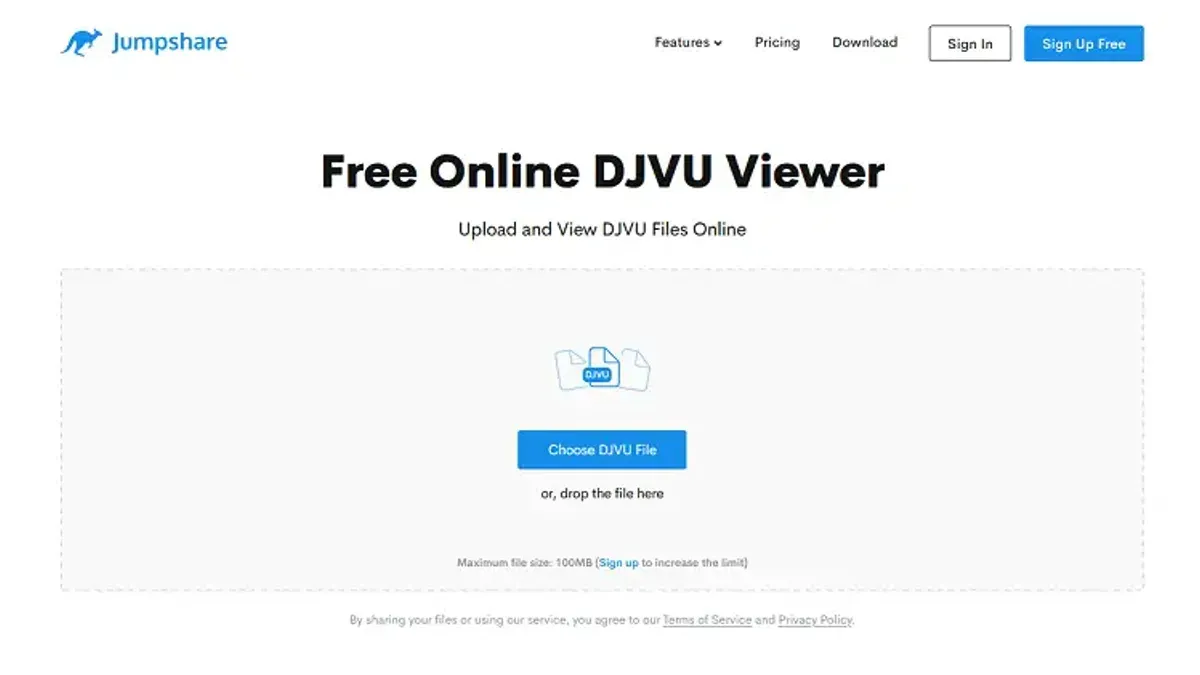
To open a.djvu file online:
- Go to the chosen online viewer or converter website (for example, GroupDocs DJVU Viewer). You should see an upload button or drag-and-drop area.
- Upload your.djvu file by clicking the upload button or dragging the file onto the page. Once uploaded, the file will process and display within seconds or minutes depending on file size and connection speed.
- View the file directly in the browser or choose to convert it to PDF if supported. You will see page navigation and zoom options if the service offers a viewer.
Online tools require no installation and are fast for small to medium files but come with trade-offs. File size limits vary; some restrict uploads to a few hundred megabytes. Upload and download speeds depend on your internet connection. Privacy concerns arise because you upload files to third-party servers, so avoid sensitive documents.
Best practices include using encrypted connections (HTTPS), reading privacy policies, and deleting files from the server after use if the service allows. For larger files or frequent use, dedicated apps remain more reliable.
How to open.djvu files on Windows and laptops: a quick overview
Windows offers broader native and third-party support for.djvu files compared to Mac. One of the most popular free applications is WinDjView, known for its speed and user-friendly interface. It supports features like bookmarking, text search, and page thumbnails.
For Mac users needing Windows functionality, running Windows through Parallels Desktop or a virtual machine like VirtualBox allows access to Windows-only.djvu applications without switching devices.
Several cross-platform apps work on both Mac and Windows, providing consistent experiences across systems. Notable examples include:
- STDU Viewer: Supports Windows and some Mac versions, offering tabbed viewing and multiple document formats.
- Sumatra PDF: Primarily Windows but can run on Mac via compatibility layers; lightweight and simple.
- Okular: A KDE-based viewer available on Windows and Mac via KDE applications, supporting.djvu with annotation features.
Choosing the right tool depends on your needs for features, interface preferences, and whether you require offline access.
How to read and view.djvu files effectively on Mac
Once you have opened a.djvu file on your Mac, effective reading depends on mastering navigation, zoom, and search features within your chosen app. Popular apps like DjView and MacDjView offer user-friendly interfaces tailored for these tasks.
- Navigate pages: Use the arrow keys or the page navigation toolbar, typically located at the top or bottom of the window, to move through multi-page documents. You should see the page number update as you advance.
- Zoom in and out: Access zoom controls via the toolbar or the View menu, usually labeled "Zoom In" and "Zoom Out," or use keyboard shortcuts like Cmd + Plus and Cmd + Minus. The content should resize smoothly without loss of quality.
- Search text: Use the search bar often found at the top right corner of the app window. Enter your query to highlight matching terms within the document. Note that search effectiveness depends on whether the.djvu file includes text layers.
- Handle bookmarks: Some apps display a sidebar with bookmarks or thumbnails. Click these to jump to named sections quickly. If your file lacks bookmarks, this panel may remain empty.
Annotation and editing capabilities are limited in most.djvu readers on Mac; these apps focus primarily on viewing. For detailed editing, converting to PDF or other formats is usually necessary.
Regarding accessibility, features like text-to-speech or screen reader compatibility vary by app. While some support macOS’s VoiceOver for basic reading, advanced accessibility tools remain limited with.djvu files.
How to open.djvu files in PDF format and what to expect
.djvu files are a unique format optimized for high-quality scanned images with smaller file sizes, which PDF readers like Preview or Adobe Reader do not natively support. Attempting to open a.djvu file directly in these PDF readers will typically result in an error or an unsupported file message.
Converting.djvu files to PDF allows you to use familiar PDF applications to view the content. This process usually involves dedicated conversion tools that export the.djvu content into PDF format.
However, users often notice differences after conversion. The image quality may decrease slightly due to the differing compression methods, and the resulting PDF can be larger or sometimes smaller depending on the converter’s settings. Formatting issues like altered margins, font changes, or missing interactive elements can also occur.
Side-by-side comparisons reveal that while converted PDFs are easier to open, they might lose some of the sharpness or compactness inherent to.djvu files. User feedback commonly highlights patience with these trade-offs when prioritizing convenience over perfect fidelity.
- Choose a reliable.djvu to PDF converter app or online service. After uploading or selecting your file, initiate the conversion process. You should see a progress indicator or confirmation once the file is converted.
- Download or locate the converted PDF file on your Mac. Open it with Preview or Adobe Reader. The document should display without error, allowing standard PDF navigation and zoom.
- Compare the PDF visually to the original.djvu file using a dedicated viewer if possible. Check for any loss of image clarity, missing elements, or formatting shifts. This helps set expectations for future conversions.
Troubleshooting common issues opening.djvu files on Mac
If your.djvu file won’t open or shows an error like "File format not recognized" or "Unable to open file," first verify the file’s integrity and extension. Make sure the file is fully downloaded and has the correct.djvu extension without extra characters or typos.
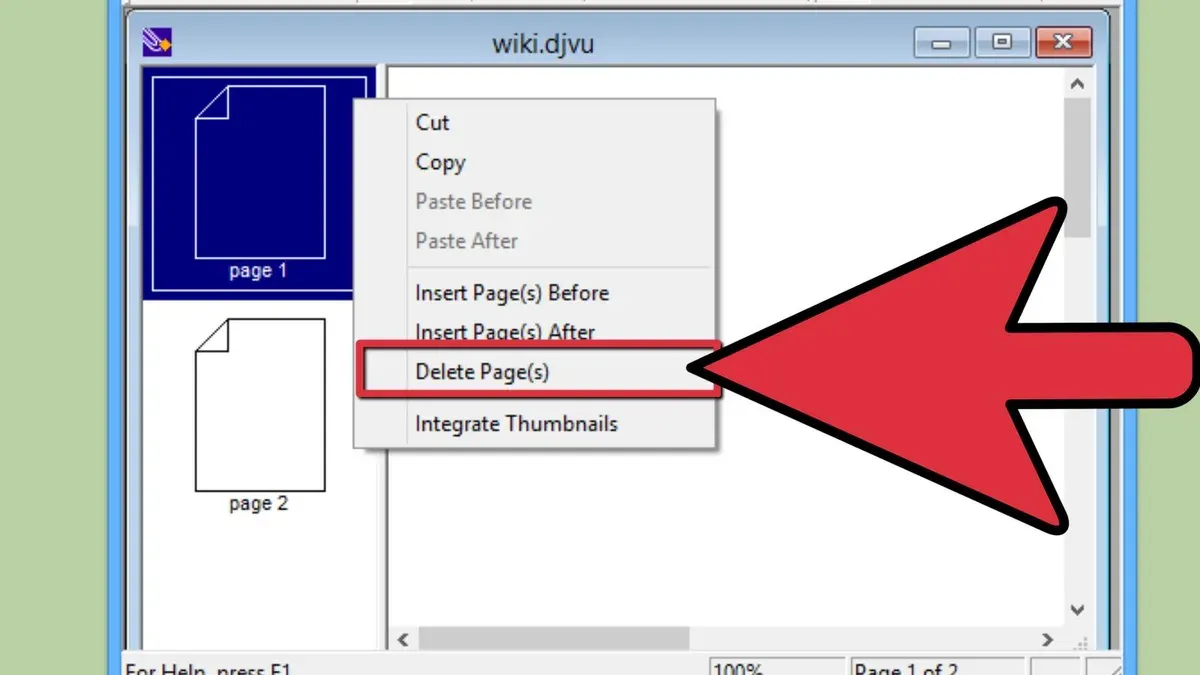
If the app crashes or runs slowly, try switching to a lightweight reader such as MacDjView or converting the file to PDF for smoother performance. Heavy apps may struggle with large or complex files.
When online tools fail to load or time out, check your internet connection and confirm the file size is within the tool’s limits—often under 100MB. Large files can cause delays or failures.
Permissions issues can block access to your.djvu files. To fix this, right-click the file, select "Get Info," and under "Sharing & Permissions," ensure your user account has "Read & Write" access. If prompted, unlock the settings with your administrator password.
- Verify the file extension is ".djvu" and the file is complete. Success: no errors on opening.
- If errors persist, try opening with a lightweight app like MacDjView. Success: file opens without crashes.
- For slow performance, convert the file to PDF using a trusted tool. Success: smoother viewing in Preview.
- If using online tools, check your internet speed and file size. Success: file loads and displays online.
- Check file permissions via "Get Info" > "Sharing & Permissions" and adjust to "Read & Write". Success: no access denied messages.
How to open sparsebundle files on Mac
A sparsebundle file is a type of disk image format used by macOS to store data in a flexible, expandable manner. Unlike.djvu files, which are document formats, sparsebundles represent virtual disks that can grow as you add data.
To open a sparsebundle file, use the built-in Disk Utility app on your Mac. This tool mounts the sparsebundle as a virtual drive, making its contents accessible like any other storage device.
- Open Disk Utility by searching for it in Spotlight or finding it in the Utilities folder inside Applications.
- In Disk Utility, go to the menu and select File > Open Disk Image.
- Locate and select the sparsebundle file you want to open, then click Open.
- Disk Utility will mount the sparsebundle, and it will appear as a drive in the sidebar and on your desktop.
- Click the mounted drive to browse its contents in Finder as you would with any external disk.
You might encounter sparsebundle files when working with Time Machine backups, encrypted disk images, or networked drives. Remember, sparsebundle files differ fundamentally from.djvu files since they represent storage containers rather than document formats.
Below are example screenshots from Disk Utility showing the Open Disk Image option and a mounted sparsebundle visible in the sidebar, confirming successful access.
- How to Open.azw3 Files on Mac: Step-by-Step Guide
- How to Open.mobi Files on Mac: Complete Step-by-Step Guide
- How to Open.epub Files on Mac: Step-by-Step Guide
- How to Open.dmg Files on Mac: A Clear Step-by-Step Guide
Frequently asked questions
How to open djvu file on windows?
To open a.djvu file on Windows, you can use dedicated software like WinDjView or SumatraPDF. These programs support.djvu format natively and offer features such as bookmarking and text search. After installing, simply double-click the.djvu file or open it via the app's File menu.
How to open djvu file on laptop?
Opening a.djvu file on a laptop depends on the operating system. On Windows laptops, use apps like WinDjView or SumatraPDF. On Mac laptops, you can use MacDjView or convert the file to PDF for easier access. Online converters and viewers also work across devices without installation.
How to open djvu?
Opening a.djvu file requires software that supports this format, such as MacDjView on Mac or WinDjView on Windows. Alternatively, you can convert the.djvu file to PDF using online tools or desktop converters, then open it with any standard PDF reader. Some online services allow you to view.djvu files directly without downloading software.
How to open djvu file in pdf?
To open a.djvu file in PDF format, you first need to convert it using a converter tool like Zamzar, CloudConvert, or desktop software such as DjVuLibre. After conversion, open the resulting PDF with Preview on Mac or Adobe Acrobat on Windows. Keep in mind that converting may slightly affect image quality or formatting.
What is a.djvu file?
A.djvu file is a digital document format designed to store scanned images, especially those containing text and graphics, in a highly compressed form. It is commonly used for scanned books, magazines, and documents, offering smaller file sizes compared to PDFs while maintaining readable quality. Special software or converters are required to open or view these files.
Limits of this guide and who should look elsewhere
This guide does not cover advanced editing of.djvu files or professional publishing workflows, which require specialized software beyond basic viewing and conversion. If your work involves detailed manipulation of.djvu content, annotations, or integration into complex document management systems, dedicated professional tools are necessary. Similarly, if you need batch processing or automated conversion at scale, consider software designed specifically for those purposes.
The single most useful next step is to select a dedicated Mac application such as MacDjView or the DjVuLibre framework for reliable viewing. These tools balance ease of use, compatibility, and feature sets to open and read.djvu files effectively on your Mac without relying on online services or conversion, giving you the best native experience.