
How to Open.log Files on Mac: Clear Step-by-Step Instructions
Discover simple methods to open.log files on Mac using Console, TextEdit, and Terminal commands for effective log access.
You’ve encountered a.log file on your Mac and need to view its contents for troubleshooting or monitoring purposes. Opening these files isn’t always straightforward if you’re unfamiliar with the best tools and methods available.
This article explains how to open.log file on Mac using both graphical user interface (GUI) and command-line tools. You’ll learn step-by-step instructions for built-in apps like Console and TextEdit, as well as Terminal commands for more detailed access. Additionally, the article compares approaches on Windows and Linux, clarifies the difference between.log and.lnk files, and explains why logging out properly can matter when working with logs.
Key takeaways
- You can open.log files with macOS’s Console app or TextEdit for simple viewing.
- The Terminal offers commands like cat, less, and tail for more control over log file content.
- Windows uses different tools, and.lnk files are shortcuts unrelated to log data.
- Logging out ensures system processes write logs correctly before you close your session.
- Common issues include permission restrictions and file encoding problems, which have straightforward fixes.
Before you start: What you need to open.log files on Mac
A .log file is a plain text file that records events, processes, or messages generated by software or the operating system. You might want to open a.log file to troubleshoot issues, monitor system activity, or review application behavior. These files vary in size, ranging from a few kilobytes for small applications to several megabytes for system logs over time.
Mac computers come with several built-in tools that let you open and read.log files without extra software. TextEdit can open.log files straightforwardly, displaying the raw text. The Console app provides a more structured way to view system and application logs, including live updates. The Terminal enables command-line access to logs, allowing you to use commands like cat, less, or tail for flexible viewing.
If you need advanced features such as syntax highlighting, filtering, or searching large logs efficiently, third-party apps like BBEdit or LogTail are popular choices. These are optional and not required for basic access.
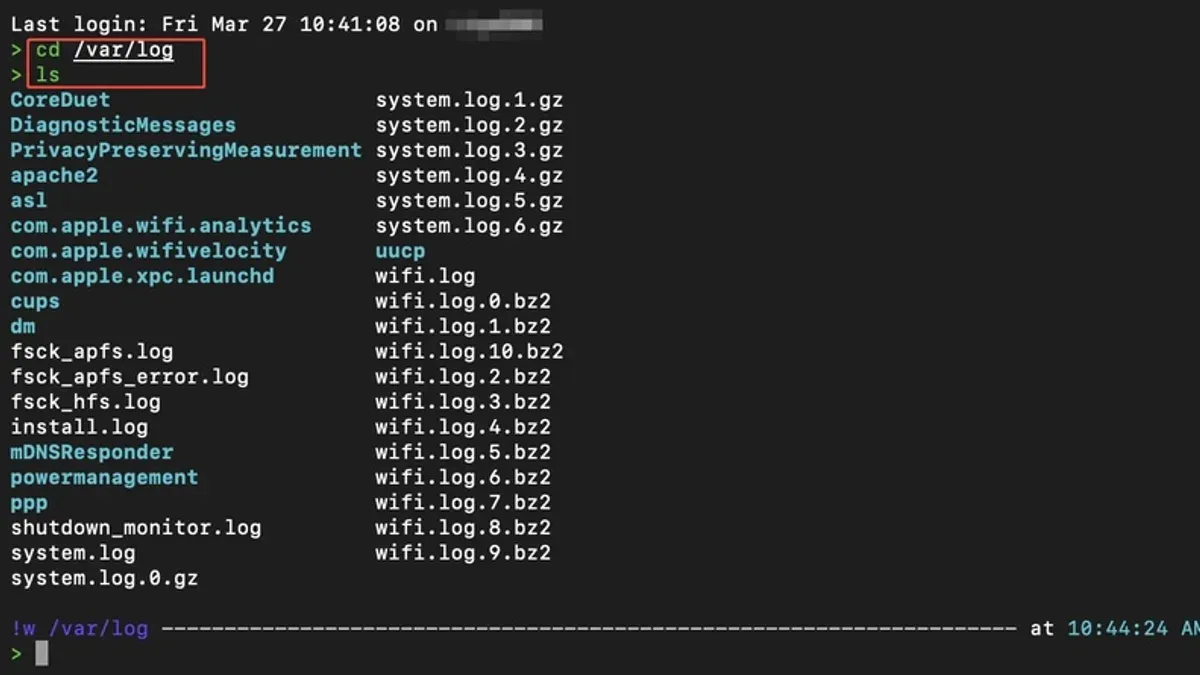
File permissions may affect your ability to open certain.log files, especially system logs stored in protected directories like /var/log. You might need administrator rights or use sudo in Terminal to access them.
- Locate the.log file using Finder. You should see the file name ending with
.log. - Double-click the file. By default, it opens in TextEdit, showing the content as plain text.
- Alternatively, open the Console app from /Applications/Utilities/. Use the sidebar to navigate logs or drag the.log file into Console to view its contents.
- For command-line viewing, open Terminal and type
cat /path/to/file.logorless /path/to/file.log. You should see the file’s log entries displayed in your Terminal window.
How to open a.log file on Mac using built-in apps
Mac provides several built-in applications that let you open and view.log files without installing additional software. These methods include using TextEdit and Console, each suitable for different needs.
Opening.log files with TextEdit
- Locate the.log file in Finder.
- Right-click (or Control-click) the file and select "Open With" > "TextEdit."
- TextEdit launches and displays the.log file contents as plain text.
- Scroll through the file to read the logs; the formatting is basic but clear.
TextEdit is straightforward for quickly viewing log files but lacks filtering or search features specialized for logs.
Using the Console app to access logs
- Open the Console app by navigating to Applications > Utilities > Console.
- In Console’s sidebar, select "Files" and browse to your desired.log file, or use the search bar to filter logs loaded by the system.
- Click the file name to view its contents with timestamps and color-coded levels.
- Use Console’s built-in search and filtering to isolate relevant events or errors.
The Console app offers more advanced capabilities like live updates, filtering by process or message type, and easier navigation through large logs.
| Feature | TextEdit | Console |
|---|---|---|
| Readability | Plain text, simple layout | Color-coded, structured view |
| Filtering logs | No filtering available | Powerful search and filter options |
| Live log updates | No | Yes, displays real-time logs |
| Ease of use | Very simple | Medium complexity |
Choose TextEdit for quick, simple access to.log files. Opt for Console when you need to analyze system or application logs with filtering and real-time updates.
How to open a.log file on Mac using the Terminal
If you are comfortable with the command line, the Terminal offers powerful commands to view and analyze.log files efficiently. This approach is useful for quickly inspecting file contents, following logs in real-time, and filtering entries by keywords.
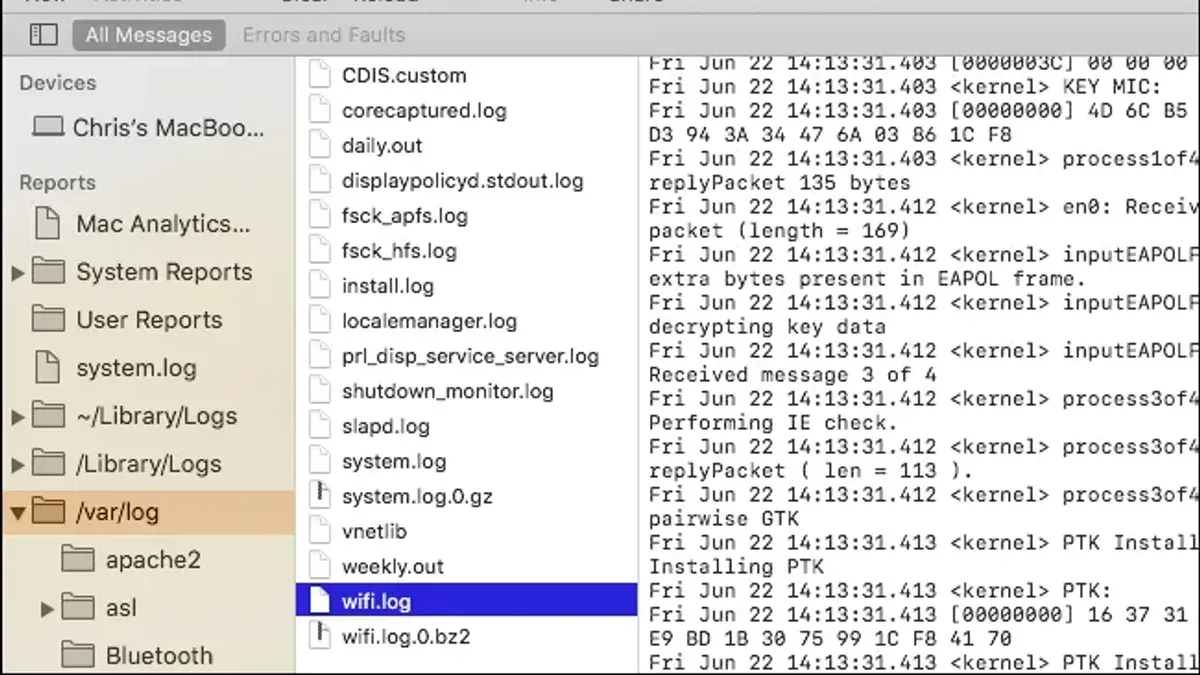
- Open Terminal from Applications > Utilities.
- To display the entire.log file, type cat filename.log and press Enter. You will see the full content printed in the Terminal window.
- To see only the beginning of the file, enter head filename.log. This shows the first 10 lines by default.
- To view the last 10 lines, type tail filename.log. This is useful to check the most recent log entries.
- For live monitoring, use tail -f filename.log. This command continuously displays new lines appended to the log, ideal for real-time debugging. You will see updates appear as they happen.
To filter log entries containing a specific keyword, combine commands with grep. For example, grep "error" filename.log returns all lines with "error".
Oct 19 15:00:01 error: Failed to connect to server Oct 19 15:05:42 error: Timeout occurred
For easier navigation, use less filename.log. This lets you scroll through the file using arrow keys; press q to quit. Terminal will show a view like this:
1 This is the first log entry 2 Another log line... 100 Last log entry
Command-line methods are preferable when you need speed, precise filtering, or want to automate log processing. Unlike GUI apps, Terminal lets you work remotely via SSH and handle large log files without performance issues.
How to check logs on Mac for system troubleshooting
System logs on Mac provide crucial information for diagnosing issues. Key logs include system.log, located in /var/log/, application-specific logs usually found in ~/Library/Logs/, and crash reports stored in ~/Library/Logs/DiagnosticReports/.
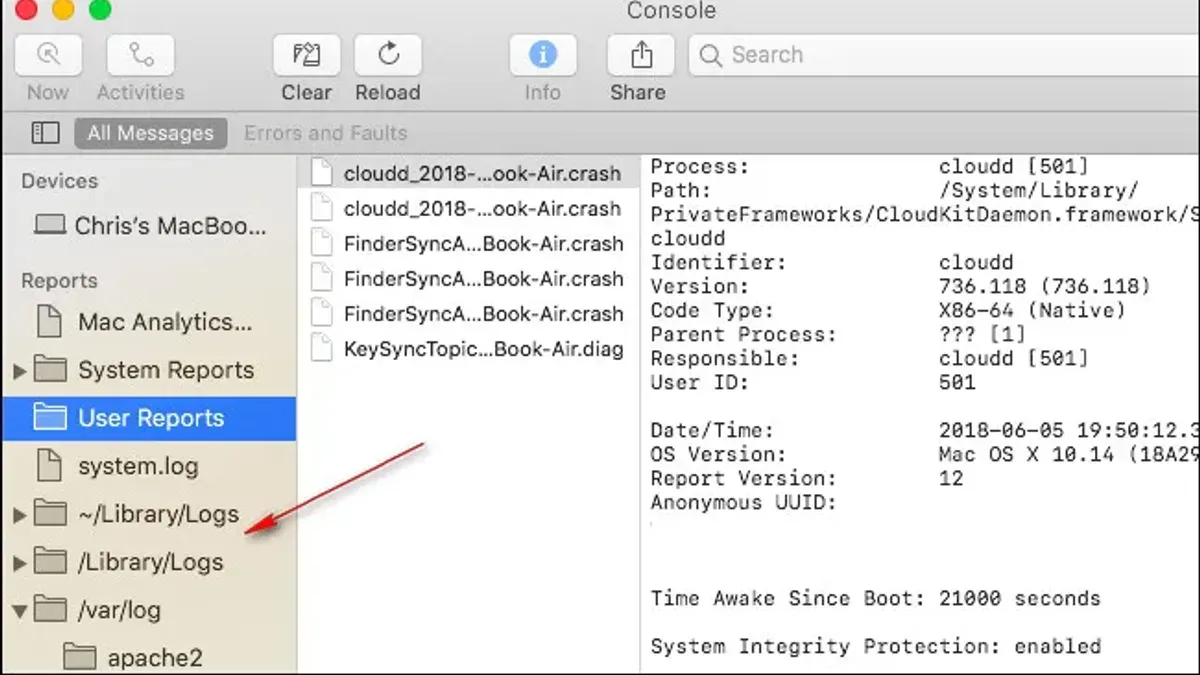
Use the Console app to access these logs efficiently. In the Console sidebar, you can find categories like “System Reports,” “Crash Reports,” and individual app logs. The search bar helps filter entries by keywords, dates, or process names.
- Open the Console app from /Applications/Utilities/. The sidebar should display system logs and diagnostic reports.
- Click on system.log under “/var/log” to view system-wide messages. You should see timestamped entries with different log levels such as info, error, or fault.
- Use the search field to enter relevant keywords like a failing app name or “error”. Matching log entries appear immediately, helping isolate the issue.
- Select a crash report under “Crash Reports” to examine detailed failure information including thread states and exception codes. This helps determine if the problem needs escalating to Apple support or the app developer.
- Interpret timestamps to correlate events, and note log levels: errors and faults usually indicate serious problems, while info messages are generally routine.
Example entry: Oct 19 14:22:33 MacBookPro kernel[0]: (error) USB device not responding indicates a hardware communication issue worth investigating further.
By combining Console’s filtering with awareness of log locations and content, you can pinpoint system problems or decide when professional assistance is required.
How to open.log files on Windows and Linux: A brief comparison
If you work across Windows, Linux, and Mac, understanding how each OS handles.log files helps you navigate and analyze logs effectively. On Windows, common tools include Notepad for simple viewing, Event Viewer for structured system logs, and Command Prompt for command-line access.
- Open Command Prompt and type type C:\path\to\your\file.log. You should see the log file's contents displayed in the window.
- Alternatively, launch Event Viewer by typing eventvwr in the Run dialog (Win + R), then browse Windows Logs to view system and application events.
On Linux, command-line tools like cat, less, and tail are standard for viewing logs, typically stored in /var/log/. For instance, to view the last 20 lines of a log, use tail -20 /var/log/syslog.
- Open Terminal and enter
less /var/log/syslogto scroll through the log file. - Use
tail -f /var/log/syslogto monitor logs in real time.
Log file formats and access permissions vary: Windows logs often use proprietary event formats accessible via Event Viewer, while Linux and Mac logs are plain text but may require elevated permissions to access.
When opening Windows.log files on Mac, text editors like TextEdit can work for plain-text logs, but proprietary event logs require conversion or specialized tools.
| Platform | Common Tools | Use Case |
|---|---|---|
| Windows | Notepad, Event Viewer, Command Prompt | Simple viewing, structured event logs, command-line access |
| Linux | cat, less, tail, journalctl | Text-based logs, real-time monitoring, system logs |
| Mac | TextEdit, Console, Terminal | Text logs, filtered viewing, command-line analysis |
How to open.lnk files on Mac and understand their relation to logs
.lnk files are shortcut files native to Windows, designed to point to another file or folder. They are not log files and contain metadata like the target path, icon, and attributes, but no log data. Mac cannot open.lnk files natively because macOS uses aliases or symbolic links instead.
To view or extract information from a.lnk file on Mac, you can use third-party apps such as "Lnk-Viewer" or "Shortcut Cleaner." These tools display the target of the shortcut and metadata details.
- Download and install a.lnk viewer app like Lnk-Viewer from a trusted source.
After opening the app, load the.lnk file to see its target path and metadata. - If you want to access the actual file the.lnk points to, note the target path shown in the app.
You can then manually locate or open the target file directly on your Mac.
Because.lnk files are shortcuts, they are unrelated to.log files, which contain text-based logs for troubleshooting or monitoring. If you encounter a.lnk file while looking for logs, focus on the target file it references rather than the.lnk itself.
How to log out on Mac and why it matters when working with log files
Logging out of macOS is the process of closing your user session, which differs from shutting down or restarting your Mac. This action helps close applications and system processes tied to your user account, which can impact how log files are written and rotated.
- Click the Apple menu () in the upper-left corner of your screen. You should see a dropdown menu.
- Select Log Out [Your Username]…. A confirmation dialog will appear.
- Click Log Out to confirm. Your screen will switch to the login window, indicating you have successfully logged out.
When you log out, the system completes any active logging sessions and closes related files, which may trigger log rotation—archiving older logs and starting fresh ones. This can be useful when troubleshooting, as it marks a clear boundary in log files around the time of your logout.
Logging out is often recommended before restarting your Mac for troubleshooting because it ensures user-level processes end properly, reducing the chances of corrupted or incomplete logs. Unlike shutting down, which powers off the entire machine, logging out only ends your user session while the system remains running.
Troubleshooting common issues when opening.log files on Mac
If a.log file won’t open or appears blank, the file may be corrupted or empty. Try opening it with another app like Console or Terminal to verify its content. If you see a permission error such as "Operation not permitted," you likely need to adjust file access rights.
- Open Terminal and type sudo chmod 644 /path/to/file.log, replacing the path with your log file location. Press Enter and enter your admin password. This grants read and write access to the owner and read access to others.
- Try opening the file again. You should no longer see permission errors.
Large log files can slow down apps like TextEdit or Console. To handle these efficiently, use Terminal commands such as tail -n 1000 /path/to/file.log to view only the last 1000 lines. This improves performance by limiting data loaded at once.
If your log text appears garbled or contains strange characters, it may be an encoding issue. Open the file in TextEdit, then select Format > Make Plain Text and save it. Alternatively, use Terminal with iconv -f UTF-16 -t UTF-8 /path/to/file.log -o /path/to/converted.log to convert encoding from UTF-16 to UTF-8.
Addressing these common problems can ensure reliable access to.log files for effective troubleshooting and monitoring.
- How to Open.sqlite Files on Mac: A Clear Step-by-Step Guide
- How to Open.db Files on Mac: Step-by-Step Guide for Any Type
- How to Open and Run.sql Files on Mac: A Step-by-Step Guide
- How to Open and Work with CSV Files on Mac: Step-by-Step Guide
Frequently asked questions
How to open.log file in windows?
On Windows, you can open.log files using built-in programs like Notepad or WordPad. Right-click the.log file, select "Open with," then choose Notepad or another text editor. For large log files, third-party tools like Notepad++ offer better performance and search capabilities.
How to open log file in cmd?
To open a log file in the Windows Command Prompt (cmd), use the type command followed by the file path, for example: type C:\path\to\file.log. You can also use more or findstr commands for paginated viewing or searching specific content within the log.
How to log out of mac os?
To log out of macOS, click the Apple menu in the top-left corner and select "Log Out [username]". Alternatively, press Shift + Command + Q to initiate logout. Logging out closes your user session, which can be important when changes to log files require a fresh start or system refresh.
How to open lnk file on mac?
.lnk files are Windows shortcut files and are not natively supported on Mac. To access the target of a.lnk file, you’ll need to open it with a third-party app like Wine or convert it on a Windows machine. They do not contain log data and are unrelated to.log files.
How to open log file on mac?
You can open.log files on a Mac using built-in apps like TextEdit or Console. TextEdit allows quick viewing by right-clicking the file and selecting "Open With > TextEdit." For more detailed system logs, the Console app provides filtering and real-time updates.
What this guide does not cover
This guide does not cover advanced log analysis tools or programming approaches, which may be necessary for complex diagnostics or automation. If you require detailed pattern recognition, automated log parsing, or integration with monitoring systems, consider specialized software like Splunk, Logstash, or scripting with languages such as Python.
For enterprise-level troubleshooting or development tasks involving log files, these manual methods may be insufficient. Consulting with IT professionals or developers experienced in log management is advisable.
The single most useful next step is to familiarize yourself with the Console app’s filtering and searching features. This built-in tool simplifies locating relevant log entries and monitoring live system activity, helping you quickly identify issues without needing additional software.



