
How to Search Emails by Date in Mail App: Step-by-Step Guide
Discover simple steps to search emails by date in Mail app and find important messages quickly across Apple Mail and Outlook.
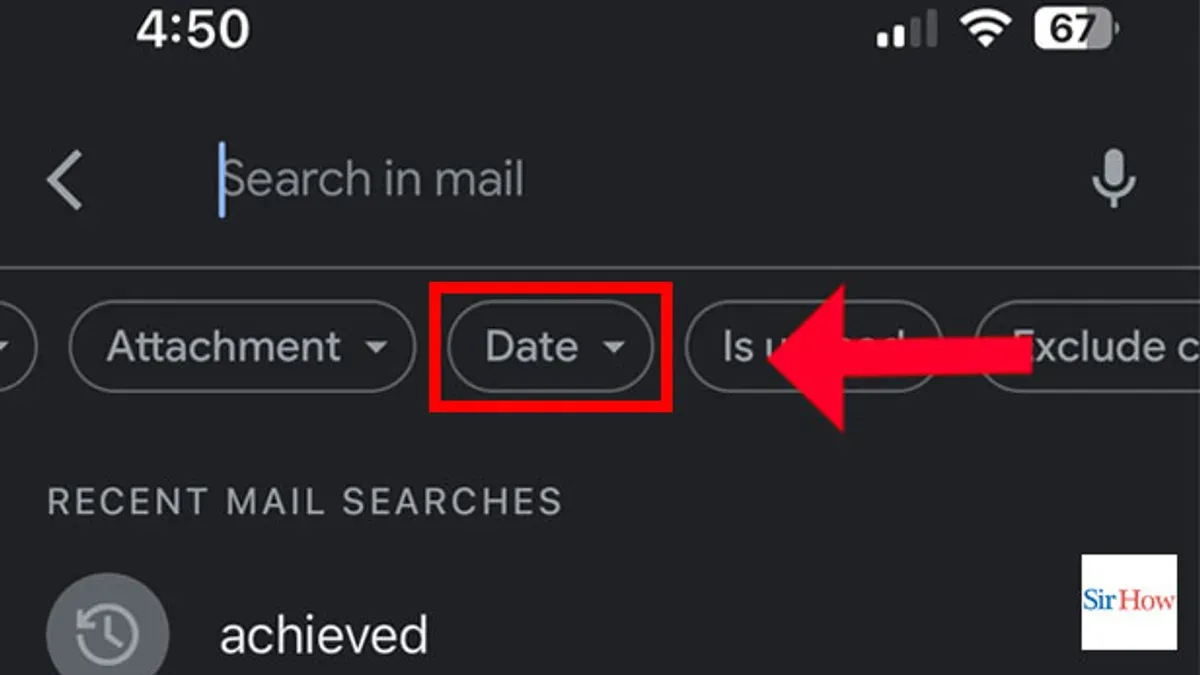
You need to find an important email sent last month, but scrolling through hundreds of messages feels overwhelming. Whether you use Apple Mail on your Mac or iPhone, or Outlook on Windows, locating emails by date can often seem tricky if you aren’t sure where to start.
This guide explains how to search emails by date in Mail app across these platforms, providing clear, step-by-step instructions. You’ll learn how to use built-in search tools effectively, apply filters, and troubleshoot common issues that may cause search results to be incomplete or confusing. By following this approach, you’ll save time and reduce frustration when tracking down messages from specific days or date ranges.
Key takeaways
- Use the search bar with date operators like "date:" or "after:" to narrow email results.
- On Apple Mail for Mac, enable the Search field and filter by date using the sidebar options.
- On iPhone, apply date filters by tapping the filter icon in the Mail app search interface.
- In Outlook, use the Search tab’s date filters or advanced search dialog for targeted queries.
- If search results seem incomplete, check mailbox sync settings and try manual sorting by date.
Before you start: Prepare your Mail app for date-based searching
Before searching emails by date, ensure your Mail app is updated to the latest version. Apple Mail updates often improve search functionality, while Outlook regularly adds advanced search filters. Running outdated versions might limit your access to these features.
Next, verify your email accounts are fully synced. In Apple Mail on Mac, check the status in the sidebar or look for spinning sync icons near account names. In Outlook, the status bar typically shows syncing progress or the last update time. Incomplete syncing can cause emails to be missing from search results.
Understand that you can search emails by their received date or sent date. Apple Mail’s default search usually targets the received date, while Outlook lets you specify sent or received dates explicitly using search filters. Knowing this distinction helps refine your search.
Finally, locate the search bar. In Apple Mail on Mac and iPhone, it’s usually at the top right of the window or screen. Outlook’s search bar appears above the message list. Both apps offer advanced search options—look for dropdown menus or filter icons near the search bar to access date-specific criteria.
- Open your Mail app and check for updates through the App Store on Mac or Microsoft Update on Windows. When updated, you should see no prompts to update your app.
- Confirm account syncing: in Apple Mail, look for the spinning icon beside your account name indicating syncing; in Outlook, see the status bar for syncing progress or a recent update timestamp.
- Locate the search bar at the top of your mailbox window; ensure you can click or tap it to activate search options.
- Explore the search bar’s dropdown or filter icons to verify you can select date parameters like "Date Received" or "Date Sent." Seeing these options confirms date-based searching is available.
How to search emails by date in Apple Mail on Mac
- Open Apple Mail on your Mac and locate the search bar in the upper right corner of the window. When you click there, your cursor will appear, ready for input.
- Type a date search using the syntax date:YYYY-MM-DD to find emails from a specific day. For example, entering date:2026-10-06 will filter emails received on October 6. The Mail app will immediately display matching results below the search bar.
- To search emails from a date range, use comparison operators like date:>=YYYY-MM-DD and combine with date:<=YYYY-MM-DD. For instance, date:>=2026-10-01 date:<=2026-10-05 shows emails received between October 1 and October 5 inclusive.
- Use the filter tokens in the search suggestions below the search bar for more precision. You can select filters like Date Received or Date Sent to specify which timestamp to search by, helping to narrow your results.
- Combine the date search with keywords or sender information to refine your search. For example, date:2026-10-06 from:alice will show emails from Alice received on October 6.
- Adjust the search scope just below the search bar by selecting This Mac, All Mailboxes, or a specific mailbox. This controls where Mail looks for matching emails, so choose All Mailboxes to broaden your search or a single mailbox to focus it.
- As you enter your search terms, the Mail app filters emails dynamically, showing the matching ones instantly. For example, typing date:2026-10-06 while viewing All Mailboxes will display all emails from that date across your accounts.
How to search emails by date in Apple Mail on iPhone
Open the Mail app on your iPhone and tap the search bar at the top of your mailbox. Unlike Apple Mail on Mac, the iPhone Mail app does not support direct date syntax or advanced date filters. Instead, you can type natural language queries such as "emails from October 1" or "emails last week" to approximate date-based searches. This method relies on the Mail app interpreting your text to show relevant emails around those dates.
- Tap the Mail app icon and open your inbox or the folder you want to search.
- Tap the search bar at the top of the screen; the keyboard appears, and you see recent or suggested searches.
- Type a natural language query like "emails from October 1" or "emails on September 20" and wait for the results to load.
- Review the results. You will see emails close to the date mentioned but not an exact date filter as on Mac.
- To narrow results, add keywords such as the sender’s name or subject terms, for example, "from John October 1," which helps reduce unrelated emails.
If you need precise date filtering on iPhone, consider third-party mail apps like Outlook or Spark, which offer more advanced search tools compared to the built-in Mail app. Keep in mind that Mail on Mac provides more powerful date search features, so syncing and searching from your Mac can be more effective for complex queries.
How to search emails by date in Outlook on Windows and Mac
To find emails from specific dates in Outlook's desktop app, start by opening Outlook and clicking the search box above your message list. This activates the Search Tools ribbon, which offers various filtering options. You can directly type date search operators into the search box using the format received:YYYY/MM/DD for a specific date or combine operators like received>=YYYY/MM/DD AND received<=YYYY/MM/DD to specify a date range.
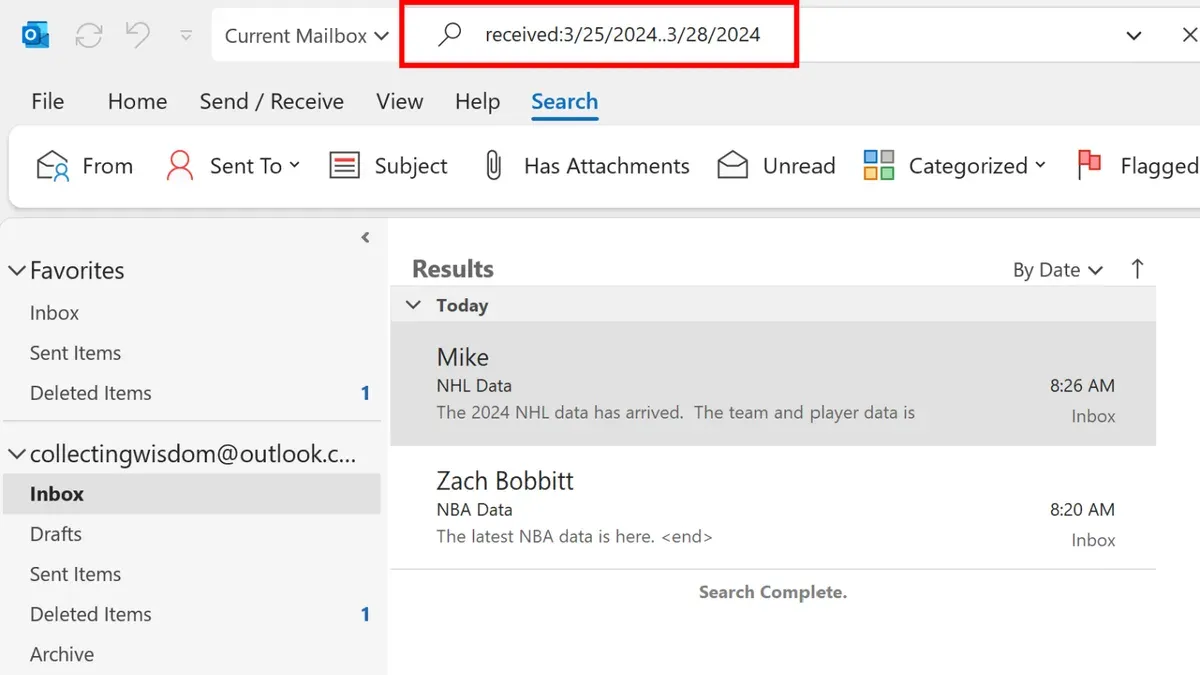
Alternatively, use the Search Tools ribbon to apply date filters without typing syntax. After clicking the search box, select Search Tools > Search > Date and pick from presets like Today, Yesterday, or This Week. For custom ranges, choose Custom Date to enter start and end dates using the calendar picker.
You can combine date filters with other criteria such as sender or subject. For example, type received:2026/09/01..2026/09/30 from:[email protected] to find emails from John in September. Outlook desktop supports complex queries like this, while Outlook web has similar but sometimes more limited search features.
- Open Outlook and click the search box above your emails. The Search Tools ribbon appears.
- Type received>=2026/09/01 AND received<=2026/09/30 and press Enter. Your message list filters to emails received in September.
- To add a sender filter, type from:[email protected] after the date range and press Enter. Only emails from John in that period show.
- Alternatively, click Search Tools > Date > Custom Date, select the start and end dates, and Outlook filters accordingly.
- Verify your results by checking the displayed dates and senders in the message list to confirm the filter worked.
How to find emails by date using search filters and advanced options
Both Apple Mail and Outlook offer filter menus and advanced options that make searching by date easier and more precise without typing complex search syntax. In Apple Mail on Mac, click the filter button next to the search bar, then select “Date Received” or “Date Sent” and choose a specific range like “Today,” “Last Week,” or use the custom date picker for exact dates. Outlook’s Search Tools ribbon provides a similar interface where you can select predefined date ranges or enter custom start and end dates.
To save time on repeated searches, create saved search folders or rules. In Apple Mail, use the “New Smart Mailbox” feature to define date criteria combined with other filters, then access it anytime from the sidebar. Outlook’s Search Folders allow you to save complex date-based queries, so you don’t have to recreate them. These saved searches improve speed and accuracy by instantly displaying matching emails without reapplying filters.
Understanding the difference between "date sent" and "date received" filters is crucial. "Date sent" shows when the sender dispatched the email, useful for tracking outgoing messages or time zones. "Date received" reflects when the email arrived in your mailbox, which can differ due to server delays. Choose accordingly depending on whether you want to capture emails based on sending or receiving time.
Boolean operators such as AND, OR, and NOT can combine date filters with other criteria for refined results. For example, in Outlook, you can search for emails received between two dates AND from a specific sender. In Apple Mail, include keywords or sender names with date filters to narrow down results further. Using these operators enhances search precision, especially in large mailboxes.
How to check email by date when search returns incomplete results
If your date-based email search misses expected messages, first check whether your emails are fully downloaded. In some cases, only headers are available locally, which can limit search results because the full content is not indexed. This is common with IMAP accounts configured to download headers only or when using low-storage settings.
Next, verify that your mailbox is properly indexed. Outlook relies heavily on indexing for fast and complete search results; if the index is corrupted or incomplete, some emails may not appear. Mail apps may also experience indexing delays after syncing large mailboxes or updates.
Server sync issues and email sync settings can further affect search completeness. If your device hasn’t fully synced with the mail server due to connectivity problems or settings limiting sync periods, recent or older emails might not appear in search results.
To resolve these issues, you can rebuild the mailbox index or force a resync. In Outlook, rebuilding the search index through the Indexing Options in Windows Control Panel often restores missing emails in search results. On Mac, reindexing Apple Mail can be done by quitting Mail, deleting the Envelope Index files in the Mail folder, and reopening the app to trigger a reindex.
Be aware that archived or offline mailboxes may not be fully searchable. Emails stored only in archives or offline folders often require manual browsing or separate searches, as their contents might not be included in the main index.
- Confirm your mail app is set to download full messages, not just headers. You should be able to open emails fully without delay.
- In Outlook on Windows, go to Control Panel > Indexing Options > Advanced > Rebuild. The indexing status will show progress; when complete, your searches should be more accurate.
- For Apple Mail on Mac, quit Mail, open Finder, navigate to ~/Library/Mail/V* (replace * with your version), locate and delete the Envelope Index files, then reopen Mail. It will reindex your messages, which can take several minutes.
- Check your sync settings and ensure your device is connected to the mail server to update all folders. Recent emails should appear promptly after syncing.
- Remember to manually search archived or offline folders if you suspect missing emails, as these areas sometimes require separate queries.
How to search emails from specific dates across multiple mailboxes
When you need to locate emails from certain dates but across multiple accounts or mailboxes, both Apple Mail and Outlook offer options to broaden your search scope. Setting the search to cover "All Mailboxes" or "All Accounts" lets you gather results from every configured email address in one go, saving time compared to searching each mailbox individually.
- Open your Mail app or Outlook and click on the search bar.When you click the search bar, you will see search scope options appear above or near it.
- Select the scope dropdown and choose "All Mailboxes" in Apple Mail or "All Accounts" in Outlook.This expands your search to include every mailbox or account configured in the app.
- Enter your date-based search query using the appropriate syntax or filters.The results will now include emails from all mailboxes matching your date criteria.
- Review the search results carefully, noting the mailbox or account each email belongs to.Both apps typically show the mailbox name or account next to each result to help you identify the source.
Expect slower response times when searching across multiple mailboxes, especially if your email collection is large or not fully synced locally. Apple Mail and Outlook must aggregate data from all accounts, which can cause delays compared to single-mailbox searches. The accuracy remains consistent, but the volume of results may require more time to sift through.
To simplify future searches, organize your mailboxes with clear names and consistent folder structures. This practice helps you quickly identify emails in multi-account results and can make filtering more efficient. If you frequently search across the same set of mailboxes, consider creating saved search folders or smart mailboxes that pre-aggregate emails by date or account.
How to use natural language and manual sorting to find emails by date
When direct date filters are limited or unavailable, natural language queries and manual sorting offer useful alternatives to locate emails by date. In both Apple Mail and Outlook, you can enter phrases like "emails from last week," "messages from October," or "emails before last Monday" in the search bar. These queries leverage the app's built-in understanding of common date expressions and often return relevant results without needing exact date syntax.
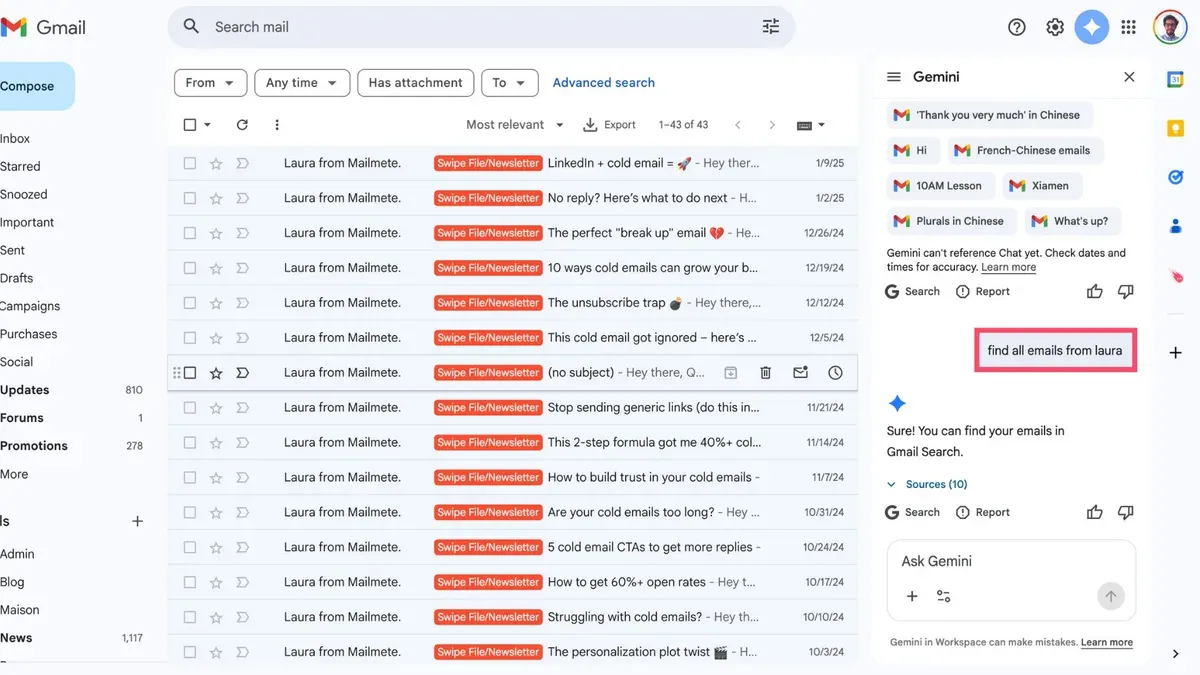
After performing a natural language search, manually sorting the email list by date helps you visually scan through the results. In Apple Mail on Mac, click the "Date" column header in your message list to toggle ascending or descending order. In Outlook, use the "Sort" option in the View tab or click the "Received" column header. This combination narrows down your focus and makes spotting the desired emails easier.
Here is how to combine natural language search with manual sorting:
- Enter a natural language query like "emails from last month" in the search bar and press Enter. You should see emails matching that time frame appear.
- Locate the "Date" or "Received" column header in the email list and click it once to sort emails from oldest to newest or twice for newest to oldest. The sorting order will update accordingly.
- Scroll through the sorted emails to find specific dates or clusters of messages relevant to your search.
While these methods are helpful, they have limitations. Natural language queries may interpret date ranges imprecisely and miss some emails outside the understood timeframe. Manual sorting requires more visual effort and is less efficient than direct date filters. Nonetheless, combining both offers an effective workaround when direct date-based search options fall short.
Frequently asked questions
How to search for date in email?
To search for emails by date, use the search bar in your mail app and enter date-specific keywords or date range filters. For example, in Apple Mail, you can type "date:YYYY-MM-DD" or use the calendar picker if available. In Outlook, use the Search tab and select "Received" filters to specify exact dates or ranges.
How to search emails by date outlook?
In Outlook, click into the Search box, then go to the Search tab on the ribbon. Use the "Received" dropdown to pick a specific date or a range like "Today," "Yesterday," or "This Week." You can also type search queries like "received:>=01/01/2026 AND received:<=01/31/2026" to find emails from January 2026.
How to search for emails by date?
Most mail apps support date-based search either via filters or search operators. Start by entering date keywords or using built-in date filters available in the app’s search interface. If unsure, check if your mail app supports natural language search like "emails from last week" or manual date range selection.
Can you search emails by date on iphone?
Yes, on an iPhone using Apple Mail, you can search by date by typing date terms in the search bar, such as "before:YYYY-MM-DD" or "after:YYYY-MM-DD." However, the iPhone Mail app has limited filtering options, so manually scrolling or combining keywords with dates might be necessary for precise results.
How to search outlook mail by date?
To search Outlook mail by date, click the Search box and select the "Search Tools" or "Search" tab. Use the "Received" filter to specify a single date or range. Alternatively, type queries like "received:01/15/2026" to locate emails from that exact day efficiently.
Understanding the Limits of Date-Based Email Search
Date-based search results rely heavily on your mailbox being properly synced and indexed. If your emails are offline, archived, or stored on a server that isn’t fully synced, they might not appear in your search results. The native Mail app on iPhone offers limited direct date search capabilities compared to desktop versions, so for more advanced queries, you might need to use workarounds or consider third-party email apps designed for more robust searching.
For the most effective date-based email searching, start by ensuring your mailboxes are fully synced and indexed. On desktop apps, refreshing or rebuilding the mail index can resolve many issues with incomplete search results. If you regularly need to search emails by date across multiple accounts or complex ranges, consider setting up custom search folders or saved searches to streamline future queries. This proactive step saves time and keeps your email organized by date without repetitive searching.
See also: How to Rebuild Your Mailbox in Mail App: Step-by-Step Guide · How to Set Up Mail Rules in the Mail App: A Step-by-Step Guide · How to Remove an Email Account in Mail App: Clear Step-by-Step Guide



