How to Fix Mail Not Syncing in Mail App: Step-by-Step Solutions
Discover practical solutions to fix Mail not syncing in Mail app and get your emails updating properly again.
You open your Mail app expecting to see your latest emails, but nothing new appears. Frustration builds as you realize your messages aren't syncing properly, leaving you out of touch with important communications.
This article explains how to fix Mail not syncing in Mail app by guiding you through common reasons why syncing fails and practical, step-by-step solutions. Whether you use an iPhone, iPad, or Mac, you'll learn how to methodically troubleshoot syncing problems and understand the underlying causes. This approach helps you decide which fixes apply to your situation and restores your Mail app's reliability.
Key takeaways
- Check internet connection and account settings before deeper troubleshooting.
- Ensure Push or Fetch settings are correctly configured for timely syncing.
- Verify that Low Power Mode or Background App Refresh aren't limiting Mail updates.
- Remove and re-add the email account if syncing issues persist.
- Clear app caches or update the Mail app and device software to fix bugs.
Before you start: what you need to check
Before troubleshooting your Mail app syncing issues, ensure your device has a stable internet connection. Whether you’re using Wi-Fi or cellular data, a weak or intermittent connection can slow down or prevent email sync. For example, if your Wi-Fi signal shows fewer bars or your cellular signal is low, syncing might fail or take longer than usual.
Next, verify your email account credentials are correct and active. Double-check your username and password by logging into the web version of your email provider. If you can’t access your account online, the issue likely lies with your credentials or account status, not the app.
Make sure both your Mail app and your device’s operating system are updated to the latest versions. Updates often include bug fixes that improve syncing reliability. You can check app updates through your device’s app store and system updates in the device’s Settings under General > Software Update (iOS) or Settings > System > Software Update (Android).
Finally, have your email account settings handy, including server types (IMAP or POP), incoming and outgoing server addresses, and port numbers. You can find these details in your email provider’s support documentation or within your account settings on the device (Settings > Mail > Accounts > [Your Account] > Account). Having this information ready will help if you need to manually verify or reconfigure your account.
- Check your internet connection by opening a website or streaming a video. If it loads smoothly, your connection is likely stable.
- Log into your email provider’s webmail to confirm your username and password work. Successful login means credentials are correct.
- Open your device’s app store and update the Mail app if an update is available. After updating, open the app to confirm it runs without errors.
- Go to your device’s Settings > General > Software Update (iOS) or Settings > System > Software Update (Android) to check for system updates. Install if available and restart your device.
- Locate your email account settings on your device (Settings > Mail > Accounts > [Your Account]) and note the server type and addresses. Confirm these match your email provider’s recommended settings.
How to fix outlook app not syncing
When your Outlook app isn’t syncing properly, the first step is to refresh the connection by force closing and restarting the app. On most devices, you can do this by opening the app switcher and swiping Outlook away. Relaunch the app and check if new emails appear promptly.
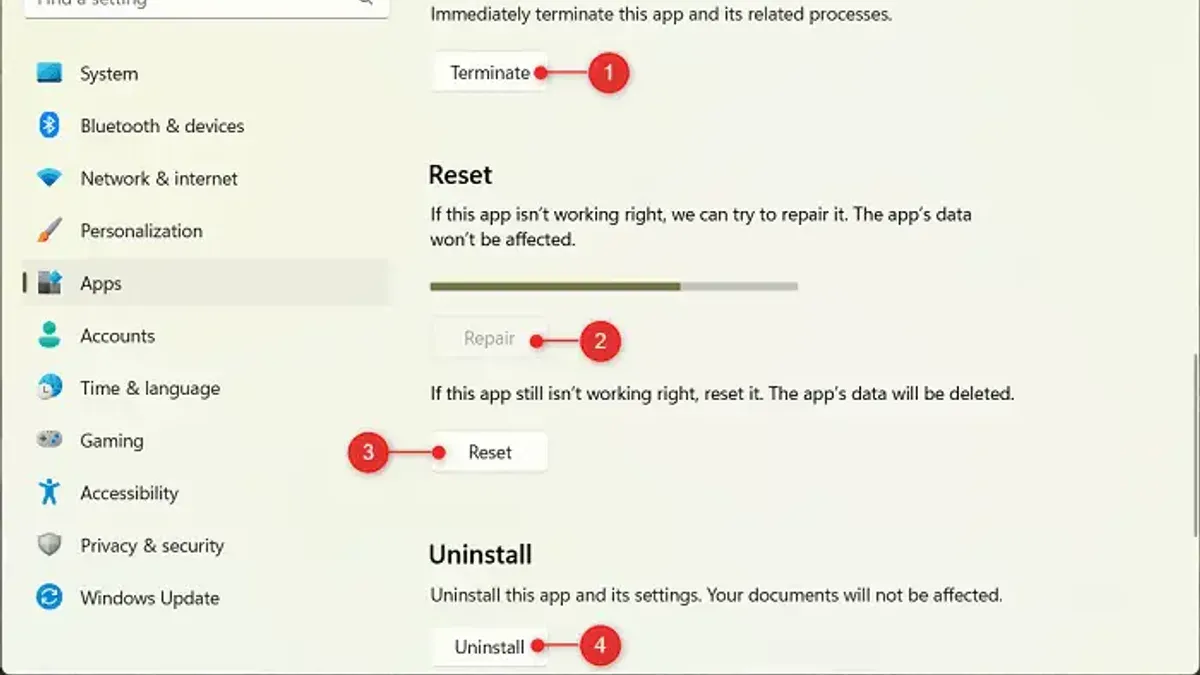
Next, check the app permissions to ensure Outlook can refresh in the background and send notifications. On iOS, go to Settings > Outlook > Background App Refresh, and ensure it’s enabled. On Android, navigate to Settings > Apps > Outlook > Data usage, and confirm background data is allowed. Without these permissions, syncing can be delayed or stopped.
If syncing still fails, remove and re-add your email account. This step resets the connection between Outlook and your email server. To do this, open Outlook, go to Settings > Accounts, select the problematic account, and tap Remove Account. Then tap Add Account, enter your credentials, and complete setup. After re-adding, syncing times often improve noticeably as the app rebuilds its connection.
Clearing the Outlook app cache may help on Android devices. Go to Settings > Apps > Outlook > Storage, then tap Clear Cache. This can resolve corrupted temporary files that interfere with syncing.
Finally, verify your server settings match your email provider’s recommended settings and update Outlook to the latest version available in your app store. Outdated apps or incorrect server details can cause persistent syncing issues. After completing these steps, your emails should sync consistently and quickly.
How to fix not syncing emails in the Mail app
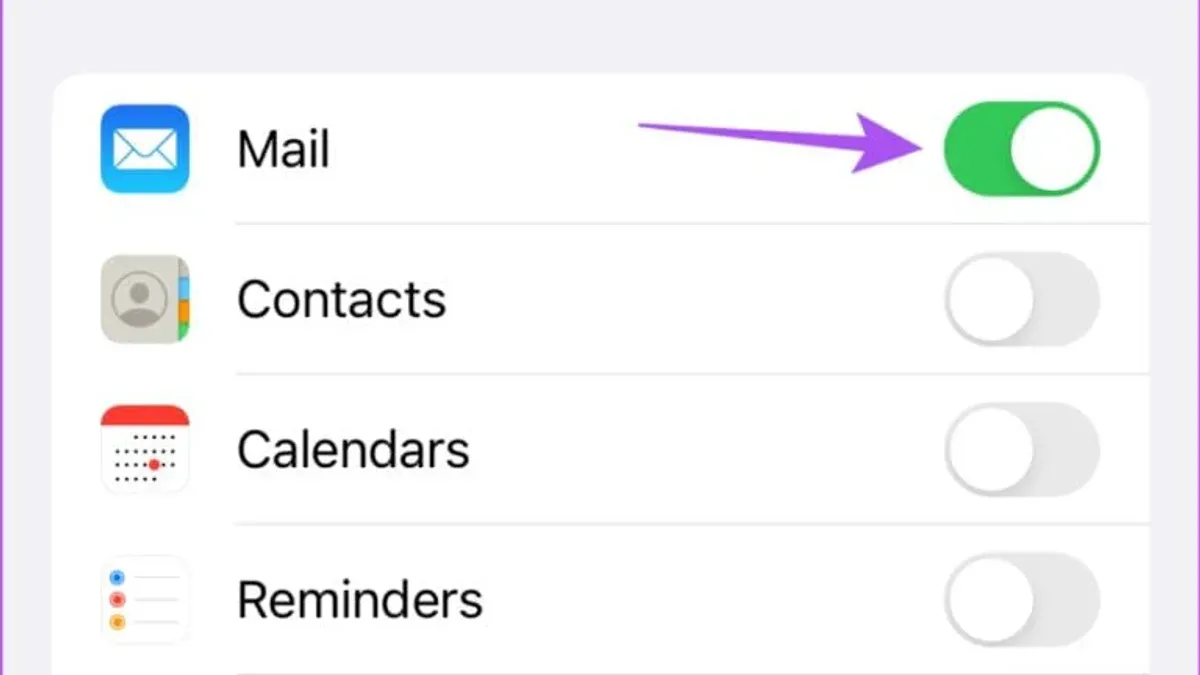
- Ensure the Mail app can refresh in the background. On iPhone, go to Settings > General > Background App Refresh and confirm Mail is enabled. For Samsung devices, open Settings > Apps > Mail > Mobile data & Wi-Fi and verify background data is allowed. When done, new emails should arrive automatically without delay.
- Verify Mail notifications are turned on. On iPhone, navigate to Settings > Notifications > Mail and enable Allow Notifications. On Samsung, go to Settings > Notifications > Mail and ensure notifications are active. This helps you know when syncing has fetched new messages.
- Toggle Airplane Mode on and off. Swipe down (iPhone) or up (Samsung) to access the control panel, turn on Airplane Mode for about 10 seconds, then turn it off. This resets network connections. After toggling, open Mail and see if new emails load. If the inbox updates, syncing is restored.
- Restart your device. Press and hold the power button, then select restart or power off and on again. Restarting clears temporary glitches that can block syncing. After reboot, open Mail and pull down the inbox to manually refresh; you should see updated messages.
- Check your device’s storage space. On iPhone, go to Settings > General > iPhone Storage. On Samsung, open Settings > Device Care > Storage. At least a few hundred megabytes free is recommended for smooth syncing. If storage is low, delete unused apps or files. Once space is freed, manually refresh Mail by pulling down the inbox; new emails should appear.
- Manually trigger syncing by pulling down your inbox list in the Mail app. When you do this, look for a spinning wheel or loading indicator at the top. After a few seconds, your inbox should update with any new messages. For example, if you had 10 emails before, after refresh you might see 12, confirming syncing worked.
Why is my mail not syncing on my phone?
Mail syncing on your phone can fail for various reasons related to device settings and network behavior. One common cause is battery saver or Low Power Mode, which restricts background activities to save power. Disabling Low Power Mode often restores syncing because the Mail app can then refresh emails in the background without limitation.
Incorrect date and time settings can also lead to syncing errors, as mail servers use timestamps to validate data exchange. Ensuring that your phone is set to automatic date and time usually resolves these issues.
Email server outages or maintenance can temporarily interrupt syncing, so it’s worth checking your email provider’s status page if syncing stops unexpectedly.
Security apps or VPNs may interfere with mail syncing by blocking necessary connections or altering network routes. For example, turning off a VPN might immediately resume syncing, confirming the VPN was the cause.
Lastly, device-specific sync settings, like Samsung’s battery optimization feature, can restrict background syncing for individual apps. Disabling optimization for the Mail app allows it to sync reliably without manual refreshes.
- Go to Settings and turn off Low Power Mode (iPhone) or Battery Saver (Android). When syncing resumes automatically, this confirms Low Power Mode was blocking background refresh.
- Check your phone’s date and time settings, enable automatic date & time, then open the Mail app. Successful sync indicates correct timestamps.
- Temporarily disable any active VPN or security app, then check if new emails appear. If syncing improves, the VPN or app is interfering.
- On Samsung devices, open Settings > Apps > Mail app > Battery > Optimize battery usage. Turn off optimization for the Mail app. Mail should then sync without delay.
How to fix mail app not syncing with outlook
Syncing issues between the Mail app and Outlook often stem from server protocol mismatches or account misconfigurations. IMAP is the preferred protocol for syncing emails because it keeps messages consistent across devices, unlike POP, which downloads and removes them from the server. Using POP can lead to incomplete syncing and confusing error messages such as "Unable to sync folders" or "Server rejected your login."
- Verify your account uses IMAP: Go to your Mail app settings, select the Outlook account, and check the incoming mail server type. If it’s set to POP, remove the account and re-add it using IMAP settings (server: outlook.office365.com, port 993, SSL enabled). You should see your folders syncing properly once this is done.
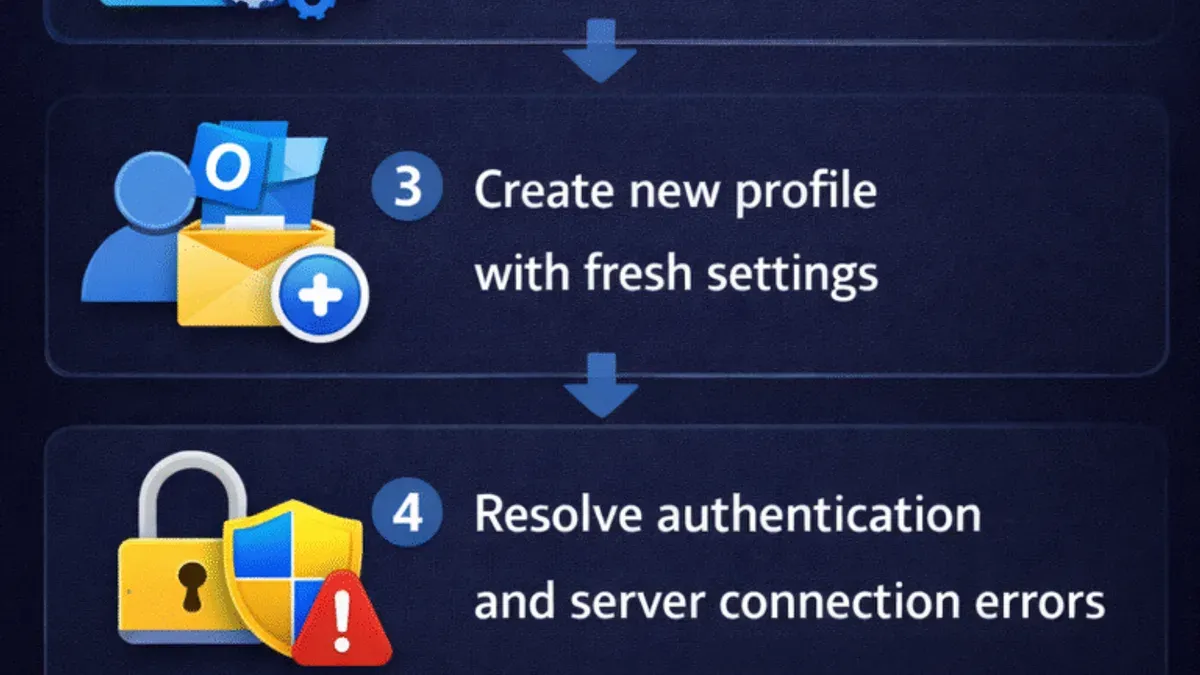
- Remove and reconfigure the Outlook account: Delete the existing Outlook account in the Mail app, then add it back. This clears corrupted settings and forces fresh synchronization. After re-adding, the app should display your inbox and folders without errors.
- Check for duplicate accounts: Multiple entries of the same Outlook account can cause conflicts and prevent syncing. Review your account list and remove duplicates to ensure only one active Outlook account is configured.
- Confirm two-factor authentication (2FA) compatibility: If your Outlook account uses 2FA, ensure you have generated and entered an app-specific password or authorized the Mail app correctly. Incorrect 2FA setup often blocks syncing and prompts login errors.
- Reset network settings: If syncing remains inconsistent, resetting network settings on your device can resolve hidden connectivity issues affecting the Mail app. After the reset, reconnect to Wi-Fi or cellular data and check if syncing stabilizes.
Troubleshooting usual failure points
Persistent syncing failures often stem from specific mailbox or server issues that basic steps don't resolve. One common cause is corrupted mailboxes or folders, which can block synchronization. To address this, you may need to rebuild or reset the mailbox safely, a process that refreshes the mailbox’s data without losing messages.
- In the Mail app, go to the mailbox list and select the problematic folder.
- Look for an option named "Rebuild" or "Reset Mailbox" in the account settings or mailbox properties; this varies by client.
- Confirm the action and wait; once complete, you should see all recent emails reappear correctly.
Large attachments can also stall syncing. Removing or moving emails with oversized attachments to cloud storage or local folders often improves sync speed and success. Some users report significant improvements after managing attachments this way.
If these steps don’t help, contacting your email service provider is advisable to check for server-side issues like quota limits or errors. Avoid repeatedly removing and re-adding accounts, as this may temporarily refresh syncing but won’t fix underlying problems and can cause data loss or confusion.
Frequently asked questions
Why is my email not syncing?
Your email may not be syncing due to several reasons such as incorrect account settings, poor internet connection, or server issues. Sometimes, outdated app versions or device software can cause syncing failures. Checking that your account credentials are correct and that your device is connected to a stable network often resolves this issue.
Why is my phone email not syncing?
Email not syncing on your phone can happen if background app refresh is disabled or if battery-saving modes restrict syncing. Additionally, email server settings or authentication problems may prevent updates. Ensuring that your Mail app has permission to refresh in the background and verifying your account settings can help fix this.
Why is my phone not syncing emails?
This issue can arise if your phone's date and time are incorrect or if there are restrictions on data usage for the Mail app. Also, temporary glitches in the app or the email server can disrupt syncing. Restarting your device and checking that sync settings are enabled usually restores proper email syncing.
why is my email not syncing
Emails may fail to sync when the mailbox is full or if there is a problem with the email provider's servers. Network interruptions or firewall settings on your device might also block syncing. Reviewing your storage space and testing your connection can help identify the cause.
why is my phone email not syncing
On a phone, syncing issues often stem from disabled automatic sync settings or outdated app versions. Security settings such as two-factor authentication may also require app-specific passwords. Updating your Mail app and confirming sync permissions usually resolves these problems.
When to Seek Additional Help
This advice focuses on common syncing issues you can troubleshoot yourself on typical email apps and devices. It does not cover rare server-side problems or complex enterprise-level email configurations that require IT administrator intervention. If your email is managed by a corporate system with strict security policies, you might not be able to perform all these steps without assistance from your IT department. Additionally, if your mail server is experiencing outages or glitches beyond your control, these fixes won’t resolve the problem.
The single most useful next step is to verify your account settings carefully. Double-check your incoming and outgoing server addresses, port numbers, and authentication methods in your Mail app or Outlook settings. Ensuring these details are accurate often resolves syncing issues that arise from misconfigured accounts or changes made by your email provider.
See also: How to Rebuild Your Mailbox in Mail App: Step-by-Step Guide · How to Add a Gmail Account in the Mail App: Step-by-Step Guide · How to Use Hide My Email in Mail App: A Step-by-Step Guide · How to Mark All Emails as Read in Mail App and Other Email Clients