How to Remove an Email Account in Mail App: Clear Step-by-Step Guide
This guide shows how to remove an email account in Mail app on iPhone, iPad, and Mac with clear, step-by-step instructions and important tips.
You’ve decided to streamline your Apple Mail app by removing an email account you no longer use or need. Maybe you added an account temporarily or want to clear clutter, but you’re unsure how to do this safely without losing important emails or settings.
This article guides you through how to remove an email account in Mail app on iPhone, iPad, and Mac. You’ll get clear, step-by-step instructions tailored to each device, along with explanations about what happens when you remove an account and common pitfalls to avoid.
Key takeaways
- Removing an email account from Mail app deletes associated emails and settings from that device but doesn’t delete the account itself.
- On iPhone and iPad, use Settings > Mail > Accounts to remove accounts; on Mac, use Mail > Preferences > Accounts.
- Be sure to back up any important emails or data before removal to prevent accidental loss.
- Some accounts, like iCloud, may require different steps or restrictions when removing.
- If you encounter issues removing an account, checking for device restrictions or restarting can help resolve them.
Before you start: What you need to know
Removing an email account from the Mail app deletes all emails stored locally on your device for that account. This means messages downloaded to your iPhone, iPad, or Mac will be removed, but your emails remain on the server if you use IMAP or Exchange accounts. Understanding this helps prevent accidental data loss.
Before proceeding, ensure you have the login credentials (email address and password) for the account you want to remove. If you plan to add the account back later, or access emails elsewhere, having this information is crucial. Also, consider backing up important emails by forwarding them or saving attachments if they are only stored locally.
The process to remove an account varies between iOS devices (iPhone and iPad) and the macOS Mail app. For example, on iOS, you remove accounts via the Settings app under "Mail" or "Passwords & Accounts," while on Mac, you use the Internet Accounts pane in System Settings. Knowing this difference helps you find the right menus quickly.
Not all accounts can be removed. Some system accounts like iCloud Mail are linked to your Apple ID and cannot be deleted without signing out of iCloud entirely. Managed accounts, such as those installed by your employer through a device management profile, may also restrict removal to comply with company policies.
Common account types include IMAP (e.g., Gmail), Exchange (often used by workplaces), and iCloud Mail. Removing an IMAP or Exchange account removes emails locally but leaves them on the server to sync again if re-added. Removing an iCloud Mail account removes emails locally and is tied to your Apple ID, so it requires careful consideration.
Remove an email account from iPhone Mail app
To remove an email account from the Mail app on your iPhone, you need to access the Settings app where account management is centralized. This process ensures that the selected email account is fully deleted from the device, including all locally stored emails associated with it. Keep in mind that deleting an account here does not cancel the email service itself; it only removes it from your iPhone.
- Open the Settings app on your iPhone.
- Scroll down and tap Mail. This opens the Mail settings where you manage accounts and mail behavior.
- Tap Accounts to see a list of all email accounts currently added to your device.
- Find and select the email account you want to remove. You will see account details and options related to mail, contacts, calendars, and more.
- Tap Delete Account at the bottom of the screen. A confirmation prompt will appear to ensure you want to proceed.
- Confirm by tapping Delete from My iPhone. The account and all locally stored emails will be removed from your device immediately.
After you remove the account, emails stored only on your iPhone will be deleted. However, any email stored on the server remains intact and accessible if you add the account back or access it via webmail. If your email account is linked with other apps—such as Calendars, Contacts, or Notes—you may want to check those apps separately, as removing the account can also stop syncing data in those areas.
Be cautious to confirm the account selected is the correct one, especially if you use multiple accounts. Accidentally deleting an account will remove all associated mail and data from your device, which might be difficult to recover if not backed up.
Remove an email account from iPad Mail app
Removing an email account on your iPad is very similar to doing so on an iPhone, but slight differences in the user interface can affect navigation. You access the account settings through the main Settings app rather than directly in the Mail app. It’s important to confirm the removal carefully, as this action deletes all emails from that account stored locally on your device.
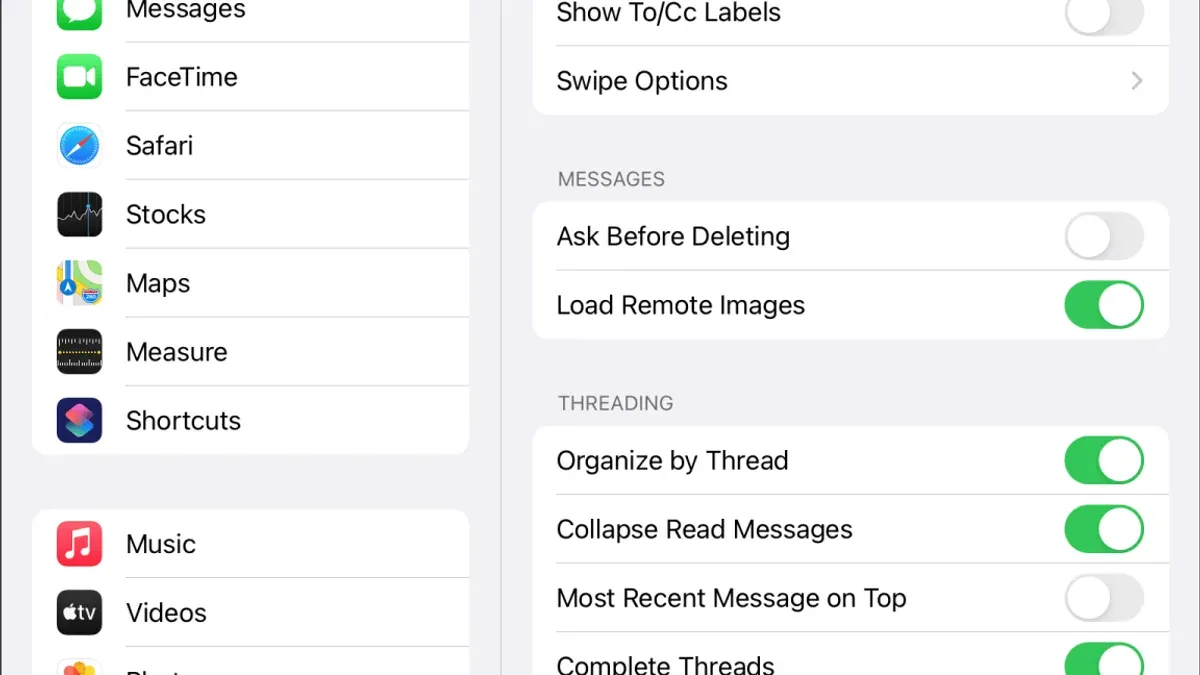
- Open the Settings app on your iPad. You should see a sidebar with categories on the left and details on the right if you are in landscape mode.
- Scroll down and tap Mail. This opens the Mail settings page where you manage accounts and options.
- Tap Accounts to view all email accounts currently configured on your iPad.
- Locate and select the Gmail account you want to remove. You will see details about the account's sync options and settings.
- Tap Delete Account at the bottom of the screen. A confirmation prompt will appear explaining that this will remove all mail and data associated with the account from your iPad.
- Confirm by tapping Delete from My iPad. The account and its emails will be removed immediately.
Note that on some iPadOS versions or if you are using an external keyboard, the layout may vary slightly, but the overall steps remain consistent. You may also want to verify that no other apps rely on this account, as removing it here could affect Mail, Calendar, and Contacts syncing.
This example focused on a Gmail account because it is a common choice and shows typical settings you’ll encounter, but the process is the same for other email providers configured through the Mail app.
Remove an email account from Apple Mail app on Mac
To remove an email account from the Mail app on your Mac, you start by opening the Mail app itself. From the menu bar at the top of your screen, click on Mail and then select Accounts. This opens the Internet Accounts pane within System Preferences, where all the email accounts linked to your Mail app are listed.
- Select the email account you want to remove from the list on the left side. Once selected, you will see the account details appear.
- Click the minus (–) button at the bottom of the accounts list. This action initiates the process of removing the account.
- A confirmation prompt will appear, explaining that removing the account will delete all associated mail and data stored locally on your Mac. Click OK or Remove to confirm.
- After confirmation, the account is removed from your Mail app and no longer syncs emails or other data.
Note that because macOS manages email accounts through Internet Accounts in System Preferences, removing an account here affects all apps that use this account, not just Mail. This differs from iOS devices, where you remove accounts directly within the Mail app settings.
When dealing with iCloud email accounts, the process is more restrictive. You cannot remove an iCloud email account from Mail without disabling iCloud entirely or signing out of your Apple ID on the Mac, which impacts other Apple services. Keep this in mind to avoid unintended consequences.
Remove an email account from Outlook app used on Apple devices
Removing an email account from the Outlook app on your iPhone or iPad differs from the Apple Mail app because Outlook manages accounts within its own settings, not through the device’s system settings. This distinction means that deleting an account in Outlook only affects that app and does not remove the account from your device entirely, unlike Apple Mail’s approach.
Here’s how you can remove an email account from the Outlook app on your iPhone or iPad:
- Open the Outlook app and tap your profile icon or the home button in the top-left corner. You will see a list of accounts currently added.
- Tap the gear icon at the bottom left to open Settings. Scroll down to find the list of your email accounts under the “Mail Accounts” section.
- Select the email account you want to remove. This opens the account settings specific to that email address.
- Scroll down and tap “Delete Account.” You will be prompted to confirm the action. Confirm to remove the account from Outlook.
- Once removed, you will no longer see emails from that account in Outlook, but the account remains active on your device and in other apps unless removed separately.
People often want to remove accounts from Outlook when they want to tidy up the app without affecting system-wide settings or other apps. This is especially useful if you use Outlook primarily for work or specific accounts and prefer to keep personal accounts in Apple Mail. Remember, removing an account from Outlook does not delete the actual email account or its data; it only stops syncing that account within the Outlook app.
In summary, Apple Mail account removal affects the entire device, while Outlook account removal is confined to the app itself. Understanding this difference helps you choose the right method based on your needs.
Troubleshoot when you can’t remove an email account
Sometimes, removing an email account from your Mail app doesn’t go as planned. One common reason is that the account is managed by a device profile or corporate policy, which can block removal to protect settings. To check for this, go to Settings > General > VPN & Device Management. If you see a profile related to your email account, you may need to remove it before the account can be deleted. Keep in mind that some corporate profiles require IT approval to remove.
If no profile is present or removal is still blocked, try restarting your device. A simple reboot often resolves temporary glitches that prevent account removal. After restarting, attempt to remove the account again and observe if the option is now available.
Outdated device software can also cause issues. Make sure your iPhone, iPad, or Mac is running the latest version of its operating system. Updating can fix bugs that interfere with account management.
Another issue users face is the account reappearing after removal. This usually happens when the account is linked to a corporate or school-managed profile that automatically reinstalls it. Confirm with your IT administrator if this applies to you or check for any active profiles again.
- Open Settings > General > VPN & Device Management. You should see a list of installed profiles. If you find one related to your email account, tap it and select Remove Profile. A successful removal means the profile disappears from the list.
- Restart your device by holding the power button and following the on-screen instructions. When your device powers back on, unlock it and navigate to the Mail app to try removing the account again. You should now see the option to delete the account.
- Check for software updates by going to Settings > General > Software Update. If an update is available, proceed to download and install it. After updating, retry removing the email account.
- If the account reappears after removal, revisit VPN & Device Management to ensure no profiles automatically reinstall it. If profiles persist, contact your IT support for assistance.
Check and clean up after removing an email account
After removing an email account from your Mail app, it’s important to confirm that the account is fully gone and that no related data remains unintentionally synced or stored on your device. This step helps prevent confusion caused by leftover mailboxes, calendars, contacts, or notes that may still appear after removal.

- Open the Mail app and look through the mailboxes list. You should not see the removed account or any folders associated with it. If you do, this indicates the account is still partially present and may need to be removed manually.
- Go to your device’s Settings, then navigate to Passwords & Accounts (or Mail > Accounts on iOS and iPadOS). Confirm that the removed account no longer appears here. Presence in Settings means the account wasn't fully deleted.
- Check the Calendar and Contacts apps. Sometimes, calendar events and contacts synced from the removed account remain visible. In Calendar, tap Calendars at the bottom and verify that no calendars from the removed account are checked. Similarly, in Contacts, check if contact groups linked to the removed account are still active and deselect or delete them if needed.
- If you notice leftover mailboxes or folders in the Mail app belonging to the removed account, try swiping left on the mailbox name and tapping Delete to remove it manually.
- Restart your device after completing these checks. Restarting helps clear cached data and ensures all changes take full effect across apps.
For example, some users find that calendar events from a removed corporate account persist because the calendar was not deselected in the Calendars list. Manually unchecking those calendars resolves the issue. Similarly, contacts synced from an account might remain visible until their group is disabled in Contacts settings.
Following these steps ensures that your device is clean of any data tied to the removed email account, preventing accidental data overlap or confusion in daily use.
When not to remove an email account from Mail app
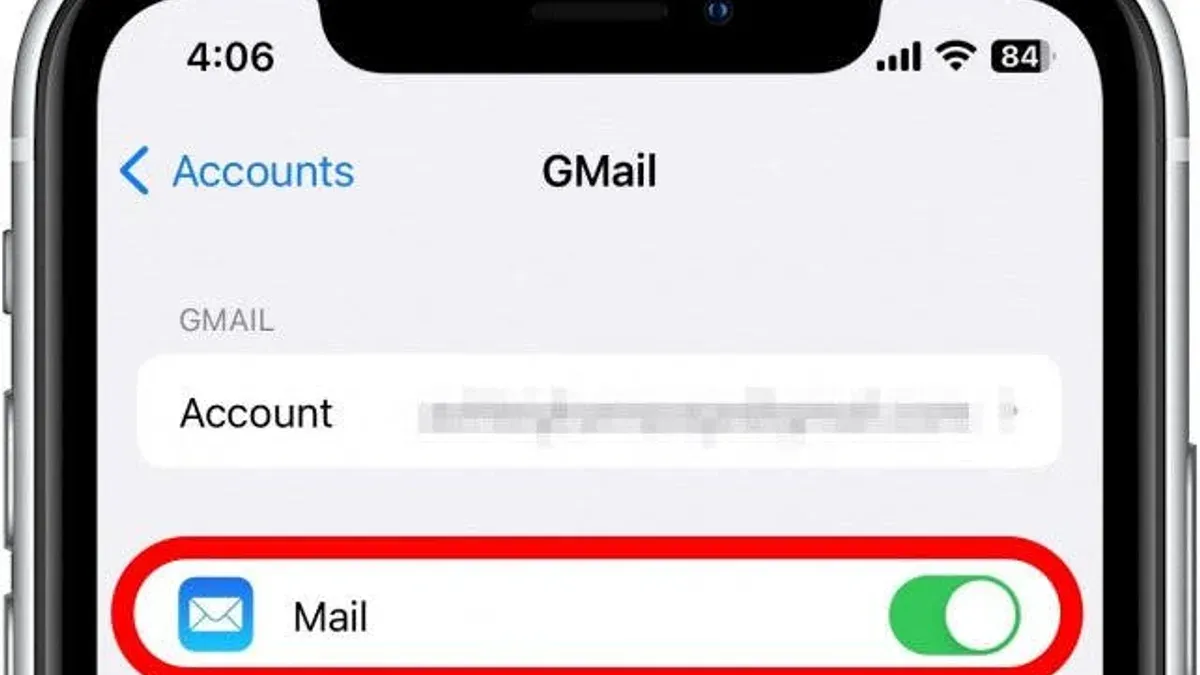
Before removing an email account, consider whether it’s truly necessary. If your goal is to stop receiving mail temporarily, disabling Mail sync is a safer option. On iPhone or iPad, go to Settings > Mail > Accounts, select the account, then toggle off Mail. This keeps your account intact for other uses while stopping new emails from appearing in Mail.
Accounts managed by your workplace or school often come with device profiles that control access to multiple services, not just email. Removing such an account can disrupt calendar sync, contacts, VPN access, or Wi-Fi configurations. If you rely on these services, consult your IT administrator before removal to avoid unintended loss of access.
Removing your primary iCloud account from an Apple device is a major step that can affect more than Mail. It impacts your device’s backup, Find My iPhone, app purchases, and more. Only remove your iCloud account if you are prepared to set up a new account or fully reset your device. Otherwise, consider managing specific iCloud services individually.
In summary, avoid removing an account when temporary disabling or adjusting settings can achieve your goal with less risk. Be especially cautious with managed accounts and your main iCloud login to prevent service interruptions.
Frequently asked questions
How to remove email account from apple mail?
To remove an email account from Apple Mail on a Mac, open the Mail app, go to Mail > Accounts in the menu bar, select the account you want to remove from the sidebar, then click the minus (–) button below the list. Confirm you want to delete the account, which removes it from Mail and other apps using that account on your Mac.
How to remove an email account in apple mail?
Removing an email account in Apple Mail involves accessing your device’s settings. On iPhone or iPad, go to Settings > Mail > Accounts, select the account, and tap Delete Account. On a Mac, remove it via Mail > Accounts preferences by selecting the account and clicking the minus (–) button.
How to delete an email account in mail app?
Deleting an email account in the Mail app depends on your device. On iPhone or iPad, open Settings, go to Mail > Accounts, select the account, and tap Delete Account. On Mac, open Mail, go to Mail > Accounts, choose the account, and click the minus (–) button to delete it.
How to delete an email account in apple mail?
On Apple Mail for Mac, delete an email account by opening the Mail app, then navigating to Mail > Accounts. Select the account you want to delete from the list, click the minus (–) button at the bottom, and confirm the deletion. This removes the account and its messages from the app.
How to remove an email address in apple mail?
To remove an email address from Apple Mail, you need to delete the corresponding email account. On iPhone or iPad, go to Settings > Mail > Accounts, tap the account with that email address, then Delete Account. On Mac, open Mail > Accounts, select the account, then click the minus (–) button to remove it.
What This Guide Does Not Cover
This guide focuses specifically on removing email accounts from the Apple Mail app on iPhone, iPad, and Mac, as well as the Outlook app used on Apple devices. It does not cover how to remove email accounts from other third-party email clients, such as Gmail or Spark. Additionally, this article does not address deleting email accounts at the server level with your email provider, which often requires logging into your email service’s website or contacting your provider’s support.
If you need to fully close or delete your email address, or remove accounts from other apps, you should consult the specific service’s instructions or support resources. Also, if you are managing corporate or school accounts, check with your IT administrator before making changes that might affect access or data.
The single most useful next step is to review your Mail app’s account list after removal to confirm the account no longer appears and to ensure your important emails remain accessible. This quick check helps you avoid surprises and keeps your email setup tidy and secure.
See also: How to Fix Mail Not Syncing in Mail App: Step-by-Step Solutions · How to Rebuild Your Mailbox in Mail App: Step-by-Step Guide · How to Block a Sender in the Mail App: Clear Steps for Apple Users