How to Merge PDFs Using a Shortcut in the Shortcuts App
Discover how to merge multiple PDFs efficiently using a custom shortcut in the Shortcuts app on your iPhone or iPad.
You often receive multiple PDFs for a project or report and find yourself manually combining them, which can be time-consuming. Instead of using a separate app or transferring files to a computer, you can streamline this process right on your iPhone or iPad.
This article covers how to merge PDFs with a shortcut in Shortcuts app, guiding you through building a fully customized, efficient PDF merging shortcut from scratch. You'll learn practical steps to set up the shortcut, organize your files for smooth operation, and troubleshoot common issues that generic instructions might overlook.
Key takeaways
- Prepare your PDFs in accessible locations like the Files app or iCloud Drive for easy selection during the shortcut.
- Create a shortcut using actions like "Select Multiple Files" and "Combine PDFs" to merge documents efficiently.
- Test the shortcut thoroughly to ensure it merges files in the desired order and format.
- Customize your shortcut by adding options like renaming the output file or sharing it directly.
- Address common issues such as file compatibility or permission errors by adjusting shortcut settings or file locations.
Before You Start: What You Need to Merge PDFs with Shortcuts
To merge PDFs using the Shortcuts app on your iPhone or iPad, you first need to ensure the app is installed and updated to the latest version available on the App Store. The Shortcuts app is Apple's built-in automation tool, and having it up to date guarantees access to the newest features and smoother performance.
Next, make sure the PDFs you want to merge are saved locally on your device or accessible through the Files app. This means your documents should be stored in locations like iCloud Drive, On My iPhone/iPad, or other connected cloud services visible in the Files app. The Shortcuts app can only access files available through these means.
This method merges multiple PDFs into a single document without requiring any third-party applications. However, keep in mind there are practical limits: very large PDFs or a very high number of files might slow down the process or cause timeout errors. Typically, merging a handful of PDFs under 50 MB each works smoothly.
Finally, having a basic understanding of navigating the Shortcuts app and adding standard actions will help you follow the creation steps more easily. Familiarize yourself with the app’s interface, including how to search for and add actions, and how to run a shortcut.
Get PDFs Ready: Organize Your Files for Easy Access
To merge PDFs efficiently using the Shortcuts app, start by gathering all the files you want to combine. Open the Files app and navigate to locations where your PDFs are stored, such as iCloud Drive, On My iPhone, or shared folders from other apps integrated with Shortcuts. This helps you quickly find and select the right documents during the merging process.
Next, create a dedicated folder to keep your PDFs organized. Tap the Browse tab in Files, then tap the More button (three dots) and choose New Folder. Name it something clear like “PDFs to Merge.” Moving all relevant PDFs into this folder simplifies selecting files and prevents mixing them with unrelated documents.
Before merging, preview each PDF to confirm it’s the correct file. Tap a PDF to open it and scroll through to check the content. This step avoids merging incorrect or incomplete documents. Consistent file names also help; use descriptive titles like “Invoice_September” or “ProjectReport_Final” to easily identify files at a glance and maintain order in the merged output.
- Open the Files app and navigate to the location of your PDFs.
You should see the list of PDF files available. - Tap the More button (three dots) in the upper-right corner and select New Folder.
A new folder appears, ready to be named. - Name the folder (e.g., “PDFs to Merge”) and tap Done.
The folder is created and visible in your current location. - Move the PDFs you want to merge into this folder by tapping Select, choosing files, then tapping Move.
Selected PDFs appear inside your new folder. - Tap each PDF to preview and verify its content.
The PDF opens for review, confirming it’s correct.
Organizing your PDFs this way ensures a streamlined, error-free merging process in the Shortcuts app.
Create the Shortcut: Step-by-Step to Merge PDFs
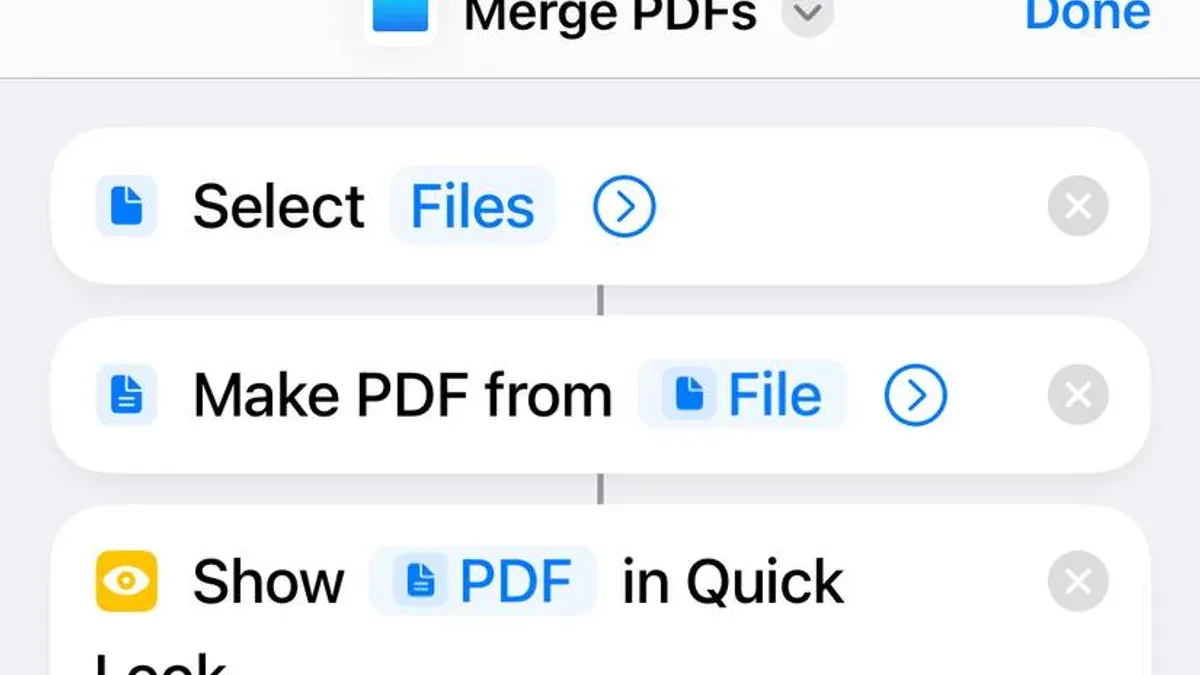
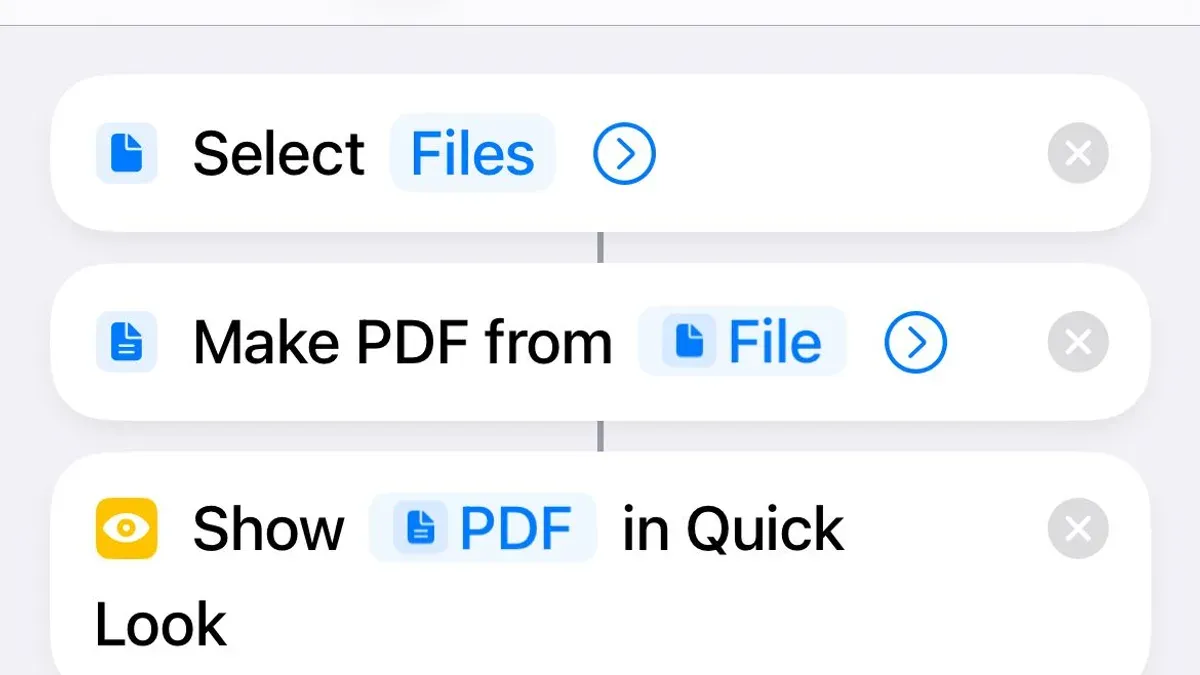
- Create a new shortcut: Open the Shortcuts app, tap the plus icon (+) to start a new shortcut, and name it clearly, for example, “Merge PDFs.” This helps you find it easily later.
- Add the Select Files action: Tap “Add Action,” search for “Select Files,” and add it. Configure it to allow selecting multiple files by enabling “Select Multiple.” Set the file type filter to PDFs to avoid selecting other file types. This action lets you pick the PDFs you want to merge each time you run the shortcut.
- Add the Combine PDFs action: Search for “Combine PDFs” and add it below the Select Files action. This action merges the PDFs you picked into a single document. Make sure it is set to combine all input files in order, preserving your selection sequence.
- Add the Save File action: Find and add “Save File.” Set the destination folder to where you want the merged PDF saved, such as iCloud Drive or On My iPhone, and enable “Ask Where to Save” if you prefer choosing the location each time. This ensures your merged PDF is stored accessibly.
- Optional: Add Rename File and Show Result actions: To rename the merged PDF, add “Rename File” before saving, and specify a name or prompt for input. Add “Quick Look” or “Show Result” after saving to preview the merged PDF immediately.
- Review and test the shortcut: Check that each action is connected in order and correctly configured. When you run the shortcut, it should prompt you to select multiple PDFs, merge them, save the file, and optionally display the result.
Each action’s settings are important to guide the shortcut’s behavior: selecting multiple PDFs avoids running the shortcut multiple times, combining preserves the order, and saving with user choice keeps file management flexible. Adding rename or preview steps streamlines your workflow without needing extra apps.
Run and Test the Shortcut: Verify It Works as Expected
Once your shortcut is built, it’s time to run it and ensure it merges PDFs correctly. You can launch the shortcut directly from the Shortcuts app by tapping its icon, or from a widget if you’ve added it to your Home Screen or Today View. Running the shortcut will prompt you to select multiple PDFs, so pick three sample files you know well to test the process.
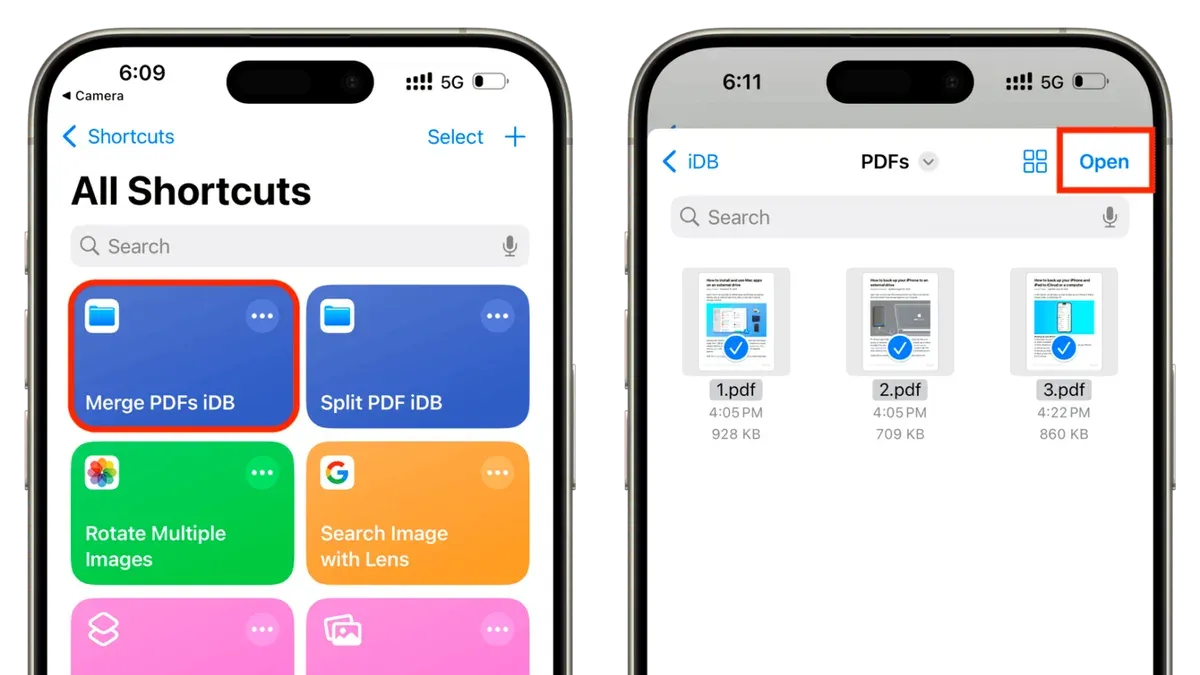
- Open the Shortcuts app and tap your PDF merging shortcut. You should see a document picker allowing multiple selections.
- Select three different PDFs from your organized folder, then tap Done or Open. The shortcut will process these files.
- After the shortcut finishes, it will save the merged PDF to the chosen location and usually display a preview. Open this final document to check the order of pages and completeness.
- Confirm all pages from the three PDFs appear in sequence without missing content or formatting issues.
- If the merged PDF is missing or incomplete, revisit your shortcut steps to verify the 'Combine PDFs' action is correctly configured and that all input files are accessible.
Testing with three known PDFs helps you catch common issues early, ensuring your shortcut reliably merges files as expected before using it on important documents.
Customize Your Shortcut: Add Features to Fit Your Workflow
Once you have the basic PDF merging shortcut, enhancing it with added features transforms it from a simple tool to a workflow powerhouse. Start by inserting a "Ask for Input" action after merging the PDFs to prompt you to name the merged file each time. This lets you keep your files organized without editing after saving. Similarly, adding an "Ask Where to Save" action gives you flexibility to choose a destination folder at runtime instead of a fixed location.
To streamline sharing, integrate actions like "Send Email", "Send Message", or "AirDrop" right after saving. For example, adding a "Send Email" action configured to attach the merged PDF lets you share documents immediately without leaving Shortcuts.
Set your shortcut to run from the Share Sheet by enabling it in the shortcut’s settings under Details > Show in Share Sheet. This allows quick access from any app that can share PDFs.
Finally, include error handling by adding an "If" action at the beginning to check if any files were selected. If none, display an alert using "Show Notification" or "Quick Look" to remind you to select files before proceeding. This prevents confusion caused by running the shortcut without input.
- Add an "Ask for Input" action after merging to prompt for a file name; you should see a text input prompt when you run the shortcut.
- Insert an "Ask Where to Save" action before saving; the shortcut should then let you pick the folder each time.
- After saving, add a "Send Email" action with the merged PDF attached; running the shortcut should open an email draft automatically.
- In shortcut settings, enable "Show in Share Sheet"; the shortcut appears as an option when sharing PDFs from other apps.
- At the start, add an "If" action checking Count of input files is 0; if true, add "Show Notification" to alert you no files were selected, preventing the shortcut from continuing.
Compared to the basic workflow, these enhancements make your shortcut adaptable and user-friendly, aligning with how you prefer to manage, save, and share your merged PDFs.
Troubleshoot Common Problems When Merging PDFs
If your shortcut doesn’t run or crashes unexpectedly, first check that the Shortcuts app is updated to the latest version. Restarting your device can also clear temporary glitches. If you encounter a "Missing Combine PDFs action" error, ensure you have added the correct “Combine PDFs” action from the Actions library; sometimes it may be under “Documents” or “Files.” For "Unsupported file format" messages, confirm all selected files are valid PDFs and not corrupted or encrypted.
Merged PDFs losing quality or showing page order issues often result from incorrect action settings. Verify that the “Combine PDFs” action’s “Sort by” option matches your desired order, and avoid converting PDFs to images during the process to maintain clarity. If pages appear out of sequence, insert a “Sort Files” action before combining.
Failures related to file permissions or iCloud syncing typically display messages like "Access Denied" or "File Not Found." To fix this, make sure your PDFs are fully downloaded locally and accessible to the Shortcuts app. In the Files app, tap the cloud icon beside each file to download it offline. Also, check your device’s Privacy settings under Settings > Shortcuts to allow access to Files.
- Open the Shortcuts app and run your merging shortcut.
You should see progress without errors; if it crashes, proceed to step 2. - Check the shortcut’s actions to confirm “Combine PDFs” is present and configured.
If missing, add it from the Actions menu under Documents. - Ensure all input files are PDFs and locally stored, not just in iCloud.
Download any cloud-only files by tapping their icons in the Files app. - Adjust the “Sort Files” action before combining to fix page order.
Test the shortcut again to confirm correct sequence. - If quality is poor, verify no image conversion actions are included.
Remove any “Convert” actions that change PDFs to images.
Frequently asked questions
Can I merge PDFs directly from email attachments using this shortcut?
Yes, you can merge PDFs from email attachments, but you need to save the attachments to the Files app first. The shortcut works with PDFs stored in your device’s file system, so downloading and organizing your attachments in a folder accessible by Shortcuts is necessary before merging.
What is the maximum number or size of PDFs I can merge at once?
There is no fixed maximum number or size set by Shortcuts itself, but practical limits depend on your device’s available memory and processing power. Merging a large number of PDFs or very large files may slow down the process or cause the shortcut to fail, so test with smaller batches if you encounter issues.
Can this shortcut reorder pages within the merged PDF?
The basic merge shortcut combines PDFs in the order you select them, but it does not offer built-in page reordering features. To reorder pages, you would need to manually rearrange the PDFs before merging or use a dedicated PDF editing app after creating the merged file.
Is it possible to password-protect the merged PDF using Shortcuts?
Shortcuts does not support adding password protection directly to PDFs during the merge process. To secure your merged PDF with a password, you will need to use a third-party app designed for PDF encryption after running the shortcut.
What This Guide Does Not Cover
This guide does not cover merging PDFs that include complex annotations, interactive form fields, or advanced security settings. The Shortcuts app merges PDF pages as static content only, meaning any fillable forms, embedded multimedia, or dynamic elements will be flattened and lose their interactivity. If your workflow requires preserving these features, specialized PDF editing software like Adobe Acrobat or dedicated form management apps will be more suitable. Additionally, this method is best for straightforward merging tasks rather than large-scale batch processing or highly customized document workflows.
To continue building your efficiency with the Shortcuts app, focus on testing the shortcut you created with different PDF combinations to ensure it fits your typical use cases. The single most useful next step is to experiment with adding filters or prompts within the shortcut, such as asking which PDFs to merge each time you run it, or automatically naming the output file based on the date or source folder. This hands-on refinement will help you tailor the shortcut to your specific needs and save time every time you merge PDFs on your device.
See also: How to Create Your First Shortcut in the Shortcuts App: A Step-by-Step Guide · How to Batch Resize Images in the Shortcuts App: A Step-by-Step Guide · How to Compress a PDF in Preview: Step-by-Step Guide · How to Crop an Image Easily Using Preview on Mac