How to Reset Preferences in Photoshop on Mac: A Clear Step-by-Step Guide
Discover simple methods to reset preferences in Photoshop on Mac and resolve common issues for a better editing experience.
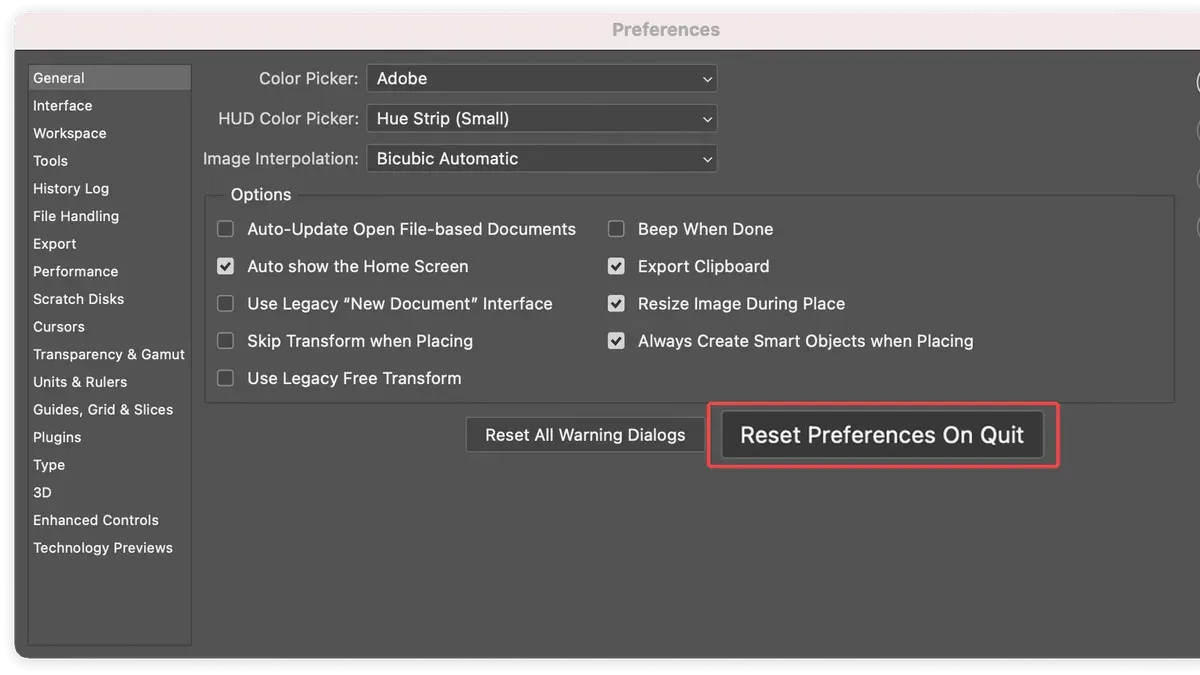
When Photoshop on your Mac starts behaving unpredictably, or if you've customized settings that no longer suit your workflow, resetting preferences can often resolve the issue. Whether tools aren’t responding as expected or you want to return to a clean slate, knowing how to reset preferences in Photoshop on Mac is essential for smooth operation.
This article guides you through multiple methods tailored specifically for Mac users, including using keyboard shortcuts and manually deleting preference files. You’ll also learn how to adjust settings without resetting everything, reset preferences for Adobe Pro and other Adobe apps, and troubleshoot common problems when resetting doesn’t work as intended.
Key takeaways
- Use the Option+Command+Shift shortcut immediately after launching Photoshop to reset preferences quickly.
- Manually delete the Photoshop preferences file located in ~/Library/Preferences/ for a thorough reset.
- Adjust individual preferences via Photoshop’s Preferences menu to avoid resetting all settings.
- Resetting preferences in Adobe Pro and other Adobe apps follows similar Mac-based steps.
- Confirm a successful reset by checking default tool settings and workspace layout.
Before you start: What you need to know about Photoshop preferences on Mac
Photoshop preferences on Mac control various aspects of your user experience, including workspace layouts, tool settings, file handling, and performance options. These preferences tailor Photoshop to your workflow, affecting everything from how documents open to the behavior of specific tools.
Resetting preferences restores all settings to their original defaults, which can resolve issues like unexpected crashes, unresponsive tools, or unusual interface behavior. However, this also removes any custom presets, keyboard shortcuts, or workspace configurations you have set up.
Before resetting, it is essential to back up important presets and settings. You can export custom brushes, actions, and workspace layouts via the respective panels to avoid losing valuable configurations.
Mac users should consider software version compatibility since preference files may differ between Photoshop versions. Resetting preferences intended for one version might cause issues if applied incorrectly to another.
Common problems resolved by resetting preferences include disappearing panels, slow performance, or persistent error messages. After a reset, you should notice a more stable and predictable Photoshop environment, but expect to reconfigure your custom settings.
- Locate and export any custom presets you want to keep (brushes, actions, etc.) via the relevant Photoshop panels. You should have files saved externally.
- Ensure Photoshop is fully closed before attempting to reset preferences; quitting the app prevents conflicts.
- Verify your Photoshop version by selecting Photoshop > About Photoshop to confirm compatibility with reset methods.
How to reset preferences in Photoshop on Mac using keyboard shortcut
The quickest way to reset your Photoshop preferences on a Mac is by using a specific keyboard shortcut immediately after launching the application. This method safely restores default settings without needing to manually locate preference files.
- Quit Photoshop completely if it is open.
- Press and hold the Option + Command + Shift keys simultaneously.
- While holding these keys, launch Photoshop by clicking its icon or opening it from the Applications folder.
- A confirmation dialog will appear asking if you want to delete the Adobe Photoshop settings file. This prompt usually reads: "Delete the Adobe Photoshop Settings file?" with options to confirm or cancel.
- Click Yes or OK to confirm the reset.
- Photoshop will open with all preferences restored to their factory defaults.
During this process, Photoshop removes preference files including workspace layouts, tool presets, and custom settings, reverting them to original states. This can solve issues caused by corrupted preferences or unwanted configuration changes.
Note that the appearance of the confirmation dialog and exact key combination may vary slightly between major Photoshop versions on Mac, but Option + Command + Shift remains the standard shortcut. If the prompt does not appear, ensure you are holding the keys immediately upon launch and that Photoshop is fully closed beforehand.
While exact success rates are not publicly documented, this shortcut method is widely recommended by Adobe and Mac users as the most reliable and straightforward preference reset approach.
How to reset Photoshop preferences manually by deleting preference files
If the keyboard shortcut method does not work or you prefer manual control, you can reset Photoshop preferences by deleting the preference files directly. This forces Photoshop to recreate default settings on launch.
- Close Photoshop completely to avoid conflicts. You should not see Photoshop running in the Dock or Activity Monitor.
- Open Finder and navigate to the preferences folder. For Creative Cloud versions, go to ~/Library/Preferences/Adobe Photoshop [version] Settings/. For standalone versions, look in ~/Library/Preferences/Adobe Photoshop [version] Settings/ or ~/Library/Preferences/Adobe Photoshop [version] 64 Settings/. Replace [version] with your installed Photoshop version, such as "2024" or "2023".
- Locate the file named Adobe Photoshop Prefs.psp or similar preference files within this folder. These files store all your customized Photoshop settings.
- Delete or rename these preference files (for example, add ".backup" to the filename). Renaming keeps a backup in case you want to restore your preferences later.
- Launch Photoshop again. It will recreate default preference files automatically, resetting all settings to factory defaults.
Note that the exact file names and locations may vary slightly depending on your Photoshop version and installation type. If you have multiple versions installed, make sure to target the correct preferences folder. This manual method offers precise control and can resolve issues that the shortcut reset might miss.
Using Finder's "Go to Folder" option (Shift+Command+G) and entering the exact path can speed up navigation. Screenshots of Finder showing the preferences folder and selected files can help confirm you are deleting the correct items.
How to change preferences in Photoshop on Mac without resetting everything
If you want to adjust specific Photoshop settings without resetting all preferences, you can access and modify individual options through the Preferences window. This method lets you tailor Photoshop’s behavior to your needs without losing all your customizations.
- Open Photoshop on your Mac.
- From the top menu bar, click Photoshop and then select Preferences. A submenu will appear showing different preference categories.
- Choose the category you want to adjust. Common ones include Performance (to manage memory and cache levels), Interface (to customize UI appearance), and File Handling (to set save options and compatibility).
- In the Preferences window, make your desired changes. For example, under Performance, you might increase available RAM or adjust History States; under Interface, you can change UI font size or color theme.
- Click OK to apply changes. Most settings take effect immediately; some may require restarting Photoshop for changes to fully activate.
Modifying preferences individually is safer than a full reset if you know which setting causes an issue or want to optimize Photoshop for specific tasks. However, if problems persist after adjustments, consider a full reset as a last resort.
Here are examples of common preference changes:
- Increasing History States from 20 to 50 to allow more undos.
- Changing the UI color theme from Default to Dark to reduce eye strain.
- Adjusting Cache Levels to improve performance with large files.
Using the Preferences window gives you granular control over Photoshop’s functionality on your Mac without wiping out all your custom setups.
How to reset Photoshop settings on Mac for Adobe Pro and other Adobe apps
Resetting preferences in Adobe Photoshop Pro on Mac follows the same process as standard Photoshop versions, using either shortcuts or manual file deletion. There is no difference in the preference reset scope between Photoshop and Photoshop Pro; both restore the application to its default state without affecting your Adobe Creative Cloud account or other apps.
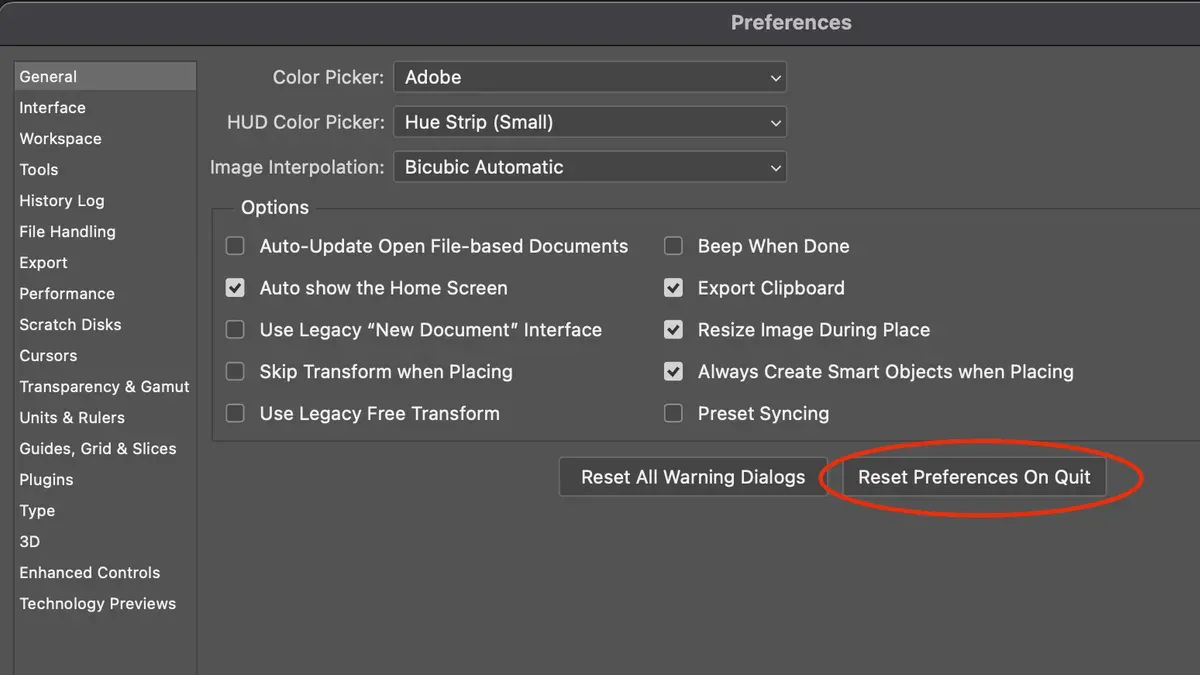
Other Adobe Creative Cloud apps like Illustrator, InDesign, and Premiere Pro have their own preference files and reset procedures that differ from Photoshop. Unlike Photoshop's universal shortcut for resetting preferences, many Adobe apps require manual deletion of preference files or resetting via app-specific commands.
For example, Illustrator preferences on Mac are reset by quitting the app and deleting the com.adobe.illustrator.plist file located in ~/Library/Preferences/. This action removes all user customizations and restores default settings, similar to Photoshop but without a keyboard shortcut prompt.
| App | Reset Method | Preference File Location | Shortcut Available |
|---|---|---|---|
| Photoshop / Photoshop Pro | Option+Command+Shift at launch or manual deletion | ~/Library/Preferences/Adobe Photoshop [version] Settings | Yes |
| Illustrator | Manual deletion of com.adobe.illustrator.plist |
~/Library/Preferences/ | No |
| InDesign | Manual deletion of preference folders | ~/Library/Preferences/Adobe InDesign/ | No |
| Premiere Pro | Delete preferences folder or reset via app menu | ~/Library/Application Support/Adobe/Premiere Pro/ | No |
Steps to reset Photoshop Pro preferences on Mac:
- Close Photoshop Pro if it is running.
- Press and hold Option+Command+Shift keys, then launch Photoshop Pro.
- When prompted, confirm you want to delete the Adobe Photoshop settings file.
- Photoshop Pro will open with default settings, indicating successful reset.
Steps to reset Illustrator preferences on Mac:
- Quit Illustrator completely.
- In Finder, go to
~/Library/Preferences/. - Locate and delete the
com.adobe.illustrator.plistfile. - Restart Illustrator; preferences will be reset to default.
Understanding these differences ensures you reset preferences safely and effectively across Adobe apps on your Mac.
Common troubleshooting when resetting Photoshop preferences on Mac fails
If Photoshop does not launch or hangs after attempting to reset preferences, this often indicates corrupted preference files that did not clear properly. Closing Photoshop completely and deleting preference files manually can help resolve this issue.
When preference files cannot be deleted due to permissions errors, you may see messages like "Operation not permitted" or "Permission denied". To fix this, open Terminal and use the command sudo rm -rf ~/Library/Preferences/Adobe Photoshop* to remove the files with elevated permissions. You should be prompted for your Mac password, and upon success, the files will be deleted allowing Photoshop to recreate clean defaults.
If the reset shortcut (Option+Command+Shift) does not trigger the confirmation prompt or reset, ensure you are pressing all keys immediately upon launching Photoshop and that no other startup dialogs interfere. If the shortcut still fails, manual deletion of preference files is the reliable alternative.
Persistent issues after reset attempts often stem from corrupted preference files or conflicting plugins. Disabling third-party plugins by moving them out of the Photoshop Plug-ins folder temporarily can help isolate the cause.
If all else fails, reinstalling Photoshop can restore a clean state. Uninstall Photoshop using the Adobe Creative Cloud app, restart your Mac, then reinstall. This step typically resolves deep preference corruption or installation issues.
- Quit Photoshop completely.
- Open Terminal and enter: sudo rm -rf ~/Library/Preferences/Adobe Photoshop*. You should see no error messages after entering your password.
- Restart your Mac to ensure all caches clear.
- Launch Photoshop and verify it starts without hanging or error messages.
- If problems persist, move third-party plugins out of /Applications/Adobe Photoshop/Plug-ins and try again.
- As a last resort, uninstall and reinstall Photoshop via Adobe Creative Cloud.
How to confirm that Photoshop preferences have been reset on your Mac
After resetting Photoshop preferences on your Mac, verifying the success of the reset ensures that default settings are restored and any issues caused by corrupted preferences are resolved. Here is how you can confirm the reset:
- Launch Photoshop and observe the interface. You should see the default workspace layout and tool settings, such as the standard toolbar arrangement and default color profiles. If custom workspaces or panels are missing, this confirms the reset took effect.
- Open the Preferences window by navigating to Photoshop > Preferences > General. Check that settings like Interface Brightness, History States, and Scratch Disks are set to their original defaults (for example, History States usually defaults to 20).
- Locate the preference files on your Mac by going to
~/Library/Preferences/Adobe Photoshop [version] Settings/. Right-click the main preference file (such asAdobe Photoshop Prefs.psp) and select Get Info. Confirm that the file modification timestamp is recent, matching when you performed the reset. This indicates Photoshop recreated the preference file with default data. - If you backed up any presets, brushes, or custom settings before resetting, now is the time to restore them by importing or copying them back into Photoshop’s Presets folder or using the Import Presets feature.
- If the interface still shows your previous customizations, or if Photoshop behaves unexpectedly, the reset may be incomplete. In this case, close Photoshop and repeat the reset process manually or via the shortcut. Also, verify you have proper file permissions in the Preferences folder.
Before-and-after screenshots comparing the workspace layout and Preferences settings can provide visual confirmation of the reset. Checking timestamps on preference files helps ensure the reset action triggered a new preferences file creation.
- How to Use Generative Fill in Photoshop on Mac: A Step-by-Step Guide
- How to Fix Photoshop Scratch Disk Full on Mac: Step-by-Step Guide
- How to Reset Fonts to Default in Font Book and Related Apps
Frequently asked questions
How to reset preferences in adobe photoshop?
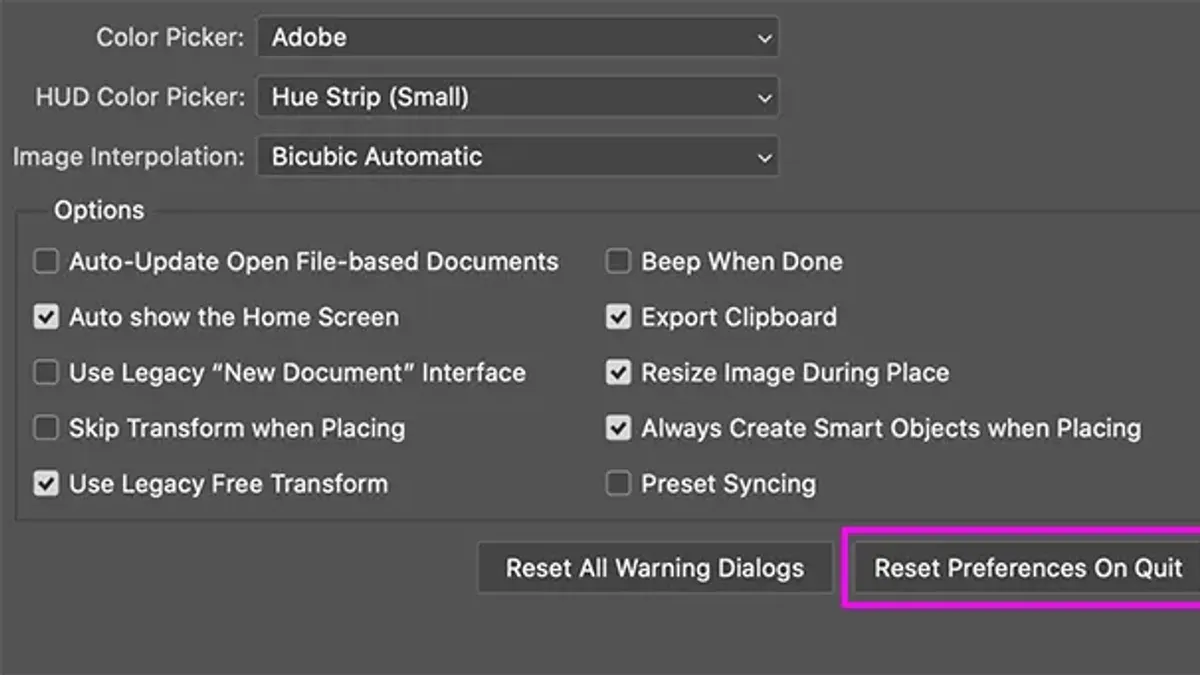
To reset preferences in Adobe Photoshop on a Mac, hold down Command + Option + Shift immediately after launching the app. Confirm the prompt asking if you want to delete the Adobe Photoshop settings file. This clears all custom preferences and restores default settings without affecting your documents.
How to reset preferences in adobe pro?
Resetting preferences in Adobe Acrobat Pro on a Mac involves closing the application, then manually deleting the preference files located in the Library folder under ~/Library/Preferences/com.adobe.Acrobat.Pro.plist. Restart the app to generate fresh default preferences. Note this process varies slightly from Photoshop’s shortcut method.
How to reset preferences in adobe?
Resetting preferences across Adobe apps usually requires different steps. Most Adobe Creative Cloud apps store preferences in the user Library folder or within app-specific folders. Either use built-in shortcuts if available or delete preference files manually to restore defaults. Always back up files before deleting preferences.
How to get to preferences in photoshop?
On a Mac, access Photoshop preferences by going to the menu bar and selecting Photoshop > Preferences. From there, choose any specific category such as General, Performance, or Interface. Shortcut Command + K opens the Preferences dialog directly.
How to set preferences in photoshop?
Within Photoshop preferences, you can adjust settings like Memory Usage under Performance, or Interface color themes under Interface. After opening Preferences (Command + K), navigate to the desired section, make changes, and click OK to apply. Customizing preferences helps optimize Photoshop for your workflow.
What this advice does not cover and who should consider other options
Resetting Photoshop preferences on your Mac removes customized settings, cached data, and temporarily stored information but does not affect saved projects, external files, or system-wide configurations. If you rely heavily on specific workspaces, brushes, or keyboard shortcuts, back these up via Edit > Presets > Export/Import Presets before proceeding. Users experiencing persistent crashes or installation errors may need to consider reinstalling Photoshop or contacting Adobe Support for advanced troubleshooting.
If you manage multiple Adobe apps or use Adobe Pro, resetting preferences in Photoshop alone won’t resolve issues originating from other software or system-level conflicts.
For the most reliable next step, verify that your preferences reset has succeeded by checking default settings such as interface layout, color settings, and tool presets immediately after launch. This quick confirmation helps ensure your troubleshooting efforts are on track before you resume working.