How to Run a Shortcut from the Menu Bar in the Shortcuts App
Discover how to run a shortcut from the menu bar in Shortcuts app for faster access and streamlined workflow on your Mac.
You have a set of shortcuts on your Mac that you use regularly, but opening the Shortcuts app each time feels cumbersome. It would be much faster if you could run these shortcuts directly from your menu bar, saving you time and clicks.
This article explains how to run a shortcut from the menu bar in Shortcuts app, guiding you step-by-step through adding shortcuts to the menu bar, customizing them for easy recognition, and managing them effectively. You'll also learn how to troubleshoot common issues and remove or rearrange shortcuts to keep your workflow smooth and organized.
Key takeaways
- Access System Settings > Control Center to enable the Shortcuts menu bar icon.
- Add individual shortcuts to the menu bar by enabling "Pin in Menu Bar" from each shortcut’s settings.
- Customize shortcut names and icons within the Shortcuts app for quick identification.
- Run shortcuts directly from the menu bar without opening the full Shortcuts app.
- If a shortcut doesn’t appear, check its permissions and whether the Shortcuts menu bar icon is active.
Before You Start: What You Need to Run Shortcuts from the Menu Bar
Before adding shortcuts to your Mac's menu bar, ensure your system supports this feature. Menu bar shortcuts require macOS Monterey or later, as earlier versions do not support running shortcuts directly from the menu bar. Make sure the Shortcuts app is installed and updated to the latest version available for your macOS.
You should have at least one shortcut created or imported in the Shortcuts app that you want to run quickly. Basic familiarity with the Shortcuts interface will help, especially understanding how shortcuts are named and organized, so you can easily identify them in the menu bar.
Note that not all shortcuts can be added to the menu bar. Shortcuts that require specific input or produce output incompatible with quick execution may not appear as options. For example, shortcuts that prompt for text input or files might not be suitable to run directly from the menu bar without additional setup.
- Check your macOS version by clicking the Apple menu and selecting About This Mac. You should see Monterey or later listed.
Success means your Mac supports menu bar shortcuts. - Open the Shortcuts app and confirm it launches without errors.
Seeing your shortcuts list means the app is ready. - Verify you have at least one shortcut created or imported that you want quick access to.
Shortcuts with simple actions like opening apps or running scripts work best for the menu bar. - Review the shortcuts’ input and output settings by selecting a shortcut and clicking the information button (i).
Shortcuts requiring no input or that run independently are suitable for the menu bar.
Add a Shortcut to the Menu Bar Using the Shortcuts App
- Open the Shortcuts app on your Mac and locate the shortcut you want to add to the menu bar. You can find your shortcuts in the My Shortcuts tab.
- Right-click or hold the Control key while clicking the desired shortcut. A context menu will appear with several options related to that shortcut.
- From the context menu, select "Pin in Menu Bar." This action immediately places the shortcut's icon into the macOS menu bar at the top of your screen.
- Look at the menu bar to verify the shortcut icon appears. It will match the shortcut's icon and can be clicked directly to run the shortcut without opening the Shortcuts app.
- To run the shortcut from the menu bar, simply click its icon. The shortcut will execute its actions immediately, providing quick access for your daily workflow.
This process adds the shortcut icon to the menu bar, allowing you to run it with a single click. If you do not see the icon after pinning, check whether the shortcut is compatible with menu bar use or if another menu bar item is crowding the space.
Customize Shortcut Icons and Names for Easy Identification
Before pinning shortcuts to the menu bar, give each a clear and concise name. This helps you quickly recognize their purpose without confusion. Long or overly similar names can clutter the menu bar, making it harder to find the shortcut you need. Aim for short names that describe the function clearly, such as "Email Report" instead of "Send Monthly Sales Email Report."
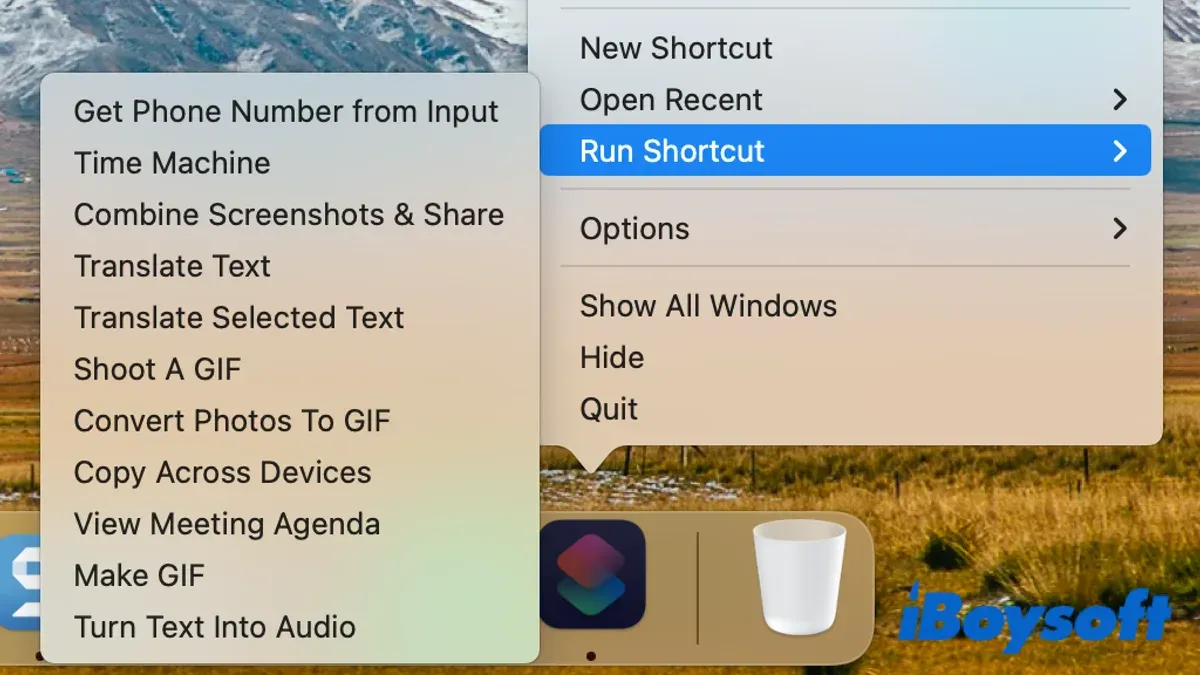
To further distinguish shortcuts visually, change their icons within the Shortcuts app. Select a shortcut, click the settings icon (the sliders button) in the top-right corner, then choose "Icon" to pick a different symbol or color. Customized icons stand out more than the default ones and reduce the chance of mistapping similar shortcuts.
When you have multiple pinned shortcuts, arrange them thoughtfully in the menu bar. You can drag icons left or right directly on the menu bar to reorder them. Group related shortcuts together to streamline your workflow and avoid searching through a cluttered list.
Default shortcut icons and generic names often lead to confusion and slower access. Customized names and icons, combined with logical arrangement, significantly improve usability and help maintain an organized menu bar.
Run and Manage Shortcuts from the Menu Bar Efficiently
When you click a shortcut icon in the menu bar, the shortcut runs immediately. If the shortcut is designed to show a notification as output, like a weather update, you will see a notification pop up on your screen shortly after clicking. For example, a shortcut named “Show Weather” may display the current temperature as a notification, confirming it ran successfully.
Some shortcuts require input or display results in a window. In these cases, clicking the menu bar icon will open the input dialog or show the results directly. Be prepared to interact with these prompts to complete the shortcut’s action.
You can control whether shortcuts provide notifications or run silently by adjusting the shortcut’s settings in the Shortcuts app. Shortcuts that run silently reduce distractions but may leave you uncertain if they executed. Those that provide feedback help confirm actions but might interrupt your workflow.
To run multiple shortcuts quickly, simply click each icon in turn from the menu bar. Because menu bar shortcuts run instantly without opening the Shortcuts app, this method lets you execute tasks efficiently. Remember that shortcuts requiring input will pause the sequence until you respond.
Troubleshoot Common Issues When Running Shortcuts from the Menu Bar
If the shortcut icon does not appear in the menu bar after pinning, first check if the Shortcuts app is running and fully updated. Sometimes, restarting the Shortcuts app or your Mac resolves this display issue. Also, verify that the shortcut is properly pinned by right-clicking it again and confirming "Pin in Menu Bar" is selected.
When shortcuts fail to run or show errors from the menu bar, common messages include "Shortcut failed to complete" or "Input required." These usually indicate that the shortcut expects input that cannot be provided directly from the menu bar. Running the shortcut inside the Shortcuts app often works because it supports interactive input prompts, which the menu bar does not.
To fix shortcuts requiring input, consider modifying them to include default values or automation that does not pause for input. Alternatively, run those shortcuts within the Shortcuts app instead of the menu bar.
If menu bar integration acts strangely, try unpinning the shortcut by right-clicking and selecting "Unpin from Menu Bar," then pin it again. Restart the Shortcuts app and check if the behavior improves. This reset often clears temporary glitches.
- Right-click the shortcut in the Shortcuts app and select "Unpin from Menu Bar." You should see the icon disappear from the menu bar.
- Restart the Shortcuts app by quitting and reopening it. This refreshes the menu bar items.
- Right-click the shortcut again and select "Pin in Menu Bar." The icon should reappear promptly.
- Test running the shortcut from the menu bar. If errors persist, open the shortcut in the Shortcuts app to check for input requests or error messages.
Remove or Rearrange Shortcuts from the Menu Bar
Managing your menu bar shortcuts helps keep your Mac workspace organized and efficient. To unpin a shortcut, right-click its icon in the menu bar and select Remove from Menu Bar. Once removed, the shortcut disappears from the menu bar, freeing up space and reducing clutter. Screenshots often show this option clearly in the contextual menu, making the process straightforward.
Rearranging shortcut icons is equally simple. Hold the Command (⌘) key, then click and drag an icon left or right along the menu bar. When you place it in a new position and release the mouse button, the icon stays there. This visual arrangement helps prioritize frequently used shortcuts and improves overall usability by grouping related shortcuts together.
If you find the menu bar becoming crowded, consider alternative launch methods such as keyboard shortcuts, the Shortcuts widget, or the Dock. Balancing menu bar space with shortcut availability is key; avoid overloading the menu bar to maintain a tidy workspace and quick access to your most important shortcuts.
Frequently asked questions
Can I run shortcuts that require input directly from the menu bar?
No, shortcuts that require user input cannot run fully automatically from the menu bar. When you select such a shortcut, the Shortcuts app will open to prompt you for the necessary input before continuing. This ensures you can provide the input needed for the shortcut to function properly.
Why doesn’t my shortcut icon show up in the menu bar after I pin it?
Shortcut icons may not appear if the shortcut is not set to be shown in the menu bar. Make sure you enable the "Pin in Menu Bar" option within the shortcut’s settings in the Shortcuts app. Also, check that the shortcut is not hidden behind other menu bar icons or that your Mac’s menu bar is not set to hide icons automatically.
Is it possible to add multiple shortcuts to the menu bar at once?
You cannot add multiple shortcuts to the menu bar simultaneously in bulk. Each shortcut must be pinned individually by opening its settings and enabling "Pin in Menu Bar." This manual step helps you choose exactly which shortcuts appear and in what order.
How do I remove a shortcut from the menu bar if I no longer need it?
To remove a shortcut from the menu bar, open the Shortcuts app, find the shortcut you want to remove, and turn off the "Pin in Menu Bar" toggle. The shortcut icon will disappear from the menu bar immediately. This method keeps your menu bar uncluttered and lets you manage shortcuts easily.
Limits of Running Shortcuts from the Menu Bar
This guide focuses specifically on macOS and does not cover running shortcuts from the menu bar on iOS or iPadOS, where the process and available features differ significantly. Additionally, shortcuts that require complex input or multiple steps may not function smoothly when triggered from the menu bar and often work best when run directly within the Shortcuts app. Keep in mind that menu bar space is limited, so if you have many shortcuts, this method might become cluttered or less efficient. In such cases, exploring alternative quick launch options like keyboard shortcuts or automation triggers can provide a better workflow experience.
To get the most out of running shortcuts from the menu bar, try adding a few of your most frequently used shortcuts with clear, customized icons and concise names. This setup ensures quick identification and smooth access, helping you integrate shortcuts seamlessly into your daily Mac routine.
See also: How to Create Your First Shortcut in the Shortcuts App: A Step-by-Step Guide · How to Toggle Dark Mode with a Shortcut in the Shortcuts App · How to Batch Resize Images in the Shortcuts App: A Step-by-Step Guide · How to Auto Change Wallpaper Daily Using the Shortcuts App