
How to See Wi-Fi Password in Mac Terminal: A Clear Step-by-Step Guide
Discover how to retrieve your Wi-Fi password using Mac Terminal with simple commands and administrator access.
You’re trying to connect a new device to your Wi-Fi, but you can’t remember the password. Instead of digging through settings menus or resetting your router, you can use the Mac Terminal to retrieve it quickly.
This article walks you through how to see Wi-Fi password in Mac Terminal, providing clear commands and explaining when it’s appropriate to use them. You’ll learn how to access saved passwords, handle password prompts, and manage multiple networks securely.
Key takeaways
- Access Wi-Fi passwords stored in your Mac’s keychain using Terminal commands.
- You need administrator privileges to retrieve saved Wi-Fi passwords via Terminal.
- Enter your Mac user password carefully when prompted to proceed with commands.
- You can look up passwords for multiple saved networks, not just your current one.
- If Terminal doesn’t display a password, check your permissions and keychain settings.
Before you start: What you need to access Wi-Fi passwords in Terminal
To retrieve Wi-Fi passwords using Terminal on your Mac, certain prerequisites and permissions are required. First, you must have administrator privileges on your Mac. Without these rights, Terminal commands attempting to access stored passwords will be denied.
Your Mac stores Wi-Fi passwords securely in the Keychain, Apple's password management system. Terminal commands you run will query this Keychain to retrieve the password data.
You also need to know the exact name of the Wi-Fi network, known as the SSID. This is necessary because Terminal commands require the SSID as a parameter to locate the correct password entry.
When you attempt to access a stored Wi-Fi password, macOS will typically prompt you to enter your Mac user password. This authorization step ensures that only an authenticated user can view sensitive password information.
- Open Terminal from the Utilities folder within Applications.
Terminal window appears ready for input. - Prepare the exact SSID of the Wi-Fi network whose password you want to retrieve.
Knowing the precise network name avoids errors in the command. - Run the command to query the Keychain for the password.
You will be prompted with a dialog box requesting your Mac user password for permission. - Enter your Mac user password and approve the prompt.
The Terminal will then display the Wi-Fi password if the authorization is successful.
This process reflects Keychain’s built-in access control, designed to protect your credentials from unauthorized viewing even when commands are run via Terminal.
How to see Wi-Fi password on Mac using Terminal commands
- Open the Terminal app by navigating to Applications > Utilities > Terminal or by typing "Terminal" in Spotlight search (Command + Space) and pressing Enter. You should see a command prompt ready for input.
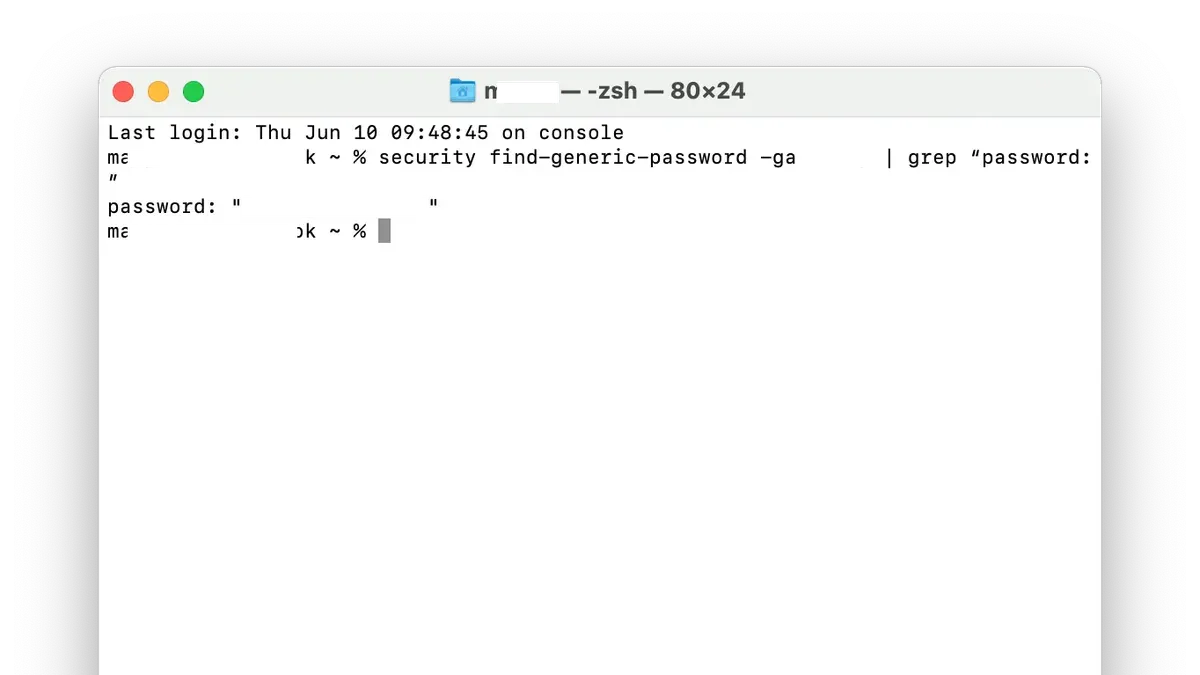
- Type the following command, replacing SSID with the exact name of the Wi-Fi network whose password you want to retrieve:
security find-generic-password -ga "SSID" | grep passwordFor example, if your Wi-Fi network is named HomeNetwork, the command will be:security find-generic-password -ga "HomeNetwork" | grep password - Press Enter. You will likely be prompted to enter your Mac’s administrator password. This is the password you use to log into your Mac, and the characters will not appear as you type. Press Enter after typing it.
- If you receive an error stating the item cannot be found, verify the SSID is correct and exactly matches the network name stored in your Keychain.
After authorization, you should see output similar to the following:
password: "your_wifi_password_here"
This line shows the saved password for the specified Wi-Fi network.
This command accesses the Keychain where your Mac securely stores Wi-Fi passwords. Using the security tool with find-generic-password and the -ga flag retrieves the password, while grep password filters the output to display only the password line.
How to check Wi-Fi password on MacBook when you forget it
First, ensure that the Wi-Fi network you want is saved on your MacBook. Without a saved network profile, the password cannot be retrieved. The process using Terminal on a MacBook is identical to that on desktop Macs, relying on the same security commands.
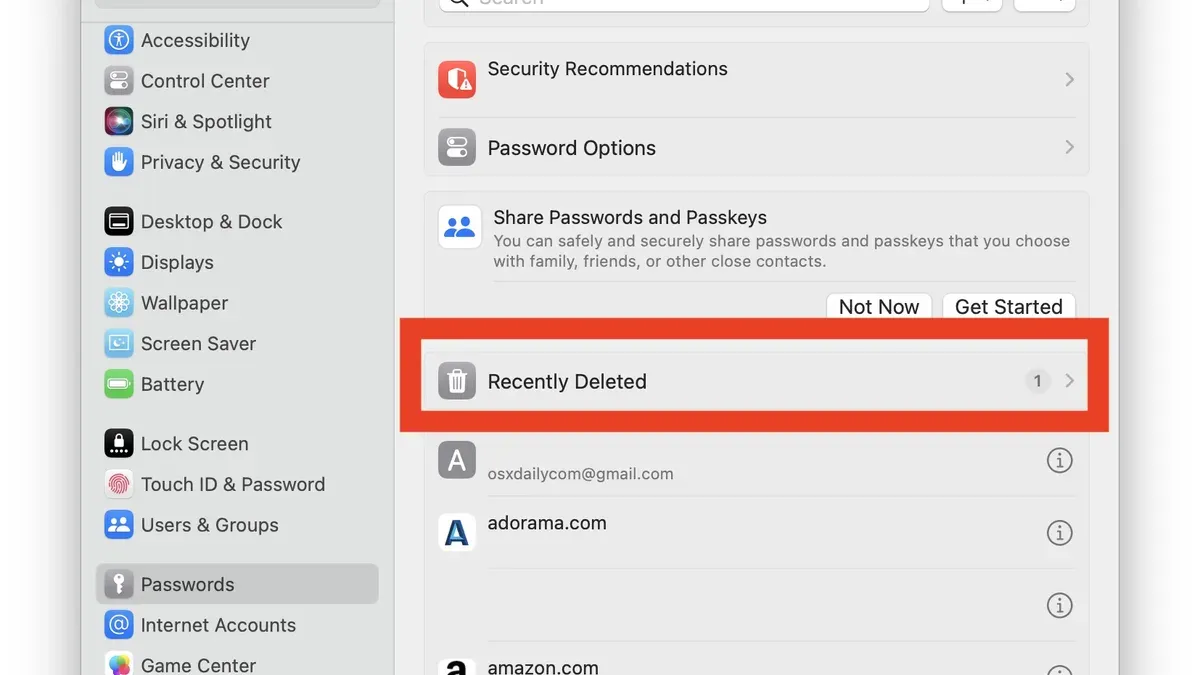
If you prefer a graphical interface, the Keychain Access app offers a visual method to find saved Wi-Fi passwords. It allows you to search for the network name, view its stored password after authenticating with your Mac password, and is often more user-friendly for those less comfortable with command-line operations.
Here are the steps to check a forgotten Wi-Fi password on your MacBook via Terminal:
- Open Terminal from Applications > Utilities. You should see a command prompt.
- Type security find-generic-password -ga "NetworkName" replacing NetworkName with the exact saved Wi-Fi SSID, then press Enter.
- When prompted, enter your Mac administrator password. If successful, the Terminal will display the Wi-Fi password in plain text.
Alternatively, to use Keychain Access:
- Open Keychain Access from Applications > Utilities.
- In the search bar, type the Wi-Fi network name.
- Double-click the network entry, then check the box labeled "Show password."
- Enter your Mac administrator password when prompted, and the password will be revealed.
Both methods require administrator privileges and the exact network name. Terminal is faster for users familiar with command-line but lacks a visual interface. Keychain Access is more accessible but involves more navigation. If you lack admin rights or the network is not saved, neither method will reveal the password.
How to enter password in Terminal on Mac when prompted
When you use Terminal to access Wi-Fi passwords or other secure items stored in your Mac’s Keychain, Terminal asks for your user account password. This request is a deliberate security measure designed to prevent unauthorized access to sensitive data.
As you type your password in Terminal, you won’t see any characters, not even placeholders like asterisks. This invisible input is standard for Unix-based systems and protects your password from being displayed or recorded accidentally.
- When Terminal prompts you with Password:, carefully type your Mac user account password. Although nothing appears on screen, your input is being registered.
- Press Return or Enter to submit the password.
- If the password is correct, Terminal proceeds with the command, showing the desired output or returning you to the prompt.
- If the password is incorrect, Terminal will usually display an error message or prompt you to try again. Re-enter your password carefully, ensuring correct capitalization and no extra spaces.
This password prompt safeguards your Mac by verifying that you have permission to access protected information. It ensures that even if someone else uses your Mac temporarily, they cannot retrieve stored Wi-Fi passwords without knowing your account password.
How to find Wi-Fi password on Mac using Terminal for multiple networks
Terminal does not offer a straightforward command to display all saved Wi-Fi passwords at once. However, you can list all saved Wi-Fi network names (SSIDs) and then retrieve each password individually using a script or loop of commands.
- List saved Wi-Fi network names by running:
security find-generic-password -D "AirPort network password" -a-s <SSID> -wis for a single network, but to list all SSIDs, use:security dump-keychain | grep """
This outputs many entries including SSIDs. Alternatively, list SSIDs with:
defaults read /Library/Preferences/SystemConfiguration/com.apple.airport.preferences | grep SSIDString
You should see a list of saved SSID names. Create a script or use a loop to extract passwords for each SSID:
For example, in Terminal, run:
for ssid in $(defaults read /Library/Preferences/SystemConfiguration/com.apple.airport.preferences | grep SSIDString | awk -F' = ' '{print $2}' | sed 's/"//g' | sed 's/;//'); do echo "SSID: $ssid"; security find-generic-password -D "AirPort network password" -a $USER -s "$ssid" -w; echo ""; done
This will prompt for your password once and then list each SSID with its saved password.Review the output carefully. Each network's password will be shown after its SSID. If a network’s password is not found, it may not be saved or accessible.
Security note: Displaying multiple Wi-Fi passwords in Terminal exposes sensitive information on-screen and in command history. Only run such scripts on trusted devices and avoid sharing or storing this output insecurely.
How to reset or change your Mac password through Terminal
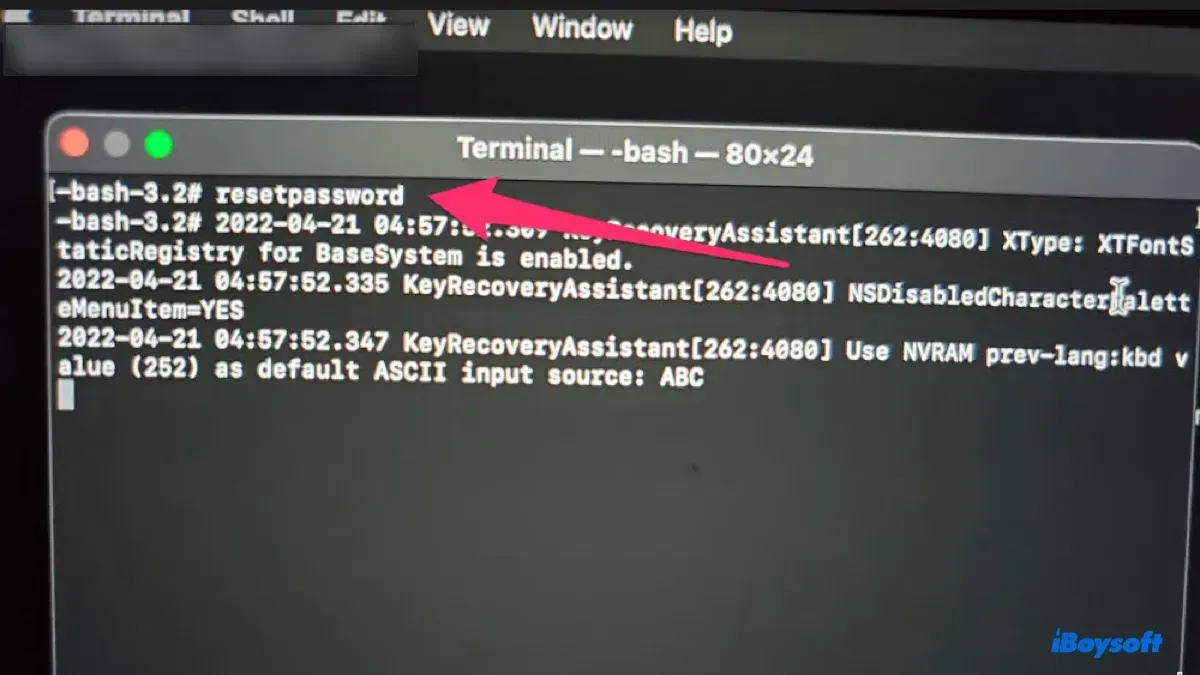
Wi-Fi passwords and Mac user passwords serve different purposes: Wi-Fi passwords secure network access, while Mac user passwords protect your account and device. If you need to reset or change your Mac user password via Terminal, you must have administrator access or boot into macOS Recovery for more advanced options.
To change your Mac user password when logged in, use the following steps:
Open Terminal from Applications > Utilities.Type passwd and press Enter. This command prompts you to change the password of the current user.Enter your current password when prompted.Type your new password and press Enter.Re-enter the new password for confirmation. You should see a message indicating the password was successfully changed.
If you want to reset another user’s password and have administrator rights, run:
sudo passwd username
Replace username with the target account’s short name. You will be prompted to enter a new password for that user.
Be cautious: resetting passwords via Terminal can lead to data loss if FileVault encryption or other security mechanisms are enabled and you do not know the old password. If you cannot log in or lose access, use macOS Recovery mode by restarting your Mac and holding Command + R keys to access password reset utilities safely.
Novice users should avoid using Terminal for password changes due to the risk of locking themselves out or corrupting system settings. When unsure, seek professional support or use graphical password reset methods provided by macOS.
Troubleshooting: What to do if you can’t see Wi-Fi password in Terminal
If your Terminal command returns no password or an empty output, first verify that you typed the exact SSID (network name) correctly, including capitalization and spaces. A mistyped SSID results in no matching entry found.
If you encounter a “Permission denied” error, ensure you have administrator privileges and that you entered your Mac user password correctly when prompted. Re-entering the password carefully usually resolves this.
When Keychain Access prompts appear repeatedly, it may indicate Keychain corruption or misconfigured settings. To address this, you can try unlocking the Keychain manually via Keychain Access (Applications > Utilities > Keychain Access) or resetting your default keychain if necessary, but be aware this may impact other stored passwords.
If Terminal cannot find the Wi-Fi password, it is possible that the password was never saved locally on your Mac. Terminal can only retrieve passwords stored in your user Keychain. Confirm if the network was connected with “Remember this network” enabled.
Double-check the SSID spelling in your command. Successful retrieval will display the password in plain text after you enter your admin password.Confirm you are using an administrator account. If “Permission denied” appears, retype your password carefully; success means the password appears as output.Open Keychain Access and unlock the login keychain. If prompts persist, consider resetting the keychain via Keychain Access > Preferences > Reset My Default Keychain. Afterward, retry the Terminal command.Verify that the Wi-Fi network is saved in your Keychain. If not found, the Terminal cannot retrieve the password. Connect to the network again, ensuring to save the password, then retry.
More on this topic
How to List Installed Apps in Mac Terminal: A Step-by-Step GuideHow to Keep Your Mac Awake Using the Terminal’s Caffeinate CommandHow to Restart Your Mac from the Command Line in TerminalHow to Find Large Files in Mac Terminal: Step-by-Step Guide
Frequently asked questions
How to see wifi password on mac?
You can see the Wi-Fi password on Mac by using the Terminal app and entering the command security find-generic-password -ga "NETWORK_NAME" | grep password, replacing "NETWORK_NAME" with your Wi-Fi's name. You will need to enter your Mac user password to allow access to the Keychain where passwords are stored.
How to find wifi password on mac?
To find a Wi-Fi password on Mac, open Terminal and use the command security find-generic-password -ga "NETWORK_NAME". The system will prompt for your administrator password and then display the saved Wi-Fi password if you have the correct access permissions.
How to check wifi password on mac?
Checking a Wi-Fi password involves accessing your Mac's Keychain via Terminal or the Keychain Access app. Using Terminal, run security find-generic-password -ga "NETWORK_NAME" and authenticate when prompted to reveal the password.
How to check wifi password on macbook?
On a MacBook, the process is the same as on any Mac: use Terminal with security find-generic-password -ga "NETWORK_NAME", entering your Mac account password when asked. This command fetches the stored password from the Keychain if you have permission.
How to see password on mac?
To see any saved password on Mac, including Wi-Fi, you can use Terminal commands targeting Keychain entries or open the Keychain Access app and search for the item. Authentication with your user password is required to access these passwords due to security protections.
Limits to viewing Wi-Fi passwords through Terminal
This method only works for Wi-Fi networks already saved on your Mac and accessible via your user account with administrator privileges. If you do not have administrator access, or the password is not stored locally on your device, these Terminal commands will not reveal the Wi-Fi password. Additionally, using Terminal commands to view passwords should be done cautiously to prevent exposing sensitive information to others who might have physical or remote access to your Mac.
For networks not saved on your Mac or for retrieving passwords in managed environments, contacting the network administrator or using official password recovery tools is the safer and more appropriate approach.
The single most useful next step is to ensure your user account has the necessary admin rights before attempting these commands, as lacking proper permissions is the most common barrier to successfully viewing saved Wi-Fi passwords in Terminal.



