How to Set Up Verification Codes in the Passwords App: A Step-by-Step Guide
Discover how to add and manage verification codes in the Passwords app to enhance your account security and simplify two-factor authentication.
You’ve just enabled two-factor authentication on one of your online accounts, but now you’re wondering how to keep your verification codes handy and secure without juggling multiple apps. Managing these codes directly within the Passwords app can streamline your login process while enhancing your security.
This guide walks you through how to set up verification codes in Passwords app, showing you step-by-step how to add, use, and manage these codes effectively. You’ll also learn how to sync codes across devices, troubleshoot common issues, and understand the app’s capabilities and limitations.
Key takeaways
- Use the Passwords app’s built-in option to add verification codes via scanning QR codes or manual entry.
- Keep your verification codes secure by enabling device passcodes and biometric authentication.
- Sync your verification codes across your devices using iCloud Keychain for seamless access.
- Common setup issues often involve incorrect time settings or expired QR codes—check these first.
- Verification codes in the Passwords app work best for time-based one-time passwords (TOTP) but have some limits with other authentication methods.
Before you start: What you need to set up verification codes
To add verification codes in the Passwords app, you need a compatible Apple device running at least iOS 15, iPadOS 15, or macOS Monterey. These OS versions introduced native support for managing time-based one-time passwords (TOTP) directly within the app. Make sure your device is updated to access all verification code features smoothly.
Your online accounts must support two-factor authentication using TOTP, which generates time-sensitive codes based on a shared secret key. Popular services compatible with this method include Google, Microsoft, Facebook, Dropbox, and GitHub, among others. Note that the Passwords app does not support SMS-based or push notification-based two-factor authentication codes.
From your account provider, you will need either a QR code or a manual setup key to add the verification code to the Passwords app. This information is typically found in the security or two-factor authentication settings of your account. Having this ready before you start will streamline the setup process.
Scan or enter the verification code setup in the Passwords app
- Open the Settings app on your device and scroll down to tap Passwords. You will see a list of saved accounts where you manage your credentials.
- Locate and select the account for which you want to add a verification code. This brings up the detailed view of that password entry.
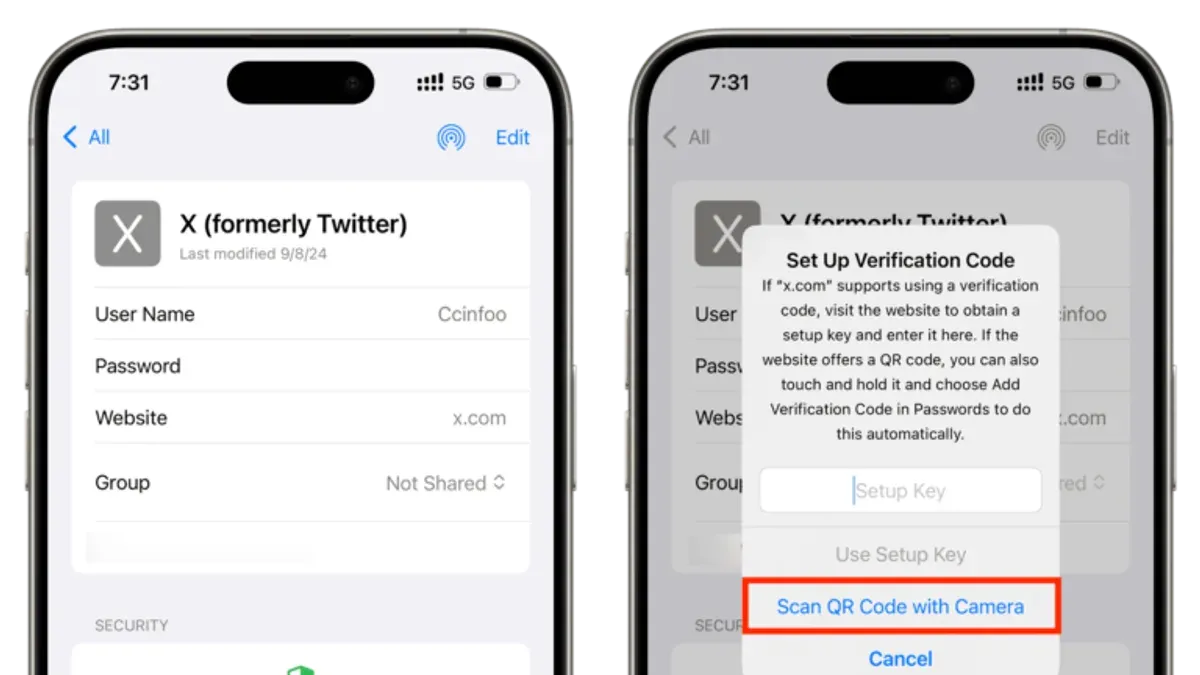
- Scroll down within the account details until you find the Add Verification Code option. Tap it to begin setting up two-factor authentication.
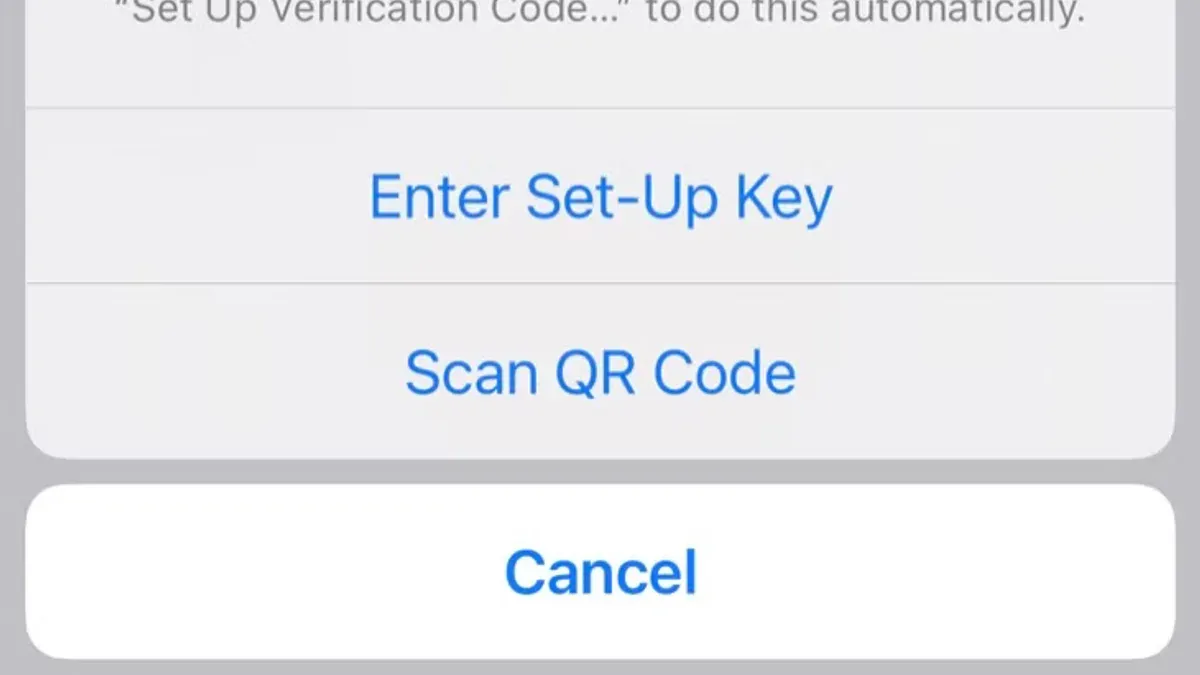
- You will be presented with two options: Scan QR Code or Enter Setup Key. Choose Scan QR Code if you have a QR code provided by the service. The camera view opens; position the QR code so it fits within the frame. When the code is recognized, it will automatically add the verification code to your entry.
- If you do not have a QR code or prefer manual entry, select Enter Setup Key. Then type the alphanumeric key exactly as provided by your service, ensuring no extra spaces. Tap Done to save.
- After adding, you will see a six-digit verification code appear under your account details. This code refreshes automatically every 30 seconds, confirming the setup worked.
- To keep your verification codes organized, you can edit the account name or add notes in the password entry. Clear and descriptive names help you quickly identify which code belongs to which service.
Throughout this process, the interface clearly guides you with labeled buttons and fields, minimizing chances of error. If you do not see the Add Verification Code option, ensure your device and iOS version support this feature.
Use and manage your verification codes securely
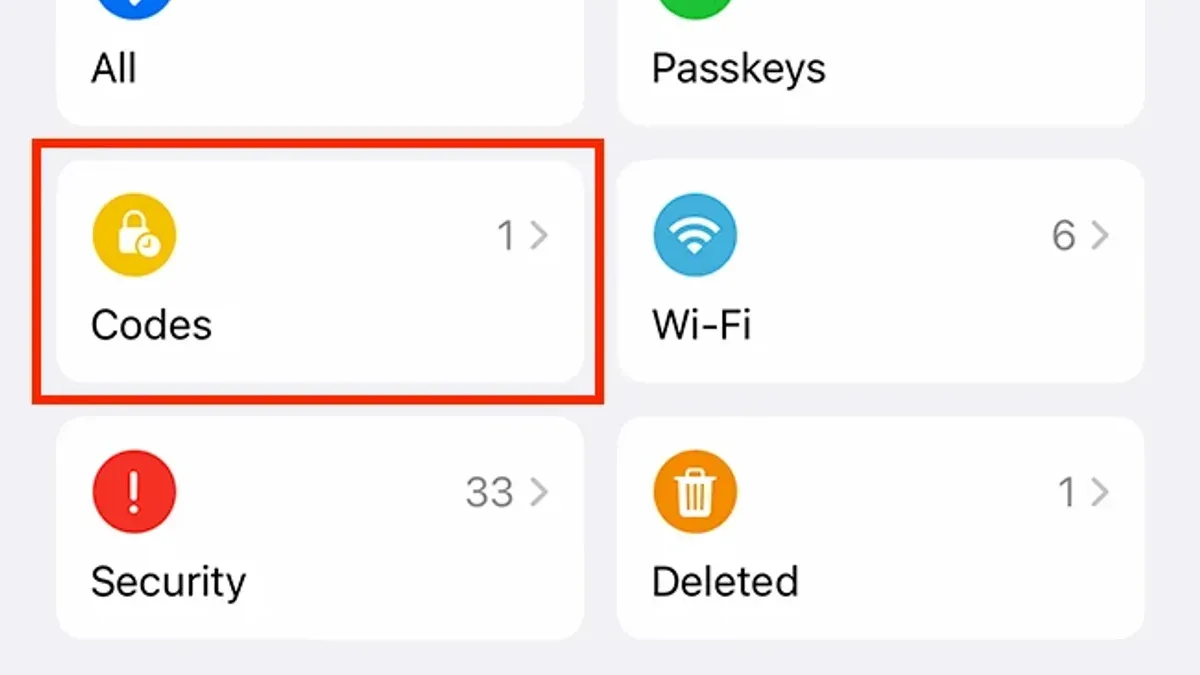
Once verification codes are set up in the Passwords app, they appear alongside your saved credentials and refresh automatically every 30 seconds. This dynamic display ensures you always have the latest code when you need it, such as during login on a website or another device. When prompted for a two-factor authentication code, open the Passwords app, locate the relevant account, and enter the current code shown. This process avoids the need for separate apps or physical tokens, streamlining your workflow while maintaining security.
To protect these sensitive codes, enable biometric authentication or a device passcode on your Apple device. Navigate to Settings > Passwords > Require Authentication, and select Face ID, Touch ID, or a passcode. With this enabled, accessing verification codes requires your biometric or device passcode, adding a crucial layer of protection against unauthorized access. Without this feature, anyone with physical access to your device could view your codes, increasing vulnerability.
If you need to update or remove a verification code, open the Passwords app, tap the account, and select Edit. From here, you can change the secret key or delete the code entirely. Removing codes when you no longer use the associated service reduces clutter and potential security risks. Always review your stored verification codes periodically to ensure they align with your active accounts and security needs.
Sync verification codes across your devices
To keep your verification codes available on all your Apple devices, iCloud Keychain must be enabled and signed in with the same Apple ID. This service securely syncs both your saved passwords and two-factor authentication codes, ensuring seamless access without manual transfers.
To confirm codes are syncing properly, add a verification code on your iPhone through the Passwords app, then check your Mac’s Passwords section in System Settings (or System Preferences). The newly added code should appear automatically, usually within seconds if both devices have internet access and are updated to recent software versions.
If a device is offline or running outdated software, it may not receive the latest codes until it reconnects and updates. In such cases, verification codes still function locally on each device but won’t sync changes until connectivity is restored.
Keep in mind that syncing sensitive two-factor authentication codes via iCloud Keychain relies on Apple’s end-to-end encryption, which protects your data during transit and storage. However, maintaining strong device passcodes and biometric security helps safeguard against unauthorized access if a device is lost or stolen.
- On your iPhone, open Settings > Your Name > iCloud > Passwords and Keychain, then ensure iCloud Keychain is enabled. You should see your verification codes appear within your Passwords app shortly after adding them.
- On your Mac, go to System Settings (or System Preferences) > Passwords, and verify that the codes added on your iPhone are present. If they do not appear, check your internet connection and Apple ID sign-in status.
- If codes fail to sync, toggle iCloud Keychain off and back on for both devices, then restart them to refresh the synchronization process.
Troubleshoot common issues when setting up verification codes
Sometimes, you might encounter problems when adding or using verification codes in the Passwords app. One frequent issue is the verification code being rejected by the service during login. This often happens when your device's time is out of sync, as the codes rely on accurate timing. Ensure your device's date and time settings are set to "Set Automatically" under Settings > General > Date & Time. If the code still fails, double-check that you entered it correctly within the 30-second validity window.
Scanning the QR code can occasionally fail due to camera focus or lighting conditions. If the scan does not work, switch to manual entry by tapping "Enter Setup Key" in the Passwords app and carefully input the key provided by your service. Ensure no extra spaces are included, as this can cause errors.
If the verification codes do not appear or sync on your other Apple devices, verify that iCloud Keychain is enabled on all devices (Settings > [your name] > iCloud > Keychain). A stable internet connection is also required for syncing. Sometimes, signing out and back into iCloud can resolve lingering sync problems.
Losing access to your verification codes is critical. Always keep backup recovery options provided by your service, such as backup codes or alternative authentication methods. If locked out, use these backups to regain access and reset two-factor authentication settings securely.
Understand the limits of verification codes in the Passwords app
The verification codes managed within the Passwords app are based on Time-based One-Time Password (TOTP) technology and do not support push-based or SMS two-factor authentication (2FA) methods. If your account uses push notifications for approval or text message codes, you will need to continue using those methods outside the app. The Passwords app also does not support enterprise or specialized authentication systems that rely on proprietary protocols or single sign-on (SSO) integrations.
Users who require hardware security keys, such as those using FIDO2 or U2F tokens, or who rely on advanced multi-factor authentication solutions will need to use dedicated apps or devices designed for those purposes. The Passwords app is tailored for convenience and basic TOTP code management but is not a replacement for all forms of 2FA.
It is essential to keep backup codes and recovery options provided by your service providers stored safely outside the Passwords app. Apple's official documentation highlights these limitations and advises users to maintain alternative access methods to avoid lockouts in case of device loss or sync issues.
Frequently asked questions
Can I use the Passwords app to generate verification codes for all my accounts?
The Passwords app can generate verification codes for most accounts that support Time-based One-Time Password (TOTP) authentication. However, some services may require their own app or do not support third-party code generators. Always check the account’s security settings to confirm compatibility before relying solely on the Passwords app.
What should I do if my verification code is not accepted during login?
If your verification code is rejected, first ensure your device’s clock is set correctly, as TOTP codes depend on accurate time synchronization. Also, verify that you entered the code promptly since codes refresh every 30 seconds. If problems persist, try re-scanning the QR code or manually re-entering the setup key in the Passwords app.
How does the Passwords app keep my verification codes secure?
The Passwords app encrypts your verification codes locally using strong encryption tied to your device’s security features, such as biometric authentication or a passcode. Codes are not stored in plain text and are only accessible after you unlock the app, preventing unauthorized access. Additionally, syncing across devices uses end-to-end encryption to maintain security during transfer.
Can I transfer my verification codes if I switch to a new device?
Yes, you can transfer your verification codes by syncing your Passwords app data through the app’s secure cloud service. Make sure you complete the sync process on your old device before setting up the new one to avoid losing codes. After syncing, verify that all codes appear correctly on the new device before removing them from the old device.
Understand the Limits of Verification Codes in the Passwords App
This guide covers only time-based one-time passwords (TOTP) within the Passwords app and does not cover SMS or push notification-based two-factor authentication methods. Some services may require these other methods or offer them as additional options, so check their specific requirements. Also, while the Passwords app securely stores and syncs your codes across devices, it cannot replace hardware security keys or biometric factors when those are required by certain high-security accounts. If your security needs demand multi-layered authentication beyond TOTP codes, consider using dedicated authenticator apps or hardware tokens alongside the Passwords app.
To keep your accounts protected, the most useful next step is to regularly review your two-factor authentication settings on each account you manage. Confirm that your verification codes are working as expected and update any backup methods or recovery options. This ongoing check helps maintain access and security, ensuring the verification codes you set up continue to safeguard your online presence effectively.
See also: How to Share Passwords with Family in the Passwords App · How to Find Weak Passwords in the Passwords App: Step-by-Step Guide · How to Import Passwords from Chrome to Apple Passwords App