
How to Sort Data Alphabetically in Numbers: A Step-by-Step Guide
Discover easy step-by-step methods to sort data alphabetically in Numbers and keep your tables organized and accurate.
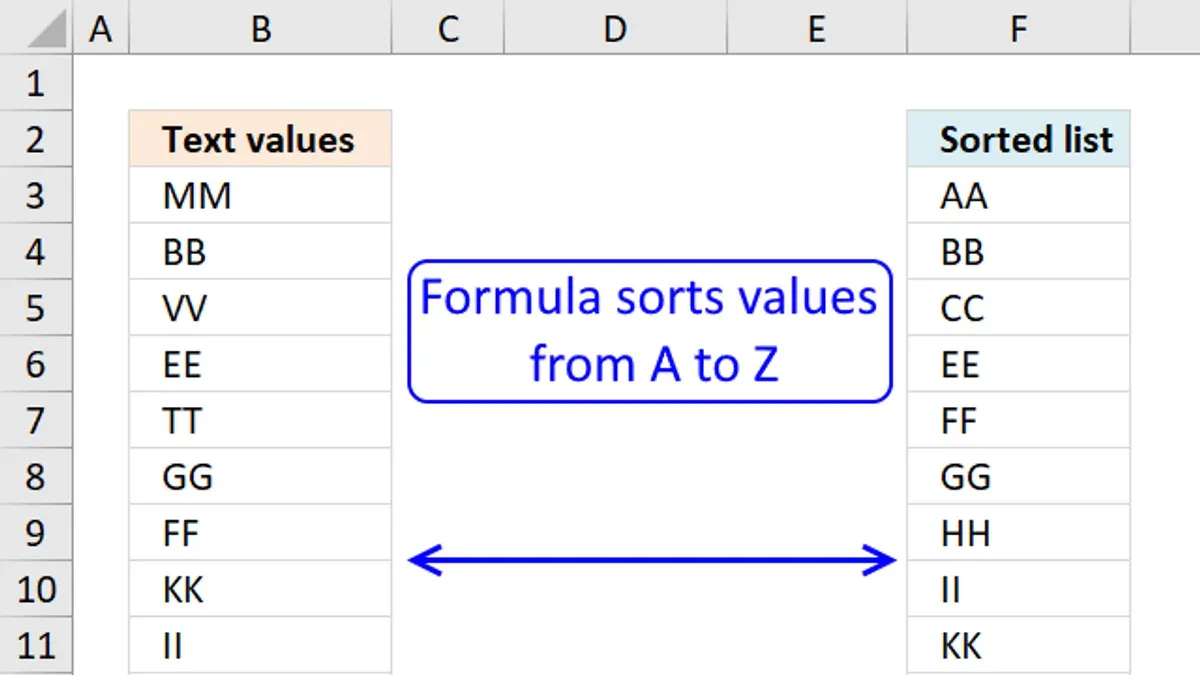
You have a table full of names, products, or categories in Apple Numbers, and you need to organize them alphabetically. Perhaps you've tried sorting before but found the results confusing or incomplete. Understanding how to sort data alphabetically in Numbers will help you arrange your lists or tables clearly and efficiently.
This article guides you through step-by-step methods to sort rows alphabetically within Numbers, including how to use multiple columns for sorting and handling lists that contain numbers. You'll also see how Numbers sorting compares to Excel and Google Sheets, helping you choose the best approach and avoid common pitfalls. By the end, you'll confidently maintain sorted data that stays accurate as you update your tables.
Key takeaways
- Use the Organize sidebar’s Sort feature to arrange rows alphabetically by one or more columns.
- Sorting in Numbers differs slightly from Excel and Sheets, especially in handling mixed data types and blanks.
- For multi-column sorting, set primary and secondary sort criteria in order to refine results.
- Numbers treats text and numbers separately during sorting; know how to handle lists with both.
- Maintain sorted data dynamically by applying filters or using smart categories where appropriate.
Before you start: What you need to know to sort data in Numbers
To sort your data accurately in Numbers, start with a well-structured table. Each row should represent a complete record, and each column should contain consistent data types, such as all text or all numbers. Mixing data types within a column can lead to unexpected sorting results. For example, if you have a column with names and numbers mixed together, Numbers may not sort the rows as you expect.
Sorting in Numbers works by rearranging entire rows based on the values in the column you select. This means every cell in a row moves along with the key column’s value. Keep in mind that sorting always affects the entire table, not just selected rows. If you have unsaved changes or hidden rows, these can cause confusion or errors in the sorted data.
Numbers sorts text in a case-insensitive manner. This means uppercase and lowercase letters are treated the same during sorting. Special characters like punctuation or symbols are also sorted but follow a specific order that might place them before or after letters. For instance, a name starting with an apostrophe will appear before names starting with letters.
Consider a simple table with a list of names in one column. If there are blank rows or mixed content such as numbers in the names column, your sorted list may have unexpected gaps or misplaced entries. Ensuring a clean, uniform data set helps avoid these issues and makes your sorting straightforward and reliable.
How to sort rows alphabetically in Numbers
Sorting rows alphabetically by a specific column in Numbers is straightforward and ensures your entire row stays intact during the process. You will start by selecting the column that contains the text you want to sort by, such as last names in a contact list. Then, use Numbers’ built-in sort options to organize your data in ascending or descending order.
- Click the header of the column you want to sort by, for example, the "Last Name" column. When selected, the column header will highlight to indicate it's active.
- Go to the toolbar and click the "Sort" button, or right-click the column header and choose "Sort Ascending" or "Sort Descending." Ascending order sorts from A to Z, while descending sorts from Z to A.
- Observe that the entire row shifts according to the sorted column, preserving the relationship between data in each row, so your contact details remain correctly aligned.
- If you prefer keyboard shortcuts on a Mac, select the column header, then press Option + Command + Up Arrow for ascending or Option + Command + Down Arrow for descending sort.
- On iOS devices, tap the column header, then tap the small arrow icon that appears to open sort options and select ascending or descending order.
For example, if your contact list initially has last names mixed randomly, sorting ascending by last name will reorder all contacts from A to Z, making it easier to locate specific entries quickly. This method keeps all associated information, like phone numbers and email addresses, correctly matched with each contact.
How to sort alphabetically in Numbers using multiple columns
When you need to organize data more precisely, sorting by multiple columns is the way to go. For example, sorting an address book by last name alone might group all "Smith" entries together, but their first names could be jumbled. Adding a second sorting rule by first name ensures that within each last name group, the entries are alphabetically ordered by first name, creating a clearer and more useful list.
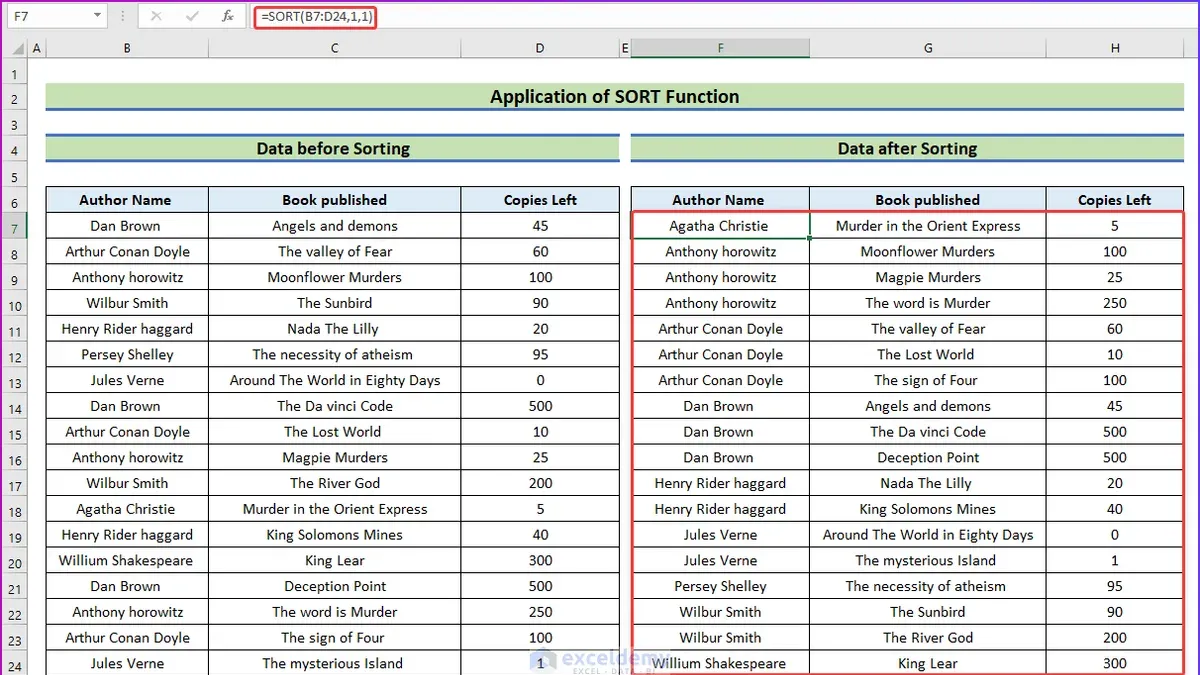
Follow these steps to apply multi-level sorting in Numbers:
- Select any cell in your table to activate the sorting options.
- Click the column header for your primary sort criterion, such as "Last Name." A small arrow appears indicating the sorting order.
- Next, open the Organize sidebar by clicking the paintbrush icon in the toolbar.
- In the Organize sidebar, scroll down to the "Sort" section and click "Add a Column."
- Choose your secondary sort column, such as "First Name," and select ascending or descending order.
- Drag the sorting rules to reorder them if needed; the top rule is applied first, followed by the next, and so on.
- Observe your table update: rows with identical last names are now sorted by first name, providing a more detailed alphabetical arrangement.
Remember, the order of sorting rules matters. The primary column sorts first, shaping the initial grouping, and the secondary column sorts within those groups. This approach is especially useful for lists like product inventories or contact directories, where multiple attributes define the order you want to see.
How to sort data alphabetically in Excel and how it compares to Numbers
Sorting data alphabetically in Excel follows a straightforward process similar to Numbers but with a few key differences. To sort a column, you select any cell in that column, then go to the Data tab and click either Sort A to Z or Sort Z to A. Excel moves the entire rows to keep data aligned automatically, matching Numbers' behavior.
- Select a cell in the column you want to sort.
- Click the Data tab on the Ribbon.
- Choose Sort A to Z for ascending or Sort Z to A for descending order.
- Observe that the entire rows reorder according to the selected column.
One notable advantage Excel offers is the ability to sort by additional criteria such as cell color, font color, or icon sets, which Numbers does not support. Excel also allows you to toggle case sensitivity during sorting, giving you more control over how capitalized text is ordered.
When sorting columns that mix numbers and text, Excel treats numbers within text differently than Numbers. For instance, Excel recognizes numeric values more reliably and can sort them in a more intuitive numeric order, whereas Numbers sometimes sorts all values as text, which can lead to unexpected orderings.
Excel’s advanced custom sort options and support for multiple layers of sorting beyond simple alphabetical order make it preferable when dealing with complex datasets. If you need to sort by color coding or require more nuanced control over sorting logic, Excel provides these features, whereas Numbers remains simpler and more streamlined.
| Feature | Numbers | Excel |
|---|---|---|
| Basic alphabetical sorting | Yes, by column with entire rows moved | Yes, similar process |
| Sort by multiple columns | Yes, via Organize sidebar | Yes, via Sort dialog |
| Sort case sensitivity option | No, case is ignored | Yes, can enable case-sensitive sorting |
| Sort by cell or font color | No | Yes |
| Handling numbers mixed with text | Tends to sort as text, which may disrupt numeric order | Better numeric recognition and sorting within text |
| Complex custom sorting rules | Limited | Extensive options |
How to sort data alphabetically in Sheets and Word: A quick overview
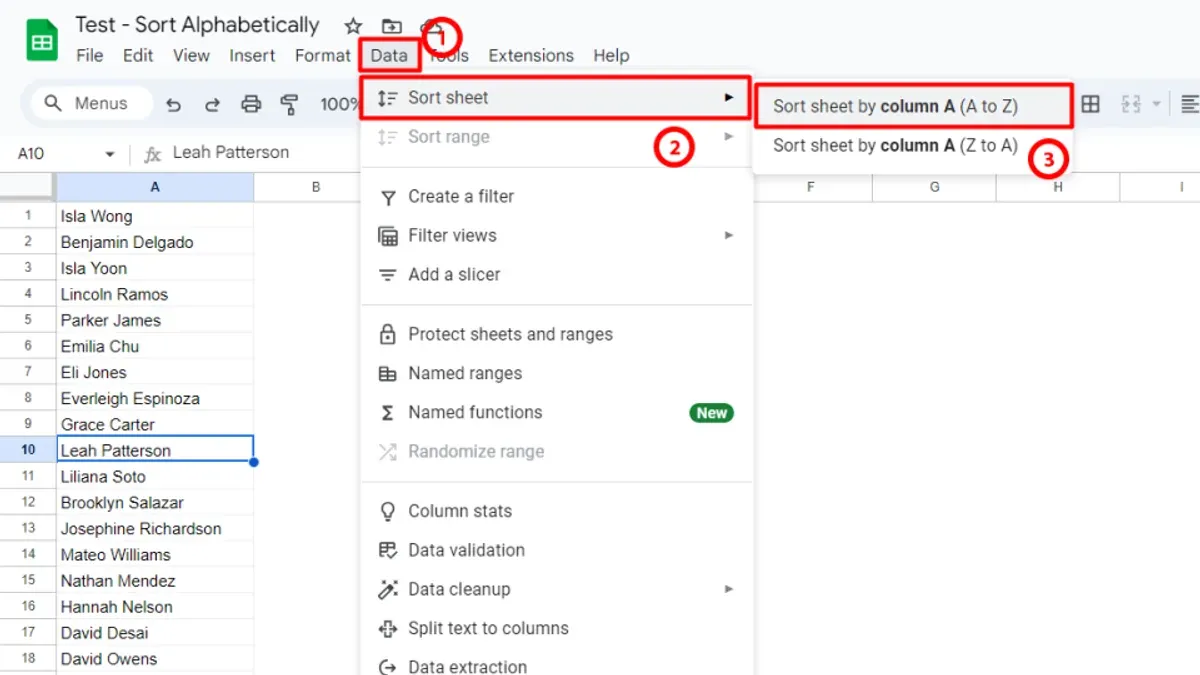
Google Sheets offers a sorting experience quite similar to Numbers. You can sort rows alphabetically by selecting a column, then using the Data menu to choose “Sort sheet A–Z” or “Sort range.” This rearranges entire rows to keep related data together. One common step people miss in Sheets is confirming whether to sort the entire sheet or just a range, as sorting only part of the data can misalign rows.
Word, on the other hand, handles alphabetical sorting differently depending on whether you work with lists or tables. For numbered or bulleted lists, Word sorts text alphabetically via the Home tab’s “Sort” button, but this applies only to the selected list items. When sorting tables, Word can reorder rows based on selected columns using the Table Tools Layout tab’s “Sort” feature. However, Word’s sorting is less flexible than spreadsheet apps—it lacks multi-level sorting options and does not handle entire worksheet dynamics.
Here is a side-by-side example: Sorting a contact list by last name in Numbers or Sheets keeps all row data intact with multi-column options. In Word, sorting a table by last name is straightforward for a single column but cannot easily apply additional sorting layers. If you need simple, quick sorting for documents or lists, Word may suffice, but for more complex or multi-column data, Sheets or Numbers are better choices.
How to sort list alphabetically in Numbers when your data includes numbers
Sorting a column that contains both numbers and text in Numbers can lead to unexpected order because Numbers treats numeric and text values differently. By default, Numbers sorts numbers before text strings when sorting alphabetically. For example, if your list includes entries like "123", "apple", and "45", the numbers will appear first, ordered numerically, followed by text entries sorted alphabetically.
If you want a consistent alphabetical sort treating numbers as text, you can convert the numbers to text format. One way is to use the TEXT function or simply prepend an apostrophe (') before numbers to force them to be recognized as text. This adjustment ensures all entries are sorted purely alphabetically.
Another approach is to separate numeric data into its own column. This allows you to sort primarily by the text column, then by the numeric column if needed, improving sorting accuracy and clarity.
Excel handles alphanumeric sorting differently by default, often sorting numbers embedded in text strings more intuitively within a single column, which may be preferable for complex lists. Knowing this difference helps you choose the best tool depending on your sorting needs.
| Original List |
|---|
| 123 |
| apple |
| 45 |
| banana |
Default alphabetical sort in Numbers results in: 45, 123, apple, banana.
To convert numbers to text and sort alphabetically, follow these steps:
- Select the column with mixed data. You should see the entire column highlighted.
- Insert a new column next to it for the converted text values.
- In the first cell of the new column, enter =TEXT(OriginalCell, "@") where OriginalCell is the reference to the first cell in your original column. This converts numbers to text.
- Drag the fill handle down to apply this formula to all rows. The new column now contains all entries as text.
- Sort your table by this new column alphabetically. The list now sorts with numbers treated as text and mixed entries ordered correctly.
How to fix common issues when sorting alphabetically in Numbers
Sorting problems in Numbers often arise from unintended actions or table setups. One frequent issue is that the header row gets sorted along with data rows, causing confusion. To prevent this, you must lock the header row. Simply select the header row, then click the gear icon in the toolbar and choose Freeze Header Rows. When done correctly, the header stays fixed and excluded from sorting.
Partial sorting, where only some rows sort and others remain static, usually occurs when the data is non-contiguous or there are hidden rows. Ensure your data range is continuous without gaps. If you have hidden rows, unhide them before sorting, or sorting will skip those rows, disrupting order.
If sorting appears not to work, check if a filter is applied. Filters restrict visible data and can interfere with sorting. Go to the Organize sidebar and clear any active filters to see full data sorting. Also, confirm that you are selecting entire columns or the full table rather than isolated cells.
Data consistency is another common culprit. Extra spaces, invisible characters, or special symbols can cause unexpected sort orders. To fix this, clean your data by selecting cells and using Edit > Find & Replace to remove extra spaces or unwanted characters. Consistent formatting ensures accurate alphabetical sorting.
- Freeze the header row: Select the top row, click the gear icon, and choose Freeze Header Rows. Verify the header stays in place during sorting.
- Unhide all rows: In the table, click the row numbers around hidden rows and select Unhide Rows. Confirm all data rows are visible.
- Clear filters: Open the Organize sidebar, and if any filters are enabled, click Clear Filters. The entire data set should now be visible.
- Select the entire column or table: Click the column letter or drag through all cells to include all data. This prevents partial sorting.
- Clean your data: Use Edit > Find & Replace to remove extra spaces or special characters. Apply replacements and double-check sorting behavior.
How to maintain sorted data dynamically in Numbers
Unlike Excel’s dynamic Tables or Google Sheets’ FILTER and SORT functions, Numbers does not offer automatic, live sorting of data as you add or modify entries. This means when you update your data, the sort order does not adjust on its own, requiring you to manually reapply sorting to keep your table organized. Understanding this limitation helps you avoid confusion when newly added rows appear out of order.
To manually refresh the sort order after changes, simply select the column header you previously sorted by and click the sort button again. This action re-sorts the rows based on your original criteria, aligning your data correctly. For example, if you sorted by last name ascending and then add new entries, you’ll need to repeat this step to maintain alphabetical order.
Advanced users seeking dynamic sorting can explore workarounds like using formulas to create helper columns that update sorting keys or employing AppleScript and automation tools to trigger sorting commands. These approaches require extra setup and familiarity with scripting or formula logic but can simulate live sorting behavior.
Be aware that relying on manual re-sorting or scripts means Numbers cannot provide a fully automated, continuously updated sorted view. Planning your workflow with this in mind ensures your data remains well organized and accessible.
- Select the column header you want to sort by.
You should see an arrow indicating ascending or descending order applied. - After adding or editing rows, click the same column header’s sort button again.
The table rows reorder to reflect the updated data alphabetically. - For automation, investigate AppleScript scripts that perform sorting and run them when needed.
This requires scripting knowledge; successful runs reorder your table automatically.
Frequently asked questions
How to alphabetically sort in excel?
To sort alphabetically in Excel, select the range or column you want to sort. Then, go to the Data tab and click either the A to Z button for ascending order or Z to A for descending. If sorting multiple columns, use the Sort dialog by clicking Sort on the Data tab, then add levels to specify secondary sort columns.
How to sort in numbers?
In Numbers, select the table or rows you want to sort. Click the Organize button in the toolbar, then choose Sort & Filter. From there, pick the column to sort by and select ascending or descending order. You can add multiple columns to sort by using the Add a Column option within the Sort pane.
How to sort something alphabetically in excel?
Sorting alphabetically in Excel involves highlighting the cells or whole column, then clicking the Sort A to Z button on the Data tab. For more control, use the Sort dialog where you can choose which columns to sort by and set sort order, allowing for multi-level sorting.
How to sort data alphabetically in Excel?
To sort data alphabetically in Excel, highlight the data range or column, go to the Data tab, and click the Sort A to Z icon. If your data includes headers, ensure the 'My data has headers' box is checked in the Sort dialog to avoid sorting headers with data. You can also add additional sorting levels for multi-column sorting.
How to sort data alphabetically in Sheets?
In Google Sheets, select the data or column you want to sort. Click Data in the menu, then choose Sort range or Sort sheet by column A, A → Z for ascending. If your data has headers, use Sort range and check 'Data has header row' to exclude headers from sorting. You can add multiple columns to sort by using the Sort range option.
What This Guide Does Not Cover
This guide does not cover advanced sorting automation or scripting in Numbers, which is limited compared to Excel or Sheets. If you require dynamic sorting that updates automatically as your data changes, or need to build complex sorting rules using macros or scripts, Numbers may not meet your needs. In those cases, using Excel or Google Sheets might be a better choice due to their more robust automation capabilities.
The single most useful next step is to practice sorting a sample table in Numbers by multiple columns, making sure to use the Sort pane accessible from the Organize sidebar. Try sorting by your primary column first, then add secondary and tertiary sorting levels to see how your data adjusts. This hands-on approach will help you understand how Numbers interprets your sorting preferences and avoid common mistakes like sorting only part of your table or losing data alignment.
See also: How to Use VLOOKUP in Numbers: A Step-by-Step Guide for Numbers Users



