
Switching from Google Classroom to Canvas: Your Expert Transition Guide
Discover expert guidance on switching from Google Classroom to Canvas, including migration steps, feature comparisons, and integration tips.
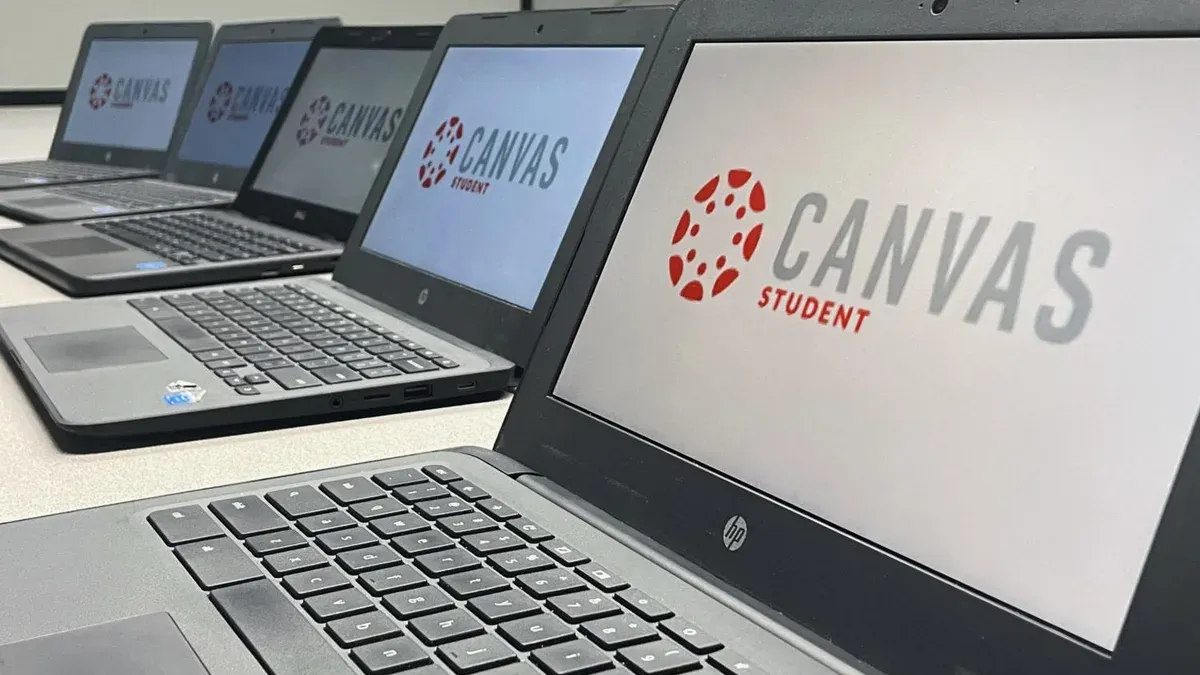
Short answer: Switching from Google Classroom to Canvas involves evaluating your institution's needs for advanced customization, robust grading tools, and deeper integration capabilities. Canvas offers a more scalable and flexible learning management system, supporting extensive user roles and seamless integration with tools like Canva, which can help maintain your workflow efficiency during the transition.
This article guides you through the key reasons schools move from Google Classroom to Canvas, comparing features and user experiences to clarify the decision. You will find a practical, step-by-step approach to migrating content, managing roles, and integrating Canva projects within Canvas. Additionally, it highlights common pitfalls to avoid and how to ensure a smooth, effective switch that keeps your educators and students productive from day one.
Understand why schools switch from Google Classroom to Canvas
Many educational institutions begin with Google Classroom due to its simplicity and free access. However, as schools grow or demand more complex workflows, Google Classroom’s limitations become apparent. It offers basic grading and assignment management but lacks advanced analytics, customizable grading schemes, and deep integration options, which larger districts or universities often require.
Canvas, by contrast, is designed for scalability and flexibility. It provides robust grading tools like weighted categories, rubrics, and speed grading that streamline evaluation. Canvas’s comprehensive analytics dashboard enables administrators and instructors to track student engagement, progress, and performance trends in real time, supporting data-driven decisions.
Integration capabilities also drive the switch. Canvas supports numerous third-party tools, including content creation platforms and assessment software, allowing seamless workflows. Google Classroom’s ecosystem is more limited, making it challenging to unify diverse instructional tools.
For example, a mid-sized school district might start with Google Classroom but encounter challenges when managing hundreds of courses and thousands of students. Transitioning to Canvas allows them to assign roles more granularly, provide individualized feedback efficiently, and generate detailed reports for accreditation purposes. This improves both teacher productivity and student experience by reducing manual effort and increasing transparency.
| Feature | Google Classroom | Canvas |
|---|---|---|
| Grading Schemes | Basic, no weighted categories | Weighted categories, rubrics, speed grader |
| Analytics | Limited summary reports | Detailed engagement and performance dashboards |
| Integrations | Primarily Google Workspace apps | Wide third-party LTI tool support |
| User Roles | Teacher, Student, Guardian | Multiple roles with granular permissions |
Market trends also reflect this shift. While Google Classroom remains widely used in K-12 for small to medium-sized schools, Canvas has gained traction in districts and higher education where institutional needs demand stronger LMS capabilities. Understanding these motivations helps you assess whether the transition aligns with your organization’s goals and resources.
Compare Google Classroom vs Canvas: key differences to know
When evaluating Google Classroom and Canvas, the user interface and navigation set the tone for your experience. Google Classroom presents a straightforward, minimal menu focused on Classes, Stream, and Classwork tabs, ideal for quick setup and basic use. Canvas offers a more complex dashboard with customizable course cards, a global navigation menu including Grades, Calendar, and Inbox, suited for managing multiple courses and roles.
Assignment management and grading differ notably. Google Classroom uses a simple assignment creation flow with due dates and rubrics but lacks advanced analytics. Canvas supports detailed assignment types, weighted grading, speedgrader with annotation tools, and rich analytics dashboards, enabling granular performance tracking.
Communication and collaboration in Google Classroom primarily revolve around the Stream for announcements and comments, while Canvas provides integrated discussions, group workspaces, and video conferencing integrations, fostering richer interaction.
Integration with third-party apps like Canva is seamless in Canvas through the LTI (Learning Tools Interoperability) standard, allowing direct embedding of Canva projects. Google Classroom permits attachments but requires manual uploads or links.
Access controls and user roles in Canvas are highly configurable, allowing custom roles beyond standard Teacher, Student, and TA, with precise permissions. Google Classroom roles are more fixed, with fewer customization options.
For example, when grading a multimedia project, Canvas lets a teacher annotate directly on submissions and provide detailed feedback within the SpeedGrader tool. In Google Classroom, feedback is typically textual and less integrated.
| Feature | Google Classroom | Canvas |
|---|---|---|
| User Interface | Simple, minimal tabs (Classes, Stream, Classwork) | Rich dashboard, global navigation menu, customizable |
| Assignment Management | Basic creation, due dates, rubrics | Advanced types, weighted grading, SpeedGrader |
| Communication | Stream comments and announcements | Discussion boards, groups, video conferencing |
| Third-party Integrations | Manual attachments and links | LTI-based seamless embedding (e.g., Canva) |
| Access Controls | Fixed roles (Teacher, Student, Guardian) | Custom roles and granular permissions |
User satisfaction surveys often highlight Canvas’s robust grading and communication tools as strengths, while Google Classroom is praised for ease of use and quick setup. Your choice depends on balancing simplicity versus feature depth.
How to make a new Google Classroom and change your Google Classroom picture
Creating a new Google Classroom is straightforward and helps you maintain organization as you transition or manage both platforms. Start by signing into classroom.google.com with your Google account. On the homepage, click the + button in the upper right corner and select Create class. You'll be prompted to enter a class name, section, subject, and room—fill in what’s relevant, for example, "Biology 101 - Period 3." Then, click Create to finalize the setup.
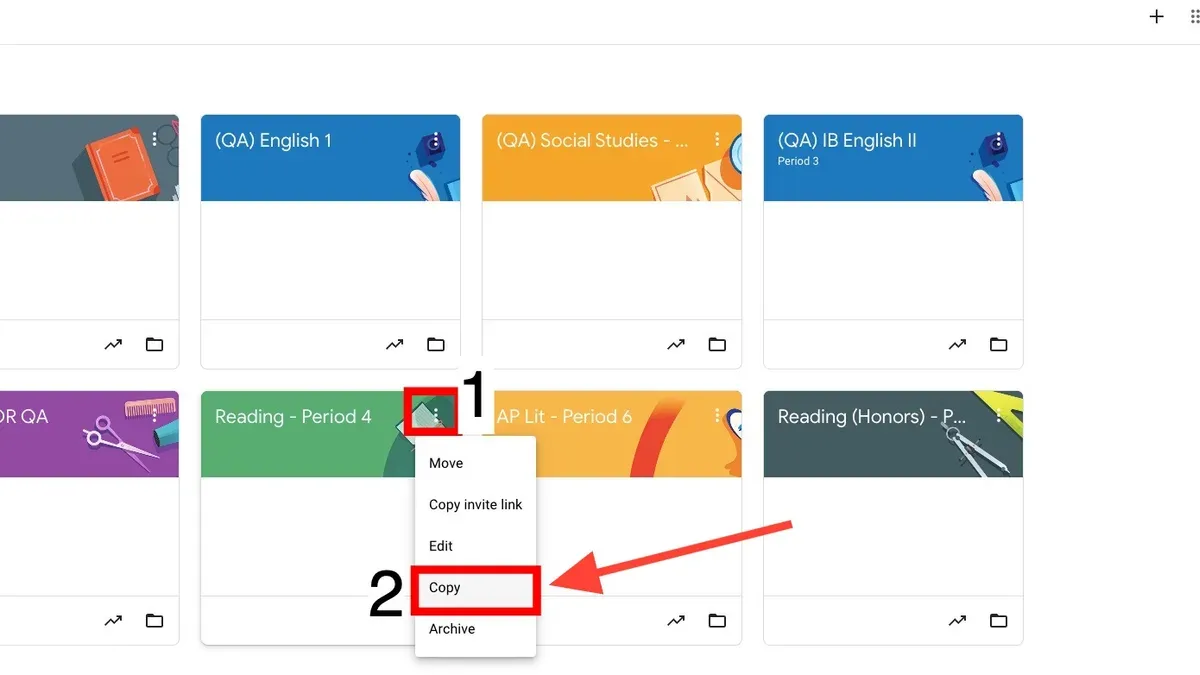
Updating your Google Classroom profile picture personalizes your presence and aids recognition across platforms. Click the circular profile icon at the top right of the Google Classroom interface, then select Manage your Google Account. Navigate to the Personal info tab, find the profile photo section, and click the camera icon to upload a new picture or select from existing photos. Changes sync across Google services, including Classroom.
Maintaining familiarity with these basics ensures you can confidently manage both Google Classroom and Canvas during the transition, reducing friction and preserving continuity for students and staff.
Checklist to create a new Google Classroom and update your picture
- Sign in to classroom.google.com
- Click the + button; select Create class
- Enter class name and details; click Create
- Click profile icon; select Manage your Google Account
- Go to Personal info; click camera icon on profile photo
- Upload or select a new profile picture
- Confirm changes and verify update in Google Classroom
How to add, upload, submit, and attach Canva projects to Google Classroom
To maintain workflow continuity when using Canva with Google Classroom, you need to export your Canva designs correctly and understand how to handle them within Google Classroom’s interface. Canva offers several export options; the most common are PDF, PNG, and JPG. For assignments requiring editable or printable formats, export your design as a PDF standard. For images or presentations, PNG or JPG may be more appropriate.
For example, imagine you designed a digital poster in Canva that students will submit for review. Click Share in Canva, then select Download. Choose PDF Print for high-quality output or PNG for images, then save the file to your device.
To upload this file as an assignment or material in Google Classroom, navigate to the relevant class, click Classwork, then Create and select Assignment or Material. Use the Add button, select File, then Upload and choose your Canva-exported file. This ensures students can download or view your Canva work directly.
When submitting Canva projects, students can export their work similarly and upload it via the Turn In button in the assignment view. Alternatively, you can attach a Canva project link by copying the shareable Canva URL and pasting it into the Add link option in Google Classroom posts or assignments. Remember to set the Canva sharing permissions to "Anyone with the link can view" to avoid access issues.
- Export Canva designs as PDF Print, PNG, or JPG depending on need
- Upload exported files in Google Classroom via Classwork > Create > Assignment or Material > Add > File > Upload
- Students submit Canva files by uploading exports through the assignment’s Turn In button
- Attach Canva shareable links using Add > Link with proper sharing permissions
How to log in and navigate Canvas LMS using your Google Classroom credentials
Accessing Canvas through your Google account simplifies login by using Single Sign-On (SSO). To start, go to your institution's Canvas URL and select the option to sign in with Google. This redirects you to the familiar Google sign-in page where you enter the same credentials used for Google Classroom.
For example, if your school's Canvas URL is canvas.yourschool.edu, visiting this link and clicking "Login with Google" will authenticate you via Google’s system, reducing the need to remember separate passwords. Once logged in, Canvas pulls your user profile associated with your school account.
If you arrive at Canvas via a Google Classroom link to an assignment or course, clicking the Canvas link often triggers the same Google SSO process automatically, providing seamless access without additional login steps.
Common login issues include mismatched email domains or using a personal Google account instead of your institutional one. Ensure you select the correct Google account tied to your education institution when prompted.
Navigation in Canvas differs from Google Classroom; Canvas uses a left-hand global navigation menu with sections like Dashboard, Courses, Calendar, Inbox, and Account. Unlike Google Classroom's straightforward class list, Canvas offers more granular control over course content, modules, and assignments in collapsible menus. Screenshots typically show Google Classroom's top navigation bar versus Canvas’s vertical menu for contrast.
- Go to your institution’s Canvas URL.
- Click "Login with Google" and enter your school Google credentials.
- Use Canvas links inside Google Classroom to trigger SSO automatically.
- If login fails, confirm you’re using your institution’s Google account.
- Familiarize yourself with Canvas’s left-side navigation menu for courses and tools.
How to switch roles from student to teacher in Google Classroom and Canvas
In Google Classroom, user roles are managed at the class level by the class owner or co-teachers. Students cannot self-promote to teachers; instead, an existing teacher or admin must change their role. To switch a student to a teacher, go to the Google Classroom People tab, locate the student, click the three-dot menu next to their name, and select Invite as co-teacher. Once accepted, the student gains teacher permissions, including editing assignments and grading.
In Canvas, role assignment is controlled by course administrators or institutional admins. You cannot switch your role independently. To change a student role to teacher, an admin accesses the People section within the course, clicks the settings icon next to the user, and selects Manage Roles. They then assign the Teacher role, which grants comprehensive access to course content, gradebook, and admin tools.
Role changes affect access and capabilities significantly. For example, a student upgraded to teacher can create assignments, view all student submissions, and modify course settings, whereas a student’s view is limited to submission and viewing grades. Be mindful that role changes propagate immediately but may require users to refresh their sessions.
Consider the case of a graduate teaching assistant transitioning from student to teacher: in Google Classroom, they must be invited as co-teacher by the primary instructor, while in Canvas, an admin assigns the teacher role directly. This ensures proper permissions and smooth workflow continuity.
| Platform | Role Change Location | Key Steps | Permissions Gained |
|---|---|---|---|
| Google Classroom | Class > People tab | Teacher/co-teacher invites student to co-teacher role | Create/edit assignments, grade, communicate |
| Canvas | Course > People > Manage Roles | Admin assigns Teacher role to user | Full course management, grading, content control |
- In Google Classroom, request an existing teacher to invite you as co-teacher.
- In Canvas, contact your admin to assign the Teacher role.
- Refresh your session after role change to access new features.
- Verify your new permissions by accessing grading and assignment tools.
How to put Google Classroom on your desktop for easy access
To streamline your workflow during or after your transition to Canvas, having quick desktop access to Google Classroom ensures you can toggle between platforms efficiently. You can create a desktop shortcut using your web browser or install the Google Classroom app if available for your device.
Create a Desktop Shortcut via Browser
Open Google Classroom in your preferred browser, such as Google Chrome. Click the three-dot menu in the upper-right corner, then select More tools > Create shortcut. Name the shortcut "Google Classroom" and check the option Open as window for a dedicated window without browser tabs.
This shortcut will appear on your desktop, allowing you to launch Google Classroom directly without opening your browser first. For example, when preparing lessons, you can double-click the shortcut to immediately access assignments or announcements, saving time navigating tabs.
Use Google Classroom Apps
On mobile or some desktop platforms, Google Classroom offers dedicated apps. Installing these provides notifications and offline access benefits. On Windows or macOS, check your app store to see if a Google Classroom app is supported, which can complement desktop shortcuts.
Benefits of Desktop Access
Desktop shortcuts reduce friction opening Google Classroom, helping you stay organized and responsive. You avoid cluttered browser tabs and can switch between Google Classroom and Canvas quickly, maintaining productivity during your transition.
- Open Google Classroom in browser (e.g., Chrome)
- Click menu (three dots) > More tools > Create shortcut
- Name shortcut and enable "Open as window"
- Find shortcut on desktop and launch directly
- Optionally install Google Classroom app from your device’s app store
Avoid common mistakes when switching from Google Classroom to Canvas
One frequent pitfall is underestimating the training required for both staff and students. Canvas offers a broader set of features and a different interface, so scheduling dedicated training sessions and providing step-by-step resources ensures everyone adapts efficiently.
Another common error is neglecting the integration of external tools like Canva. For example, a school that failed to configure Canvas’s LTI integration properly found educators unable to embed Canva projects directly, disrupting lesson flow. Ensure you connect Canva through the Canvas App Center and test asset uploads well before the first course launch.
Misalignment of grading schemes and assignment formats can cause confusion. Canvas supports weighted grading and multiple assignment types, which may differ from Google Classroom’s simpler model. A district that overlooked this had to manually adjust grades post-transition, delaying report card finalization.
Finally, failing to communicate changes clearly to all users leads to frustration and reduced engagement. Announce key dates, new login procedures, and where to find resources in advance via email, staff meetings, and parent newsletters.
- Plan comprehensive training sessions for all users
- Integrate Canva using Canvas’s LTI tools before course launch
- Review and align grading schemes and assignment types ahead of transition
- Communicate changes and support resources clearly and early
Read next
- Switching from Google Classroom to Brightspace: Your Expert Transition Guide
- Switching from Google Classroom to Blackboard: Your Expert Guide
- Moving from Canvas to Google Classroom: Your Essential Checklist
- Moving from Brightspace to Canvas: Your Complete Checklist
Frequently asked questions
How to add canva to google classroom?
To add Canva to Google Classroom, you need to integrate it as an external app. Open Google Classroom, click on the Classwork tab, then select Create > Assignment. In the assignment creation window, click on the Add button and choose the Google Drive option. From there, navigate to your Canva designs saved in Google Drive and attach them directly. Alternatively, use the Canva share feature to generate a link and paste it into the assignment description or attachment area.
How to upload canva to google classroom?
After finishing your design in Canva, download it as a PDF, PNG, or JPEG file. Then, go to Google Classroom and open the relevant class. Click on Classwork > Create > Assignment, and use the Add button to upload the downloaded Canva file from your device. Make sure the file is appropriately named so students can identify it easily.
How to submit canva to google classroom?
Students submit Canva projects by downloading their design from Canva and uploading it to the assignment in Google Classroom. In the assignment, click Add or Create, then select File to upload the downloaded design. Finally, click Turn in to submit the Canva project for grading.
How can i use google canvas?
Google Canvas is a simple drawing tool accessible at canvas.apps.chrome. Use it to create sketches or diagrams quickly within your browser, then save your work as PNG files. It's useful for adding visual notes or illustrations to assignments or presentations, but it does not integrate directly with Google Classroom or Canvas LMS.
How to change your google classroom picture?
To change your Google Classroom profile picture, open classroom.google.com and sign in. Click on the circular profile icon in the top right corner, then select Manage your Google Account. Navigate to the Personal info tab, click on the Profile photo section, and upload a new picture. The updated image will reflect across all Google services, including Classroom.
Quick checklist
- Evaluate your school's specific needs for LMS features and integration flexibility
- Compare Google Classroom's simplicity with Canvas's robust tools and customization
- Create new classrooms and update profile pictures to maintain continuity during transition
- Ensure all Canva projects are correctly uploaded and linked in your new Canvas courses
- Use your existing Google Classroom credentials to log into Canvas for smoother access
- Adjust user roles properly when switching between student and teacher functions
- Set up Google Classroom desktop shortcuts for easy access during the overlapping transition period
- Watch for common pitfalls such as incomplete data transfer and overlooked permission settings
What this advice does not cover
This article does not cover technical backend migration of data or custom API integrations between Google Classroom and Canvas, which require specialized IT support. If your institution needs to migrate large volumes of data systematically or integrate third-party tools beyond Canva, consult your IT department or LMS specialists to ensure a secure and compliant transition.
Start your switch by mapping out your course structure and identifying essential content. This strategic step helps you prioritize what to migrate first and ensures your new Canvas environment supports your teaching goals effectively.



