Switching from Google Drive to SharePoint: A Clear Migration Guide
This guide explains key differences and practical steps for switching from Google Drive to SharePoint without disrupting your team's productivity.
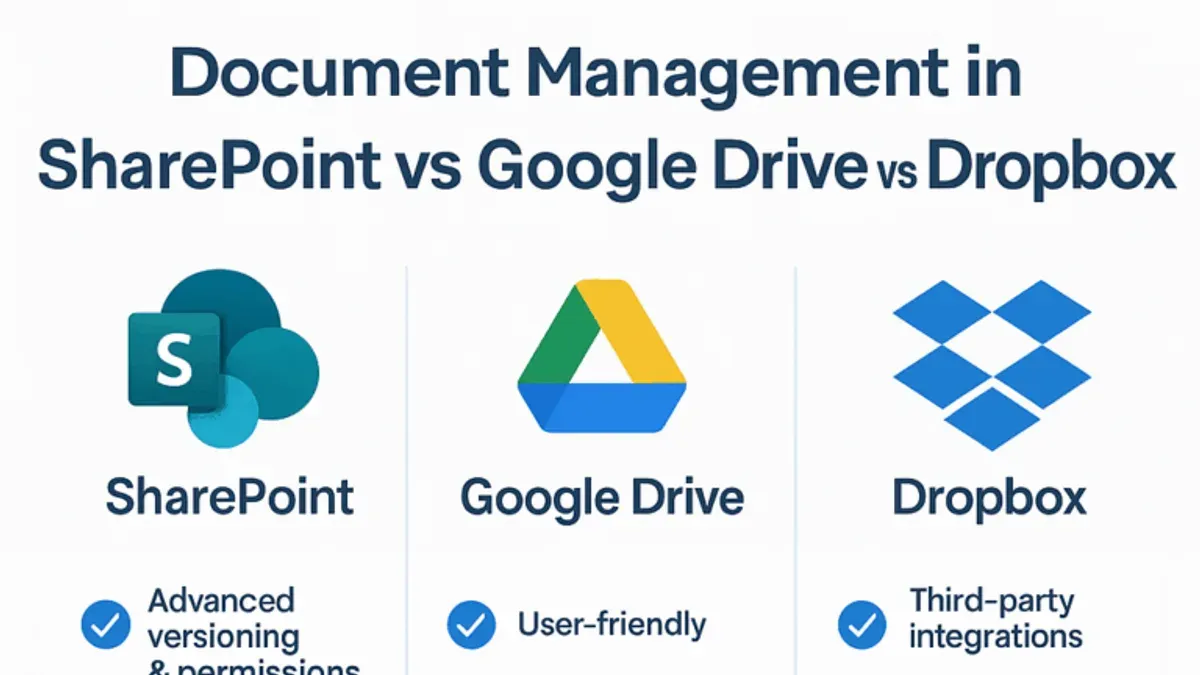
Your organization relies on Google Drive for file storage, but growing collaboration needs and integration demands have you considering SharePoint. You face questions about how to maintain workflow continuity and avoid data loss during the transition.
This guide on switching from Google Drive to SharePoint explains the key differences between the two platforms and provides a practical, step-by-step approach to migrating personal and shared drives. You will also find warnings about common pitfalls and tips to ensure a smooth changeover without disrupting your team's productivity.
Key takeaways
- Google Drive centers on individual file storage with simple sharing, while SharePoint offers deeper team collaboration and document management.
- Use SharePoint document libraries and OneDrive sync to replicate Google Drive's folder structure and accessibility.
- Moving files requires careful planning: export from Google Drive, import to SharePoint libraries, and verify permissions.
- Shared drives need special attention to preserve access controls and metadata during migration.
- Common mistakes include neglecting to map user permissions and missing hidden files or shortcuts.
Understanding the differences between Google Drive and SharePoint
Google Drive primarily serves as a personal cloud storage platform centered around individual file management and sharing. Each user’s drive is organized as a collection of files and folders, with sharing permissions applied at the file or folder level. This model suits users who need straightforward access to files or collaborate on a small scale by sending links or granting editing rights.
SharePoint, by contrast, functions as an enterprise content management system built around site collections and subsites. These sites serve as centralized hubs for teams or departments, hosting documents, lists, and workflows with complex permission structures. SharePoint’s architecture supports coordinated collaboration across organizational units, integrating deeply with the Microsoft 365 ecosystem.
| Feature | Google Drive | SharePoint |
|---|---|---|
| Structure | File-centric, user-owned folders | Site-based, team or project sites |
| Collaboration model | File/folder sharing via links or permissions | Team sites with role-based access and workflows |
| Permissions | Simple, file/folder level sharing | Granular, site, library, and item level |
| Integration | Google Workspace apps (Docs, Sheets, Slides) | Microsoft 365 apps (Teams, Outlook, Power Automate) |
| User roles | Owner, editor, viewer per file/folder | Site owners, members, visitors with varying privileges |
For example, if you are part of a marketing team managing a campaign, Google Drive lets you share the campaign folder with collaborators who can edit documents directly. In SharePoint, you might have a dedicated site for that campaign with document libraries, task lists, and communication tools all integrated, controlled by site membership and permissions. This structure supports broader collaboration and process oversight beyond simple file sharing.
How to use SharePoint like Google Drive
To make SharePoint feel familiar to Google Drive users, start by treating SharePoint document libraries as your main file repositories. Document libraries function similarly to Drive folders, where you can upload, organize, and access files. Navigate to your SharePoint site, select the document library, and use the "New" or "Upload" buttons to add files just like in Drive.
Syncing files locally is key for a Drive-like experience. Use OneDrive for Business to sync SharePoint libraries to your desktop. Open the document library, click the "Sync" button in the toolbar, and follow prompts to connect with OneDrive. This creates a local folder mirroring the library, allowing you to work on files offline and have changes update automatically.
Organize files with a combination of folders and metadata. While folders work like in Drive, SharePoint's metadata columns enable more dynamic sorting and filtering. For example, add a "Project" column to tag files, then use the library view settings to create filtered views, similar to Drive's search filters. This helps you maintain structure without deep folder nesting.
Sharing files and setting permissions is done through the "Share" option available on each file or folder. Unlike Drive’s relatively simple share links, SharePoint allows you to specify permissions more granularly, such as view-only or edit access, and restrict sharing outside your organization. When sharing, choose "Specific People" and disable editing if you want to replicate Drive’s link-sharing controls closely.
For example, to share a project folder with your team, select the folder in the document library, click "Share," enter your team members' emails, set their permission to "Can Edit," and optionally disable download if needed. This matches Drive’s shared folder behavior but with added control.
How to move files from Google Drive to SharePoint
When migrating files from Google Drive to SharePoint, you can choose between manual, automated, or hybrid approaches based on your organization's size and complexity.
Manual download and upload
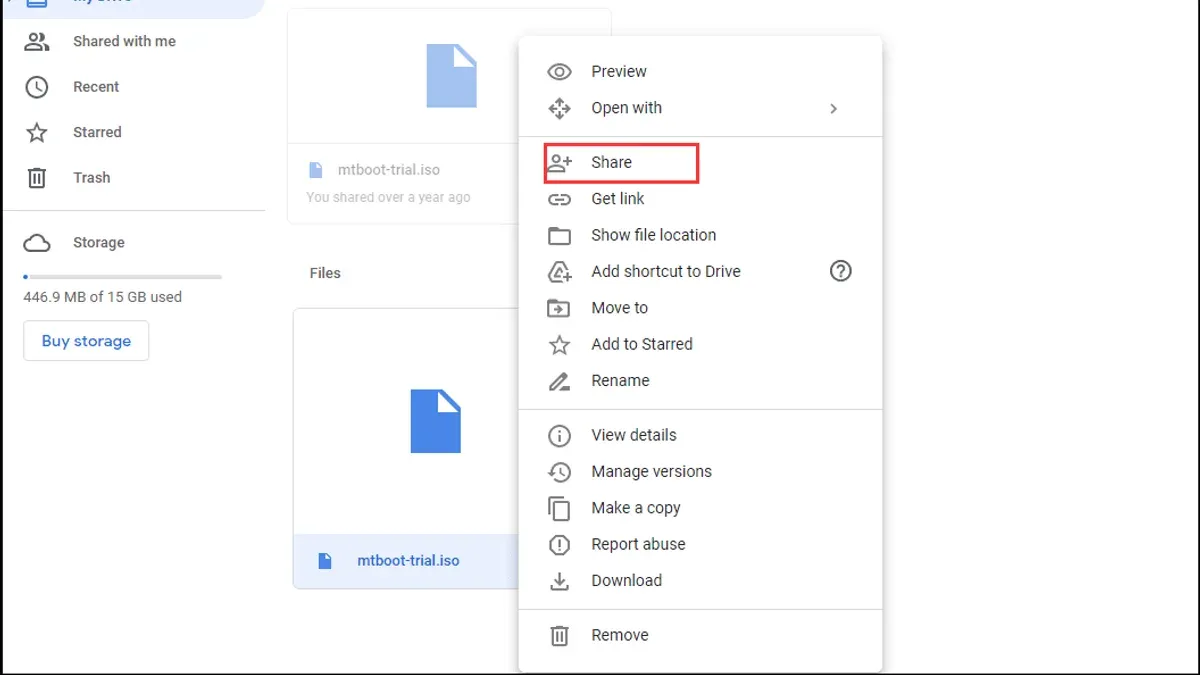
The simplest method is to download files from Google Drive and upload them to SharePoint. For example, if you have a folder with 200 files totaling 5 GB, downloading via Google Drive's web interface and uploading to a SharePoint document library can take several hours depending on your internet speed. This approach is straightforward and requires no additional tools but offers no migration of file version history or metadata beyond basic timestamps.
Manual migration is best suited for small personal drives or when moving select folders. However, it risks data loss if interrupted and can disrupt workflows due to downtime.
Using third-party tools and Microsoft migration API
For larger or more complex migrations, consider third-party migration tools like ShareGate or AvePoint, which connect directly to Google Drive and SharePoint, automating file transfers while preserving metadata and version history. Microsoft's SharePoint Migration Tool also supports Google Drive migration through API integration, allowing incremental transfers and handling permissions more efficiently.
These tools typically allow you to map Google Shared Drives to specific SharePoint sites and document libraries, enabling seamless migration of shared content. They also support incremental migration, meaning you can migrate initial data and then sync changes made during the transition period to avoid disruption.
Handling version history and metadata
Version history and metadata such as modification dates are often lost in manual migrations but can be preserved using migration tools that support these features. Confirm the tool you select explicitly supports Google Drive version history export and SharePoint versioning import.
Sync considerations and incremental migration
Before migrating, sync your Google Drive folders locally using Google Drive for Desktop. This ensures you have a backup and can perform a hybrid migration by uploading files directly to synced SharePoint libraries via OneDrive. This method also allows incremental migration where new or changed files transfer without redoing the entire dataset.
For instance, a mid-sized team migrating 10,000 files across multiple Shared Drives might start with an initial bulk migration using a third-party tool, then sync daily changes via OneDrive over a week to ensure completeness.
How to migrate shared drive to SharePoint
Google Shared Drives are designed for team-based content storage with centralized ownership, while SharePoint team sites offer more granular permissions and integration with Microsoft 365 apps. Migrating Shared Drive content requires careful mapping of Shared Drive member roles—Manager, Content manager, Contributor, Commenter, Viewer—to corresponding SharePoint groups such as Owners, Members, and Visitors to maintain access continuity.
Use migration tools that explicitly support Google Shared Drives, like Microsoft’s SharePoint Migration Tool or third-party solutions such as Mover.io, which preserve folder structures, metadata, and permissions. A common missed step is ensuring that Shared Drive files owned by multiple users are reassigned appropriately to prevent access loss after migration.
After migration, verify data integrity by comparing file counts and spot-checking permissions on SharePoint libraries. For example, a mid-sized marketing team migrated a 500 GB Shared Drive by first auditing user permissions in Google Workspace Admin Console, then creating matching SharePoint groups with equivalent access levels. They used Mover.io to transfer content, running the migration incrementally to minimize downtime.
Post-migration, the team scheduled a review session to confirm that workflows reliant on shared documents were uninterrupted and adjusted SharePoint alerts and sync settings for seamless collaboration. This checklist approach—mapping permissions, using supported tools, validating integrity, and confirming access—ensures a smooth transition from Shared Drives to SharePoint.
Common mistakes to avoid when migrating from Google Drive to SharePoint
One frequent mistake is overlooking the differences in permission and sharing models. Google Drive’s user-centric sharing contrasts with SharePoint’s site and group-based permissions. Ignoring this can lead to unintended access blocks or data exposure. For example, a team folder shared broadly in Google Drive might become inaccessible if the corresponding SharePoint site permissions aren’t properly configured.
Failing to account for SharePoint’s file size and path length limits also causes migration issues. SharePoint Online limits file sizes to 250 GB, but more commonly, path length restrictions of 400 characters can break deeply nested folder structures. Migrating without addressing this results in files being skipped or errors during upload.
Skipping user training on SharePoint’s interface reduces user adoption and causes frustration. The shift from Google Drive’s straightforward UI to SharePoint’s more complex environment requires clear guidance on document libraries, versioning, and metadata usage. Without this, productivity can drop sharply after migration.
Many migrations falter because of inadequate validation of migrated data and metadata. Not verifying file completeness, permissions, and metadata accuracy can lead to unnoticed data loss or broken workflows.
Finally, underestimating the time and resources for large or complex migrations can derail projects. Migration timelines often extend beyond initial estimates, especially when custom permission mapping or metadata preservation is involved. Planning buffer time and phased migrations can mitigate this risk.
How to sync Google Drive to SharePoint for ongoing collaboration
There is no native two-way synchronization between Google Drive and SharePoint, which means keeping files automatically updated in both systems requires third-party tools or manual processes. Native features limit you to exporting and importing files rather than continuous sync.
Third-party solutions like CloudFuze, MultCloud, and Mover.io offer varying levels of synchronization between Google Drive and SharePoint. CloudFuze supports scheduled one-way syncs with metadata preservation and granular permission mapping, but its pricing and complexity suit medium to large organizations. MultCloud provides cloud-to-cloud file transfer and sync with a freemium model, but advanced features require paid plans. Mover.io, acquired by Microsoft, integrates well with SharePoint but primarily handles migrations rather than ongoing sync.
One common use case for one-way sync is during phased migrations where Google Drive remains active for some teams while others use SharePoint. For example, an IT team might set CloudFuze to sync newly added project files from Google Drive to SharePoint every 12 hours, ensuring that SharePoint users see recent updates without disrupting Google Drive workflows.
Maintaining dual environments introduces challenges such as version conflicts, inconsistent permissions, and increased administrative overhead. Users may accidentally update outdated files or encounter discrepancies if sync delays occur. These risks grow with the number of collaborators and file changes.
Syncing is advisable when you need gradual transition periods or must support legacy users on Google Drive temporarily. However, a full migration with proper training and cutover reduces complexity and risk over the long term. Careful planning about timing, tool choice, and user communication is critical to avoid confusion during ongoing sync phases.
Evaluating if SharePoint is similar or the same as Google Drive
SharePoint and Google Drive share overlapping features like cloud storage, file sharing, and collaboration tools, but they serve different core purposes. Google Drive is designed primarily for individual users and small teams, focusing on straightforward file storage and simple sharing. In contrast, SharePoint is an enterprise content management system built for complex organizational needs, including intranet sites, advanced document workflows, and customizable metadata structures.
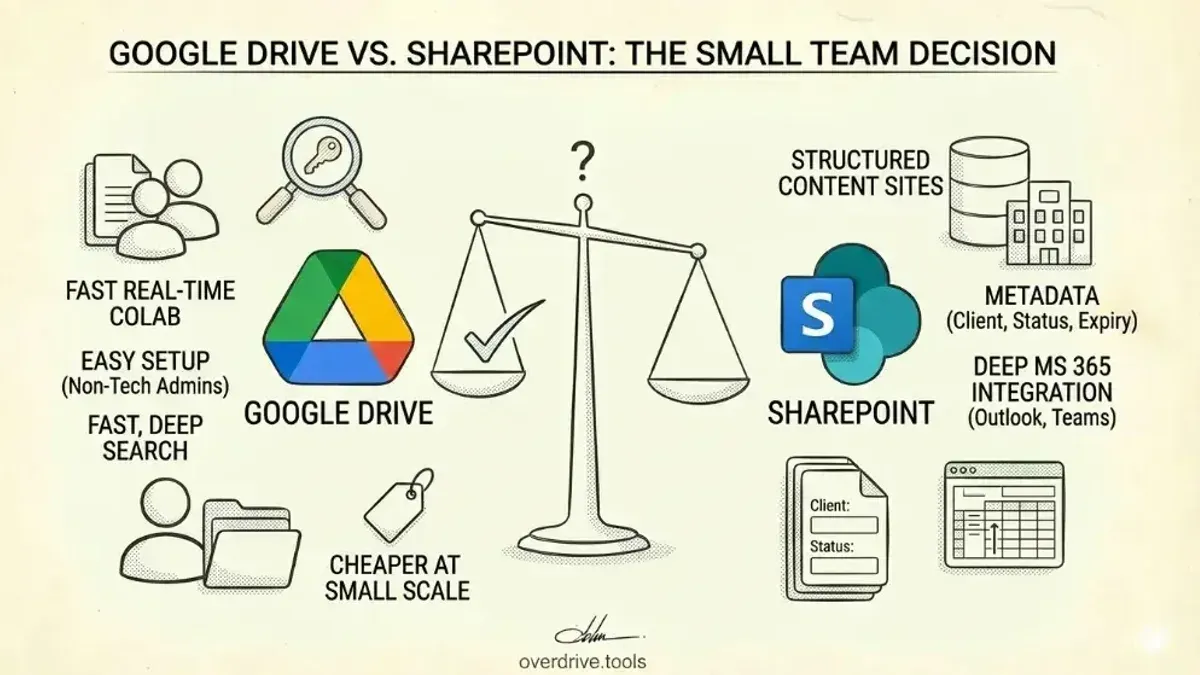
Consider a marketing team that currently uses Google Drive to store campaign assets. If they switch to SharePoint, they gain the ability to create dedicated communication sites, automate approval workflows, and implement detailed permission levels per document or folder. However, this added complexity requires user training and careful setup, as the SharePoint interface and terminology—such as document libraries, sites, and lists—differ significantly from Google Drive’s familiar folder-centric layout.
Feature-wise, Google Drive offers seamless integration with Google Workspace apps and a simple, intuitive user experience suitable for personal and small group use. SharePoint integrates deeply with Microsoft 365 apps and supports large-scale collaboration, versioning, and compliance requirements, making it scalable across departments or entire organizations.
When deciding if SharePoint meets your needs as a Google Drive replacement, consider whether your use case demands robust content management and integration or if simplicity and quick adoption are priorities. User feedback often highlights that SharePoint’s power comes with a steeper learning curve, which can affect adoption without dedicated support.
Frequently asked questions
How to move google drive to sharepoint?
To move files from Google Drive to SharePoint, start by downloading your files from Google Drive using the 'Download' option in the right-click menu or via Google Takeout for larger datasets. Then, upload the files to SharePoint using the 'Upload' button in your SharePoint document library. For better organization, recreate folder structures before uploading to maintain file hierarchy.
How to migrate google drive to sharepoint?
Migrating Google Drive to SharePoint involves planning, organizing, and using migration tools. Use Microsoft’s SharePoint Migration Tool or third-party services that support Google Drive connectors to transfer files directly. Ensure you map user permissions correctly and test with a small batch before migrating all data to avoid disruption.
Is sharepoint similar to google drive?
SharePoint and Google Drive both provide cloud storage and collaboration but serve slightly different purposes. Google Drive focuses on individual and team file storage with simple sharing, while SharePoint offers deeper integration with Microsoft 365, advanced document management, and customizable intranet capabilities. They share common features like version control and real-time editing but differ in workflow and organizational tools.
Is sharepoint the same as google drive?
SharePoint is not the same as Google Drive. While both are cloud storage solutions, SharePoint is a comprehensive platform designed for enterprise content management, intranet sites, and complex collaboration workflows. Google Drive is primarily a file storage and sharing service with straightforward collaboration features.
How to migrate from google drive to sharepoint?
To migrate from Google Drive to SharePoint, begin by auditing your current files and permissions in Google Drive. Use migration software or manual download/upload methods, paying attention to shared drives and ownership transfers. After migration, verify file integrity and update links or workflows that rely on the old Google Drive locations.
What this guide does not cover and when to seek other support
This guide does not cover migrating Google Workspace email or calendar data, which require separate tools and processes such as Google Workspace Migration for Microsoft Outlook (GWMMO) or third-party services.
If your Google Drive setup includes highly customized sharing rules, nested permissions, or extensive use of third-party integrations, you may need professional migration services to ensure data integrity and security.
SharePoint’s interface and features have a learning curve; some users might require additional training or adoption programs after migration to fully utilize SharePoint’s capabilities.
The most practical next step for your migration
Begin by auditing your Google Drive content using Google Drive’s Storage page and Shared Drives management console to identify data types, sizes, and sharing settings. This step helps you create a clear migration plan tailored to your organization’s needs and avoid transferring redundant or obsolete files. From there, use SharePoint’s Migration Tool or third-party migration software to carefully move your files, paying close attention to preserving permissions and metadata. Scheduling a pilot migration with a small set of files and users often reveals potential issues early, making the full migration smoother and reducing downtime for your team.