
Switching from Schoology to Moodle: Your Expert Step-by-Step Guide
This guide helps educators smoothly switch from Schoology to Moodle by covering migration, course setup, and user training.
Short answer: Switching from Schoology to Moodle involves understanding key differences in platform design, preparing and migrating your data carefully, and adapting your courses to Moodle’s flexible but distinct environment. The process requires deliberate planning to ensure a smooth transition for both educators and students.
This article guides you through the practical realities of switching from Schoology to Moodle, focusing on user experience differences, migration challenges, and how to leverage Moodle’s open-source flexibility for your institution. You will find detailed steps on preparing your content, configuring Moodle settings, importing courses, training users, and troubleshooting common issues, all aimed at helping you anticipate and manage the complexities of this platform transition.
Understand the Fundamental Differences Between Schoology and Moodle
Schoology is a proprietary, cloud-based learning management system (LMS) designed with integrated social networking tools such as activity feeds, direct messaging, and collaborative groups. Its user interface centers around ease of use with predefined workflows, making it straightforward for educators to create courses, manage assignments, and track progress without extensive configuration.
In contrast, Moodle is an open-source LMS that offers broad customization options, allowing institutions to tailor functionality, appearance, and user roles to their specific needs. As an administrator, you have full control over hosting choices, plugin installations, and course design flexibility, but this requires a more hands-on approach to setup and maintenance.
| Feature | Schoology | Moodle |
|---|---|---|
| Hosting | Cloud-based, managed by vendor | Self-hosted or cloud, full control |
| Customization | Limited to vendor options | Extensive via plugins and code |
| User Interface | Social media-like, streamlined | Modular, configurable layouts |
| User Roles | Predefined roles with fixed permissions | Flexible roles and permissions |
| Course Design | Template-driven, simple structure | Highly flexible, multi-format content |
For example, in Schoology, a teacher uses the "Materials" section to upload resources and assignments in a linear flow. In Moodle, the teacher builds a course page with sections for lessons, quizzes, forums, and workshops, customizing each activity’s settings extensively. This means the transition involves adjusting to a more modular, less prescriptive environment.
Expect that user roles in Moodle—like Manager, Teacher, Non-editing Teacher, and Student—can be finely tuned, unlike Schoology’s more rigid roles. This affects how you assign responsibilities and control access during administration.
Understanding these distinctions sets realistic expectations for course migration and daily use. You gain flexibility but also take on more responsibility for configuration and ongoing management.
Prepare Your Data and Course Content for Migration
Before migrating, clearly identify which course materials and user data you must export from Schoology. Focus on essential items like assignments, grades, enrolled users, and course documents to ensure a smooth transition.
Schoology offers export options primarily through its Gradebook export feature and content downloads. Navigate to the course you want to export, select Gradebook from the left menu, then click Export to download grades in CSV format. For assignments and course materials, use the Resources section to download files individually or in bulk. Note that Schoology does not provide a complete course package export, so you need to export different components separately.
Cleaning and organizing your data before import is vital. For example, you might export a grade CSV file listing student names, IDs, assignment titles, and scores. Moodle requires a specific format, so mapping columns correctly is necessary. Use a spreadsheet to standardize user IDs, remove duplicates, and align assignment names with Moodle’s naming conventions.
For instance, if your exported CSV has columns: Student Name, User ID, Assignment 1 Score, Assignment 2 Score, adjust them to Moodle’s expected format: username, assignment1, assignment2. This step prevents import errors and mismatched data.
| Schoology Export | Moodle Import |
|---|---|
| Student Name | username |
| User ID | idnumber |
| Assignment 1 Score | assignment1 |
| Assignment 2 Score | assignment2 |
Keep in mind that user passwords cannot be exported from Schoology, so plan to reset or communicate new login credentials once users are migrated.
- Identify all course content and user data to export (assignments, grades, users).
- Export grades via Gradebook > Export (CSV) and download course resources individually.
- Clean exported files: remove duplicates, standardize user IDs, and rename columns to match Moodle’s format.
- Use a mapping chart to align Schoology data fields with Moodle import requirements.
- Plan for user credential resets, as passwords are not transferable.
Set Up Moodle and Configure Essential Settings
Begin by installing Moodle on your institution’s server or opting for a hosted MoodleCloud service if you prefer minimal IT overhead. Access the admin dashboard via Site administration, where initial setup begins.

Create user accounts by navigating to Users > Accounts > Add a new user. To mirror Schoology’s user roles, assign roles such as Manager (similar to Schoology admins), Teacher, Non-editing teacher, and Student. Customize these roles under Site administration > Users > Permissions > Define roles to ensure permissions align with your institution’s workflow.
Language settings can be found under Site administration > Language > Language packs. Install additional languages to accommodate diverse users, then set the default language for the site. Users can override this individually in their profiles, supporting a personalized experience.
For login configuration, visit Site administration > Plugins > Authentication > Manage authentication. Enable manual accounts for direct Moodle login and activate OAuth 2 services to integrate Google login, facilitating seamless access for institutions using Google Workspace. Configure the Google OAuth 2 client ID and secret within the OAuth 2 settings section, then assign Google login as an authentication method for users.
On the admin dashboard, the User management section displays all accounts with assigned roles. Here, you can bulk upload users via CSV if needed. The language settings page shows installed packs with options to add more, while the authentication page lists enabled login methods with toggle switches for quick activation.
- Install or access Moodle via server or MoodleCloud
- Create user accounts and assign roles resembling Schoology’s structure
- Install and set default language packs, allowing user overrides
- Enable manual and Google OAuth 2 authentication for flexible logins
- Use admin dashboard to manage users and authentication settings
Import Course Content and Rebuild Your Learning Environment
When importing course content from Schoology to Moodle, start by identifying supported formats like IMS Common Cartridge and SCORM packages, which Moodle can import directly. If your content includes proprietary or unsupported formats, export them as PDFs, Word documents, or HTML files and upload these manually into Moodle resources.
Assessments and assignments require careful reconstruction due to differences in settings. For example, Schoology’s assignment settings typically include basic due dates and submission types, while Moodle offers granular control such as limiting attempts, setting time windows, and applying advanced grading methods like rubrics and marking guides. Recreate assessments by using Moodle’s Quiz and Assignment modules, configuring question banks for reuse and randomization to enhance engagement.
Feedback mechanisms in Moodle surpass Schoology’s standard comment field. Moodle supports inline comments, annotated PDF feedback, and audio/video responses, providing richer interaction. Use the Assignment activity’s 'Feedback types' setting to enable multiple feedback modes, tailoring them to your institution’s needs.
Leverage Moodle’s modular structure by organizing courses into sections with labels, pages, and interactive activities like Forums or Lessons. For instance, where Schoology may present a linear assignment list, Moodle allows grouping related tasks with conditional access, ensuring students complete prerequisite materials before advancing.
As a concrete example, if you have a Schoology quiz with multiple choice and essay questions, export it as a QTI package if possible. Import into Moodle’s Quiz activity, then enhance it by adding automated feedback per answer choice and setting time limits. Add a Forum activity afterward to encourage discussion about quiz topics, a feature not native to Schoology assignments.
- Identify and export supported content formats (IMS Common Cartridge, SCORM)
- Convert unsupported materials to compatible file types for manual upload
- Rebuild assessments using Moodle’s Quiz and Assignment modules with advanced settings
- Enable diverse feedback options in the Assignment activity
- Use modular course sections and conditional activities to enrich course flow
Train Students and Educators on Using Moodle Effectively
To ensure a smooth transition, start by guiding students on how to log into Moodle. They can access the platform via desktop browsers or the Moodle mobile app, available for both iOS and Android. The login process is straightforward: visit your institution's Moodle URL, enter the provided username and password, and optionally enable two-factor authentication if configured. Screenshots illustrating the login screen on both desktop and mobile devices can clarify this step for users.
Users will need to update their passwords and profiles once logged in. Direct them to Site administration > Users > Profile settings to change passwords and update details such as contact information and preferred language. Highlight that language preferences can be adjusted individually under Preferences > Preferred language, which is particularly helpful for multilingual institutions.
For educators, managing assignments efficiently is key. In a course, navigate to Turn editing on > Add an activity or resource > Assignment to create assignments. Enable submission types like file uploads or online text and activate feedback options such as annotated PDF comments or audio feedback. Adding students can be done by enrolling them manually via Participants > Enrol users or setting up self-enrollment options.
Typical questions include "How do I reset my password?" or "Where can I find my grades?" Creating user guides with step-by-step instructions and annotated screenshots will reduce support requests. For example, a student struggling to find their assignment submission page benefits from a clear screenshot showing the navigation path: Course > Assignment Activity > Add submission.
- Provide login instructions with screenshots for desktop and mobile
- Explain how to change passwords and update profiles via Site administration
- Show educators how to create assignments and enable feedback tools
- Detail methods for enrolling students in courses
- Develop user guides addressing common FAQs with clear visuals
Troubleshoot Common Issues During and After the Transition
When switching from Schoology to Moodle, encountering system errors like "Learning is currently unavailable" can disrupt your workflow. This message often results from incorrect course availability settings. To fix it, navigate to Course administration > Edit settings and ensure Course visibility is set to Show and that the course start and end dates encompass the current period.
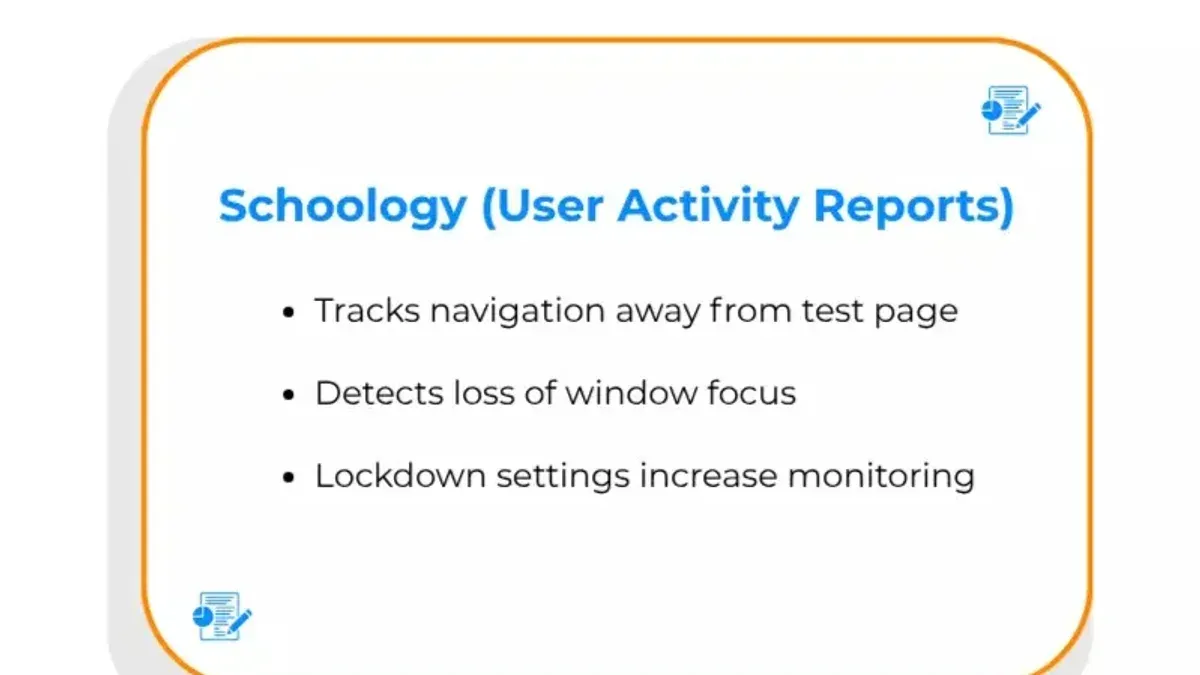
Another frequent snag involves submission settings not behaving as expected. For example, educators might find that assignment feedback is missing or late submission settings are ignored. Verify these by visiting Assignment > Edit settings > Feedback types and confirming that options like Feedback comments and Offline grading worksheet are enabled. Also, check Submission settings > Attempts reopened to control late submissions.
Password resets and language preference glitches often frustrate users. If users report issues resetting passwords, confirm that the Self registration and Password reset options are enabled in Site administration > Plugins > Authentication > Manage authentication. For language problems, clear caches under Site administration > Development > Purge caches and ensure language packs are up to date.
Consider this example: a teacher reported students could not submit assignments, seeing a "Submission disabled" notice. The root cause was that the assignment's availability dates were incorrectly set to the future. Adjusting the Allow submissions from date to the current or past date immediately restored functionality.
- Check course visibility and availability dates to resolve "Learning is currently unavailable" errors
- Enable all necessary feedback options under assignment submission settings
- Ensure password reset and self-registration plugins are active
- Clear caches to fix language preference glitches
- Verify assignment submission windows align with current dates
Avoid Common Mistakes When Switching from Schoology to Moodle
One of the most frequent pitfalls in switching from Schoology to Moodle is underestimating the time and resources needed for thorough data cleanup. For example, a mid-sized university attempted migration with minimal data preparation, resulting in incomplete course materials and user records that caused confusion and delays.
Ignoring comprehensive user training and ongoing support can also doom your transition. In a case where a school failed to provide structured Moodle training sessions, both educators and students struggled with navigation and assignment submissions, leading to frustration and decreased engagement.
Lastly, not leveraging Moodle’s extensive customization options often leads to a bland and inefficient user experience. Simply replicating Schoology’s layout without adapting to Moodle’s modular blocks, custom roles, or activity completion settings misses the opportunity to create a tailored learning environment that supports your institution’s goals.
To avoid these issues, dedicate ample time upfront to clean and organize your data, plan and deliver targeted training sessions, and explore Moodle’s customization features to enhance usability and functionality.
- Allocate sufficient time and personnel for data cleanup before migration
- Develop and implement a detailed training program for all user groups
- Use Moodle’s customization tools to create a user-friendly interface
- Monitor user feedback and adjust settings post-migration
- Document migration steps and lessons learned for future reference
Read next
- Switching from Schoology to Brightspace: Your Expert How-To Guide
- Switching from Schoology to Blackboard: Your Complete Expert Guide
- Schoology Implementation Timeline: Your Step-by-Step Guide
- Master Your Moodle Implementation Timeline: A Step-by-Step Guide
Frequently asked questions
How to change schools in schoology?
Schoology does not allow users to manually change their school affiliation directly. If you need to switch schools, you must create a new account using the email associated with your new school or contact your current school’s administrator to update your profile. Alternatively, request that the new school sends you an invitation to join their Schoology environment.
How to log in to schoology?
To log in to Schoology, go to the official website or your institution’s custom Schoology URL. Enter your username or email and password on the login page. If your school uses Single Sign-On (SSO), you may be redirected to your institution’s authentication portal to complete the login.
How to change your grade in schoology?
Only authorized educators or administrators can change grades in Schoology. To do this, navigate to the Gradebook, find the specific assignment or assessment, and click the grade cell to edit it. Students cannot change their own grades; if you are a student, contact your teacher for grade adjustments.
How to log into schoology on phone?
Download the official Schoology app from the Apple App Store or Google Play Store. Open the app, enter your login credentials or use your institution’s SSO if applicable, and sign in. The app provides access to courses, assignments, and notifications optimized for mobile use.
How to change schoology password?
To change your Schoology password, log in and go to Account Settings by clicking your profile icon in the top-right corner. Select "Password" from the options, then enter your current password followed by your new password twice for confirmation. If you forgot your password, use the "Forgot Password" link on the login page to initiate a reset via your email.
Quick checklist
- Review course structures and content formats for compatibility before migration.
- Back up all Schoology data, including gradebooks and assignments.
- Install Moodle plugins needed to replicate Schoology features.
- Configure site policies under Site administration > Users > Permissions.
- Import course content using Moodle's backup restore tools.
- Set up groups and enroll users appropriately for each course.
- Schedule training sessions focusing on Moodle’s navigation and activity modules.
- Prepare support resources highlighting differences in assignment submissions and grading.
- Document common errors during migration and their fixes.
- Monitor user feedback closely during the first weeks post-transition.
This guide’s limits and who should do what else
This guide does not cover technical server setup for self-hosted Moodle installations, which requires specialized IT knowledge. If your transition involves on-premise Moodle hosting, consult Moodle’s official installation documentation or engage an experienced Moodle systems administrator. Additionally, this guide does not address advanced customizations or integrations with third-party tools beyond Moodle’s standard plugin ecosystem.
The single most useful next step is to start a pilot migration of a small course. This hands-on approach reveals specific challenges in your environment, lets you fine-tune settings, and prepares educators and students for the full switch with minimal disruption.



