Master Desktop Stacks in Finder for a Cleaner Mac Workspace
Discover how to use Desktop Stacks in Finder to visually organize your Mac desktop without moving files, keeping your workspace neat and accessible.
Desktop Stacks in Finder provides a practical method to organize a cluttered Mac desktop by grouping files visually without moving them. This feature automatically clusters files by type, date, or tags, enabling users to tailor their workspace to specific needs while maintaining original file locations.
Understanding Desktop Stacks: What They Are and How They Work
Introduced in macOS 2026, Desktop Stacks groups desktop files into collapsible stacks based on selected criteria. This reduces visual clutter by consolidating related files into single icons.
- Core concept: Stacks visually group files on the desktop without changing their physical location.
- Grouping options: Files can be stacked by Kind (file type), Date Created, Date Modified, or Tags.
- Visual vs. manual sorting: Unlike manual folder sorting which moves files, Stacks only change the desktop view, preserving file paths.
| Aspect | Desktop Stacks | Manual Folder Sorting |
|---|---|---|
| Organization Method | Visual grouping on desktop | Physical file relocation |
| Setup Effort | Enabled with a few clicks | Requires manual sorting and ongoing maintenance |
| Flexibility | Limited to preset grouping options | Fully customizable folder structure |
| File Location Changes | No changes to file paths | Files moved to new folders |
Step-by-Step Guide: Setting Up and Customizing Desktop Stacks
To enable and customize Desktop Stacks in Finder, follow these steps carefully to avoid common oversights such as missing the grouping criteria setting:
- Click on the Mac desktop to activate Finder.
- Open the View menu from the menu bar.
- Select Use Stacks to enable the feature; files will group by Kind by default.
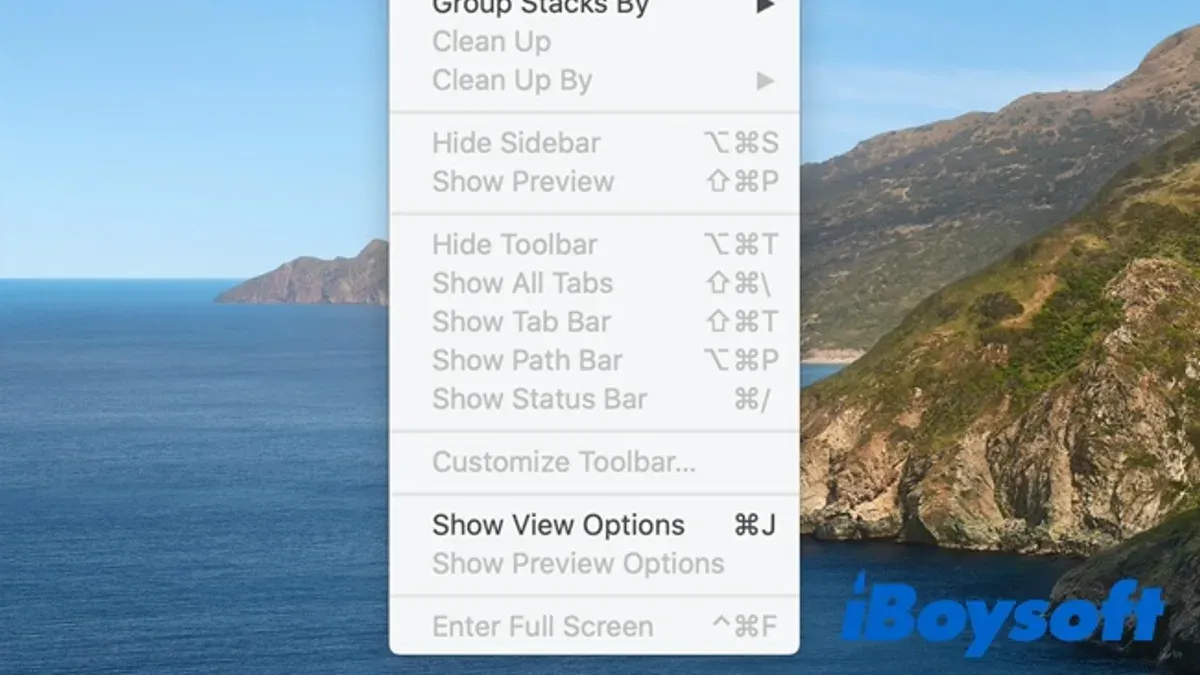
- To change grouping criteria, return to the View menu, choose Group Stacks By, and select one of the options: Kind, Date Created, Date Modified, or Tags. Note that changing this setting updates all stacks on the desktop.
- Click a stack to expand and view its contents; click again to collapse it.
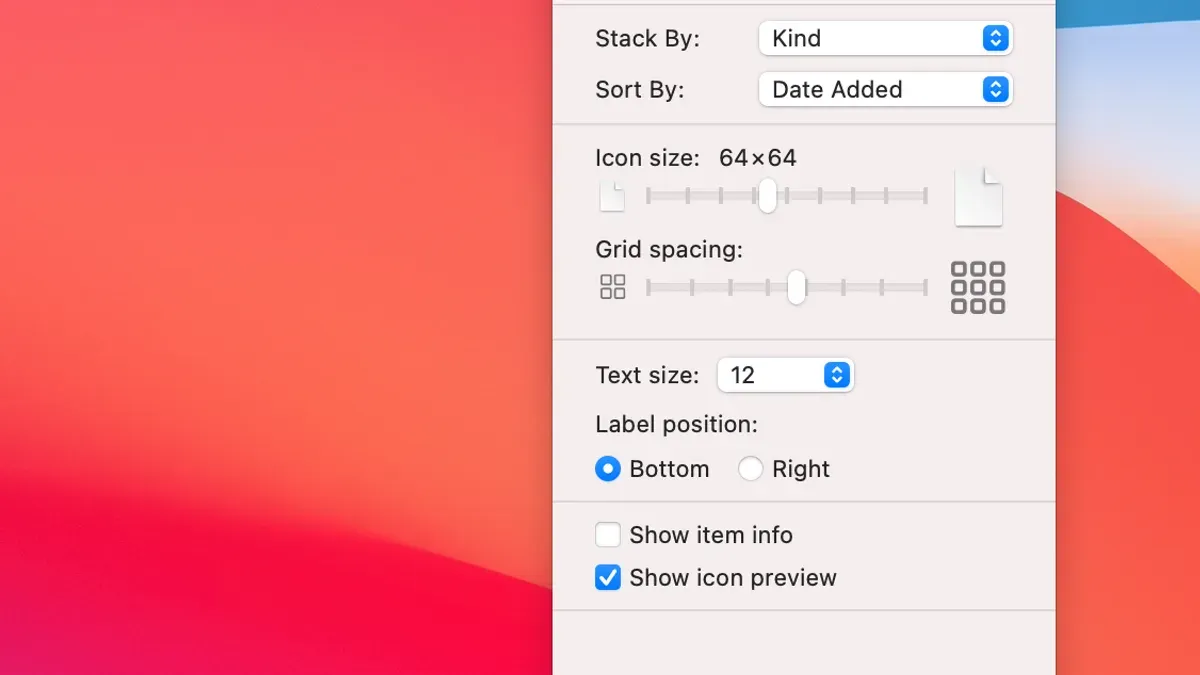
- For appearance adjustments, right-click the desktop, select Show View Options, then modify stack spacing and icon size to suit your preference.
Remember, Desktop Stacks only affect the desktop view and do not move or duplicate files. If files are not appearing in expected stacks, ensure they are located on the desktop and not inside folders.
Desktop Stacks in Different Workflow Scenarios
Desktop Stacks can be adapted to various professional and personal workflows, but effectiveness depends on file types and volume:
- Creative professionals: Grouping by file type separates images, videos, and documents, facilitating quick access to assets.
- Project managers: Grouping by tags or dates helps organize files according to project phases or deadlines, though tagging requires manual assignment.
- Students: Grouping by date modified highlights recent assignments and notes, aiding timely access.
While Desktop Stacks improve desktop clarity and access speed, users with very large numbers of files may find stacks less effective due to overlapping or similarly named files.
Tips and Tricks to Maximize Productivity with Desktop Stacks
- Combine tags with Stacks: Assign tags to files and group by tags to create multi-layered organization beyond file type or date.
- Keyboard shortcuts: Use
Control + Clickon a stack for quick options. PressSpacebarto preview files with Quick Look without opening them. - Trackpad gestures: A two-finger tap on a stack quickly expands or collapses it, speeding navigation.
- Maintain a clean desktop: Regularly archive or delete outdated files to keep stacks manageable and relevant.
For example, tagging campaign files and grouping stacks by tags helps marketing teams quickly locate assets. Using Quick Look previews reduces the need to open files individually, streamlining daily workflows.

What Desktop Stacks Can’t Do: Honest Limitations and When Not to Use Them
Desktop Stacks have clear limitations that users should consider:
- Stacks do not replace detailed folder hierarchies or project management tools needed for complex workflows.
- Grouping options are limited to preset criteria; custom grouping categories are not supported.
- Users with very large desktop file counts or who prefer manual file placement may find stacks less effective or confusing.
- Grouping similar file types together can cause confusion if file names or extensions are not distinct.
Desktop Stacks provide a useful visual organization layer but are not a substitute for comprehensive file management.
Practical Caveats When Using Desktop Stacks
Keep in mind that Desktop Stacks only change the desktop’s visual layout. They do not move, copy, or back up files. For deeper organization, backup, or sharing, additional file management steps are necessary.
Frequently Asked Questions
Can I create my own custom categories for Desktop Stacks beyond the preset options?
No. macOS 2026 limits Desktop Stacks grouping to preset criteria: Kind, Date Created, Date Modified, and Tags. Custom categories are not supported.
How do Desktop Stacks affect file search and Spotlight indexing?
Stacks do not alter file locations or metadata, so file search and Spotlight indexing function normally and are unaffected by Stacks.
Will Desktop Stacks work the same way on external drives or network locations?
Desktop Stacks apply only to files physically located on the desktop. Files stored on external drives or network shares are not grouped by Stacks unless those files are placed on the desktop.
Can I temporarily disable Desktop Stacks without losing my organization?
Yes. You can toggle Desktop Stacks off via the View menu. When turned off, files return to their original desktop positions visually, and your stack grouping preferences remain saved for later use.