How to Use Remind Me for Follow Ups in Mail App: A Step-by-Step Guide
Discover how to set personalized reminders in the Mail app to manage follow ups efficiently and keep your inbox organized.
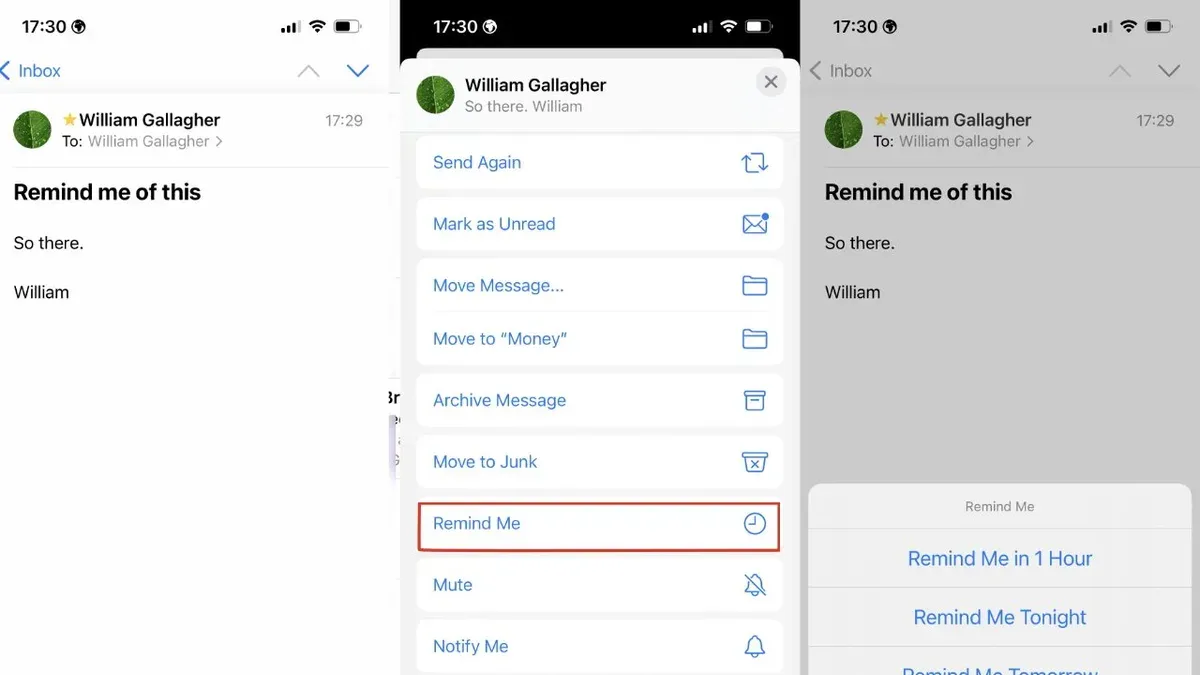
You've just sent an important email and realize you need to follow up, but your inbox is already crowded. Without a reliable way to remind yourself, that follow-up can easily slip through the cracks. Learning how to use Remind Me for follow ups in Mail app can help you stay on top of these crucial messages by setting personalized reminders tied directly to your emails.
This guide walks you through each step of activating and using the Remind Me feature effectively. You'll learn how to set reminders for single emails and entire threads, manage multiple follow-ups, and troubleshoot common issues. By combining precise timing with contextual cues, you’ll gain control over your email workflow and never miss a follow-up again.
Key takeaways
- Access Remind Me via the Mail app's message options menu for individual emails.
- Set reminders with custom times and locations to match your workflow.
- Use Remind Me on email threads to handle multiple follow-ups efficiently.
- Review all active reminders in the Flagged mailbox to stay organized.
- Address common glitches by checking app permissions and connectivity.
Before You Start: What You Need to Use Remind Me Effectively
To use the Remind Me feature in the Mail app confidently, start by ensuring your Apple device supports this function. Remind Me is available on iPhone, iPad, and Mac running the latest versions of iOS, iPadOS, or macOS with the updated Mail app. Confirm your device is running the current software version by going to Settings > General > Software Update on iPhone or iPad, or System Settings > Software Update on Mac. Using an outdated version may prevent access to the Remind Me feature.
Next, understand that Remind Me relies on an active internet connection to sync reminders across your devices. Without internet, reminders may not update or appear reliably, which can disrupt your follow-up workflow. Make sure your device is connected via Wi-Fi or cellular data before setting reminders.
Also, Remind Me functions best when you have an active email account configured in the Mail app. Verify your email accounts in Settings > Mail > Accounts on iPhone/iPad or Mail > Accounts on Mac. Having multiple accounts set up is fine, but ensure the one you use for follow-ups is properly configured and syncing.
Finally, have a basic familiarity with the Mail app interface. Knowing how to open emails, access the message list, and interact with mail controls will help you follow the guide smoothly. If you are new to Mail, spend a few minutes navigating to get comfortable before setting reminders.
Turn On and Access Remind Me in the Mail App
To begin using Remind Me for follow-ups, you first need to ensure the feature is enabled within the Mail app. Start by opening the Mail app on your device and navigating to the app's settings. Look for the section labeled Remind Me or Follow-Up Reminders, typically found under general or mail settings. Toggle the switch to activate the feature; once enabled, you'll be able to apply reminders to individual emails.
When viewing your inbox or an open email, you can access Remind Me options by selecting the email and tapping the Remind Me button or icon, often represented by a clock or bell symbol. This action opens a menu with preset timing options such as Later Today, Tomorrow, and Next Week. These presets are designed for quick selection based on common follow-up intervals.
If none of the preset times suit your needs, you can customize the reminder timing. Choose the Pick Date & Time option from the Remind Me menu, then select the exact date and time you want to be alerted. This flexibility allows you to align reminders with your personal schedule and the context of the email.
Set Reminders for Individual Emails to Manage Follow Ups
To ensure you never miss an important follow-up, you can apply Remind Me directly to specific emails with personalized timing. This feature lets you choose when to be reminded, helping you stay on top of your tasks without cluttering your inbox.
- Select the email you want to follow up on. Once open or highlighted, look for the Remind Me icon or option at the top or in the toolbar. When you tap it, a menu with preset reminder times appears.
- Choose the desired reminder time, such as "Tomorrow afternoon," to receive a notification exactly when you plan to revisit the email. After selecting, you should see the email marked or tagged with the reminder time, confirming it’s set.
- Before finalizing, add a note or context to the reminder if available. For example, when setting a reminder on a client’s email, include a note like "Review project proposal and prepare questions." This note will appear with the notification to jog your memory.
- Confirm the reminder. You will receive a notification at the chosen time, alerting you to the email and the note you added, ensuring you know exactly what follow-up action to take.
For example, if you get an email from a client and want to address it tomorrow afternoon, set the Remind Me option to that time and add a note about the next steps. This way, the Mail app not only prompts you but also provides the context you need, making your follow-up efficient and timely.
Use Remind Me with Email Threads and Multiple Follow Ups
When managing ongoing email conversations, you can set multiple Remind Me notifications on different messages within the same thread. This lets you track separate follow-ups without losing context. For example, you might want to remind yourself to respond to a specific question in one email and check for a document in another.
To avoid confusion, assign clear, specific reminder notes for each email. This helps you distinguish the purpose of each follow-up at a glance. Additionally, combining Remind Me with Mail app flags or colored labels creates a visual system that highlights emails needing attention, making it easier to prioritize.
Without Remind Me, keeping track of multiple follow-ups in a thread often leads to missed or delayed responses because you rely solely on the inbox order or memory. Using Remind Me with contextual notes and flags provides a structured way to manage conversations, ensuring you address each point at the right time.
- Open the email thread and select the specific message you want to follow up on. You should see the full email content displayed.
- Tap or click the Remind Me icon and choose a custom reminder time or preset option. A confirmation notification or icon will appear on the selected email.
- Add a brief note describing the follow-up reason, such as "Check contract details" or "Confirm meeting time." This note will appear with the reminder notification.
- Flag the email by tapping the Flag icon or right-clicking for flag options. The flagged email will be marked in the thread with a colored indicator.
- Repeat these steps on other emails within the thread as needed, each with distinct reminders and flags. Your mailbox will now display multiple reminders and flags, helping you track each follow-up separately.
Manage and Review Your Remind Me Follow Ups Efficiently
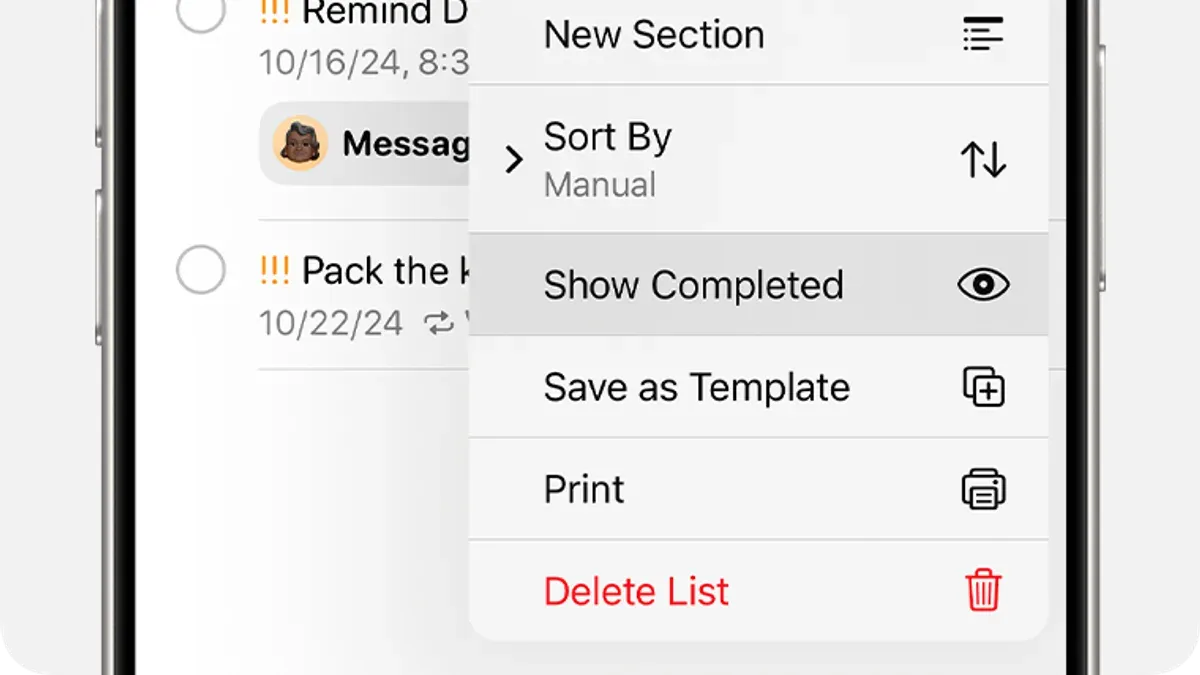
To keep your email follow-ups organized, you need a reliable way to find and manage all your active Remind Me reminders. In the Mail app, you can view these reminders in the Remind Me smart mailbox, which collects all emails flagged for follow-up. This centralized view helps you stay on top of pending tasks without hunting through your inbox.
Modifying or canceling reminders is simple if your plans change. Just open the email with the reminder, tap the Remind Me icon, and choose a new time or select Remove Reminder. This flexibility ensures your follow-ups always align with your current priorities.
Integrate Remind Me into your daily email review routine by setting a specific time—such as the start or end of your workday—to open the Remind Me mailbox. Review each reminder, update its timing or notes as needed, and clear those you've completed. This habit creates a focused checkpoint to manage your communication flow effectively.
- Open the Mail app and tap Mailboxes to find the Remind Me smart mailbox; you will see a list of all emails with active reminders.
- Tap an email to review its reminder; then tap the Remind Me icon (the clock) in the email toolbar to modify or cancel the reminder. You should see options to change the reminder time or remove it entirely.
- At the start or end of your day, open the Remind Me mailbox and go through each reminder systematically. Edit times or notes if follow-ups need rescheduling, or swipe to mark emails as read or move them once done, confirming your follow-up workflow stays current.
Troubleshoot Common Issues with Remind Me in Mail App
If Remind Me reminders are not appearing or notifications aren’t triggering, start by verifying your notification settings. Go to Settings > Notifications > Mail and ensure Allow Notifications is enabled. Check that Alerts are set for Lock Screen, Notification Center, and Banners. Also, confirm that your device is not in Do Not Disturb or Focus mode, which can silence notifications.
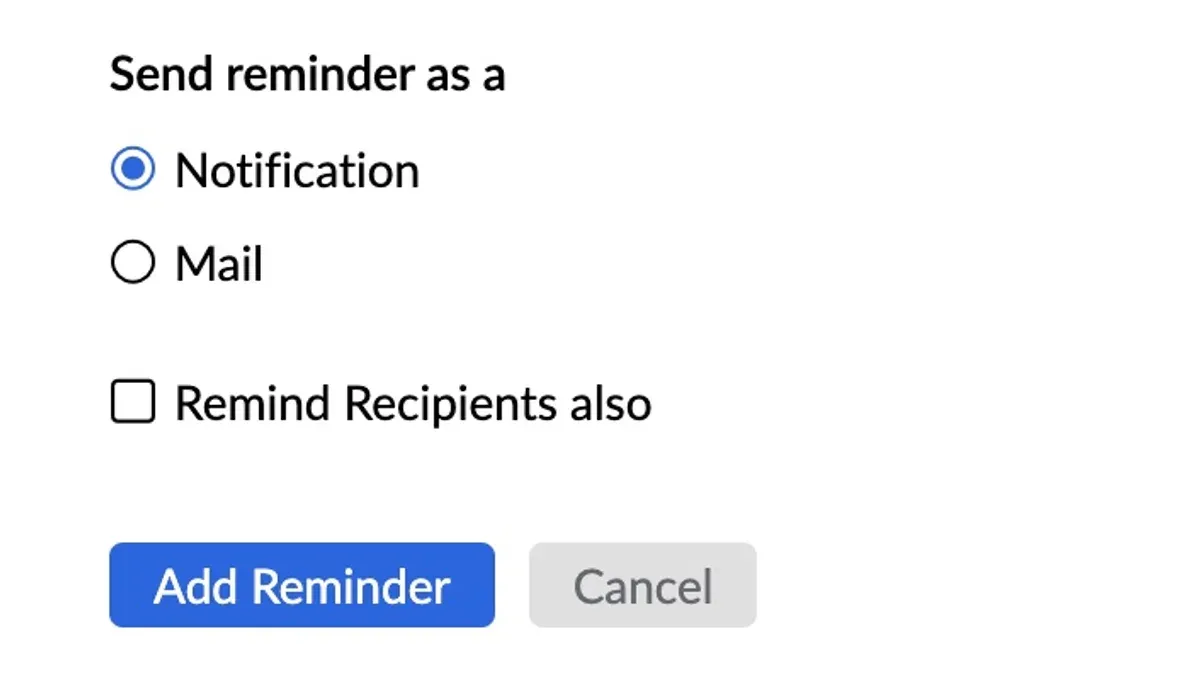
Sync issues can cause reminders to fail across devices. To fix this, ensure all your devices use the same Apple ID and have Mail syncing enabled under Settings > [your name] > iCloud. If reminders seem out of sync, try toggling Mail off and back on in iCloud settings, then restart your devices.
If Remind Me options are missing or greyed out, check that your Mail app is updated to the latest version. Sometimes, restrictions or profiles can disable features; review Settings > Screen Time > Content & Privacy Restrictions to make sure Mail features are allowed. Also, verify that the email account supports Remind Me—some third-party or older protocols might not fully support this feature.
- Open Settings > Notifications > Mail. Confirm Allow Notifications is on and alerts are enabled for all sections. When correct, you will see toggles active and preview banners on your lock screen.
- Check Settings > Focus > Do Not Disturb and ensure it is off. When off, notifications from Mail will come through immediately.
- On each device, go to Settings > [your name] > iCloud and ensure Mail is toggled on. When syncing properly, your emails and Remind Me flags update consistently across devices.
- In Settings > Screen Time > Content & Privacy Restrictions, confirm Mail is allowed. If restrictions block features, the Remind Me option may appear greyed out.
- Update your Mail app via the App Store. Once updated, missing features usually reappear and function correctly.
These steps align with official Apple support guidance and resolve most common Remind Me issues by ensuring correct notification permissions, syncing, and app settings.
Frequently asked questions
Can I customize the reminder times beyond the presets in Remind Me?
Yes, you can customize reminder times beyond the built-in presets. When setting a reminder, choose the option to pick a specific date and time, allowing you to set reminders tailored to your exact schedule. This flexibility helps you align follow-ups with your workflow rather than being limited to default intervals like later today or tomorrow.
Will Remind Me work if I’m offline when the reminder is due?
Remind Me notifications are tied to your device’s local alerts, so even if you are offline when a reminder is due, you will still receive the notification. However, if your device is turned off or in Do Not Disturb mode, the alert may be delayed until connectivity or notifications are restored. It’s best to ensure your device is on and notifications are enabled to avoid missing reminders.
Can I use Remind Me with multiple email accounts in Mail app?
Yes, Remind Me works across all email accounts set up in the Mail app. You can apply reminders to emails regardless of which account they belong to, and the reminders will appear consistently in your unified inbox and follow-up views. This makes it simple to manage follow-ups across personal and work accounts in one place.
How does Remind Me differ from using calendar alerts for email follow-ups?
Remind Me is integrated directly within the Mail app, linking reminders to specific emails for faster context retrieval. Calendar alerts require manually creating events and adding email details, which can be less streamlined. Remind Me also allows you to quickly toggle reminders on or off per email without switching apps, making it better suited for managing follow-ups tied strictly to your inbox.
What Remind Me Does Not Cover and When to Consider Other Tools
Remind Me is designed specifically for managing follow-ups within the Mail app itself. It does not automatically sync your reminders with third-party task management or calendar applications. If your workflow depends heavily on integrated project management tools or cross-platform task syncing, you might find dedicated apps like Things, Todoist, or Microsoft To Do more suitable.
Additionally, Remind Me focuses on individual emails and threads but is not built for complex multi-step workflows or collaborative task assignments. For teams or projects requiring shared accountability and detailed task tracking, consider specialized collaboration software instead.
Taking the next step, start by setting a personalized Remind Me alert on one important email today. Choose a specific time and add a contextual note that helps you remember why the follow-up matters. This simple action will help you build a habit of proactive email management and ensure you never miss a crucial message again.
See also: How to Use VIP Senders in Mail App: Step-by-Step Guide · How to Fix Mail Not Syncing in Mail App: Step-by-Step Solutions · How to Schedule an Email in Mail App and Outlook App: Step-by-Step Guide · How to Unsend an Email in Mail App: Clear Steps for Apple Users