
How to Add an Outlook Account in Mail App: Clear Step-by-Step Guide
Step-by-step guide to add your Outlook account in Mail app on Mac and iPhone for seamless email syncing and management.
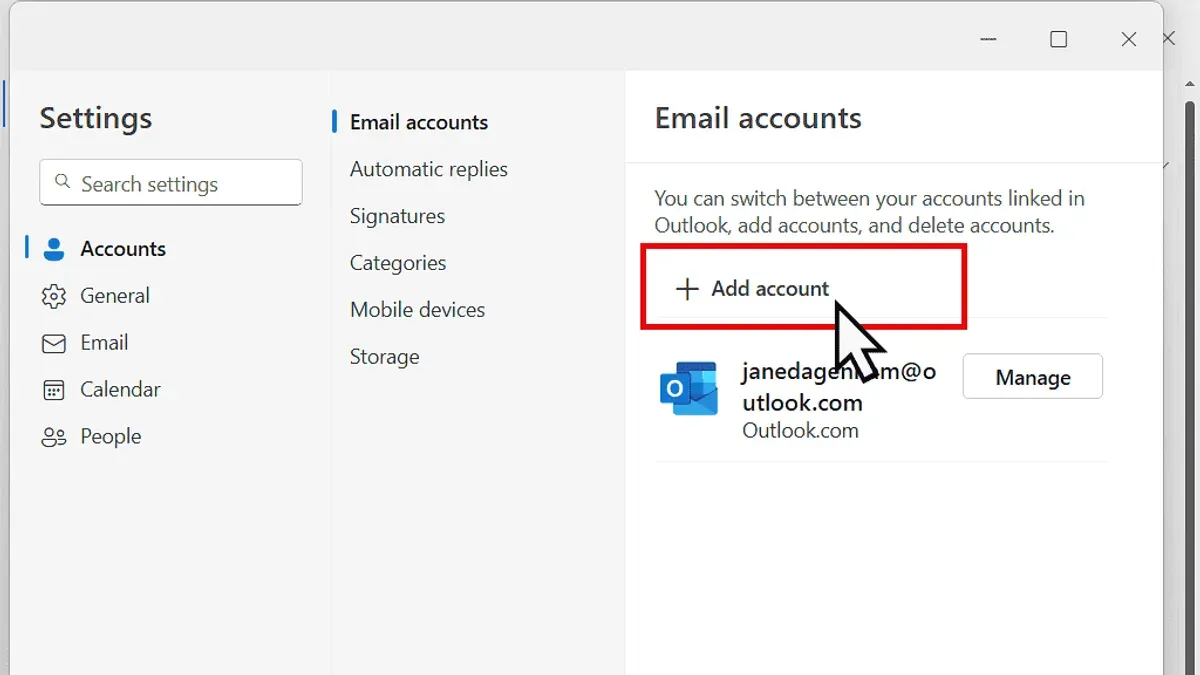
You have an Outlook email account and want to manage your messages directly in the Apple Mail app without switching between apps. Whether you're using a Mac or an iPhone, setting up your Outlook account correctly ensures smooth syncing and easy email management.
This guide explains how to add an Outlook account in Mail app step-by-step, with clear instructions tailored for both Mac and iPhone users. It also covers variations for different Outlook services and troubleshooting tips to resolve common setup issues. By following these directions, you can integrate your Outlook email seamlessly into the native Apple Mail experience.
Key takeaways
- Prepare your Outlook email address and password before starting the setup.
- On Mac, add your Outlook account through System Settings > Internet Accounts.
- On iPhone, add Outlook via Settings > Mail > Accounts > Add Account > Outlook.
- Enable Mail syncing specifically to avoid missing emails in the Mail app.
- Use troubleshooting tips if the account does not sync or authenticate properly.
Before you start: What you need to add an Outlook account to Mail app
Before adding your Outlook account to the Mail app on your Mac or iPhone, it's essential to gather some key information and prepare your device. First, confirm your full Outlook email address and password. These credentials are required to sign in and sync your emails properly.
Next, identify which Outlook service your account uses. Common types include Microsoft 365, Exchange, and Outlook.com. Each has slightly different authentication requirements. For example, Microsoft 365 and Exchange accounts often use enterprise-level security and may require additional setup steps compared to standard Outlook.com accounts.
Make sure your device is connected to a stable internet network to allow the Mail app to communicate with Outlook servers during setup. Also, ensure your Mac or iPhone runs the latest operating system version available. Apple regularly updates Mail and its system software to improve compatibility with email services like Outlook.
Finally, check if two-factor authentication (2FA) is enabled on your Outlook account. If you use 2FA, you might need to generate an app-specific password or use a verification code during setup. Confirm this ahead of time to avoid interruptions when signing in.
- Verify your Outlook email address and password. You should be able to log in at outlook.com or your organization's web portal without issues.
- Determine your account type: Microsoft 365, Exchange, or Outlook.com. This helps anticipate authentication steps.
- Connect your Mac or iPhone to Wi-Fi or cellular data, ensuring an active internet connection.
- Check for and install any pending OS updates via System Preferences on Mac or Settings > General > Software Update on iPhone. A successful update means your device can access the latest Mail app features.
- Review your Outlook account’s security settings to see if two-factor authentication is enabled. If yes, prepare necessary verification methods or app passwords.
How to add Outlook to Mail app on Mac
Start by opening the Mail app on your Mac. Once it is open, go to the menu bar at the top of your screen and click Mail, then select Accounts from the dropdown menu. This opens the Internet Accounts window where you can manage your email accounts.
- Click the + button at the bottom left to add a new account. A list of account types will appear; choose Microsoft Exchange if your Outlook account is work or school-based, or select Other Mail Account… for Outlook.com personal accounts.
- Enter your Outlook email address and click Sign In. You will then be prompted to enter your password. After entering it, click Sign In again to proceed.
- The Mail app will attempt to configure the server settings automatically. If automatic setup fails, you will need to enter the server details manually. For Microsoft Exchange, use the server address outlook.office365.com. For Outlook.com accounts, manual entry is rarely needed.
- Grant the Mail app permission to access your emails, contacts, calendars, and reminders by clicking Allow when prompted. This ensures full syncing of your Outlook data.
- Once setup finishes, close the Accounts window. Back in Mail, check that your Outlook inbox appears and that new messages sync correctly. Also, verify that your contacts and calendars are accessible in their respective Mac apps.
Following these steps ensures your Outlook account integrates smoothly with the Mail app on Mac, allowing you to manage emails without switching applications.
How to add an Outlook account to Mail app on iPhone
- Open the Settings app on your iPhone. Scroll down and tap on Mail, then select Accounts. You should see a list of your current accounts here.
- Tap on Add Account. A list of email providers will appear. Choose Outlook.com if you have a standard Outlook, Hotmail, or Live email address. If your Outlook account is part of an Exchange setup (often for work or school), select Microsoft Exchange instead.
- Enter your full Outlook email address, then tap Next. You will be prompted to enter your password on the next screen. Type your password and tap Sign In.
- If you have two-factor authentication enabled, follow the on-screen prompts to verify your identity. This might include entering a code sent to your phone or approving the login via the Microsoft Authenticator app.
- Once signed in, you will see a screen asking what you want to sync. Options typically include Mail, Contacts, Calendars, and Reminders. Toggle on the items you want to keep updated on your iPhone, then tap Save.
- Return to your home screen and open the Mail app. Your Outlook account should now appear in the list of mailboxes. New emails will begin syncing shortly, and you can manage your Outlook emails natively without switching apps.
Choosing which items to sync affects your device storage and how integrated your Outlook data is with other iPhone apps. For example, syncing Calendars and Contacts allows you to use Outlook events in the native Calendar app and Outlook contacts in the Contacts app.
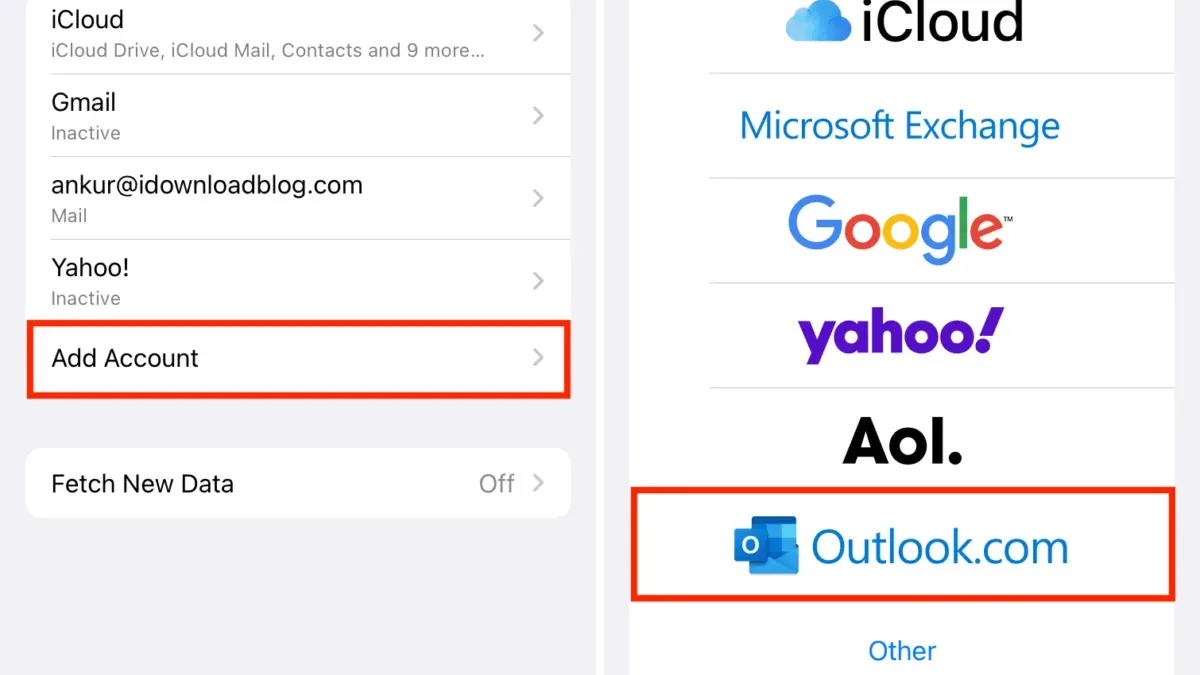
How to add an Outlook account in Apple Mail app for different Outlook services
When adding an Outlook account to the Apple Mail app, the setup process varies depending on the type of Outlook service you use: Outlook.com, Microsoft 365, or Exchange. Each service has its own configuration nuances that affect how you enter your credentials and select account types.
For Outlook.com accounts (including @outlook.com, @hotmail.com, and @live.com addresses), the Mail app typically handles configuration automatically. When you enter your email and password, the app detects the service and sets up the account using standard IMAP settings without requiring manual input.
Microsoft 365 accounts often require choosing the Exchange option during Mail app setup. This is because Microsoft 365 uses Exchange ActiveSync protocols to sync mail, contacts, and calendars. When selecting Exchange, you’ll be prompted to sign in through Microsoft’s authentication page, ensuring proper permissions and syncing.
Some Exchange accounts, especially those managed by organizations or custom servers, may need manual server details. You might need to enter the server address, domain, username, and password if automatic detection fails. Authentication methods can vary between basic password entry and modern OAuth, depending on your organization's setup.
| Outlook Account Type | Recommended Mail App Account Type | Setup Notes |
|---|---|---|
| Outlook.com | IMAP (automatic) | Automatic configuration; just enter email and password |
| Microsoft 365 | Exchange | Use Exchange option; sign in via Microsoft authentication page |
| Exchange (custom/business) | Exchange (manual setup possible) | May require manual server settings and domain; authentication varies |
- Start adding your Outlook account in the Mail app and enter your email address.You should see the account type options or be prompted to continue.
- If your email is Outlook.com, select the automatic setup or IMAP option.The Mail app will configure settings and prompt for your password.
- If your email is Microsoft 365, select Exchange as the account type.You will see a Microsoft sign-in page to authenticate.
- If your account is a custom Exchange, select Exchange and enter manual server details if prompted.Ensure you have the server address, domain, and credentials ready.
- Complete authentication as requested, whether password or OAuth.Once done, Mail app will finalize setup and start syncing your emails.
Choosing the correct account type and providing accurate server or authentication details ensures smooth syncing and full access to your Outlook emails, calendars, and contacts within the Apple Mail app.
How to add an email account to Outlook app (brief overview)
If you prefer managing your emails directly within the Outlook app on your Apple device, adding an email account there is a straightforward process. Unlike the Apple Mail app, the Outlook app combines email, calendar, and contacts in one interface, offering a different user experience tailored for Microsoft services.
- Open the Outlook app on your iPhone or Mac. You should see your inbox or a welcome screen if no account is set up yet.
- Tap or click on the Settings icon, usually represented by a gear symbol located at the bottom or top corner of the app.
- Select Add Account from the Settings menu. This will prompt you to enter your email details.
- Type in your full email address and tap or click Continue. The app will then recognize the email provider and direct you to the appropriate login screen.
- Enter your password on the prompted screen, then follow any additional security verification steps like two-factor authentication.
- Once authenticated, the Outlook app will sync your emails, calendars, and contacts as allowed by your account settings.
This guide focuses on setting up Outlook accounts in the Apple Mail app, but the Outlook app offers a more integrated experience for Microsoft services. Its setup process is often faster and more automated, especially for Office 365 or Outlook.com accounts, while Apple Mail requires manual configuration for some features.
Troubleshooting common issues when adding Outlook account to Mail app
When setting up your Outlook account in the Mail app, you might encounter errors such as incorrect password prompts, authentication failures, or syncing problems. These issues often arise from simple misconfigurations or temporary glitches that you can resolve with a few straightforward steps.
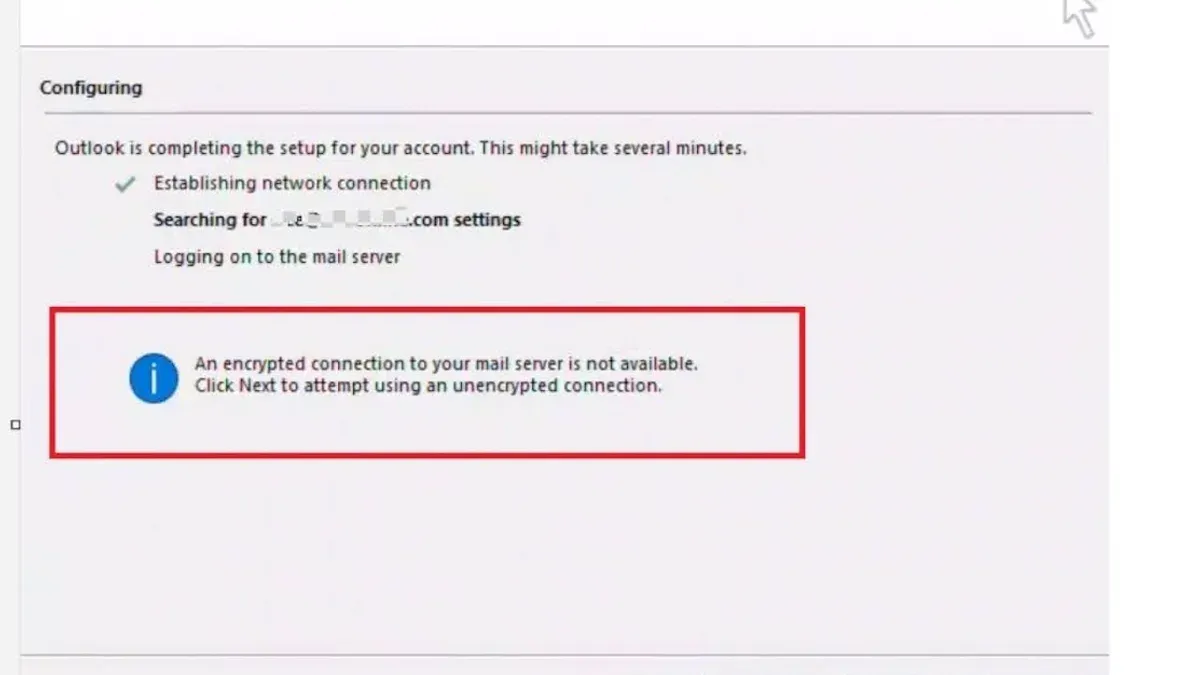
Fix incorrect password or authentication errors
If you see messages like "Incorrect password" or "Authentication failed," first double-check that you entered your Outlook password correctly, paying attention to uppercase letters and special characters. If you use two-factor authentication, ensure you've completed the verification step on your secondary device or app. Sometimes, removing and re-adding the account after verifying your credentials helps clear cached authentication data.
Resolve syncing delays or missing emails
Emails sometimes fail to sync promptly, causing delays or missing messages in your Mail app. Verify that your internet connection is stable and check Mail app settings under Mail > Accounts > Fetch New Data to confirm that Push is enabled for your Outlook account. If syncing remains slow, quitting and reopening the Mail app or restarting your device can refresh the connection.
Address 'cannot connect to server' errors
Errors such as "Cannot connect to server" typically indicate network issues or incorrect server settings. Ensure your device is online and that Mail app is allowed to use cellular data if Wi-Fi is unavailable. For manual setup, verify the incoming and outgoing mail server addresses: usually outlook.office365.com for IMAP and smtp.office365.com for SMTP.
Handle two-factor authentication problems
If two-factor authentication blocks your Mail app login, generate an app-specific password via your Microsoft account security settings and use it instead of your regular password. This step is crucial when the standard password won’t authenticate Mail app access.
Clear cached data or remove and re-add account when needed
If issues persist, removing your Outlook account from the Mail app and re-adding it can resolve corrupted cache or misconfigurations. To do this, go to Settings (or System Preferences) > Mail > Accounts, select your Outlook account, and choose Delete or Remove Account. Then add the account again following the setup prompts.
- Check your password and re-enter it carefully when prompted. Successful entry leads to your inbox loading without an error.
- Confirm two-factor authentication on your secondary device or generate an app-specific password if needed. The Mail app should authenticate and proceed to sync.
- Verify Push settings at Mail > Accounts > Fetch New Data and ensure they are enabled. Emails should begin to sync promptly.
- Restart your device and reopen Mail app to refresh connections. Mail should display updated emails without delay.
- If errors persist, remove your Outlook account from Mail app and add it again. After re-adding, the account should function normally with no connection errors.
Tips to optimize Outlook email experience in Mail app
After successfully adding your Outlook account to the Mail app, you can enhance your email management with a few straightforward adjustments. Setting up notifications for important emails helps you stay on top of urgent messages without constant checking. You can customize alerts by going to Settings > Notifications > Mail on your iPhone or Mail > Preferences > Rules on your Mac to highlight emails from specific contacts or with particular subjects.
Organizing your inbox is easier with Mail app’s features like folders and flags. Create folders for different projects or senders, then drag and drop messages accordingly. Use flags to mark emails that need follow-up; flagged emails appear in a dedicated section, making them quick to find.
Managing syncing frequency is key to balancing timely updates with battery and data usage. On iPhone, navigate to Settings > Mail > Accounts > Fetch New Data, where you can select Push, Fetch at intervals (e.g., every 15 minutes), or Manual. Choosing Fetch every 30 minutes or Manual can conserve battery life, while Push ensures immediate delivery. On Mac, Mail fetches new messages automatically, but you can adjust the setting in Mail > Preferences > General under “Check for new messages.”
The Mail app’s search function is powerful for quickly locating Outlook emails. Use specific keywords, sender names, or date ranges to narrow results. You can also save frequently used searches as Smart Mailboxes for easier access.
Finally, keeping your Mail app and device updated ensures compatibility and performance improvements. Updates often include bug fixes and better syncing capabilities that can enhance your Outlook experience.
Frequently asked questions
How to add outlook account to mail app?
To add an Outlook account to the Mail app, open the Settings on your device, then go to Passwords & Accounts (or Mail > Accounts on Mac). Choose Add Account, select Microsoft Exchange or Outlook.com, and enter your email address and password. Follow the prompts to complete the setup, ensuring Mail syncing is enabled.
How to add email to outlook app?
Open the Outlook app and tap your profile icon or menu, then select Add Account. Enter your full email address, tap Continue, and input your password when prompted. Confirm permissions and syncing preferences to finish adding the email account.
How to add outlook account to apple mail?
On Apple Mail, navigate to Mail > Accounts > Add Account, then select Microsoft Exchange or Outlook.com. Enter your Outlook email credentials and allow the app to configure server settings automatically. Ensure Mail is enabled in the account settings to start receiving emails.
How to add outlook account in apple mail?
Go to the Mail app, open Preferences or Settings, and choose Accounts. Click or tap Add Account, pick Microsoft Exchange or Outlook.com, and input your Outlook email and password. Confirm the account details and enable Mail syncing to integrate your Outlook account.
How do i add an email account to my outlook app?
In the Outlook app, tap the profile icon or settings gear, then select Add Account. Enter your email address and password, then follow any additional on-screen instructions to complete the setup. Adjust sync settings if needed to manage how your emails are downloaded.
What This Guide Does Not Cover
This guide focuses exclusively on adding Outlook accounts to Apple’s native Mail app and provides a brief overview of adding accounts to the Outlook app itself. It does not cover configuring Outlook accounts on third-party email clients other than these two. If you are using a corporate or school Outlook account, be aware that additional security protocols like multi-factor authentication or specific server settings may be required. In such cases, consulting your IT department or support team is essential, as these configurations are beyond the scope of this article.
For your next step, open the Mail app on your Mac or iPhone and begin adding your Outlook account using the detailed steps provided earlier. Pay close attention to entering your full Outlook email address and password, and make sure to select the correct account type when prompted. This practice ensures your emails sync properly and gives you the best experience managing Outlook mail seamlessly within Apple’s Mail app.
See also: How to Fix Mail Not Syncing in Mail App: Step-by-Step Solutions · How to Add a Gmail Account in the Mail App: Step-by-Step Guide · How to Set Up Mail Rules in the Mail App: A Step-by-Step Guide



