How to Block Pop-Ups in Safari on macOS Ventura and Later
This guide shows how to block pop-ups in Safari on macOS Ventura and later, using built-in tools and trusted extensions for safer browsing.
Pop-ups are a common nuisance for Mac users browsing with Safari. This guide explains how to block pop-ups in Safari effectively, combining built-in tools with trusted third-party extensions and practical troubleshooting steps on macOS Ventura and later.
Understanding Pop-Ups and Why Blocking Them Matters in Safari
Pop-ups are browser windows or tabs that open automatically, often without user interaction. They appear in several forms:
- Advertising pop-ups: Typically unwanted ads that disrupt browsing.
- Phishing attempts: Malicious pop-ups designed to steal personal data.
- Legitimate alerts: Such as login prompts or payment confirmations.
Pop-ups can pose risks beyond annoyance. They may invade privacy by tracking behavior, deliver malware, or degrade user experience by cluttering the screen. Safari’s pop-up blocker is part of Apple’s broader privacy and security approach, aiming to minimize unsolicited interruptions and protect users from web-based threats.
Step-by-Step Guide to Using Safari’s Native Pop-Up Blocker in macOS Ventura and Later
Safari includes a native pop-up blocker enabled by default, but users can customize settings for better control.
- Open Safari and click Safari in the menu bar, then select Settings.
- Navigate to the Websites tab and select Pop-up Windows from the sidebar.
- At the bottom right, the global setting controls pop-up behavior. The default is usually Block and Notify, which blocks pop-ups but notifies you when one is blocked.
- Use the dropdown next to individual websites to allow or block pop-ups on a per-site basis. This is useful because some sites require pop-ups for legitimate functions like login or payment windows.
- Safari indicates blocked pop-ups with a small icon in the address bar. Clicking this icon lets you manage permissions for that site quickly.
Note that if you disable blocking globally, pop-ups will appear from all sites, increasing risk and annoyance. The granular site-specific controls help balance usability and security.
Enhancing Pop-Up Blocking with Trusted Third-Party Extensions
Safari’s native blocker handles most pop-ups, but third-party extensions can offer enhanced filtering and privacy features.
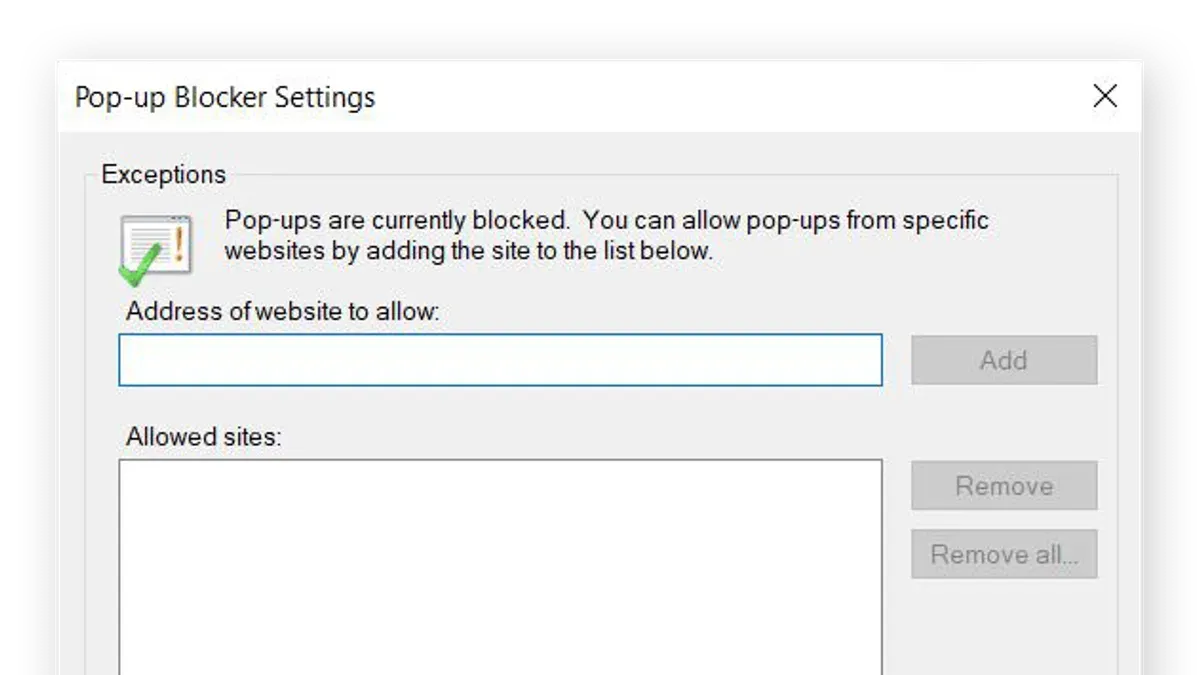
- AdGuard: Provides comprehensive ad and pop-up blocking with customizable filters.
- 1Blocker: Offers advanced blocking rules and performance optimization for Safari.
- Ghostery Lite: Focuses on tracking and pop-up prevention alongside privacy protection.
To install these extensions:
- Open the App Store on your Mac and search for the extension.
- Download and install the extension.
- Open Safari’s Settings > Extensions and enable the installed extension.
- Configure the extension's settings according to your preferences.
Extensions often provide more aggressive filtering and can block embedded pop-ups or scripts that the native blocker misses. However, they may increase resource usage or cause compatibility issues with some websites.
For example, enabling AdGuard’s advanced pop-up filters can reduce pop-ups further but might require occasional whitelisting of sites with legitimate pop-ups to avoid disruption.
Troubleshooting Pop-Up Blocking Issues in Safari
Pop-ups may bypass blocking despite settings being enabled. Common causes include:
- Whitelist settings allowing certain sites to show pop-ups.
- Pop-ups embedded within page content using scripts that evade basic blocking.
- Cached site data or cookies retaining permissions that permit pop-ups.
To address these issues:
- Check Safari’s Settings > Websites > Pop-up Windows and ensure no unintended sites are set to Allow.
- Clear Safari’s cache and cookies by going to Settings > Privacy & Security > Manage Website Data and removing data from problematic sites.
- Temporarily disable extensions to identify if any are causing conflicts.
- Keep Safari and macOS updated to the latest versions, as updates include security fixes that improve blocker performance.
Most persistent pop-ups should be prevented effectively after these steps.
When Blocking Pop-Ups Isn’t Enough: Additional Privacy and Security Measures
Pop-up blockers are a valuable tool but not a complete solution against all online threats.
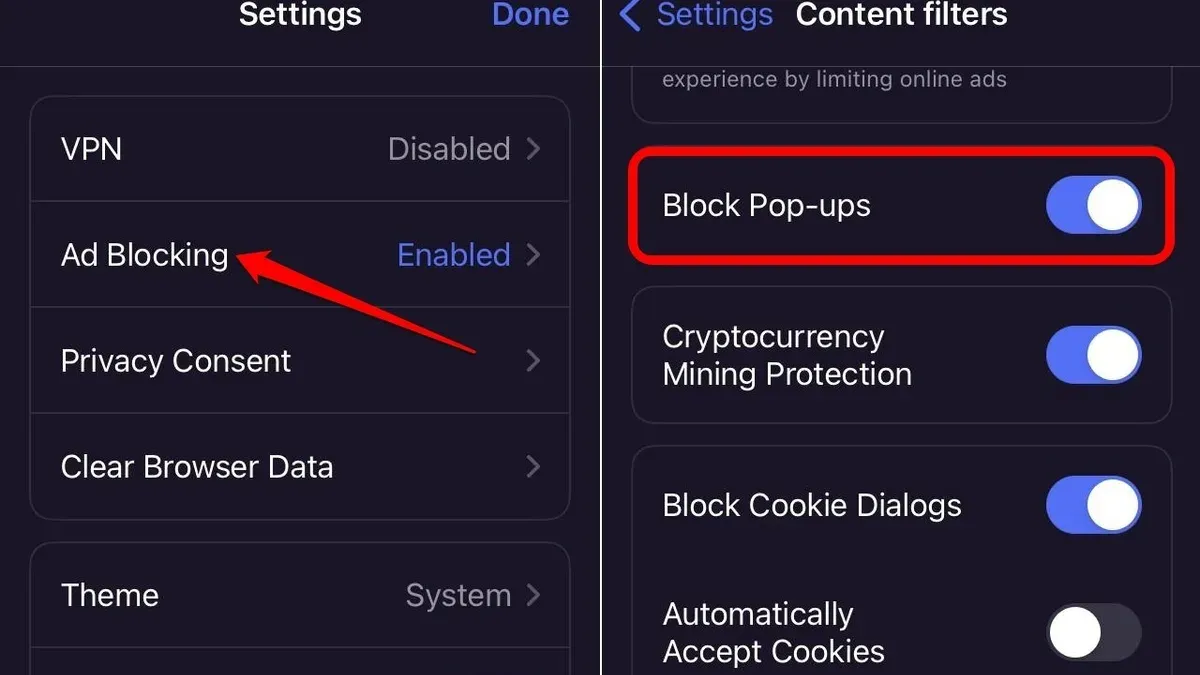
- Some sophisticated tracking scripts and phishing sites bypass blockers by using embedded content or social engineering.
- Content blockers complement pop-up blockers by filtering trackers and ads more broadly.
- Using a VPN can enhance privacy by masking your IP and encrypting traffic.
- Practicing safe browsing habits—such as avoiding suspicious links and verifying site legitimacy—is essential.
- If you encounter repeated or complex security issues, consulting a cybersecurity professional is advisable.
Combining these strategies offers a more comprehensive defense beyond blocking pop-ups alone.
Caveats and Limitations
This guide focuses on Safari’s pop-up blocking on macOS Ventura and later. Older macOS versions may present different interface options or lack some features described.
Blocking pop-ups does not guarantee full protection from all online threats or intrusive advertisements. It should be part of a broader security and privacy approach.
Some websites rely on pop-ups for legitimate functions such as login windows or payment processing. Blocking all pop-ups universally might disrupt your experience on those sites.
Frequently Asked Questions
Can I allow pop-ups only from trusted websites in Safari?
Yes. Safari lets you set site-specific permissions under Settings > Websites > Pop-up Windows, allowing pop-ups on trusted sites while blocking others.
Why do some pop-ups appear even when blocking is enabled?
Pop-ups may bypass blocking due to whitelist settings, embedded scripts, or cached permissions. Clearing cache and reviewing site settings can help.
Are third-party pop-up blockers safe to use with Safari?
Trusted extensions from reputable developers are generally safe and enhance blocking. Always install from the App Store and review permissions carefully.
How do I reset Safari’s pop-up blocker settings to default?
Go to Settings > Websites > Pop-up Windows and remove any site-specific permissions. Clearing website data and disabling extensions temporarily can also reset behavior.