
Fix Git Authentication Failed on Mac: Step-by-Step Solutions
Learn how to fix git authentication failed on Mac by clearing cached credentials and using personal access tokens for seamless GitHub operations.
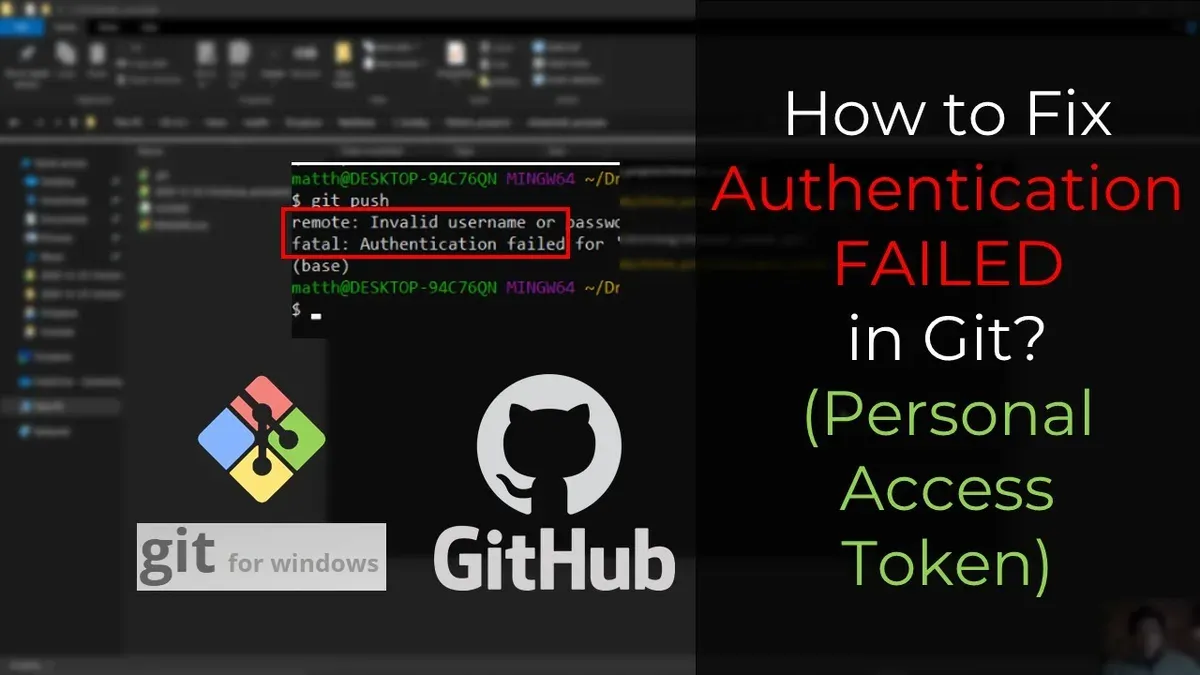
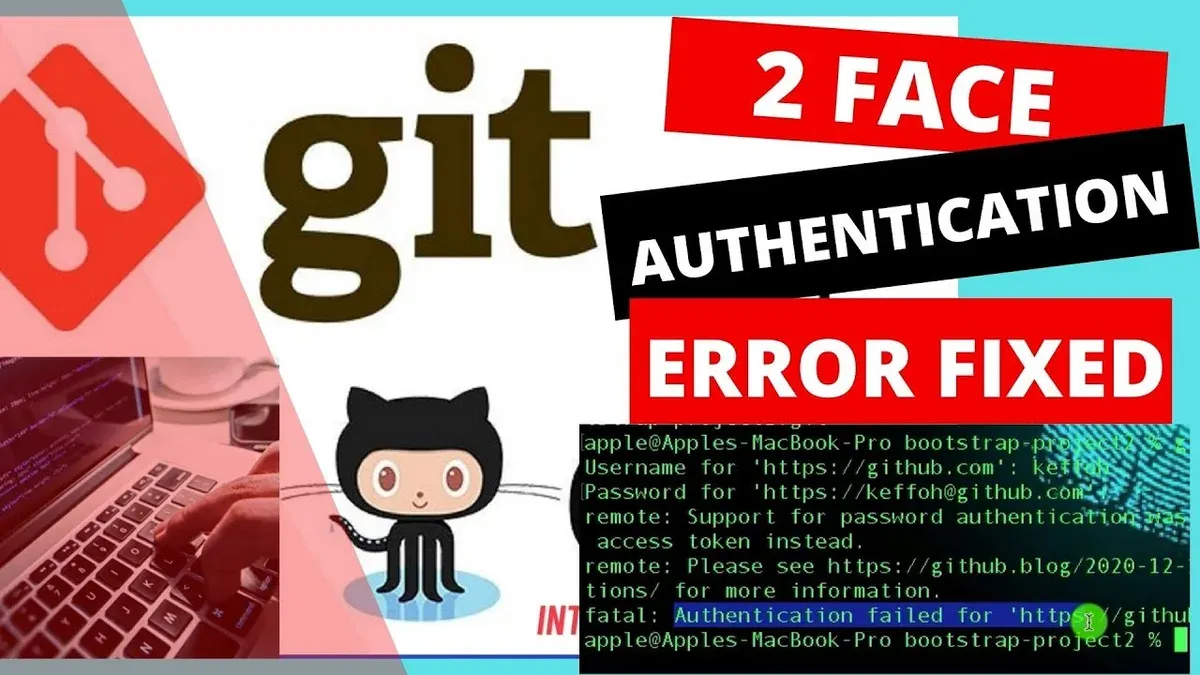
Since August 13, 2021, GitHub requires personal access tokens (PATs) for HTTPS operations, and attempting to use passwords leads to immediate rejection.
However, if cached credentials become stale or tokens expire silently, authentication errors persist even when correct tokens are provided.
SSH keys, especially those generated with ed25519 and integrated into the Apple keychain, offer a stable, password-free experience without silent expiration.
Last verified November 2026 against DevOpsLesson, GeeksforGeeks, Catzie.net Blog (full list at the end).
Clear Cached Credentials to Force Git to Prompt for New Authentication
Git on macOS relies on the osxkeychain credential helper to store HTTPS credentials securely. These credentials are cached and reused automatically for subsequent requests. However, if the cached credentials become invalid or expired, Git will continue to use them without prompting for new authentication. This causes persistent authentication failures that can be difficult to resolve without clearing the cache.
The key step to fix this is to erase the cached credentials related to GitHub. This forces Git to prompt for fresh authentication details, such as a new personal access token. The exact command to clear cached GitHub HTTPS credentials is:
git credential-osxkeychain erase protocol=https host=github.com
Running this command removes the stored credentials from the keychain associated with GitHub HTTPS operations. Afterward, Git will no longer retry failed cached credentials but will request updated authentication, often resolving errors quickly. Many persistent failures occur because this clearing step is skipped and Git repeatedly sends invalid cached credentials.
- Open Terminal on the Mac.
- Run
git credential-osxkeychain erase protocol=https host=github.com. This clears GitHub HTTPS credentials from the macOS keychain. - Perform the Git operation again (e.g.,
git pullorgit push). Git will now prompt for new authentication details.
Generate and Use a Personal Access Token (PAT) for HTTPS Git Authentication
Instead, a personal access token (PAT) must be used as the password replacement. This change especially affects users who have enabled two-factor authentication (2FA), as passwords cannot be used in that case.
Creating a PAT requires selecting the appropriate scopes to grant necessary permissions. For typical push and pull operations, the recommended scopes for fine-grained tokens are Contents: Read and write and Metadata: Read. These scopes allow Git to access repository contents and metadata securely without excessive permissions.
To generate a PAT on GitHub, navigate to Settings > Developer settings > Personal access tokens > Tokens (classic) > Generate new token. During creation, assign the correct scopes and set an expiration date. Fine-grained tokens expire silently, causing authentication failures if not renewed. Keeping track of token expiration and regenerating tokens before they expire prevents unexpected access issues.
When Git prompts for credentials over HTTPS, enter the username as usual but use the generated PAT as the password. This replacement ensures authentication succeeds under the updated GitHub security requirements.
- Go to GitHub's Personal access tokens generation page via Settings > Developer settings > Personal access tokens > Tokens (classic) > Generate new token.
- Select the scopes Contents: Read and write and Metadata: Read for push and pull operations, then generate the token.
- Copy the generated token securely and use it as the password when Git prompts during HTTPS operations. Renew or regenerate the token before it expires to avoid silent failures.
Set Up SSH Keys for a Stable, Password-Free Authentication Method
SSH keys provide a long-term, stable authentication method that does not expire, offering an alternative to personal access tokens. On macOS, generating an ed25519 SSH key ensures strong security and compatibility. Using ssh-keygen -t ed25519 -C "[email protected]" creates a key pair linked to the specified email, which helps identify the key.
After generating the key, the private part must be added to the SSH agent with the command ssh-add --apple-use-keychain ~/.ssh/id_ed25519. This stores the key securely in the macOS keychain, allowing seamless authentication without repeated password prompts. Next, the public key needs to be uploaded to GitHub under Settings → SSH and GPG keys to authorize the Mac for repository access.
Finally, switching the Git remote URL from HTTPS to SSH is essential. This is done with a command like git remote set-url origin [email protected]:username/repository.git. Failure to update the remote URL causes Git to continue attempting HTTPS authentication, resulting in persistent failures despite SSH key setup.
- Generate an SSH key with
ssh-keygen -t ed25519 -C "[email protected]". A file path prompt appears; accept the default or specify a location. This creates the key pair. - Add the private key to the SSH agent and store it in the macOS keychain by running
ssh-add --apple-use-keychain ~/.ssh/id_ed25519. Successful addition confirms the key is ready for use. - Copy the public key content from
~/.ssh/id_ed25519.puband add it to GitHub via Settings → SSH and GPG keys. A confirmation on GitHub shows the key is registered. - Switch the Git remote URL on the local repository to SSH by executing
git remote set-url origin [email protected]:username/repository.git, replacing username and repository accordingly. This change enables SSH-based authentication.
Use GitHub CLI or Git Credential Manager for Simplified Authentication Setup
GitHub CLI offers two commands that significantly streamline authentication on macOS: gh auth login and gh auth setup-git. Running gh auth login initiates an interactive login process where authentication credentials, including tokens, are securely configured. Following this, gh auth setup-git adjusts Git settings to use the authenticated credentials automatically, minimizing manual configuration and errors.
To securely manage Git credentials, Git Credential Manager (GCM) can be installed on macOS via Homebrew using the command brew install --cask git-credential-manager. GCM caches tokens safely within the system keychain, reducing repeated prompts for authentication. It supports multi-factor authentication and browser-based logins, handling token renewal transparently and preventing exposure of tokens in plain text.
Both GitHub CLI and GCM improve security and convenience compared to basic credential helpers. It is important to avoid using the store credential helper, which saves tokens unencrypted in plain text files. Instead, prefer these official tools that encrypt and manage credentials properly, protecting sensitive authentication information.
- Install Git Credential Manager by running
brew install --cask git-credential-manager. Success is confirmed when the installation completes without error. - Log into GitHub with the CLI by running
gh auth loginand follow the prompts until authentication is successful. - Configure Git to use the authenticated credentials by executing
gh auth setup-git. Git is then ready to authenticate automatically with GitHub.
Recognize and Avoid Common Git Authentication Mistakes on Mac
This happens because Git continues to send stored invalid credentials from the macOS keychain, causing persistent failures without prompting for new input. Clearing these cached credentials is essential to resolve this issue.
If the embedded username does not match the token or account being used, Git tries to authenticate as that incorrect user, which leads to failures. Ensuring the remote URL does not contain an outdated or incorrect username avoids this problem.
After setting up SSH keys, continuing to use HTTPS URLs for Git remotes results in repeated password prompts. This occurs because Git still attempts HTTPS authentication and ignores the SSH keys.
When 2FA is enabled, a personal access token must be used instead of a password.
Using the macOS keychain or dedicated credential managers protects tokens by encrypting and securely caching credentials.
- Clear cached Git credentials from the macOS keychain to force Git to prompt for new authentication. Success is indicated by Git asking for credentials again.
- Check and, if needed, update Git remote URLs to remove embedded usernames or switch from HTTPS to SSH after setting up SSH keys. Confirm the remote URL by running
git remote -v. - Use personal access tokens instead of passwords when 2FA is enabled or password authentication is deprecated. Entering a token should authenticate Git operations successfully.
Handle Edge Cases: Shared Devices, Lost Access, and Managed Accounts
When multiple users share a Mac, credential conflicts often cause Git authentication failures. Clearing the cached Git credentials from macOS Keychain Access prevents this issue. To do so, open Keychain Access, search for github.com, and delete the corresponding internet password entry. This forces Git to prompt for fresh authentication, avoiding stale or conflicting credentials.
If access tokens are lost or compromised, revoking them promptly limits unauthorized use. On the GitHub website, navigate to Settings → Developer settings → Personal access tokens to revoke existing tokens and generate new ones with appropriate scopes. This step ensures secure HTTPS Git authentication, especially when two-factor authentication is enabled.
Managed accounts may enforce restrictions on token scopes or SSH key usage. Coordination with organization administrators is necessary to comply with such policies and maintain access. In all cases, removing old SSH keys from both GitHub (Settings → SSH and GPG keys → New SSH key) and local machines prevents unauthorized access when devices are retired or access is revoked.
- Open macOS Keychain Access, search for github.com, and delete the internet password entry; this removes cached credentials.
- On GitHub, go to Settings → Developer settings → Personal access tokens, revoke lost or compromised tokens, and create new ones.
- Remove outdated SSH keys from GitHub via Settings → SSH and GPG keys and from local machines to secure revoked access.
Recognize and Avoid Common Git Authentication Mistakes on Mac
- Not clearing cached credentials before retrying authentication: macOS uses the
osxkeychainhelper to cache Git credentials. Attempting to fix authentication issues without first clearing this cache leads to repeated failures. Always clear cached credentials before entering new authentication details. - Continuing to use password authentication for HTTPS Git operations: Password authentication was deprecated in August 2021. Using a password instead of a Personal Access Token (PAT) causes authentication errors. Switch to a PAT to restore HTTPS Git functionality.
- Generating SSH keys without adding them to the Apple keychain: SSH keys created without the
ssh-add --apple-use-keychaincommand are not stored securely or persistently, causing repeated passphrase prompts or failed authentications. Always add SSH keys to the Apple keychain for seamless use. - Mixing authentication methods without understanding their configuration: Switching between HTTPS and SSH without properly updating Git remote URLs or clearing old credentials can cause conflicts. Ensure the remote URL matches the chosen authentication method and clear credentials accordingly.
- Ignoring token expiration or revocation: Personal Access Tokens can expire or be revoked, which causes sudden authentication failures. Regularly verify token validity and generate new tokens if required.
Essential Steps to Fix Git Authentication Failures on Mac
Confirming a successful fix involves attempting a Git operation that requires authentication, such as git fetch or git push. If the operation completes without prompting for credentials repeatedly or returning authentication errors, the issue is resolved. If authentication failures persist, revisit the credential cache clearing step to ensure old credentials are removed. Also, verify that the correct remote URL matches the chosen authentication method and that tokens or SSH keys are valid and properly configured. For continued problems, consult error messages closely, as they often indicate whether the issue relates to expired tokens, incorrect key usage, or cached credentials.
References
- fatal: Authentication failed for 'https://github.com/' — DevOpsLesson
- How To Fix “git authentication failed” Error? - GeeksforGeeks — GeeksforGeeks
- GitHub SSH Keys on Mac: Fix “Authentication Failed” — Catzie.net Blog
- Git "Authentication failed for https://github.com": passwords no longer work, use a token — OhSudo
See also: Fix 'zsh: command not found' on Mac: Step-by-Step Solutions · How to Fix a Corrupted exFAT Drive on Mac: Step-by-Step Solutions · Fix 'xcrun: invalid active developer path' Error on Mac Step-by-Step · How to Fix Python Command Not Found on Mac: Step-by-Step Guide


