How to Change Your Default Browser on a Mac: Step-by-Step Guide
Follow this step-by-step guide to change your default browser on a Mac and open links in your preferred browser seamlessly.
You want to open links in your preferred browser, but your Mac keeps launching Safari or another app instead. Changing the default browser can seem straightforward, yet different Mac models and macOS versions sometimes complicate the process.
This article explains how to change default browser on Mac with clear, step-by-step instructions. Whether you use a MacBook Air, MacBook Pro, Mac mini, or Mac Pro, and regardless of your macOS version, you’ll find practical guidance here. We also address switching to browsers like Microsoft Edge and common troubleshooting tips to help you avoid typical pitfalls.
Key takeaways
- Access System Settings or System Preferences to find the default web browser option.
- Steps vary slightly between MacBook Air, Pro, Mac mini, and Mac Pro but share core similarities.
- Changing default browser works similarly across macOS Monterey and newer versions with minor UI differences.
- You can set Microsoft Edge as default by selecting it explicitly in browser or system settings.
- Restarting your Mac or the browser app can resolve common update delays or glitches.
Before you start: What you need to change your default browser on Mac
Changing your default browser on a Mac requires a few preparations to ensure a smooth transition. First, confirm that the browser you want to set as default is already installed and updated to the latest version. Popular options include Safari, Google Chrome, Mozilla Firefox, and Microsoft Edge. Each has distinct advantages in terms of performance, privacy controls, features, and compatibility with websites and extensions.
Remember that the default browser setting impacts how all web links open across your system, including links from emails, documents, and some apps that display web content internally. This makes choosing the right browser important for your overall user experience.
It’s also essential to know your macOS version because the steps and interface to change the default browser can vary. For example, macOS versions starting around macOS Monterey introduced subtle changes in how default apps are managed. Knowing your version helps you navigate settings accurately.
Before making a switch, consider your reasons carefully—whether you prioritize speed, security and privacy, integration with other services, or compatibility with specific websites or extensions. Understanding these factors will help you choose a browser that best fits your needs.
- Check that the desired browser is installed and updated: Open the browser and verify its version under the browser’s “About” menu; you should see a recent version number if it is up to date.
- Identify your macOS version: Click the Apple menu and select “About This Mac”; your macOS version will be displayed prominently.
- Consider your primary reasons for switching: performance, privacy, features, or compatibility, as this will guide your choice effectively.
How to change default browser on MacBook Air
Changing the default browser on your MacBook Air depends on your macOS version, as the settings app name and layout differ. For macOS Ventura and later, you'll use System Settings, while earlier versions like Monterey still use System Preferences.
- Open System Settings (Ventura or newer) or System Preferences (Monterey or earlier) from the Apple menu or Dock.
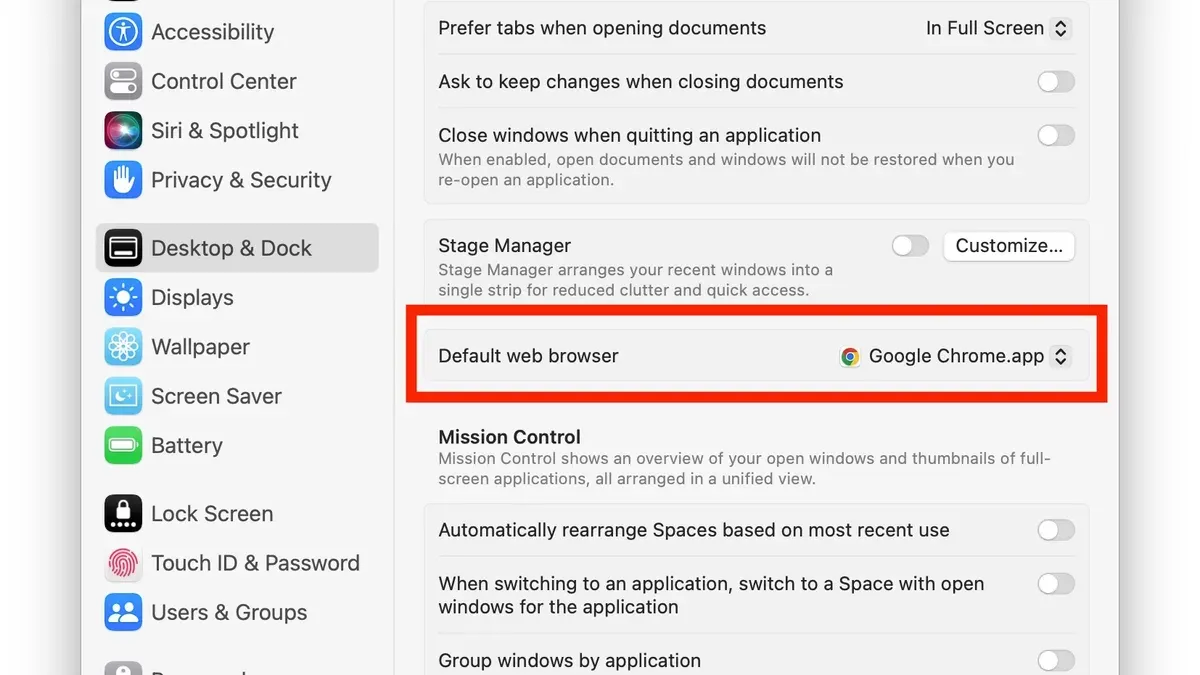
- In System Settings, select Desktop & Dock from the sidebar. In System Preferences, click General.
- Locate the Default web browser dropdown menu near the top of the pane.
- Click the dropdown and choose your preferred browser from the list. For example, select Microsoft Edge if switching from Safari.
- Close the settings window. Your choice saves automatically.
- Verify the change by clicking a web link in another app, such as Mail or Messages. The link should open in the browser you selected.
On a MacBook Air, regardless of model or screen size, this process is consistent. The main difference lies in the settings app name and layout, which depends on your macOS version. The Default web browser option is always found under Desktop & Dock in System Settings or General in System Preferences.
If you switch from Safari to Edge, you will notice Edge launching promptly when opening links externally. Make sure Edge is installed and updated to avoid unexpected errors.
How to change default browser on MacBook Pro
Changing your default browser on a MacBook Pro closely resembles the process on other Mac models but may vary slightly depending on your macOS version. You begin by opening System Settings (or System Preferences on older macOS versions).
- Click the Apple menu in the upper-left corner of your screen and select System Settings (or System Preferences).
- In System Settings, scroll down the sidebar and select Desktop & Dock. In System Preferences, look for General.
- Locate the setting labeled Default web browser. This drop-down menu lists all installed browsers recognized by macOS.
- Click the current default browser (often Safari) and select your preferred browser from the list, such as Chrome, Firefox, or Microsoft Edge.
- Close System Settings or System Preferences to save your choice automatically.
- Test the change by clicking a web link from an email or document outside any browser. The link should open in the browser you selected.
For example, if you change the default browser from Safari to Chrome, clicking a link in Mail will now open that page in Google Chrome instead of Safari. If the link still opens in Safari, revisit the settings to confirm the change or restart your MacBook Pro.
How to change default browser on Mac mini and Mac Pro
Changing the default browser on Mac mini and Mac Pro follows the same procedure, despite these being desktop models with different hardware profiles. The process is consistent across these Macs because it depends on macOS system settings, not the physical device.
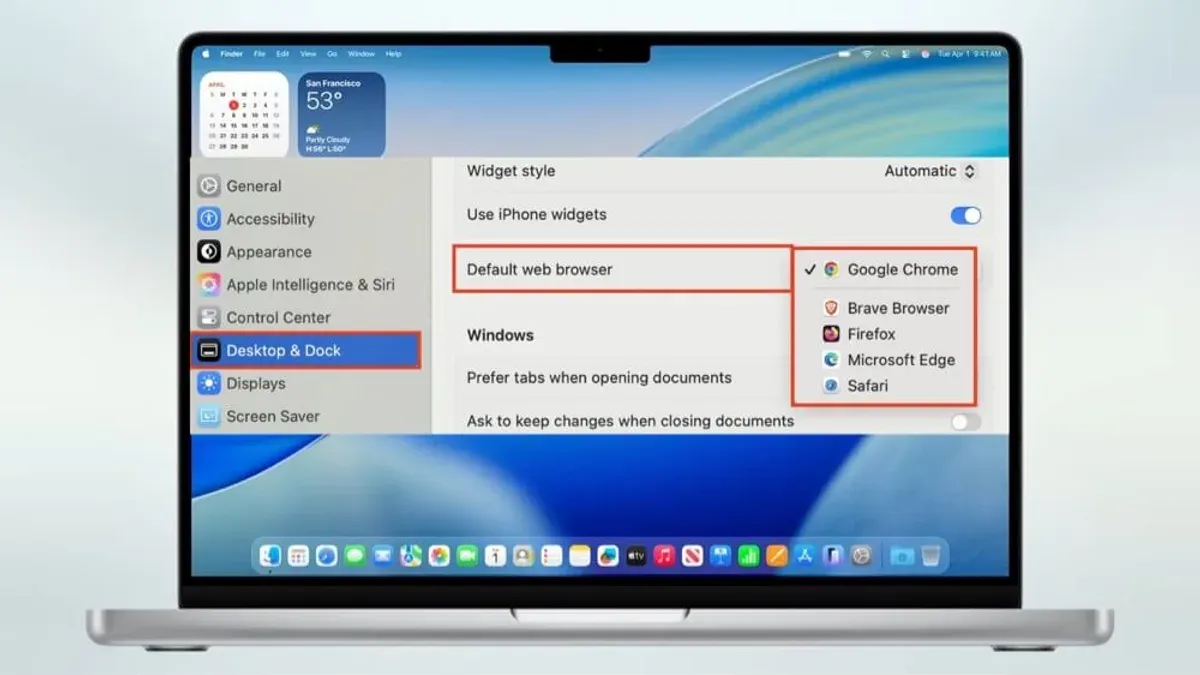
- Open System Settings (on macOS Ventura and later) or System Preferences (on earlier versions). You should see a window with various system options.
- Locate and select Desktop & Dock (on Ventura and newer) or General (on earlier macOS versions). This is where the default web browser setting is found.
- Find the Default web browser dropdown menu. Click it to reveal a list of installed browsers.
- Choose the browser you want to set as your default. Once selected, the setting will update immediately.
- Confirm the change by opening a web link from an app like Mail or Notes. The link should open in the browser you just set as default.
The steps are identical for both Mac mini and Mac Pro, so the hardware difference does not affect this setting. Below is a comparison table showing the steps side by side with example screenshots to illustrate the interface on each model.
| Step | Mac mini | Mac Pro |
|---|---|---|
| 1. Open System Settings/Preferences |  |  |
| 2. Select Desktop & Dock or General |  |  |
| 3. Choose Default web browser |  |  |
How to change default browser on macOS including Monterey and newer versions
macOS has shifted its interface for changing default apps, including browsers, from System Preferences to System Settings starting with Ventura. In Monterey and earlier, you use System Preferences; from Ventura onward, System Settings is the place to go. This change also brought a more streamlined UI but requires attention to new locations of settings.
- Open System Preferences if you are on macOS Monterey or earlier. You should see the familiar grid of icons.
- Click on General. Within this pane, locate the Default web browser dropdown near the bottom.
- Click the dropdown and select your preferred browser from the list. This immediately sets it as default; no extra confirmation is usually needed.
- If you are using macOS Ventura or newer, open System Settings instead. The interface now features a sidebar on the left.
- Scroll down the sidebar and select Desktop & Dock.
- In the right pane, scroll until you find Default web browser. Click it to reveal a list of installed browsers.
- Select the browser you want as default. The change applies instantly, and you can test by opening any web link.
- Note that some macOS updates introduced additional prompts when changing default browsers, especially if the browser requests permission to open links or control some features. Be sure to allow these when prompted to ensure smooth operation.
For example, on macOS Monterey, you find the default browser option under System Preferences > General. On Ventura, look under System Settings > Desktop & Dock. This shift reflects Apple's ongoing redesign towards a more iOS-like settings experience.
How to change default browser on Mac to Microsoft Edge
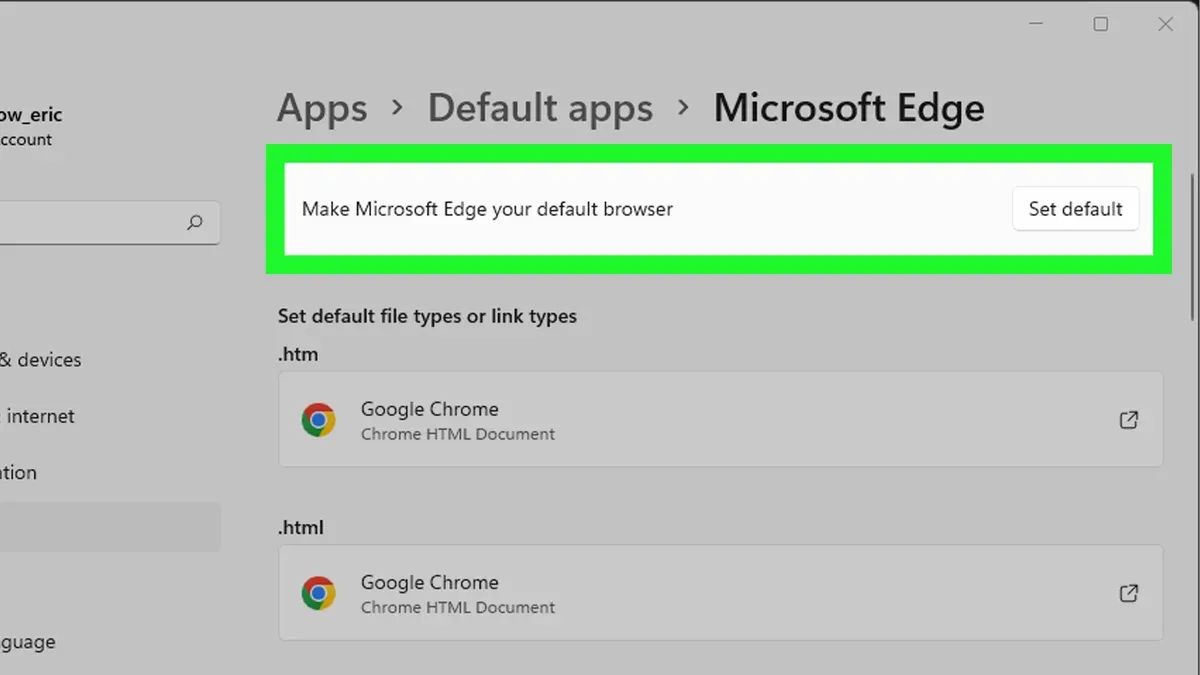
Before setting Microsoft Edge as your default browser, ensure you have downloaded it from Microsoft’s official website. Edge offers a built-in prompt that simplifies setting it as your default browser, but you can also adjust this via your Mac’s System Settings.
- Open Microsoft Edge on your Mac. You may see a prompt asking if you want to make Edge your default browser. Click Set as default to confirm. This prompt appears automatically when Edge detects it is not the default.
- If you do not see the prompt, open System Settings (or System Preferences on older macOS versions).
- Navigate to Desktop & Dock (or General on older macOS versions) and locate the Default web browser dropdown.
- Select Microsoft Edge from the list. You should immediately see Edge appear as the default when opening web links.
- If Microsoft Edge does not appear in the list, ensure it is fully installed and updated. Try restarting your Mac to refresh the list of available browsers.
Microsoft Edge includes settings such as privacy controls and permissions that can influence how it behaves as your default browser. Review these in Edge’s Settings > Privacy, search, and services to tailor your browsing experience.
While Edge's adoption on Mac is growing steadily, some users might encounter issues with the default browser list not updating promptly. Restarting your Mac or reinstalling Edge often resolves these issues.
Troubleshooting common issues when changing your default browser on Mac
Sometimes, the option to change your default browser may be missing or greyed out. This can happen if your macOS system has restrictions or if the browser is not properly installed. Check that the browser is fully installed and updated. Also, verify that your user account has the necessary permissions to make system changes.
If changes revert back to Safari or do not save, it often relates to macOS security settings or conflicts with system processes. Restart your Mac after changing the setting to ensure it takes effect. Avoid third-party utilities that override default browser settings as they can cause conflicts.
In cases where links continue to open in the previous browser, even after setting a new default, clearing browser cache or resetting the default browser setting can help. Some apps might have embedded browser preferences—check their settings.
To resolve these issues, follow these steps:
- Open System Settings (Ventura and newer) or System Preferences (Monterey and earlier) and navigate to Desktop & Dock > Default web browser or General > Default web browser. You should see a list of installed browsers.
- If the list is empty or disabled, quit System Settings/Preferences and restart your Mac, then check again.
- If changes still don't save, go to System Settings > Privacy & Security > Full Disk Access and ensure the browser or System Settings app has appropriate permissions.
- Open the preferred browser, and if prompted, confirm setting it as the default browser.
- Test by clicking a web link in Mail or Messages; it should open in the newly selected browser.
macOS includes security features that may restrict changing defaults for managed or limited accounts, so ensure you are logged in with administrator privileges. If problems persist, reinstalling the browser or updating macOS might resolve deeper conflicts.
- How to Change Your AirDrop Name on Mac: A Clear Step-by-Step Guide
- How to Customize Control Center on Mac: A Complete Step-by-Step Guide
- How to Set Up Touch ID on Your Mac: A Step-by-Step Guide
Frequently asked questions
How to change default browser on MacBook Neo?
Since MacBook Neo models follow the same macOS interface as other Macs, you can change the default browser through System Settings. Open System Settings, go to the Desktop & Dock section, scroll to Default Web Browser, and select your preferred browser from the dropdown menu. If your browser isn’t listed, make sure it is installed and updated.
How to change default browser on Mac OS?
Changing the default browser on macOS is done via System Settings or System Preferences depending on your macOS version. Navigate to Desktop & Dock, find the Default Web Browser option, and choose the browser you want. Ensure the browser is installed and supports being set as default.
How to change default browser on Mac laptop?
On any Mac laptop, including MacBook Air and Pro, open System Settings and select Desktop & Dock. Scroll to Default Web Browser and pick the browser you want to use by default. This method works regardless of the specific Mac laptop model.
How do I switch my Mac’s default browser to Edge?
First, install Microsoft Edge if you haven’t already. Then open System Settings, go to Desktop & Dock, and click the Default Web Browser dropdown. Select Microsoft Edge from the list. If Edge isn’t appearing, check that it’s updated and fully installed.
What this advice does not cover
This guide does not cover changing default browsers on managed or corporate Macs where system preferences may be locked by administrators. If your Mac is part of an organization with device management policies, you might find some settings inaccessible or overridden. In those cases, contact your IT department for assistance.
Also, this article focuses on standard desktop browsers and does not address setting default browsers for specific file types or protocols beyond general web browsing.
Next step to take
After changing your default browser, test your choice by clicking a link in an email or document to confirm it opens as expected. If you encounter any issues, revisit System Settings under Desktop & Dock or General (depending on your macOS version) and verify that your preferred browser is selected. Keeping your browsers updated ensures compatibility and security when switching defaults.