How to Change Your Kick Password and Switch to Passkeys
This article guides you through changing your Kick password and switching to passkeys with easy, secure instructions.
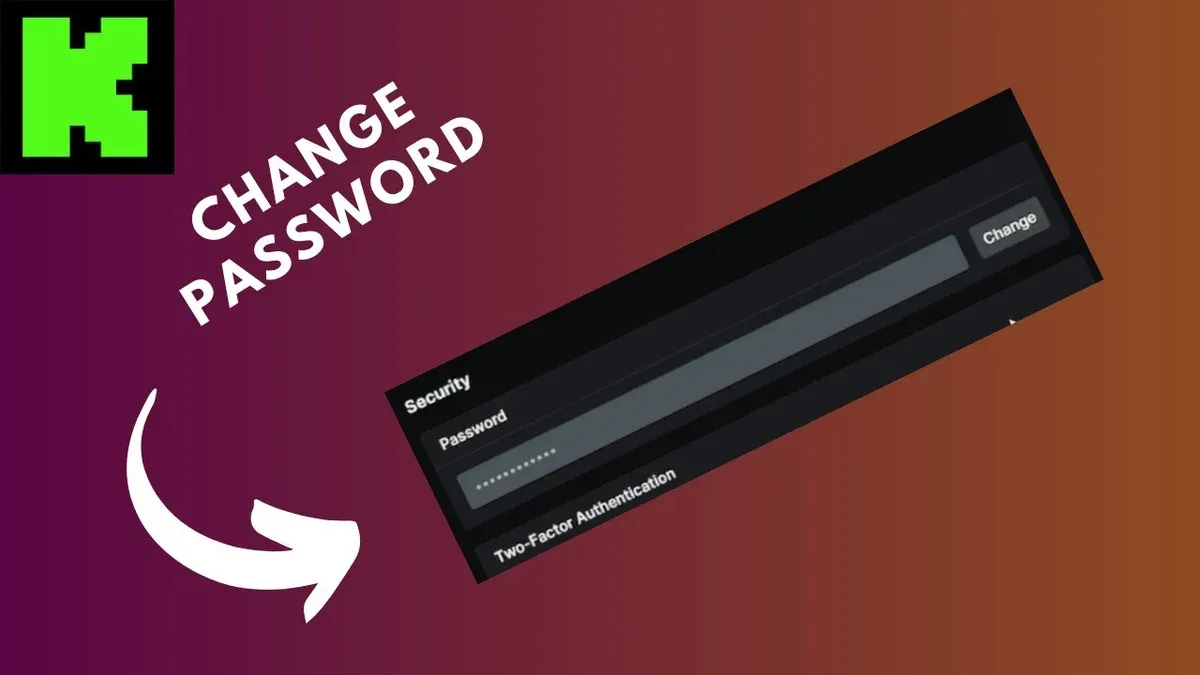
This article explains how to change Kick password and switch to passkeys, providing clear, step-by-step instructions for both processes.
To change a Kick password, access the Kick app or website, then navigate to Settings > Account > Password. Enter the current password, then type a new password that meets Kick's security criteria, typically at least eight characters with a mix of letters and numbers. Confirm the new password and save changes to update the account securely.
Switching to passkeys enhances security by replacing traditional passwords with device-based authentication. This article also covers how to enable passkeys on Kick, including the setup process and tips for managing device compatibility. Follow the outlined steps to transition smoothly between login methods without risking account access.
Before you start: What is needed to change your Kick password
Changing a Kick password or switching to passkeys requires preparation to ensure a smooth process. Access to current Kick account credentials, including the email or username and existing password, is mandatory. Without these, the platform will not permit changes.
A device with internet connectivity is necessary, whether a computer, smartphone, or tablet. The device should have a supported browser like Chrome, Firefox, Safari, or Edge, or the latest version of the Kick app installed. This ensures compatibility with Kick's settings interface and security features.
If opting to switch from passwords to passkeys, confirm the device supports passkey authentication. Compatible devices include recent Android phones, iPhones with iOS 16 or later, Windows 11 PCs, and Macs running macOS Ventura or newer. Security keys such as YubiKey that support FIDO2 standards can also be used.
Ensure the Kick account has an updated email address or phone number linked for verification during the change process. Kick typically sends a verification code via email or SMS to confirm identity. Having backup recovery options like two-factor authentication (2FA) enabled or recovery codes saved prevents lockouts if authentication fails.
- Verify access to the current Kick account credentials. Upon success, the user should be able to log into Kick without errors.
- Check that the device has internet access and a supported browser or Kick app. The Kick website or app should load correctly.
- If planning to use passkeys, confirm device compatibility by checking system settings or manufacturer documentation. Supported devices will allow passkey registration during account updates.
- Review and update the contact information linked to the Kick account under Settings > Account > Contact Info. Verification messages should be receivable.
- Ensure backup recovery methods like 2FA are active in Settings > Security. Confirmation of active 2FA or saved recovery codes should be visible.
Tip: Test logging into Kick before changing credentials to avoid unexpected lockouts during the update.
How to change the password on your Kick account
- Log in to the Kick account using the current username and password. Successful login typically directs to the user dashboard or home screen.
- Navigate to the top-right corner and click on the profile icon or avatar to access the dropdown menu. Select "Settings" from the options presented.
- Within Settings, locate and click on the "Security" tab. This section manages authentication and password options.
- Find the "Change Password" or "Update Password" option and click on it. A form requesting current and new password details should appear.
- Enter the current password in the designated field to verify identity. This step prevents unauthorized changes.
- Create a new password that meets Kick’s security criteria: at least 8 characters, including uppercase and lowercase letters, numbers, and symbols. Avoid common words or easily guessable sequences.
- Confirm the new password by typing it again in the confirmation field. The system will usually indicate if both entries match.
- Click the "Save" or "Update" button to apply the password change. A success message or confirmation screen typically follows.
- Check the registered email for a confirmation message from Kick. This email verifies the password change and can include recovery instructions if the change was unauthorized.
Tip: Use a password manager to generate and store complex passwords safely, reducing the risk of reuse or weak passwords.
How to switch from passwords to passkeys on Kick
Passkeys offer a more secure alternative to traditional passwords by using device-based cryptographic authentication instead of shared secrets. Unlike passwords, which can be guessed or leaked, passkeys rely on biometric data or hardware security keys, making unauthorized access far more difficult. Common devices supporting passkeys include smartphones with fingerprint or facial recognition, Windows Hello-compatible PCs, and USB security keys like YubiKey.

- Ensure the device used supports passkey authentication. Check for biometric capabilities such as fingerprint sensors or face recognition, or confirm compatibility with hardware security keys.
Successful step: Device biometric prompt or security key recognition is available. - Log in to the Kick account and navigate to Settings > Security > Passkeys.
Successful step: The passkey setup interface appears. - Select Register New Passkey. Follow the prompts to authenticate via the device’s biometric system or insert and activate a hardware security key.
Successful step: Confirmation message indicates the passkey is registered. - Optionally disable password login by toggling off the Password option under the same security settings.
Successful step: Password login is disabled, and only passkey login remains. - Log out and attempt to log back in using the passkey authentication method on the supported device.
Successful step: Login completes without password entry, using biometric or security key verification.
Tip: Keep password login enabled until passkey login is fully confirmed to avoid lockout.
What keys to press to change password on Kick quickly
Kick does not offer a universal keyboard shortcut that opens the password change page directly. Unlike some platforms that provide quick key combinations to access account security settings, Kick requires navigation through menus to ensure deliberate user actions and maintain security.
To speed up accessing the password change feature, users can utilize general keyboard shortcuts to open the settings or navigate faster within the app or web interface. For example, on the web, pressing Alt + S might open the settings menu if the browser or platform supports it, but this is not guaranteed by Kick itself. Bookmarking the password change URL in the browser or saving it as a quick-access link in the app can significantly reduce the steps needed.
On the Kick mobile app, using navigation gestures to reach the profile or settings section is generally faster than tapping through multiple menus. Users can also pin the security settings page or profile page for quicker access if the app supports shortcuts or widgets.
Security protocols require manual verification steps such as entering the current password or biometric confirmation before any password change is accepted. This prevents automated shortcut triggers and protects the account from unauthorized changes.
- Open the Kick app or website.
- If on the web, use browser bookmarks to open the password settings page directly. If on the app, navigate to the profile tab.
- Tap or click the settings gear icon to enter account settings.
- Select "Security" or "Password" from the menu.
- Follow on-screen prompts to verify identity and input the new password.
Tip: Save the direct URL to your Kick password change page as a bookmark or home screen shortcut for faster future access.
How to change my pattern password on Kick (if applicable)
Kick does not natively support pattern passwords as an authentication method within its app. Instead, Kick relies on traditional passwords, passkeys, and device-level security for account protection. Pattern locks are managed at the device operating system level, not through Kick itself.
If a pattern password is used, it is set on the device's lock screen rather than within Kick. To change a pattern password, the user must update it via their device settings.
Changing the device pattern lock
- Open the device's Settings app.
- Navigate to Security or Lock screen options, depending on the device model.
- Select Screen lock type or Lock screen password.
- Choose Pattern and follow prompts to draw and confirm a new pattern.
- Save changes. The device will now require the new pattern to unlock.
Tip: Use a unique, complex pattern to improve security and avoid easily guessable shapes.
Since Kick does not support pattern passwords within its app, users should rely on device security and Kick's supported authentication methods like passwords and passkeys for account protection.
How to switch your password to a passkey on Kick safely
Switching from a password to a passkey on Kick enhances account security but requires careful steps to avoid losing access. Backing up recovery options such as secondary email addresses or phone numbers is essential before starting. This ensures account recovery if passkey login encounters issues.
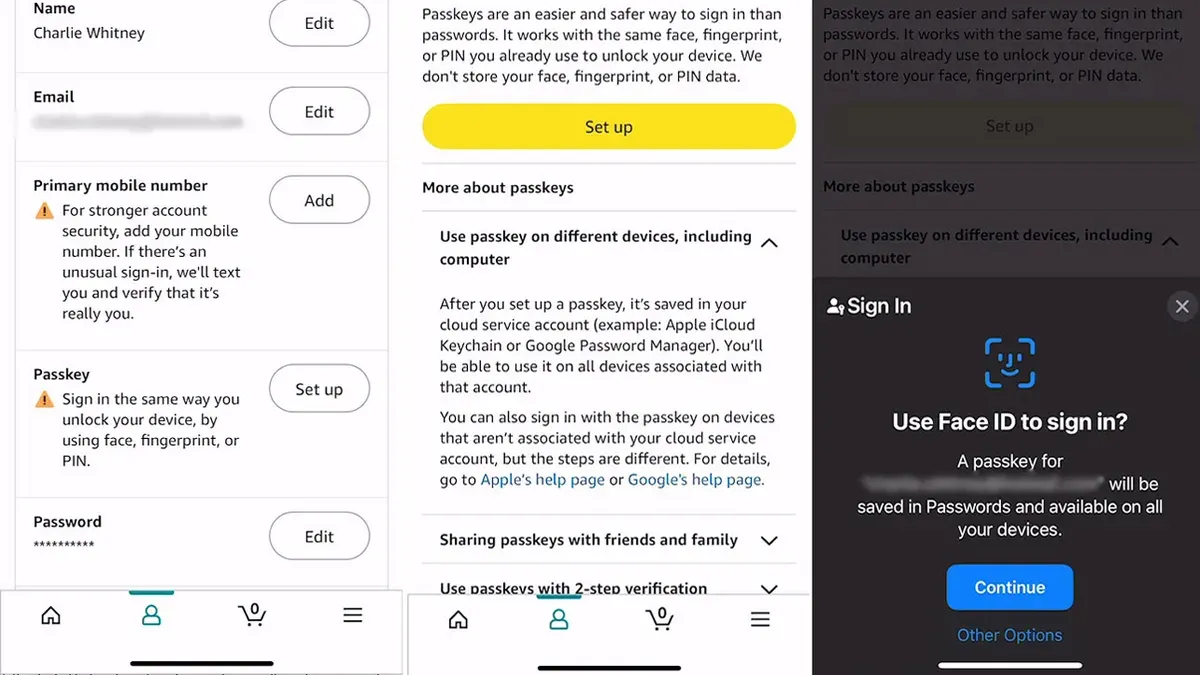
To register a passkey, navigate to Kick’s Security Settings and select “Add Passkey.” Use device biometrics or a security key to complete registration. Successful registration is confirmed when the new passkey appears in the authentication methods list. Keep the password login active until the passkey works reliably.
After confirming the passkey login functions on all devices used, disable password login by toggling off the “Password Login” option in Security Settings. This step prevents password-based access, reducing phishing risks. Maintaining up-to-date recovery methods during this transition safeguards against accidental lockouts.
If passkey login fails or some devices do not support it, temporarily revert to password login using backup credentials. Kick supports multiple authentication methods simultaneously, allowing a smooth fallback. Users can then troubleshoot device compatibility or update software to support passkeys fully.
Passkeys offer stronger security by eliminating risks of password reuse and phishing. While adoption grows steadily, some devices and browsers may not yet support them. Combining passkeys with reliable recovery options ensures a secure and seamless transition on Kick.
- Back up recovery options (email, phone) in Kick’s Account Settings; confirmation is visible in the recovery info section.
- Go to Security Settings > Add Passkey; follow prompts to register using biometrics or a security key; the new passkey appears in authentication methods.
- Test passkey login on all devices; successful login grants account access without password prompts.
- Disable password login by toggling off “Password Login” in Security Settings; the interface confirms the change.
- If passkey login fails, use password login with backup recovery to regain access and troubleshoot device support.
Troubleshooting common issues when changing Kick password or passkeys
Forgotten or rejected current passwords are common obstacles. If the current password is not accepted, select "Forgot Password" on the login screen to initiate a reset via email or SMS verification. Error messages like "Incorrect password" or "Password does not match records" indicate incorrect entries or outdated cached credentials; clearing browser cache or using a different device can help.
Verification emails or SMS may fail to arrive due to spam filtering, network delays, or incorrect contact information. Check spam or junk folders first. If no message appears within 10 minutes, confirm the registered email or phone number in Kick’s account recovery settings and request a resend. Using a stable internet connection improves delivery success.
Device incompatibility issues with passkeys arise when hardware or software does not support WebAuthn or FIDO2 standards. Ensure the device is updated to the latest OS version and uses a compatible browser like Chrome, Edge, or Safari. Older devices may require a security key accessory or alternative authentication methods.
If locked out after switching authentication methods, use the backup recovery options previously set up, such as recovery codes or secondary email access. Without backups, contact Kick support promptly through the in-app help center or official website. Support agents can verify identity and guide account recovery.
Tip: Keep recovery options updated and test passkey logins before disabling passwords to minimize risk.
Common error messages include "Verification code expired," "Passkey not recognized," and "Too many attempts. Try again later." These signal timeouts, device registration issues, or temporary lockouts. Patience and retrying after cooldown periods often resolve these.
Frequently asked questions
How to quickly change your password?
To quickly change a Kick password, log into the account and go to Settings > Security > Password. Enter the current password, then input and confirm the new password. Save the changes to update the password immediately.
How to change password keys?
Changing password keys on Kick involves updating the password itself rather than keys on a keyboard. If referring to keyboard shortcuts, Kick does not use specific keys to change passwords. Focus on navigating through the Security settings to update credentials.
How to change from password to passkey?
Switching from a password to a passkey requires enabling passkey authentication under Settings > Security > Passkeys. Follow the prompts to register a new passkey using a compatible device or biometric method. After setup, the account will use the passkey for sign-in instead of the password.
How to change password to passkey?
To change a password to a passkey, first set up a passkey in the Security settings. Then, disable password-only login if desired, ensuring passkey authentication is active. This transition enhances security by replacing password use with cryptographic passkeys.
How to change kick account password?
Changing a Kick account password is done via Settings > Security > Password. Enter the current password, then type and confirm a new strong password. Confirm the update to secure the account with the new password.
What this guide does not cover and who should seek other help
This guide does not cover account recovery processes for users who have lost access to their registered email or two-factor authentication devices. Those facing such issues should contact Kick support directly for specialized assistance. Additionally, this article does not address password management tools or advanced security configurations beyond the basic password and passkey options.
For the most straightforward next step, access your Kick account settings, navigate to the "Security" section, and review your current authentication method. Whether changing your password or switching to passkeys, confirming your current setup ensures the process proceeds without unexpected complications.
See also: How to Change Your GitHub Password Across Devices: Complete Steps · How to Change Your Fortnite Password: Device-Specific Steps and Security Tips · How to Change Your Google Drive Password: Step-by-Step Guide · How to Change Gmail Password Across Devices: Complete Step-by-Step Guide