How to Change Lemon8 Password: Clear Steps and Related Account Actions
This guide explains how to change your Lemon8 password and manage related account security tasks easily and effectively.
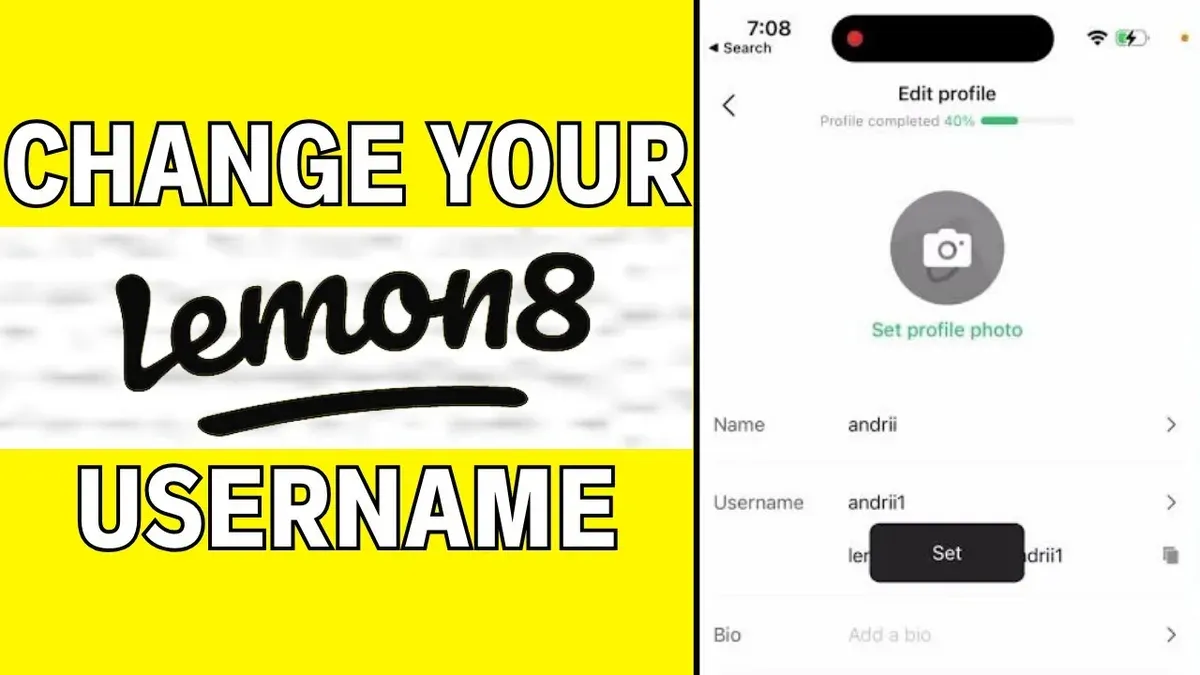
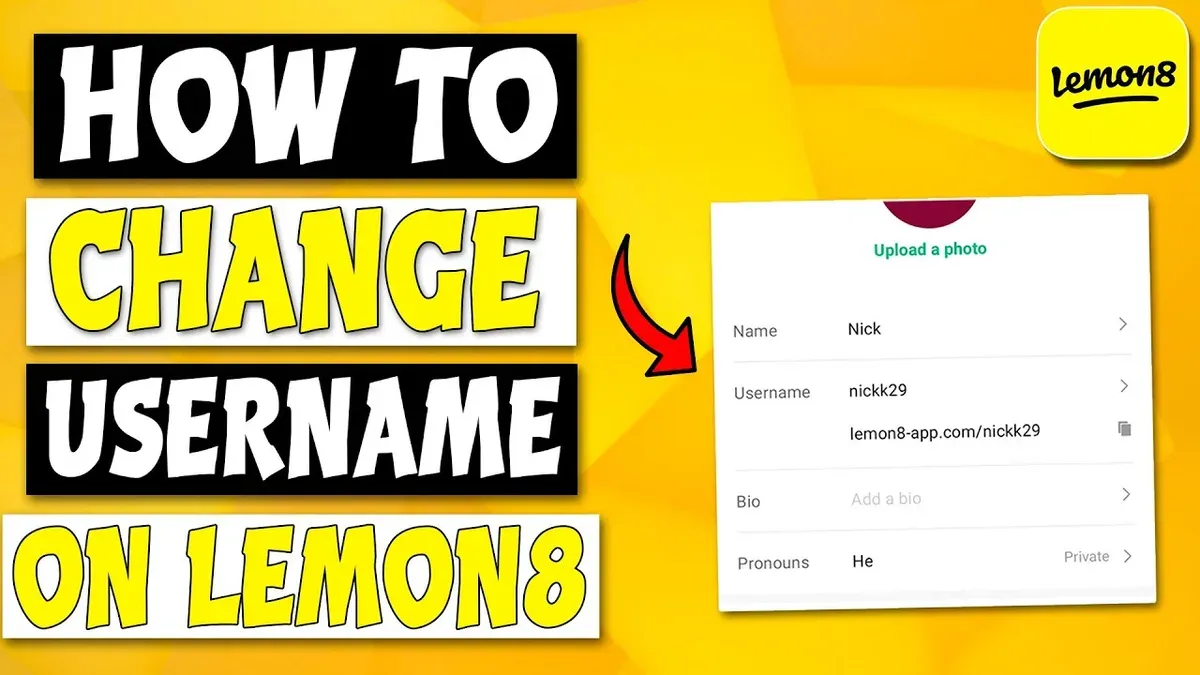
This article provides clear instructions on how to change Lemon8 password and manage related account security tasks effectively. Changing the password is a key step to protect personal data and maintain control over the account, but it is only part of the broader account management process. The guide covers not just password updates, but also how to delete or deactivate the Lemon8 account, access the platform from a PC without the app, and understand differences between system and app passwords.
Readers will find step-by-step directions for each task, including managing password-saving settings and device pattern locks that may affect login security. This comprehensive approach eliminates confusion around account security on Lemon8 by explaining relevant settings and procedures often overlooked in generic how-to guides.
Before you start: What is needed to change Lemon8 password
To change the Lemon8 password, access to the Lemon8 app or the web login portal is essential. The user must be able to log in using their current credentials, which typically include an email address or phone number and the associated password. A stable internet connection is required to ensure the process completes without interruption or errors.
Verification via the linked email or phone number is often necessary during the password change process. Lemon8’s official support documentation indicates that users may receive a verification code or link sent to their registered email or phone to confirm identity before allowing password updates.
Follow these steps to prepare:
- Open the Lemon8 app or go to the Lemon8 web login page. The login screen should appear.
- Enter the current email address or phone number and password. Successful login will lead to the user dashboard or home screen.
- Ensure access to the email inbox or phone used for the account, as a verification code might be sent. Accessing this promptly is necessary for verification.
- Confirm that the internet connection is stable by opening another website or app to test connectivity.
Tip: If two-factor authentication is enabled, have the authentication device or app ready, as it may be required during the password change.
How to change Lemon8 password step-by-step
- Open the Lemon8 app on a mobile device or visit the Lemon8 login page on a PC browser. The app’s home screen or the web login interface should appear.
- Access the account settings by tapping the profile icon in the bottom-right corner (app) or clicking the profile avatar in the top-right corner (web). A menu with account options will display.
- Select "Settings" from the menu, then navigate to "Security" or "Account Security." This section contains options related to password and login management.
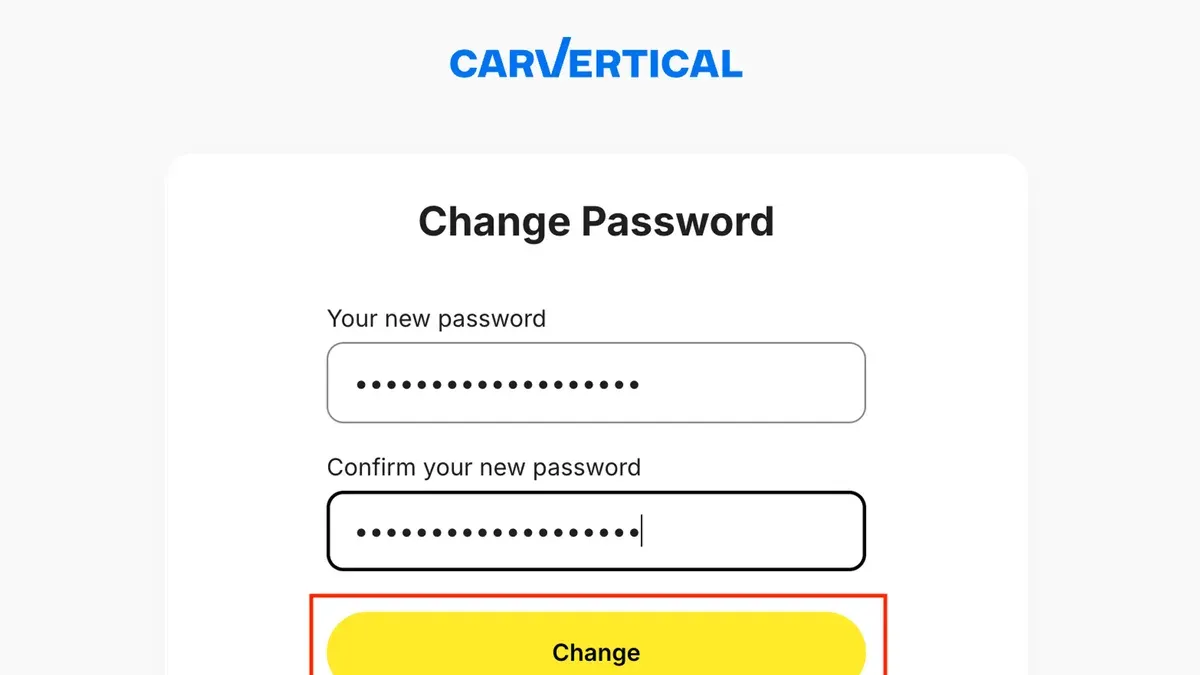
- Tap or click on "Change Password." The interface will prompt for the current password and new password fields.
- Enter the current password, then type the new password twice to confirm accuracy. The new password should meet Lemon8’s security criteria (usually a minimum length and character types).
- Complete any verification steps if prompted, such as entering a code sent via email or SMS. This step confirms the user’s identity for security purposes.
- Tap or click "Save" or "Confirm" to finalize the password change. A confirmation message should appear indicating the password update was successful.
Tip: If the verification code is not received promptly, check the spam folder or ensure the linked email/phone number is correct in account settings.
How to delete Lemon8 account or deactivate it
Lemon8 offers two distinct options for managing account status: deletion and deactivation. Deleting an account removes all user data permanently and cannot be reversed. Deactivation, if supported, temporarily disables the account, hiding the profile and content without erasing data, allowing reactivation later.
To delete a Lemon8 account, follow these steps:
- Open the Lemon8 app and tap the profile icon to access the account menu.
- Navigate to Settings & Privacy and select Account Management.
- Tap Delete Account. A screen will display the consequences of deletion, including permanent loss of posts, followers, and personal data.
- Confirm the request by entering the account password or verifying via linked email or phone.
- Submit the deletion request. A confirmation email will be sent, and the account will be deactivated immediately. Full deletion typically completes within 30 days, during which reactivation is not possible.
Currently, Lemon8 does not officially support account deactivation as a reversible option. Users seeking a temporary break must delete the account or simply stop using the app.
| Feature | Account Deletion | Account Deactivation |
|---|---|---|
| Data removal | Permanent | Not applicable (no official support) |
| Account visibility | Removed | Hidden |
| Reactivation | Not possible after deletion period | Possible if supported |
| Timeframe | Up to 30 days for complete removal | Varies |
Tip: Save any important content before requesting deletion, as recovery is impossible once the process completes.
How to get Lemon8 on PC and log in without the app
Lemon8 does not currently offer a dedicated desktop app for PC users. However, the platform can be accessed through a web browser, providing a straightforward way to manage the account without installing software. This method allows users to log in, browse content, and update some account settings, though certain features may remain mobile-app exclusive.
- Open a modern web browser such as Chrome, Firefox, or Edge on the PC.
- Navigate to the official Lemon8 web portal at www.lemon8.com. The homepage should load displaying the login option.
- Click the "Log in" button usually located in the top-right corner. Enter the Lemon8 account credentials to access the account dashboard.
- Once logged in, explore available features like profile editing and content browsing. Note that uploading or some interactive app features may be limited or unavailable.
For users seeking a full app experience on PC, Android emulators such as BlueStacks or NoxPlayer offer an alternative by running the mobile Lemon8 app within the emulator environment. This method requires downloading and installing the emulator, which may affect system performance depending on hardware.
- Download and install a reputable Android emulator like BlueStacks from its official website.
- Launch the emulator and sign in with a Google account to access the Google Play Store.
- Search for "Lemon8" in the Play Store within the emulator and install the app.
- Open Lemon8 in the emulator, then log in with the account credentials to use the app as on a mobile device.
Tip: Using the web portal is the quickest way to access Lemon8 on PC without installation, but for full app functionality, an Android emulator is required, with trade-offs in performance and resource use.
How to change system password and how it differs from Lemon8 password
A system password refers to the credentials required to access a device's operating system or user account, such as a Windows login password, macOS user password, or Android/iOS device passcode. This password controls access at the device or OS level and is distinct from the Lemon8 account password, which only grants access to the Lemon8 app or web services.
Changing the system password does not affect the Lemon8 password or login status because the two operate independently. The system password protects the device itself, while the Lemon8 password secures the user’s account within the app or web platform.
To change the system password on common devices:
- On Windows, open Settings > Accounts > Sign-in options > Password > Change. Follow prompts to enter the current password and set a new one. Successful change shows a confirmation message.
- On macOS, go to System Preferences > Users & Groups > select the user > Change Password. Enter the old password and create a new one. The account unlocks with the new password.
- On Android, navigate to Settings > Security > Screen lock > Password or PIN. Enter current credentials, then set the new lock method. The device locks and unlocks using the updated password.
- On iOS, open Settings > Face ID & Passcode (or Touch ID & Passcode) > Change Passcode. Input the old passcode, then enter a new one. The device confirms the update by requiring the new passcode on next unlock.
System passwords should be changed periodically for device security, especially if the device is shared, lost, or compromised. Strong, unique passwords reduce risks of unauthorized access to the device and all installed apps, including Lemon8.
App password managers within Lemon8 or other apps rely on the system password or biometric authentication to unlock stored credentials. This means a secure system password indirectly protects saved app passwords but does not replace the need for a strong, separate Lemon8 password.
Tip: Use a strong alphanumeric system password and enable biometric options for quick but secure device access.
How to change remember password settings for Lemon8
Lemon8 users can manage saved passwords and autofill options through both the app (if supported) and the device or browser settings. The app itself may offer an option to disable 'remember password' under account or security settings. Turning this off stops the app from automatically filling in login credentials but does not affect passwords saved in browsers or the operating system.
Managing saved passwords on mobile devices
On Android, go to Settings > Google > Manage your Google Account > Security > Password Manager. Here, saved Lemon8 passwords can be viewed, edited, or deleted. On iOS, navigate to Settings > Passwords > search for Lemon8. Deleting saved credentials here prevents autofill on login screens and requires manual re-entry, improving security especially after a password change.
Managing saved passwords in browsers
In browsers like Chrome, Firefox, or Edge, saved passwords are managed in settings under Privacy & Security > Passwords or Autofill. Search for Lemon8, then remove or update saved passwords as needed. Removing outdated passwords prevents automatic login errors and forces fresh credential entry, which is essential after changing the account password.
Tip: After changing the Lemon8 password, immediately update or clear saved passwords in browsers and device password managers to avoid login failures.
Disabling remember password features slows down login but enhances account security by requiring manual password entry. Users should balance convenience with security needs, especially on shared or public devices.
How to change my pattern password on devices and its relevance to Lemon8
Changing the pattern lock on an Android device enhances overall device security but does not affect the Lemon8 account password. The pattern lock restricts access to the entire device, preventing unauthorized users from opening any apps, including Lemon8. However, once inside the device, the Lemon8 app may still require its own password or login verification depending on its settings.
To change the pattern lock on most Android devices, follow these steps:
- Open the Settings app and navigate to Security or Lock screen & security.
- Select Screen lock type or Screen lock, then choose Pattern.
- Enter the current pattern to verify identity.
- Draw a new pattern and confirm it by drawing it again.
- Save the new pattern; the device will now require this pattern for unlocking.
Tip: Some devices offer biometric options such as fingerprint or face recognition alongside or instead of pattern locks for quicker access with strong security.
While the device lock protects the phone and all its contents, the Lemon8 password controls access to the app account itself, especially for external logins or password-protected features within the app. Users should update both their device pattern and Lemon8 password when concerned about overall account security, especially after device loss or suspicious activity.
Troubleshooting common issues when changing Lemon8 password
Forgot the current password? Use the "Forgot Password" link on the login screen to initiate a reset. Enter the registered email or phone number to receive a verification code. If the code is not received within a few minutes, check spam folders or ensure the contact information is correct. Verification codes typically expire within 10 minutes; request a new one if expired.
If the password change fails due to security requirements, confirm the new password meets Lemon8’s criteria: usually at least 8 characters, including uppercase, lowercase, numbers, and symbols. Passwords that are too simple or repetitive will be rejected.
App crashes or settings not updating during the change may result from outdated app versions or poor network connectivity. Restart the device and update the app to the latest version. Clear app cache from Settings > Apps > Lemon8 > Storage if problems persist.
Accounts locked after multiple failed attempts require a cooldown period before retrying. If locked longer, contact Lemon8 support through the Help Center for account recovery. Support FAQs often recommend waiting 30 minutes and ensuring accurate input to avoid re-locking.
- Tap "Forgot Password" on the login page; a reset prompt appears.
- Enter the registered email or phone; receive a verification code.
- Input the code within 10 minutes; a confirmation screen should appear.
- Create a new password meeting security rules; a success message follows.
- Log in with the new password to confirm the update.
Tip: Keep contact information updated in account settings to avoid verification delays during password resets.
Frequently asked questions
How to deactivate lemon8 account?
To deactivate a Lemon8 account, open the app and go to Profile > Settings > Account Management. Select "Deactivate Account" and follow the prompts to temporarily disable the account without deleting data. Deactivation hides the profile and content until reactivated by logging back in.
How to download lemon8?
Lemon8 can be downloaded from official app stores such as the Apple App Store for iOS devices and the Google Play Store for Android devices. Search for "Lemon8" and install the app directly to ensure a secure and up-to-date version.
What is the lemon8 app?
Lemon8 is a social media app focused on content sharing, including photos, videos, and lifestyle posts. It offers a platform for users to create, discover, and engage with diverse content tailored to personal interests and trends.
Where can i download lemon 8?
The Lemon8 app is available for download on the Apple App Store and Google Play Store. Avoid third-party websites to prevent security risks and ensure the app functions correctly.
How to delete Lemon8 account permanently?
Permanent deletion of a Lemon8 account requires going to Profile > Settings > Account Management > Delete Account. Confirm the action by following the verification steps. This process removes all user data and content irreversibly, so it should be done only when certain.
What This Guide Does Not Cover
This guide does not cover password recovery if the registered email or phone number is inaccessible. In such cases, users must contact Lemon8 support directly for account recovery assistance. It also does not address advanced security measures like two-factor authentication setup or third-party app integrations.
Users facing account lockouts or suspicious activity that cannot be resolved through standard password changes should seek direct support from Lemon8 customer service. For managing device-level security beyond pattern or system passwords, consider device manufacturer resources or professional technical support.
Next Step: Secure the Account with a Strong Password
After changing the Lemon8 password, the most effective next step is to ensure the new password is strong and unique. Combine uppercase and lowercase letters, numbers, and symbols to enhance security. Avoid reusing passwords from other accounts to minimize risk. Regularly updating the password and reviewing connected devices in account settings will maintain ongoing protection.
See also: How to Change Your Kick Password and Switch to Passkeys · How to Change Your Google Drive Password: Step-by-Step Guide · How to Change Your GitHub Password Across Devices: Complete Steps · How to Change Your Fortnite Password: Device-Specific Steps and Security Tips