How to Change Microsoft Account Password: Step-by-Step Guide
This guide explains how to change your Microsoft account password on various devices with clear, secure instructions.
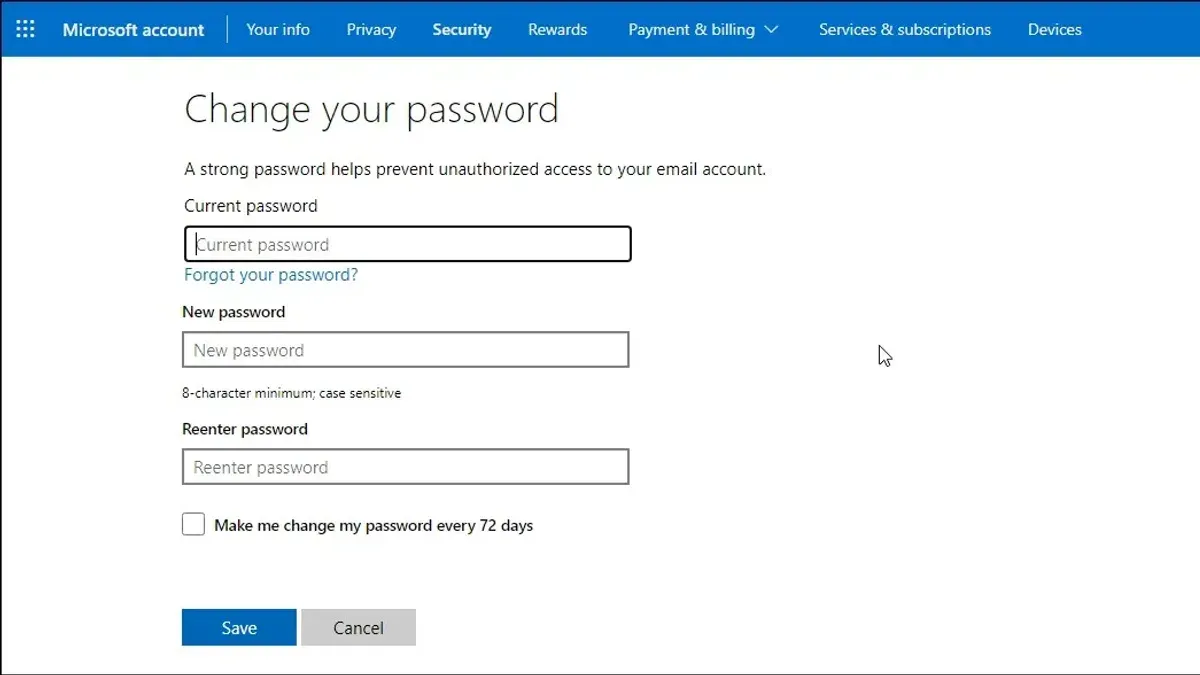
This article explains how to change Microsoft account password across different devices and platforms with clear, straightforward instructions. It covers scenarios including forgotten passwords, PC, mobile devices, Xbox, Minecraft, and Outlook. Steps are organized to eliminate confusion and ensure secure account management.
Changing a Microsoft account password involves accessing account settings via the Microsoft website or device-specific apps. When the password is forgotten, recovery options require verification through email, phone, or authenticator apps. For devices like Windows PCs or mobile phones, the process includes navigating to security settings and entering current credentials or security codes.
The guide also addresses troubleshooting common issues encountered during password changes and provides security tips to protect the account after updating the password. This ensures users can confidently manage their Microsoft account without risking access or privacy.
Before you start: What is needed to change a Microsoft account password
Changing a Microsoft account password requires certain prerequisites to ensure a smooth process. Access to the current Microsoft account credentials is essential; without them, account recovery options must be available. Devices used for the change—such as a PC, laptop, mobile phone, or Xbox—must be connected to the internet. Verification methods linked to the account should be enabled beforehand, including a phone number for SMS codes, an alternate email address, or the Microsoft Authenticator app.
These verification methods vary in effectiveness. Phone number verification typically provides immediate access through a text code, while alternate email addresses offer reliable backup but may introduce delays depending on email delivery. The Authenticator app offers strong security and instant code generation but requires prior setup. Knowing the intended location for the password change is important: this might be through the online Microsoft account management portal, device settings, or specific applications like Outlook or Minecraft, each of which may have slightly different interfaces.
Follow these steps to confirm readiness before changing the password:
- Verify current access to the Microsoft account by signing in on any device; successful sign-in confirms credential accuracy.
- Ensure at least one verification method is active by checking account security settings at account.microsoft.com/security; presence of a phone number, alternate email, or authenticator app indicates readiness.
- Confirm the device is connected to a stable internet network; open a browser and load a website to verify connectivity.
- Identify where the password change will occur—online portal, device-specific settings, or app—and familiarize with the interface to avoid confusion during the process.
Tip: If recovery options are outdated or missing, update them immediately to prevent lockout before attempting a password change.
How to change Microsoft account password if forgotten
- Go to the Microsoft password reset page at https://account.live.com/password/reset. The page will prompt to select a reason for the reset.
- Select "I forgot my password" and click "Next." A sign-in form appears asking for the Microsoft account email address, phone number, or Skype name.
- Enter the account identifier and complete the CAPTCHA challenge to prove not a robot. Click "Next."
- Choose a verification method to receive a security code: recovery email, SMS to a linked phone number, or authenticator app notification. Select the preferred option and click "Send code." A message confirms the code has been sent.
- Retrieve the security code from the selected method and enter it in the provided box on the reset page. Click "Next." If the code is incorrect or expired, request a new one.
- Create a new password following Microsoft’s complexity rules: at least 8 characters with a mix of uppercase, lowercase, numbers, and symbols. Enter the new password twice to confirm. Click "Next." A confirmation message indicates the password has been successfully changed.
- Sign in with the new password on all devices and update any saved credentials in apps or browsers to avoid access issues.
Tip: Use a password manager to generate and store complex passwords securely after resetting.
How to change Microsoft account password on PC and laptop
Using Windows 10 and Windows 11 account settings
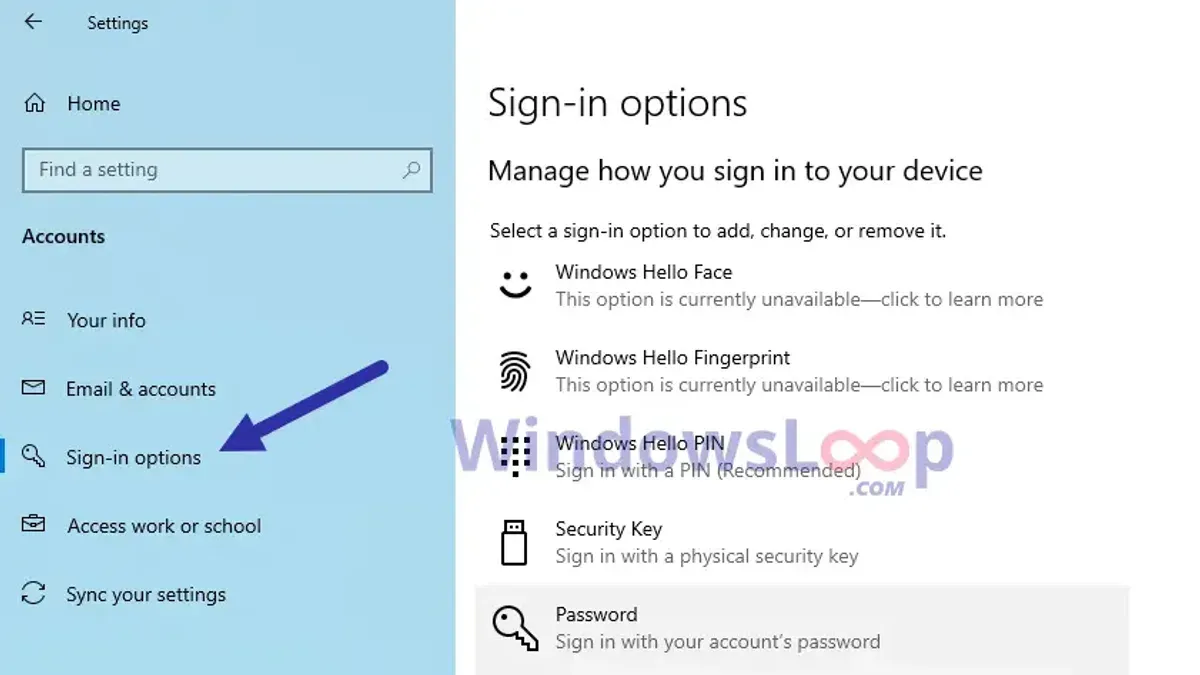
To change the Microsoft account password directly on a Windows PC, access the account settings through the system interface. On Windows 10, open Settings from the Start menu, then navigate to Accounts > Sign-in options. Under the Password section, select Change. Enter the current password when prompted, then create and confirm the new password. Windows 11 follows a similar path: open Settings, go to Accounts > Sign-in options, and under Password, click Change. The prompts are nearly identical, requiring the current password before setting a new one.
Tip: Ensure the new password meets Microsoft's complexity requirements to avoid errors.
Changing password via Microsoft account password change page
Alternatively, use the Microsoft account password change page online for a universal update across all devices. Visit account.microsoft.com/security, sign in with the current credentials, then select Password security > Change my password. Follow the on-screen instructions to verify identity and set the new password. This method updates the password across all linked devices and services.
Ensuring device sync after password change
After changing the password, devices may require re-authentication to sync properly. On PCs, signing out and back into the Microsoft account in the Settings > Accounts section can resolve access issues. For apps like Microsoft Store or OneDrive, manually signing out and signing back in ensures smooth synchronization. Failure to do this may cause login errors or delayed sync.
Screenshots from Windows 10 and Windows 11 illustrate the similar layout and steps in the account settings menus, confirming that users can follow the same process regardless of the version.
How to change Microsoft account password on mobile devices (iPhone and Android)
Changing the Microsoft account password on mobile devices can be done either through a mobile browser or Microsoft apps like Outlook and Authenticator. Both iPhone and Android users follow similar steps with slight interface differences. After updating the password, apps and devices using the account will require re-authentication to maintain sync and access.
Using a Mobile Browser
- Open the preferred mobile browser (Safari on iPhone, Chrome on Android) and navigate to https://account.microsoft.com/password.
- Sign in using the current Microsoft account credentials to reach the password change page.
- Enter the current password when prompted, then type the new password twice following the complexity requirements.
- Submit the change and wait for the confirmation message stating the password was updated successfully.
- Close the browser and open any Microsoft app to sign in again with the new password if prompted.
Using Microsoft Outlook or Microsoft Authenticator Apps
- Open the Microsoft Outlook or Authenticator app on the mobile device.
- Access the account settings: in Outlook, tap the profile icon, then “Manage Accounts” and select the Microsoft account; in Authenticator, tap the account and choose “Change password.”
- The app will redirect to the Microsoft account password change webpage inside the app browser.
- Follow the on-screen prompts to enter the current password and set a new strong password.
- After confirmation, the app will refresh and require signing in again with the new password to sync data.
Tip: When using the Authenticator app, ensure two-factor authentication is enabled to secure account access after password changes.
Both iOS and Android handle these flows similarly, but slight UI variations exist between apps and browsers. Prompt re-authentication across devices and apps is necessary to avoid service interruptions post-password change.
How to change Microsoft account password for Minecraft and Xbox
The Microsoft account password controls access to both Minecraft and Xbox services, so changing it secures all related gaming platforms at once. To update the password, use the Microsoft account portal where the password change affects all connected services immediately.
- Go to the Microsoft account sign-in page and enter the current credentials to access the account dashboard. Successful login confirms access to security settings.
- Navigate to the "Security" tab, then select "Password security." Enter the current password again for verification, then type and confirm the new password. A confirmation message will indicate the password change was successful.
- Sign out on all devices or use the "Sign out everywhere" option from the security settings to force re-authentication with the new password.
- On Xbox or Minecraft, sign in using the new password. If two-factor authentication (2FA) is enabled, complete the verification step using the preferred method, such as an authenticator app or SMS code. Successful sign-in confirms the password update is recognized across platforms.
Tip: Always verify that 2FA is active for added security, especially on gaming accounts prone to unauthorized access attempts.
Before the password change, users remain signed in with the old credentials but risk unauthorized access if the password is compromised. After updating the password and signing out, the old password no longer grants access, ensuring Minecraft and Xbox accounts are protected.
How to change Microsoft account password from Outlook
Changing the Microsoft account password directly from Outlook involves navigating to account management settings and proceeding to the Microsoft account security page. This process ensures that the password update applies across all Microsoft services linked to the account, including Outlook.
- Open Outlook on the web by signing into outlook.live.com or launch the Outlook desktop app. Confirm the account is signed in with the Microsoft account whose password needs changing. After signing in, locate and select the profile icon or initials in the top right corner of the Outlook interface. A dropdown menu should appear.
- From the dropdown, select My Account or View Account. This action redirects to the Microsoft account management webpage, where security and personal settings can be managed.
- On the Microsoft account page, navigate to the Security tab found in the top menu. Click on Password security or Change password within this section. Microsoft will prompt for identity verification using existing credentials or multi-factor authentication.
- After successful verification, enter the current password once, then the new password twice to confirm. Follow Microsoft’s password strength guidelines. Submit the change; a confirmation message should appear indicating the password update was successful.
- Return to Outlook and sign out of the account. Sign back in using the new password to re-establish access and sync capabilities. Outlook may prompt to update saved credentials or app passwords if configured.
Tip: Keep the browser or app updated to avoid interface changes that could complicate accessing account settings.
Troubleshooting common issues when changing Microsoft account password
Verification codes sent during password changes may not arrive promptly or can expire quickly, causing delays. Check spam or junk folders and ensure the recovery email or phone number is current. If the code expires, request a new one immediately to avoid lockouts.
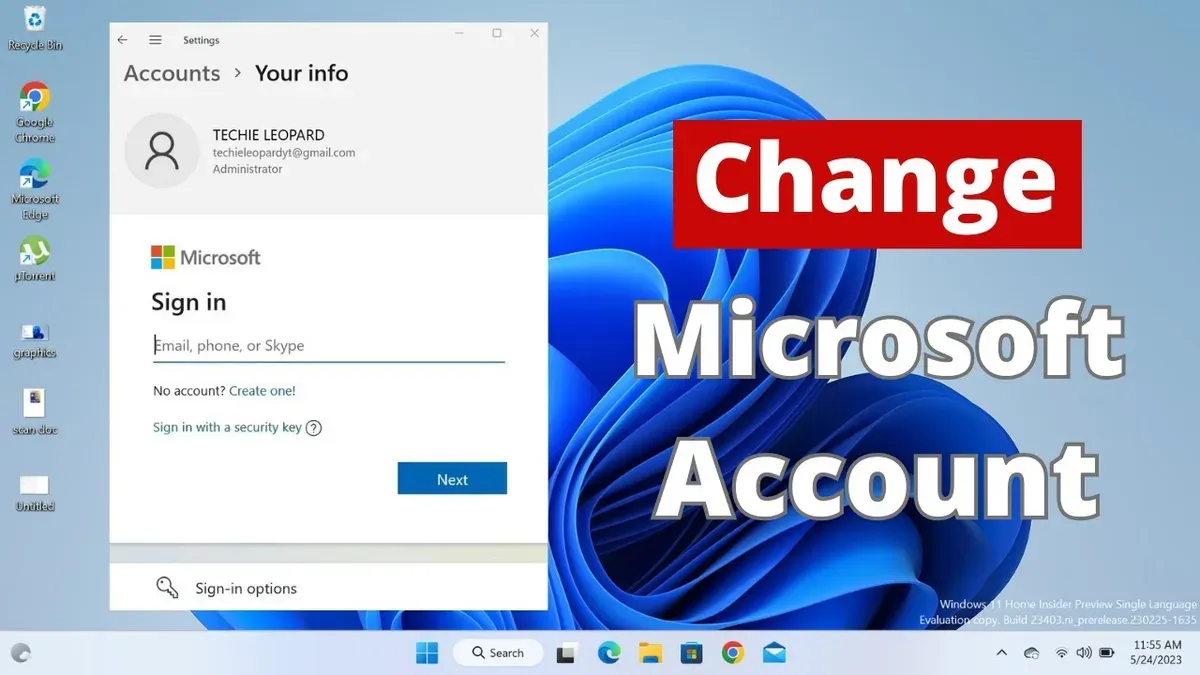
Password changes sometimes fail to sync across all devices, leading to repeated sign-in prompts. This usually occurs when devices are offline or have cached credentials. Signing out and back in or restarting the device typically resolves the issue.
Accounts may become locked after multiple unsuccessful password attempts as a security measure. To regain access, follow the provided instructions to verify identity or wait for the lockout period to expire, which can last up to several hours.
Password complexity errors happen when the new password doesn’t meet Microsoft’s requirements: at least eight characters, including uppercase, lowercase, numbers, and symbols. Avoid common or previously used passwords. Using a password manager can help generate compliant passwords.
Tip: Keep recovery information updated in the Microsoft account security settings to minimize verification issues.
Tips for maintaining Microsoft account security after password change
- Enable two-factor authentication (2FA): Navigate to Microsoft account security settings and turn on 2FA by linking a phone number or authenticator app. A prompt for a verification code should appear at login, confirming activation. This step significantly reduces unauthorized access risks.
- Regularly review account activity and recovery info: Access the "Recent activity" page in the Microsoft account dashboard to monitor sign-in attempts and verify authorized access. Update recovery email addresses and phone numbers under "Security info" to ensure the ability to regain account control if needed.
- Use password managers to create and store complex passwords: Generate unique, strong passwords using a reputable password manager and store them securely. This practice avoids reuse of passwords across services and simplifies managing credentials.
- Recognize phishing attempts targeting Microsoft accounts: Learn to identify suspicious emails or messages asking for login details or verification codes. Microsoft will never request a password via email or text. Avoid clicking on links in unsolicited messages to prevent credential theft.
Tip: Regularly updating security settings and staying alert to unusual account activity can prevent most common account breaches.
Frequently asked questions
How to change Microsoft account password if forgotten?
Visit the Microsoft account password reset page and select the "Forgot password" option. Enter the email address linked to the account, verify identity via phone or alternate email, and follow the prompts to create a new password. Ensure the new password meets Microsoft’s security criteria to complete the reset.
How to change Microsoft account password on phone?
Open a mobile browser and go to the Microsoft account security settings page. Sign in, navigate to the "Password security" section, and select "Change password." Enter the current password, then create and confirm a new one. Alternatively, use the Microsoft Authenticator app for password management.
How to change Microsoft account password on Xbox?
On the Xbox console, open Settings and select "Account." Choose "Sign-in, security & passkey," then select "Change my sign-in & security preferences." This redirects to Microsoft’s online security page where the password can be changed after verifying the current password. The new password will sync across Xbox and other Microsoft services.
How to change Microsoft account passwords across multiple devices?
Change the password once via the Microsoft account security page. After updating, sign out and sign back in on all devices using the new password to ensure synchronization. Devices that remain signed in may temporarily keep access but will eventually require the new password for security.
What this guide does not cover
This guide does not cover Microsoft account type changes such as converting from a local account to a Microsoft account or vice versa. Those processes involve different steps and considerations that require dedicated instructions. Users needing to switch account types should consult Microsoft's official support resources or specialized tutorials.
Additionally, this article does not address enterprise account password policies or administrative resets that IT departments manage. For corporate or school accounts, contacting the organization's IT support is recommended.
The most useful next step after changing a Microsoft account password is to verify that all connected devices and services recognize the new password. This includes signing out and back into apps like Outlook, Xbox, Minecraft, and mobile Microsoft apps to ensure uninterrupted access and to update saved credentials. Regularly reviewing account recovery options and enabling two-factor authentication strengthens long-term account security.
See also: Step-by-Step Guide to Changing a Google Account Password Safely · How to Change Gmail Password Across Devices: Complete Step-by-Step Guide · How to Change Your Google Drive Password: Step-by-Step Guide · How to Change Your GitHub Password Across Devices: Complete Steps