How to Change Your Skype and Sky Passwords: Clear Steps and Tips
This guide explains how to securely change your Skype password and manage Sky account passwords with clear, step-by-step instructions.
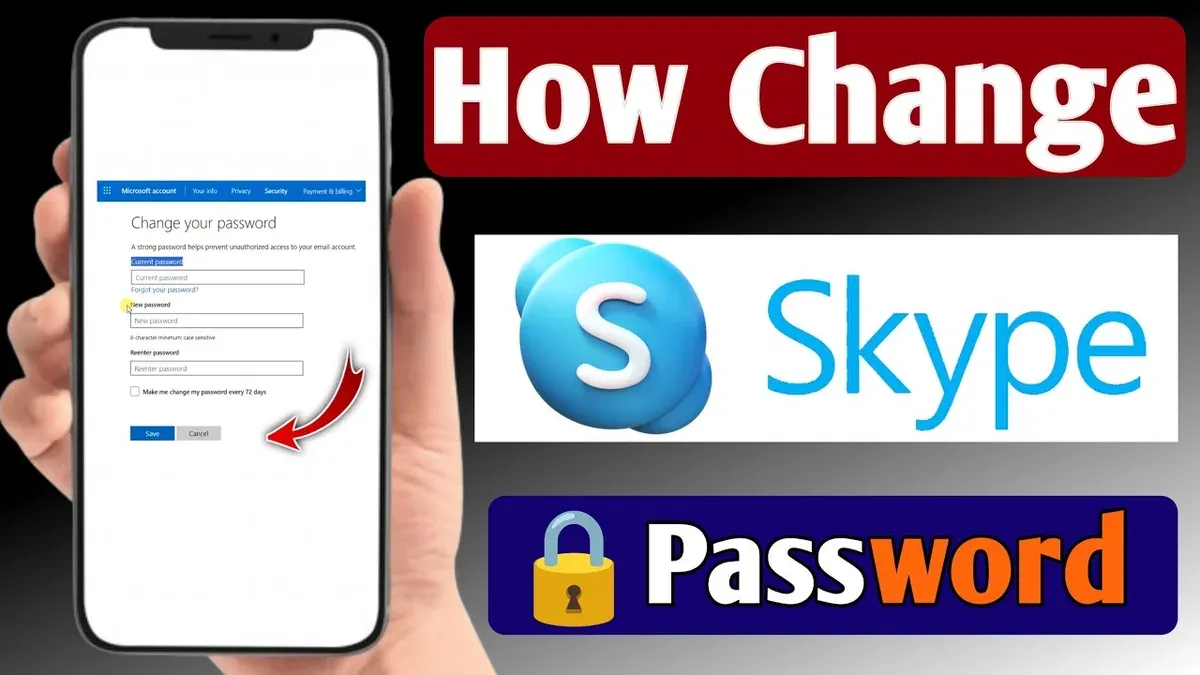
This article explains how to change Skype password securely and how to reset or update Sky account passwords. Skype login credentials are tied to Microsoft accounts, while Sky accounts have separate password management. Confusing the two can cause lockouts and access issues.
Understanding the difference between Microsoft account passwords used for Skype and Sky account passwords for email, internet, and apps is essential before making any changes. This guide covers step-by-step instructions for updating or resetting passwords for both services, highlighting common user mistakes and key settings.
Start by confirming which account password requires changing. The following sections clearly separate processes for Skype (Microsoft account) and Sky accounts, ensuring users can update their passwords confidently without losing access.
Before you start: What is needed to change Skype or Sky passwords
Changing passwords for Skype and Sky accounts requires clear identification of the account type and access to linked contact information. Skype sign-in uses the Microsoft account system, so the password change involves the Microsoft account credentials, not a separate Skype-specific password. A valid email address or phone number linked to the Microsoft account is essential for verification and recovery during the password change process.
Sky account passwords, which cover Sky email, internet, and app access, are different from Microsoft account passwords and must be changed through Sky's dedicated account management portal. Access to the current Sky login credentials is necessary to initiate any password change. Recovery options like a backup email or phone number linked to either account are critical to reset forgotten passwords successfully.
Many users confuse Skype and Sky passwords due to the similarity in names, but these passwords operate independently. Ensuring the correct account type is targeted before starting reduces lockout risks and streamlines the password change or reset process.
- Confirm the email or phone number linked to the Microsoft account used for Skype. Once confirmed, the Microsoft account profile page should be accessible.
- Verify access to the Sky account login credentials for email or internet services. Successful login to the Sky account dashboard indicates readiness.
- Check that recovery options like backup email addresses or phone numbers are current and accessible for both accounts. Updated recovery options allow smooth password resets if needed.
How to change Skype account password via Microsoft account settings
- Go to the official Microsoft account security page at https://account.microsoft.com/security. A sign-in screen appears.
- Enter the current Microsoft account email used for Skype and sign in with the existing password. Upon successful login, the Security page loads.
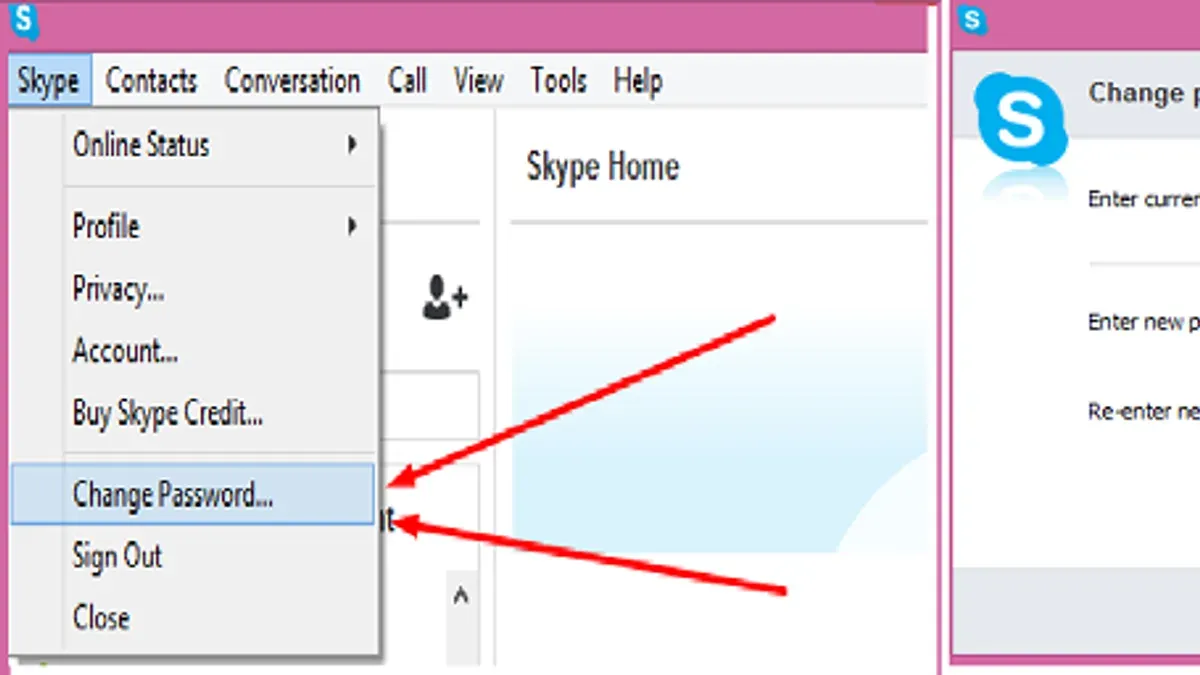
- Locate and click on the "Password security" or "Change password" option under the Security basics section. This opens the password update form.
- Enter the current password again for verification, then type a new password that meets Microsoft’s criteria: at least 8 characters, a mix of upper and lower case letters, numbers, and symbols. The interface usually shows a strength meter indicating password robustness.
- Confirm the new password by retyping it, then submit the change by clicking "Save" or "Submit." A confirmation message should appear, indicating the password was updated successfully.
- Sign out and sign in again on Skype and other Microsoft services to ensure the password change syncs across devices.
Tip: Use a unique password different from other accounts to enhance security and reduce risk from breaches elsewhere.
How to reset Skype password if the current password is forgotten
If the Skype password is forgotten, the reset process uses Microsoft’s account recovery system. Begin by navigating to the Microsoft password reset page at https://account.live.com/password/reset. Select "I forgot my password," then enter the Skype email address or phone number linked to the Microsoft account.
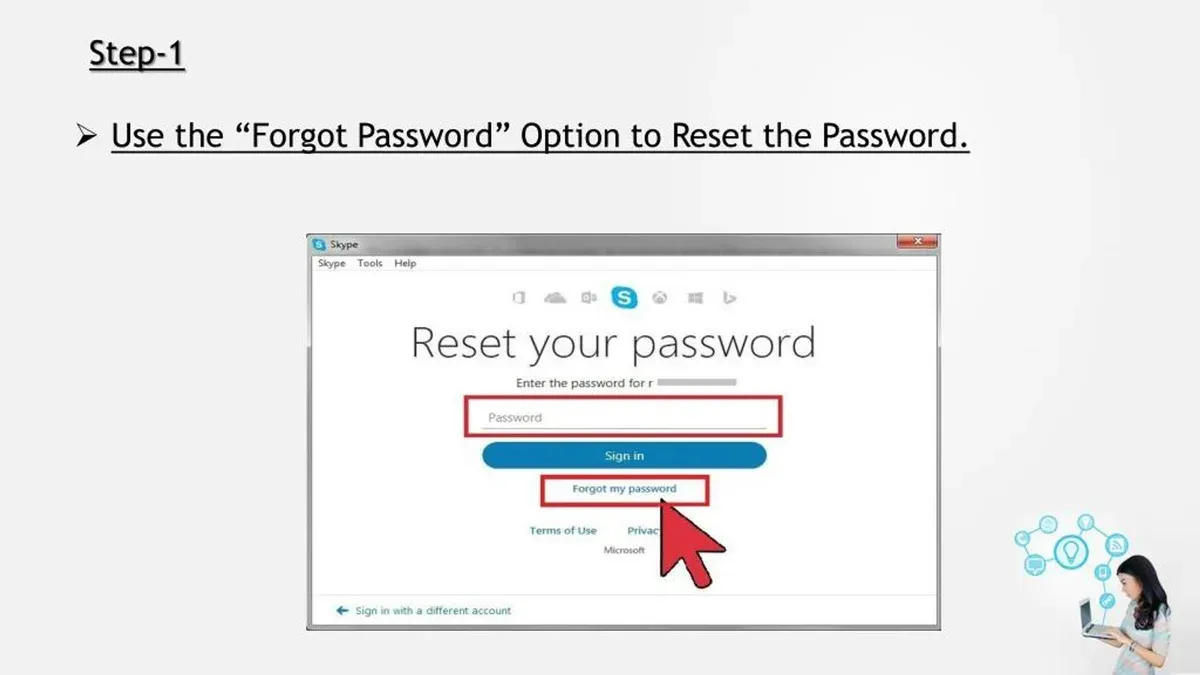
- Choose a verification method: recovery email, phone number, or authenticator app. After selecting, Microsoft sends a security code to the chosen option.
- Enter the received code on the reset page. If the code is accepted, the system will prompt to create a new password. The new password must meet Microsoft’s complexity requirements.
- Complete the reset by confirming the new password. A success message appears, and the Skype account can be accessed with the new password immediately.
If recovery options are outdated or inaccessible, users can select “I don’t have any of these” during verification to attempt identity recovery by providing alternative account details. This process is less reliable and may require multiple attempts. Common errors include entering incorrect recovery info or delays in receiving verification codes; double-check contact details and spam folders to avoid these issues.
Tip: Use an up-to-date recovery email and phone number to streamline the reset process and avoid lockouts.
How to change password on Sky account for email, internet, and app access
The Sky account password controls access to email, internet, and the Sky app, and is managed separately from Skype or Microsoft account credentials. Password changes can be done through the Sky website or the Sky app, with both interfaces offering similar steps but slightly different navigation paths.
- Log into the Sky account at sky.com or open the Sky app and sign in. The account dashboard should appear upon successful login.
- Navigate to My Account and then select Account Settings or Security, depending on the interface. This section manages password and security options.
- Choose the option to Change Password. For email and internet passwords, if they differ, separate fields will appear to update each.
- Enter the current password for verification, then input the new password twice. Sky typically requires passwords to be at least 8 characters, include a number, and a mix of upper and lower case letters.
- Save the changes. A confirmation message or email will indicate the password update was successful.
- After changing the password, log out and back into the Sky app or devices to ensure the new password is recognized and synced.
Tip: If the Sky app does not immediately accept the new password, closing and reopening the app or restarting the device can help refresh credentials.
How to sign into Skype with username and password, and what to do if the password is forgotten
Skype sign-in uses the Microsoft account system, meaning the username is the Microsoft email address, phone number, or Skype username linked to that account. The Skype Name, often seen in older accounts, is not the login credential; instead, the Microsoft account email or phone number is required for signing in. Entering the Skype Name without the associated Microsoft account credentials will cause sign-in failures.
Common error messages like “Incorrect password” or “This Microsoft account doesn’t exist” indicate issues with the entered credentials or the account itself. If the password is forgotten, use the Microsoft account recovery process to reset it. This involves verifying identity via recovery email, phone, or authenticator app.
For accounts with two-factor authentication enabled, after entering the correct username and password, a prompt for a security code will appear. This code can be received via SMS, email, or a Microsoft Authenticator app. Completing this step is mandatory for access.
- Go to the Skype sign-in page and enter the Microsoft account email or phone number. The page should proceed to the password entry field.
- Enter the password and select Sign In. Successful sign-in leads to the Skype home interface.
- If the password is forgotten, click on “Forgot my password” and follow the Microsoft recovery prompts. After verification, set a new password and return to sign in.
- If two-factor authentication is enabled, enter the received security code when prompted. Successful entry will finalize sign-in.
Troubleshooting common issues when changing Skype or Sky passwords
If the recovery email or phone number is no longer accessible, users should update recovery options as soon as possible via account settings, or prepare alternative verification methods like authenticator apps. Without valid recovery details, regaining access can be difficult and may require contacting support directly.
Account lockouts often occur after multiple failed password attempts, typically lasting from a few minutes up to 30 minutes. During lockout, avoid repeated tries to prevent extended blocks. If locked out, wait for the cooldown period before retrying or use password reset options.
Slow or unresponsive password change pages are usually caused by browser issues or server load. Clearing cache, disabling extensions, or switching browsers often resolves this. Trying again later can help if the problem is on the service side.
Contact Skype or Sky support when recovery options fail, account remains locked after cooldown, or suspicious activity is detected. Support response times vary but usually occur within a few hours to a couple of days. Provide all requested verification details promptly.
Security tips include verifying that password reset emails come from official Microsoft or Sky domains, avoiding clicking links in unsolicited messages, and enabling two-factor authentication to reduce risk of fraudulent resets.
Frequently asked questions
How to change sky email password?
To change the Sky email password, sign in to the Sky Webmail portal using the current credentials. Navigate to the Settings menu, then select Password or Security options. Follow the prompts to enter the current password and set a new one. Save changes to update the password immediately.
What is a microsoft account skype password?
A Microsoft account Skype password is the password associated with the Microsoft account used to sign into Skype. Skype login credentials are tied to Microsoft accounts, meaning the password is the same for both services. Changing this password affects access to all Microsoft services linked to that account.
How to change my sky password?
Changing a Sky password depends on the service: for Sky email, do so via the Webmail settings; for Sky internet, use the Sky account management portal. Log into the appropriate Sky account page, locate the password or security settings, and follow the steps to update the password. Confirm the change with the current password or verification as required.
How to change sky internet password?
Sky internet password changes occur through the Sky account management website, not through the router interface. After signing in, access the broadband or internet settings section, select password or security options, and proceed to change the password. This password controls access to the online account, not the Wi-Fi network password.
How do i change my sky password?
To change any Sky password, access the relevant Sky service portal: Sky Webmail for email passwords or the Sky account management site for internet and app passwords. After signing in, locate the password or security settings and follow the instructions to update the password securely. Verification of identity may be required to complete the change.
What this advice does not cover
This article does not cover advanced account recovery scenarios such as when recovery options like alternate email addresses or phone numbers are lost, or if the account has been hacked. Users facing these issues should contact Microsoft or Sky official support directly for specialized assistance. This guide also does not address password management tools or multi-factor authentication setup beyond basic password changes.
The most useful next step is to ensure recovery information is current. Verifying or updating alternate email addresses and phone numbers in Microsoft account settings and Sky account portals significantly reduces the risk of lockouts and simplifies password reset processes in the future.
See also: How to Change iCloud Password: Step-by-Step Guide for Every Device · How to Change Your GitHub Password Across Devices: Complete Steps · How to Recognize, Prevent, and Recover from a Fortnite Account Hack